Preparation
This document introduces how to configure event callbacks in the IDaaS Enterprise Center platform.
Prerequisites
Have administrator permissions for the IDaaS Enterprise Center platform.
Procedure
Create Application
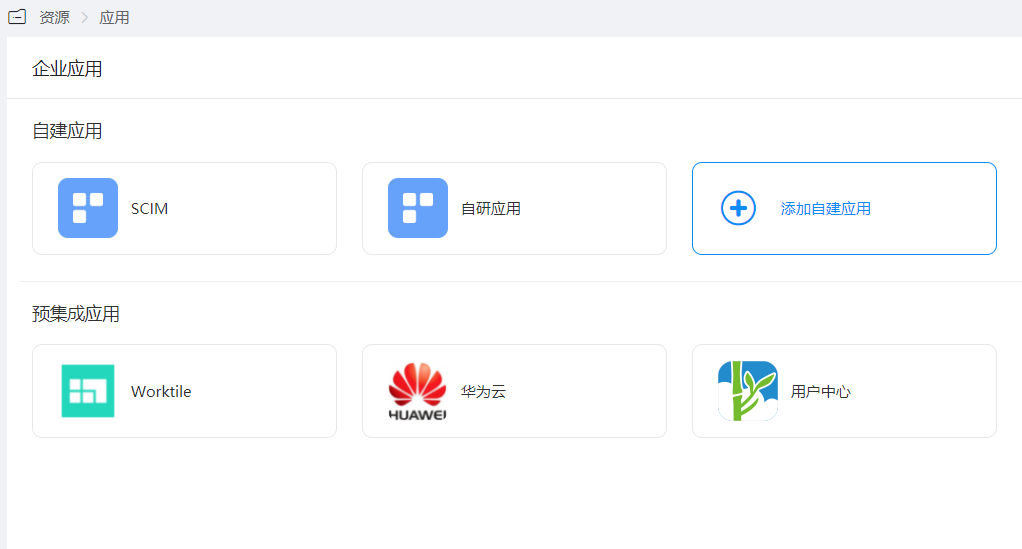
Log in to Enterprise Center, select "Resources > Applications", click "Add Self-built Application" under Self-built Applications, set the logo and name, and click "Save".
Enable Synchronization Integration
Enter the created application, turn on the switch in Synchronization Integration on the application information page, and set the synchronization integration method to Event Callback.
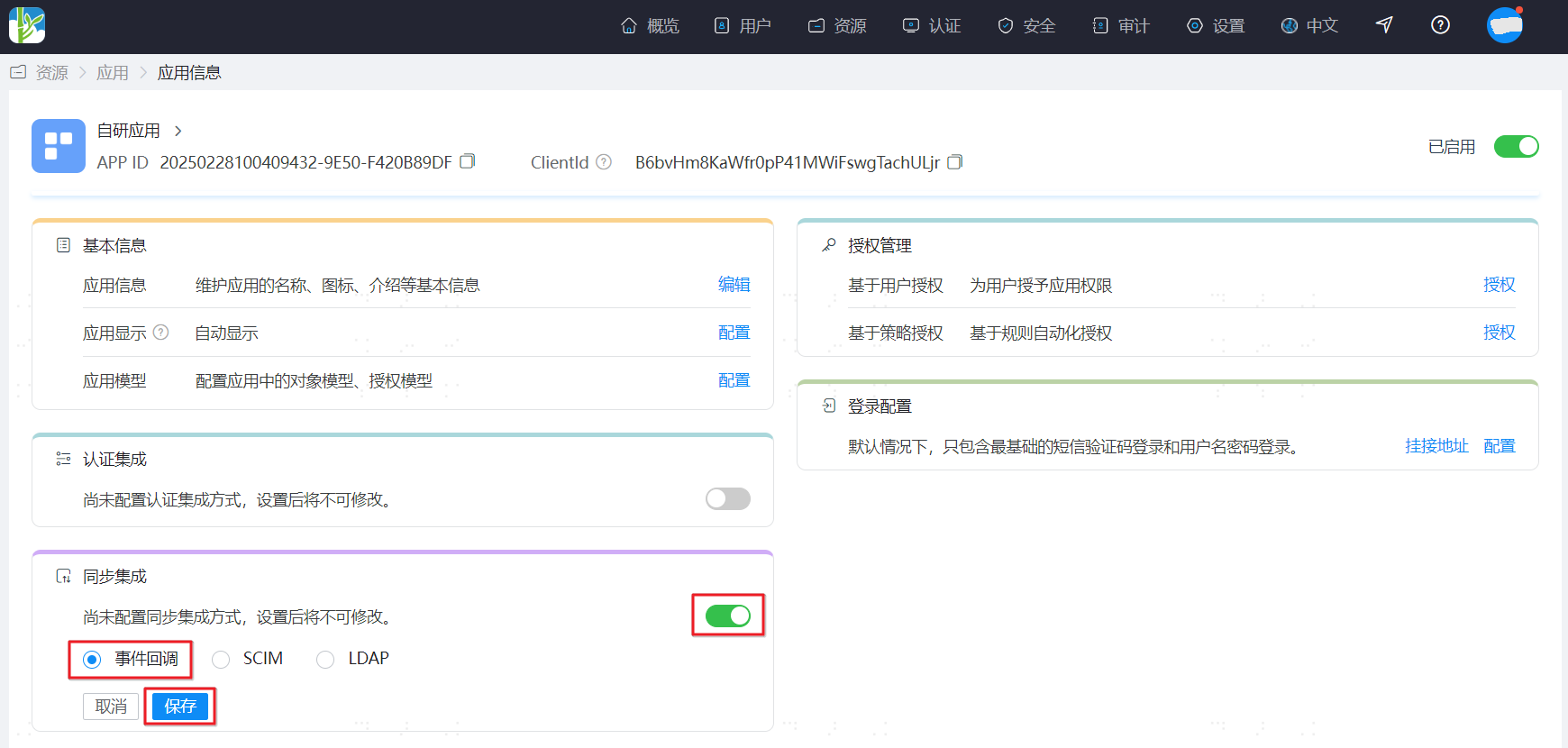
On the application information page, click Configure next to Integration Protocol to enter the synchronization integration parameter configuration page.
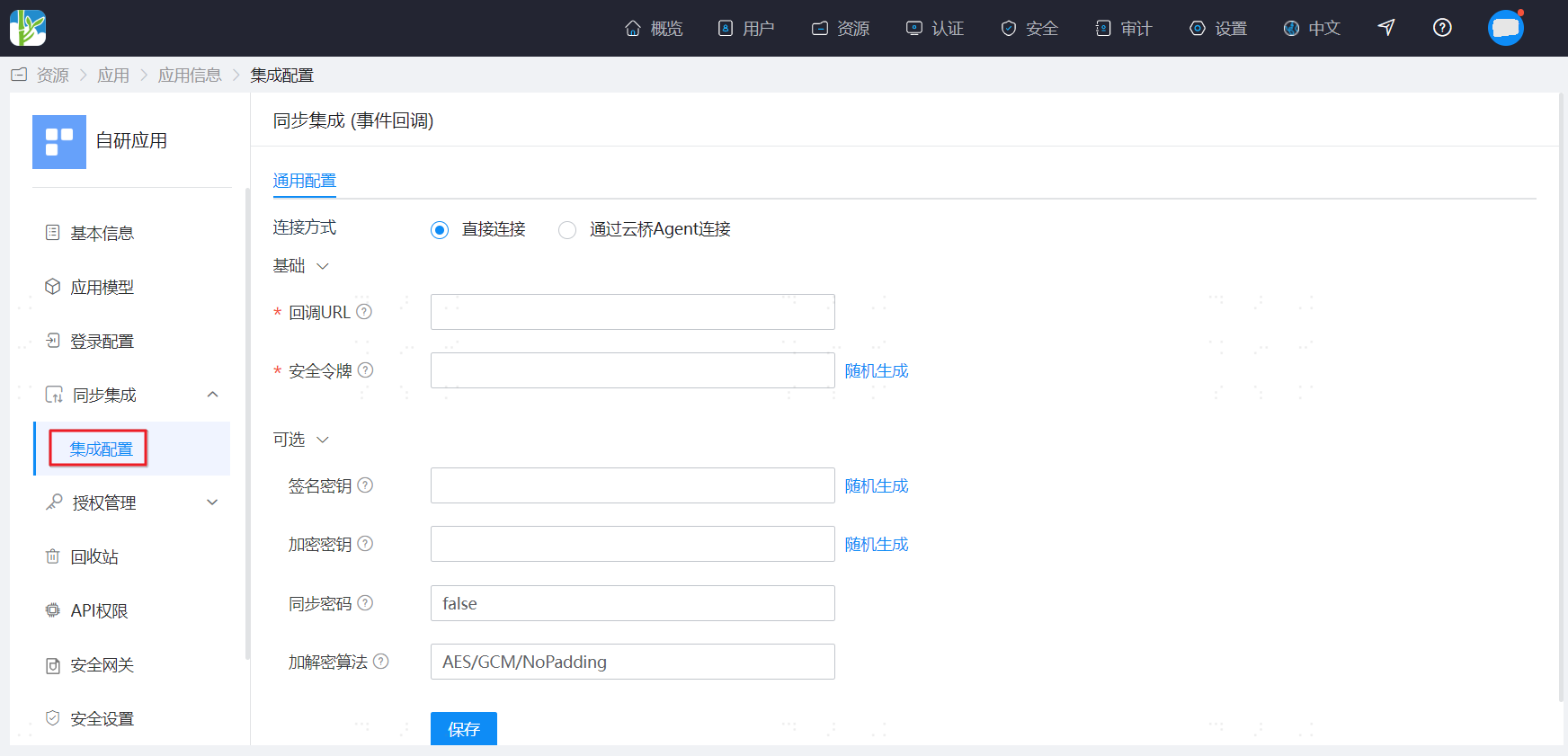
Parameter configuration is as follows:
Configuration Item Description *Callback URL The address used by the enterprise application to receive events pushed by BambooCloud IDaaS *Security Token Each event callback interface request header carries a Bearer token. The enterprise application callback service needs to authenticate it, at least 32 characters Signing Key Use the signing key to generate a data signature based on the message content. When the signing key is not empty, it must be 16 characters Encryption Key Use the key to encrypt messages. When the encryption key is not empty, the length must be 16 characters Sync Password Value: false or true. Default is false, which does not synchronize the user password attribute to the application system. true synchronizes the user password attribute to the application system; the password field is password
Configure Synchronization Objects
Configure the objects that need to be synchronized in the application, such as application organizations and application accounts. On the Synchronization Integration - Integration Configuration page, click "Application Object Synchronization Configuration" in the upper right corner to enter the configuration page, or directly click "Application Model" in the left navigation menu. 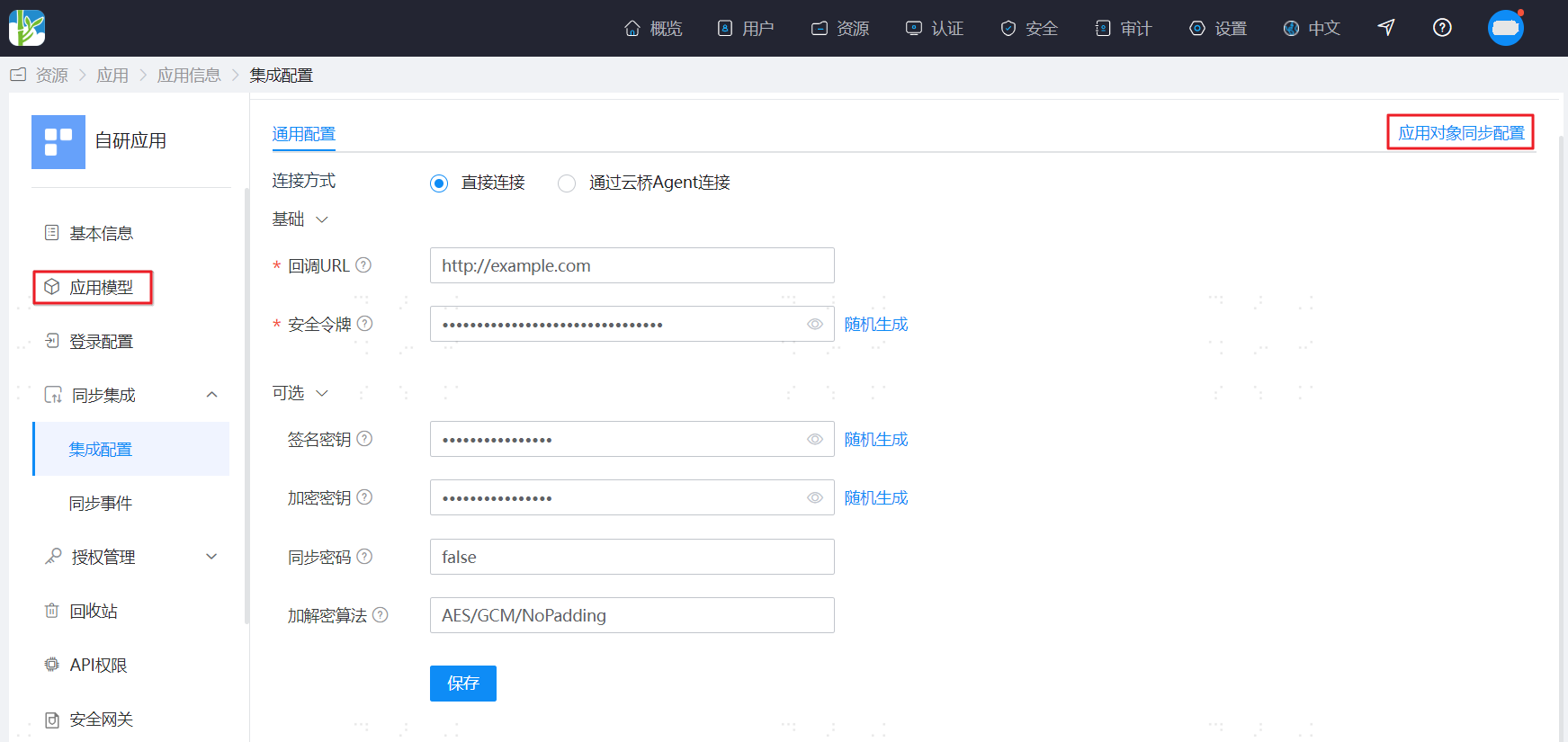
(Optional) Enable Application Organization Object
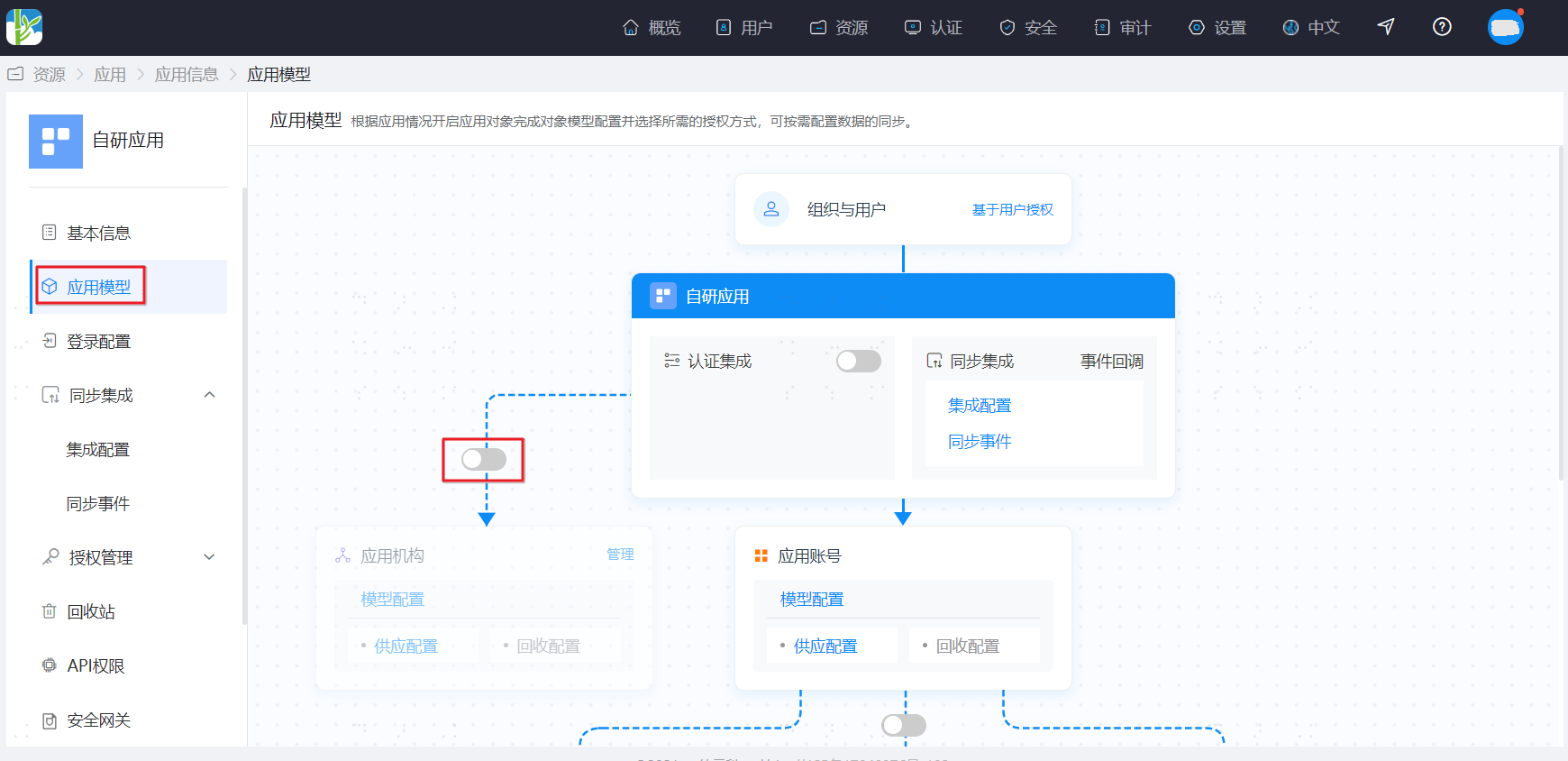
Turn on the switch between Application and Application Organization to enable application organization.
TIP
Enabling application organization is to synchronize organization data to the enterprise application. If you do not need to synchronize organization data, you can skip this step.
(Optional) Configure Organization Attributes and Mapping Definition
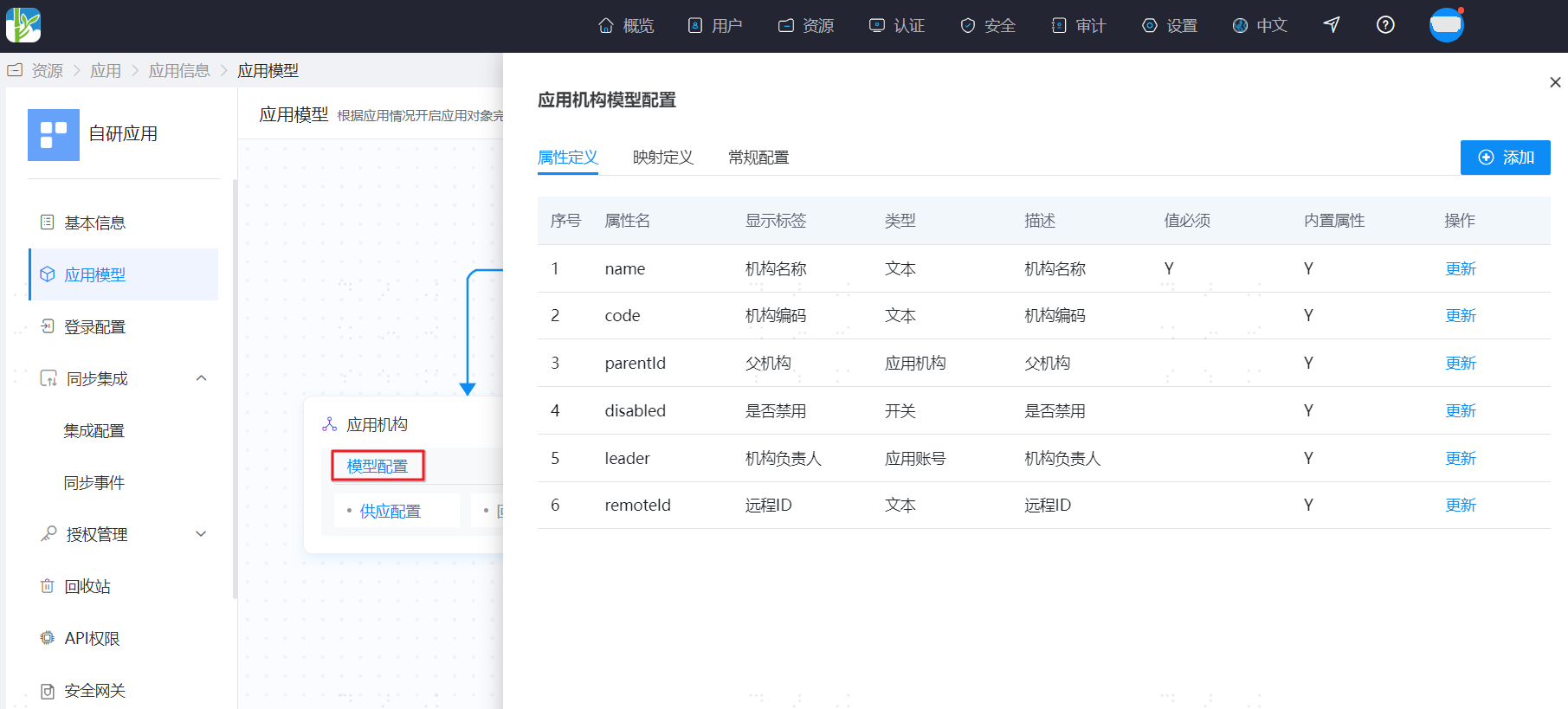
Click "Model Configuration" in Application Organization to enter the application organization model configuration page.
On the Attribute Definition tab, you can configure organization attributes to be synchronized to the enterprise application.
TIP
- When synchronizing built-in attributes to the enterprise application, keep the attribute names consistent with the built-in attribute names in the figure below.
- When synchronizing non-built-in attributes to the enterprise application, keep the attribute names consistent with those set by the enterprise administrator.
Attribute parameters:
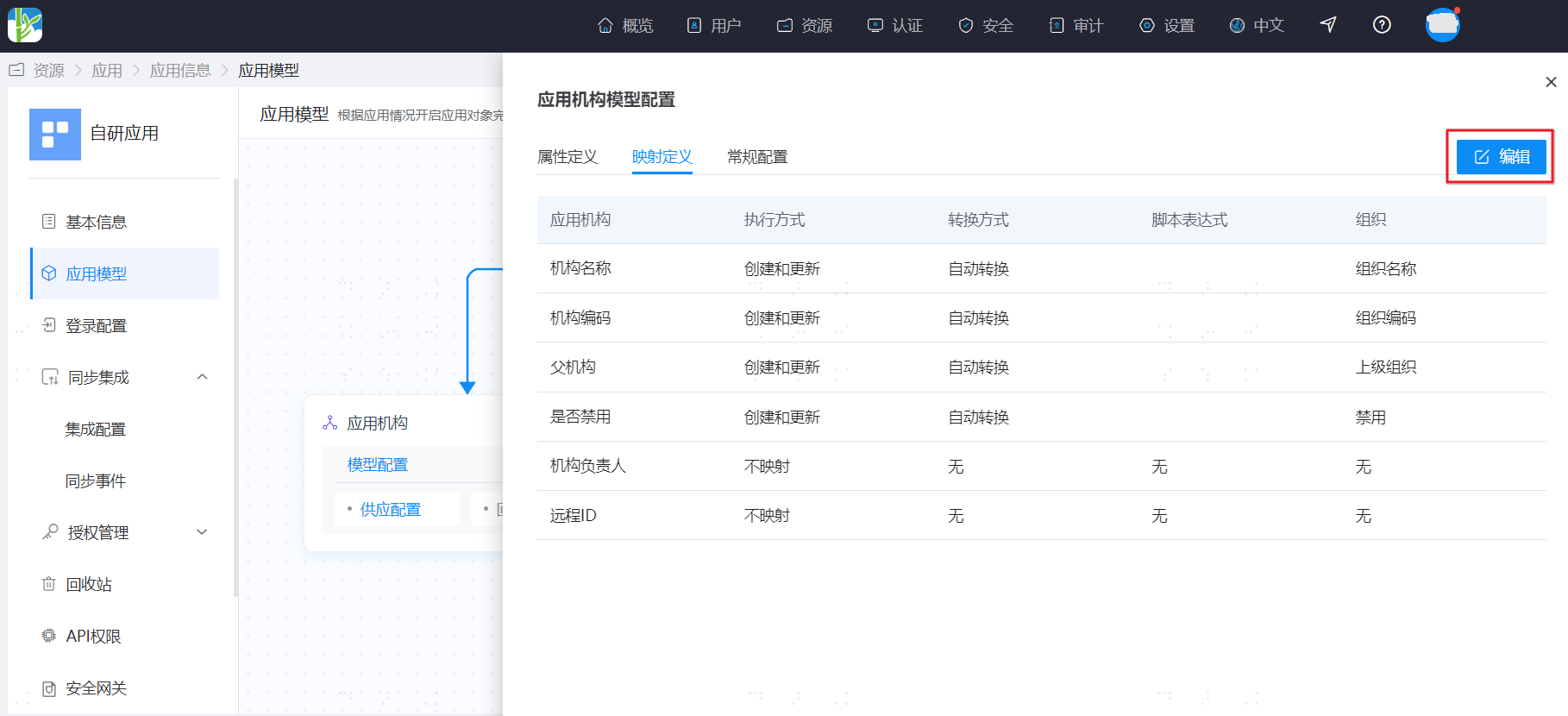
Parameter Description *Attribute Name Field identifier synchronized to the enterprise application. Can be customized; cannot be modified after successful configuration. Display Label Organization attribute name. It is recommended to correspond to the Attribute Name. Description Instructions for filling in the Attribute Name field. *Attribute Type Type for filling in the Attribute Name field. Can be selected from the dropdown; cannot be modified after successful configuration. Format Format of the Attribute Type. When the Attribute Type is Text, it can be selected from the dropdown. Required Not checked by default, meaning optional. On the Mapping Definition tab, click "Edit" to set the mapping method for organization attributes.
TIP
When the transformation method of the mapping definition is Script Transformation, refer to How to Develop Mapping Scripts.
Mapping parameters:
Parameter Description Organization Organization attribute mapped to the application organization; can be selected from the dropdown. Transformation Method Mapping method between organization attribute and application organization; can be selected from the dropdown. Script Expression When the transformation method is Script Transformation, fill in the specific mapping script. Execution Method Synchronization method for the mapping between organization attribute and application organization; can be selected from the dropdown. Application Organization Organization Attribute Name in Attribute Definition. (Optional) Configure Account Attributes and Mapping
On the Application Model page, click "Model Configuration" in Application Account to enter the application account model configuration page.
On the Attribute Definition tab, you can configure account attributes to be synchronized to the enterprise application.
TIP
When synchronizing built-in attributes to the enterprise application, keep the attribute names consistent with the built-in attribute names in the figure below.
When synchronizing non-built-in attributes to the enterprise application, keep the attribute names consistent with those set by the enterprise administrator.
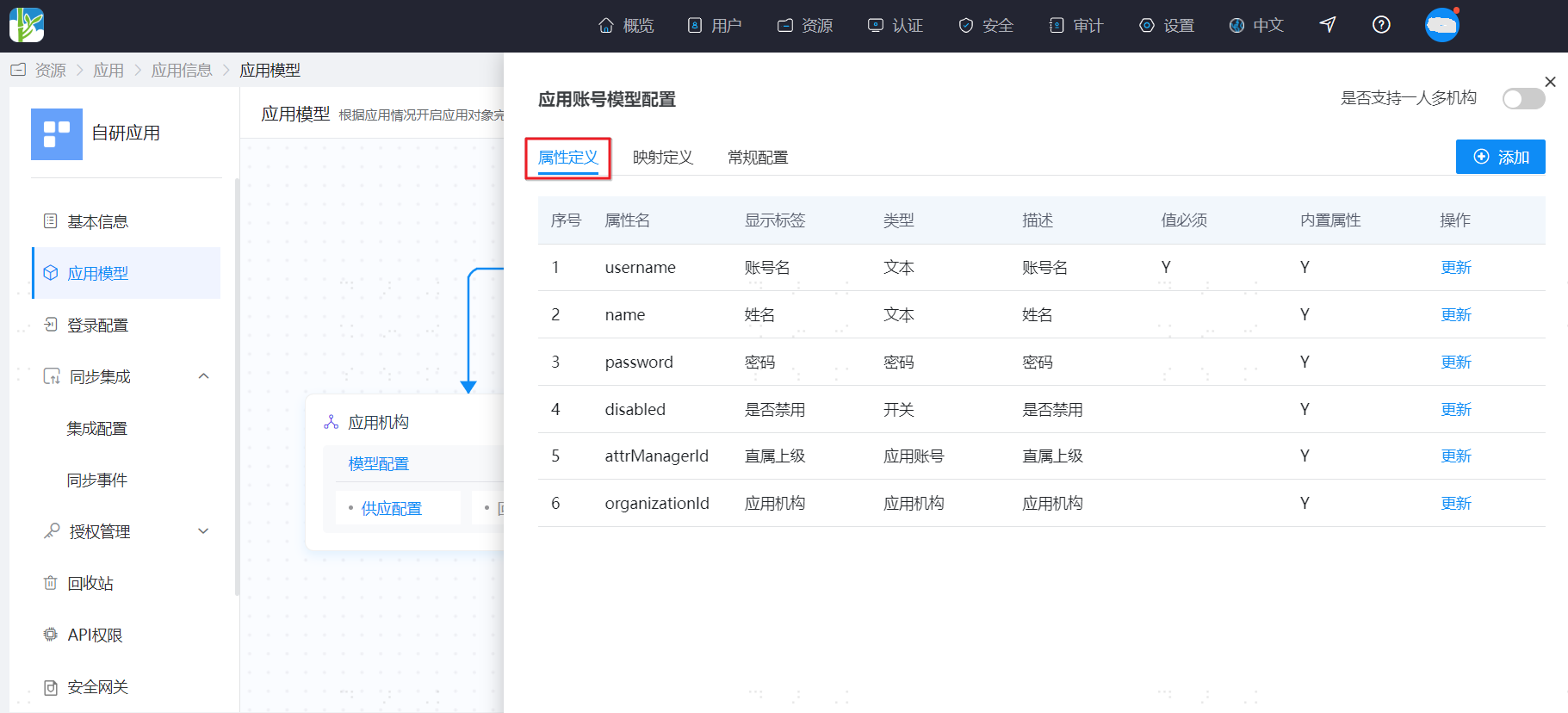
Attribute parameters:
Parameter Description *Attribute Name Field identifier synchronized to the enterprise application. Can be customized; cannot be modified after successful configuration. Display Label Account attribute name. It is recommended to correspond to the Attribute Name. Description Instructions for filling in the Attribute Name field. *Attribute Type Type for filling in the Attribute Name field. Can be selected from the dropdown; cannot be modified after successful configuration. Format Format of the attribute type. When the attribute type is Text, it can be selected from the dropdown. Required Not checked by default, meaning optional. On the Mapping Definition tab, click "Edit" to set the mapping method for account attributes.
TIP
When the transformation method of the mapping definition is Script Transformation, refer to How to Develop Mapping Scripts.
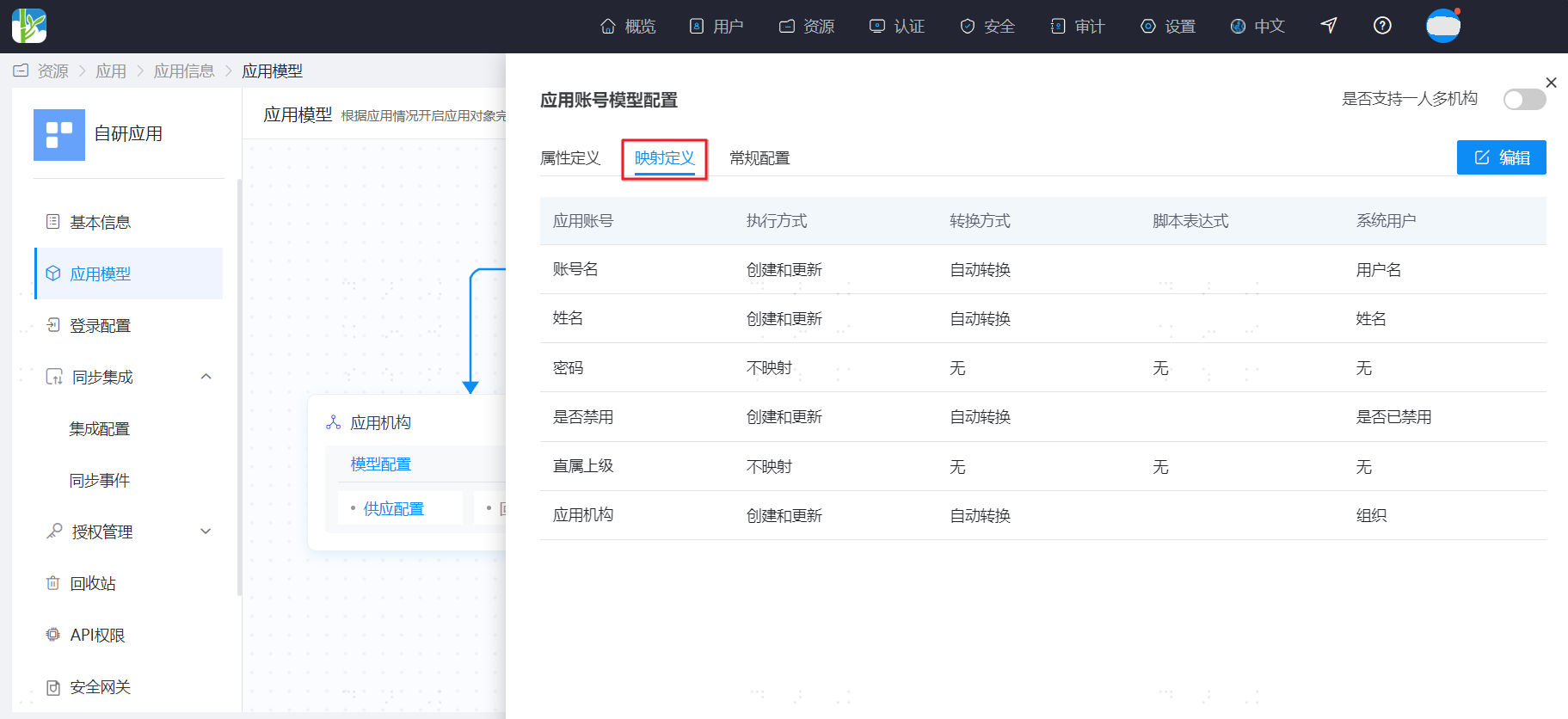
Mapping parameters:
Parameter Description User User attribute mapped to the application account; can be selected from the dropdown. Transformation Method Mapping method between user attribute and application account; can be selected from the dropdown. Script Expression When the transformation method is Script Transformation, fill in the specific mapping script. Execution Method Synchronization method for the mapping between user attribute and application account; can be selected from the dropdown. Application Account Account Attribute Name in Attribute Definition
Enable Application Object Synchronization
Configure Organization Synchronization
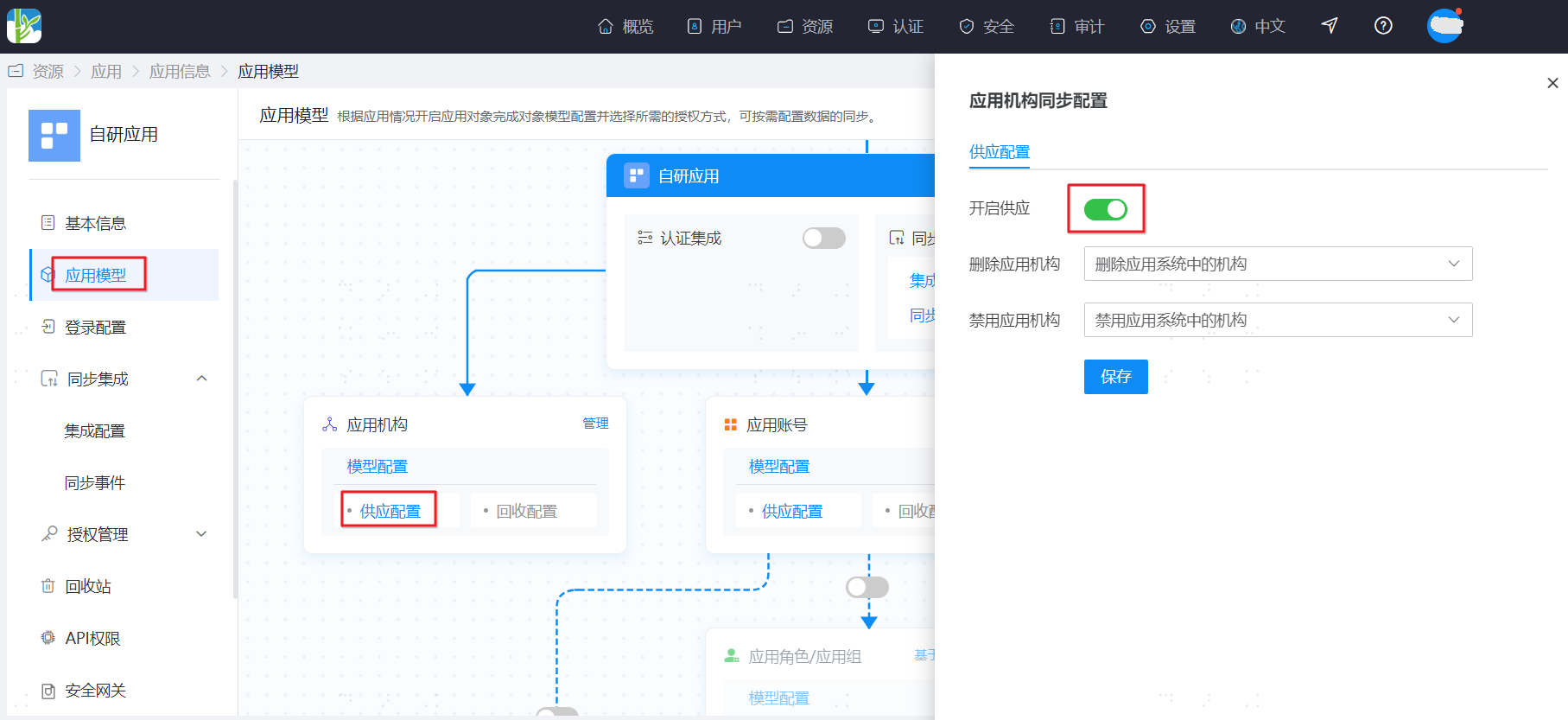
If you need to synchronize organization data to the enterprise application, on the Application Model page click "Provisioning Configuration" in Application Organization to enter the provisioning configuration page, and turn on the Enable Provisioning switch.
When enabling provisioning configuration, you can configure the corresponding operations to be performed in the enterprise application when the application organization is disabled or deleted.
Configure Account Synchronization
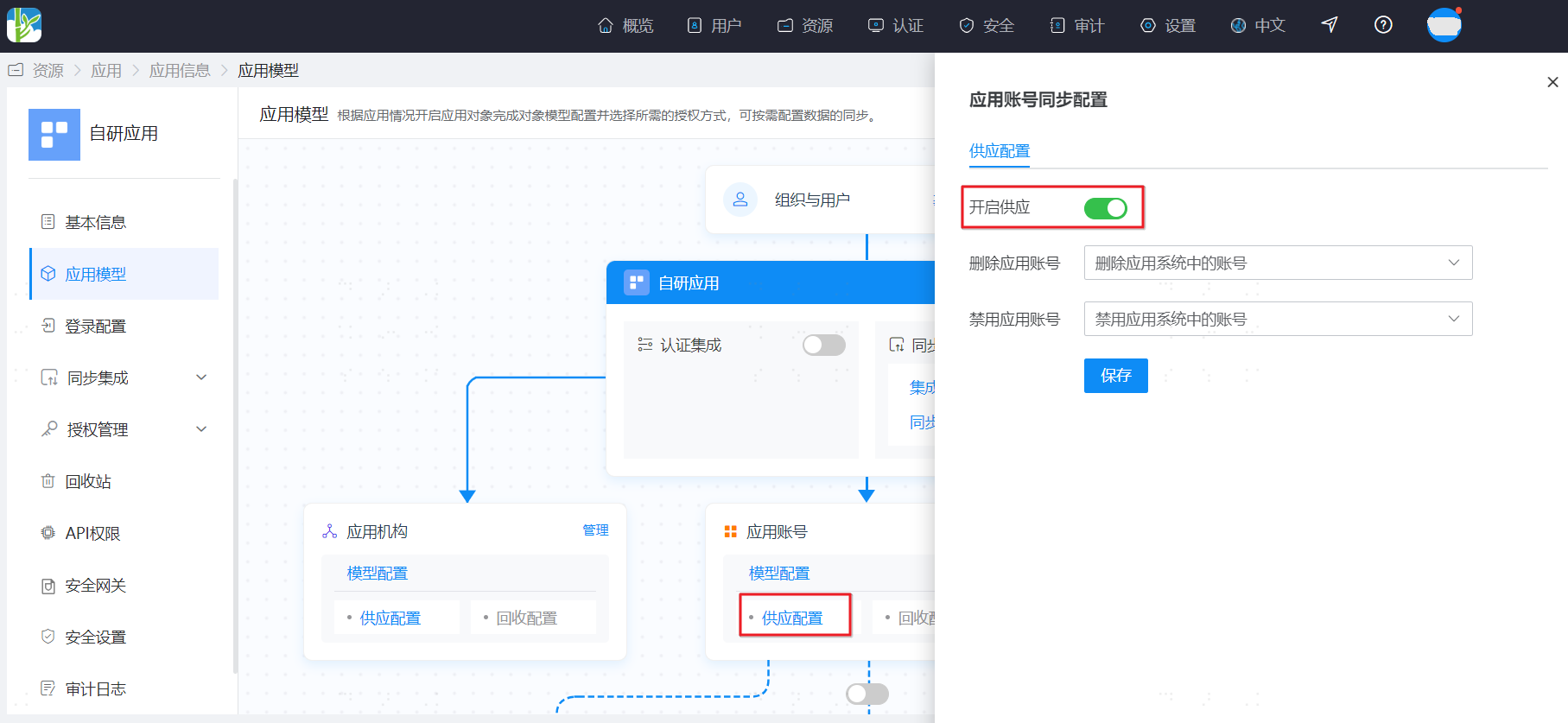
If you need to synchronize account data to the enterprise application, on the Application Model page click "Provisioning Configuration" in Application Account to enter the provisioning configuration page, and turn on the Enable Provisioning switch.
When enabling provisioning configuration, you can configure the corresponding operations to be performed in the enterprise application when the application account is disabled or deleted.