Configure AD Authentication Source
Overview
To facilitate enterprise user authentication login, IDaaS uses the LDAP protocol to direct authentication to the AD domain. After AD authenticates the user, IDaaS matches and verifies the user attributes returned by AD with the associated user attributes in IDaaS. Once verified, the user can log in to IDaaS. This feature is currently only supported in 2E scenarios.
This section describes the operations related to configuring the AD authentication source.
Prerequisites
You have administrator permissions for the IDaaS Enterprise Center platform.
Procedure
Configure AD Authentication Source on the IDaaS Platform
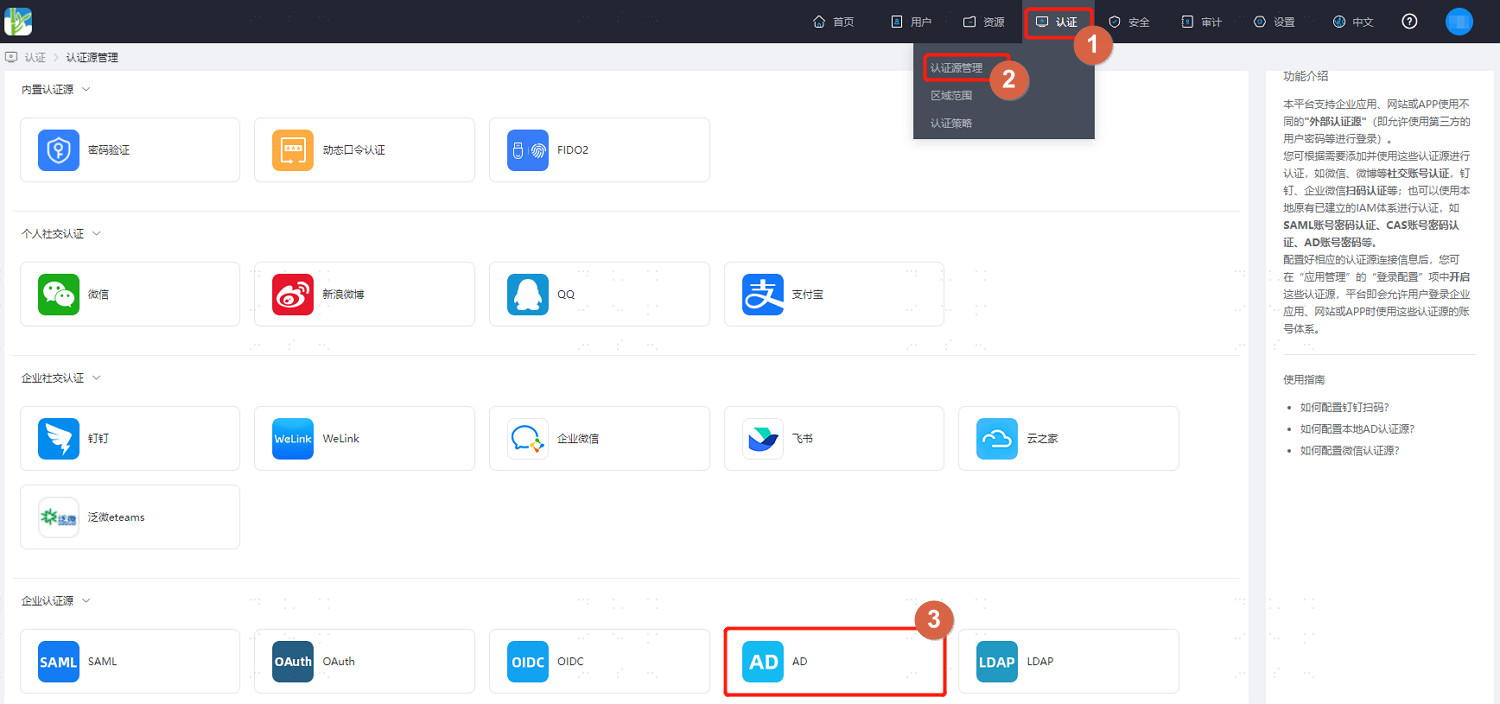
Log in to the IDaaS Enterprise Center platform. In the top navigation bar, choose Authentication > Authentication Source Management. On the AD authentication source page, click Add Authentication Source.
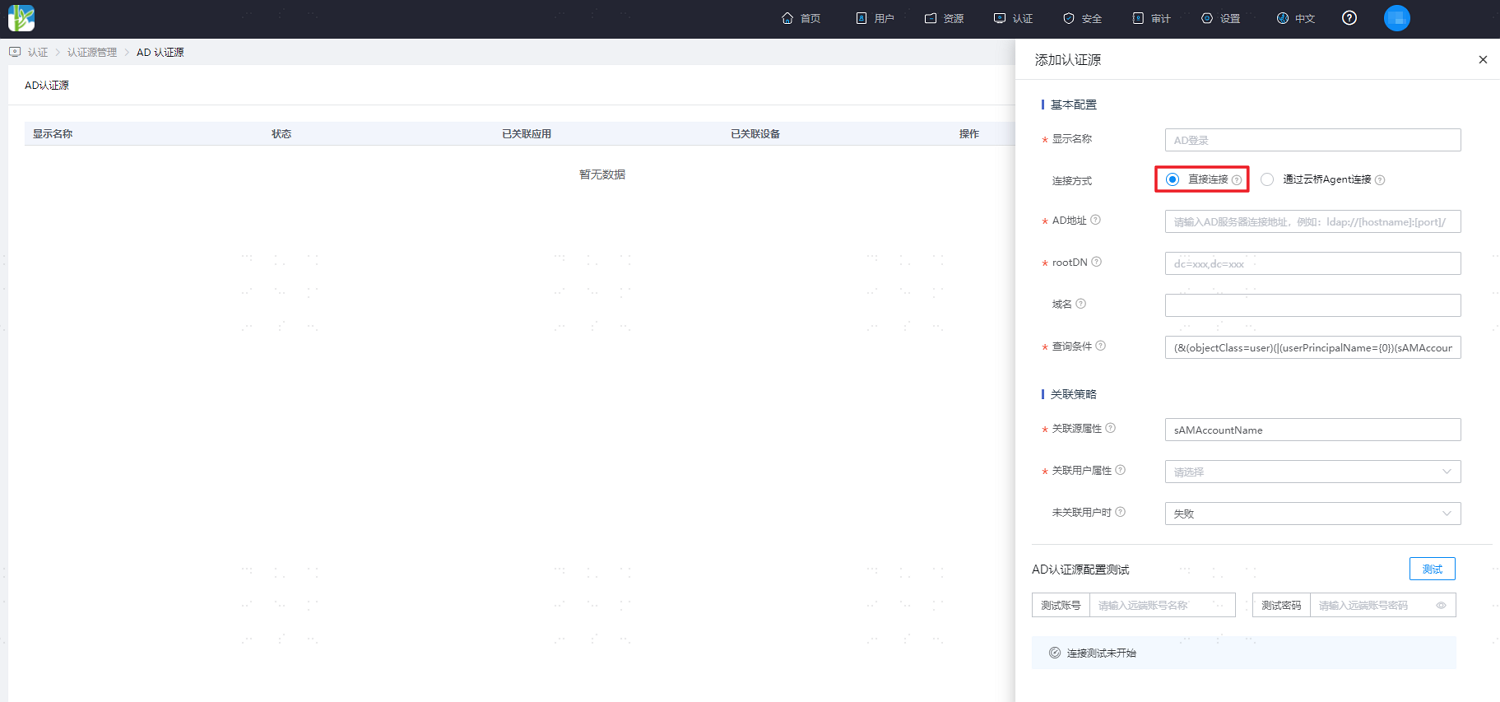
Configure the AD authentication source parameters according to actual project needs and the on-screen prompts. Key parameter descriptions are as follows.
Connection Method: Configure the connection method between the AD service and the IDaaS service.
Direct Connection: If the AD server has a fixed public IP and is accessible from the public network, it is recommended to select the direct connection method.
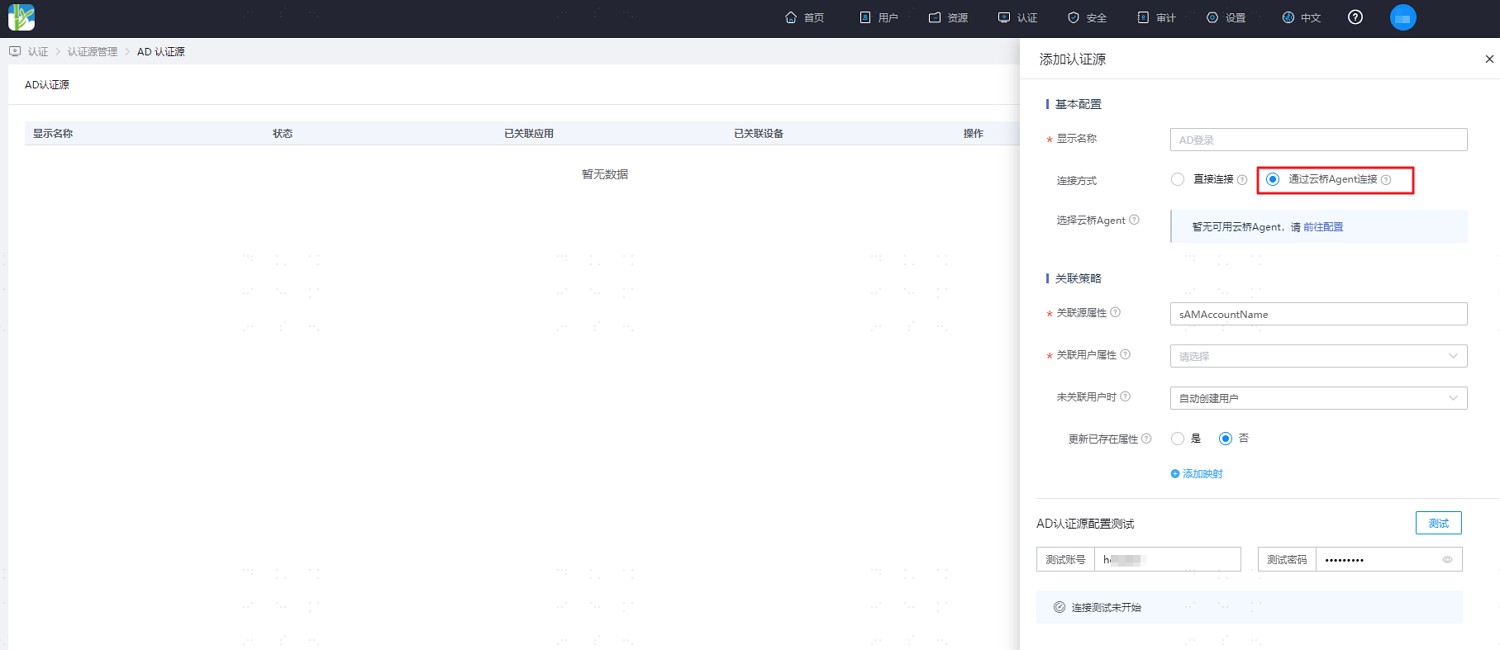
Via Cloud Bridge Agent: If the AD server cannot be accessed from the public network, it needs to be accessed through the Authentication Source Cloud Bridge. In this case, select the connection method via Cloud Bridge Agent.
AD Address: Only required when configuring direct connection. It is recommended to use a transport-encrypted method, such as
ldaps://[hostname]:[port]/. Using an ldaps address will verify the certificate by default. You can choose to ignore certificate verification based on actual conditions.Association Source Attribute and Association User Attribute Functions: Take one attribute of the user in AD and map it to one attribute of the user in IDaaS. If this attribute of the user information returned by AD matches the association attribute in IDaaS, the user passes authentication.
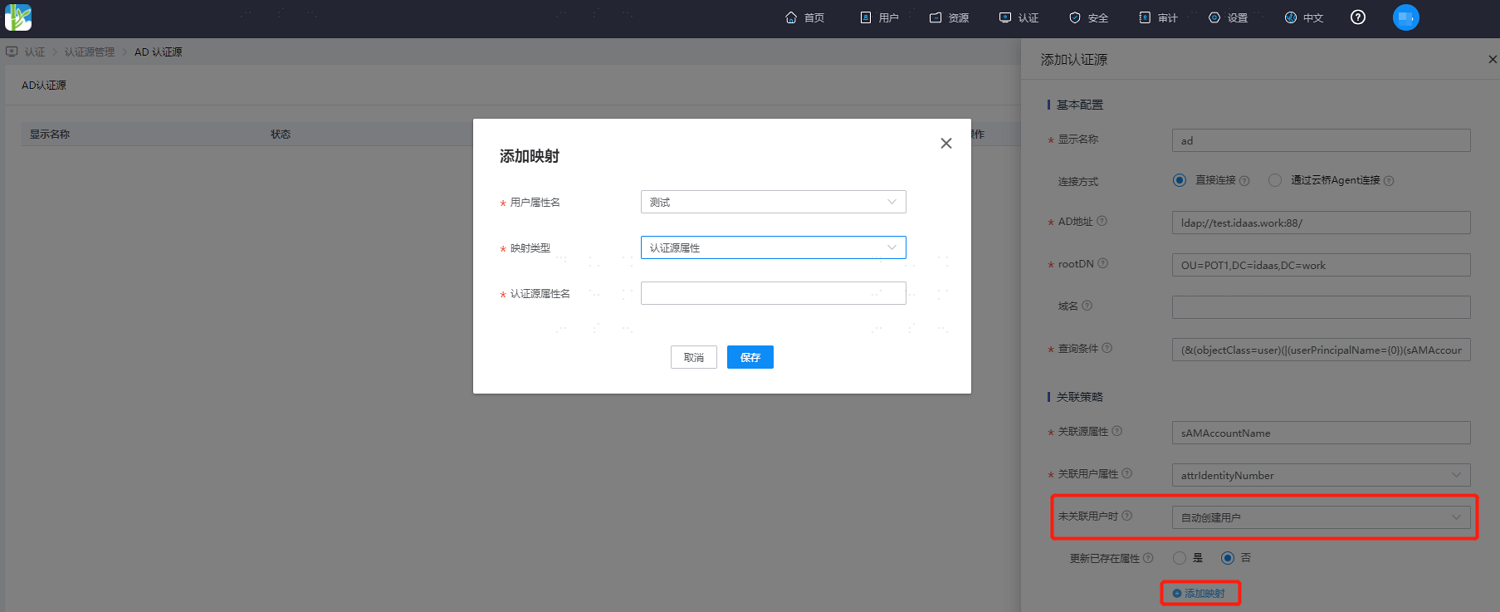
When User Is Not Associated: If the source attribute of the user information returned by AD is inconsistent with the association attribute in IDaaS, the optional configuration items are as follows.
Select Fail to disallow authentication.
Select Auto-create User to create an IDaaS user according to the mapping rules and association attributes, and pass authentication.
Description of attributes to be added for mapping:
User Attribute Name: Select an IDaaS user attribute from the dropdown.
Mapping Type: Select the mapping type.
- When selecting the Authentication Source Attribute option, enter the attribute name returned by the authentication source in the third-line Authentication Source Attribute Name input field.
- When selecting the Fixed Value option, enter the fixed attribute value in the third-line Fixed Value input field.
- When selecting Script Transformation, enter the transformation script in the third-line Script Content input field. For script transformation syntax, refer to Dynamic Script in Development Mapping Definition. For common AD return attributes in the script transformation object, refer to the Script Transformation Object section below.
Authentication Source Attribute Name: The user attribute in the AD server.
Script Transformation Object
The script object is
idp, which contains the attributes returned by AD. Common attributes are as follows:Attribute Name Display Name givenname Given Name mobile Mobile Phone sn Surname mail Email userPrincipalName Short for UPN, generally composed of account name + @ + domain, such as idaas@bamboocloud.com sAMAccountName Account Name TIP
When using the script object, you can directly use the format idp.[attribute name]. For example: idp.sAMAccountName, idp.userPrincipalName.
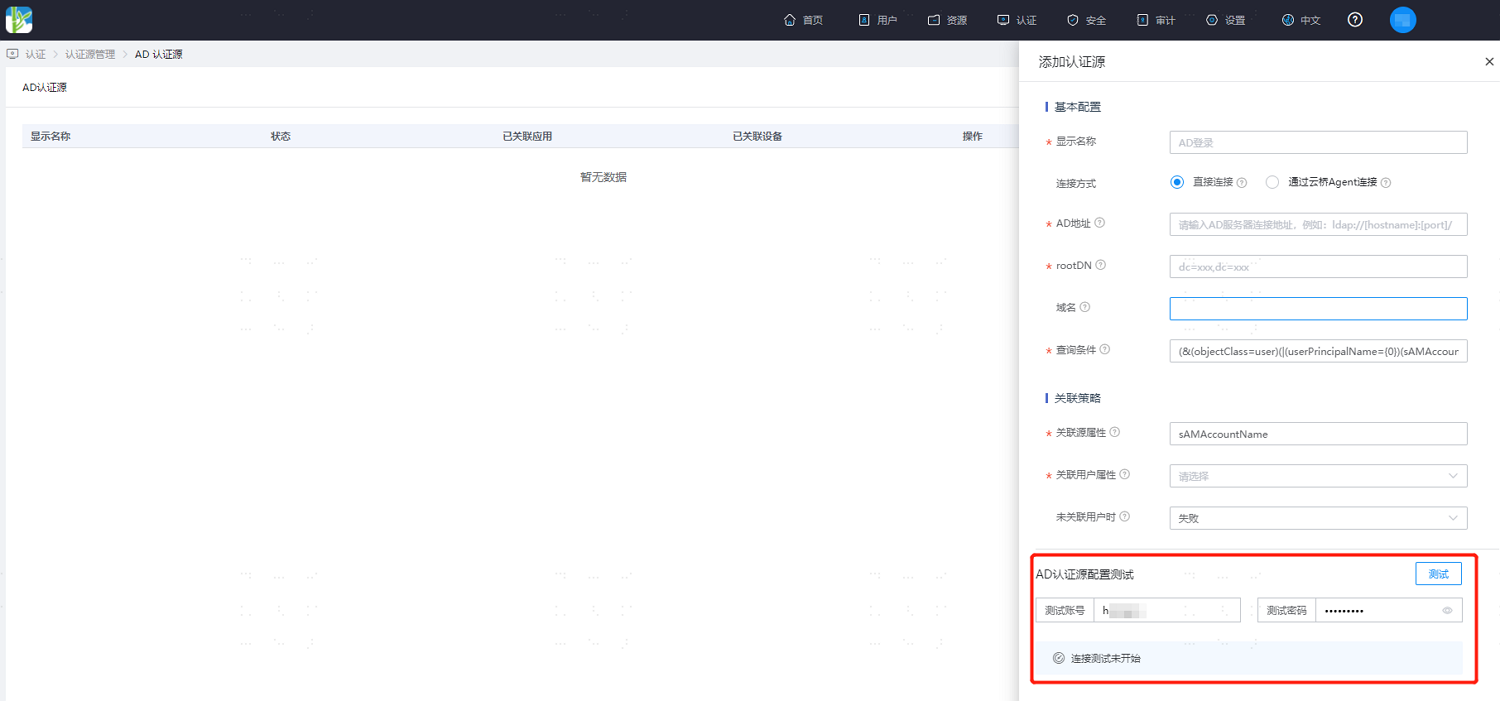
After completing the AD authentication source parameter configuration, enter the AD username and password at the bottom of the configuration, and click Test to test the AD authentication source configuration and the connection to the AD server. After the test is successful, save the configuration.