Activate Dynamic Password OTP Authentication
This guide explains how to log in to the IDaaS platform and application systems using dynamic OTP verification codes. The IDaaS platform has a built-in dynamic OTP authentication. Administrators only need to activate and configure it to use it. On the login page, select the dynamic OTP login method to log in to various application systems, providing a more secure and reliable login experience while achieving single sign-on.
Procedure
Enable Dynamic Password Verification for Applications
The administrator logs in to the IDaaS Enterprise Center, and chooses Resources > Apps from the top navigation bar. This guide uses the built-in User Center app as an example.
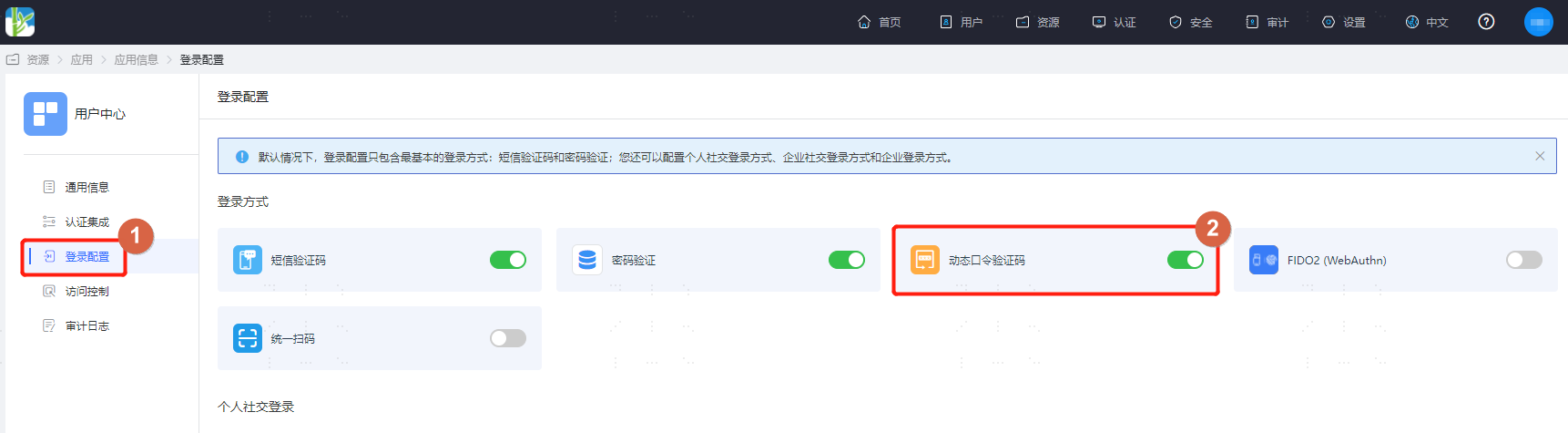
Select User Center, enter the app details, choose Login Configuration, and enable Dynamic Password Verification Code as the login method.
Individual User Activates Dynamic Password
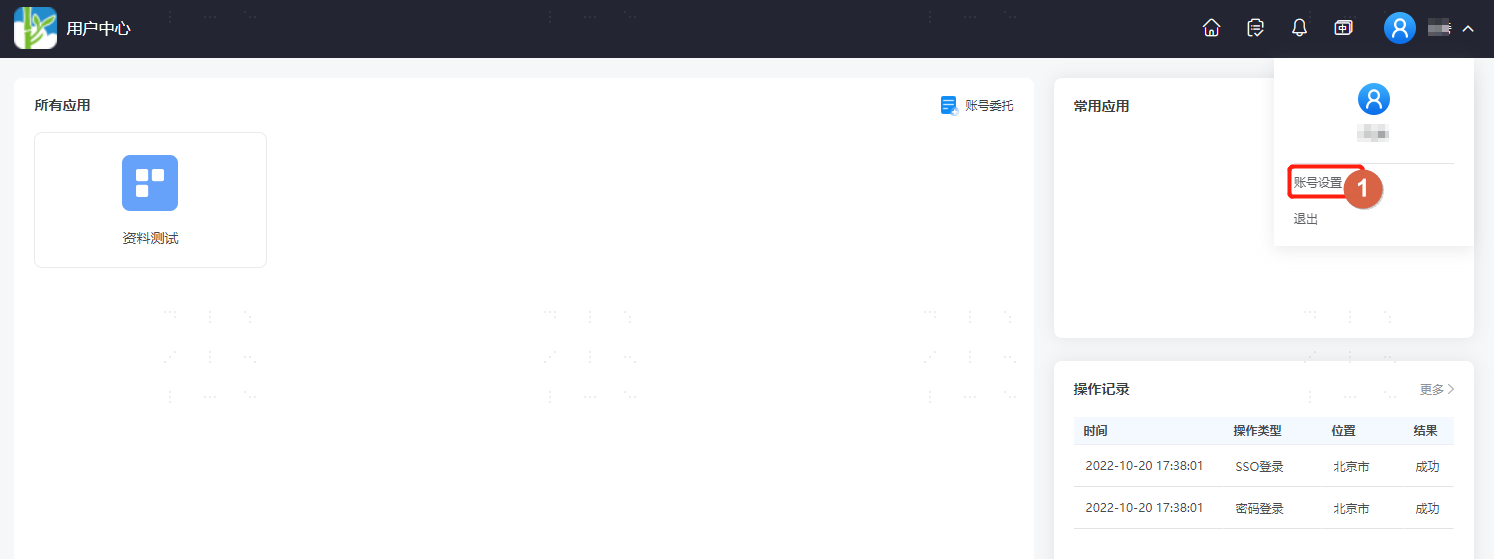
The individual user logs in to the User Center, clicks the user dropdown in the upper right corner, and selects Account Settings.
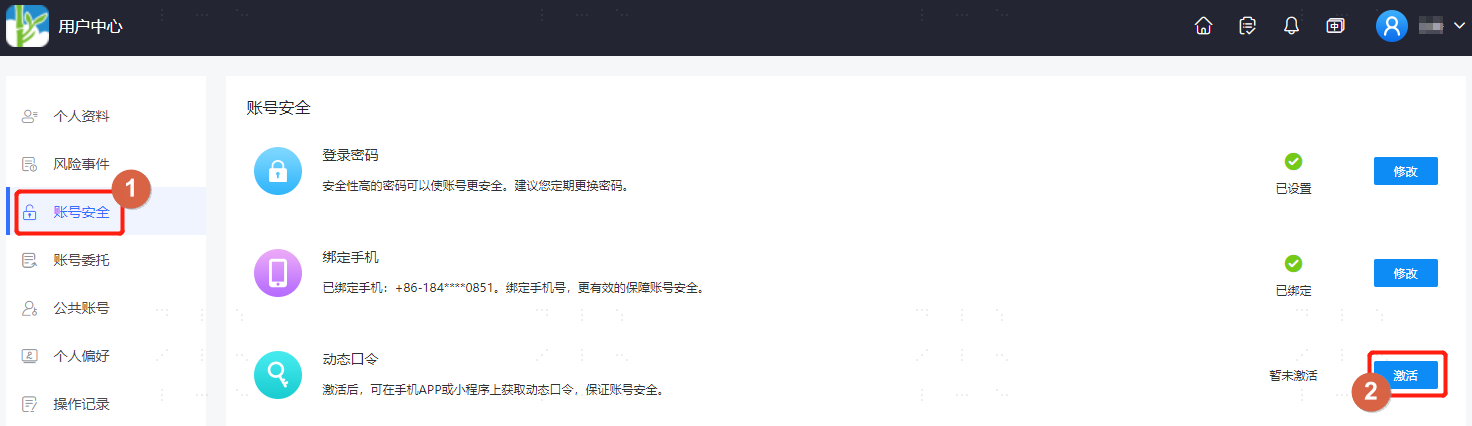
On the Account Settings page, choose Account Security and activate the dynamic password.
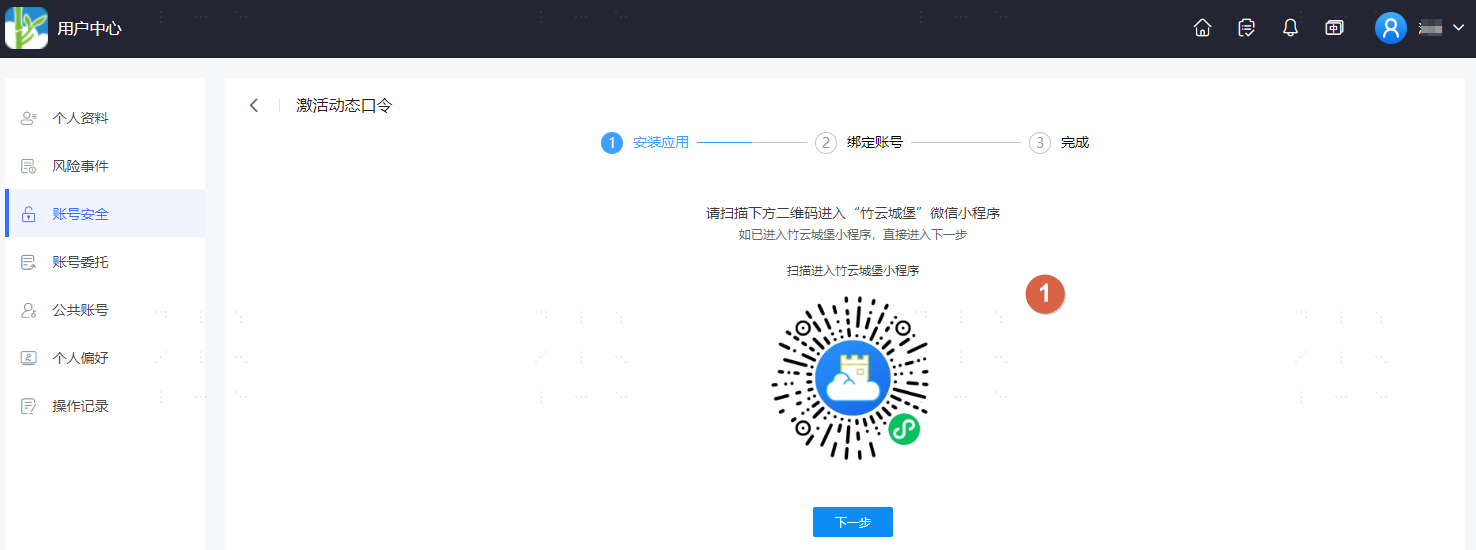
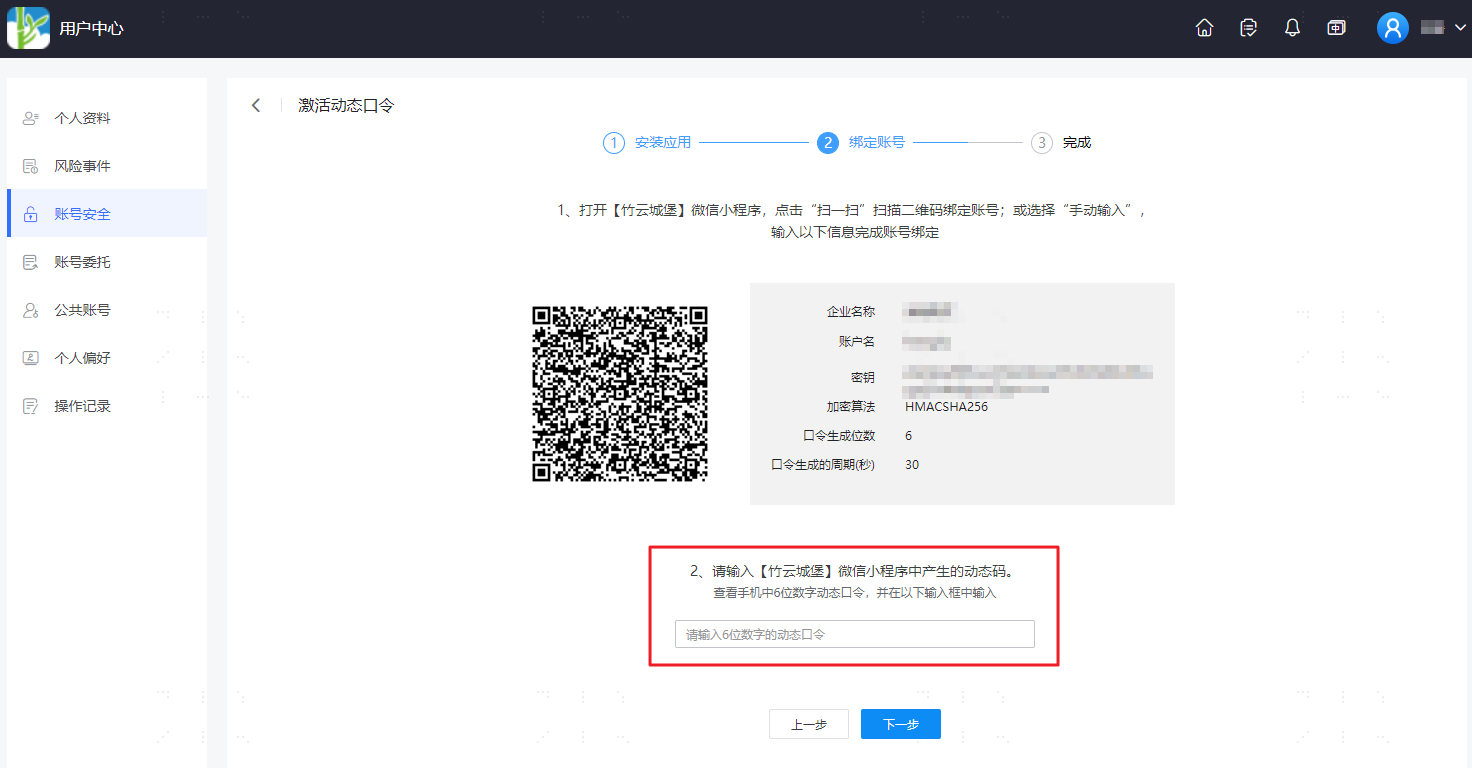
On the activation configuration page, configure according to the activation process.
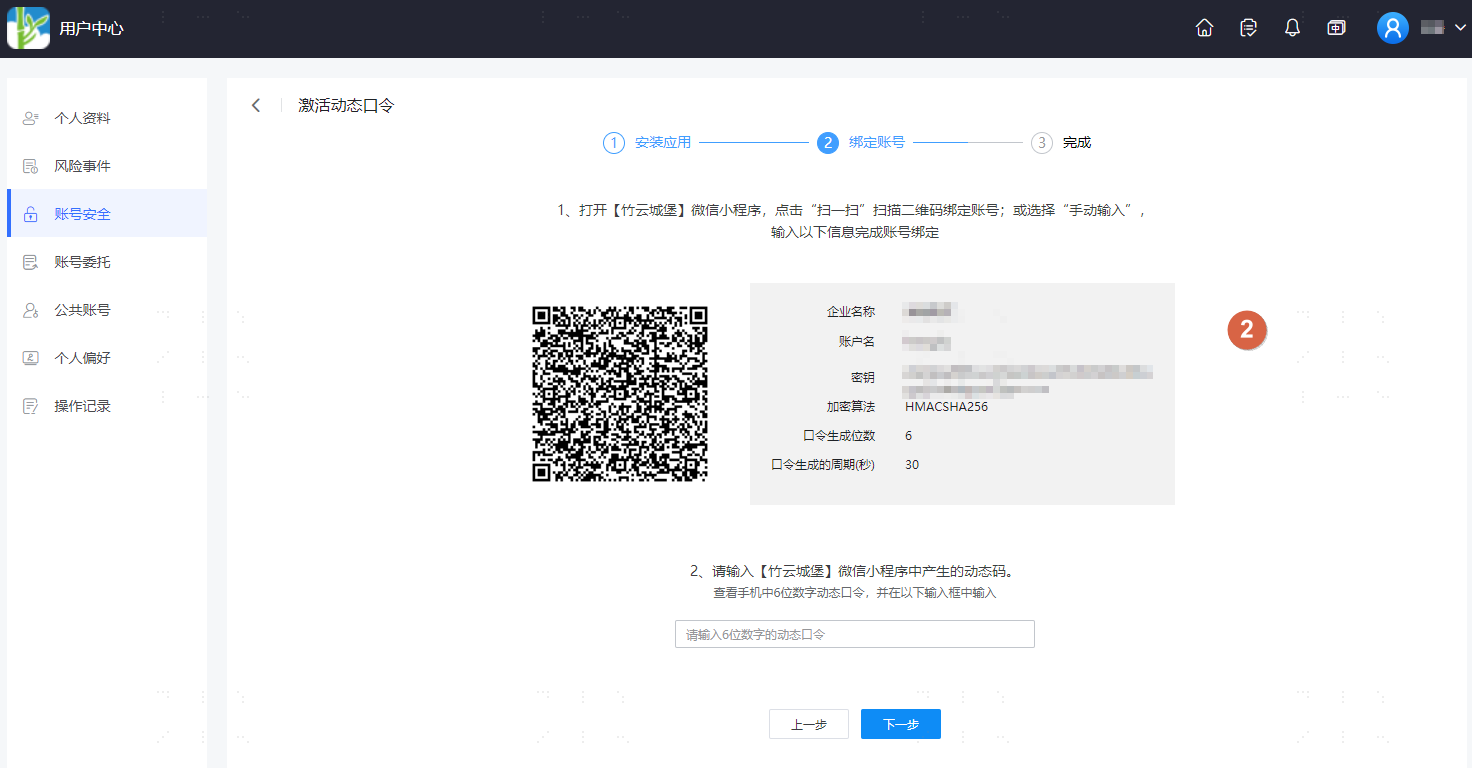
TIP
Binding to Google Authenticator, Microsoft Authenticator, or other dynamic code apps is supported.
Third-Party OTP App Binding Process
TIP
The following uses Google Authenticator as an example.
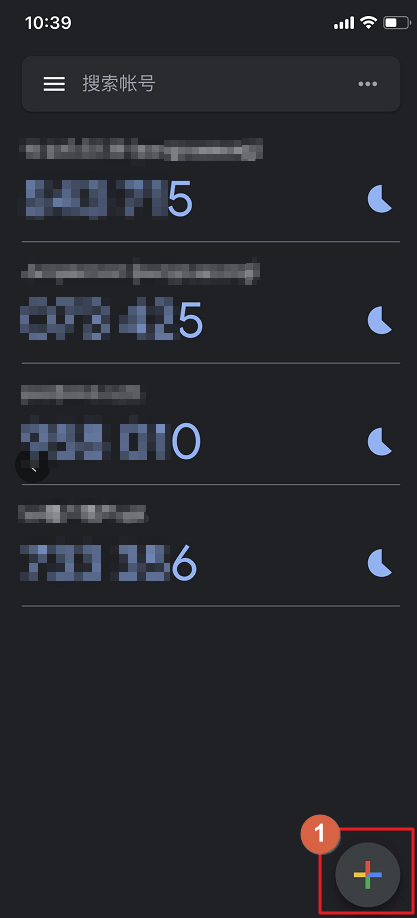
Open the third-party app, and select the add button.
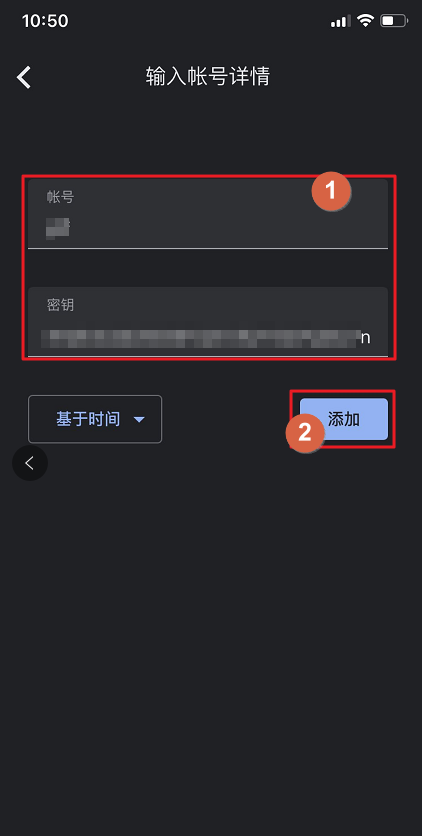
Enter the account name and secret key from the User Center dynamic password activation page, and click Add.
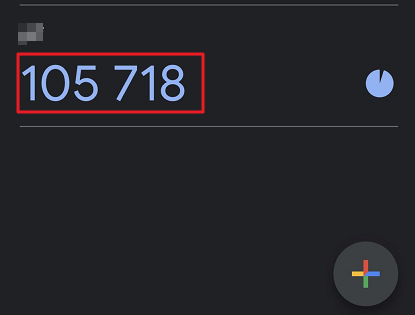
Then return to the User Center and enter the dynamic code to bind.
Verify Dynamic Password Login
On the User Center login page, select Dynamic Password Login, and enter the username and dynamic password to log in.