Manage User Extension Attributes
BambooCloud IDaaS pre-configures user attributes for the user pool, such as username, organization, name, mobile number, email, gender, ID number, country/region, employment relationship, deactivation date, disable method, etc.
When enterprises have special requirements in user management, such as wanting IDaaS to provide more attribute information for applications to retrieve, you can refer to this chapter to customize extended user attributes.
TIP
- The built-in employment relationship attribute is associated with the "Employment Relationship" data dictionary by default. You can set multiple employment relationships for it in this data dictionary.
- After setting the built-in deactivation date, at midnight on the expiration date, the user status is automatically adjusted to disabled.
Procedure
Group Management of User Attributes
Each tenant is initialized with two default groups for user attribute definitions (Basic Information Group, Work Information Group). The two default groups cannot be deleted. User attribute fields are added under each group. When administrators add users, they fill in user information according to the groups set here.
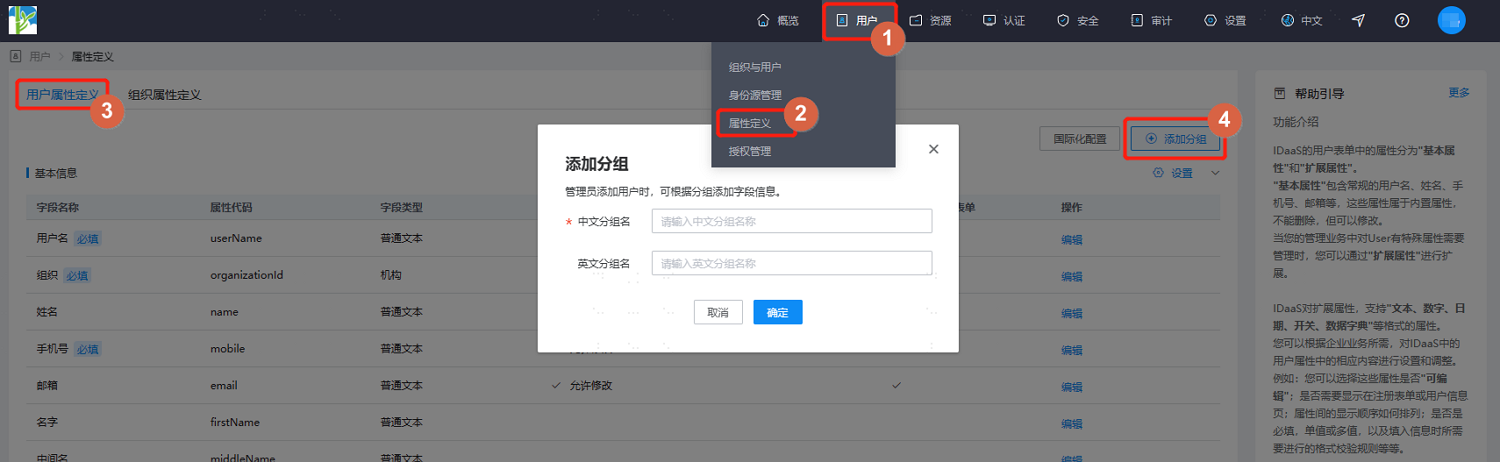
Log in to the IDaaS enterprise center platform. In the top navigation bar, select "Users > Attribute Definition", choose the "User Attribute Definition" tab, and click "Add Group" in the upper-right corner. Set the Chinese and English names of the group. Up to 5 attribute groups can be added. User attributes are created under each group.
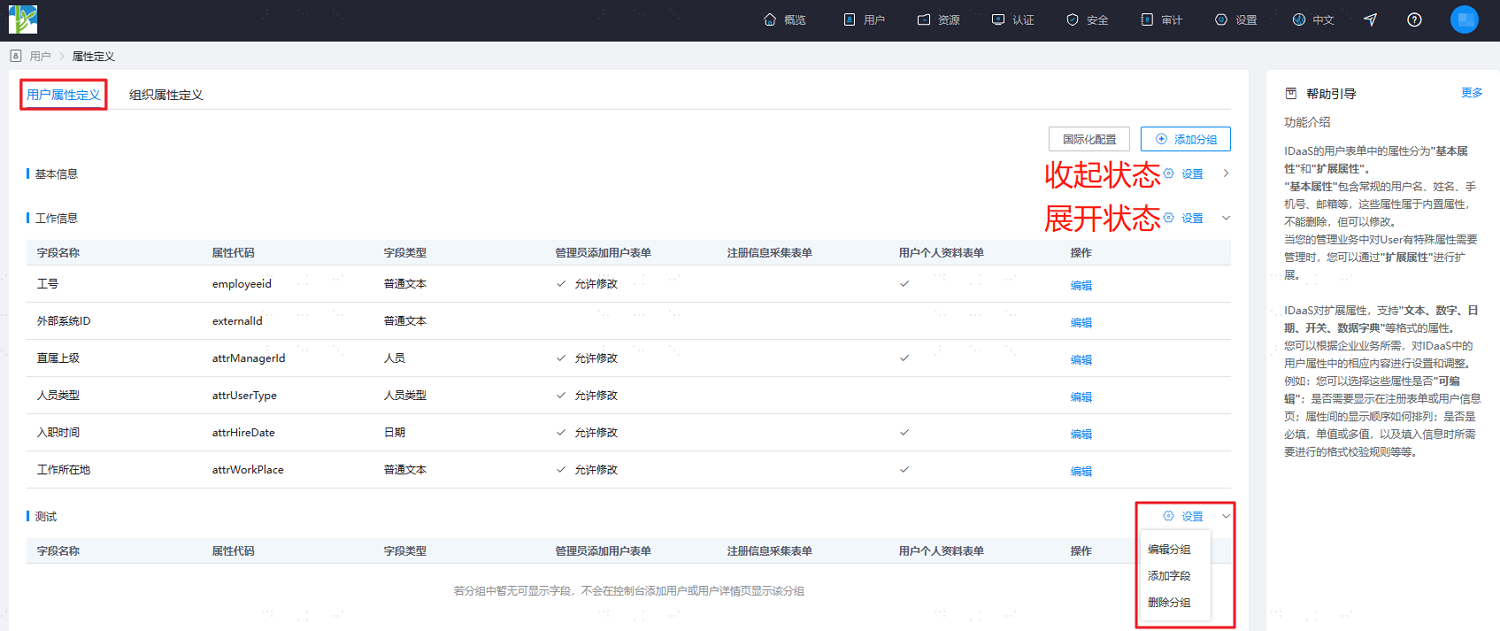
When each group is in expanded state, hover over the "Settings" button to modify or delete the selected group, or add fields to the selected group.
TIP
- Administrators can drag and drop user attributes within each group to sort them.
- Administrators can drag and drop user attributes across groups to move them in or out.
Manage User Attributes
TIP
Support setting allowed special characters and character length range for built-in attribute fields, field rules, display configuration, etc.
Log in to the IDaaS enterprise center platform. In the top navigation bar, select "Users > Attribute Definition", choose the "User Attribute Definition" tab. When each group is in expanded state, hover over the "Settings" button of the group and select "Add Field" to configure the attribute field information.
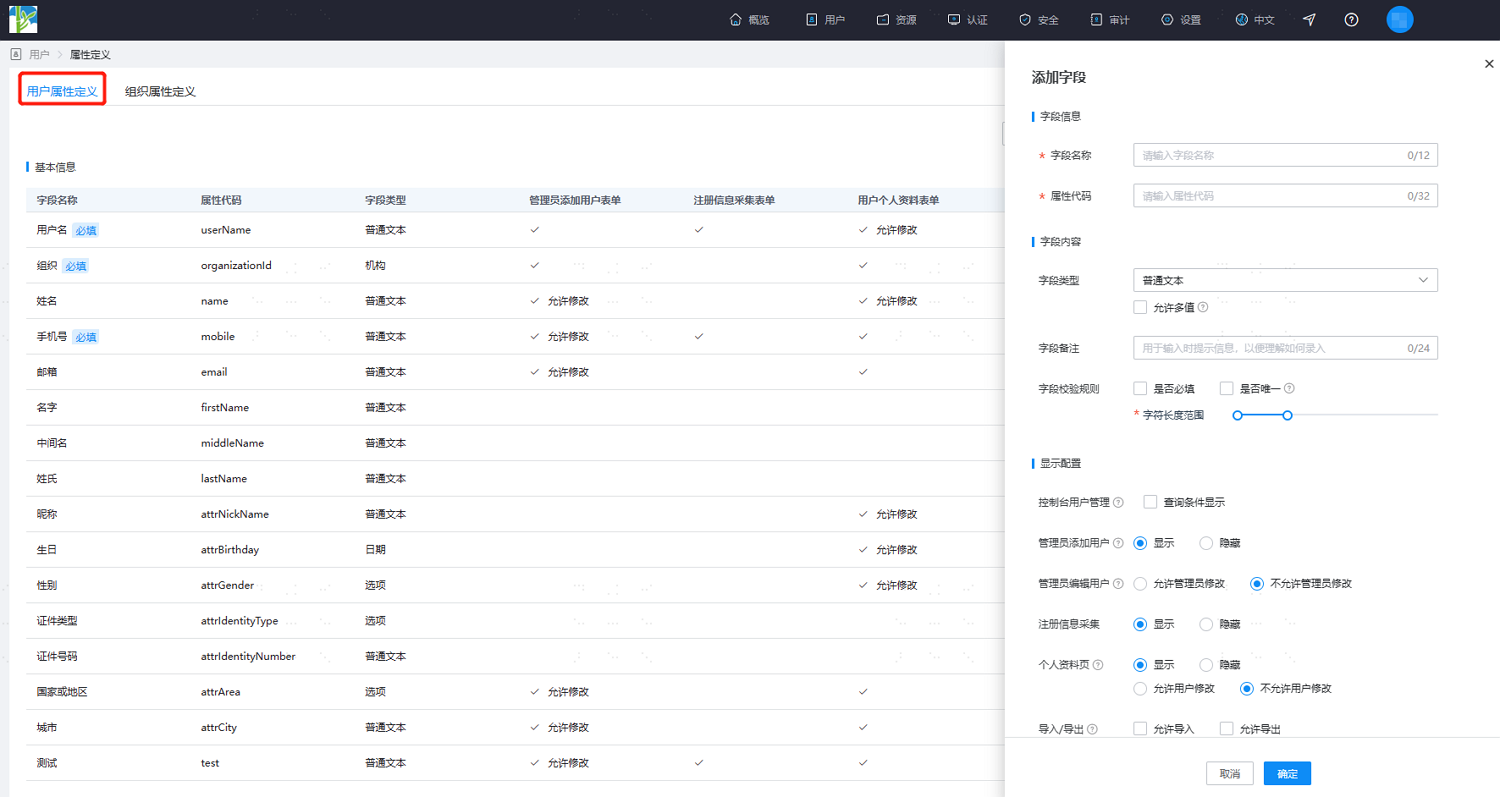
Set the basic information of the attribute field, including name and attribute code.
- Name: set the display name of the attribute on each platform.
- Code: set the attribute code used to identify the attribute; it must be unique.
Set attribute type-related information, that is, the display type, length, whether multi-value, and other related configurations of the new attribute on each platform. Different types have different attribute information to be configured. Key parameters are as follows:
- Field Type: set the display type of the attribute field on the platform.
- Plain Text: supports extended fields configured as this type. The attribute display type is a plain text box, mainly used for attributes such as username and description. Supports setting whether the attribute field can have multiple values.
- Sensitive Text: supports extended fields configured as this type. The attribute display type is an encrypted text box, usually used for password-related attributes. Supports setting full text encryption display or partial encryption display.
- Number: supports extended fields configured as this type. The attribute display type is numeric input, storing integers, mainly used for sequence sorting-related attributes.
- Date: supports extended fields configured as this type. The attribute display type is time input, storing date format data (yyyy-MM-dd).
- Switch: supports extended fields configured as this type. Mainly used for enabling parameter switches and similar selection attributes, storing boolean data (true|false).
- Dictionary: supports extended fields configured as this type. Define optional content for parameters in advance from the data dictionary, storing the corresponding dictionary code.
- Organization: built-in attribute type, only used by the organization field.
- Option: built-in attribute type, used by gender, ID type, country or region fields.
- Person: built-in attribute type, only used by the direct supervisor field.
- Person Type: built-in attribute type, only used by the person type field.
- Field Remark: set prompt information when filling in the attribute to guide users.
- Field Validation Rules: set validation rules for the attribute field.
- Required: set whether the attribute is required.
- Unique: set whether the attribute value is unique. Unique and multi-value cannot be checked simultaneously.
- Default Value: set whether to write a default value.
- Character Length Range: set the length range of the attribute, common for text forms.
- Field Type: set the display type of the attribute field on the platform.
Set the display configuration of the attribute.
- Console User Management: after checking query condition display, the user's search page supports using this attribute as a search condition.
- Administrator Add User:
- Show: the field is displayed when the administrator adds a user on the platform.
- Hide: the field is hidden when the administrator adds a user on the platform.
- Administrator Edit User:
- Allow administrator modification: the field is displayed when the administrator edits a user on the platform and is readable/writable.
- Do not allow administrator modification: the field is displayed when the administrator edits a user on the platform but is read-only.
- Registration Information Collection:
- Show: this field is displayed during registration.
- Hide: this field is hidden during registration.
- Personal Profile Page:
- Show & allow user modification: displayed in the user center and readable/writable.
- Show & do not allow user modification: displayed in the user center but read-only.
- Hide: not displayed in the user center.
- Import/Export:
- Allow Import: after checking, this attribute is dynamically displayed in the import template when importing user data on the platform.
- Allow Export: after checking, this attribute supports being exported together when exporting user data on the platform.
After completing the above configuration, click "OK" to save the attribute.
Click "Edit" or "Delete" under the "Operation" column of an added extended attribute to update or delete the existing extended attribute.
Internationalization Configuration
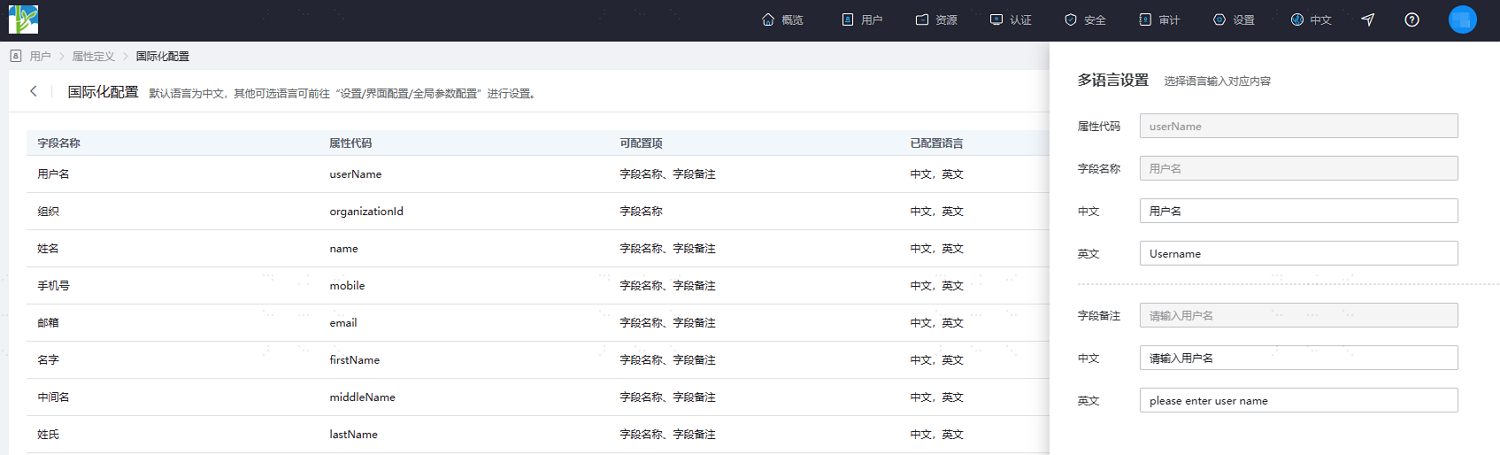
In the IDaaS enterprise center platform top navigation bar, select "Users > Attribute Definition", choose the "User Attribute Definition" tab, and click "Internationalization Configuration" to support Chinese and English internationalization configuration for user attribute field names and remarks. The page displays the corresponding language names and remarks according to the current language configuration.
Effect Display
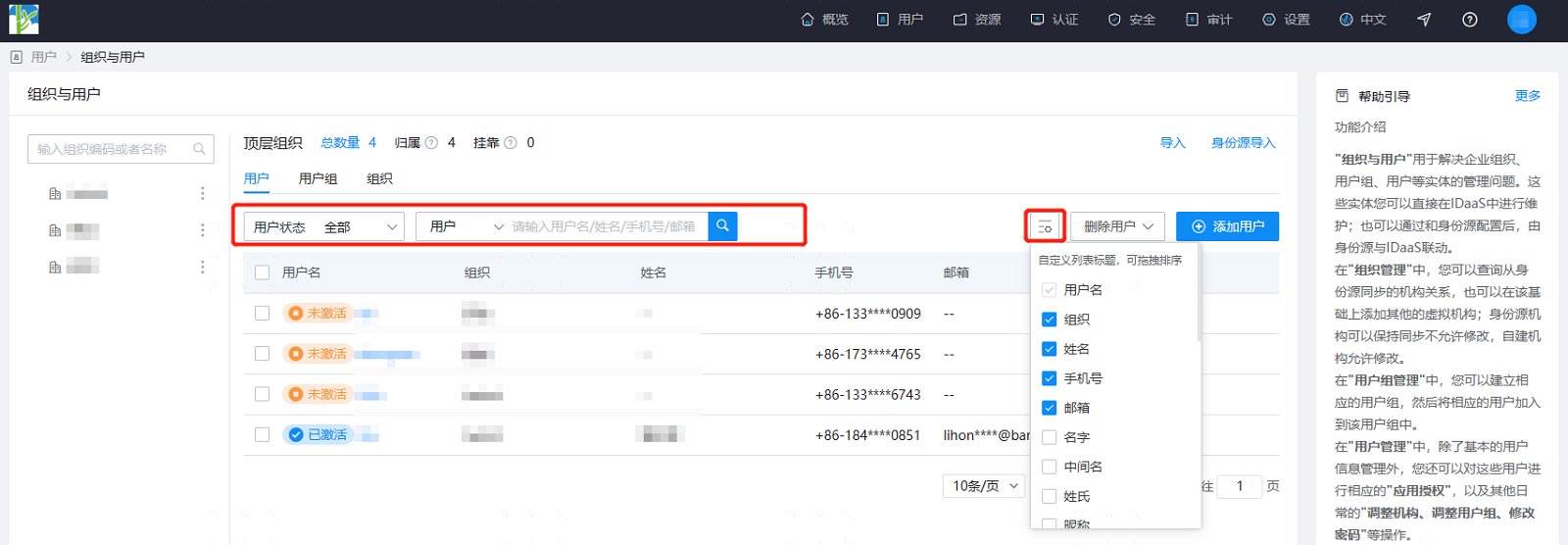
After user attribute field configuration is complete, in the IDaaS enterprise center platform top navigation bar, select "Users > Organization and Users". When adding a user, it will be displayed according to the user attribute configuration.
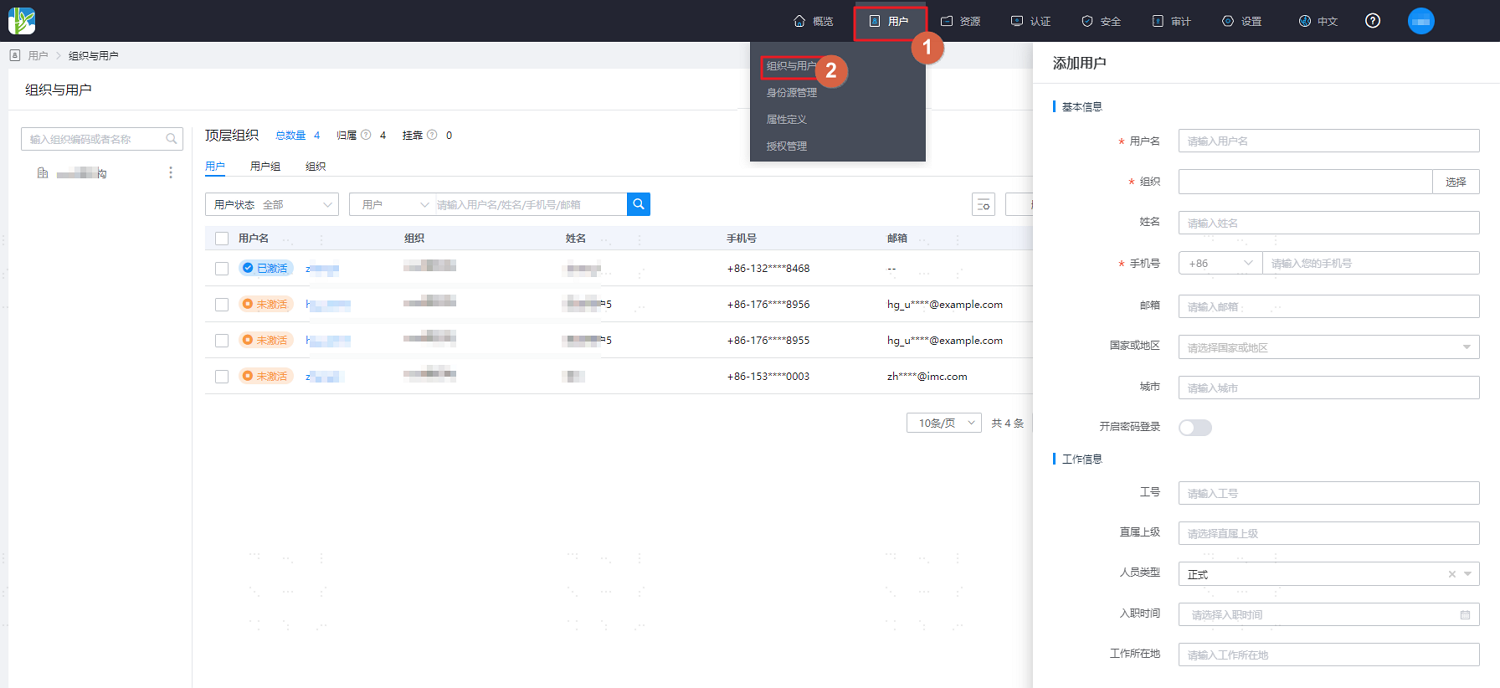
On the "Organization" tab, you can search for specified users by conditions, and click  to customize the user attributes and order displayed in the list (list display order from left to right).