Authenticate and Log In to Enterprise Devices
When enterprise devices are integrated into the IDaaS platform, multiple authentication methods can be configured for device login, such as IDaaS local database authentication, OTP authentication, and AD user password system authentication.
This section guides you through authenticating and logging in to enterprise devices.
TIP
This article uses SANGFOR VPN as an example. Refer to SANGFOR_SSLVPN_v7.1_RADIUS Authentication Test Guide
Prerequisites
- Check whether the network device can connect to the IDaaS Radius service address.
- You have administrator permissions for the IDaaS Enterprise Center platform.
Procedure
SANGFOR_SSL VPN Configuration
Log in to SANGFOR_SSL VPN, choose SSL VPN Settings > Authentication Settings, and select Radius authentication.
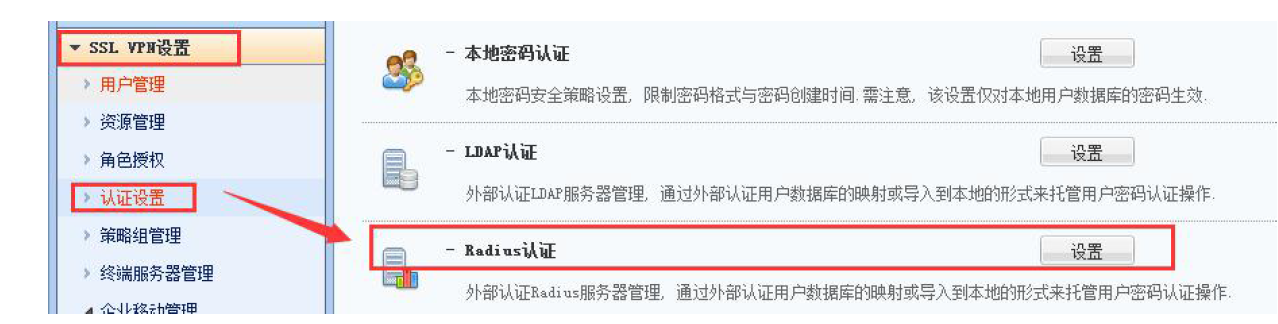
Create a new Radius authentication server and configure the basic server parameters. Refer to the following table.

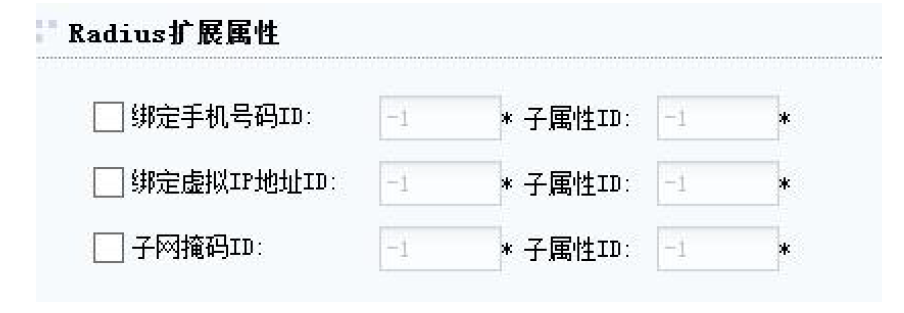
Parameter Description Server Address Radius Server + authentication port obtained from the IDaaS platform in Add Enterprise Device. Example: 39.100.2.100:30058 Authentication Protocol Unencrypted protocol PAP Shared Secret Consistent with the shared secret of the enterprise device in IDaaS Character Set Default is UTF-8. You can select based on actual needs. UTF-8 and GBK are supported. Authentication Timeout Setting Authentication timeout setting. Enable or disable it based on customer requirements, and configure the timeout duration based on customer requirements. Default is 5s. (Optional) Configure Radius server extension attributes. When Radius users need to bind mobile numbers or virtual IPs, the customer RADIUS server must set the corresponding ID field and sub-attribute values to bind this information. The SSLVPN must configure the corresponding attribute ID in RADIUS authentication. During user authentication, the SSLVPN will query the corresponding values (mobile number or virtual IP) from the RADIUS server using the configured attribute ID.
TIP
Radius extension attributes are mainly used when Radius users need to bind mobile numbers or virtual IPs. If there is no such requirement, this configuration is not needed.
(Optional) Configure Radius user group mapping. When customers need to authorize different resources for different user groups on RADIUS, different user groups on Radius can be mapped to different local user groups.
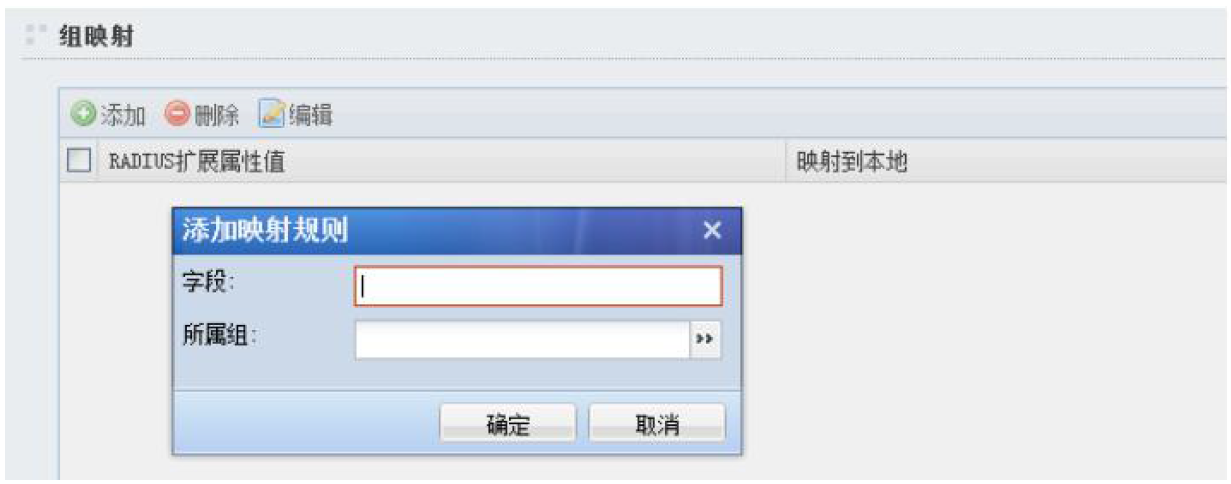
This field refers to the field name of the user group on the RADIUS server. Then configure the mapping to the corresponding local user group. For example, field 1 on the RADIUS server corresponds to the local student group, and field 0 corresponds to the local teacher group.
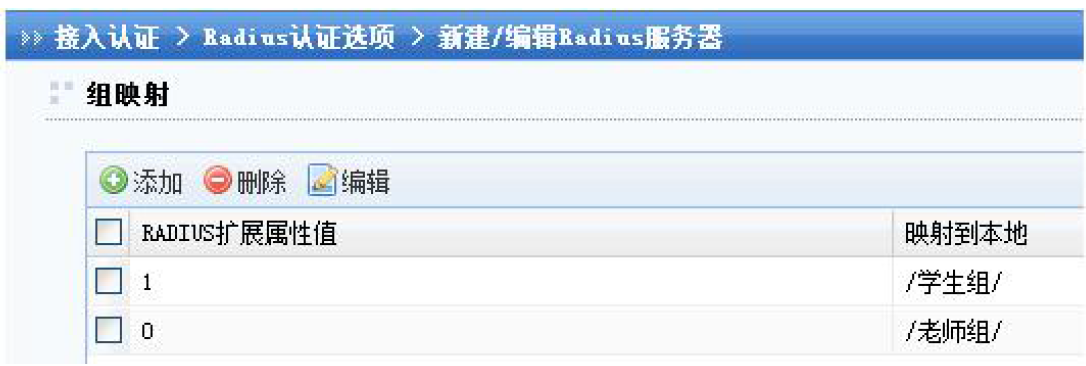
TIP
When setting RADIUS group mapping, the RADIUS group information must be carried by the CLASS attribute 25 so that the SSL VPN can recognize it and perform group mapping. When no specific group mapping is configured, Radius users will match the default group mapping rules and obtain the permissions of the corresponding user group. The default mapped user group can be set by yourself. Then authorize the resources that need to be accessed by RADIUS users.
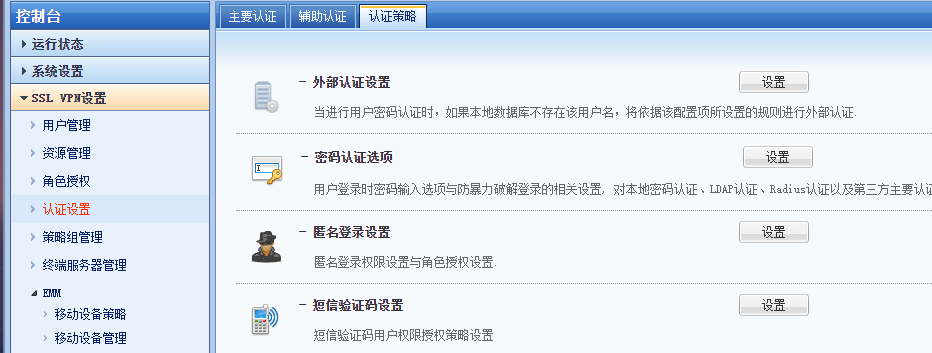
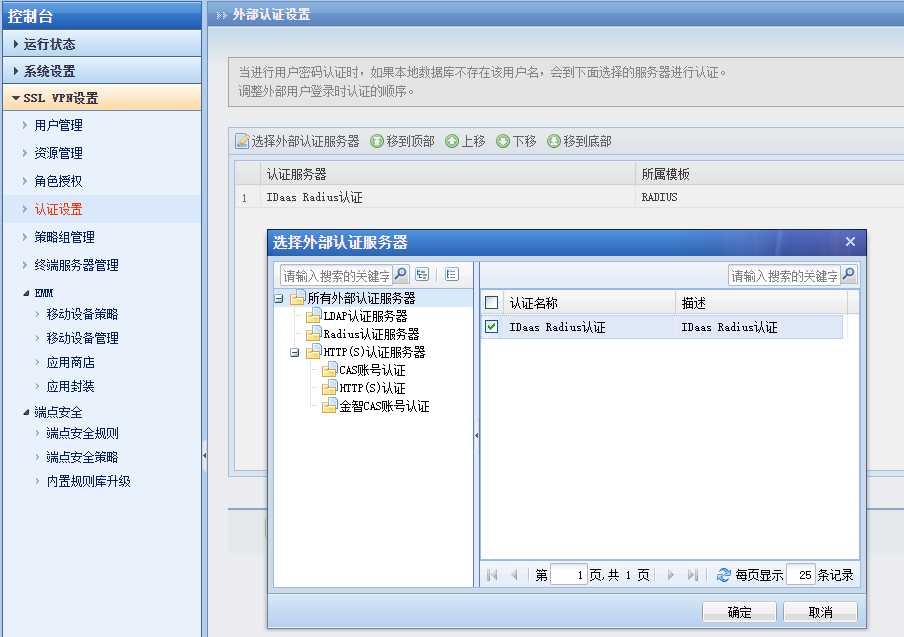
After configuration is complete, go to the Authentication Policy page and choose External Authentication Settings.
Select the Radius authentication server added earlier.
Verify Login
In the VPN console, choose SSL VPN Settings > User Management, then edit the user and set the primary authentication method to Radius. This prevents the user from preferring the local database during test login, which would affect the test results.
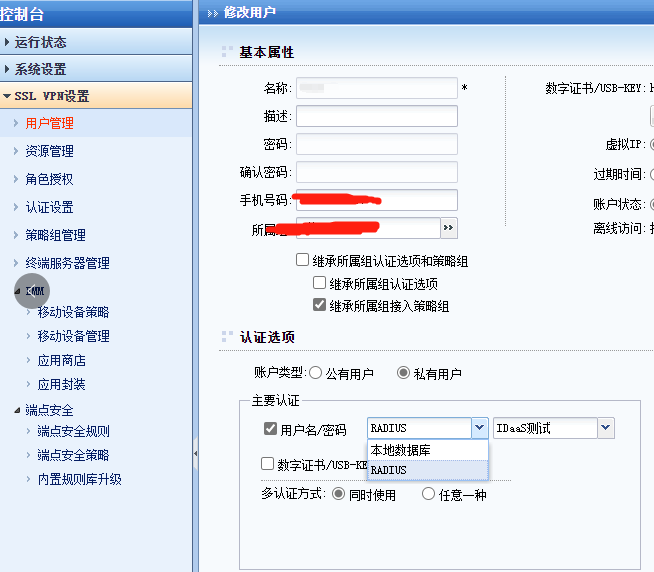
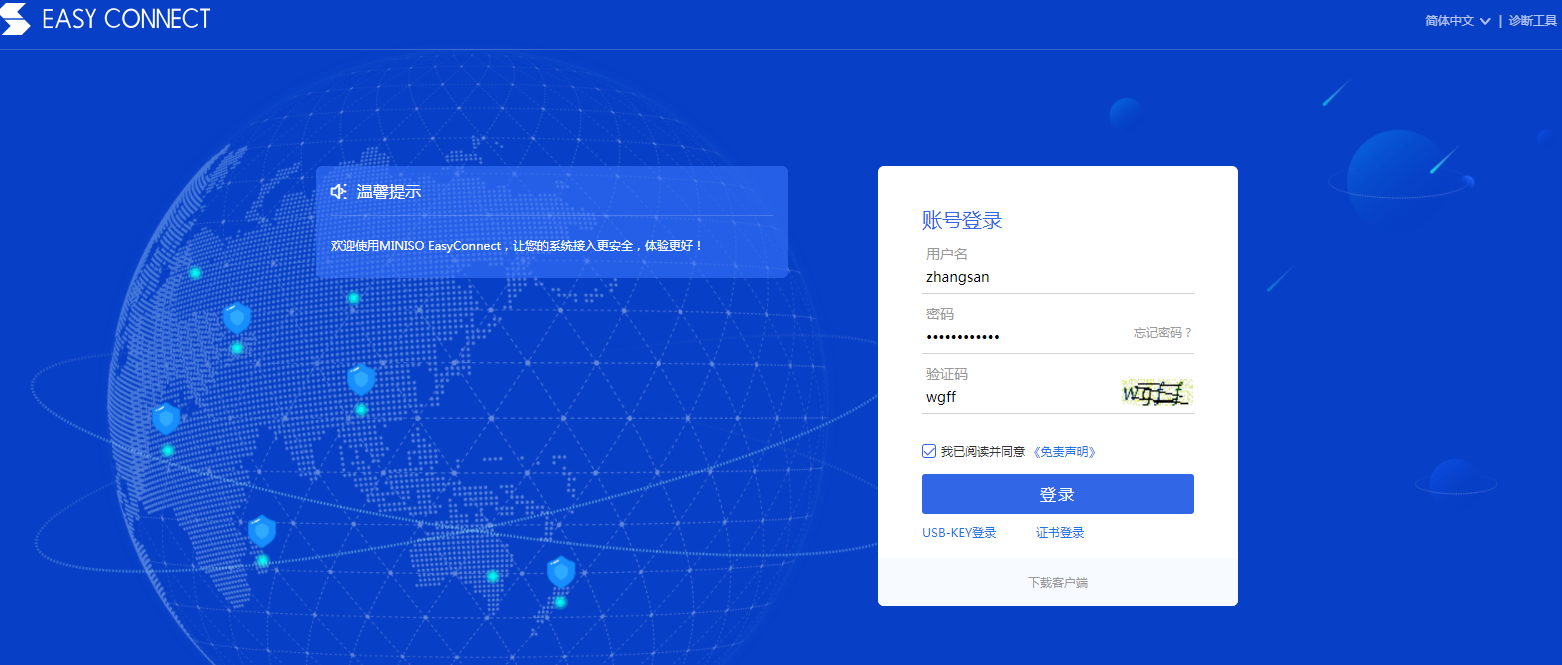
Access the VPN address in a browser or client, and enter the IDaaS test username and password to log in. The test login status can be viewed in the user login logs of either the IDaaS Enterprise Center or the VPN console.
TIP
The authentication login method here is related to the authentication source configured when Adding Enterprise Device. If only one authentication source was configured when adding the device, only one authentication is required here. If a secondary authentication source was configured when adding the device, secondary authentication is required here.