
Configure SAML Authentication Source
To facilitate enterprise user authentication login, the IDaaS platform supports configuring the SAML protocol as an authentication source. Users can authenticate and log in to various application systems through the SAML protocol, bringing enterprise users a simpler and more convenient login method and better user experience.
This guide explains the related operations for configuring a SAML authentication source.
Prerequisites
- Permissions for the third-party identity provider (IDP) application system, and the IDP supports SAML authentication.
- Administrator permissions for the IDaaS Enterprise Center.
Procedure
Obtain IDaaS SP Metadata
Log in to the IDaaS Enterprise Center, choose Authentication > Authentication Source Management from the top navigation bar, and enter the SAML authentication source page.
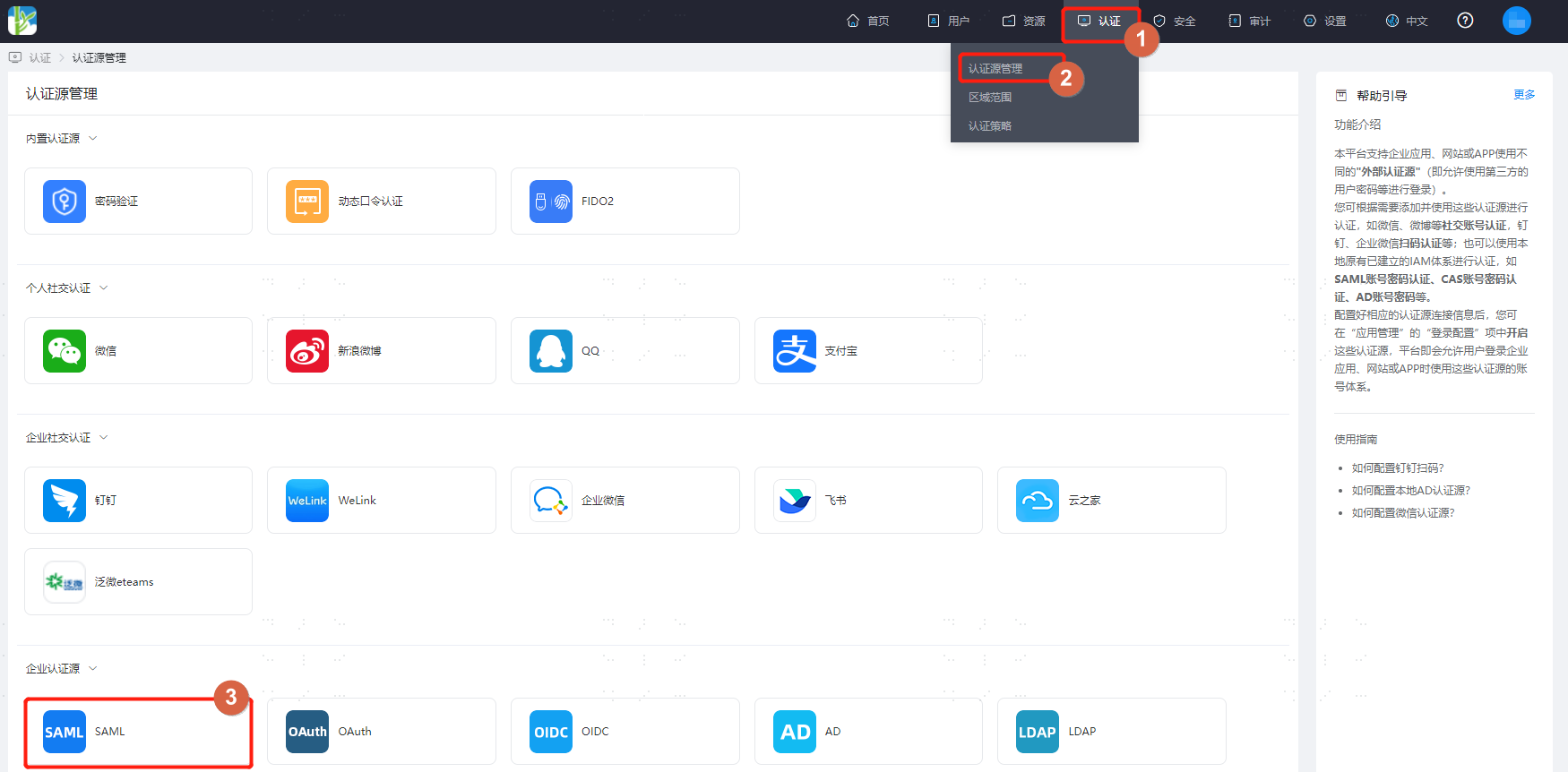
On the SAML authentication source page, click SP Metadata to download and view the metadata.

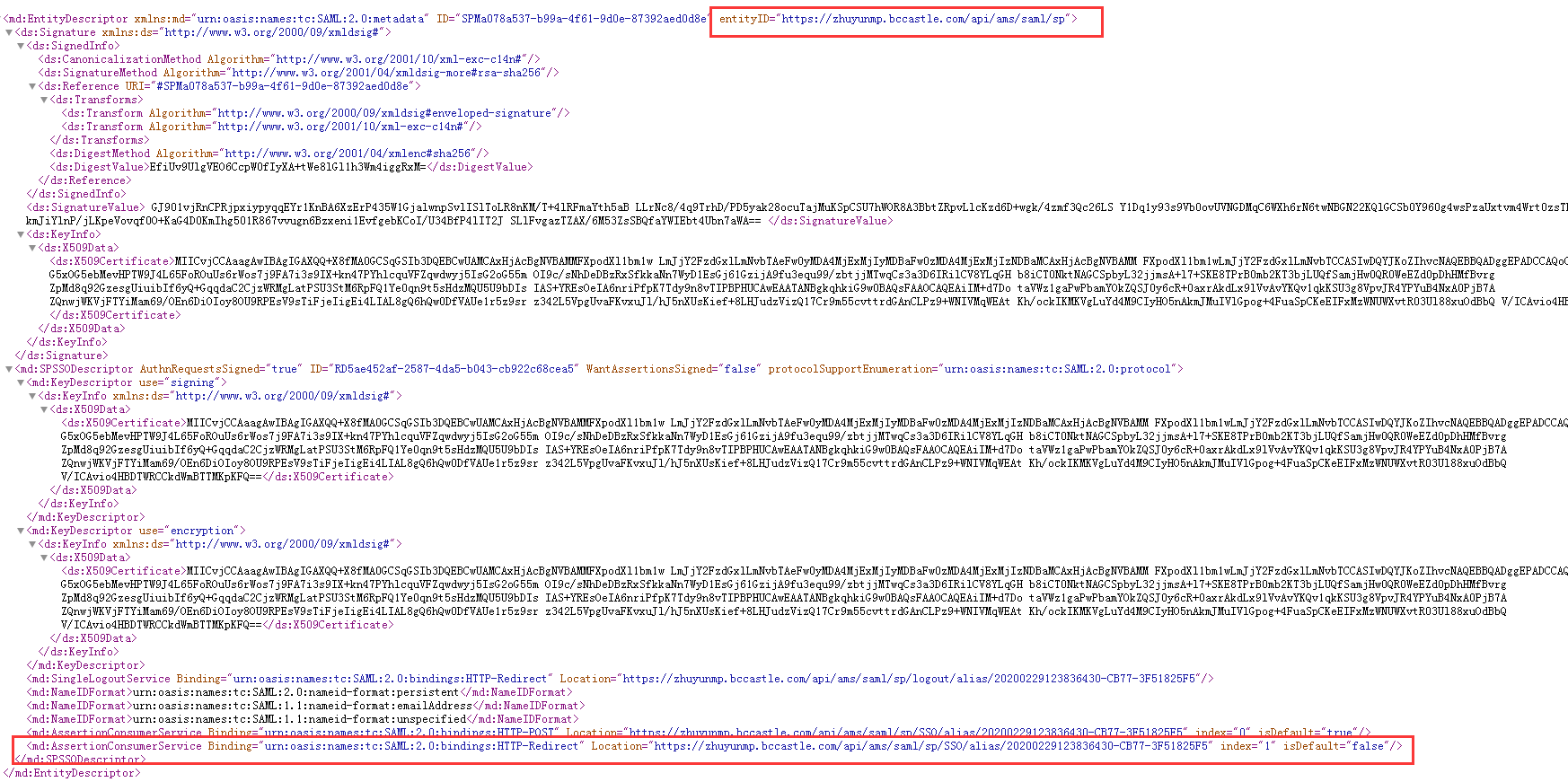
Third-Party SAML Authentication Platform Configuration
- On the third-party platform, create an application with SAML 2.0 as the access method. Complete the application's relevant information based on the metadata obtained from the IDaaS platform. For details, refer to the documentation of each platform.
- Obtain the IDP metadata file of the newly created application.
- Grant users access to the newly created application.
Configure SAML Authentication Source in IDaaS
Log in to the IDaaS Enterprise Center, choose Authentication > Authentication Source Management from the top navigation bar, enter the SAML authentication source page, and click Add Authentication Source.
Configure the key parameters of the SAML authentication source according to the table below.
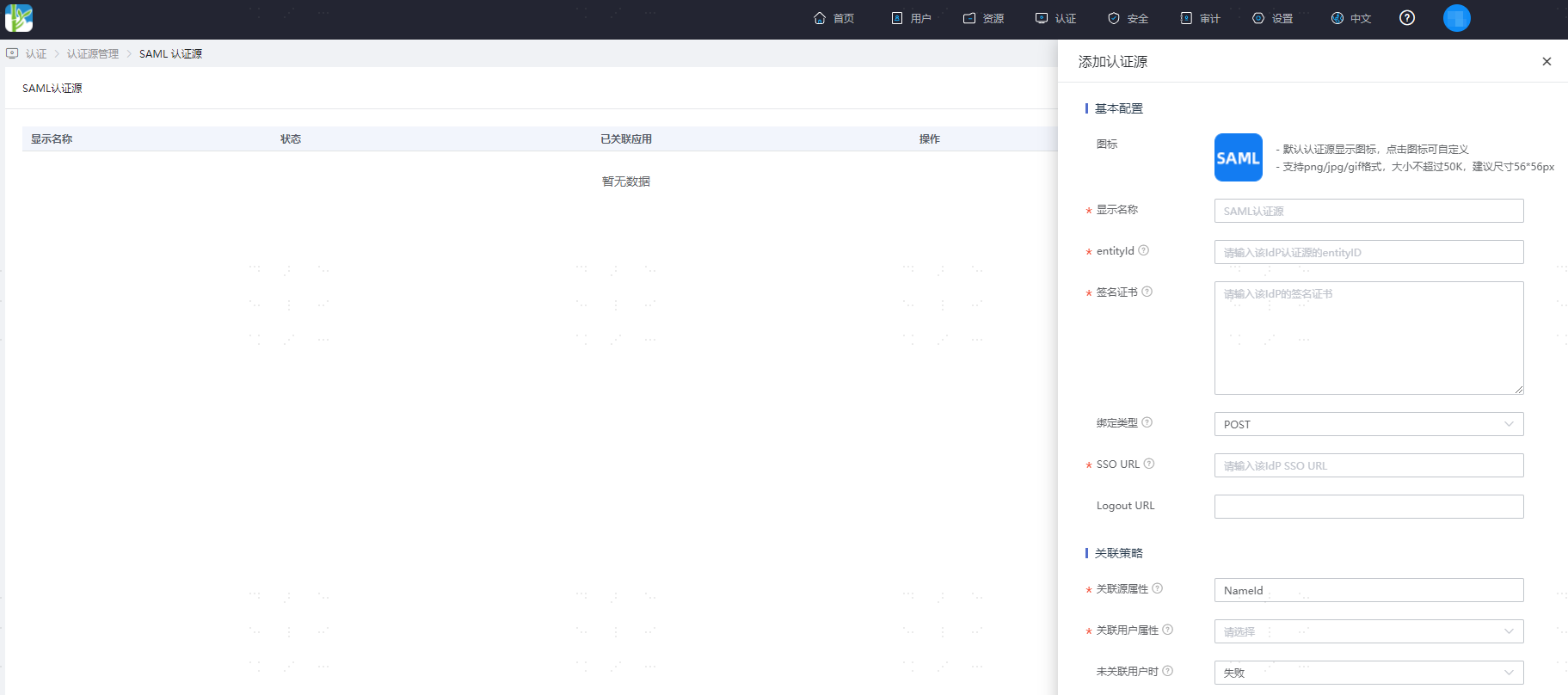
Parameter Description Display Name Custom authentication source display name entityId The entityIDin the IDP metadata file of the newly created application on the third-party platformSigning Certificate The Certificatein the IDP metadata file of the newly created application on the third-party platformBinding Type The binding type supported by the SingleSignOnServiceaddress in the IDP.SSO URL The Identity Provider Single Sign-On URLin the IDP metadata file of the newly created application on the third-party platformLogout URL The application's global logout address Source Association Attribute The unique attribute name of the user in Okta User Association Attribute The unique attribute name maintained for users in IDaaS When User Not Associated Fail, or auto-create user TIP
- The username in IDaaS must be consistent with the authorized account in the third-party platform.
- When User Not Associated: When the source association attribute of the user information returned by the third-party platform does not match the associated user attribute in IDaaS, and no system user is associated, the optional configurations are as follows.
Fail: Set to Fail, meaning the user is not allowed to pass authentication.
Auto Create User: Set to Auto Create User. You can choose whether to update existing attributes, and click Add Mapping to map user attributes from the third-party platform to IDaaS user attributes based on mapping rules and associated attributes, and create the user so that the user can pass authentication.
Attribute descriptions are as follows:
- User Attribute Name: Select an IDaaS user attribute from the dropdown.
- Mapping Type: Select authentication source attribute.
- Authentication Source Attribute Name: Third-party platform user attribute.