
Policy-Based Authorization
This chapter guides you through authorizing users based on rules. If your application system's permission assignment has clear rules, policy-based authorization can help you automate permission allocation.
Prerequisites
- You have administrator permissions for the IDaaS enterprise center platform.
- You have created the application and enabled the authorization model.
Procedure
Enter the Policy-Based Authorization Interface
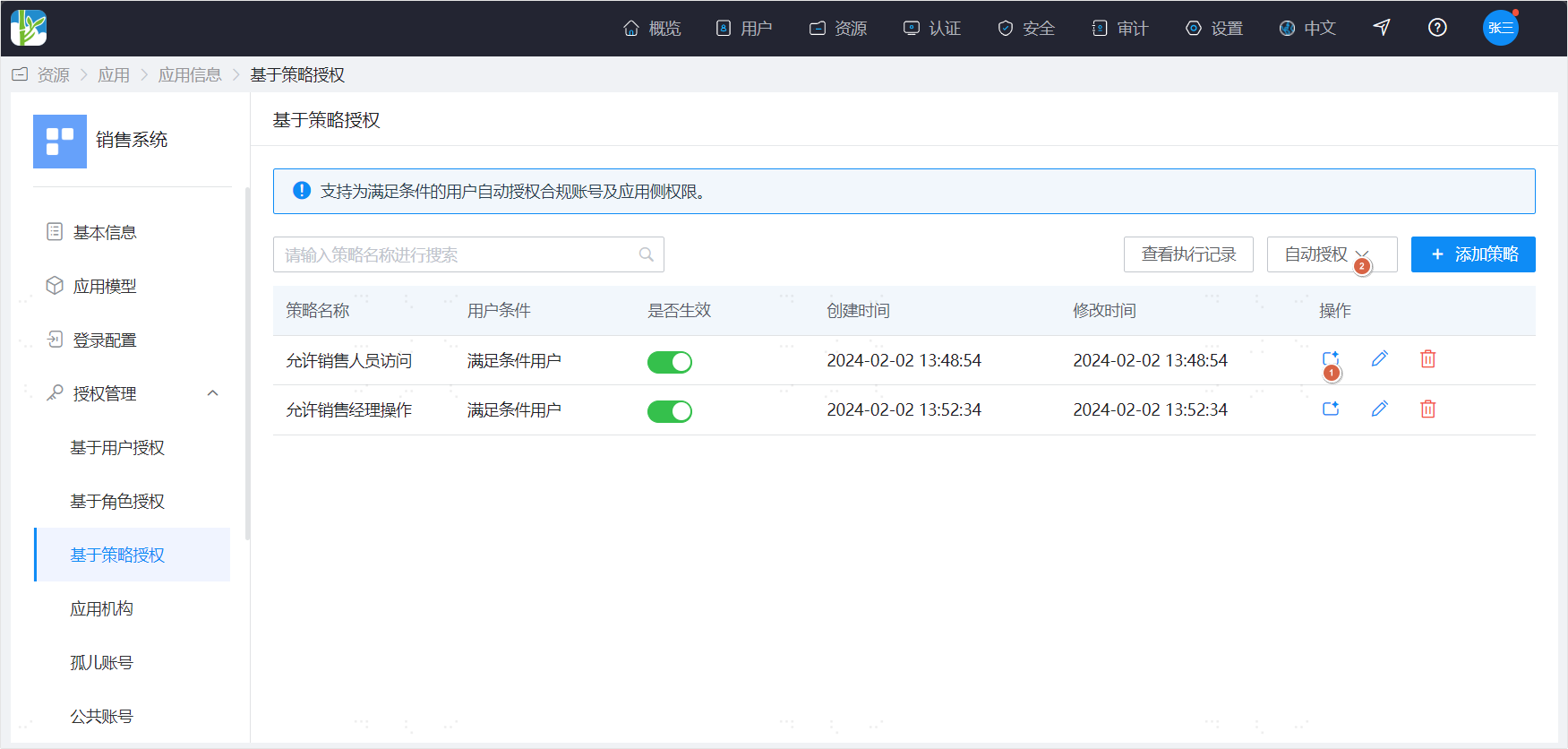
Open Authorization Management in the left navigation menu and click Policy-Based Authorization.
Add a Policy
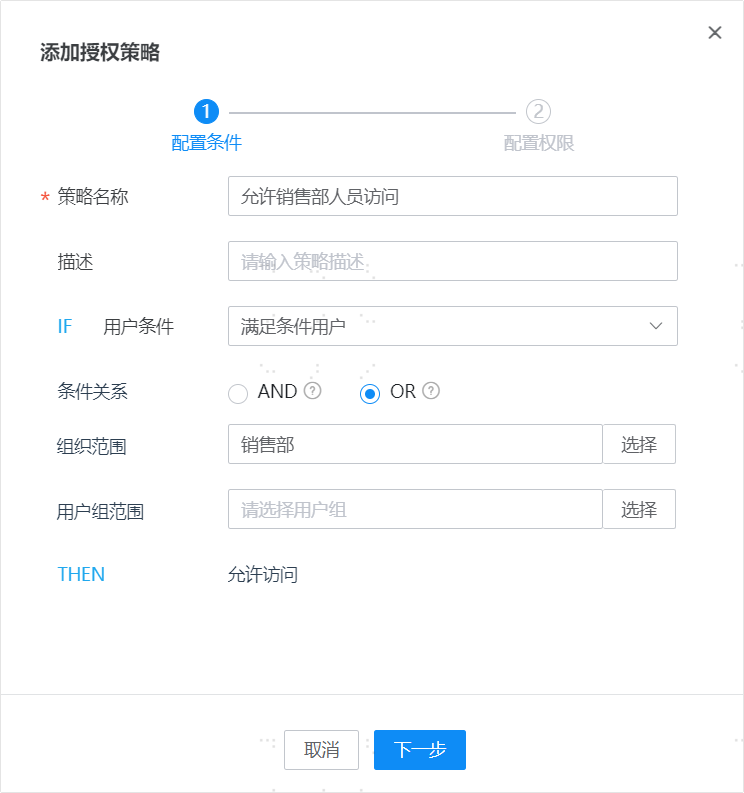
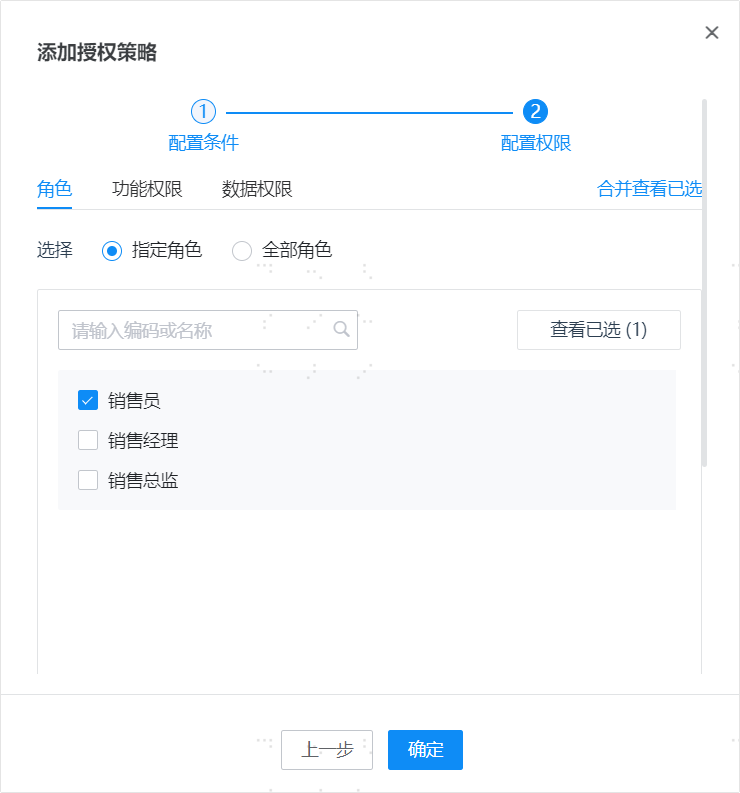
Click the Add Policy operation at the top of the policy-based authorization page to open the add page. Adding a policy is divided into two steps.
- Configure User Conditions User conditions allow you to select users who meet the conditions, and then configure the conditions they must satisfy.
- Configure Permissions When the application has enabled the authorization model, you can continue to configure permissions.
Manually Execute Policy Calculation
Execute automatic authorization for a single policy Click the automatic authorization icon in the operation column of the policy list to execute calculation for a single policy. The calculation rules are as follows: For users who meet the policy conditions: (1) When the user originally had no account, an account is automatically added; additionally, when the policy configures application permissions, the selected application permissions are automatically assigned to the account. (2) When the user originally had an account, the account remains unchanged; and when the policy configures application permissions, the selected application permissions are appended to the account (added if absent, unchanged if present).
Execute authorization for all policies Expand the Automatic Authorization operation at the top of the page and select One-Click Automatic Authorization to execute calculation for all policies. The calculation rules are as follows: For all users, match the policies they satisfy: (1) When the user originally had no account but currently has a satisfied policy, an account is automatically added; additionally, when the policy configures application-side permissions, the selected application-side permissions are automatically assigned to the account; when the user satisfies multiple policies simultaneously, the assigned permissions are the union of the permissions from all satisfied policies. (2) When the user originally had an account and currently has a satisfied policy, the account remains unchanged; additionally, when the policy configures application-side permissions, the selected application-side permissions are appended to the account (added if absent, unchanged if present).
Execute permission revocation for all policies Expand the Automatic Authorization operation at the top of the page and select One-Click Permission Revocation to revoke permissions that users no longer satisfy. There are two execution methods:
Retain manually assigned permissions. The rules are as follows: For users who already have accounts, check their policy satisfaction status: (1) When the user originally had a manually assigned account but currently has no satisfied policy, the account is retained; when the user originally had an automatically assigned account but currently has no satisfied policy, the account is deleted. (2) Additionally, when the user originally had manually assigned application-side permissions that are not included in the currently satisfied policies, those permissions are retained; when the user originally had automatically assigned application-side permissions that are not included in the currently satisfied policies, those permissions are deleted.
Force policy-based permission assignment. The rules are as follows: For users who already have accounts, check their policy satisfaction status: (1) When the user originally had an account (whether manually or automatically assigned) but currently has no satisfied policy, the account is deleted. (2) Additionally, when the user originally had assigned application-side permissions (whether manually or automatically assigned) that are not included in the currently satisfied policies, those permissions are deleted.
Automatically Execute Policy Calculation
When a user changes and their satisfied policies change, the system automatically adjusts the user's permissions. The adjustment rule is: Permissions automatically granted to the user are redistributed according to the satisfied policies, while manually granted permissions remain unchanged.
View Execution Records
Through the View Authorization Records operation, you can see the changes in user permissions for each calculation.
Authorization Blacklist
Blacklist Description
Policy-based authorization helps you automatically complete user authorization based on rules. However, after rules are established, exceptions may occur. For example, a user may meet a certain condition but cannot be granted certain permissions for some reason. The authorization blacklist solves this scenario. The authorization blacklist has two effects:
- Deny granting access account: Add the user to the blacklist and select this effect. Then, during automatic authorization, even if the user meets the conditions, they will not be granted an account for that application system.
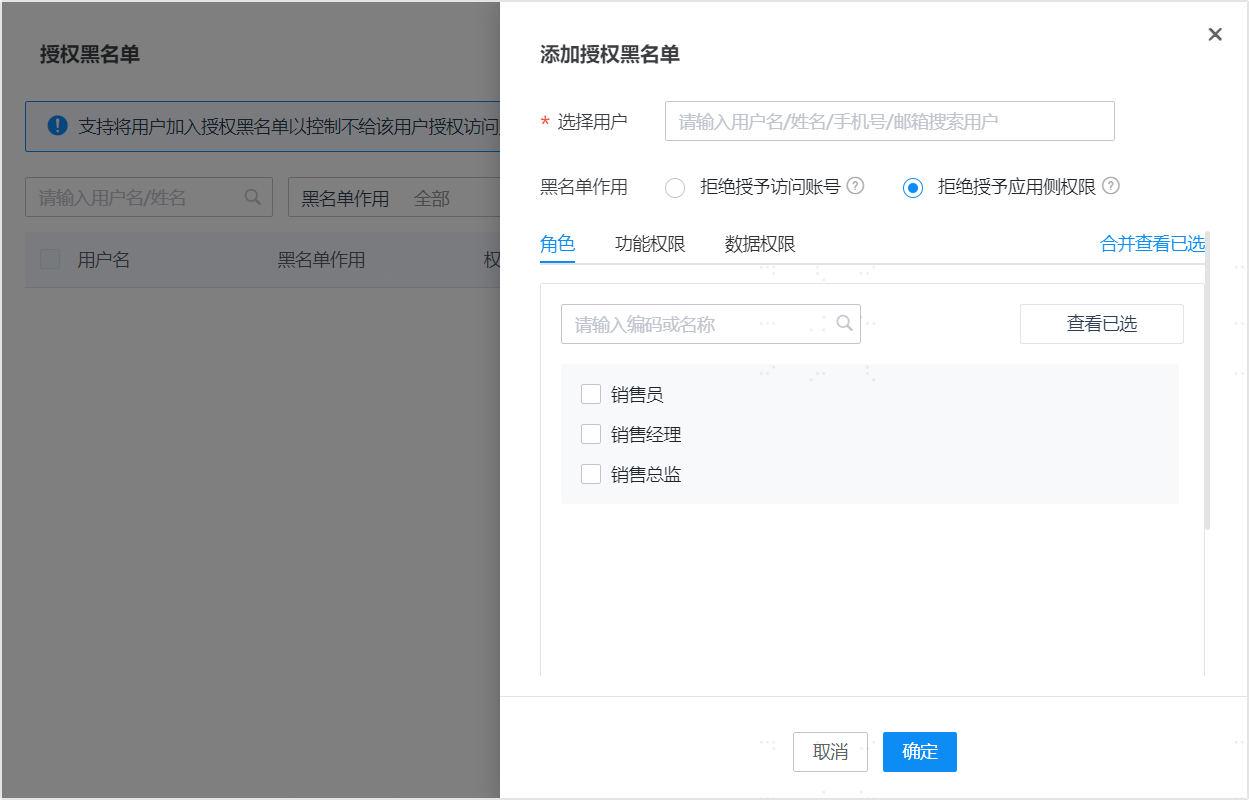
- Deny granting application-side permissions: Add the user to the blacklist and select this effect along with roles, functional permissions, or data permissions. Then, during automatic authorization, even if the user meets the conditions, they will not be granted these roles/functional permissions/data permissions. Denying access account includes denying application-side permissions.
Manually Add Authorization Blacklist
- On the User-Based Authorization page, click Authorization Blacklist at the top to open the blacklist management interface.
- Click the Add button to add an authorization blacklist entry. You need to select the user and specify the blacklist effect.
- A user can only be added to the blacklist once; after adding, it can be modified.
Automatically Add Authorization Blacklist
When modifying an application account's application-side permissions, if a user's automatically granted permissions are canceled, the user is automatically added to the blacklist to ensure the canceled permissions are not granted again due to automatic calculation.