
Configure User Password Authentication
After enterprise employee data and application systems are uniformly managed on the IDaaS platform, to facilitate enterprise users' access to application systems, IDaaS provides multiple authentication methods. Among them, password authentication and SMS verification code are enabled by default. You can set personalized passwords or initialize passwords for users on the platform so that users can log in to application systems with account and password.
Prerequisites
- You have administrator permissions for the IDaaS enterprise center platform.
- The email gateway or SMS gateway is enabled. The SMS gateway is enabled by default and defaults to "Built-in Gateway" under "Domestic SMS Gateway".
Procedure
Configure Password Initialization Policy
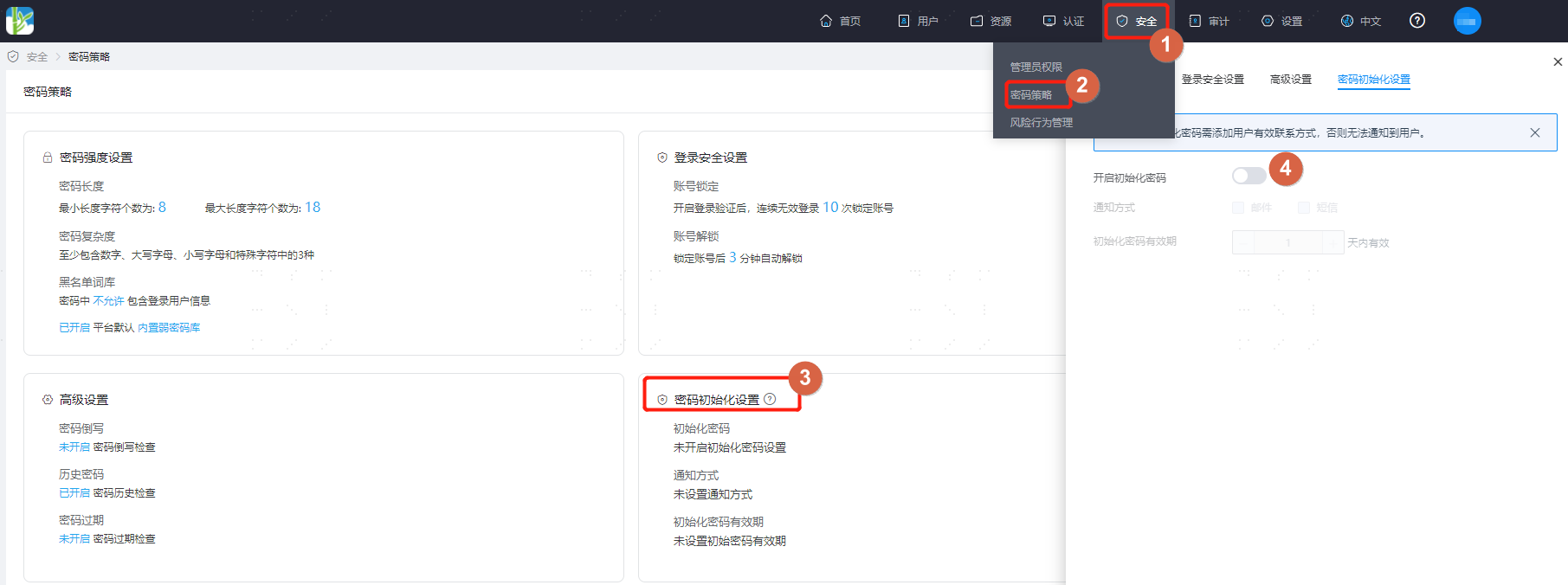
Log in to the IDaaS enterprise center platform. In the top navigation bar, select "Security > Password Policy", and choose "Password Initialization Settings".
Enable the initialize password button and set the initialization password notification method.
- If "Email" is selected, the initialization password is sent via email.
- If "SMS" is selected, the initialization password is sent via SMS.
- If both "Email" and "SMS" are checked, the initialization password is sent via email.
Set the initialization password validity period according to actual needs.
Configure Passwords for Users
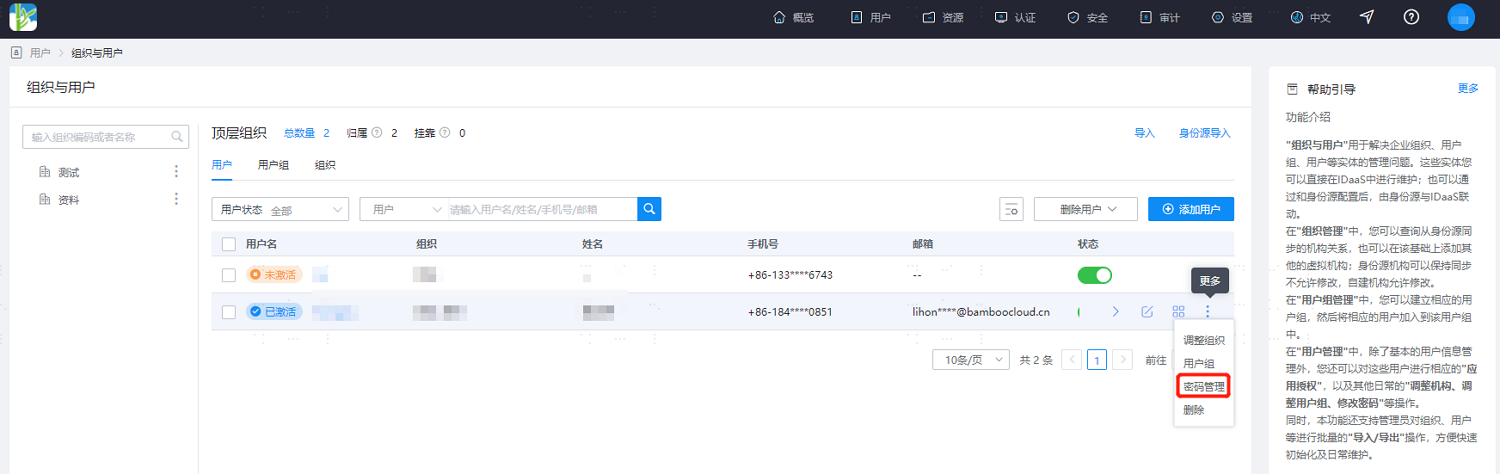
In the IDaaS enterprise center platform top navigation bar, select "Users > Organization and Users", choose Password Management, and configure password-related information for user login.
Select "Custom": means setting a fixed password for this user. Just enter the fixed password in the "Please enter password" box. The user can change this password later. After checking "Change password on first login", the user must change the password on first login.
Select "Auto-generate": the system automatically assigns a password to the user according to the password initialization configuration, and the password must be changed on first login by default. Login must be completed within the validity period.
TIP
If "SMS" is checked when configuring the password initialization policy, the "Mobile Number" field is required here (mobile number is a required field by default). If "Email" is checked when configuring the password initialization policy, the "Email" field becomes required.
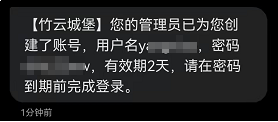
Users receive password-related information via mobile number or email.
Configure Password Verification for Applications
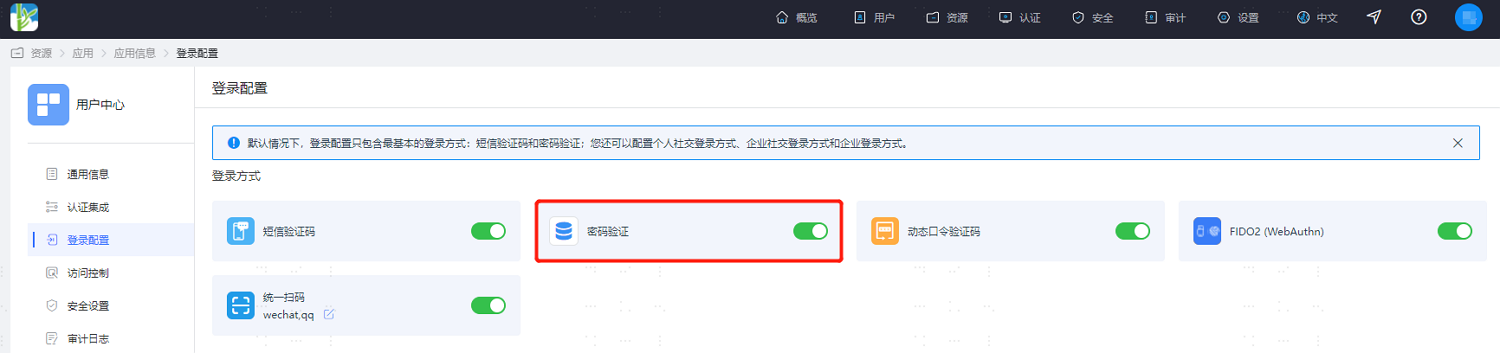
In the IDaaS enterprise center platform top navigation bar, select "Resources > Applications". Taking the user center application as an example, select "User Center" and switch to the "Login Configuration" tab. By default, the password verification switch is enabled.
TIP
If the application is associated with AD or LDAP authentication, IDaaS account password login authentication cannot be used here.
Verify Password Login
Log in to the user center page, use account and password for authentication, and log in to the user center according to the previously configured password policy and interface prompts.