Configure Yunzhijia Authentication Source
Yunzhijia authentication login allows users to securely log in to third-party applications or websites using Yunzhijia as the authentication source. To facilitate enterprise user authentication login, the IDaaS platform supports configuring Yunzhijia as an authentication source. Users can log in to the IDaaS User Center through Yunzhijia authentication, and then single sign-on to various application systems from User Center, bringing enterprise users a simpler, more convenient login method and a better user experience.
This section describes the operations related to configuring the Yunzhijia authentication source.
Prerequisites
- You have administrator permissions for the Yunzhijia Developer Platform.
- You have administrator permissions for the IDaaS Enterprise Center platform.
Procedure
Create an Application on the Yunzhijia Developer Platform
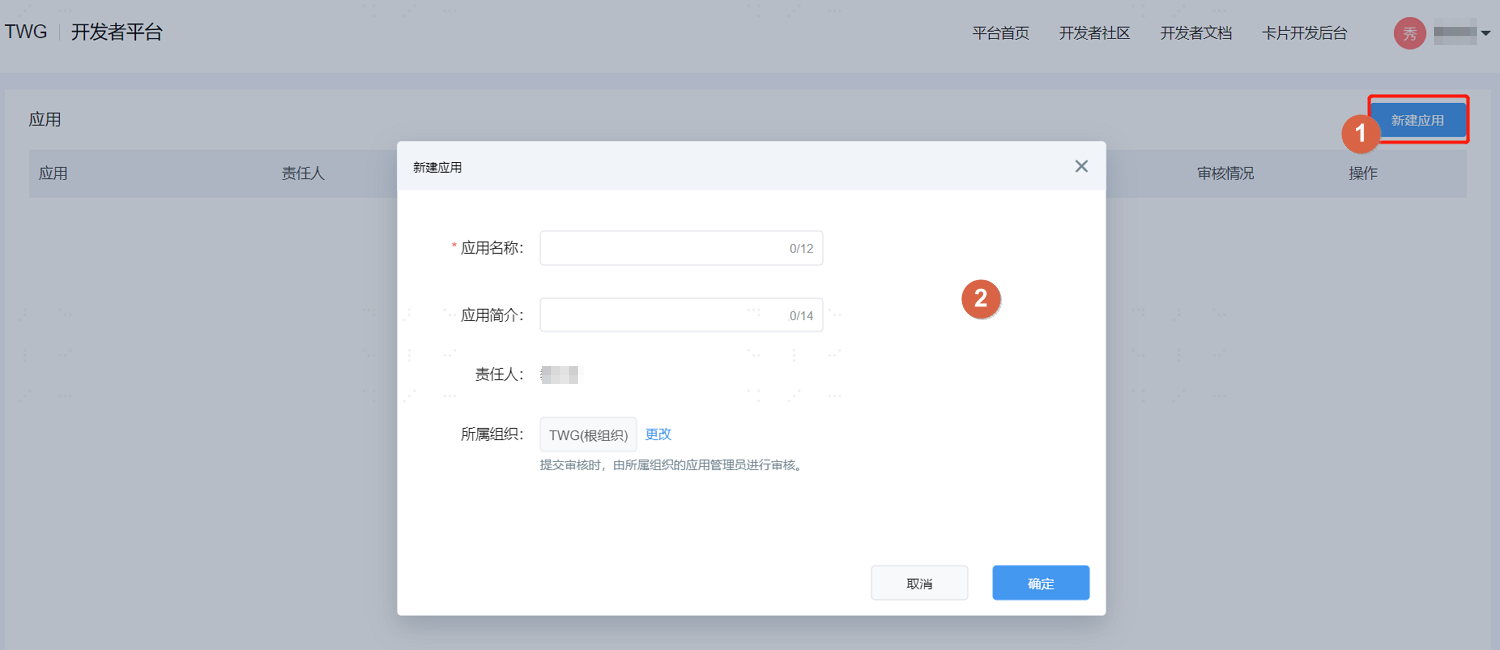
Log in to the Yunzhijia Developer Platform, click Create Application, fill in the basic application information, and after configuration is complete, click OK to save and enter the application details page.
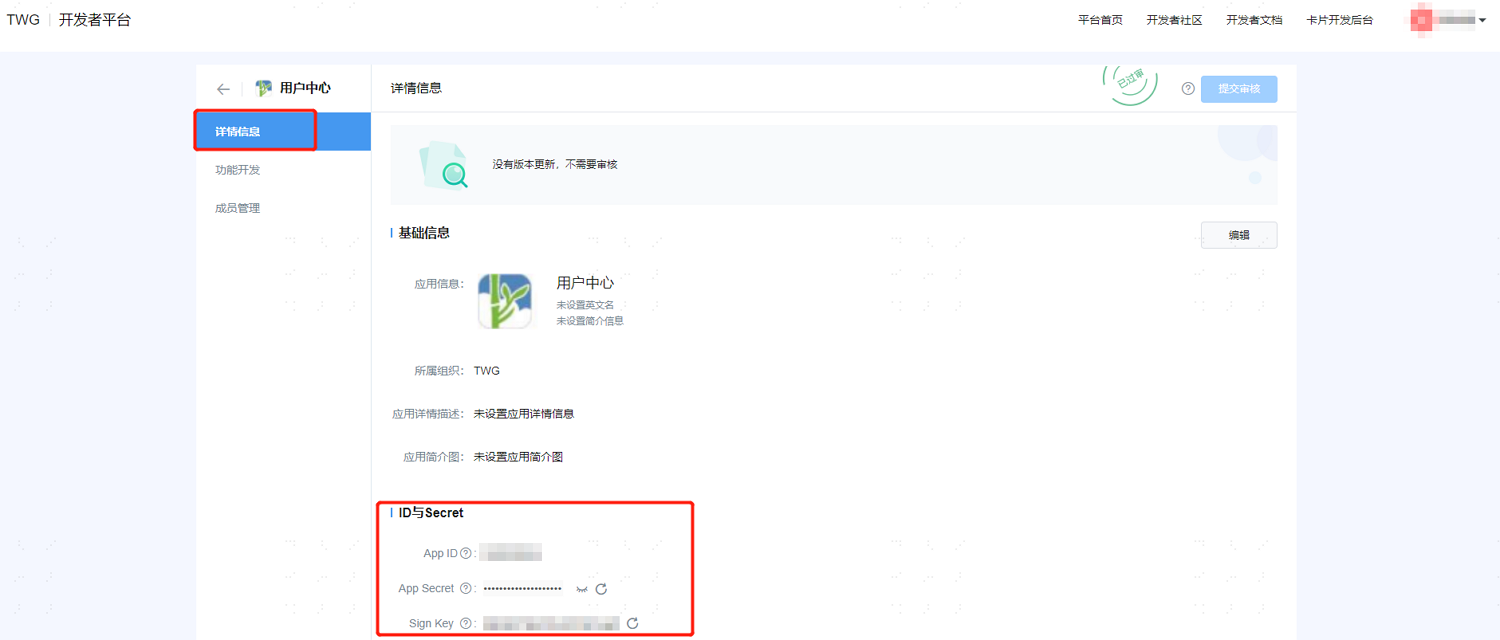
On the details information page, obtain the App ID and App Secret information.
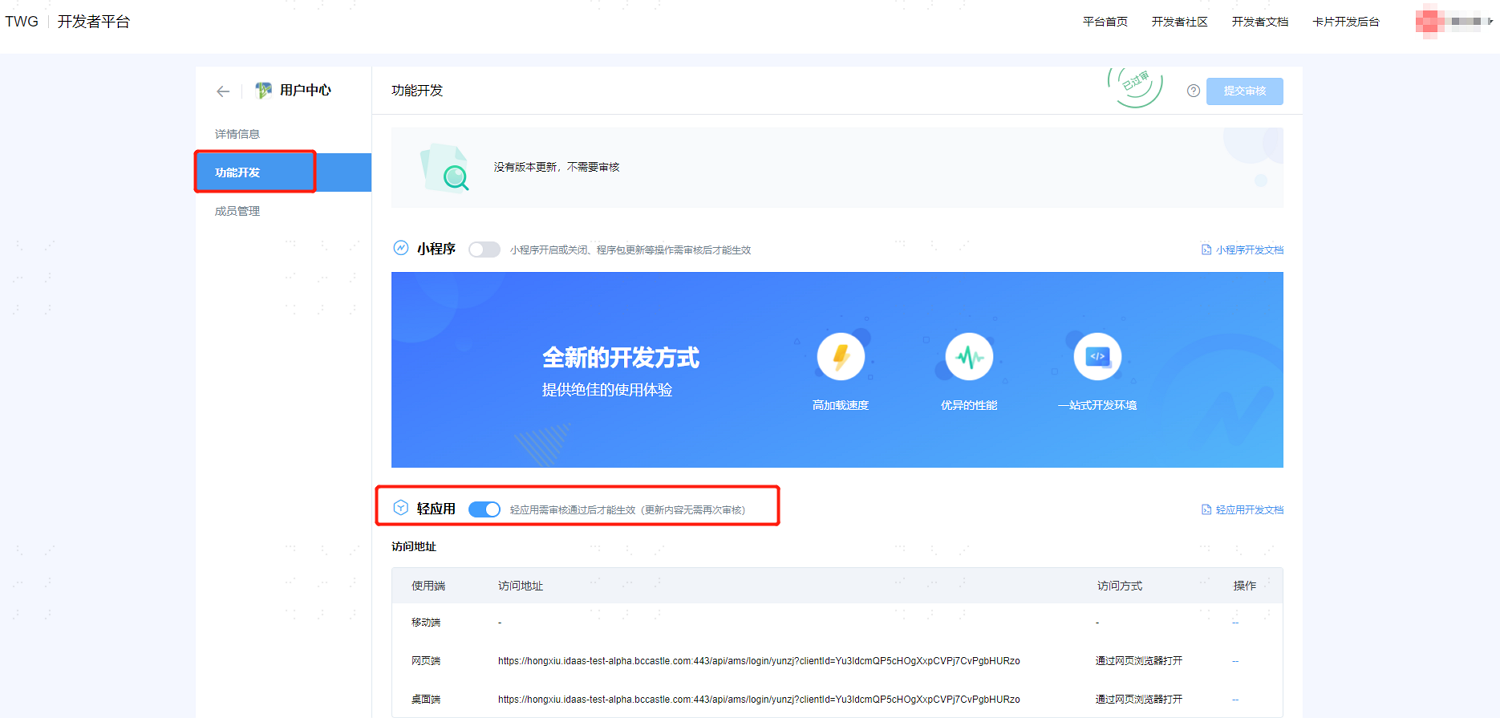
After the new application is created, switch to the Feature Development page, turn on the light application switch, and select and configure the access addresses for mobile, web, and desktop clients according to actual needs.
TIP
Address configuration format:
https://{tenant-domain}:{tenant-port}/api/ams/login/yunzj?application_id={ClientId}.The tenant domain is obtained from Settings > Enterprise Info in the IDaaS Enterprise Center; the ClientId is obtained from the General Info page of the User Center application on the Resources > Applications page of the IDaaS platform.
Add Yunzhijia Authentication Source in IDaaS
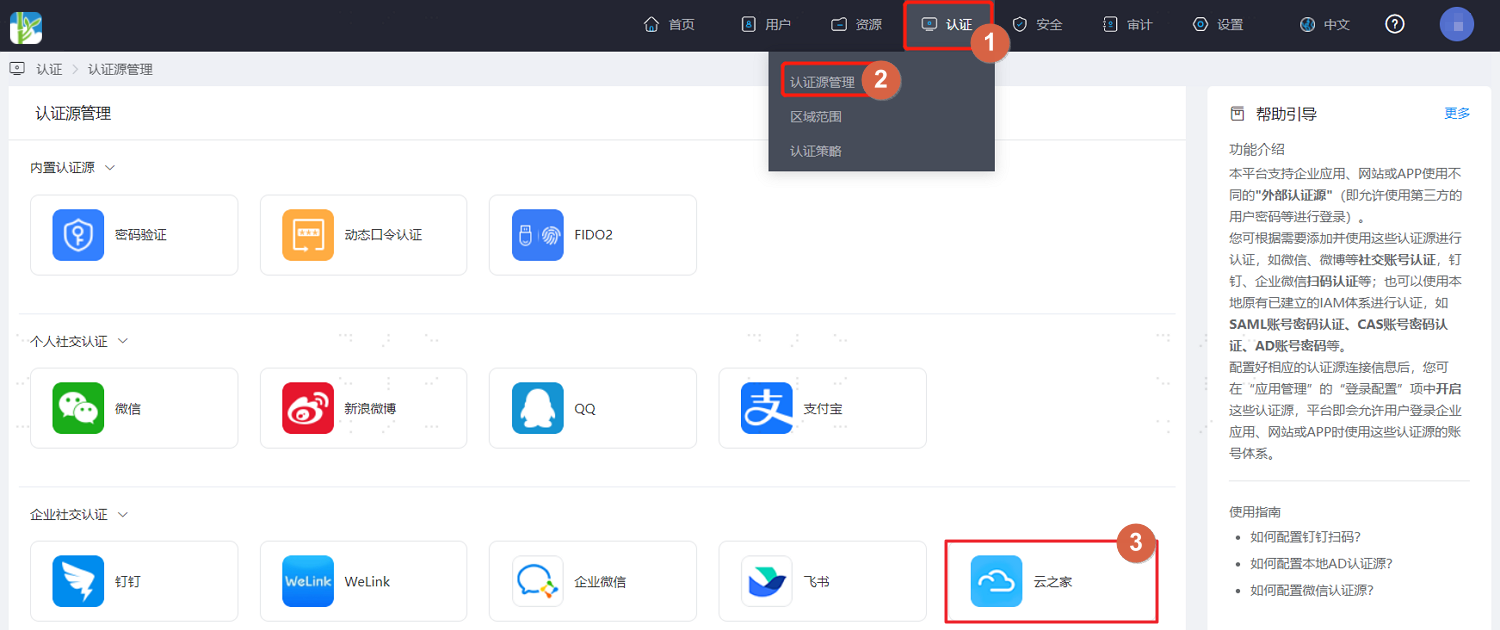
Log in to the IDaaS Enterprise Center platform. In the top navigation bar, choose Authentication > Authentication Source Management. On the Yunzhijia authentication source page, click Add Authentication Source.
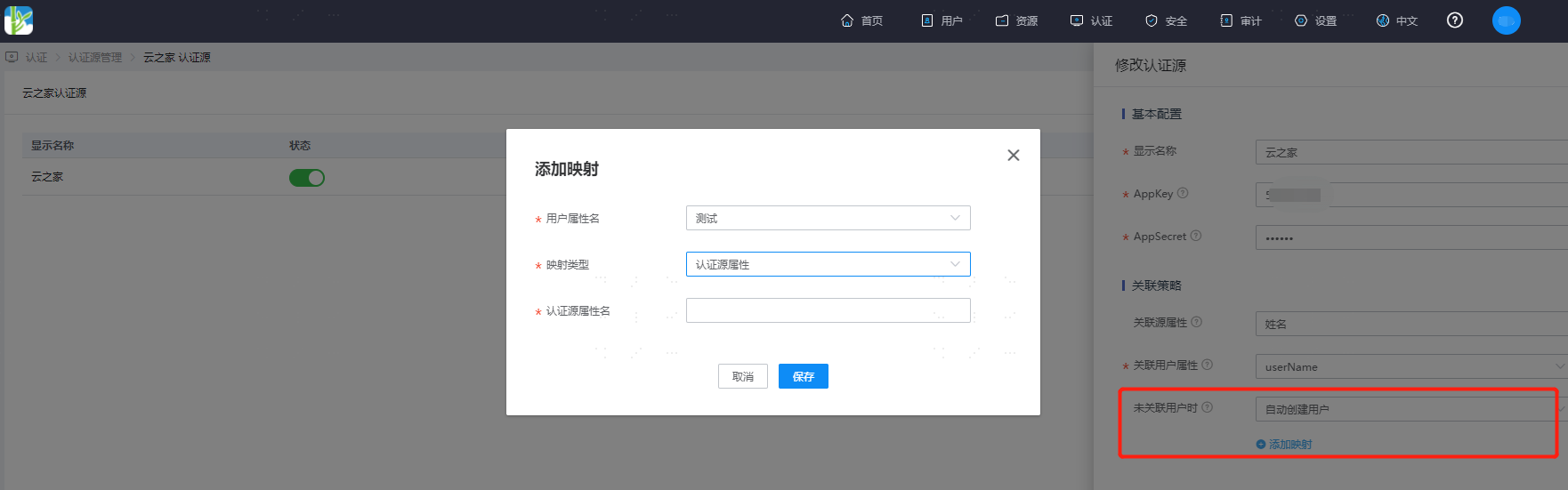
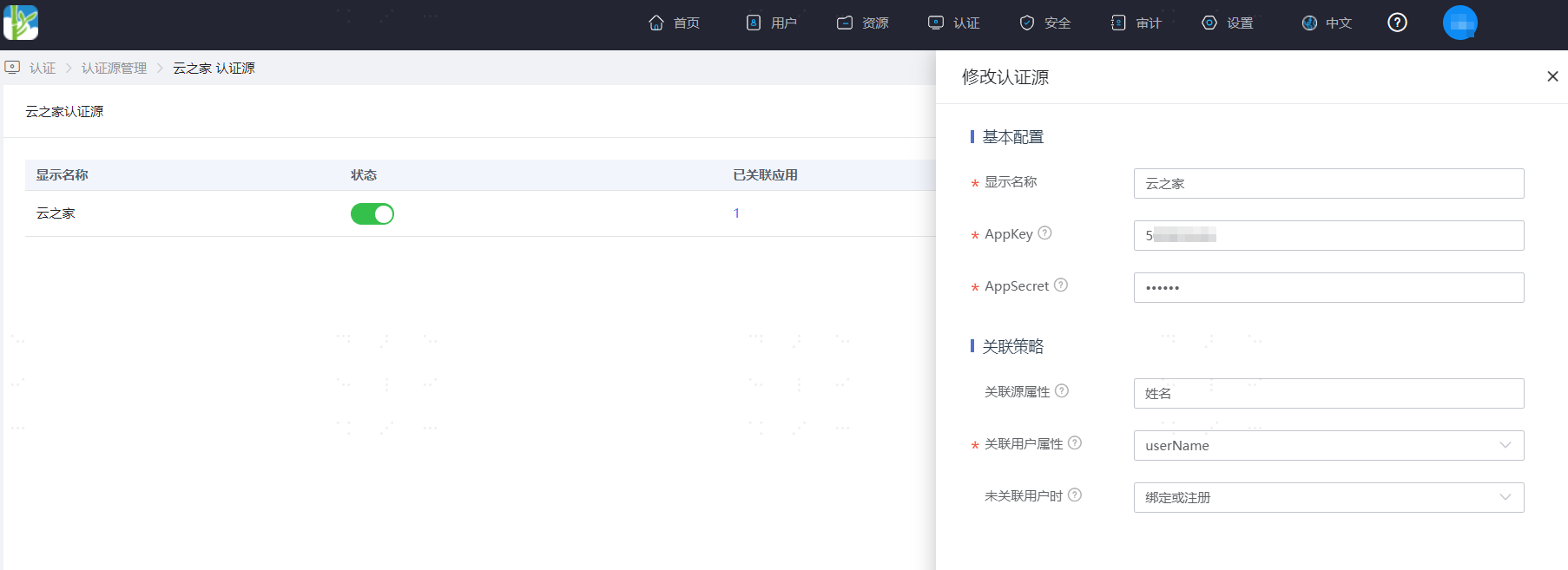
Configure the Yunzhijia authentication source parameters according to the on-screen prompts. Key parameter descriptions are as follows.
TIP
When User Is Not Associated: That is, when the associated source attributes of the user information returned by Yunzhijia are inconsistent with the associated user attributes in IDaaS and no system user is associated, the optional configuration items are as follows.
Bind: When set to Bind, if no user is associated, it will jump to the mobile number or email verification page. Enter an existing IDaaS mobile number or email. If the verification succeeds, the user passes authentication.
Bind or Register: When set to Bind or Register, if no user is associated, it will jump to the mobile number or email verification page. Enter an existing IDaaS mobile number or email. If the verification succeeds, the user passes authentication; if the entered mobile number or email does not exist in IDaaS and the verification succeeds, an IDaaS user is created based on the mobile number or email and the user passes authentication.
Fail: When set to Fail, the user is not allowed to pass authentication.
Auto-create User: When set to Auto-create User, click Add Mapping to map Yunzhijia user attributes to IDaaS user attributes according to mapping rules and association attributes and create the user, so that the user passes authentication.
Attribute descriptions are as follows:
User Attribute Name: Select an IDaaS user attribute from the dropdown.
Mapping Type: Select the authentication source attribute.
Authentication Source Attribute Name: Yunzhijia user attribute.