Customize User Center Web Page
The IDaaS platform supports customizing the User Center Web login interface, registration interface, password retrieval interface, and other UI interfaces. You can choose to activate the built-in templates provided by IDaaS, or refer to this module to customize enterprise-branded Web interface styles.
Prerequisites
Administrator permissions for the IDaaS Enterprise Center.
Procedure
TIP
User Center Web interface customization currently supports the login interface, registration interface, and password retrieval interface. The configuration methods for each interface template are consistent. The following uses the User Center login interface as an example.
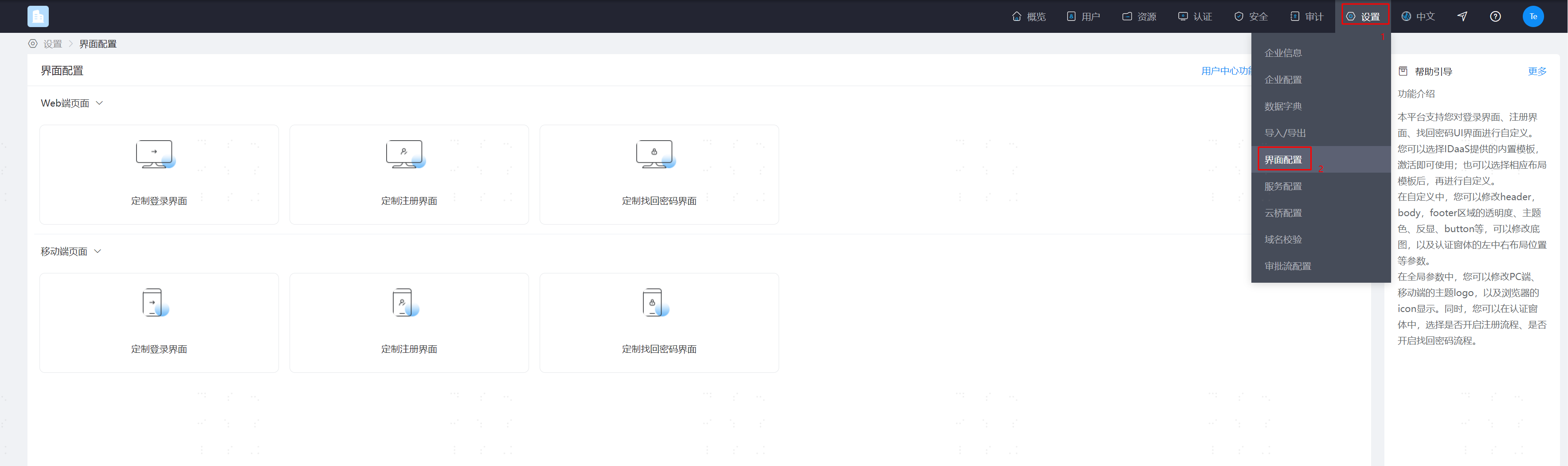
Log in to the IDaaS Enterprise Center, choose Settings > Interface Configuration from the top navigation bar.
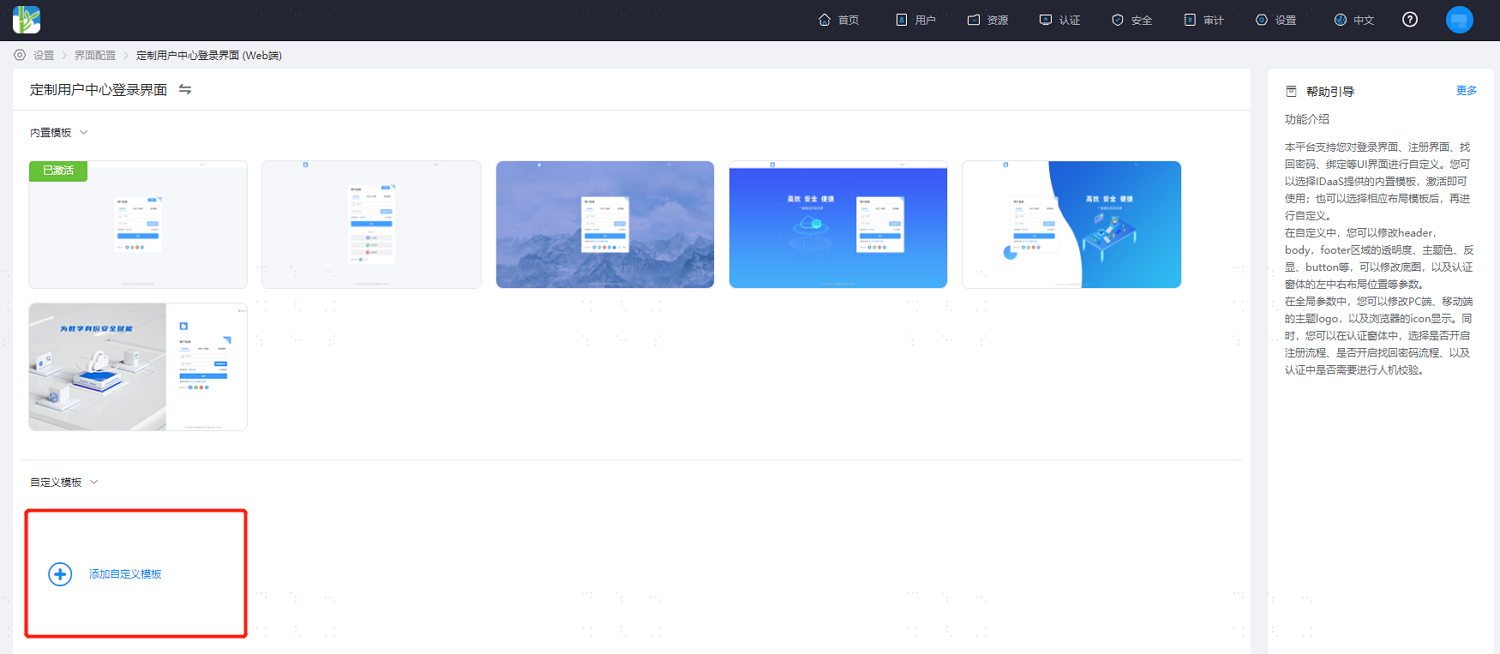
Select User Center Web Page > Customize User Center Login Interface. Activate the built-in template for direct use, or click Add Custom Template to enter the template editing page. The following describes the custom template.
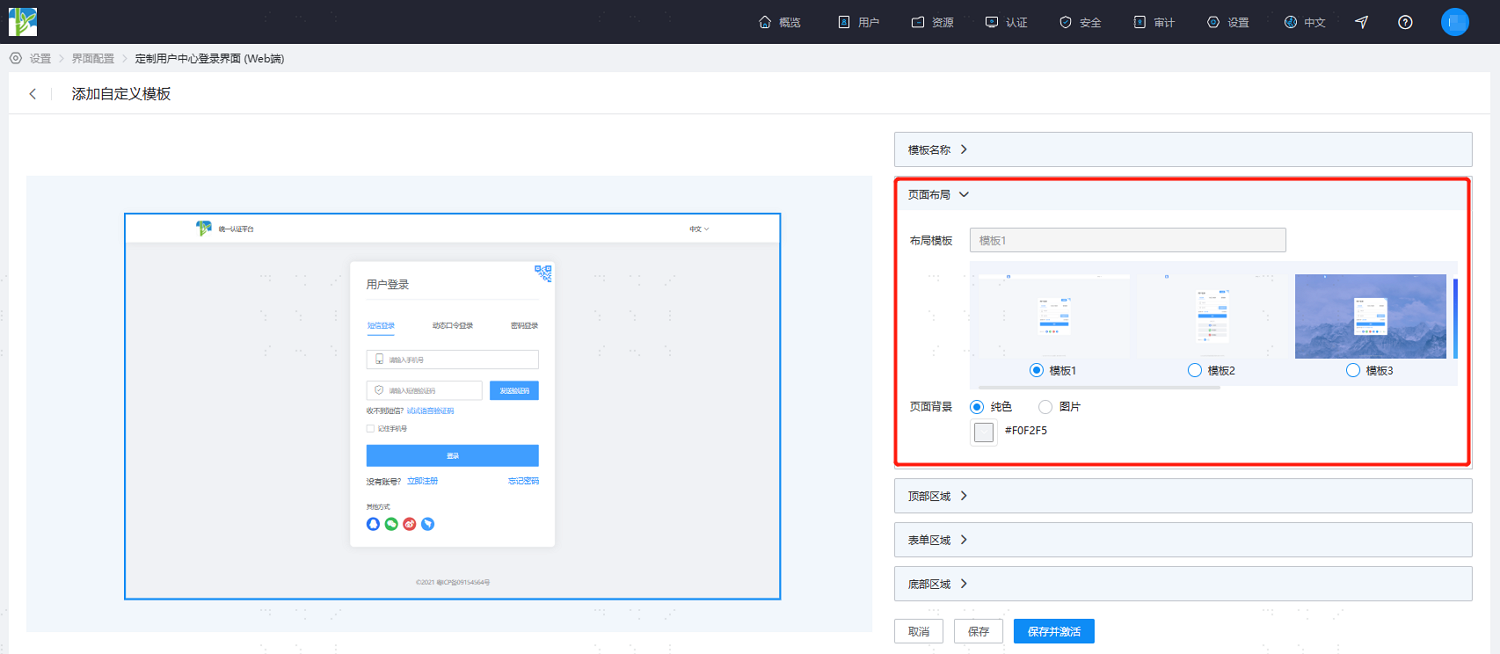
The left side of the template editing page is the real-time preview interface, and the right side is the interface style parameter configuration interface. You can perform personalized settings according to requirements. Key configurations are as follows. For LOGO, logo-side text, copyright, filing information, etc., please go to Global Parameter Settings.
Page Layout: Sets the overall layout and page background of the login page.
Layout Template: Select the built-in layout template.
Page Background: Select a solid color or image as the login page background. Images can be selected from built-in images or custom uploaded.
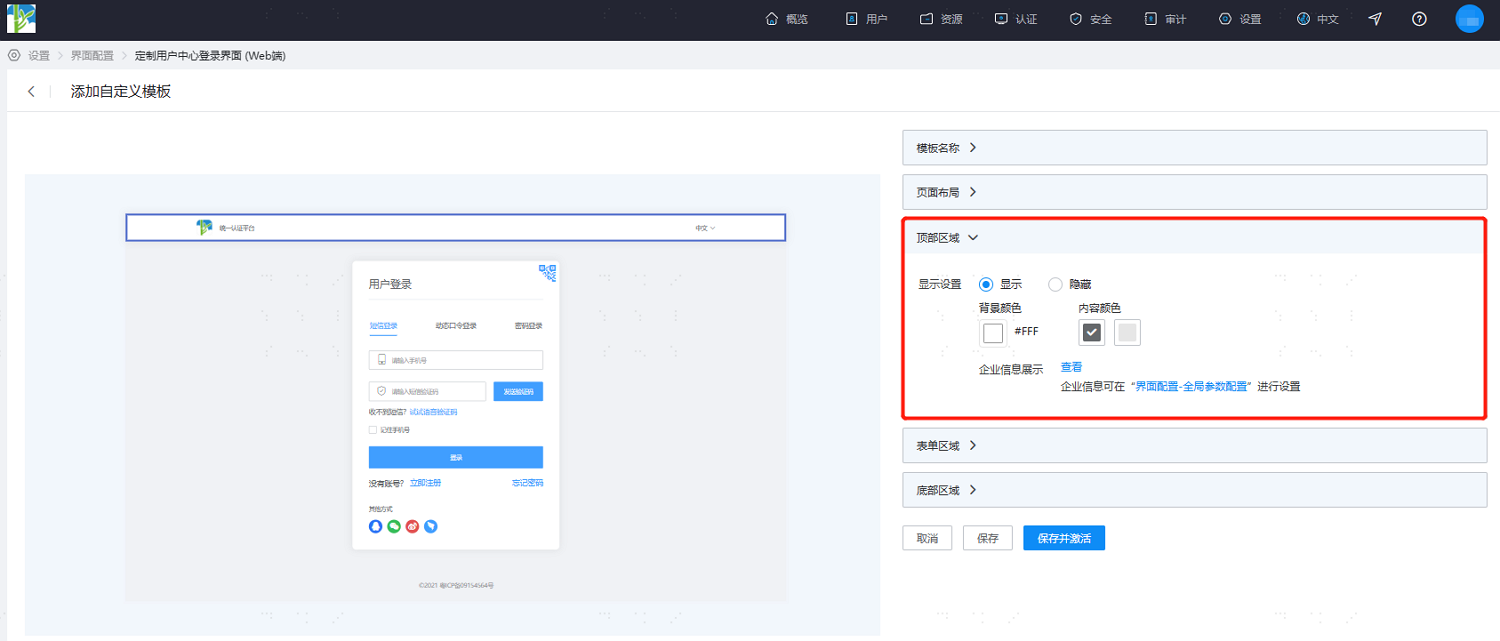
Top Area: Sets the top information of the login page, such as enterprise logo, logo-side text, and multilingual display.
Display Settings: Choose to show or hide the top information. The background color and content color can only be configured when the top area is set to Show.
Background Color: Set the background color of the top area.
Content Color: Set the text color of the top area.
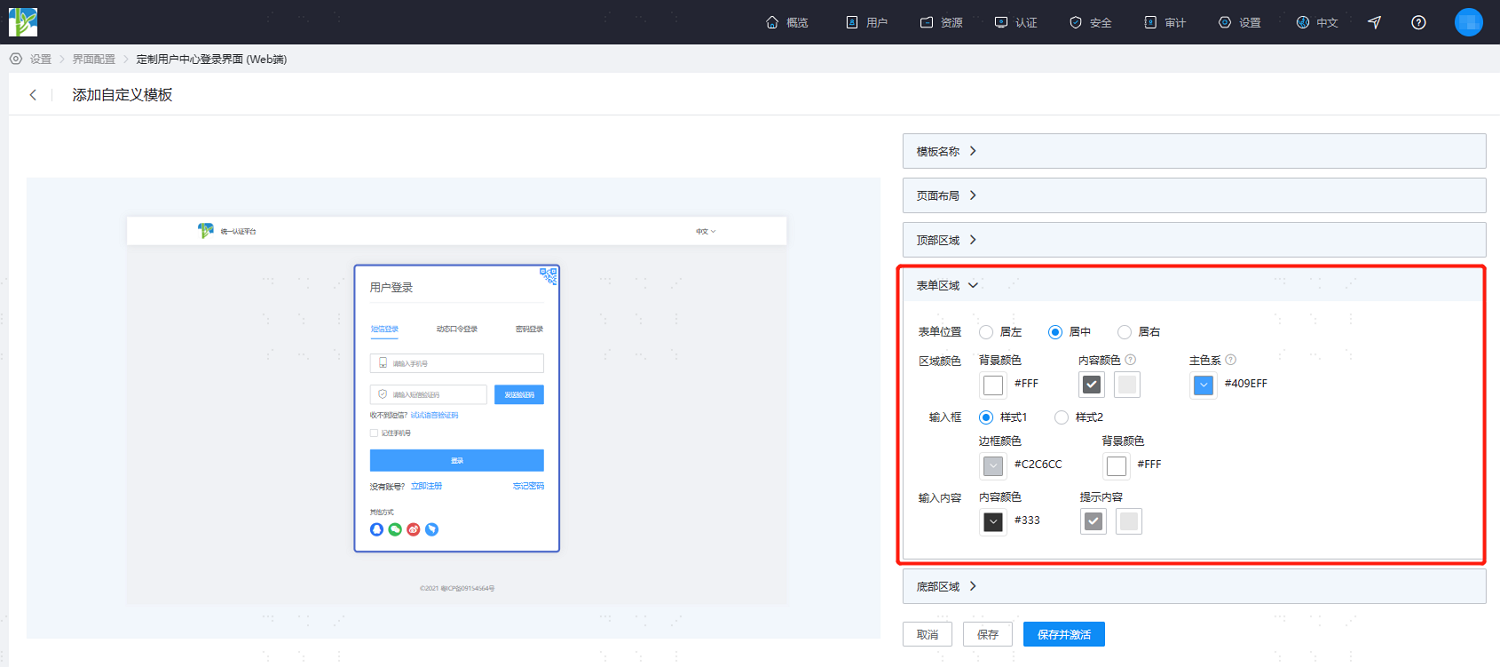
Form Area: Sets the area where users need to input information on the login page, such as input boxes.
Form Position: Set the display position of the form area to left, center, or right.
Area Color: Set the background color, text color, and primary color scheme for buttons, selected tabs, etc. in the form area.
Input Box: Set the color and background fill color of the input boxes in the form area.
Input Content: Set the text color when inputting content in the form area and the prompt color when no content is entered.
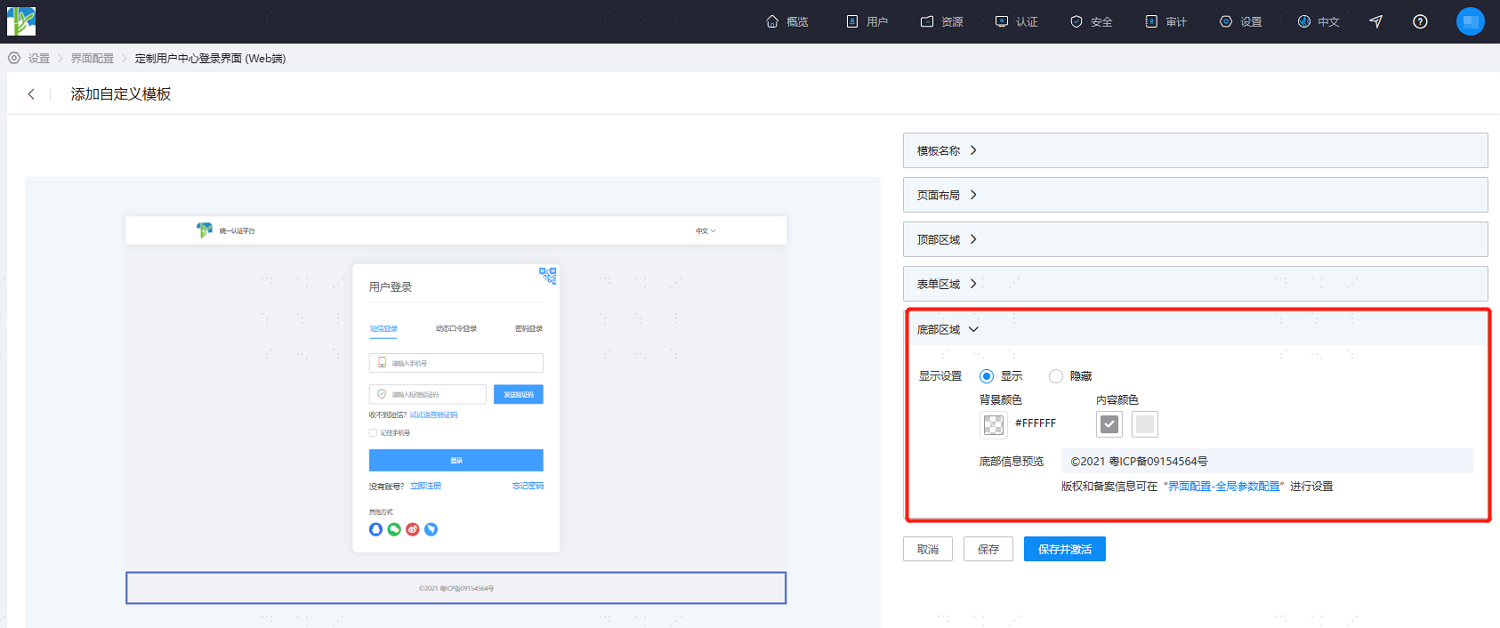
Bottom Area: Sets the bottom information of the login page, such as copyright and filing information.
Display Settings: Choose to show or hide the bottom information. The background color and content color can only be configured when the bottom area is set to Show.
Background Color: Set the background color of the bottom information bar.
Content Color: Set the text color of the bottom information bar.
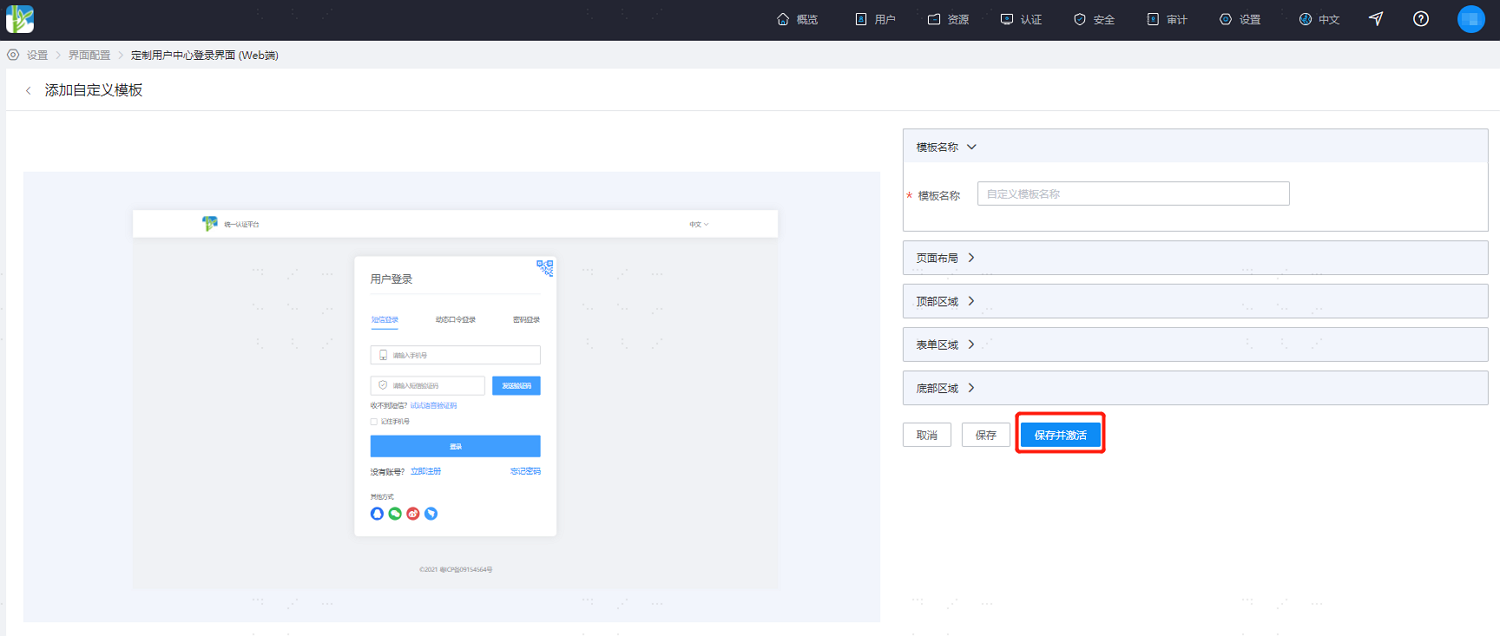
After configuration, save and activate directly to use the template.