Configure Custom Email Gateway and Templates
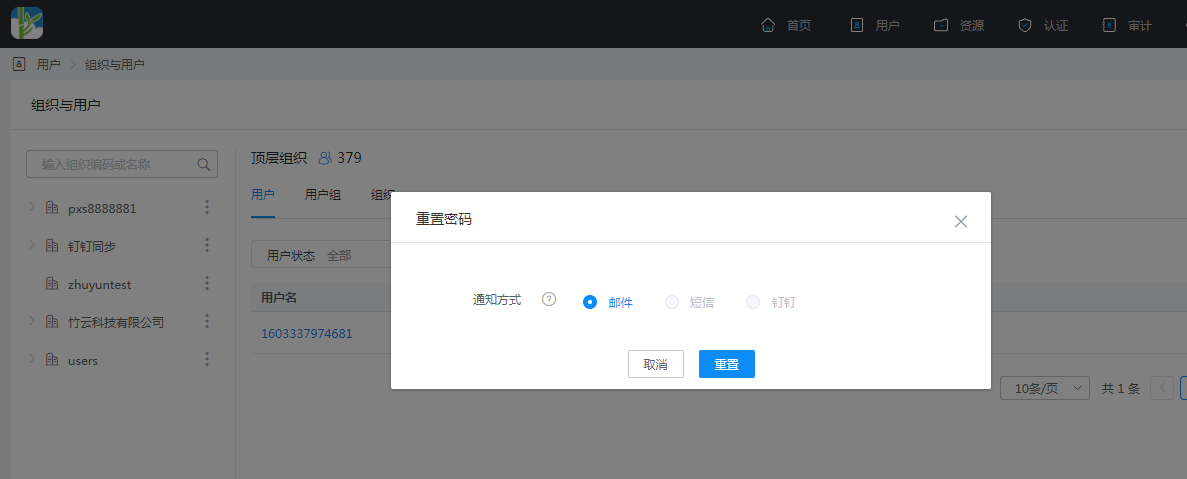
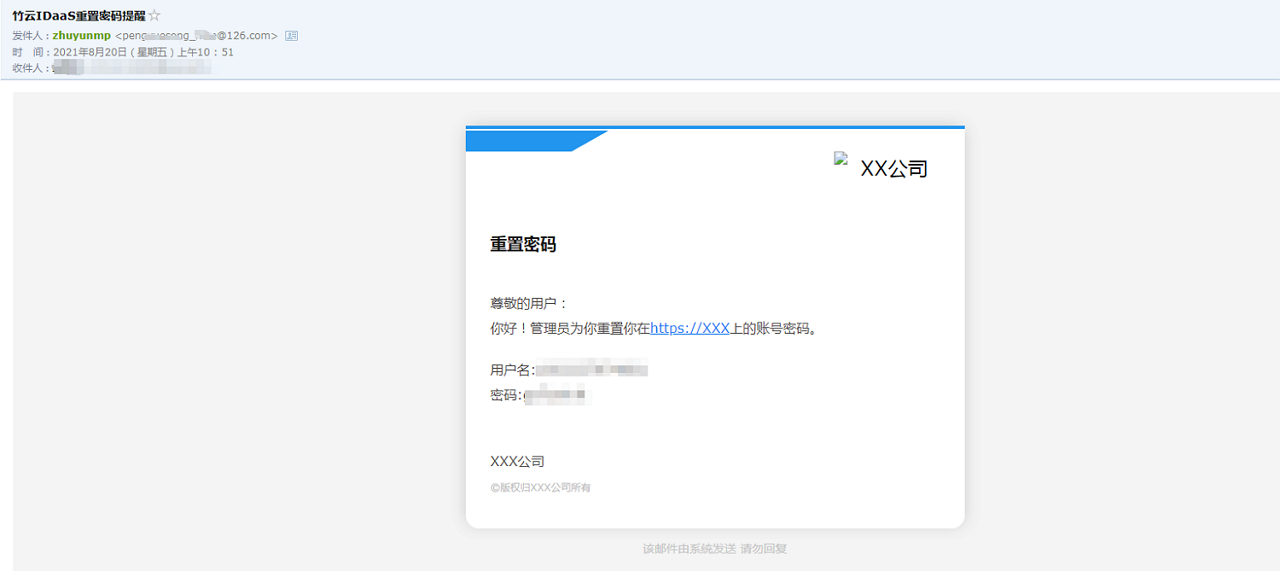
When an administrator needs to reset a user's password, or when a user forgets their password and needs to reset it, in addition to notifying the user via SMS, the user can also be notified via email.
The IDaaS platform provides email notification functions. By customizing the email gateway and notification templates for various scenarios in the platform, relevant emails can be sent to users at the appropriate time and in the appropriate scenario.
Prerequisites
- Administrator permissions for the IDaaS Enterprise Center.
- The enterprise has its own email service.
Configuration Flow

Procedure
Configure Email Gateway and Notification Templates
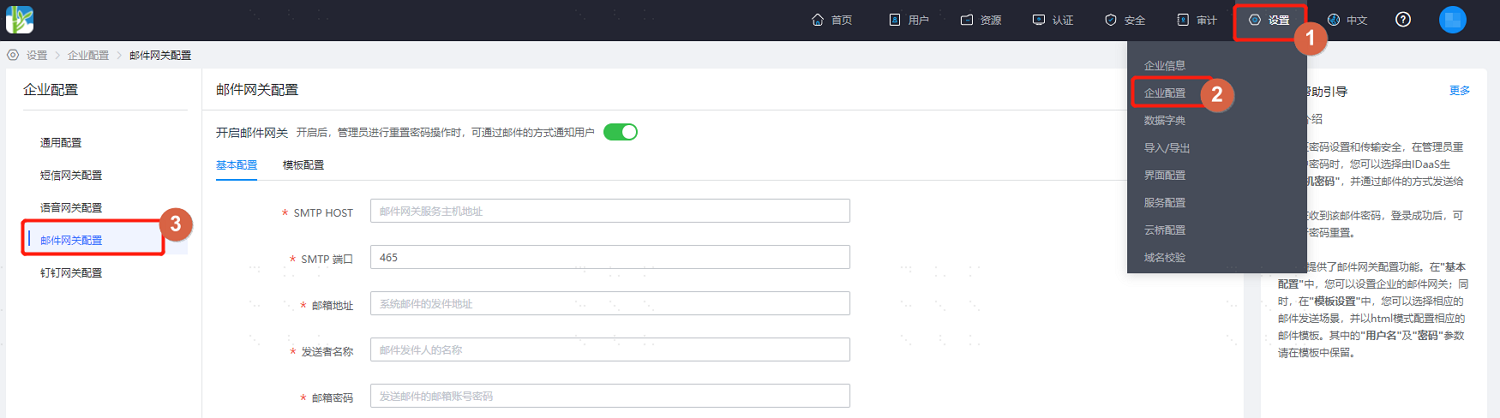
Log in to the IDaaS Enterprise Center, choose Settings > Enterprise Configuration from the top navigation bar, and select Email Gateway Configuration.
Enable the email gateway, and fill in the basic email gateway configuration. Key parameters are described below.
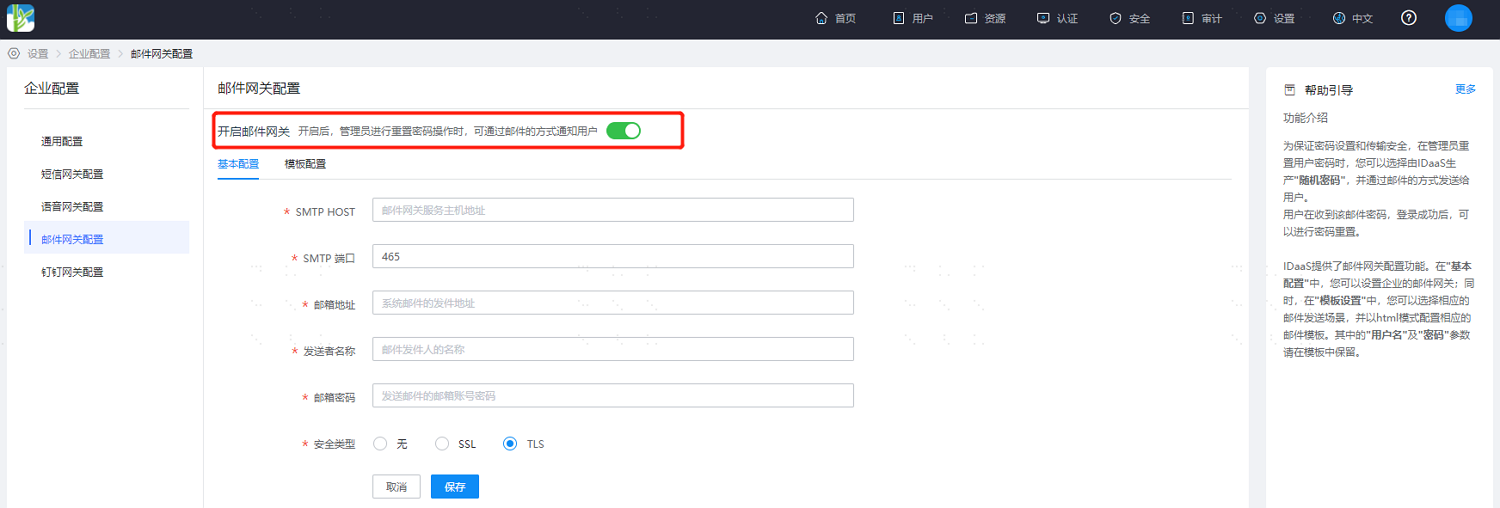
Parameter Description SMTP HOST Email gateway service host address SMTP Port Email gateway service external port, default 465 Email Address Sender email address Sender Name Email sender name Email Password Password of the sender email account Security Type Set the security type of the email gateway, including None, SSL, and TLS After basic configuration is complete, configure email sending scenario notification templates according to project requirements. Both Chinese and English email template configurations are supported.
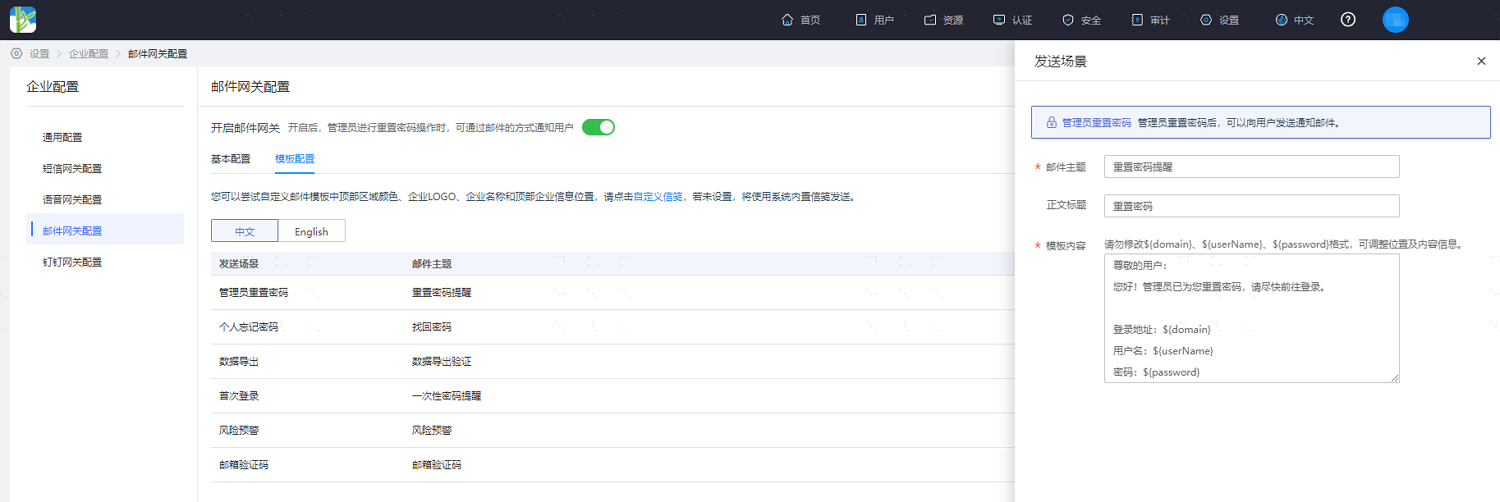
Click Custom Stationery to customize the top area color, enterprise LOGO, enterprise name, and top enterprise information position in the email template.
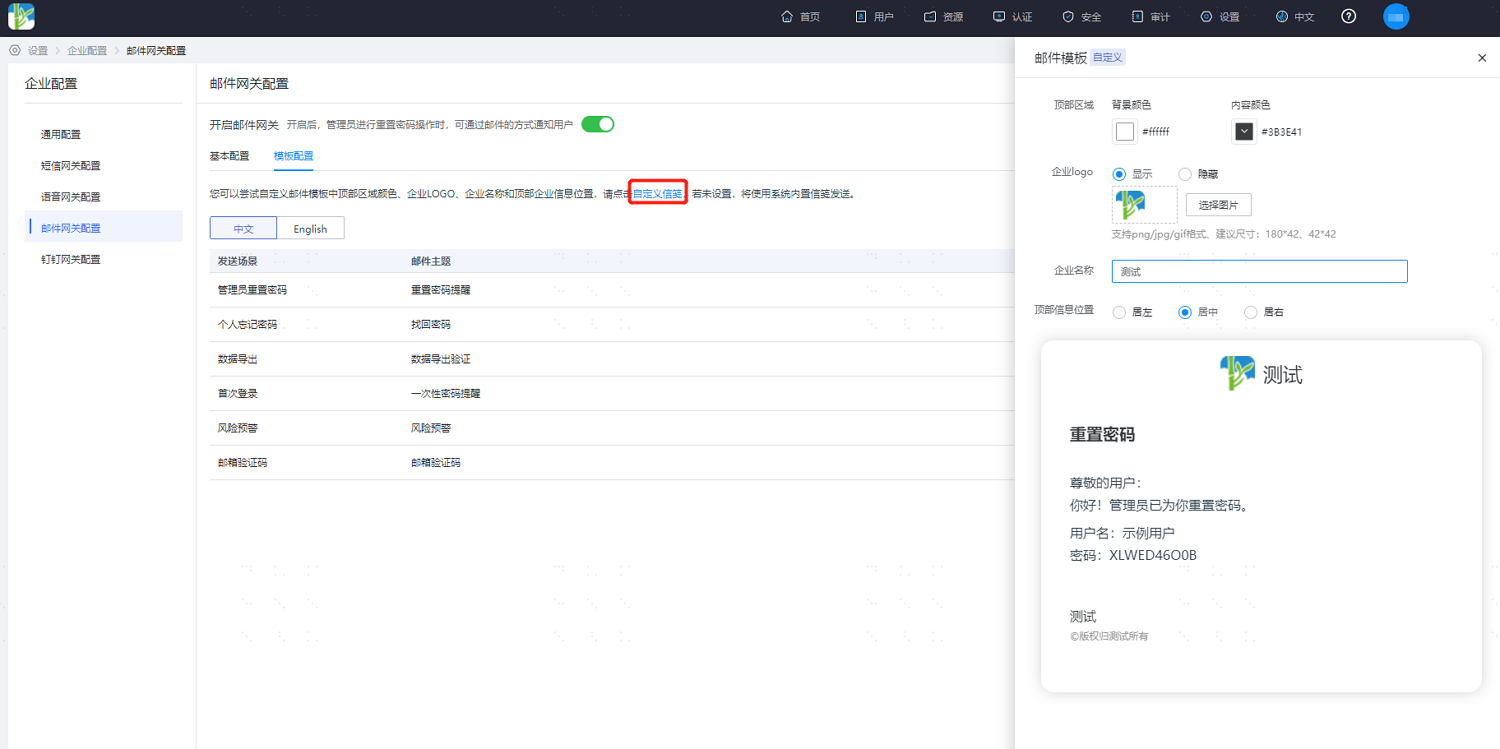
Click Preview to view the configured notification sample.
Test Example
TIP
The following uses NetEase 126 personal email as an example for reference only. For other email service providers, please configure according to the specific email service.
Log in to the 126 email account, go to Settings, select Account and Email Center, and add a sender.
Fill in the personal 126 email address for Email Address, and customize the Display Name When Sending, such as
zhuyunmp.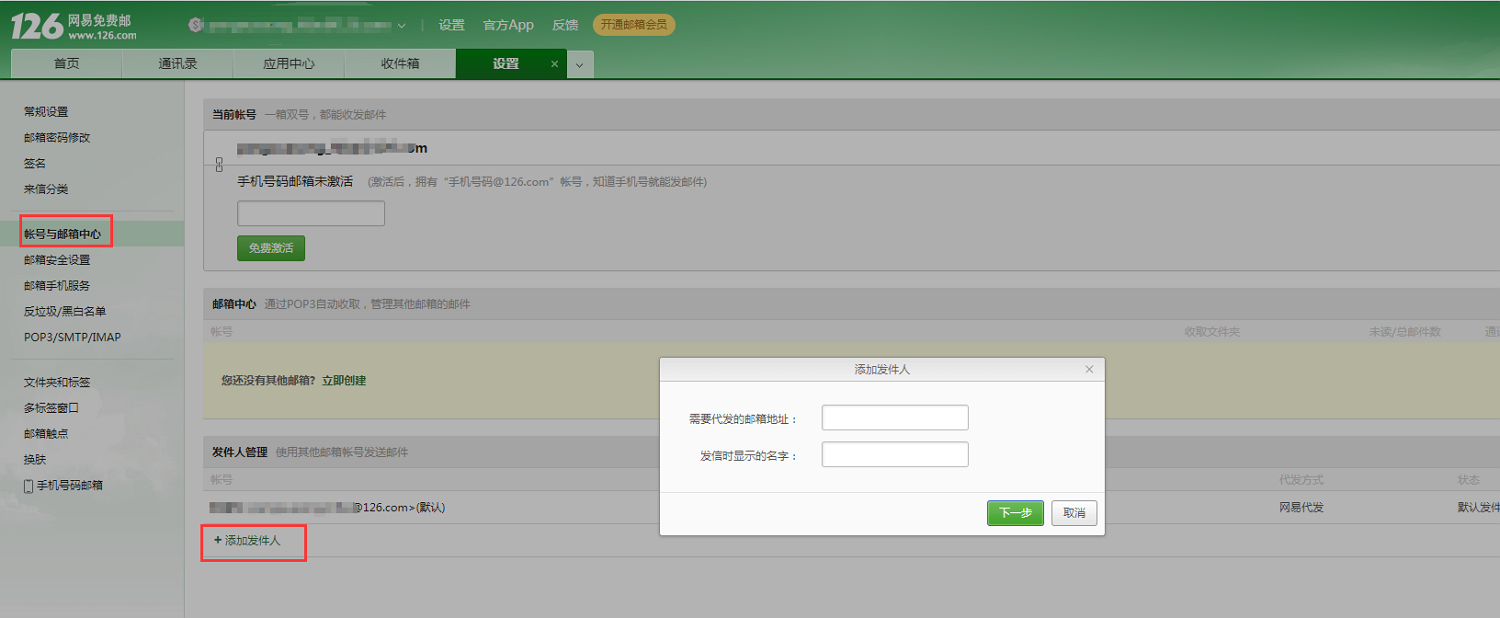
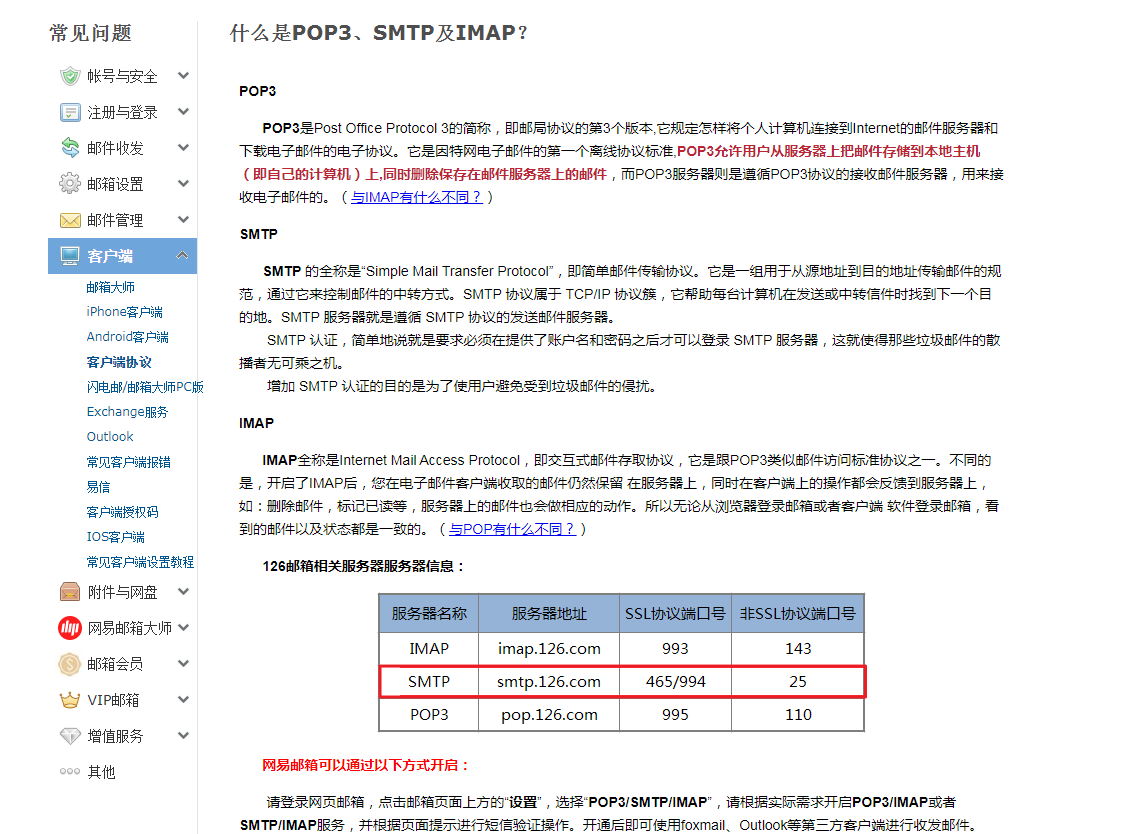
Go to POP3/SMTP/IMAP, enable POP3/SMTP service, obtain the server address, and add an authorization password.
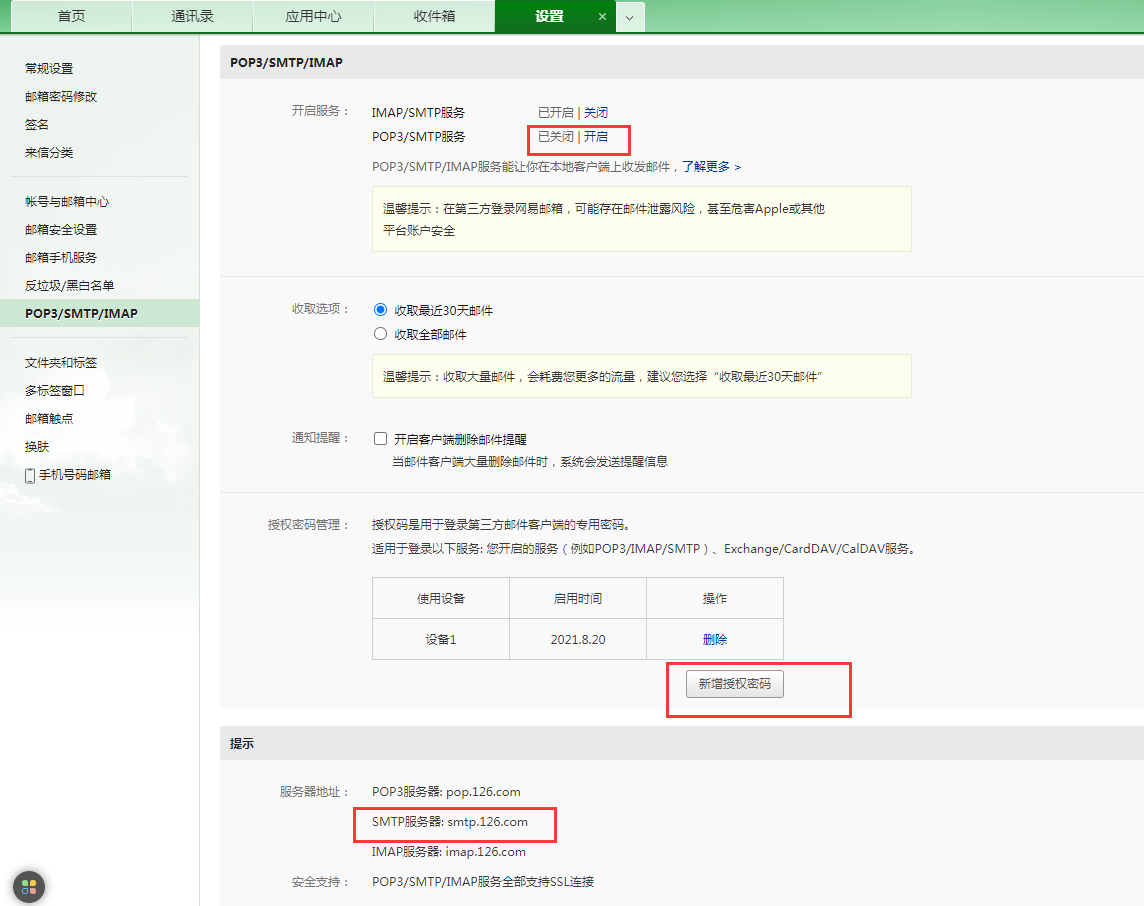
Configure the IDaaS email gateway parameters.
Parameter Value SMTP HOST smtp.126.com SMTP Port 465 Email Address Personal 126 email address Sender Name Display name when sending 126 emails, such as zhuyunmpEmail Password 126 email authorization password Security Type SSL The IDaaS administrator resets the user password and notifies via email.