
Global Parameters and User Center Function Configuration
The IDaaS platform provides global parameter configuration and User Center function configuration modules. Global parameter configuration supports setting the enterprise logo display on PC, mobile, and browser address bars. It can also define whether the User Center login page enables the registration process, password retrieval process, and whether CAPTCHA is required during authentication. The User Center function configuration module supports controlling whether dynamic password authentication, login password modification, account delegation, mobile number modification, and other functions are enabled in the User Center.
Prerequisites
Administrator permissions for the IDaaS Enterprise Center.
Procedure
Global Parameter Configuration
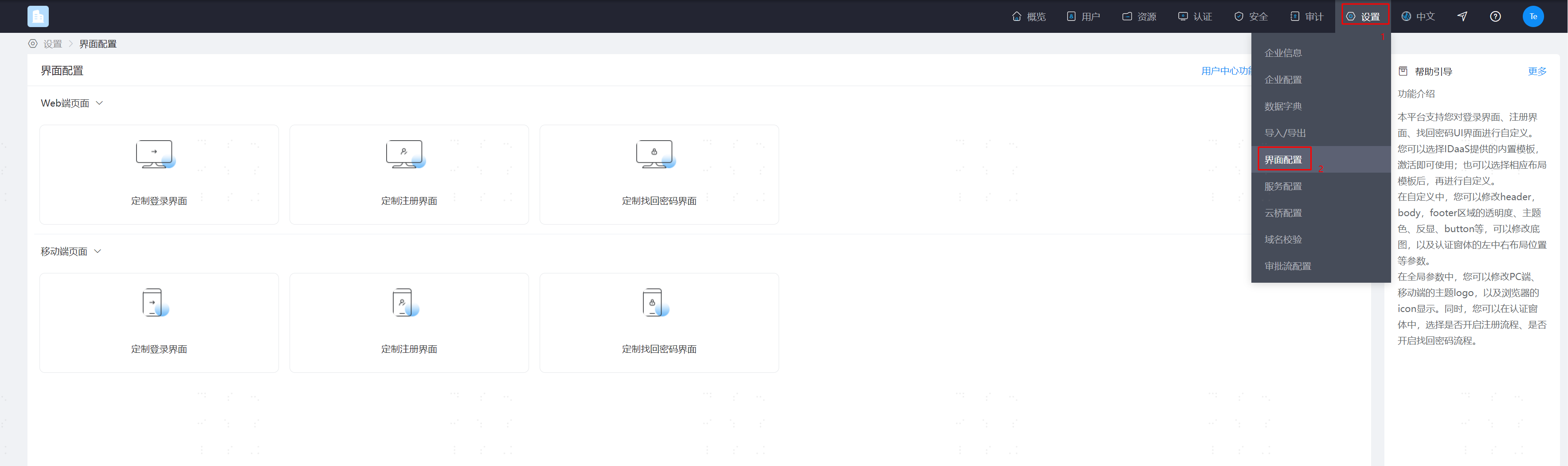
- Log in to the IDaaS Enterprise Center, choose Settings > Interface Configuration from the top navigation bar, and select Global Parameter Configuration. Key parameters are described below.
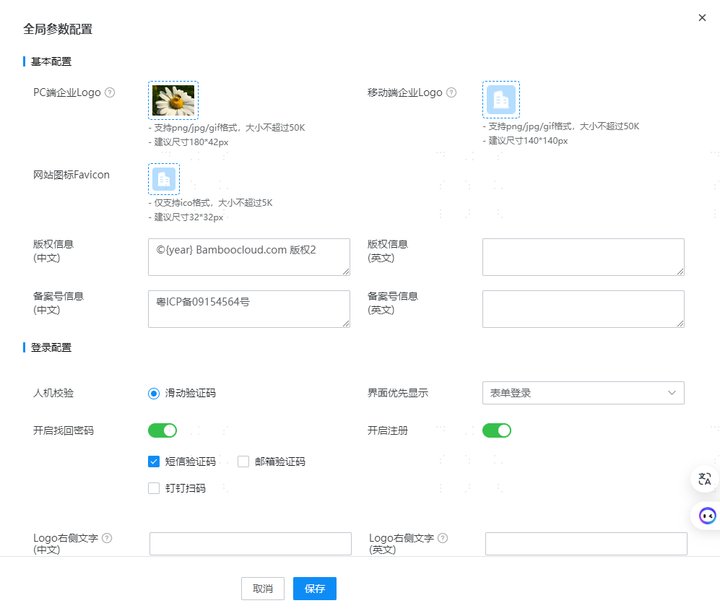
- Basic Configuration:
- PC Enterprise LOGO: Set the enterprise LOGO displayed on the PC. After configuration, this logo is displayed in the top bar when logging in to the Enterprise Center or User Center on the PC.
- Mobile Enterprise LOGO: Set the enterprise LOGO displayed on mobile devices. After configuration, this logo is displayed in the top bar when logging in to the Enterprise Center or User Center on mobile devices.
- Website Favicon: The LOGO displayed in the browser address bar. Only
.icoformat is supported, size not exceeding 5K, recommended size 32*32px. - Copyright Information: Set the copyright information at the bottom of the page.
- Filing Number Information: Set the filing number information at the bottom of the page.
- User Center Login Configuration:
CAPTCHA: The CAPTCHA method for the User Center login page, sliding CAPTCHA.
Enable Password Retrieval: Add a Forgot Password button on the User Center login interface. After enabling, users can retrieve their passwords by themselves, supporting SMS verification code, email verification code, and DingTalk scan methods. At least one password retrieval method must be set.
TIP
- The email verification code method for password retrieval is only available after the email gateway is configured.
- The DingTalk scan method for password retrieval is only available after DingTalk scan authentication is configured and enabled in the application. When the DingTalk authentication source is disabled or deleted, the DingTalk scan option will be automatically unchecked and unavailable. At the same time, the DingTalk scan method for password retrieval is only applicable to the PC. If DingTalk scan is the only selected method, the Forgot Password option will not be displayed on mobile devices.
Enable Registration: Add a Register button on the User Center login interface. After enabling, users can register by themselves.
Text on the Right Side of Logo: Set the text displayed on the right side of the LOGO on the User Center login and registration page.
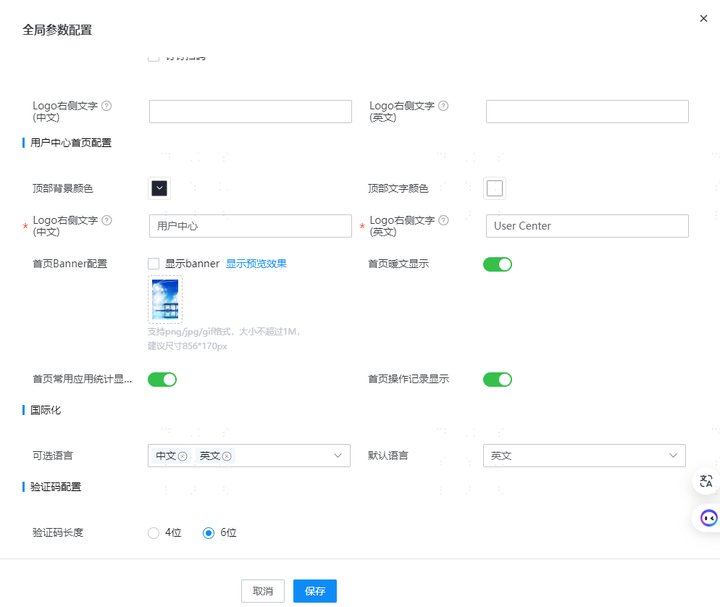
- User Center Homepage Configuration:
- Top Background Color: Customize the background color of the top of the User Center homepage.
- Top Text Color: Customize the text color of the top of the User Center homepage.
- Text on the Right Side of Logo: Set the text displayed on the right side of the LOGO on the User Center homepage.
- Homepage Banner Configuration: After enabling, the User Center homepage displays a banner.
- Homepage Warm Text Display: After enabling, the User Center homepage displays warm text.
- Homepage Common App Statistics Display: After enabling, the User Center homepage displays common app statistics.
- Homepage Operation Record Display: After enabling, the User Center homepage displays operation records.
- Internationalization:
- Optional Languages: Set the languages that can be displayed in the Enterprise Center and User Center. Usually both Chinese and English are configured. After configuration, the interface display language can be switched.
- Default Language: Set the default display language for the Enterprise Center and User Center. The default is Chinese.
- CAPTCHA Configuration:
- CAPTCHA Length: Configure the CAPTCHA length, including 4 and 6 digits. The default CAPTCHA length is 6 digits.
User Center Function Configuration
Log in to the IDaaS Enterprise Center, choose Settings > Interface Configuration from the top navigation bar, and select User Center Function Configuration. According to project requirements, choose to enable corresponding functions in the User Center as shown below.
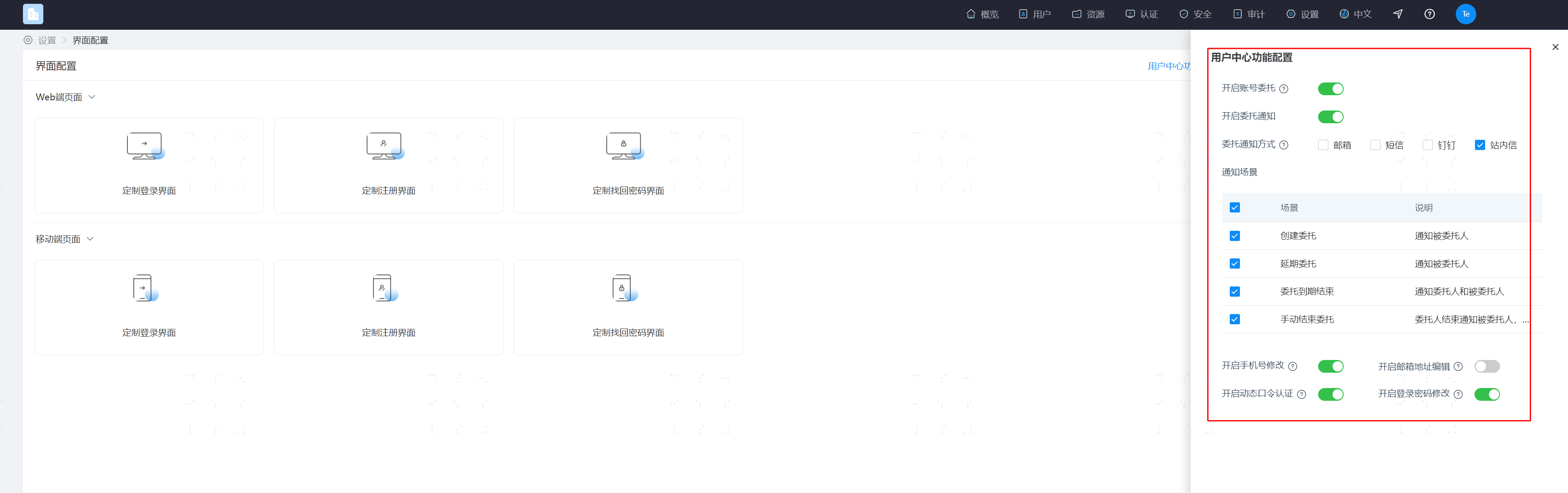
Enable Account Delegation: After enabling, on the User Center Account Settings > Account Delegation page, users can authorize their own application accounts to others. If you are concerned about security issues caused by arbitrary use, it is recommended to disable this function.
TIP
After enabling account delegation, you can also enable delegation notifications. After enabling notifications, notification messages will be sent to the delegator or recipient when delegation is created or ended. Supported notification methods include email, SMS, DingTalk, and in-site messages. Multiple methods can be selected, and all selected methods will be used. You can also select the scenarios that require notifications as needed. Current notification scenarios include creating delegation, extending delegation, delegation expiration, and manually ending delegation.
Enable Mobile Number Modification: After enabling, on the User Center Account Settings > Account Security page, users can change their mobile numbers. If user mobile numbers are already synchronized regularly from an identity source, it is recommended to disable the mobile number modification function in the User Center and modify them uniformly in the identity source system.
Enable Email Address Editing: After enabling, on the User Center Account Settings > Account Security page, users can change their email addresses. If user email information is already synchronized regularly from an upstream identity source, it is recommended to disable the email address editing function in the User Center and adjust them uniformly in the upstream identity source system.
Enable Dynamic Password Authentication: Controls whether dynamic password authentication is activated in the User Center. If your enterprise does not need to use dynamic password authentication, you can turn off this switch, and also disable the dynamic password authentication method in the login configuration page of each application under Resources > Apps.
TIP
The dynamic password switch on the Resources > Apps > Login Configuration page controls whether dynamic password authentication can be used when logging in to the application. The dynamic password authentication switch on the Settings > Interface Configuration > User Center Function Configuration page controls whether dynamic passwords can be activated or reset on the User Center Account Settings > Account Security page.
Enable Login Password Modification: Controls whether the login password can be modified in the User Center. After disabling, the password modification operation will not be provided on the User Center Account Settings > Account Security page.
TIP
When the login password modification switch is enabled, if the logged-in user has not set a password, they can set the user login password on the User Center Account Settings > Account Security page after logging in to the User Center through a non-account-password method.