Configure Dynamic User Groups
Employees in an enterprise have different identities and positions, and thus may have different daily permissions. You can divide users into multiple user groups for different purposes to perform batch user authorization for applications. In actual usage scenarios, some applications need to automatically assign users who meet specified conditions to user groups. With existing functions, when a new employee meets the conditions, administrators can only manually add the employee to the user group authorized by the application.
However, the above method requires administrators to manually determine which user groups users should join, which is difficult to manage and may cause new employees to wait for a long time due to operational omissions. Similarly, when user information changes and no longer meets conditions, canceling application authorization also requires manual management by administrators. Therefore, IDaaS introduces the dynamic user group module to automatically manage user data in dynamic groups through preset conditions.
Prerequisites
You have administrator permissions for the IDaaS enterprise center.
Procedure
Log in to the IDaaS enterprise center platform. In the top navigation bar, select "Users > Organization and Users", switch to the "User Groups" tab, and click "Add Dynamic Group" to configure the basic information of the dynamic user group.
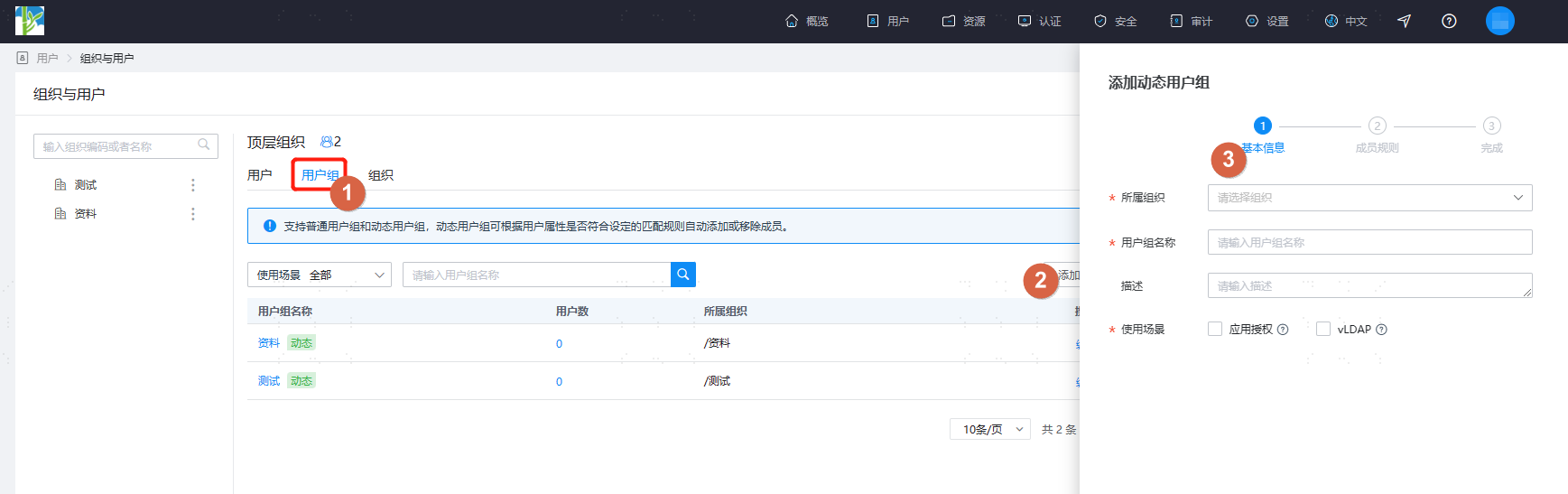
- Affiliated Organization: configure the organization to which the user group belongs. After configuration, it cannot be modified.
- User Group Name: configure the user group name.
- Description: configure the user group description.
- Usage Scenario: configure the usage scenario of the new user group.
- Application Authorization: use this user group in the application's automatic authorization policy to achieve fast and flexible application authorization.
- vLDAP: when obtaining user information through virtual LDAP, the user groups to which the user belongs can be obtained.
After basic information configuration is complete, click "Next" to switch to the "Member Rules" tab, and configure the member matching rules of the dynamic user group. Users who meet the rules are automatically matched.
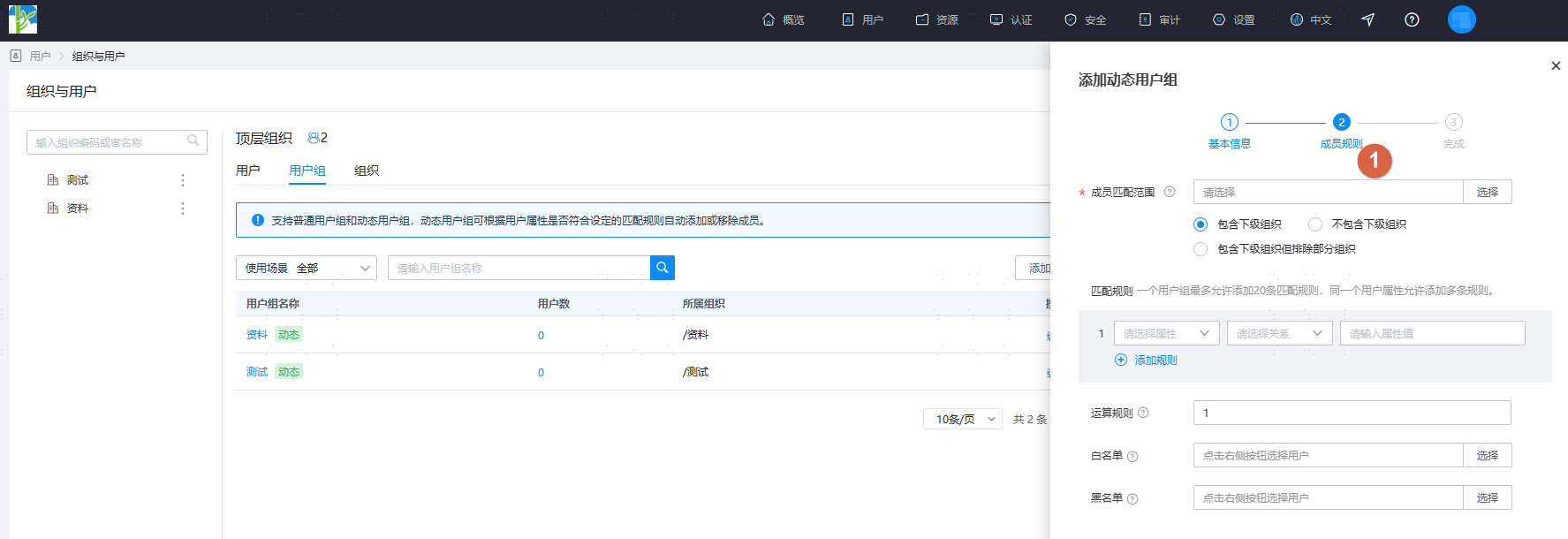
- Member Matching Scope: configure the member matching organization of the dynamic user group. When a user belongs to multiple organizations, only the primary organization is matched.
- Include Subordinate Organizations: include the selected organization and sub-organizations.
- Do Not Include Subordinate Organizations: only include the selected organization.
- Include Subordinate Organizations but Exclude Some: include the selected organization and sub-organizations, excluding selected organizations and sub-organizations.
- Matching Rules: configure the member calculation rules of the dynamic user group. Configure user attributes, operation relationships, and attribute values to formulate matching rules. Up to 20 rules can be configured.
- User Attribute: supports selecting username, name, mobile number, email, birthday, gender, country or region, person type, direct supervisor, entry time, custom fields of text type, date type, and number type, and user status.
- Relationship: the logical relationship between attribute and value; different attributes can select different relationships.
- Attribute Value: use the relationship to connect user attributes and attribute values to form a member filtering rule.
- Operation Rules: configure the operation method between the matching rules of the dynamic user group.
- OR: the matching rules on the left and right sides satisfy either one.
- AND: both left and right matching rules are satisfied.
- (): prioritize calculating the rules within parentheses.
- Whitelist: users in the whitelist will be added to the dynamic user group regardless of whether they meet the filtering rules.
- Blacklist: users in the blacklist will not be added to the dynamic user group regardless of whether they meet the filtering rules.
- Member Matching Scope: configure the member matching organization of the dynamic user group. When a user belongs to multiple organizations, only the primary organization is matched.
After configuration, click "OK" to save, and then click "Submit Calculation" to automatically calculate members in the user group according to the formulated rules.
TIP
- Each tenant is allowed to create up to 20 dynamic user groups.
- This feature is available for tenants on Professional Edition or above.
- Dynamic user groups cannot manually add or delete members.
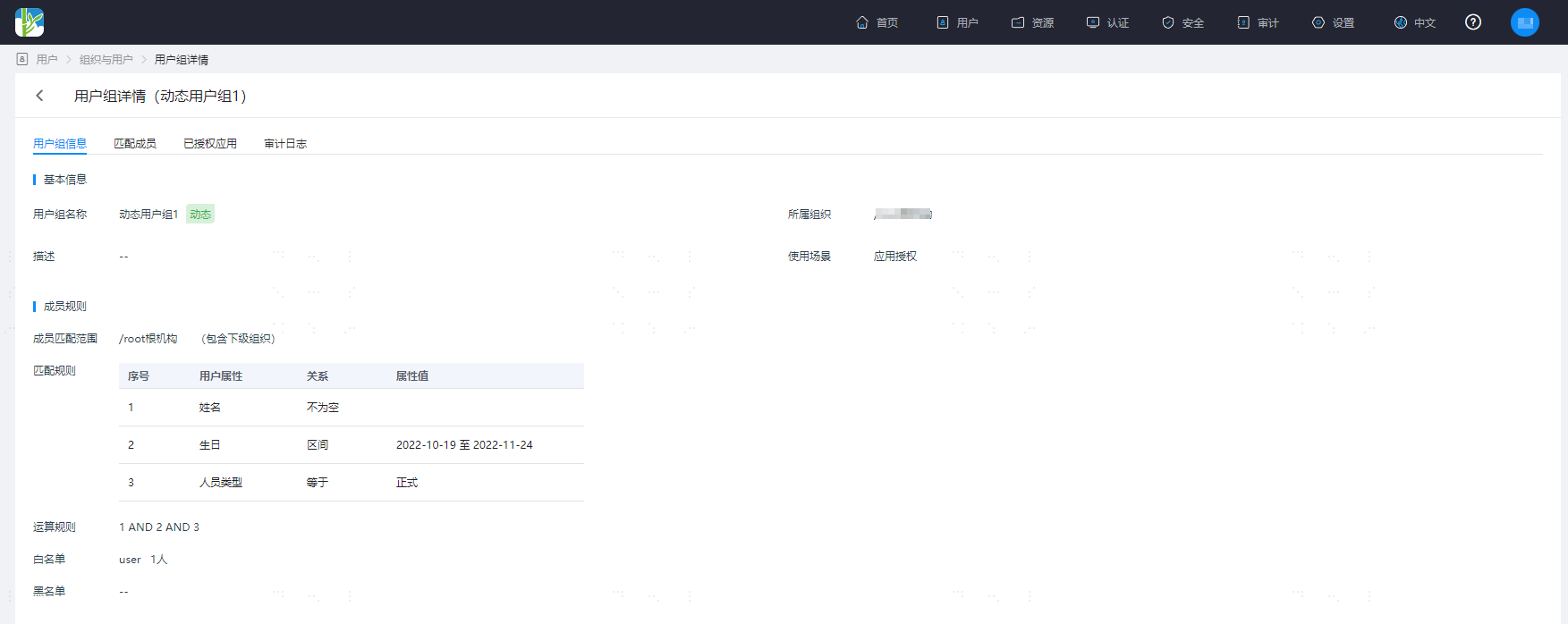
Return to the user group page, click the user group name to enter the user group details page, and support viewing user group information, matched members, audit logs, etc.