
Configure DingTalk Authentication Source
DingTalk authentication login allows users to securely log in to third-party applications or websites using DingTalk as the authentication source. To facilitate enterprise user authentication login, the IDaaS platform supports configuring DingTalk as an authentication source. Users can authenticate and log in to various application systems through DingTalk, bringing enterprise users a simpler and more convenient login method and better user experience.
This guide explains the related operations for configuring a DingTalk authentication source.
Prerequisites
- Administrator permissions for the DingTalk Developer Console.
- Administrator permissions for the IDaaS Enterprise Center.
Procedure
Create Application in DingTalk Developer Console
Log in to the DingTalk Developer Console with a DingTalk account that has developer permissions, and select the correct organization to join.
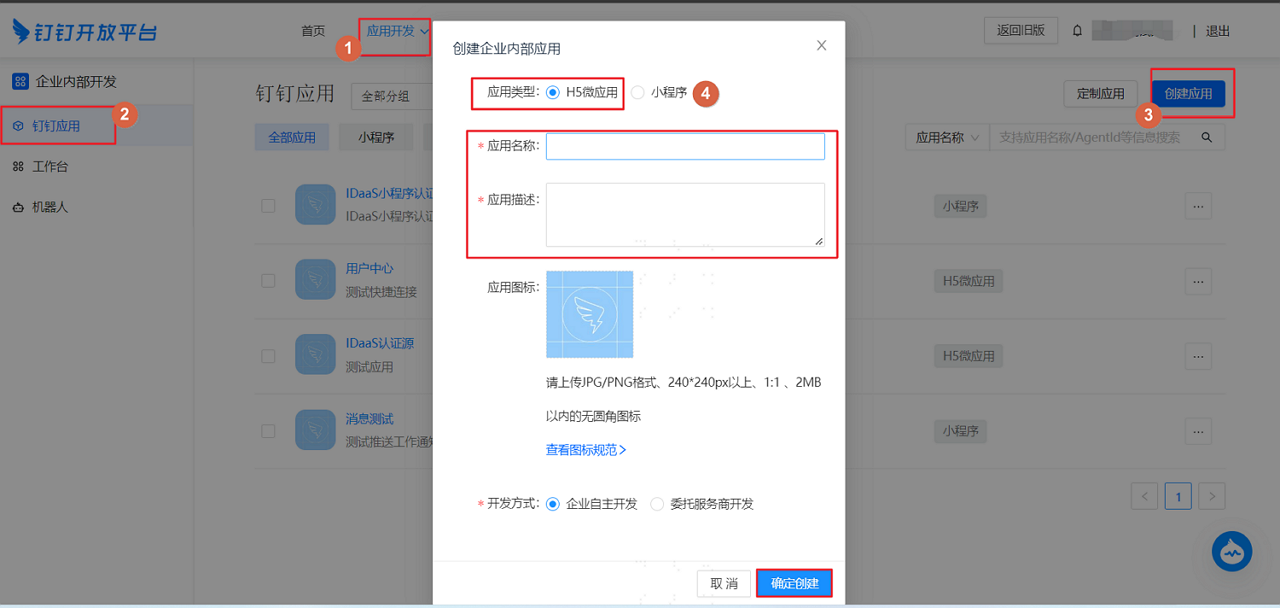
In the top navigation bar, choose App Development > Internal Development > DingTalk Apps, and click Create App to create an internal enterprise application.
TIP
- Application Type: Select H5 Micro App.
- Application Name and Description can be customized.
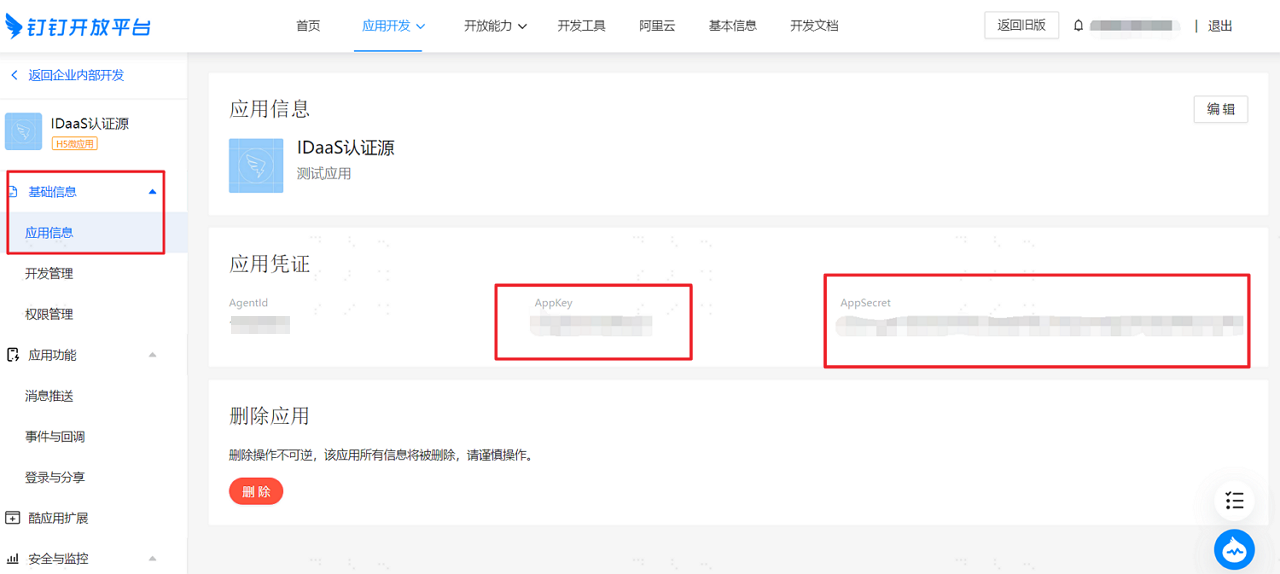
After the application is created successfully, click the application from the application list to enter the application detail page.
TIP
Please remember the DingTalk application
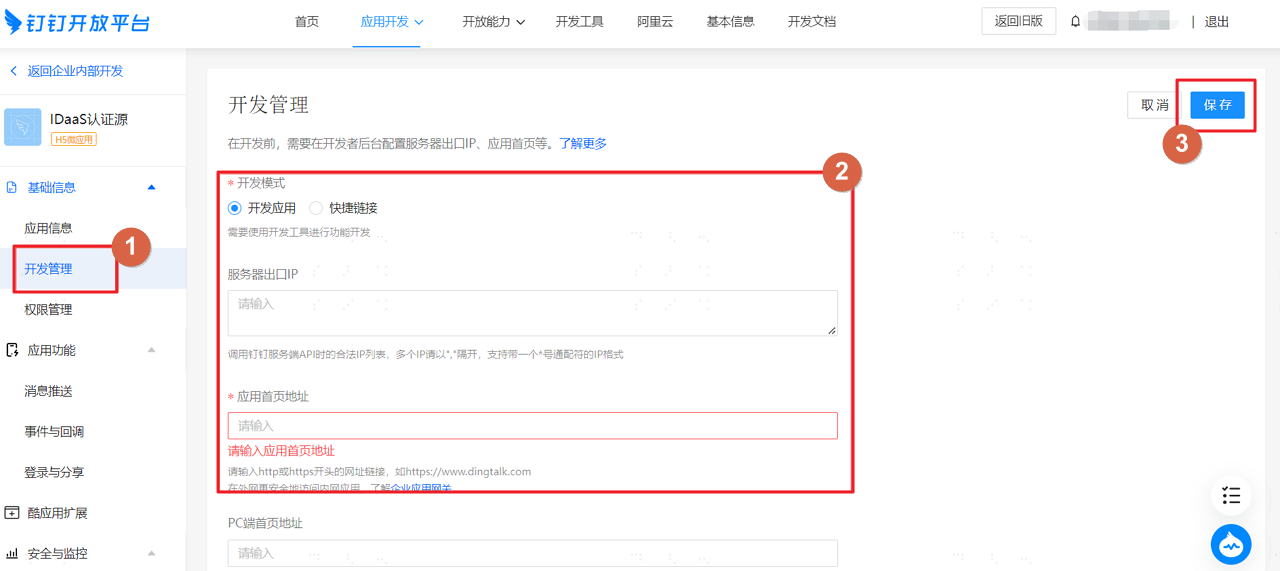
AppKeyandAppSecret. We will use them when configuring the DingTalk authentication source in the IDaaS platform.On the Basic Information > Development Management page, configure the DingTalk application server outbound IP.
TIP
- Server Outbound IP: IDaaS service outbound IP:
47.92.171.137. - Application Homepage URL: Enter the application homepage URL. Clicking the application icon on the mobile workspace will redirect to this page. You can fill in the IDaaS tenant domain, obtained in the IDaaS Enterprise Center under Settings > Enterprise Info. Example:
https://{your-domain}.
- Server Outbound IP: IDaaS service outbound IP:
On the App Features > Login and Sharing page, configure the callback domain.
TIP
Callback Domain: Fill in the IDaaS tenant domain. Example:
https://{your-domain}.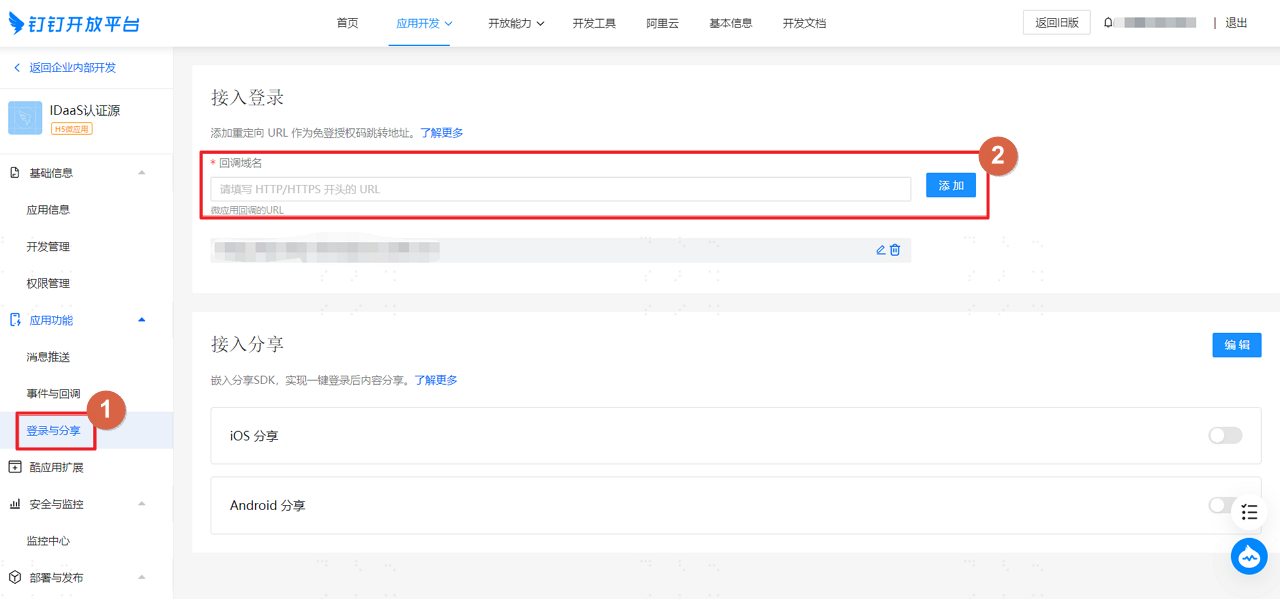
On the Basic Information > Permission Management page.
TIP
Please grant different permissions according to the authentication source configuration in IDaaS. Permissions can be supplemented after configuring the authentication source in IDaaS.
In Deployment and Release > Version Management and Release, release the DingTalk application.
Configure DingTalk Authentication Source in IDaaS
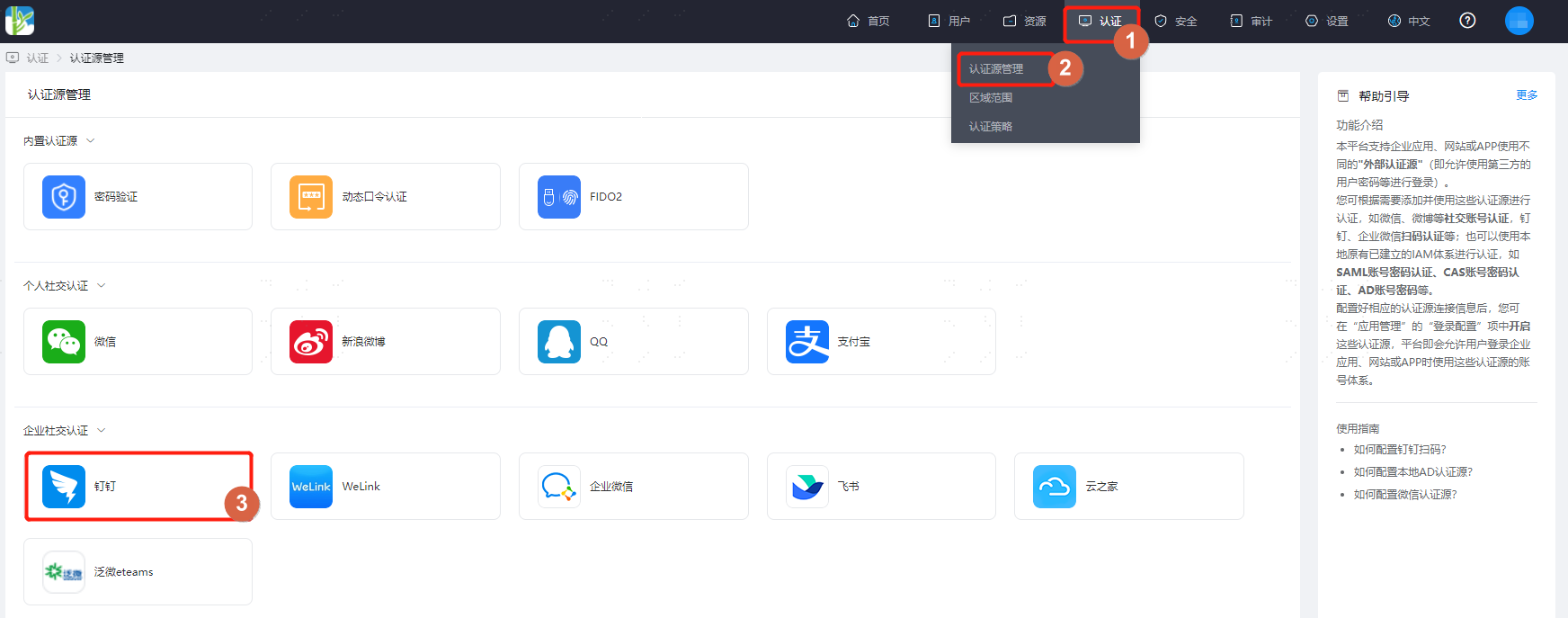
Log in to the IDaaS Enterprise Center, choose Authentication > Authentication Source Management from the top navigation bar, enter the DingTalk authentication source page, and click Add Authentication Source.
Configure the DingTalk authentication source parameters as prompted. Key parameters are described below.
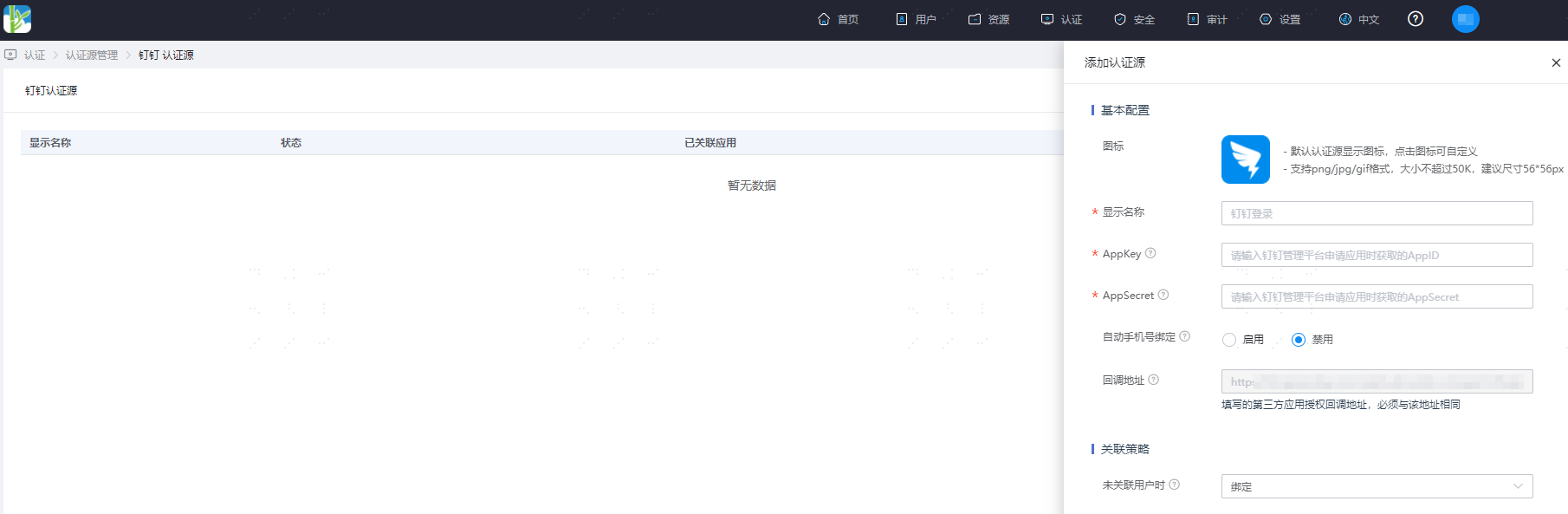
Auto Bind: Enable
- Enabled: Automatic association can be performed based on the source association attribute and user association attribute. If automatic association fails, different processes are followed according to the When User Not Associated scenario.
- Disabled: Automatic association is not performed by default. Different processes are directly followed according to the When User Not Associated scenario. No API permissions need to be enabled for the DingTalk application. Not recommended.
Source Association Attribute: Can be used to bind with existing users in the system or register as a new user.
mobile/email: In Permission Management when creating the application in the DingTalk Developer Console, configure and add API call permissions: personal mobile number information and address book personal information read permissions.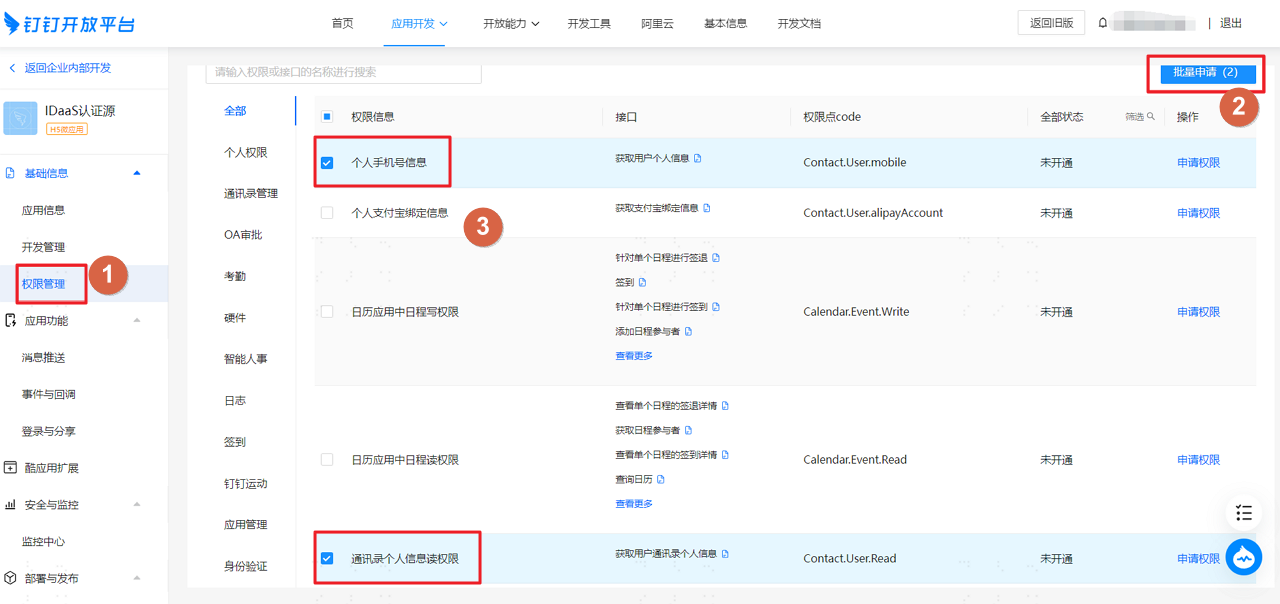
Other source attributes: You can also select other unique required characteristic attributes such as
jobNumber(DingTalk employee number) anduserid(DingTalk user ID) as source attributes. In Permission Management when creating the application in the DingTalk Developer Console, configure and add API call permissions: personal mobile number information, address book personal information read permissions, and member information read permission.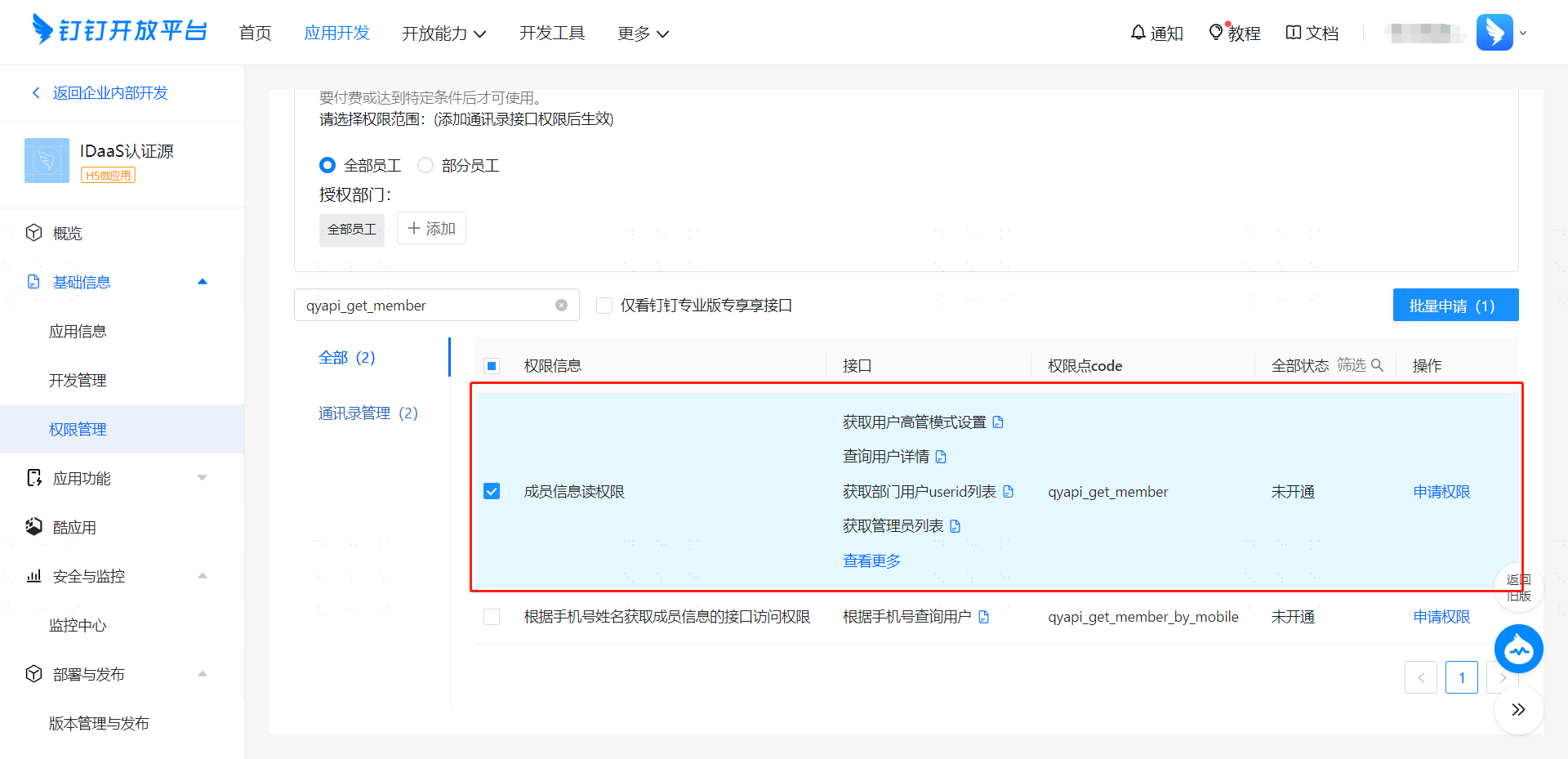
User Association Attribute: The unique user attribute name in IDaaS, such as
mobile,email.When User Not Associated: When the authentication source attributes of the user information returned by the DingTalk platform do not match the associated user attributes in IDaaS, and no system user is associated, the optional configurations are as follows.
- Fail: Prompts binding failure when the user is not associated.
- Bind: When the user is not associated, the page redirects to the mobile number verification page. Enter an existing IDaaS mobile number, and after successful verification, the user passes authentication. If the mobile number entered does not exist in IDaaS, a prompt indicates that the associated user was not found.
- Bind or Register: When the user is not associated, the page redirects to the mobile number verification page. Enter an existing IDaaS mobile number, and after successful verification, the user passes authentication. If the mobile number entered does not exist in IDaaS, an IDaaS user is created based on the mobile number and passes authentication.