Configure DingTalk Messages and Templates
In scenarios such as Login Authentication, Forgot Password, Reset Password, and VPN Two-Factor, verification codes may be used to confirm the user's identity and prevent impersonation or identity theft. In risk scenarios such as Login from Another Location and Multiple Password Failures, you can also send corresponding messages to users in a timely manner to alert them to potential risks.
In addition to common SMS verification codes, email verification, or voice verification codes, you can also choose to use the DingTalk Gateway to send and receive verification codes.
Prerequisites
- Administrator permissions for the IDaaS Enterprise Center.
- Administrator permissions for the DingTalk Open Platform.
- The enterprise has configured the DingTalk authentication source. The application information configured below must be consistent with the information in the bound DingTalk authentication source, and ensure that IDaaS users have been synchronized and bound with DingTalk users.
Configuration Flow

Procedure
Configure DingTalk Open Platform
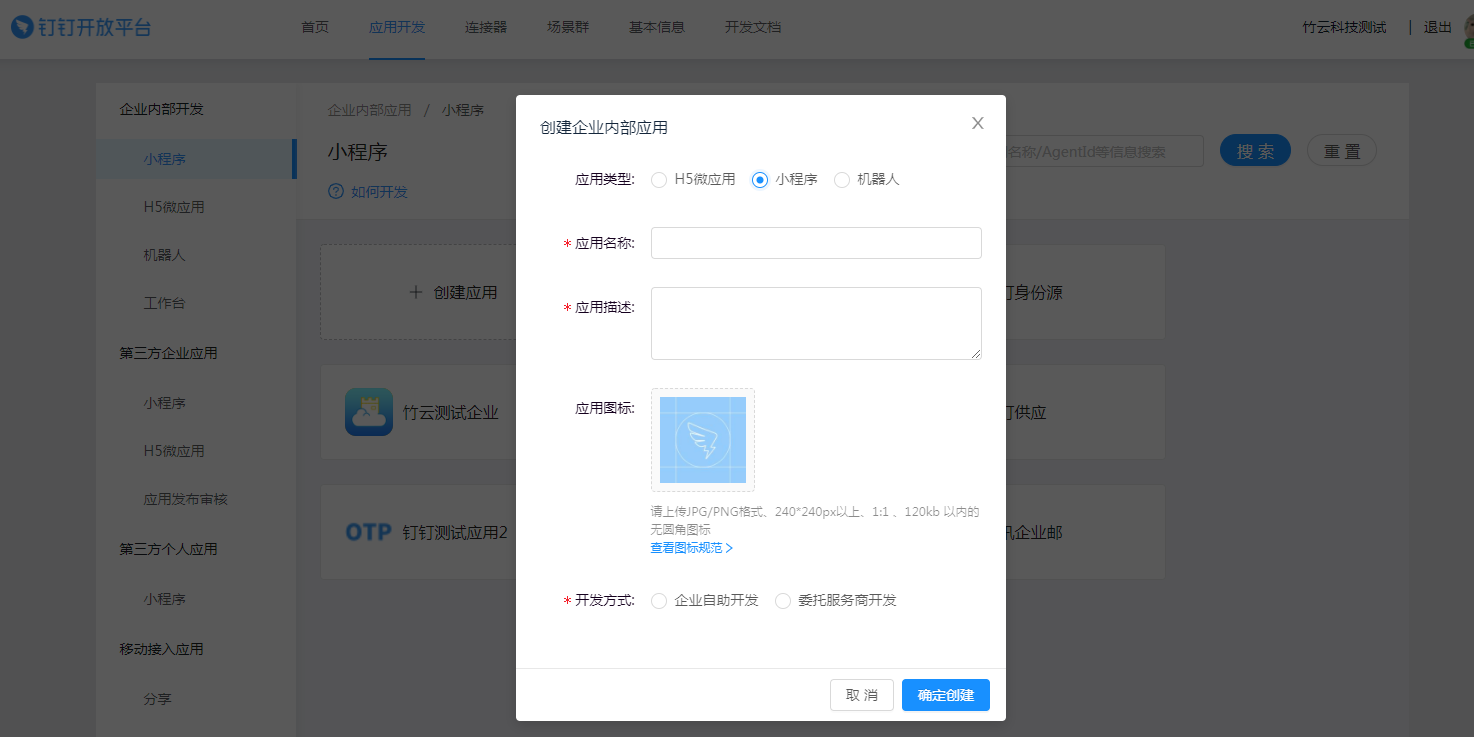
Log in to the DingTalk Open Platform, choose App Development > Internal Development > Mini Program (or H5 Micro App), and create an application.
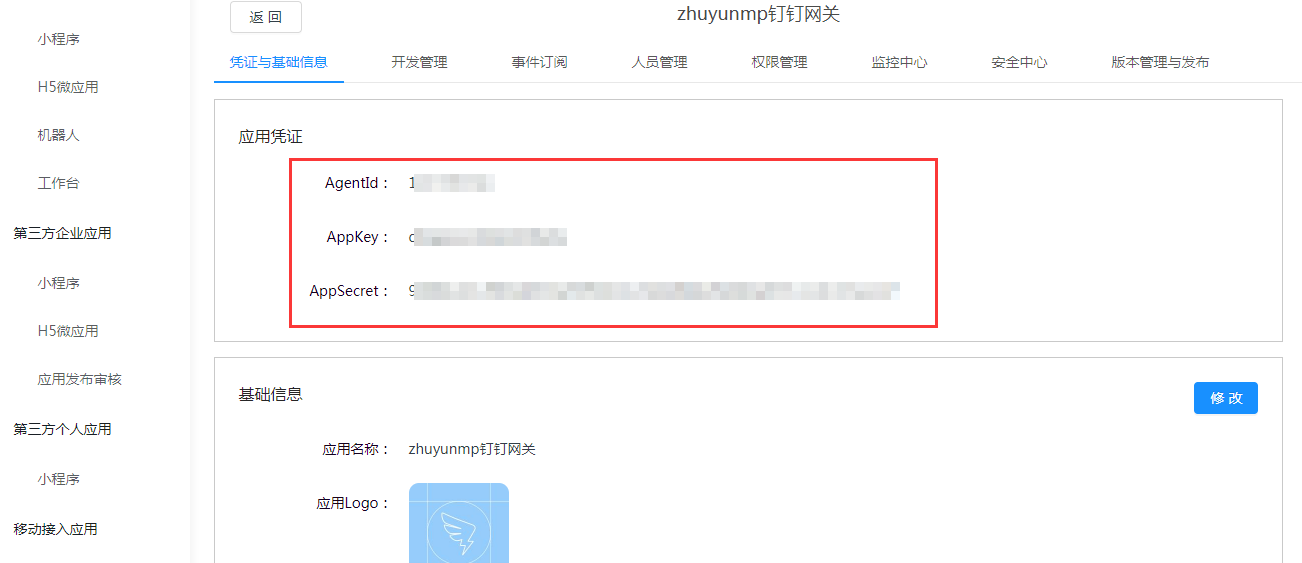
Click to enter the created mini program, choose Credentials & Basic Info, and obtain the
AgentId,AppKey, andAppSecret.Choose Development Management, and edit the server outbound IP to the IDaaS tenant domain. Please contact technical support for assistance.
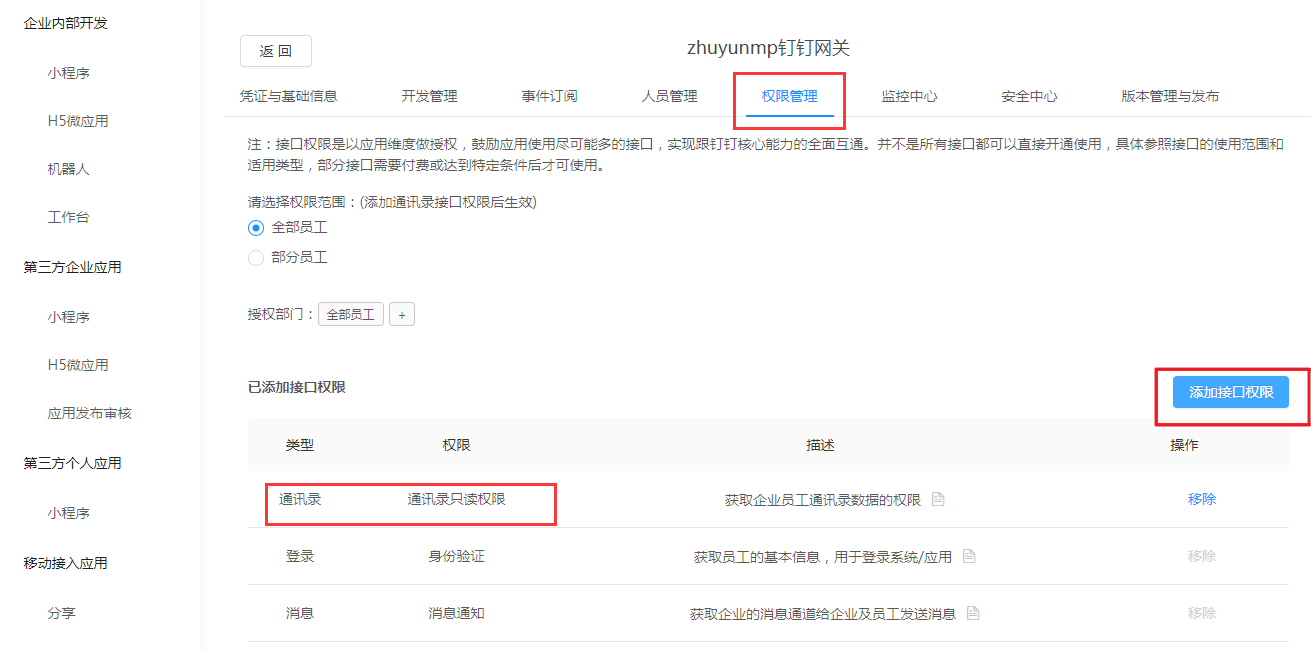
Choose Permission Management, add API permissions, and add the address book read-only permission.
Configure IDaaS Platform
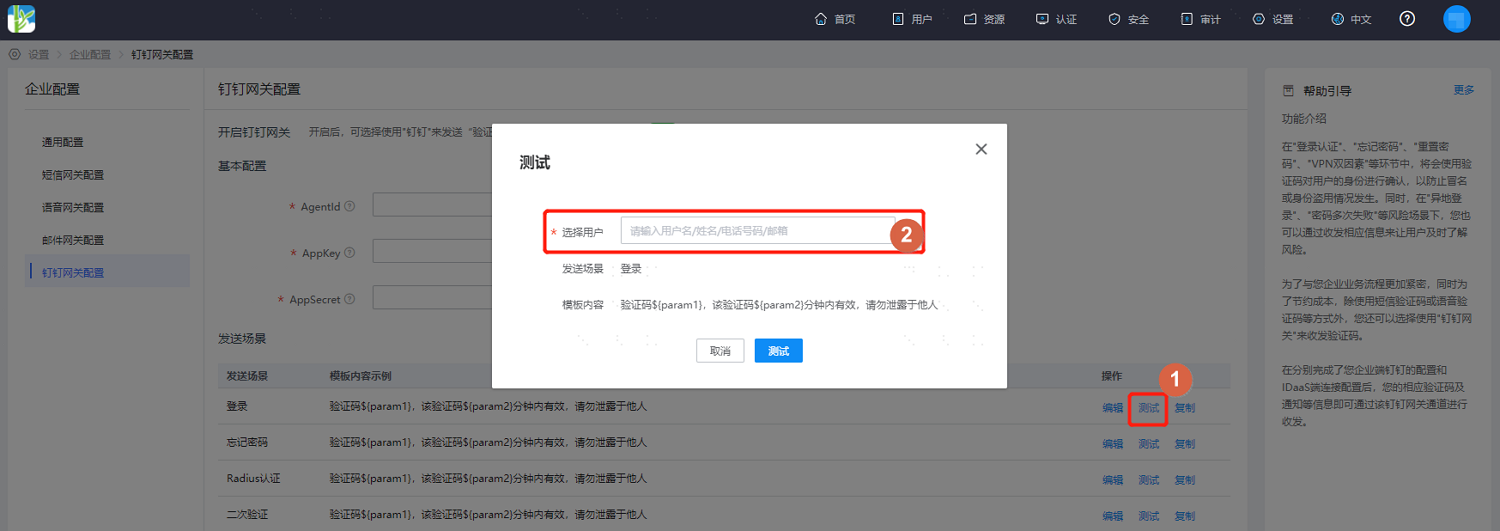
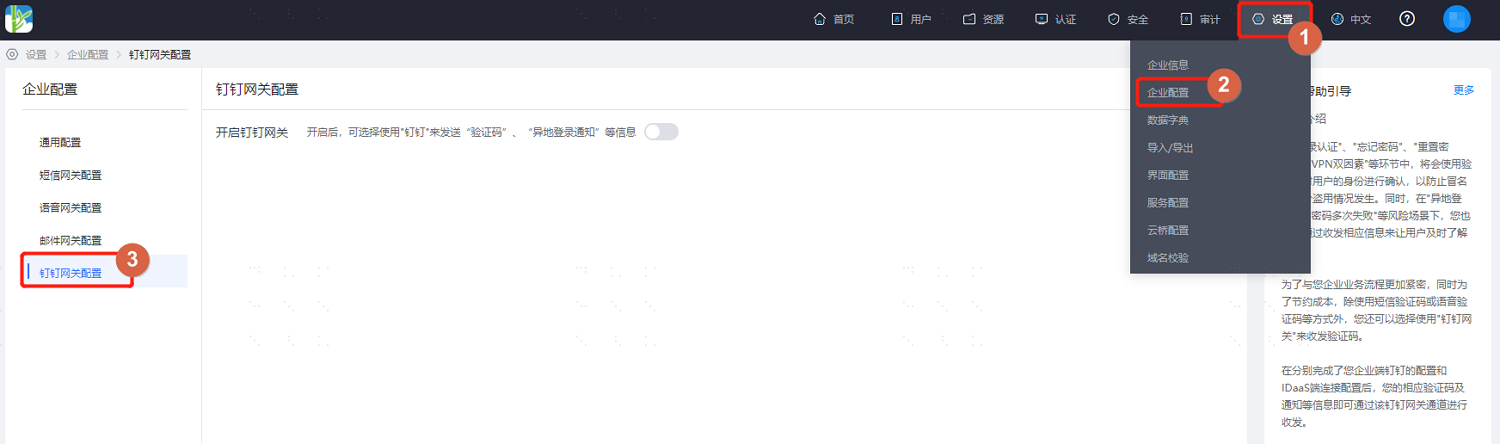
Log in to the IDaaS Enterprise Center, choose Settings > Enterprise Configuration from the top navigation bar, and select DingTalk Gateway Configuration.
Enable the DingTalk gateway, fill in the basic configuration, and save. Enter the credential information obtained from the DingTalk application.
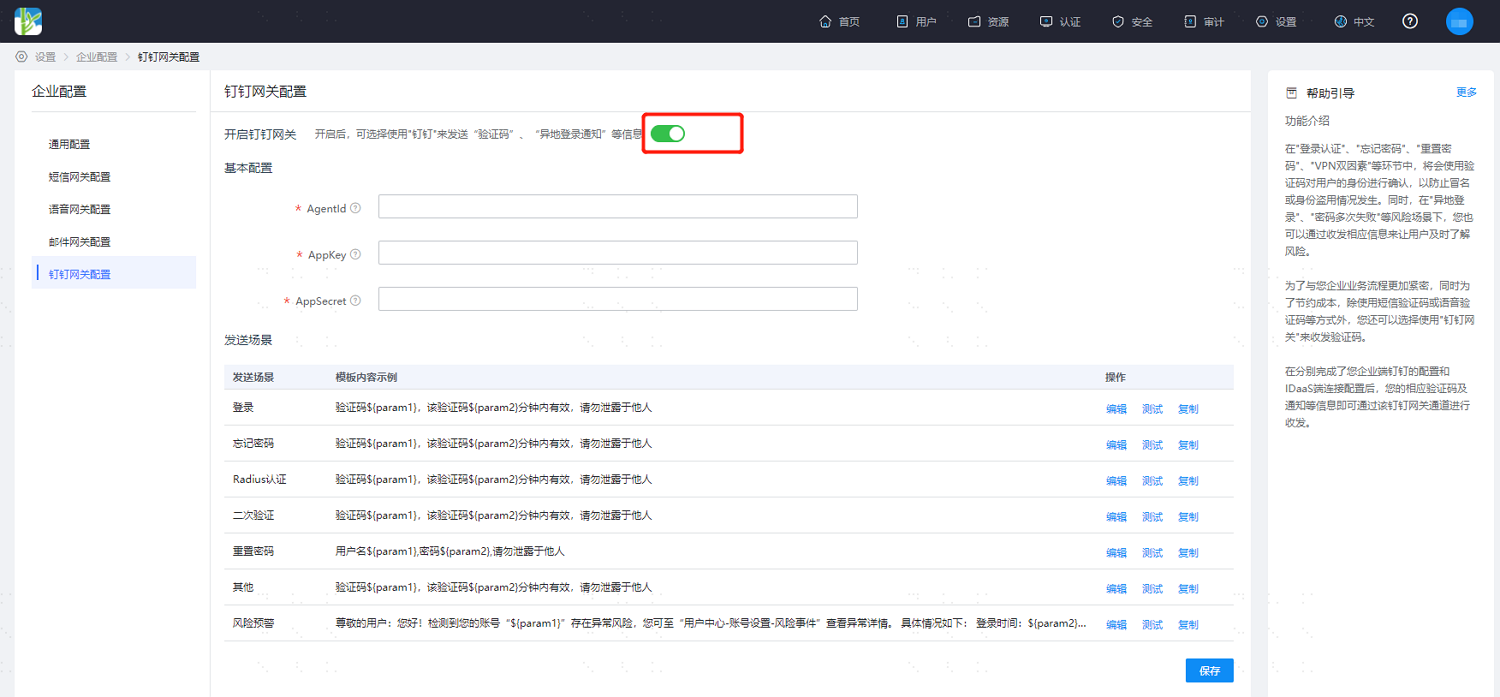
After basic configuration is complete, configure DingTalk sending scenario notification templates according to project requirements.
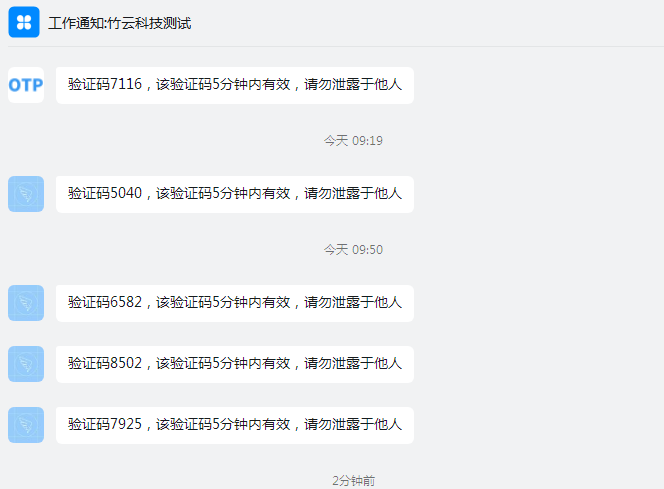
After configuration, click Test, select a test user, and the user will receive the verification code in DingTalk.