
Configure CAS Authentication Login
This guide explains the integration configuration process for CAS protocol authentication login. After configuring the CAS authentication source integration in the IDaaS platform, refer to this module to configure CAS authentication login. When accessing the application system, users are redirected from IDaaS to the third-party identity provider to complete identity authentication.
Prerequisites
- Permissions for the third-party identity provider (IDP) application system, and the IDP supports CAS authentication.
- Administrator permissions for the IDaaS Enterprise Center.
- The application has been integrated into the IDaaS platform.
- The CAS authentication source has been configured in the IDaaS platform.
Configuration Flow

Procedure
Configure CAS Authentication for Application
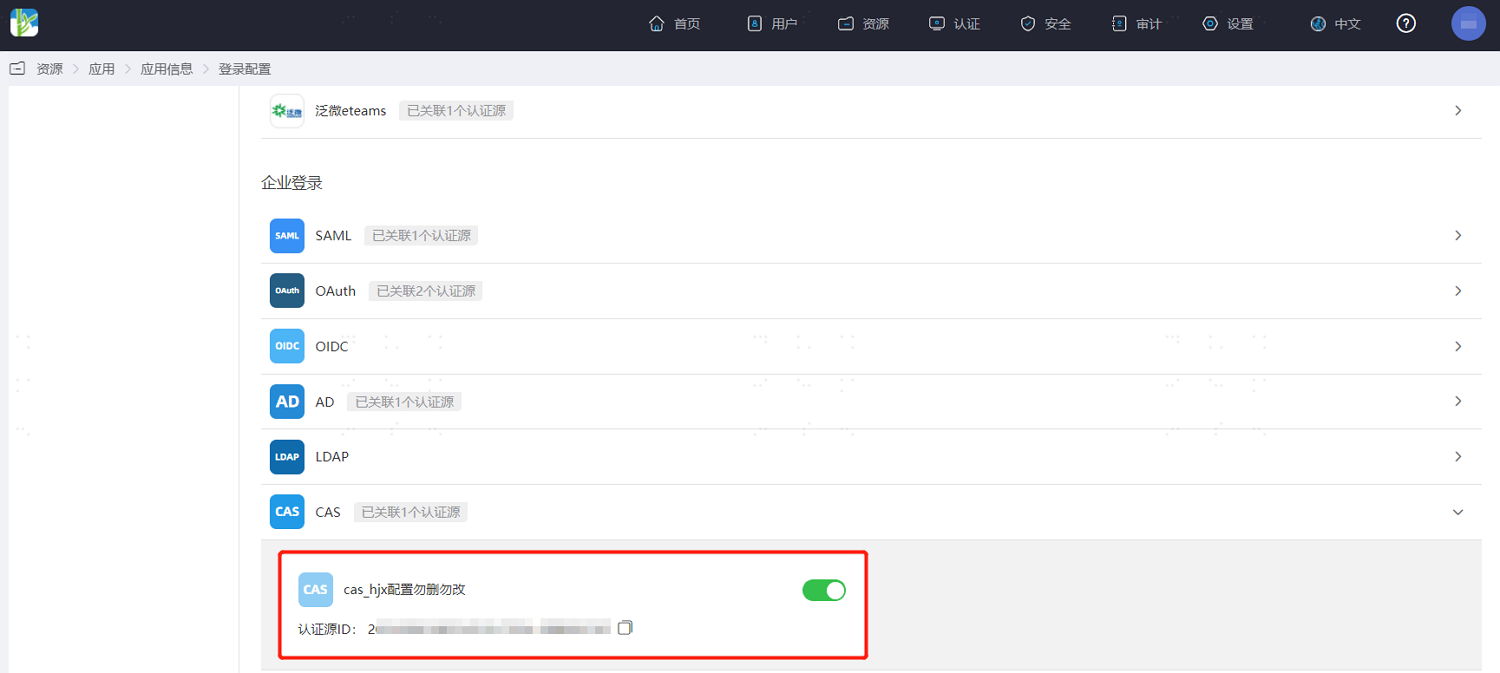
Log in to the IDaaS Enterprise Center, choose Resources > Apps from the top navigation bar. This guide uses the User Center app as an example. Select User Center, switch to the Login Configuration tab, select CAS from the dropdown, and enable the previously added CAS authentication source.
Verify CAS Authentication Login
TIP
The actual CAS authentication login process is related to the When User Not Associated option in Configure CAS Authentication Source. Please log in as prompted by the interface.
Log in to the User Center. On the application system login page, select CAS authentication login.
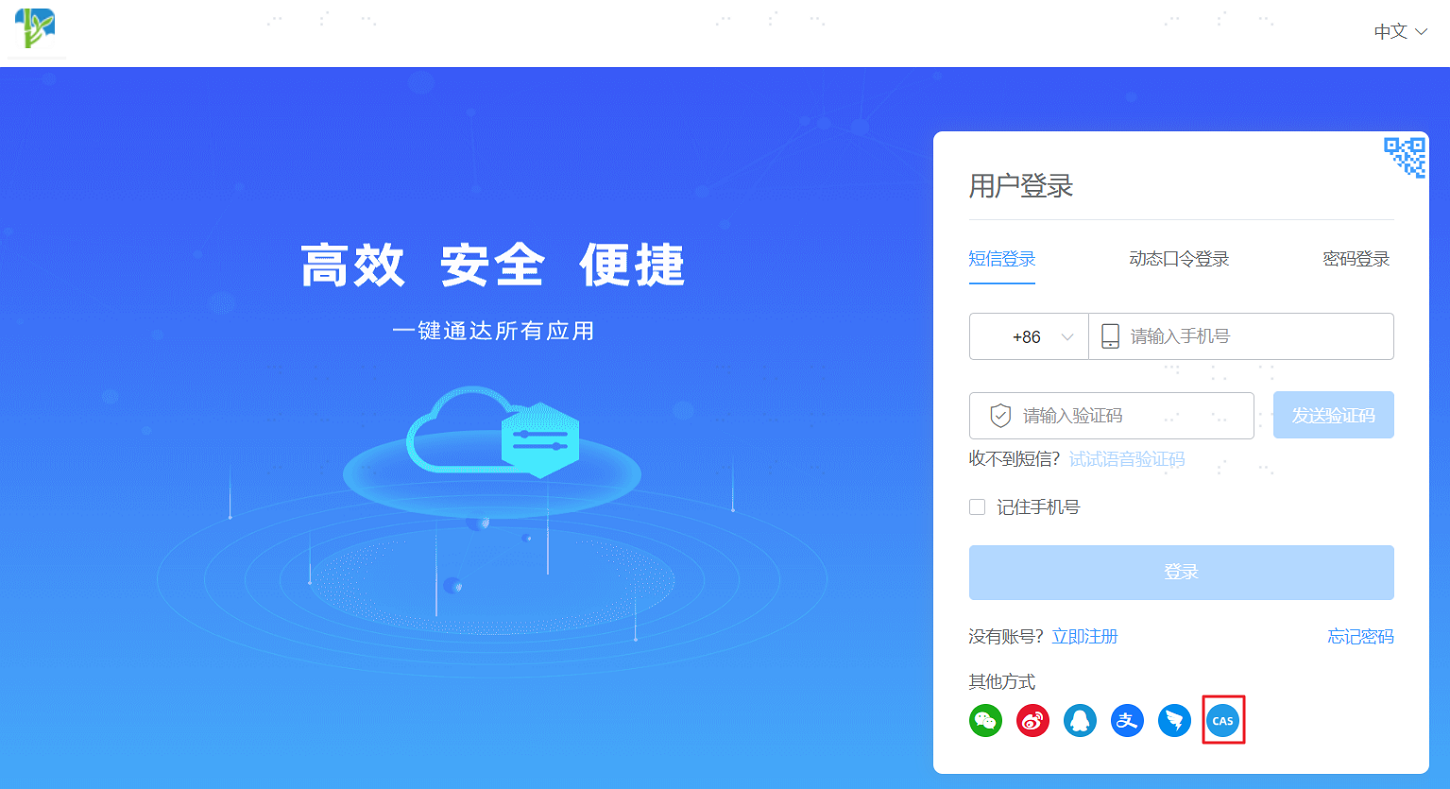
The page redirects to the CAS authentication platform. Enter the account and password on the platform to log in to the User Center.