Configure Facebook Authentication Source
Facebook authentication login allows users to securely log in to third-party applications or websites using Facebook as the authentication source. To facilitate enterprise user authentication login, the IDaaS platform supports configuring Facebook as an authentication source. Users can authenticate and log in to various application systems through Facebook, bringing enterprise users a simpler and more convenient login method and better user experience. This feature is currently only supported in 2C scenarios.
This guide explains the related operations for configuring a Facebook authentication source.
Prerequisites
- Administrator permissions for the Facebook development platform.
- Administrator permissions for the IDaaS Enterprise Center.
Procedure
Create Application on Facebook Development Platform
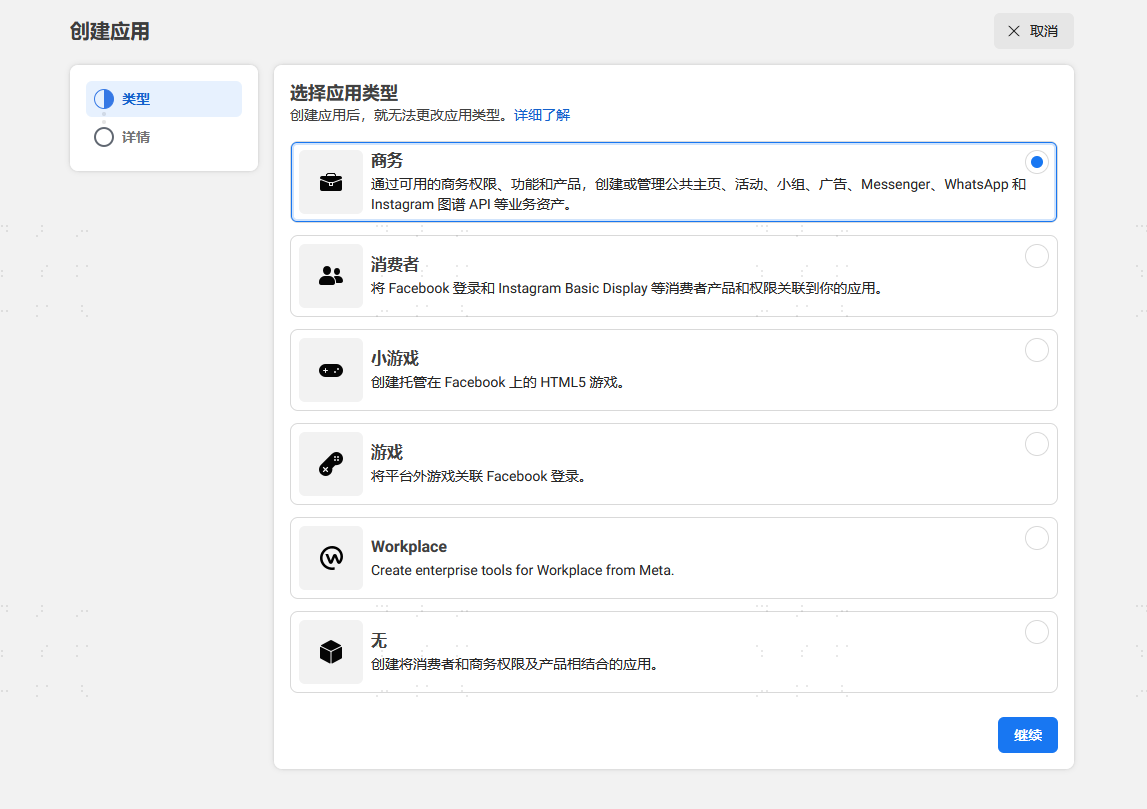
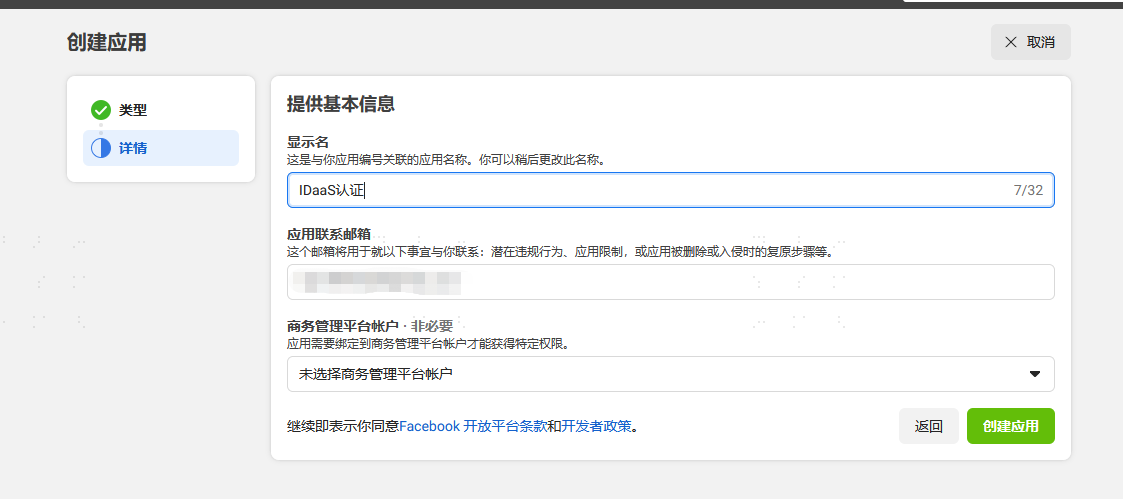
Log in to the Facebook Development Platform, log in to the Facebook account, create an application, select the business type, and configure the basic application information.
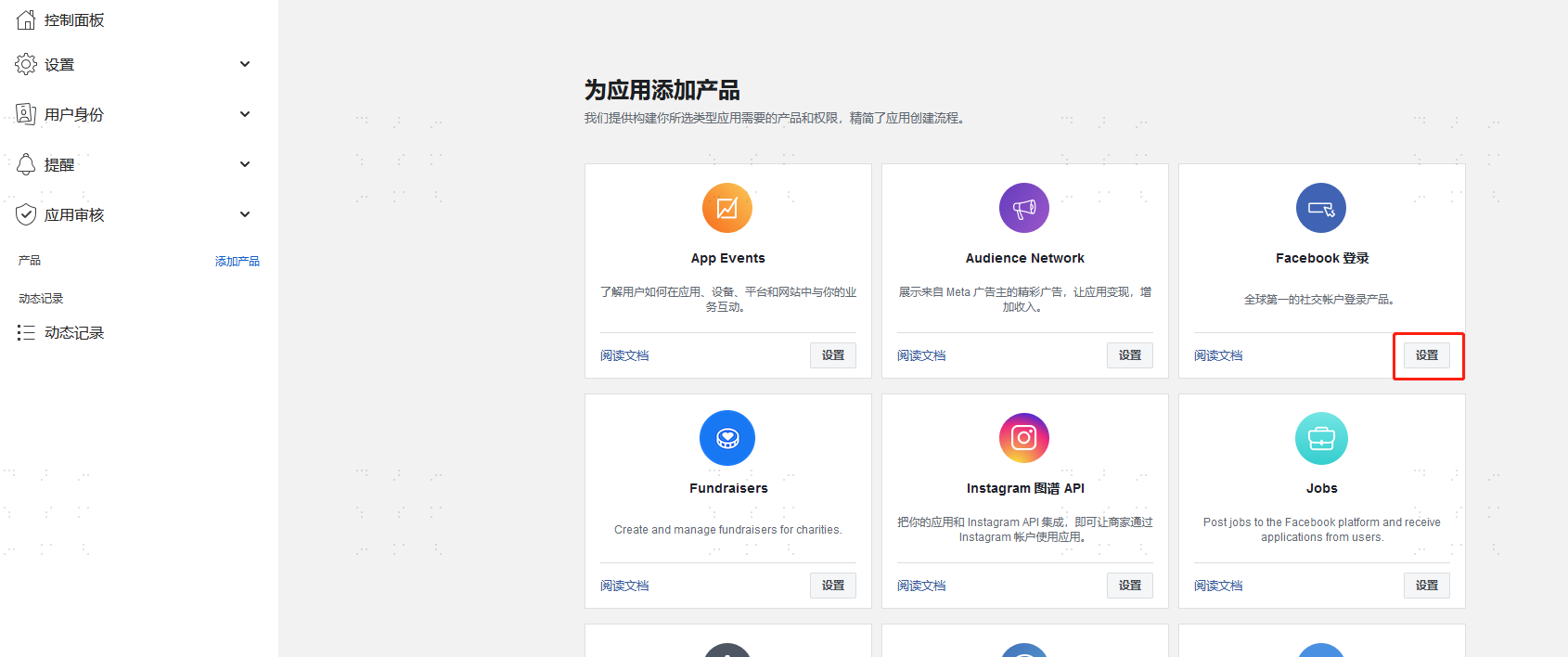
Add the Facebook Login product for the newly added application.
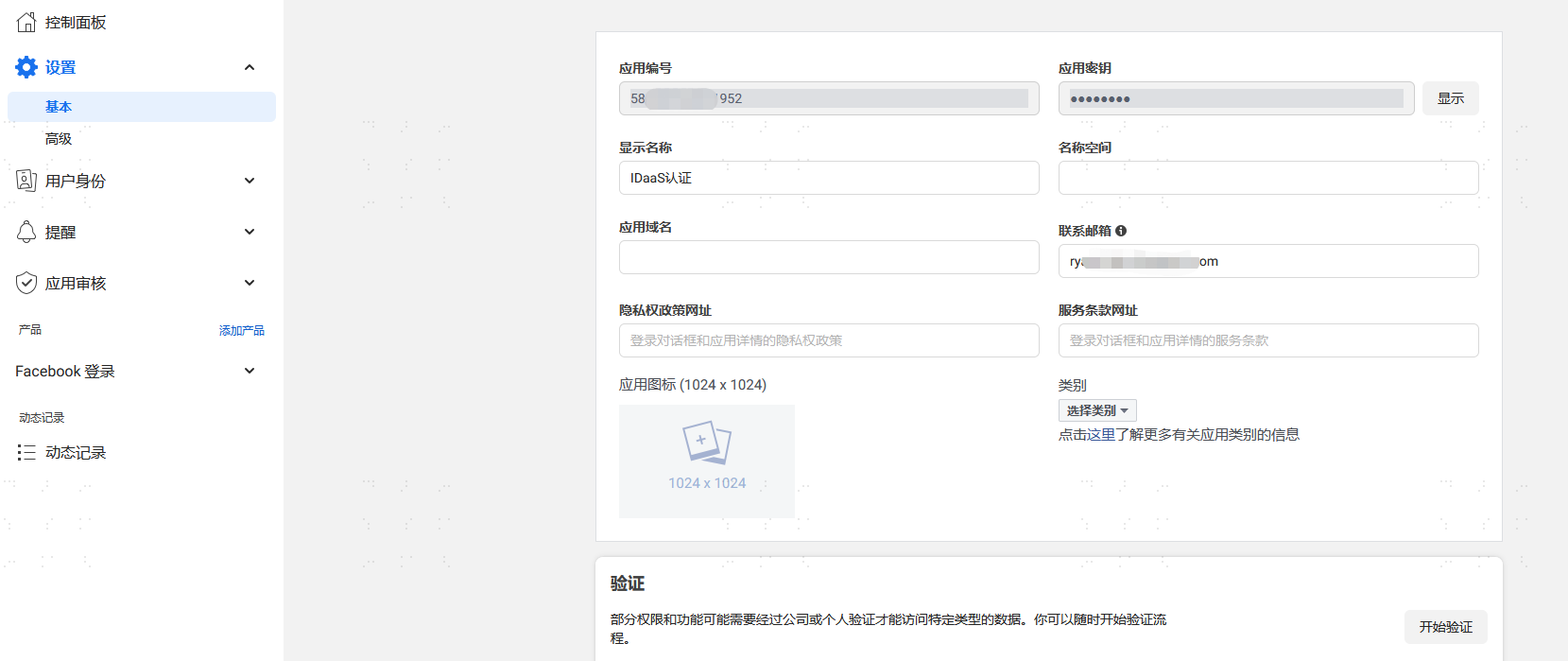
In the left menu, choose Settings > Basic, and obtain the application ID and application secret.
Configure Facebook Authentication Source in IDaaS
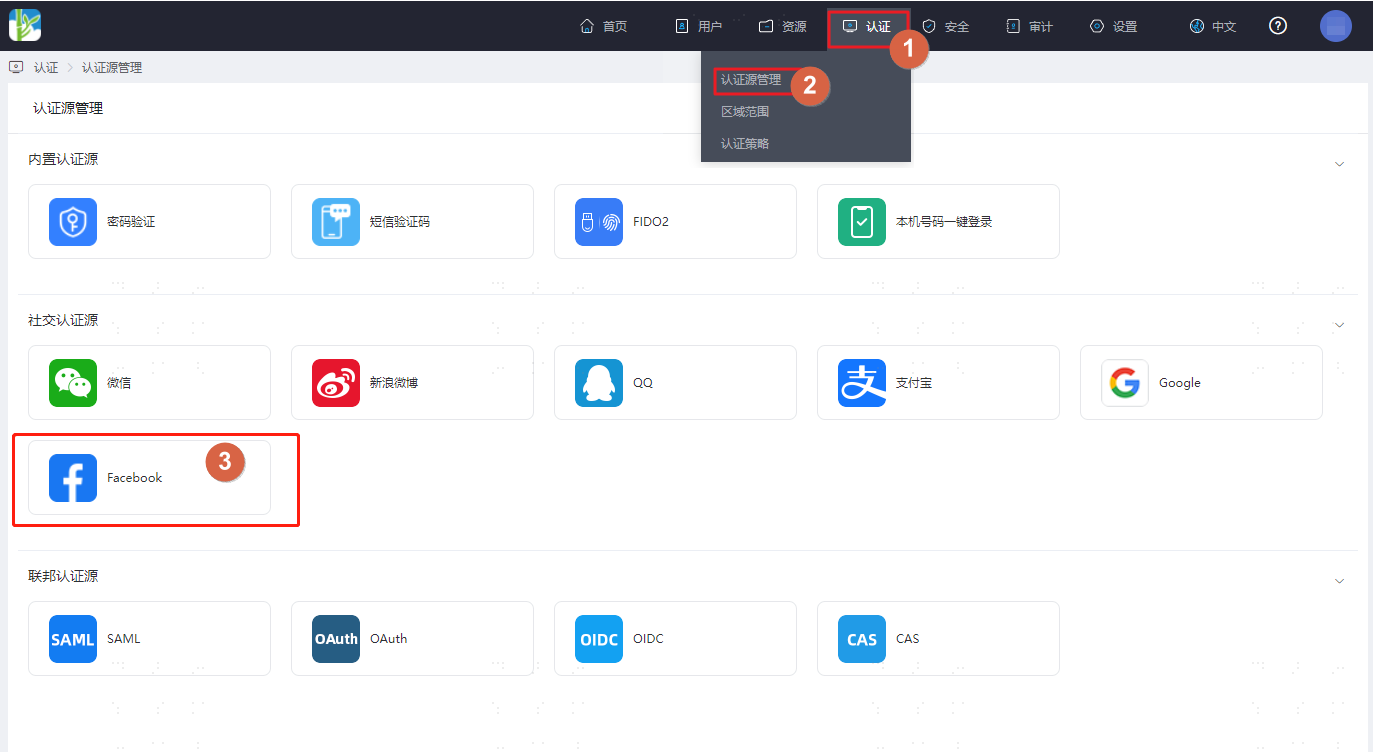
Log in to the IDaaS Enterprise Center, choose Authentication > Authentication Source Management from the top navigation bar, enter the Facebook authentication source page, and click Add Authentication Source.
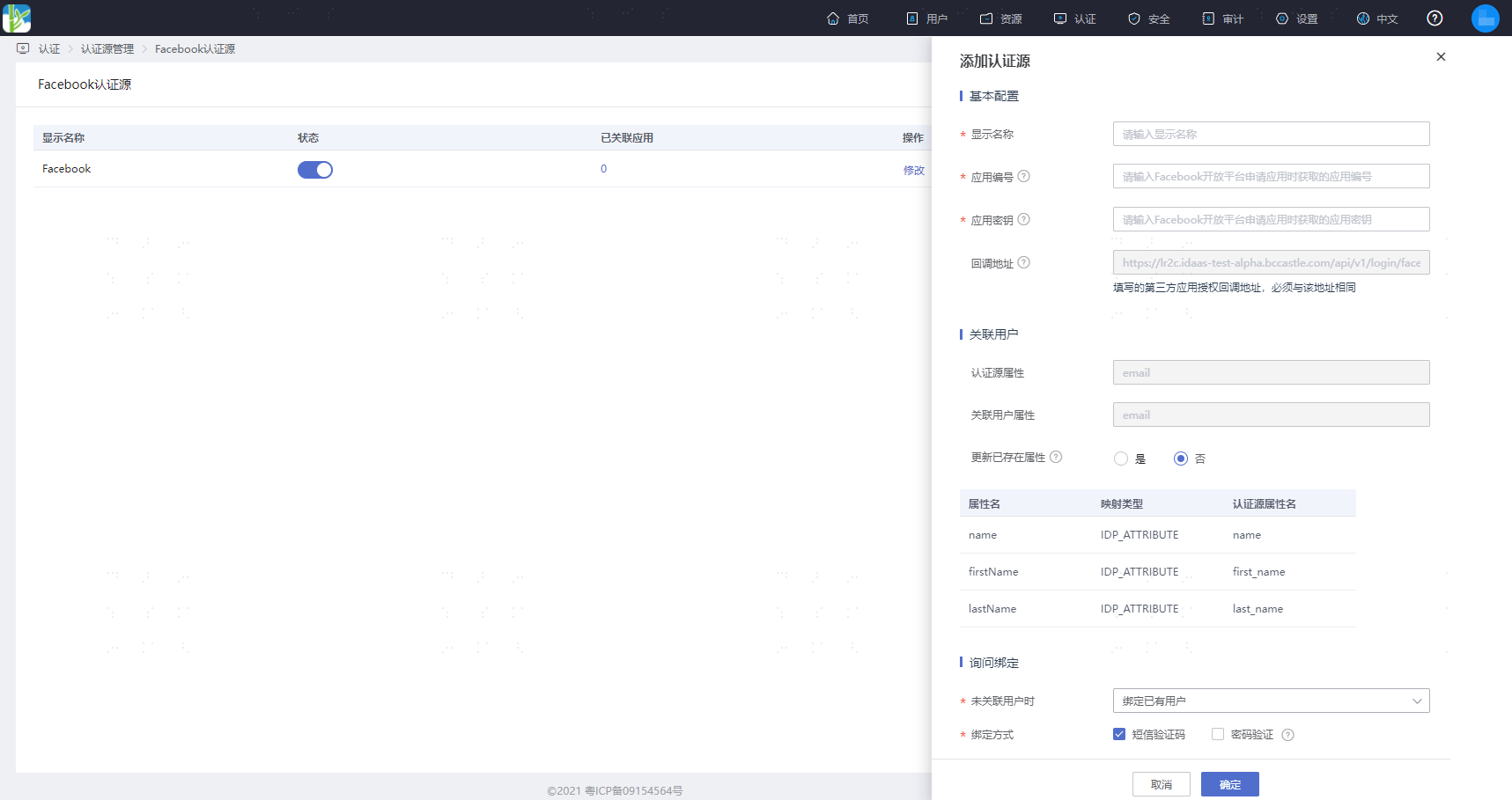
Configure the Facebook authentication source parameters as prompted. Key parameters are described below.
TIP
When User Not Associated: When the authentication source attributes of the user information returned by the Facebook platform do not match the associated user attributes in IDaaS, and no system user is associated, the optional configurations are as follows.
- Login and Register: When no user is associated, enter the SMS verification code, and the user can be directly registered and pass authentication and log in.
- Bind Existing User: When no user is associated, the page redirects to the corresponding verification page through the set binding method. After entering the SMS verification code or password verification successfully, the corresponding existing user can be bound.
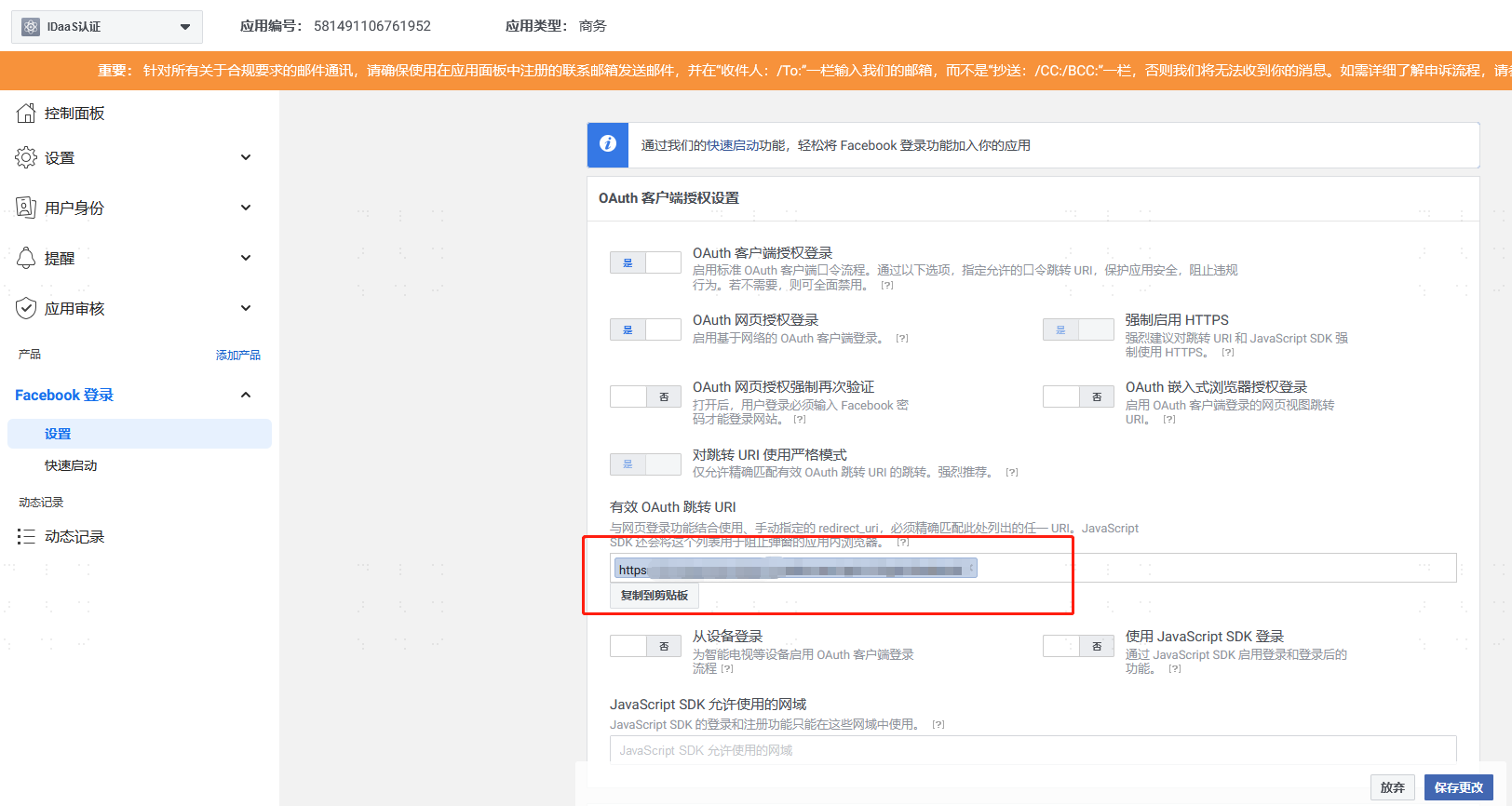
Obtain the callback address generated by the Facebook authentication source (example:
https://xxx.bccastle.com/api/v1/login/facebook), return to the Facebook Development Platform, choose Facebook Login > Settings. Fill in the callback address in Valid OAuth Redirect URIs.