
Configure WeLink QR Code or Account Password Login
This section describes how to configure WeLink QR code login. After integrating the WeLink authentication source in the IDaaS platform, follow the instructions in this module to configure WeLink QR code or account password authentication login for each application system.
Prerequisites
- You have administrator permissions for the IDaaS Enterprise Center platform.
- You have created an application on the WeLink Open Platform.
- The application has been integrated into the IDaaS platform.
- You have configured the WeLink authentication source in the IDaaS platform.
Configuration Process

Procedure
Configure WeLink Authentication for an Application
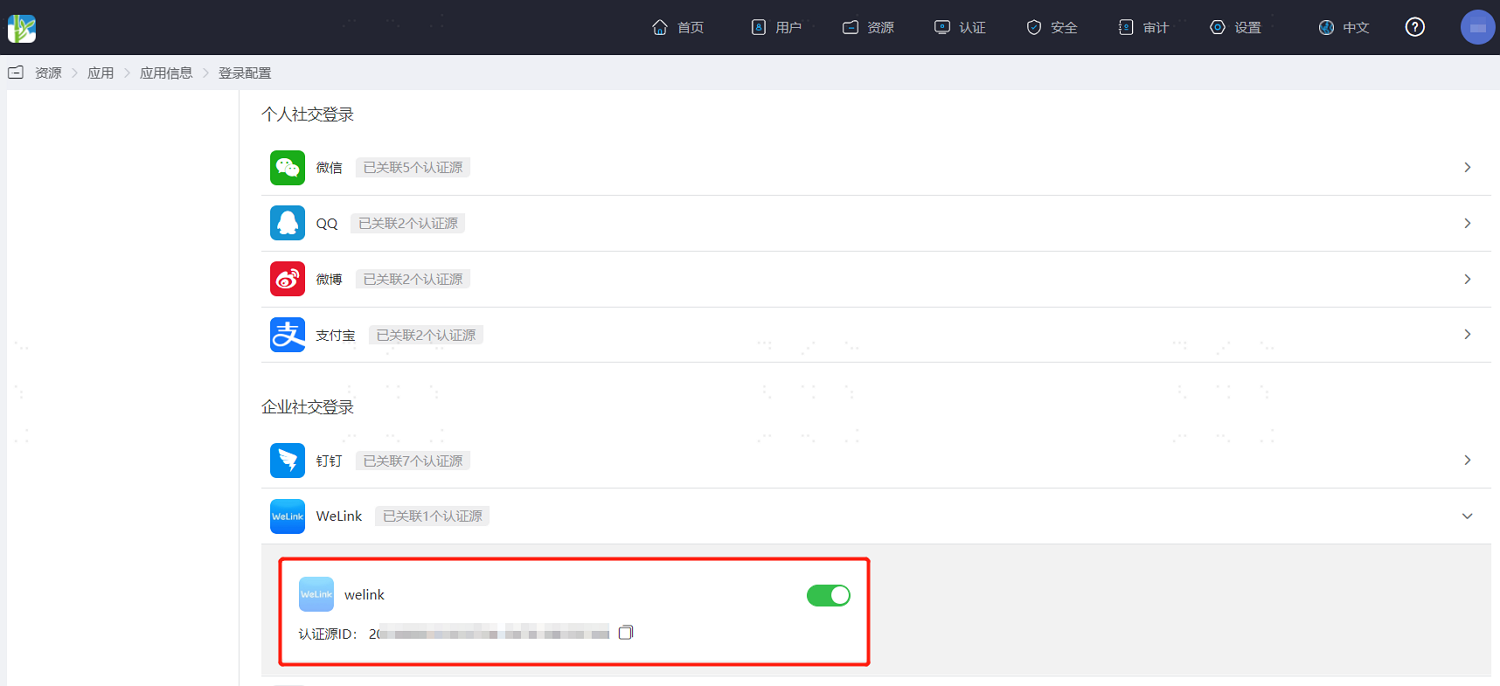
Log in to the IDaaS Enterprise Center platform. In the top navigation bar, choose Resources > Applications. Using the User Center application as an example, select User Center, switch to the Login Configuration tab, expand WeLink, and enable the WeLink authentication source that you added earlier.
Verify WeLink QR Code or Account Password Login
TIP
The actual WeLink authentication login flow is related to the When User Is Not Associated option in Configure WeLink Authentication Source. Please follow the on-screen prompts to log in.
Log in to User Center. On the application system login page, select WeLink login.
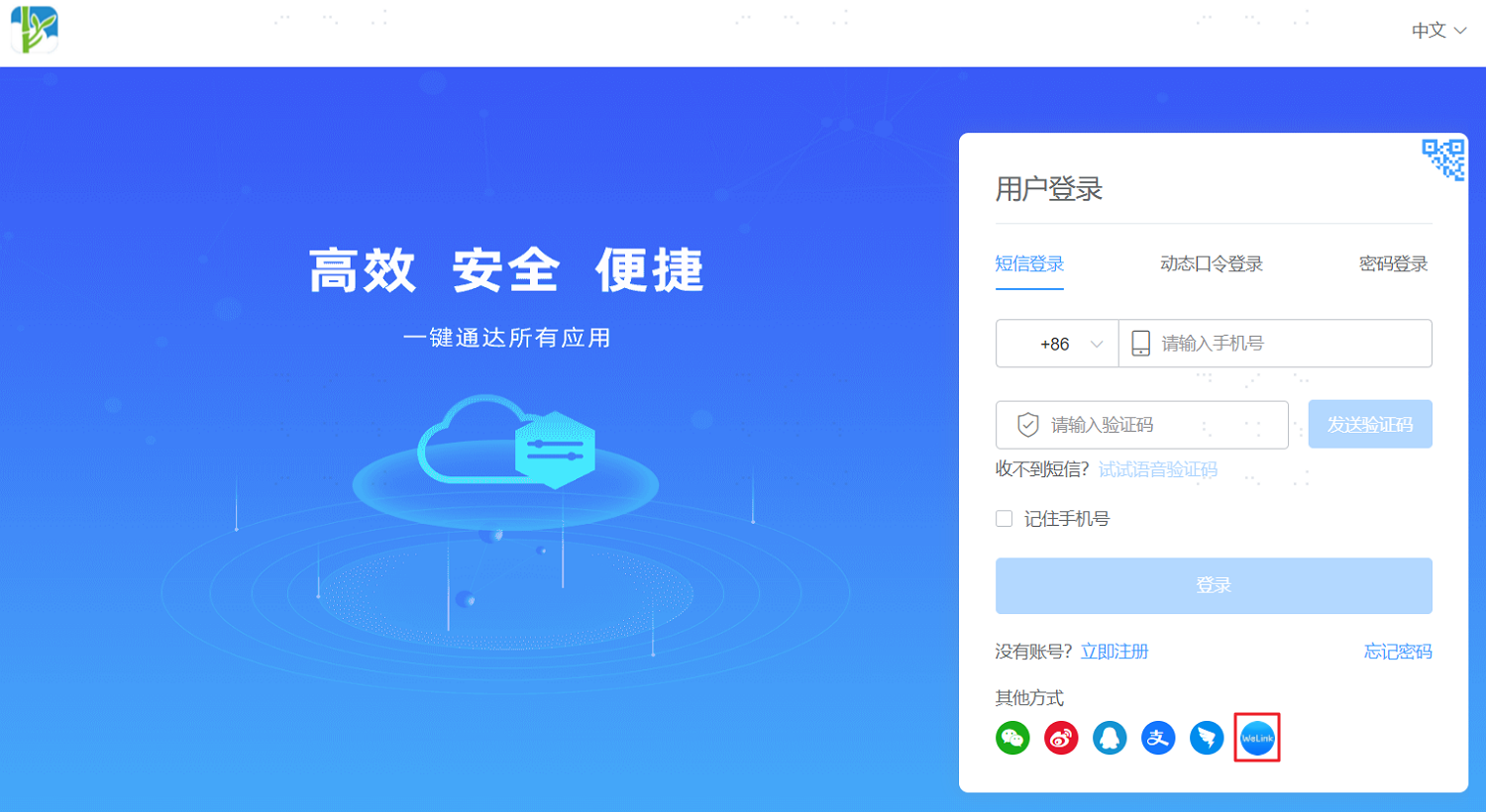
You can choose to scan the QR code on the page with WeLink, or log in to the application system using your WeLink mobile number, verification code, and password. If you are logging in to the application system for the first time, you need to bind your mobile number.