Send Todo/Notification Messages via API
API (Application Programming Interface) refers to predefined interfaces (such as functions or HTTP interfaces) that developers use to access applications based on software or hardware. The IDaaS platform has built-in API interfaces, and application systems can call APIs by establishing authorization relationships with them.
This guide explains how to configure enterprise APIs to display todo and notification messages initiated by third-party applications in the IDaaS User Center.
Prerequisites
- Administrator permissions for the IDaaS Enterprise Center.
- The application has been integrated into the platform.
Procedure
Call APIs to Access Todo Messages
Please refer to the API Call Instructions and call the application-side task todo management and application-side message notification management interfaces to integrate third-party application todo and notification messages into IDaaS.
Calling the application-side task todo management and application-side message notification management interfaces requires the following API permissions:
| Permission Code Name | Description |
|---|---|
| app_todo_msg | Includes interface permissions related to application-side task todo management |
| app_notice_msg | Includes interface permissions related to application-side message notification management |
View Todo and Notification Messages
My Todos
Log in to the User Center, click the icon in the upper right corner
 to open the My Todos page, which displays current unprocessed todo items. Click Go Process behind a todo item to jump directly to the corresponding application system.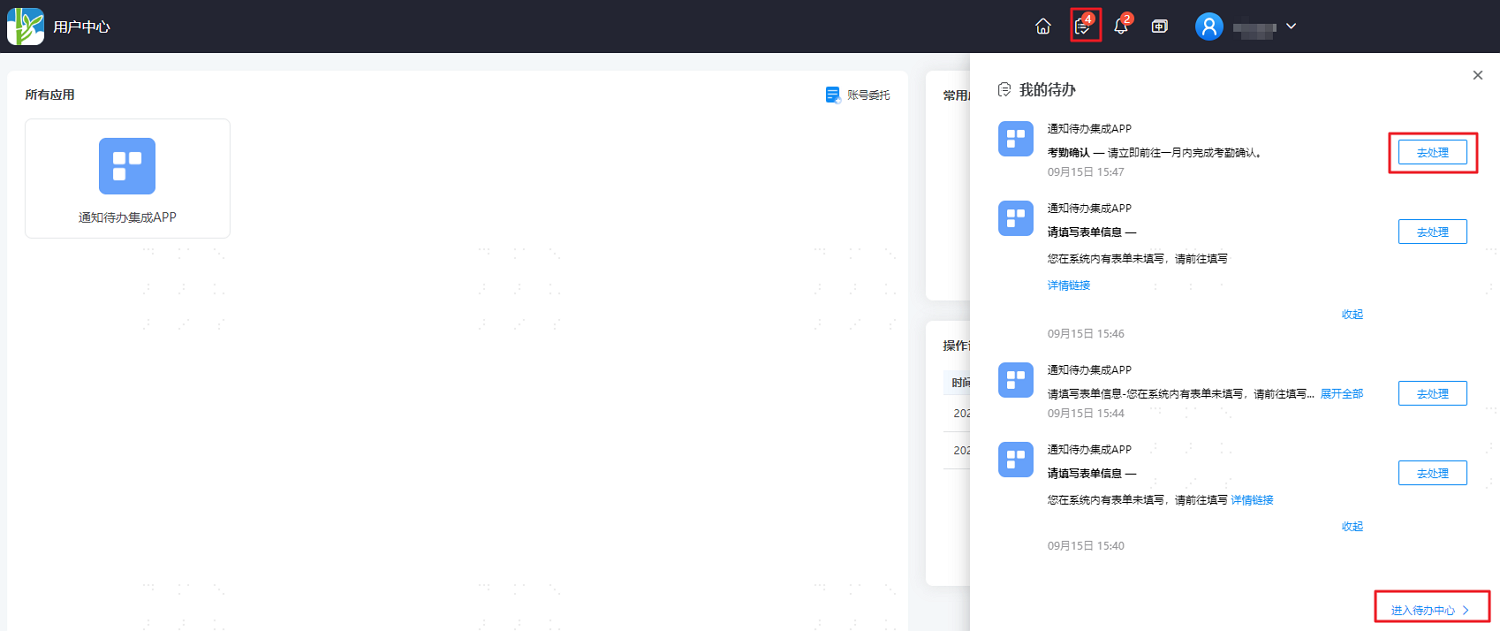
Todo Center
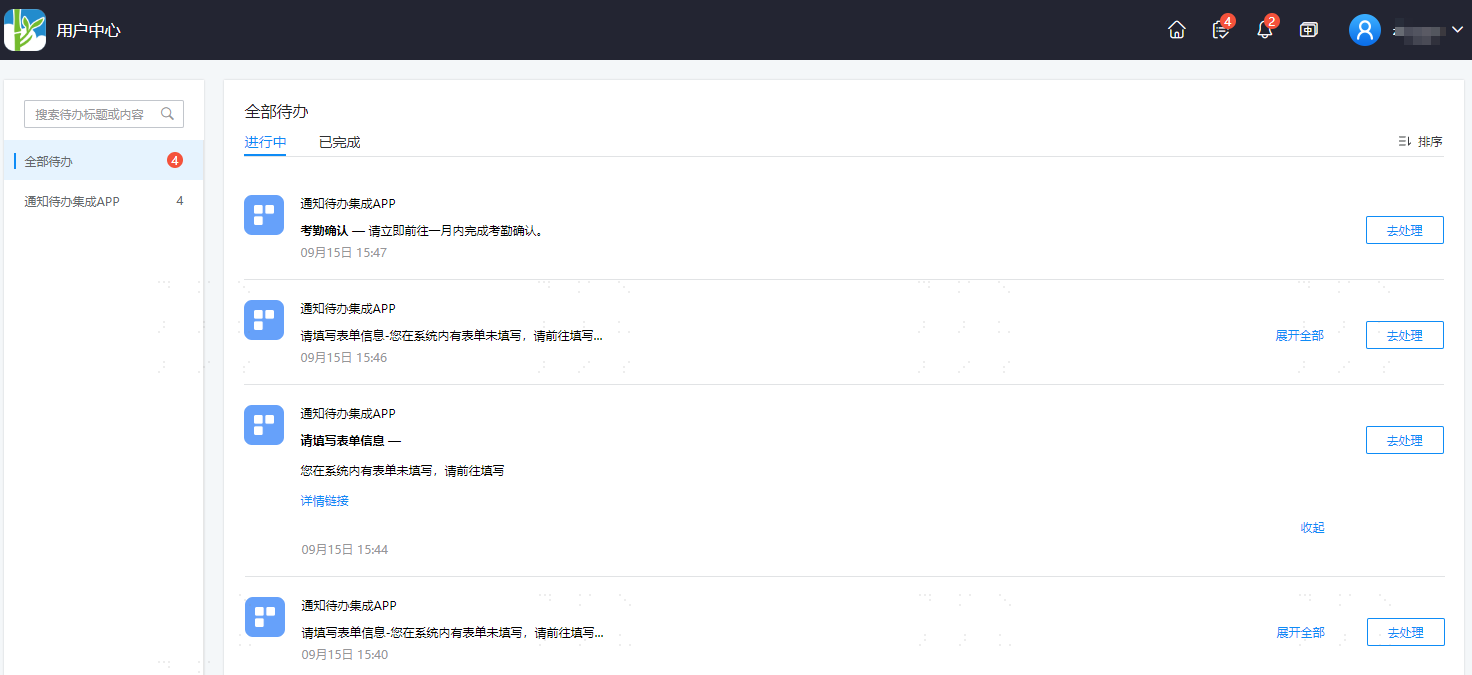
Click Enter Todo Center at the bottom of the My Todos page to display processed and unprocessed todo items. It supports counting the number of todo items under each application. Click Go Process behind a todo item to jump directly to the corresponding application system.
My Notifications
Log in to the User Center, click the icon in the upper right corner
 to open the My Notifications page, which displays current read and unread notifications. It supports marking all notifications as read with one click.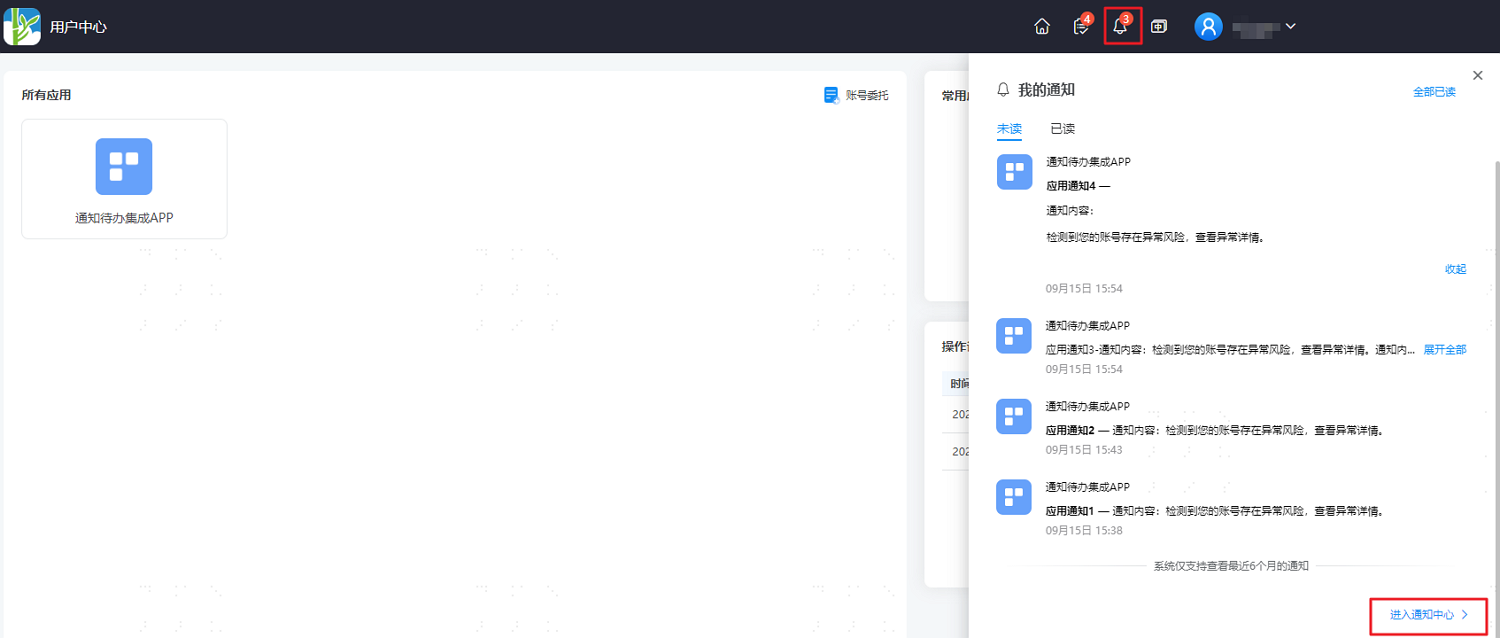
Notification Center
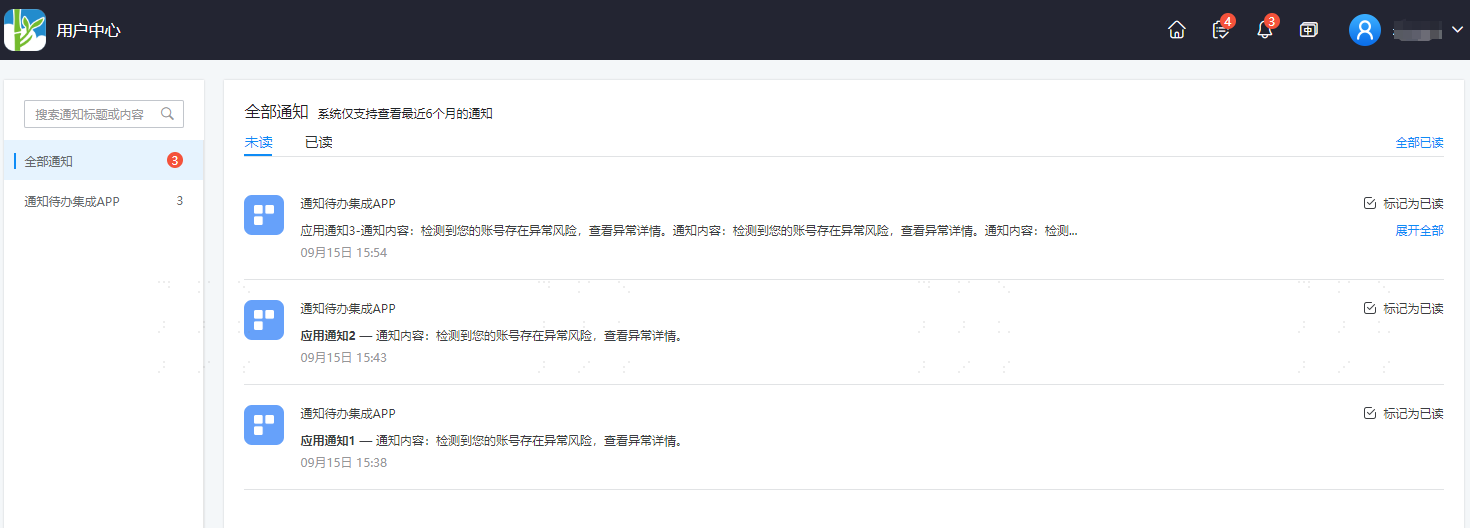
Click Enter Notification Center at the bottom of the My Notifications page to display all read and unread notifications. It supports counting the number of notification messages under each application and marking all notifications as read with one click.