Configure DingTalk Scan Code Login
This guide explains the configuration process for DingTalk scan code login. After configuring the DingTalk authentication source integration in the IDaaS platform, refer to this module to configure DingTalk scan code login for various application systems.
Prerequisites
- Access management permissions for the IDaaS Enterprise Center.
- An application has been created in the DingTalk Developer Console.
- The application has been integrated into the IDaaS platform.
- The DingTalk authentication source has been configured in the IDaaS platform.
Configuration Flow

Procedure
Configure DingTalk Authentication for Application
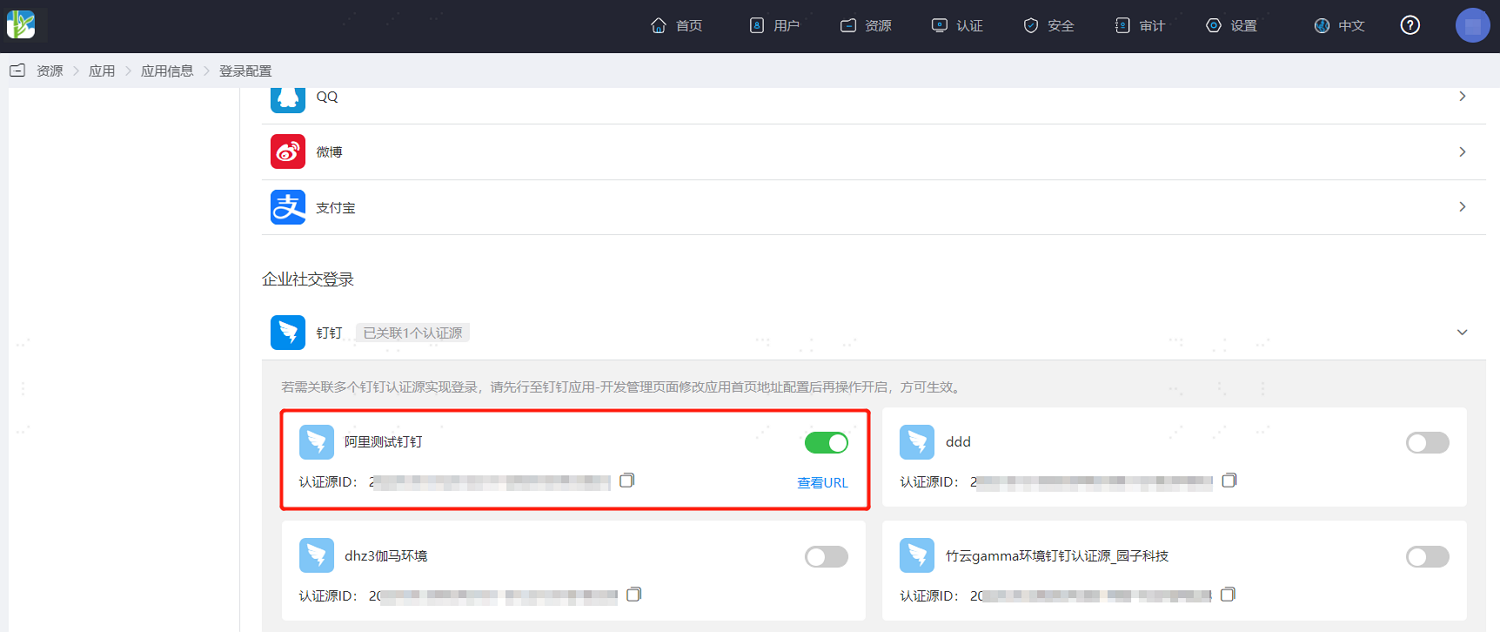
Log in to the IDaaS Enterprise Center, choose Resources > Apps from the top navigation bar. This guide uses the User Center app as an example. Select User Center, switch to the Login Configuration tab, select DingTalk from the dropdown, and enable the previously added DingTalk authentication source.
Verify DingTalk Scan Code Login
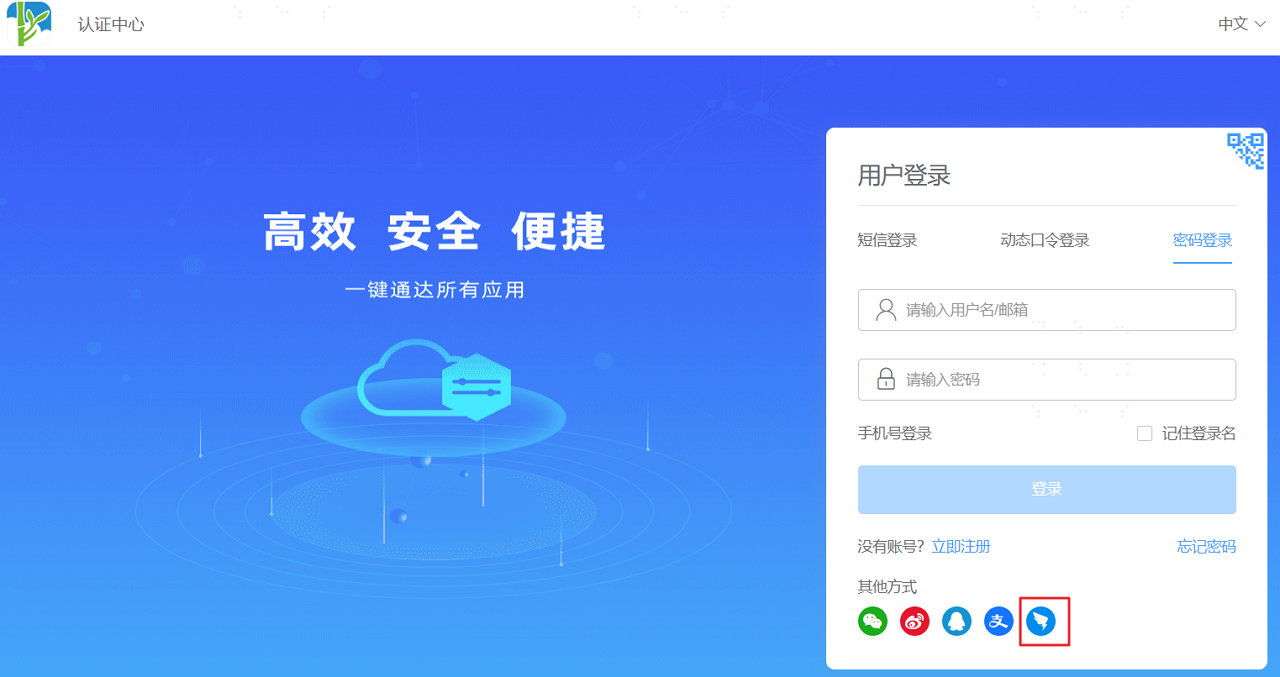
Log in to the User Center. On the application system login page, select DingTalk login.
TIP
The DingTalk scan code login process is related to the Auto Bind option in Configure DingTalk Authentication Source. The scan code login process differs when this option is enabled or disabled. It is recommended to enable this option.
Auto Bind Option Enabled
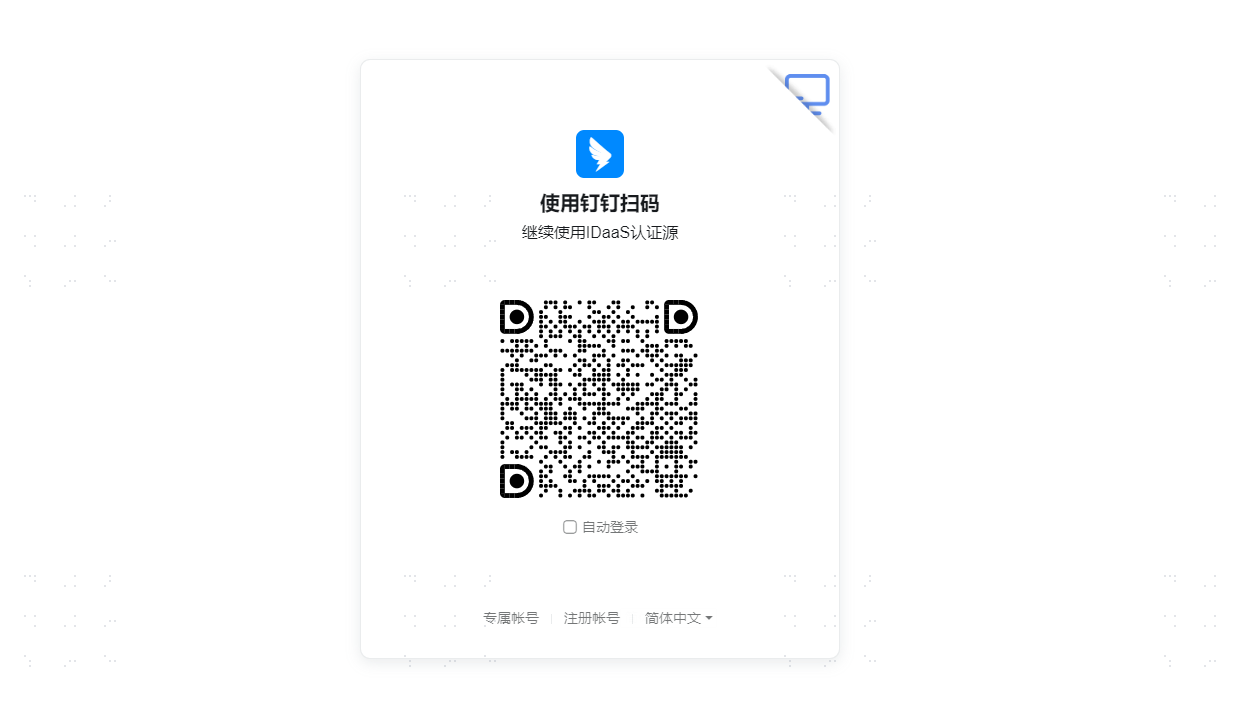
Use the DingTalk APP to scan the QR code to log in. If the user scans the code to log in for the first time, binding is automatically performed according to the Source Association Attribute and User Association Attribute in Configure DingTalk Authentication Source. There is no need to enter a mobile number and verification code for binding. If already logged in, the user directly enters the application system. If DingTalk binding fails, different processes can be followed according to the When User Not Associated scenario in the authentication source.
Auto Bind Option Disabled
Use the DingTalk APP to scan the QR code to log in. If the user scans the code to log in for the first time, an interface for entering the mobile number and verification code to bind an existing user will appear. If already bound, the user directly enters the application.