Import Employee Data from Local
If your enterprise has an internal identity management system locally, and you want to quickly replicate employee data into IDaaS for unified management, you can refer to this module to directly import user and organization data into IDaaS to quickly build the identity management system.
Prerequisites
- Administrator permissions for the IDaaS Enterprise Center.
- Local user and organization data has been prepared in advance.
Procedure
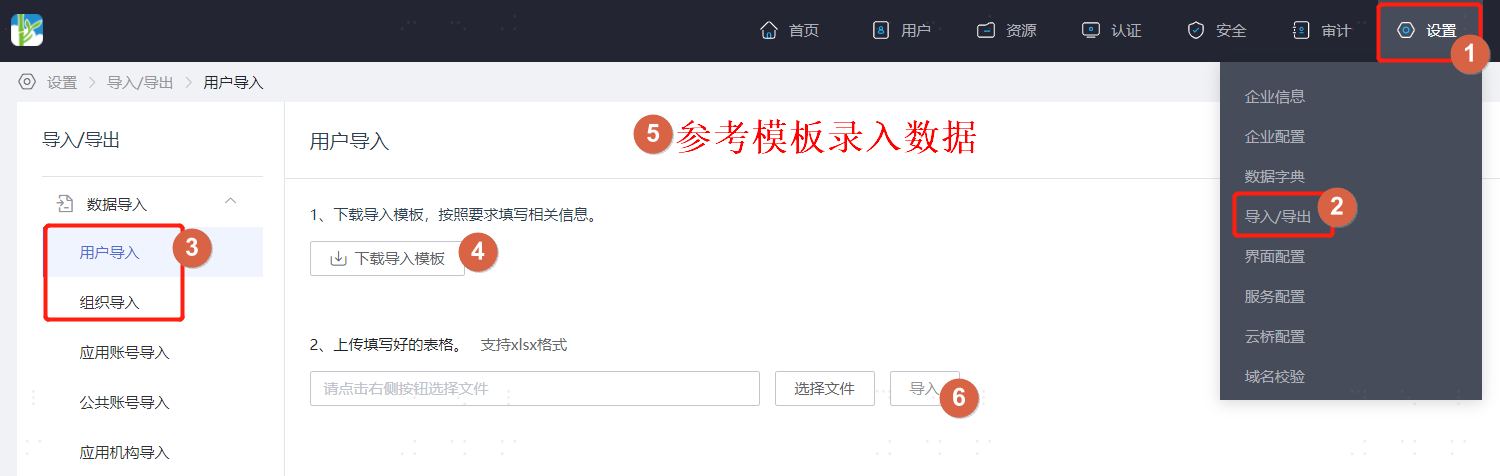
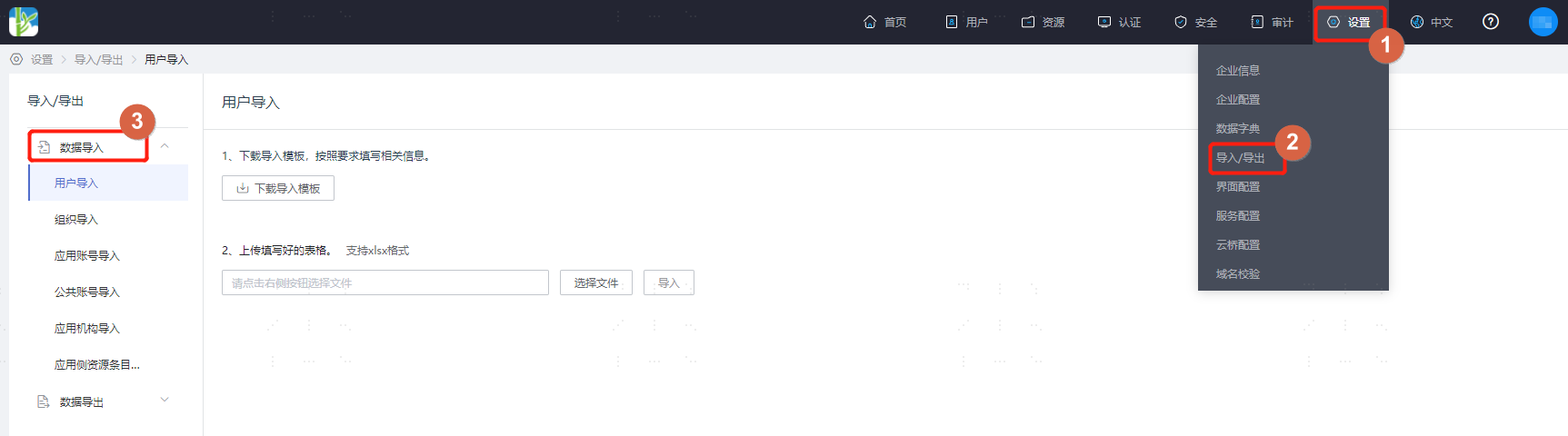
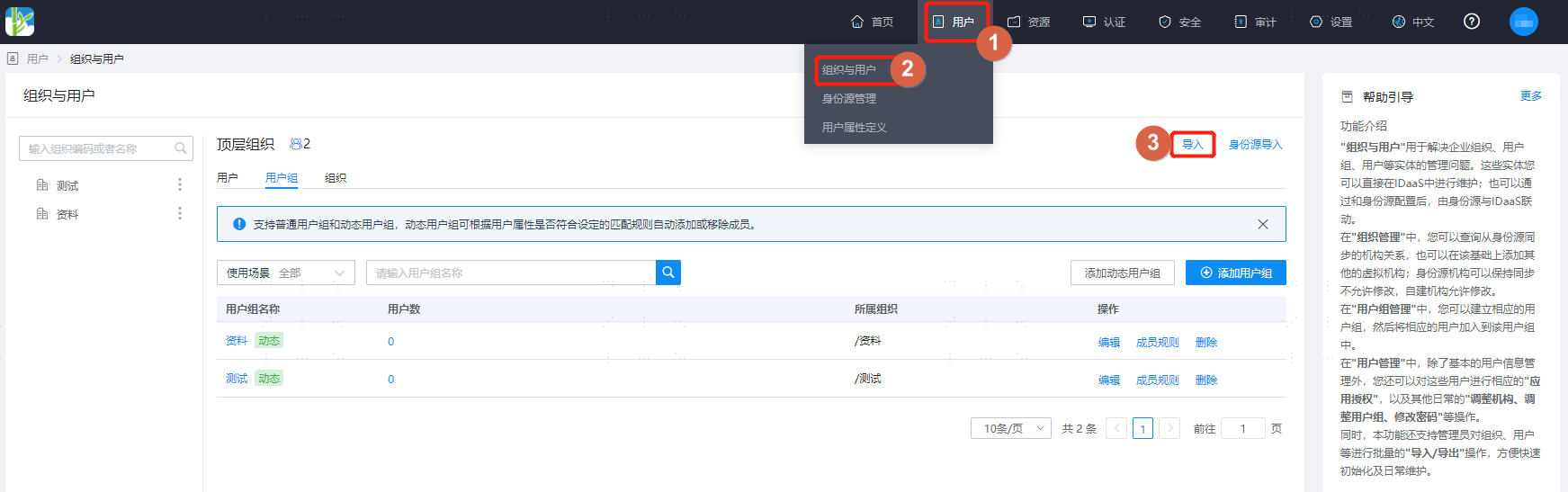
Log in to the IDaaS Enterprise Center. You can enter the data import page from either of the following two entrances:
Choose Settings > Import/Export from the top navigation bar to enter the data import/export page.
Choose Users > Organizations and Users from the top navigation bar, and click Import on the right to enter the data import/export page.
On the data import/export page, select Data Import from the left dropdown, and choose to import users or organizations according to actual requirements.
TIP
The operations for importing users and organizations are the same. The following uses importing users as an example.
On the User Import page, click Download Import Template, fill in the template as required. Key fields are described below.
TIP
Parameters in the import template support customization. When a user attribute is set as required and allowed for import, that field is required in the template and will be validated. For custom attributes, refer to Manage User Attributes.
- When the password initialization policy is enabled and Email is selected, the
emailfield must contain a valid email address; otherwise, the temporary initialization password cannot be received. If the email is not filled in, the user holding the account cannot log in to the user center or reset the password after account creation. The enterprise center administrator needs to reset the password. - When the password initialization policy is enabled and SMS is selected, the
mobilefield must contain a valid mobile number; otherwise, the temporary initialization password cannot be received. If the mobile number is not filled in, the user holding the account cannot log in to the user center or reset the password after account creation. The enterprise center administrator needs to reset the password. - When the password initialization policy is enabled and SMS + Email is selected, either the
emailormobilefield must be filled. If bothemailandmobileare filled, the system sends the initialization password via email by default. If only one ofemailormobileis filled, the system sends the initialization password via the filled notification method. If neitheremailnormobileis filled, the user holding the account cannot log in to the user center or reset the password after account creation. The enterprise center administrator needs to reset the password. statusis a built-in field in the template that controls the status of imported users. This field is not mandatory. If not filled, the user status is enabled by default.- For the Country/Region, Gender, ID Type, and Personnel Type fields, refer to the code or name in the corresponding tab of the template.
- When the password initialization policy is enabled and Email is selected, the
After filling in, return to the User Import page, upload the spreadsheet. After successful import, you can return to the Organizations and Users page to view the imported data.