Configure LDAP Authentication Source
To facilitate enterprise user authentication login, IDaaS redirects authentication to LDAP through the LDAP protocol. After LDAP authentication succeeds, IDaaS matches and verifies the user attributes returned by LDAP with the associated user attributes in IDaaS. After verification, the user can log in to IDaaS. This feature is currently only supported in 2E scenarios.
This guide explains the related operations for configuring an LDAP authentication source.
Prerequisites
Administrator permissions for the IDaaS Enterprise Center.
Procedure
Configure LDAP Authentication Source in IDaaS
Log in to the IDaaS Enterprise Center, choose Authentication > Authentication Source Management from the top navigation bar, enter the LDAP authentication source page, and click Add Authentication Source.
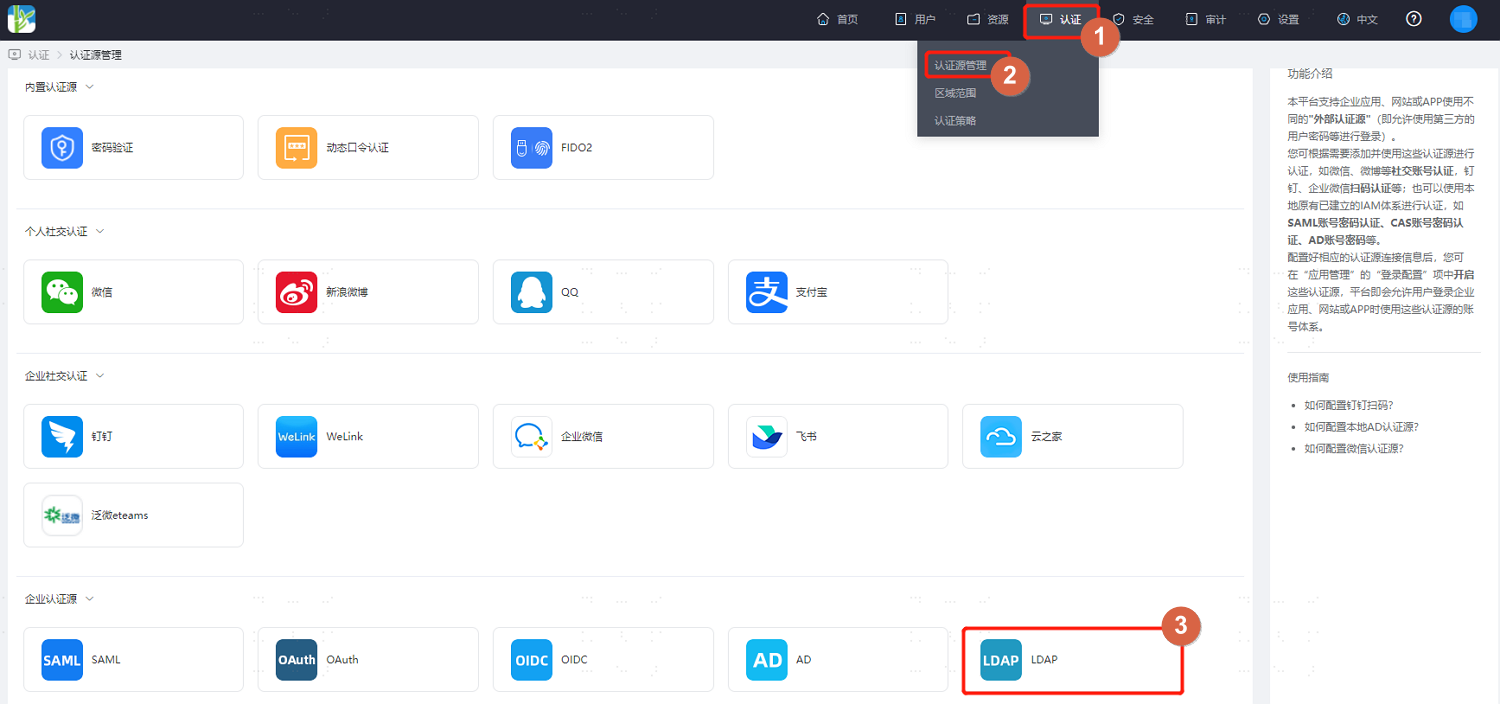
Configure the key parameters of the LDAP authentication source as prompted. Key parameters are described below.
Connection Method: Configure the connection method between the LDAP service and the IDaaS service.
- Direct Connection: If the LDAP server has a fixed external IP and is accessible from the external network, direct connection is recommended.
- Via Cloud Bridge Agent: If the LDAP server cannot be accessed from the external network, you need to access it through the Authentication Source Cloud Bridge. In this case, select connection via Cloud Bridge Agent.
Configure Direct Connection Parameters (Direct Connection)
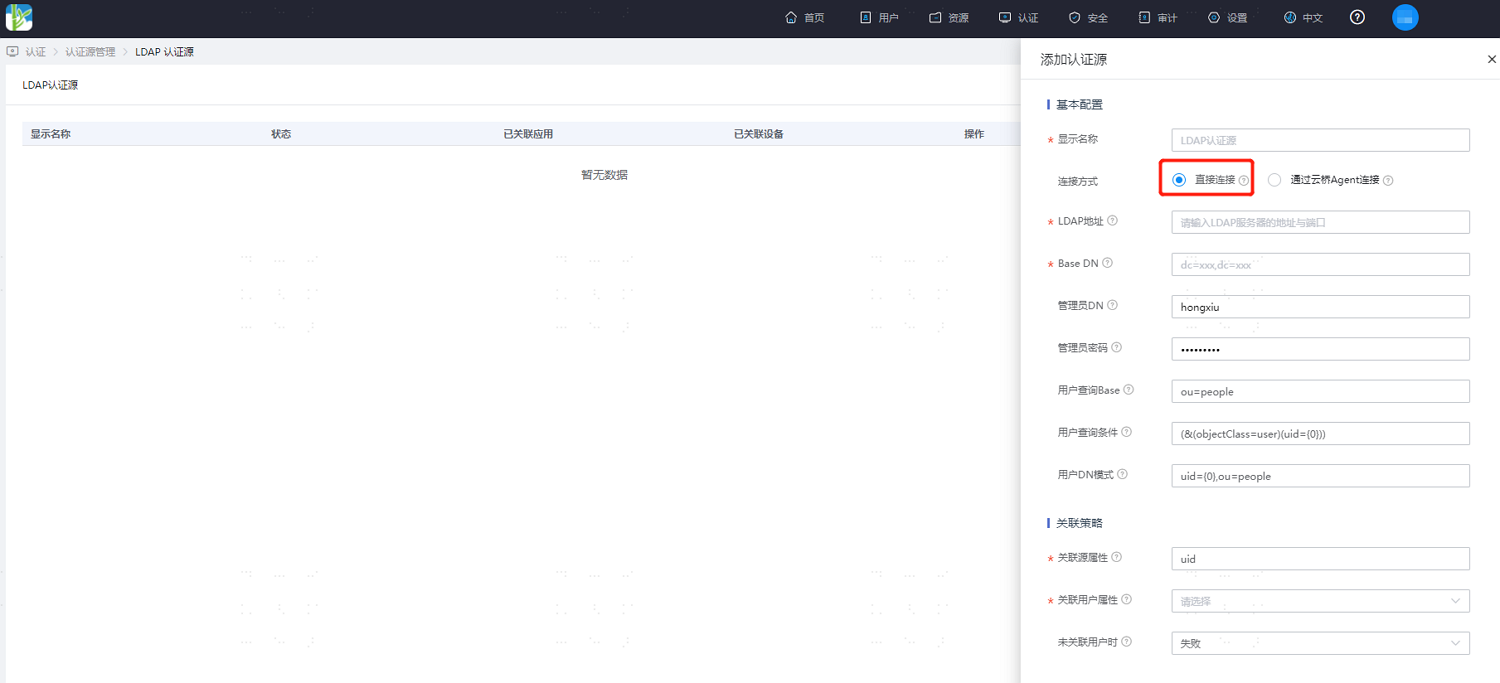
Two authentication modes are supported, described as follows.
Configure DN-based Direct Authentication: If your enterprise users have similar DN patterns, such as
uid=XXX,ou=user,dc=test,dc=com, it is recommended to select this configuration.Select Direct Connection as the connection method, and configure the LDAP address, Base DN, and user DN pattern as prompted. Other parameters are optional.
Configure Administrator Account and Password Authentication: If your enterprise users do not have fixed DN patterns, it is recommended to select this configuration.
Select Direct Connection as the connection method, and configure the LDAP address, Base DN, administrator DN, administrator password, user query base, and user query conditions as prompted. Other parameters are optional.
TIP
- It is recommended to use encrypted transmission for the LDAP address connection, such as
ldaps://[hostname]:[port]/. Using an ldaps address will verify the certificate by default. You can choose to ignore certificate verification according to actual needs. - If both authentication modes above are configured, the DN mode authentication will be used first during the authentication login phase. If it fails, administrator account and password authentication will be used.
- It is recommended to use encrypted transmission for the LDAP address connection, such as
Configure Cloud Bridge Connection Parameters (Via Cloud Bridge Agent Connection)
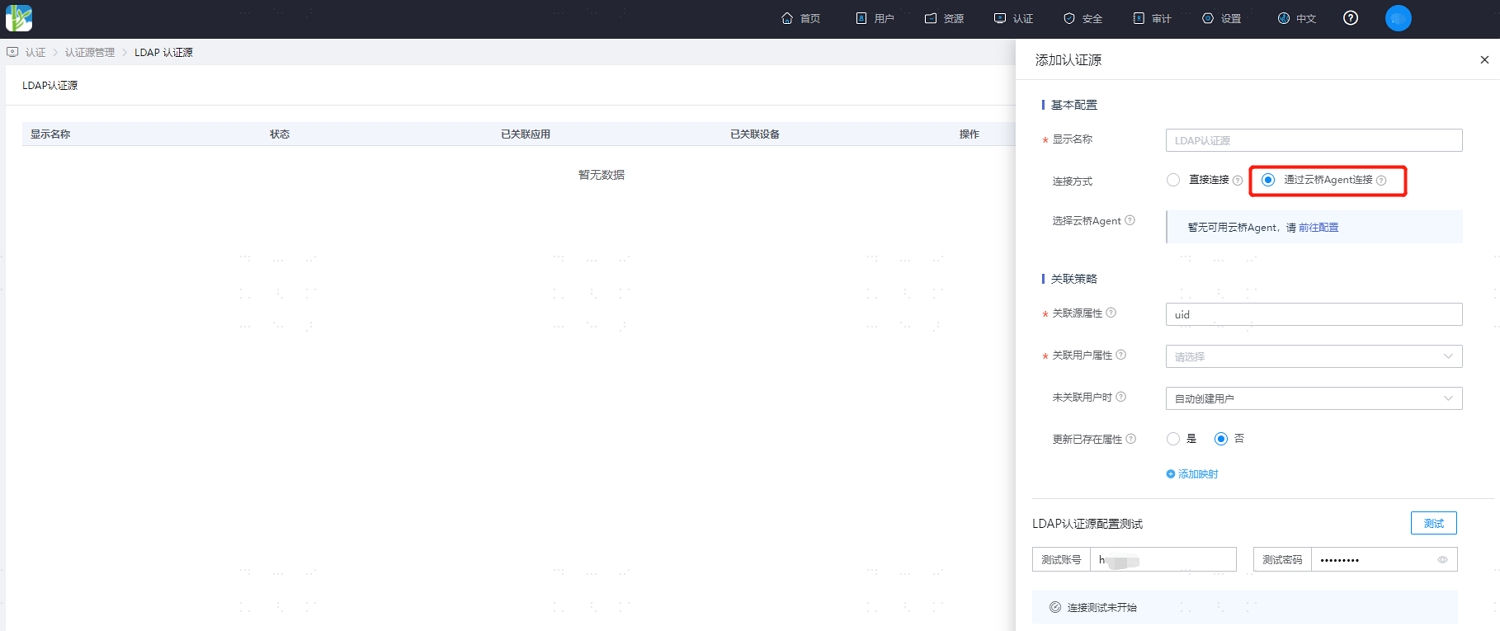
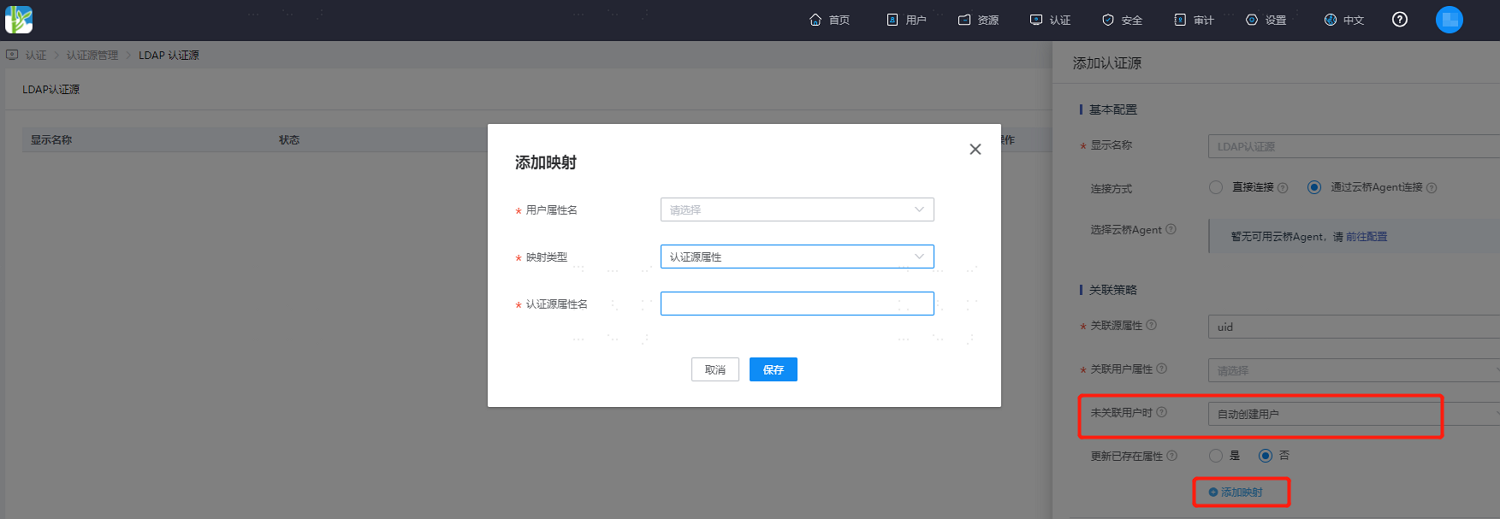
Parameter Description Connection Method The method of connecting to the LDAP server. Select via Cloud Bridge Agent connection. Select Cloud Bridge Agent Select the installed and deployed authentication source type cloud bridge. Cloud bridges before version 22.6.1.0 are filtered out. Source Association Attribute LDAP username attribute. Default is uid.User Association Attribute IDaaS user attribute field. Options include username, ID, mobile number, employee ID, and email. It is recommended to use username to associate with the LDAP username. When User Not Associated Policy when LDAP attributes and IDaaS user attributes are not associated. Can be configured as auto-create user or fail. Update Existing Attributes Default is No (shown when auto-create user is selected) TIP
- The function of source association attribute and user association attribute: Map one attribute of the user in LDAP to one attribute of the user in IDaaS. If this attribute in the LDAP returned user information matches the associated attribute in IDaaS, authentication succeeds.
- When User Not Associated: If the source attribute of the LDAP returned user information does not match the associated attribute in IDaaS, and no system user is associated, the optional configurations are as follows.
Select Fail, meaning authentication is not allowed.
Select Auto Create User, then IDaaS users are created according to mapping rules and associated attributes, and authentication succeeds.
Mapping attribute descriptions are as follows:
User Attribute Name: Select an IDaaS user attribute from the dropdown.
Mapping Type: Select the mapping type.
- When selecting the Authentication Source Attribute option, enter the attribute name returned by the authentication source in the third-row authentication source attribute name input field.
- When selecting the Fixed Value option, enter the fixed attribute value in the third-row fixed value input field.
- When selecting Script Transform, enter the transformation script in the third-row script content input field. For script transform syntax, refer to How to Develop Dynamic Scripts in Mapping Definition. Common AD returned attributes in the script transform object are described in the Script Transform Object section below.
Authentication Source Attribute Name: User attribute in the LDAP server.
Script Transform Object
The script object is
idp, containing attributes returned by LDAP. Common attributes are as follows:Attribute Name Display Name uid Usually refers to the user login name. Example: uid=testersn Usually refers to a person's surname. Example: sn: Wangcn Usually refers to the name of an object. If it is a person, the full name is required. Example: CN=ldapadmintelephoneNumber Phone number mail Email TIP
The
objectClassdefined in the LDAP schema determines the attributes available in LDAP. In the LDAP control panel shown below, the user'sobjectClassisorganizationalPerson, including attributessn(Last Name) andcn(Common Name).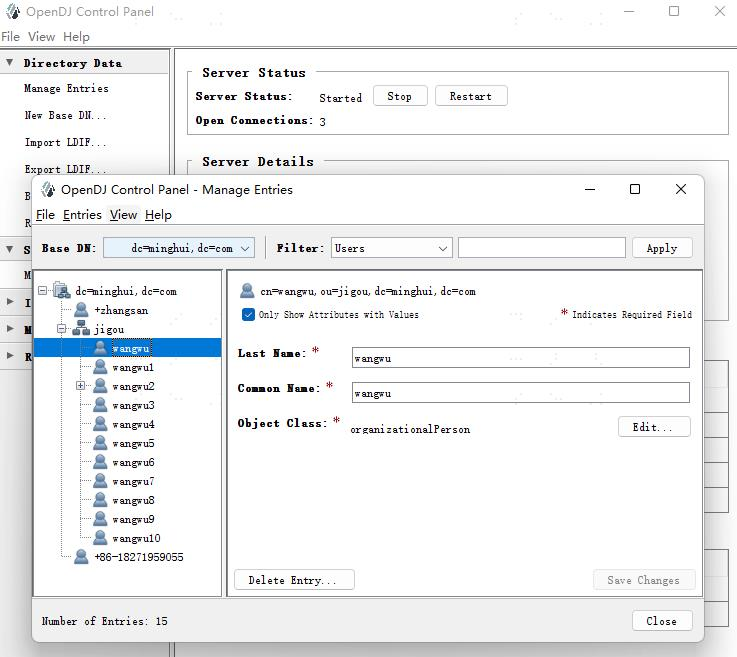
When using the script object, you can directly use
idp.[attribute name]to obtain values, for example:idp.cn,idp.sn.
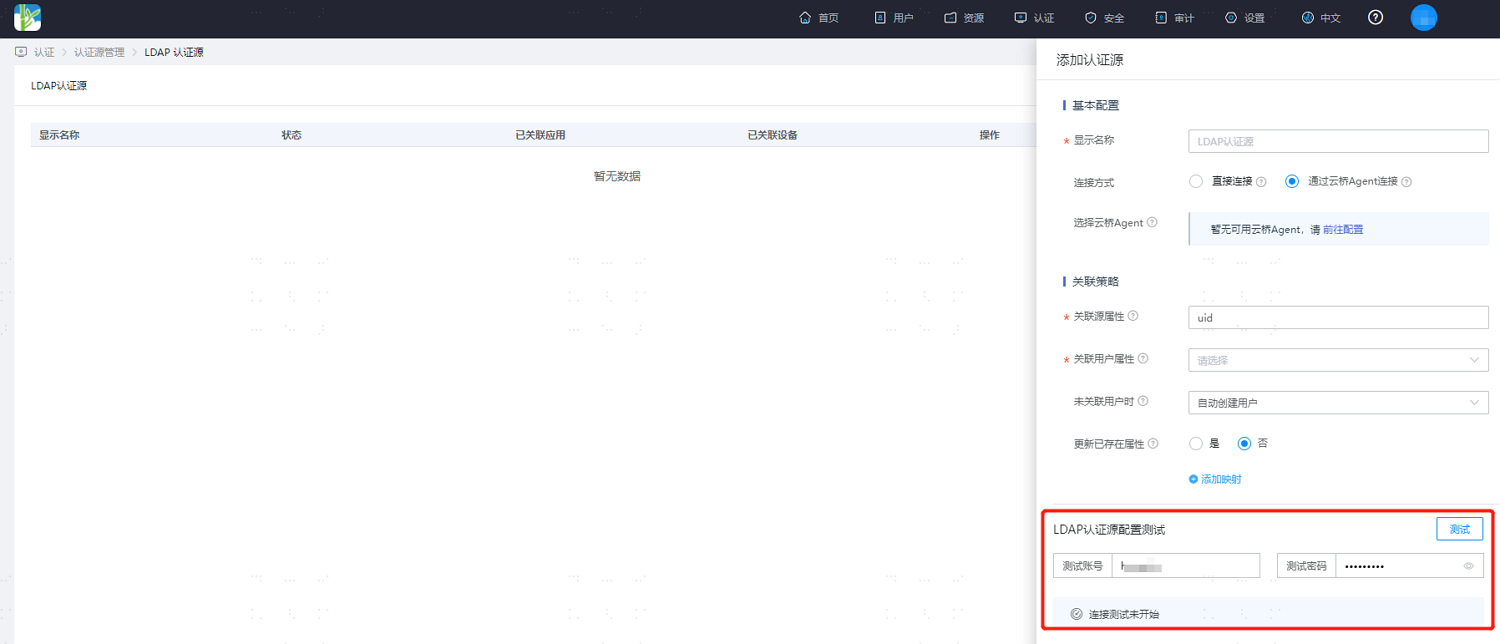
After completing the LDAP authentication source parameter configuration, enter the LDAP username and password at the bottom of the configuration, and click Test to test the LDAP authentication source configuration and LDAP server connection. After the test passes, save the configuration.