Configure Face, Fingerprint, and Other Biometric Authentication
This guide explains how to log in to IDaaS platform-integrated application systems through the FIDO2 authentication source. You can configure the FIDO2 authentication source in the IDaaS platform, and select the FIDO2 login method on the login page to log in to various application systems. This achieves single sign-on effects while providing a simpler and more convenient login method and a more secure and reliable login experience.
Prerequisites
- Administrator permissions for the IDaaS Enterprise Center.
- The user's PC device has a security key (USB or Bluetooth) or biometric authenticator (Windows Hello, Touch ID, etc.).
- The application has been integrated into the IDaaS platform.
Configuration Flow

Procedure
Enable FIDO2 Authentication on PC
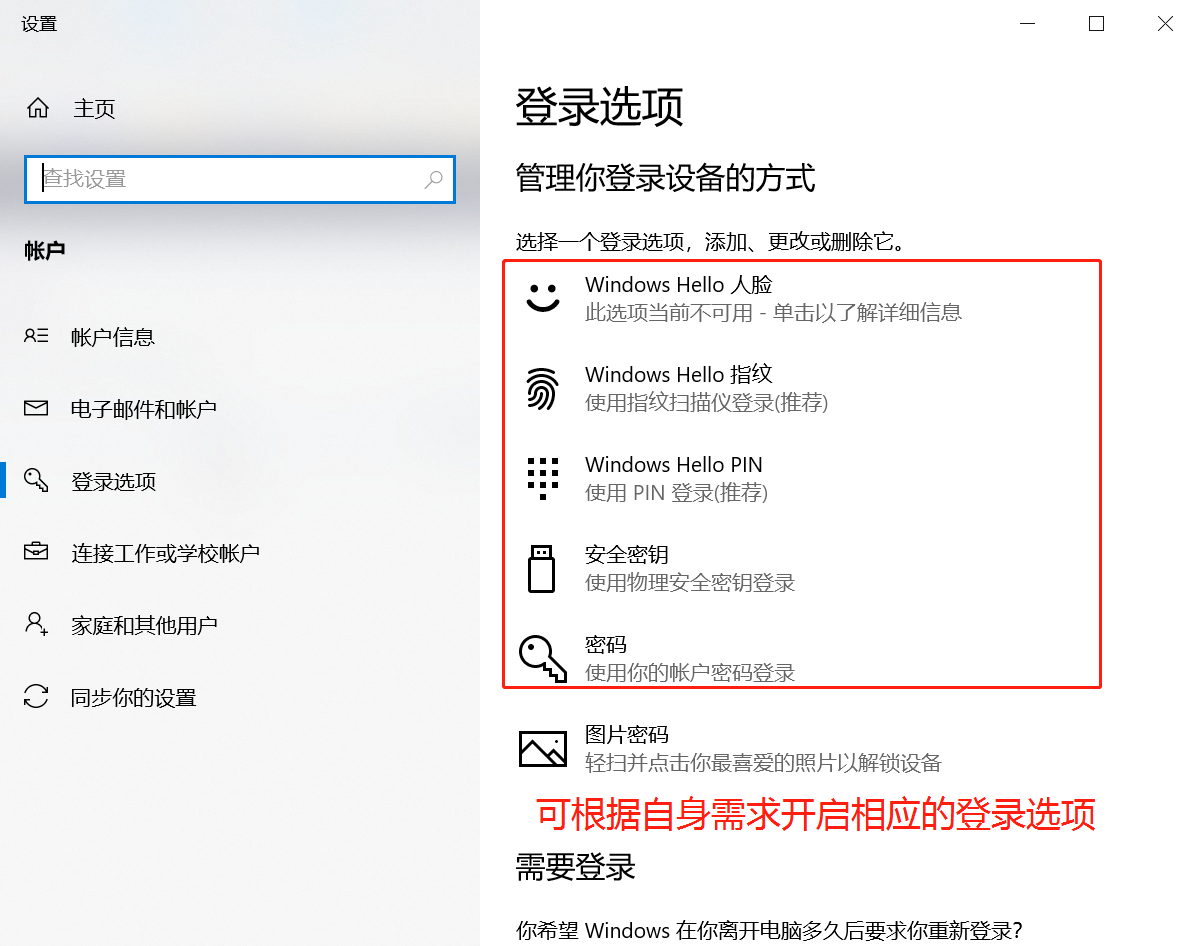
Enable the security key (USB or Bluetooth) or biometric authenticator (Windows Hello, Touch ID, etc.) on the user's PC device. The following uses enabling Windows Hello as an example.
Configure FIDO2 Authentication Source in IDaaS
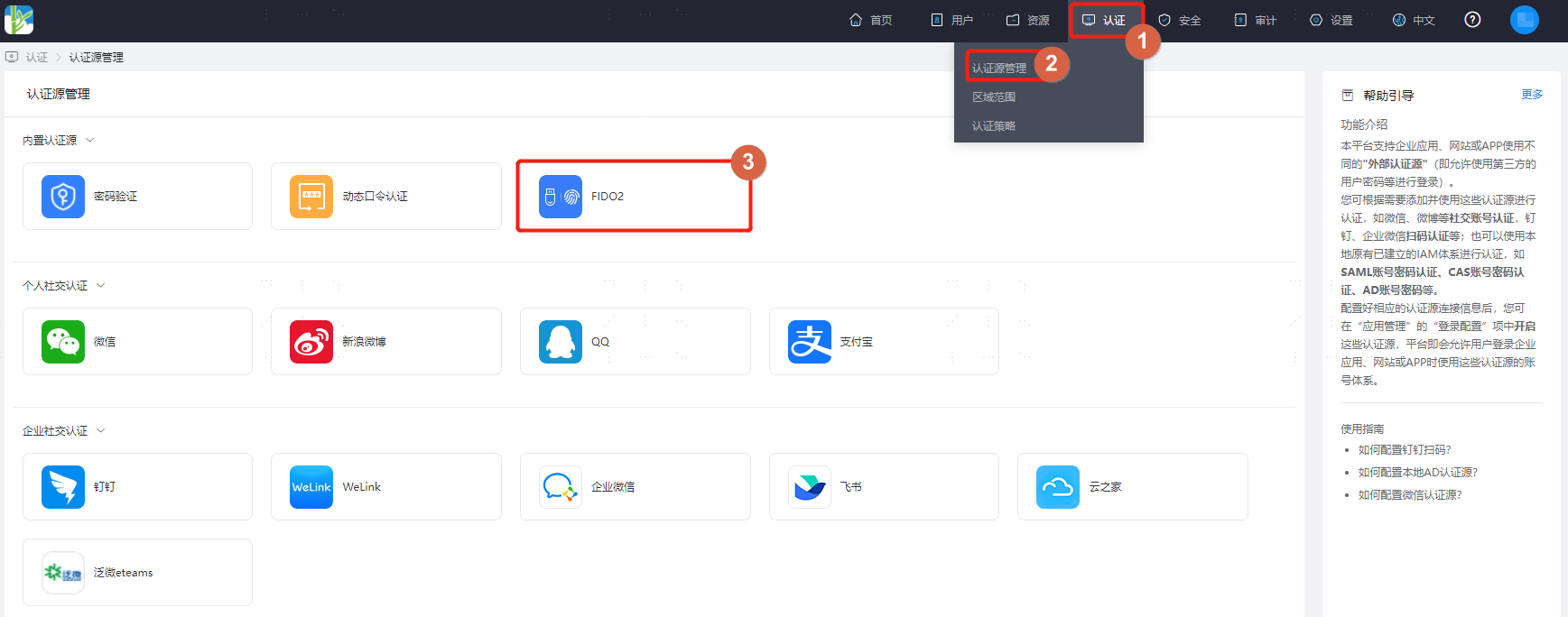
Log in to the IDaaS Enterprise Center, choose Authentication > Authentication Source Management > Built-in Authentication Sources from the top navigation bar, find the FIDO2 authentication source, which is enabled by default.
Configure the authentication source parameter information that needs to be filled in.
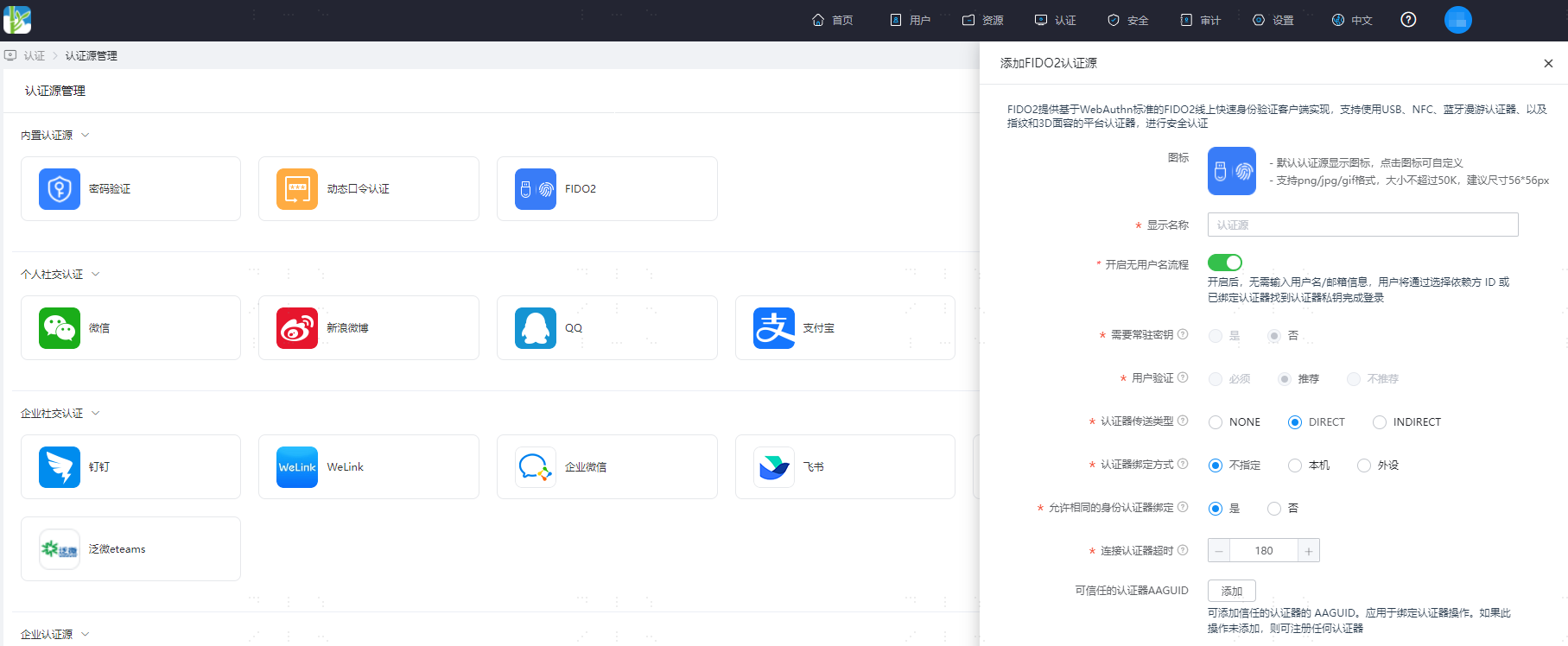
Parameter descriptions:
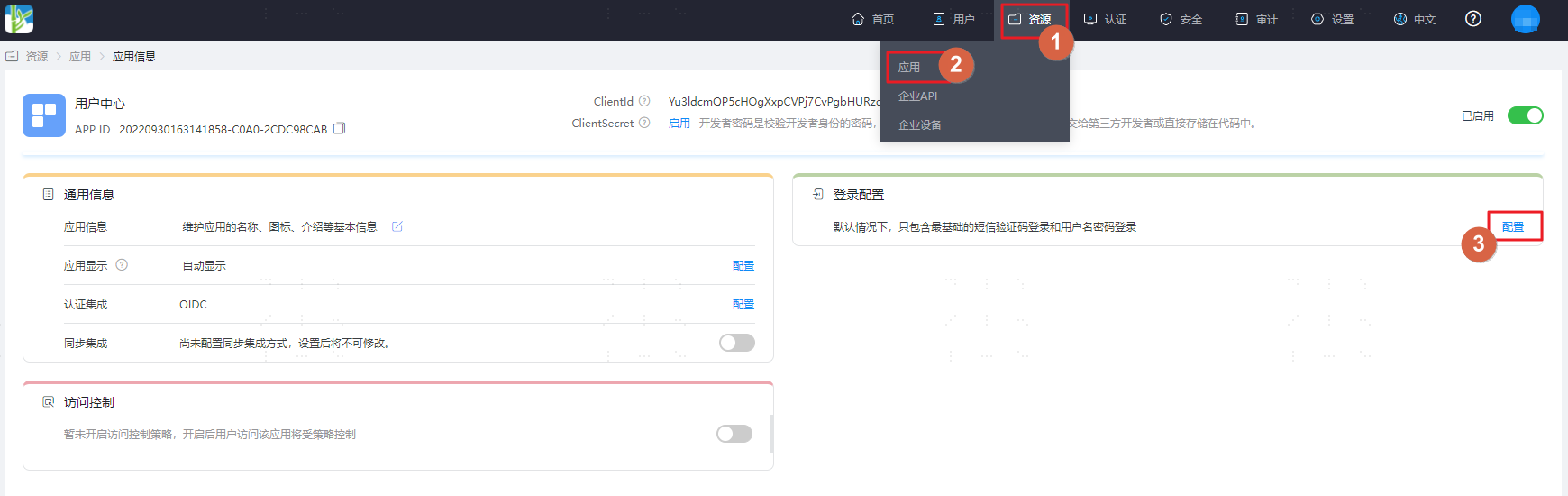
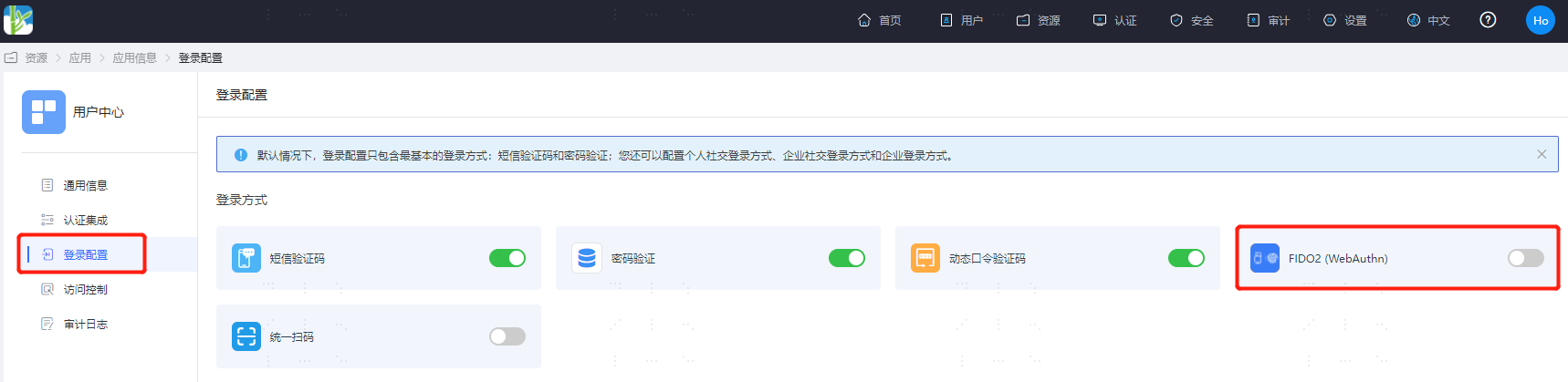
Parameter Description Icon Custom icon can be set. Display Name Custom authentication source display name. Enable Usernameless Flow After enabling, users do not need to enter username/email information. Users complete login by selecting the relying party ID or an already bound authenticator to find the authenticator private key. Require Resident Key The authenticator generates a Public Key Credential as a Client-side-resident Public Key Credential Source. Default is No. When the usernameless flow is enabled, this parameter is automatically adjusted to Yes. User Verification The authenticator confirms actual user verification, applied to registration and authentication operations. Default is Preferred. When the usernameless flow is enabled, this parameter is automatically adjusted to Required. Authenticator Attestation Conveyance Preference Preference for how the WebAuthn API implementation generates attestation statements. Applied to registration operations. Default is DIRECT. Authenticator Attachment WebAuthn client-acceptable authenticator attachment mode. Applied to registration operations. Default is unspecified. Allow Same Authenticator Registration Allows re-registration of the same type of authenticator. Default is Yes. Authenticator Connection Timeout Timeout setting for connecting to the authenticator during binding and authentication operations. Default is 180 seconds. Trusted Authenticator AAGUID Trusted authenticator AAGUIDs can be added. Applied to binding authenticator operations. If not added, any authenticator can be registered. After configuration, choose Resources > Apps from the top navigation bar. This guide uses the User Center app as an example. Enter the app details, switch to the Login Configuration page, and enable the FIDO2 (WebAuthn) switch.
Activate Binding in User Center
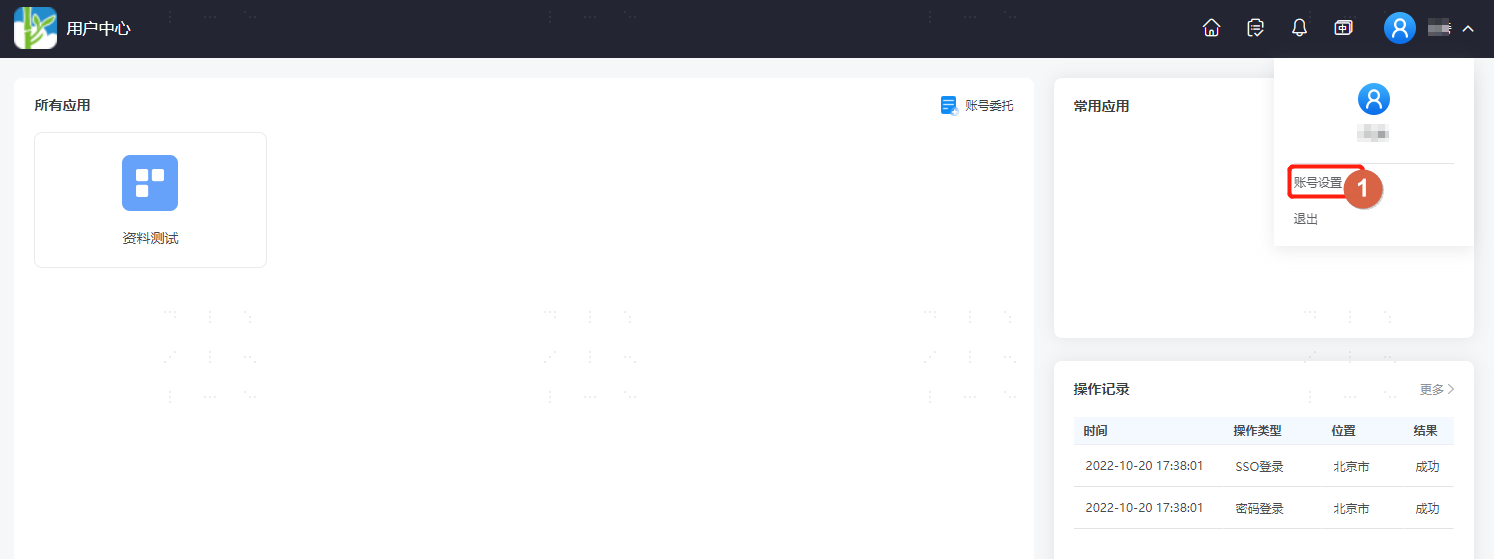
Log in to the User Center, click the user dropdown in the upper right corner, and select Account Settings.
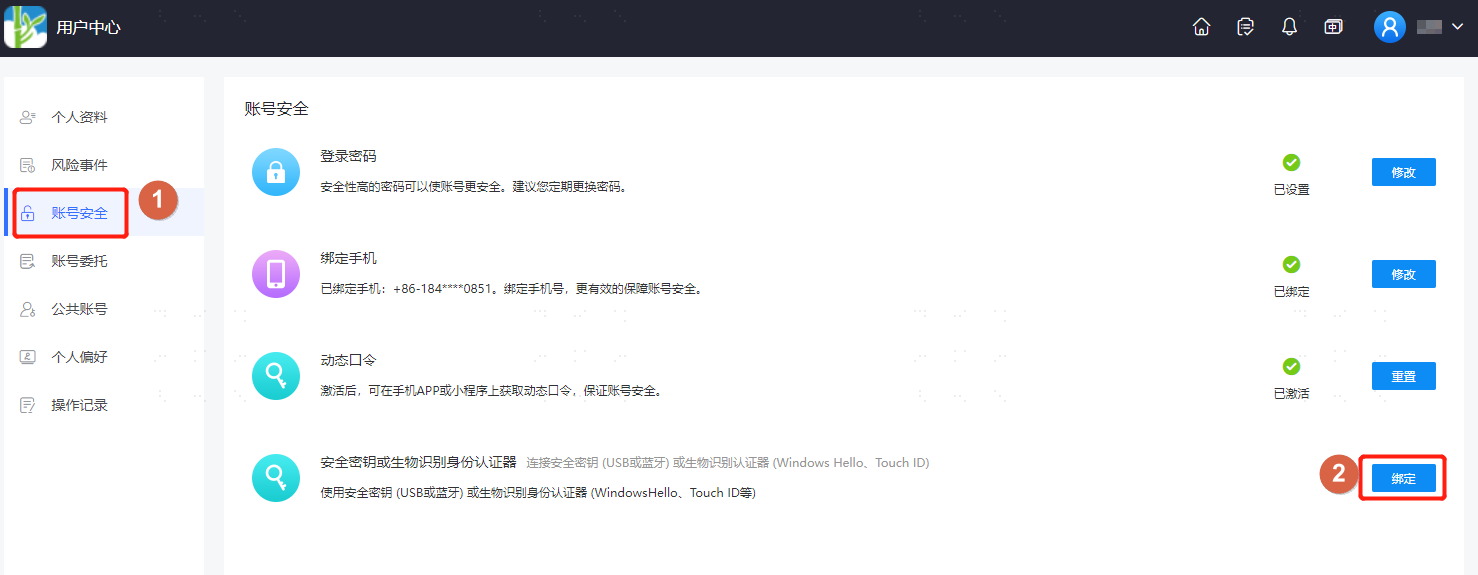
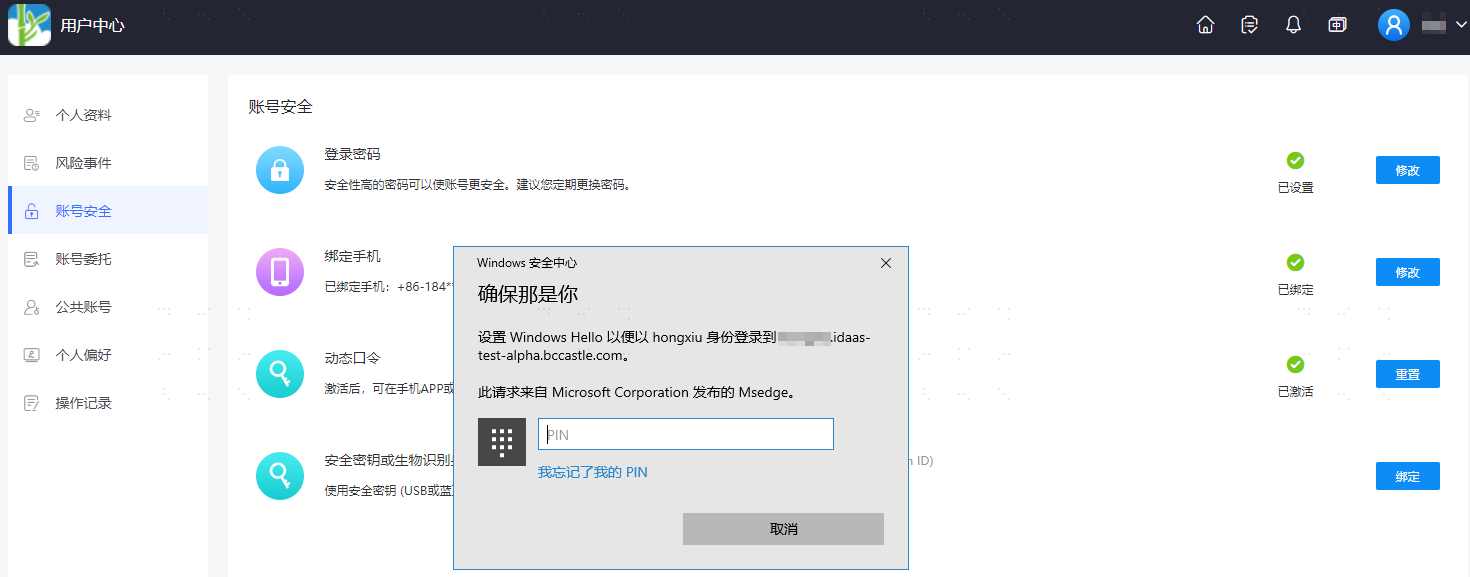
On the Account Settings page, choose Account Security, and bind the previously added security key or biometric authenticator.
TIP
- When no security key or biometric authenticator has been added, binding is not possible, and the binding button is disabled.
- When multiple authenticators are added, multiple selections are supported for binding. If modification is needed, you can remove the added authentication and re-add it.
Verify FIDO2 Authentication Login
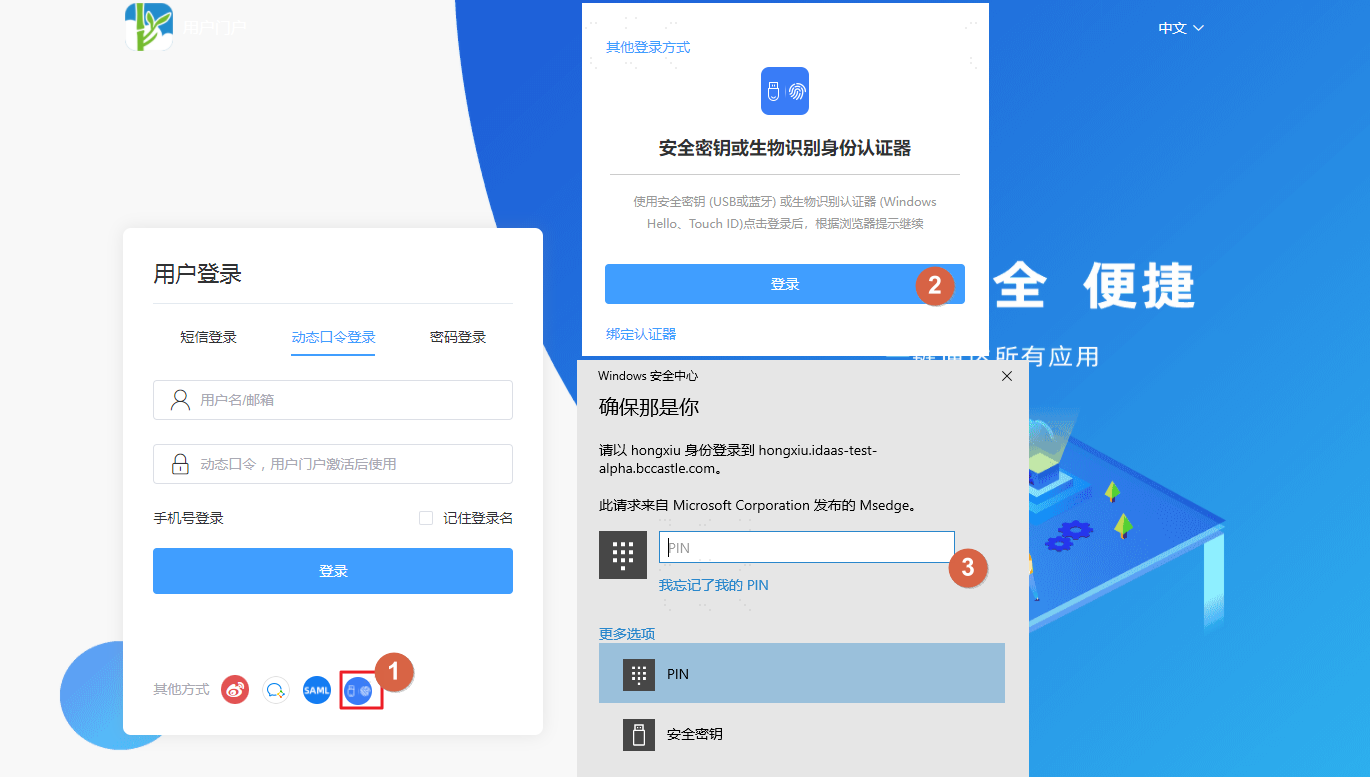
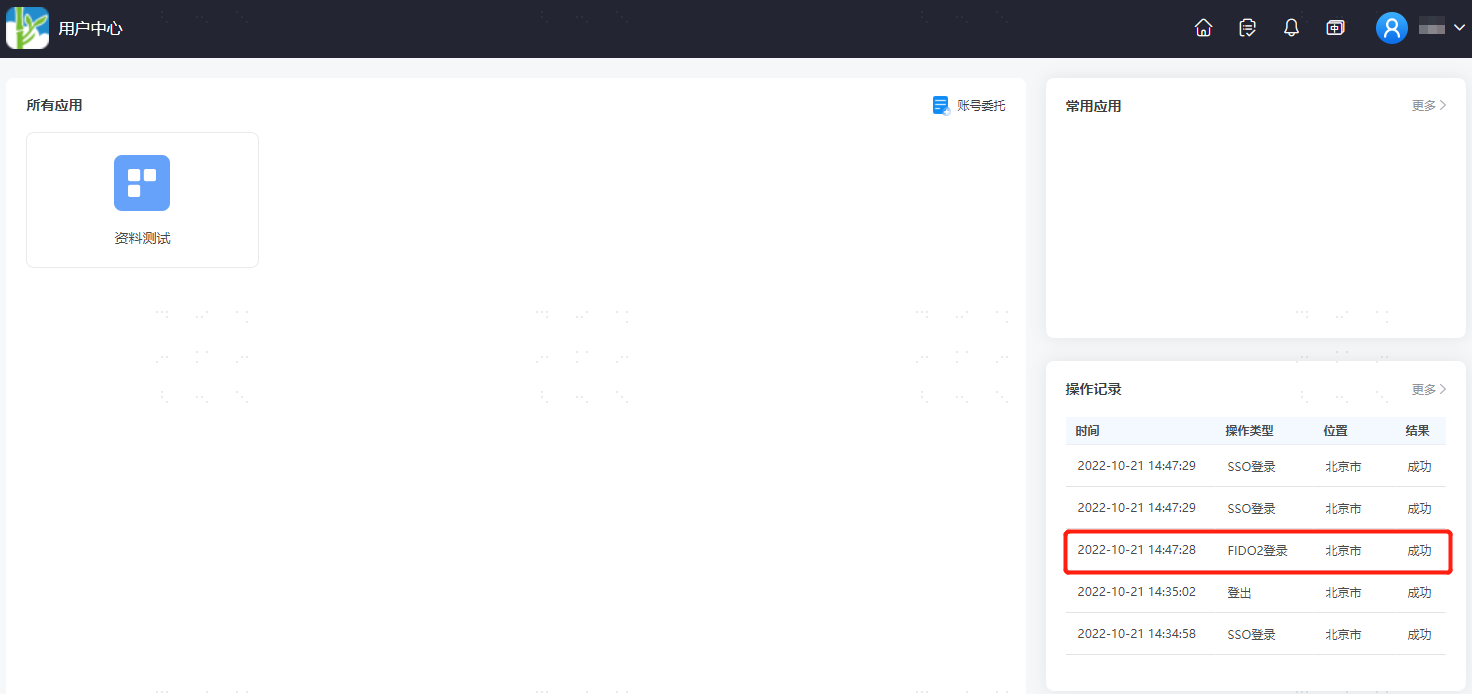
On the User Center login page, select the FIDO2 authentication method to log in. A security key or biometric authenticator prompt will pop up. After passing the relevant verification, you will log in successfully.
TIP
In incognito browser mode, biometric authenticators cannot be bound, meaning FIDO2 authentication login cannot be used.