
Configure QQ Authentication Source
Tencent QQ authentication login allows users to securely log in to third-party applications or websites using Tencent QQ as the authentication source. To facilitate enterprise user authentication login, the IDaaS platform supports configuring Tencent QQ as an authentication source. Users can authenticate and log in to various application systems through QQ, bringing enterprise users a simpler and more convenient login method and better user experience.
This guide explains the related operations for configuring a QQ authentication source.
Prerequisites
- Developer permissions for the QQ Interconnection Management Center.
- Administrator permissions for the IDaaS Enterprise Center.
Procedure
Create Application and Obtain Parameters on QQ Interconnection
- Log in to the QQ Interconnection Management Center, and select the corresponding application to create according to the actual QQ authentication method required. For operation steps, please refer to Create Application.
Configure QQ Scan Code Login: Create a website application, and obtain the
AppIDandAppKey.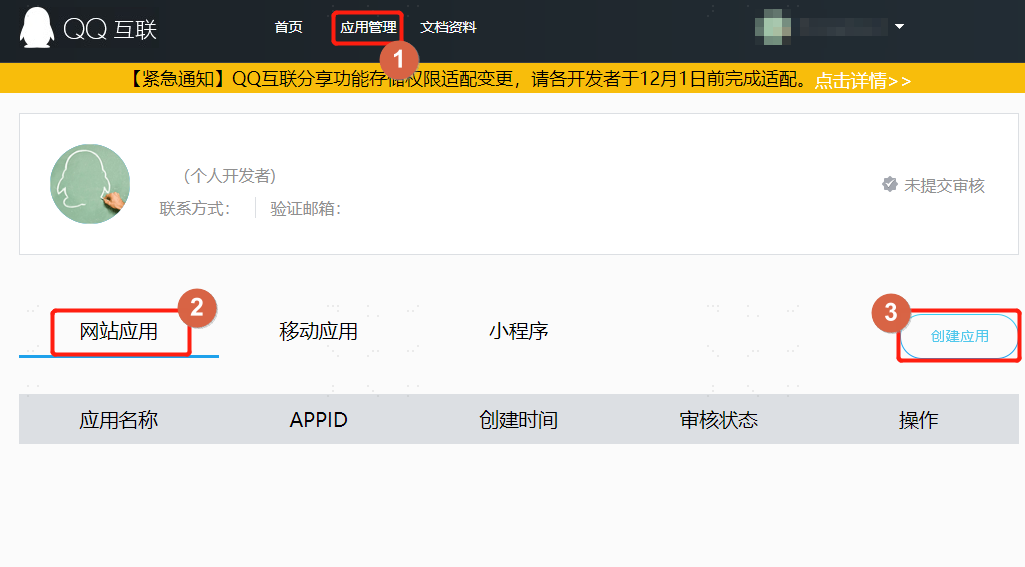
Configure QQ Mobile APP Authorization Login: If there is no enterprise mobile application on the Tencent Open Platform, create a mobile application, and obtain the
AppIDandAppKey.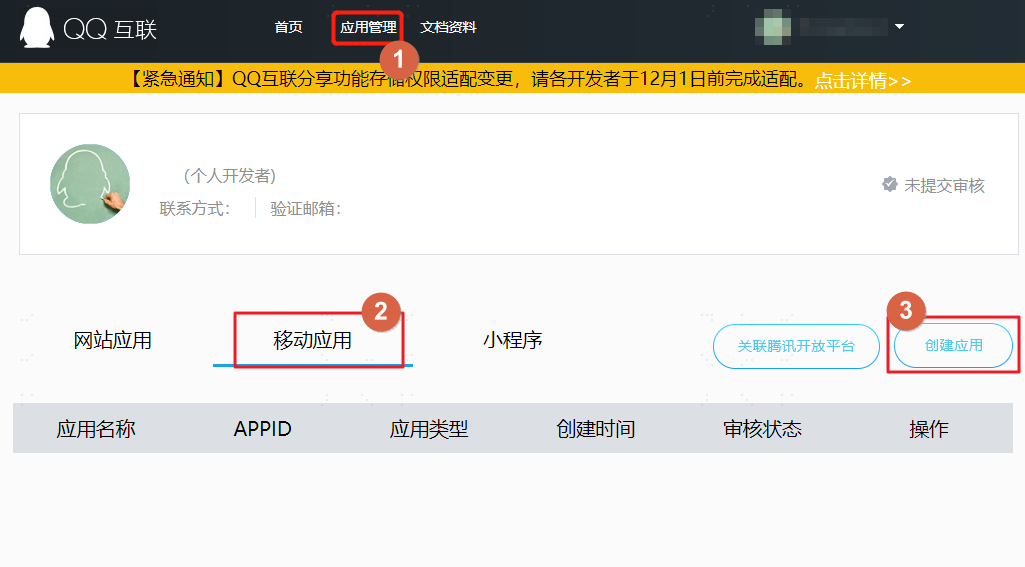
Configure QQ Authentication Source in IDaaS
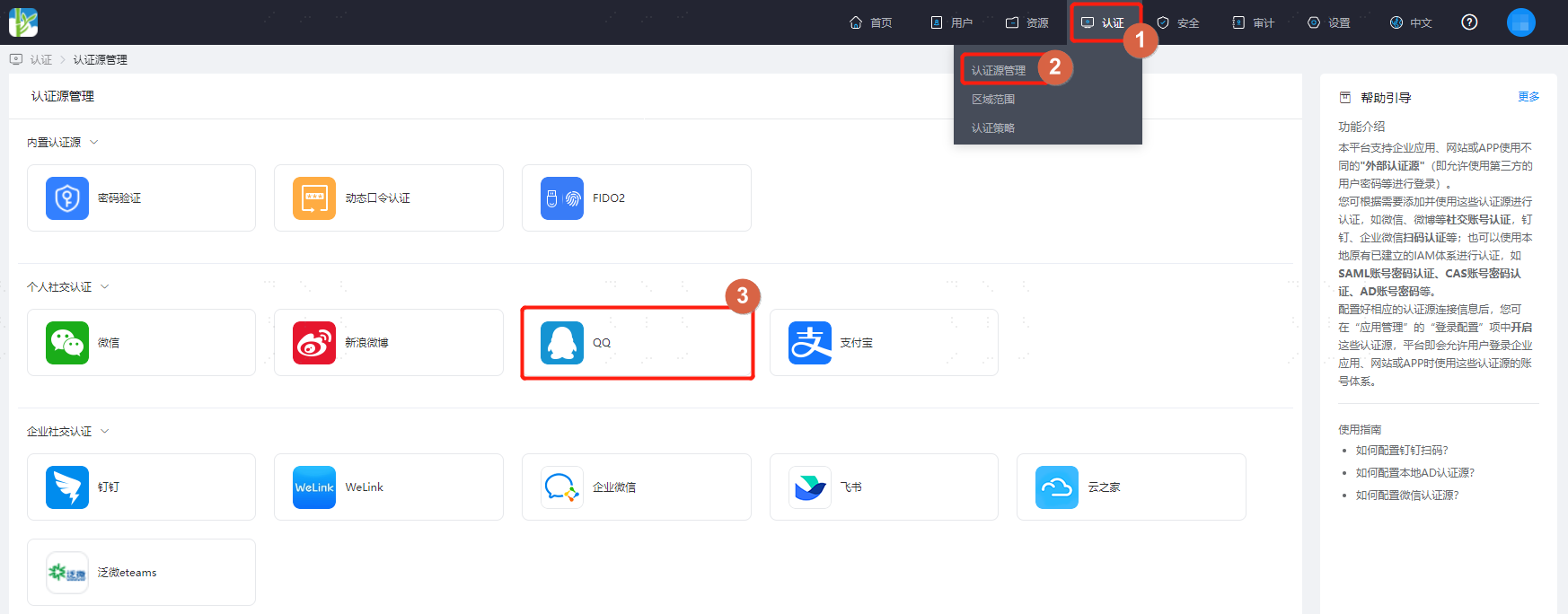
Log in to the IDaaS Enterprise Center, choose Authentication > Authentication Source Management from the top navigation bar, enter the QQ authentication source page, and click Add Authentication Source.
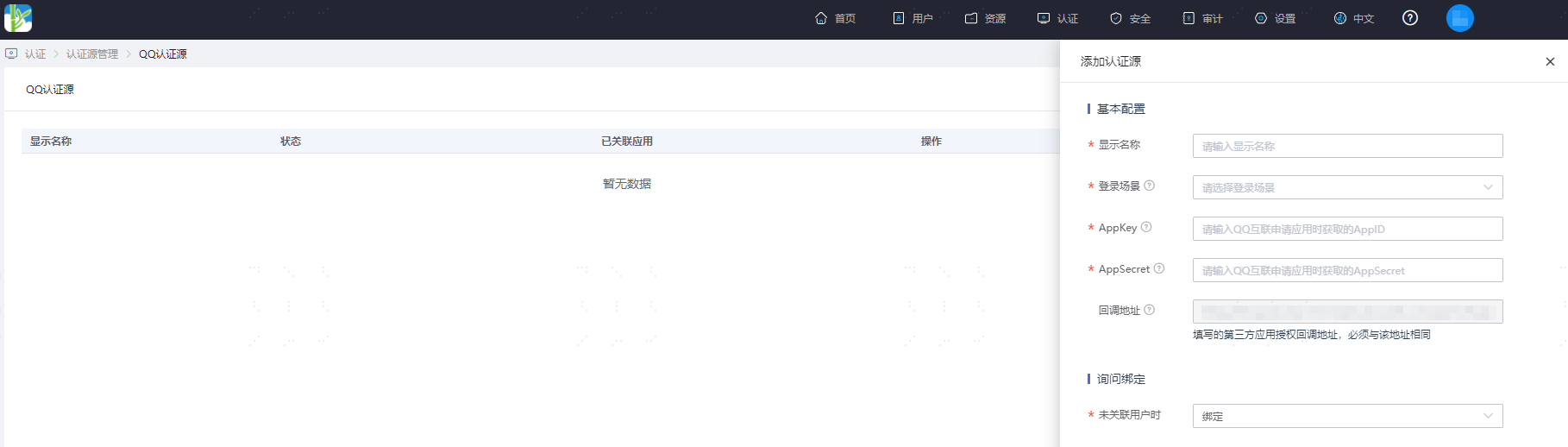
Configure the QQ authentication source parameters as prompted. Key parameters are described below.
TIP
- Login Scenario: Select the login scenario according to the QQ authentication type, including PC Browser Scan Code Login and Mobile APP Authorization Login, corresponding to QQ scan code login and QQ mobile APP authorization login methods respectively.
- When User Not Associated: When the authentication source attributes of the user information returned by the QQ platform do not match the associated user attributes in IDaaS, and no system user is associated, the optional configurations are as follows.
- Bind: Set to Bind. When no user is associated, the page redirects to the mobile number or email verification page. Enter an existing IDaaS mobile number or email, and after successful verification, the user passes authentication.
- Bind or Register: Set to Bind or Register. When no user is associated, the page redirects to the mobile number or email verification page. Enter an existing IDaaS mobile number or email, and after successful verification, the user passes authentication. If the mobile number or email does not exist in IDaaS, an IDaaS user is created based on the mobile number or email and passes authentication.