
Authentication Policy
User accounts in enterprises are used to log in and access application systems, some of which contain core private enterprise data. Therefore, accounts have high security requirements. To enhance the security of user access to various application systems, in addition to the common password policy configuration function, the IDaaS platform provides various enhanced user account login security functions, such as configuring authentication policies, configuring access control policies for applications, and configuring user risk behaviors, thereby achieving restricted, granted, or enhanced authentication admission authorization.
Prerequisites
You have administrator permissions for the IDaaS Enterprise Center.
Procedure
Configure Authentication Policy
This module guides administrators to configure authentication policies to control access for users who meet the conditions in the policy. It also supports detecting user risk behaviors. Authentication policies are global policies.
Log in to the IDaaS Enterprise Center platform. In the top navigation bar, choose Authentication > Authentication Policy, and click Add Policy to configure the user authentication policy.
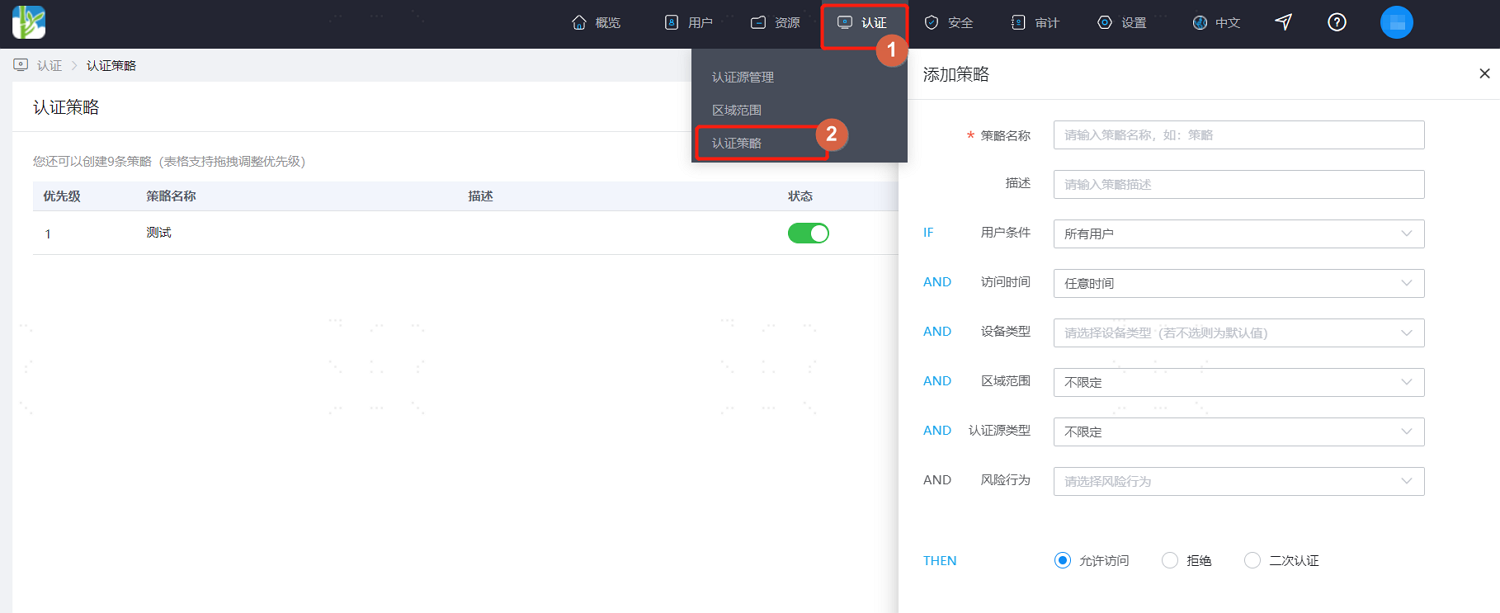
Configure according to the on-screen prompts. Key parameter descriptions are as follows.
User Conditions: Set the user scope to which the authentication policy applies, including all users, only users meeting specified conditions, or only users not meeting specified conditions.
Access Time: Set the user access time period during which the authentication policy takes effect, including any time period, only within the specified time range, or only outside the specified time range.
Device Type: Set the device types used by users to which the authentication policy applies, including browser, desktop, and mobile.
Region Scope: Set the region scope where users to whom the authentication policy applies are located. In addition to built-in regions, the region scope also supports custom configuration. For details, refer to Configure Region Scope.
Authentication Source Type: Set the authentication source used by users to whom the authentication policy applies.
Risk Behavior: Set user risk behaviors. After configuration, risk behaviors are detected to check whether they meet the conditions.
Allow Access: After setting, users who meet the above conditions are allowed to access applications integrated on the platform.
Deny: After setting, users who meet the above conditions are not allowed to access applications integrated on the platform.
Secondary Authentication: After setting, users who meet the above conditions need to perform secondary authentication when accessing applications integrated on the platform. Custom secondary authentication frequency and secondary authentication method are supported.
Secondary Authentication Frequency: Can be set to perform secondary authentication every time, or based on device judgment. Device-based judgment provides more convenience without reducing security. For example, on the same device, secondary authentication is only required once a week.
TIP
- The authentication policy takes effect when users in the User Conditions access applications using the specified Device Type and Authentication Source Type within the specified Time Period and Region Scope, and the user meets the specified Risk Behavior. Then the user is allowed, denied, or required to perform secondary authentication to access the application.
- If multiple authentication policies are added, you can manually adjust the priority of each authentication policy, and they will be executed in order of policy priority.
Configure Access Control Policy
This module guides administrators to configure access control policies for applications to control access to the application for users who meet the conditions in the policy. It includes default access control policies and custom access control policies. Access control policies are policies for a single application.
Log in to the IDaaS Enterprise Center platform. In the top navigation bar, choose Resources > Applications, select the application for which you want to configure the access control policy, and click Access Control to configure the user access control policy for the application.
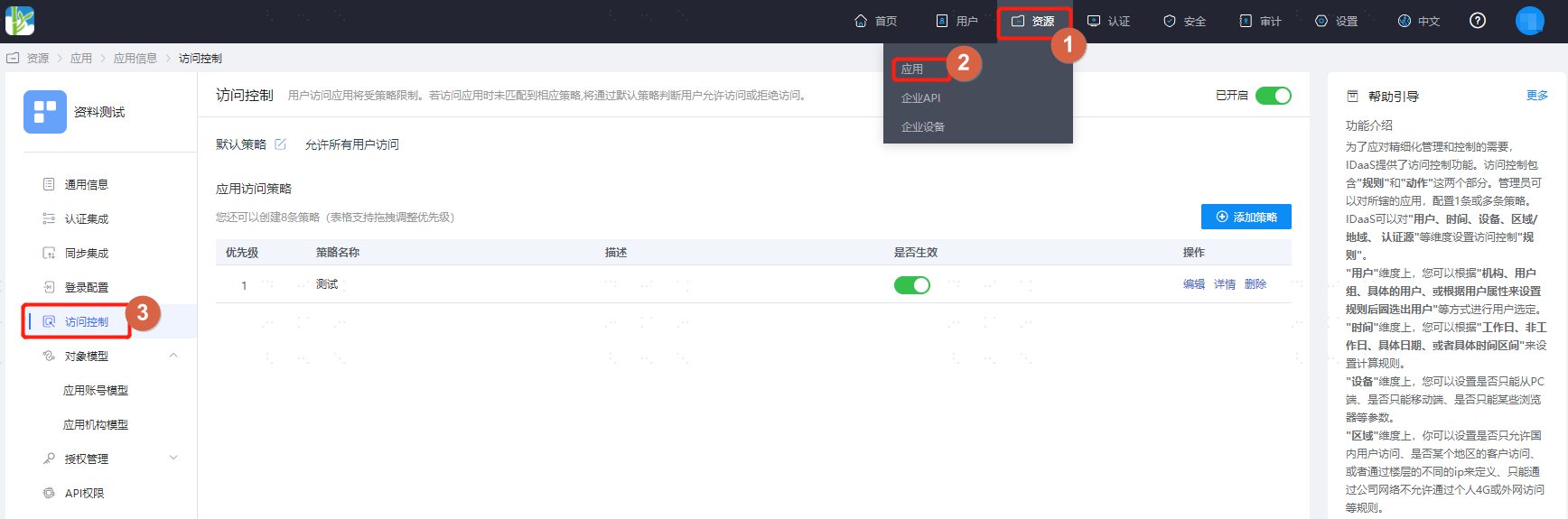
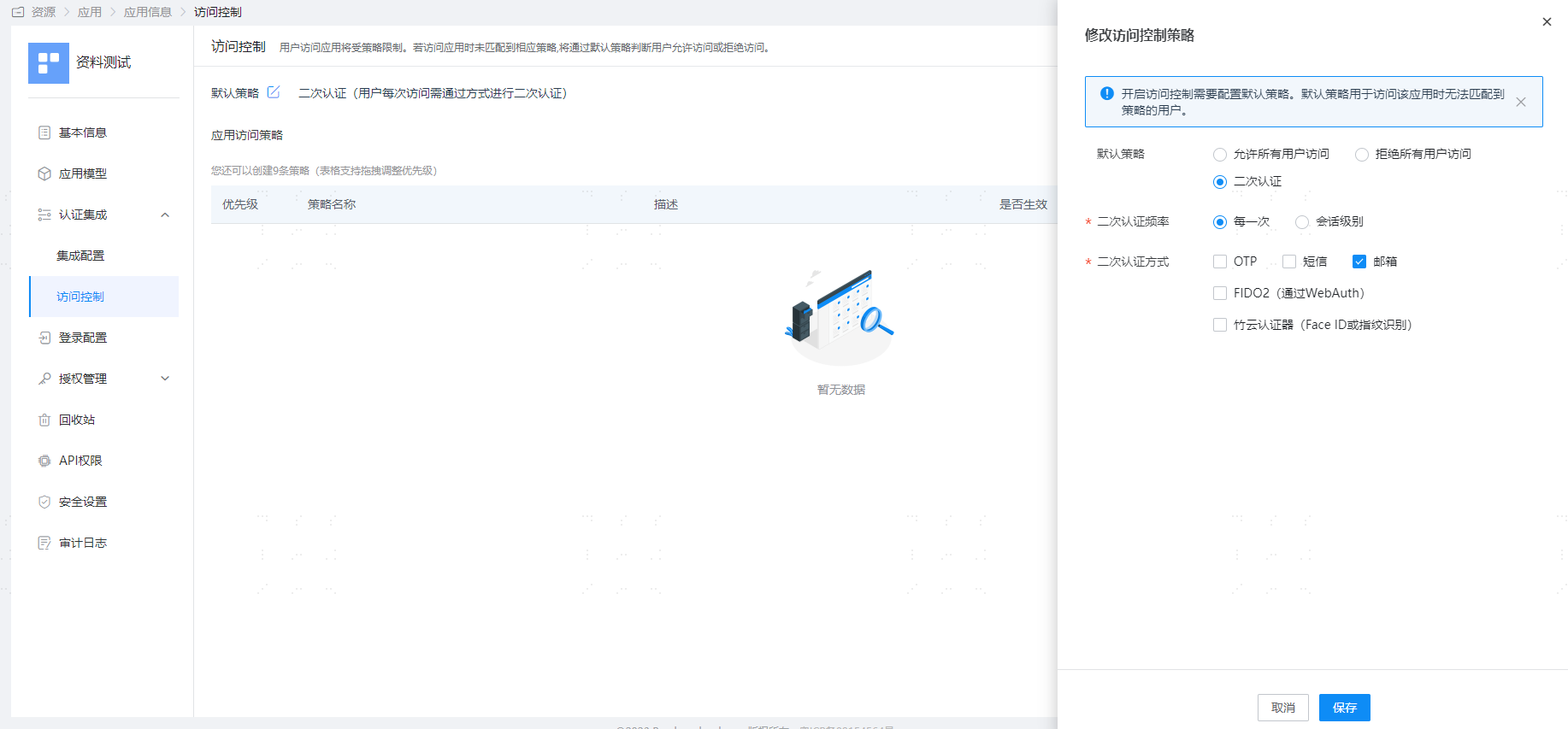
On the access control page, enable the Access Control switch, and configure the Default Policy for the selected application according to actual project needs. The default policy has lower priority than custom access policies.
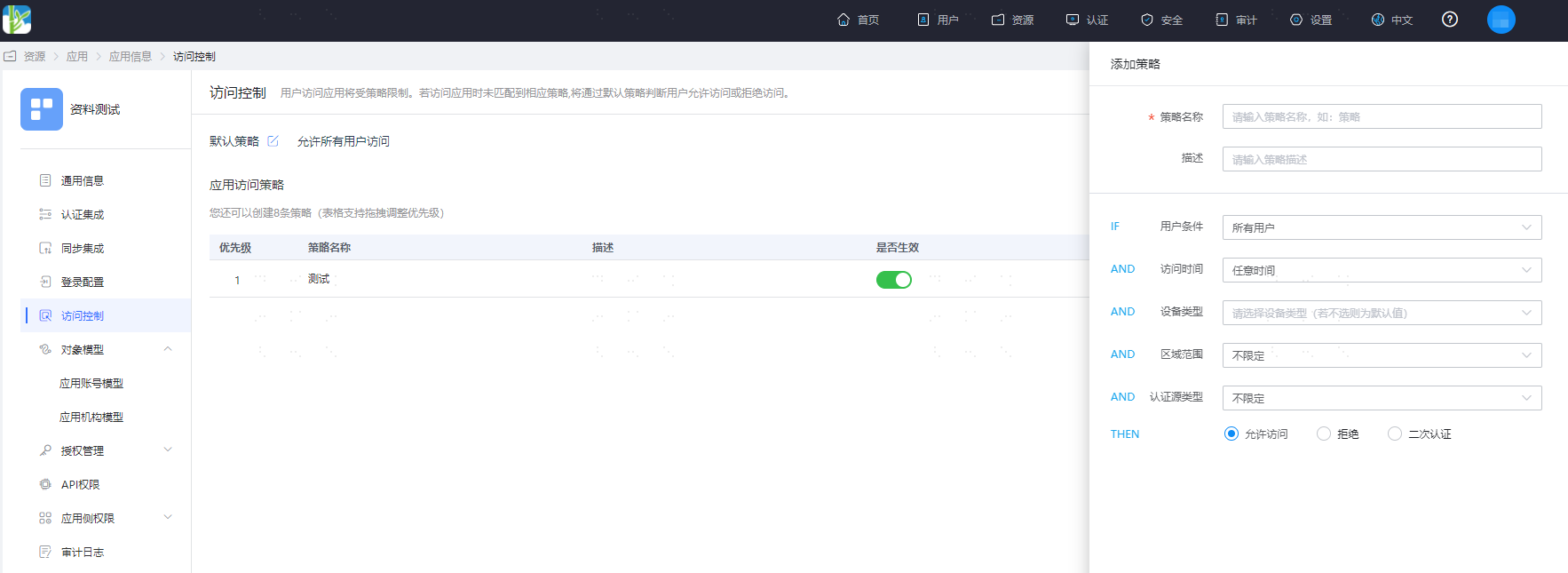
Click Add Policy to configure user access control policies under specified conditions for the selected application. Except for risk behavior configuration, the rest of the access control policy configuration is basically the same as the authentication policy configuration. It will not be described in detail here. Please refer to the authentication policy configuration above.
TIP
- Custom access control policies have higher priority than default policies. That is, when a user meets the conditions set in the application access policy, the user follows this access policy first.
- If multiple access policies are added, you can manually adjust the priority of each access policy, and they will be executed in order of access policy priority. If none of the access policies are met, the default policy is executed.
- Authentication policies have higher priority than application access control policies. That is, when a user meets a previously configured authentication policy, the authentication policy must be executed first.
Risk Behavior Management
This module guides administrators to configure risk behavior rules for enterprise users, detecting in real time whether users have abnormal risk behaviors. When a risk is triggered, an alarm notification is sent to the user in real time to improve account security.
Log in to the IDaaS Enterprise Center platform. In the top navigation bar, choose Security > Risk Behavior Management, click Add Behavior, and set behavior rules for users. Key parameter descriptions are as follows.
Behavior Name: Customize the name of the risk behavior.
Risk Type: Set the type of risk triggered, including abnormal location, abnormal device, abnormal IP, and account lockout. After selecting account lockout, the risk is triggered when the user's account is locked during login. For details about account lockout configuration, refer to the relevant content in Configure Unified Password Policy.
Frequency Configuration: Risk determination begins when the number of successful user logins exceeds 3 times the configured number. If it does not reach 3 times the configured number, it is considered risk-free.
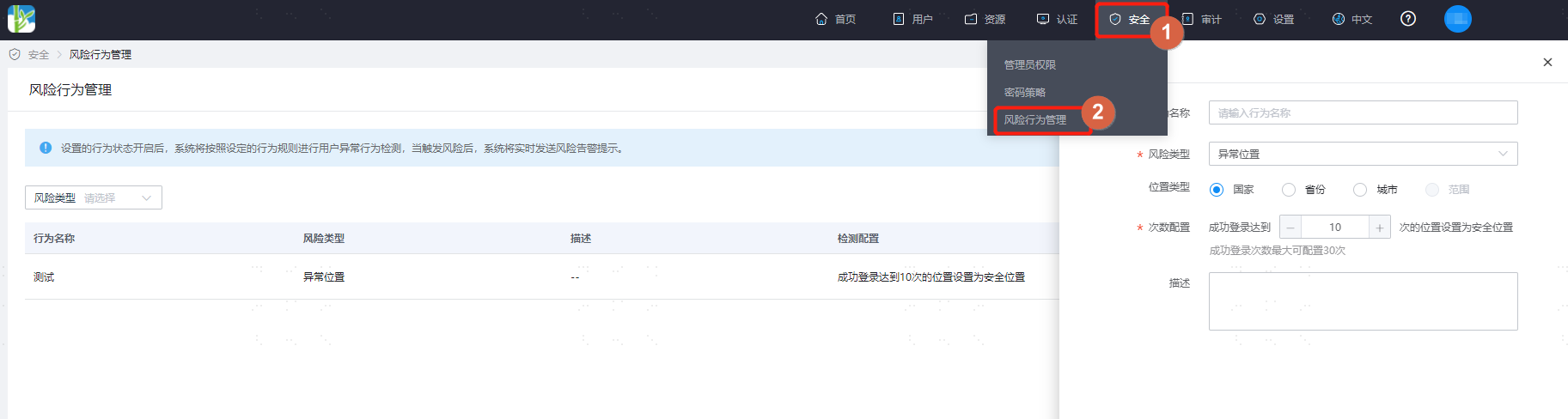
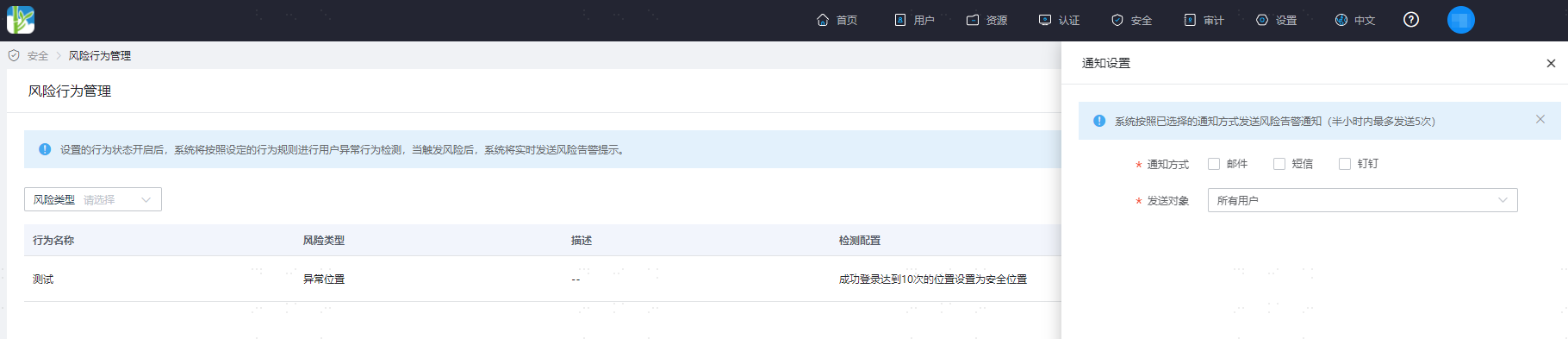
After configuration is complete, click Notification Settings to set the risk notification method, and send notifications to all users or specified users.
TIP
Since IDaaS enables the Built-in SMS Gateway by default, you can directly select the SMS notification method. If email or DingTalk notification is set, please ensure that the Email Gateway and DingTalk Gateway have been configured in advance.