
Add Enterprise Device
This section guides you through adding an enterprise device on the IDaaS platform.
Prerequisites
- The basic information of the enterprise device has been collected, including device name, device IP, shared secret, etc.
- Check whether the network device can connect to the IDaaS Radius service address. The Radius service address can be obtained from Settings > Service Configuration > RADIUS Configuration in the Enterprise Center platform.
- You have administrator permissions for the IDaaS Enterprise Center platform.
Procedure
Log in to the IDaaS Enterprise Center platform. In the top navigation bar, choose Resources > Enterprise Devices, and click Add Enterprise Device.
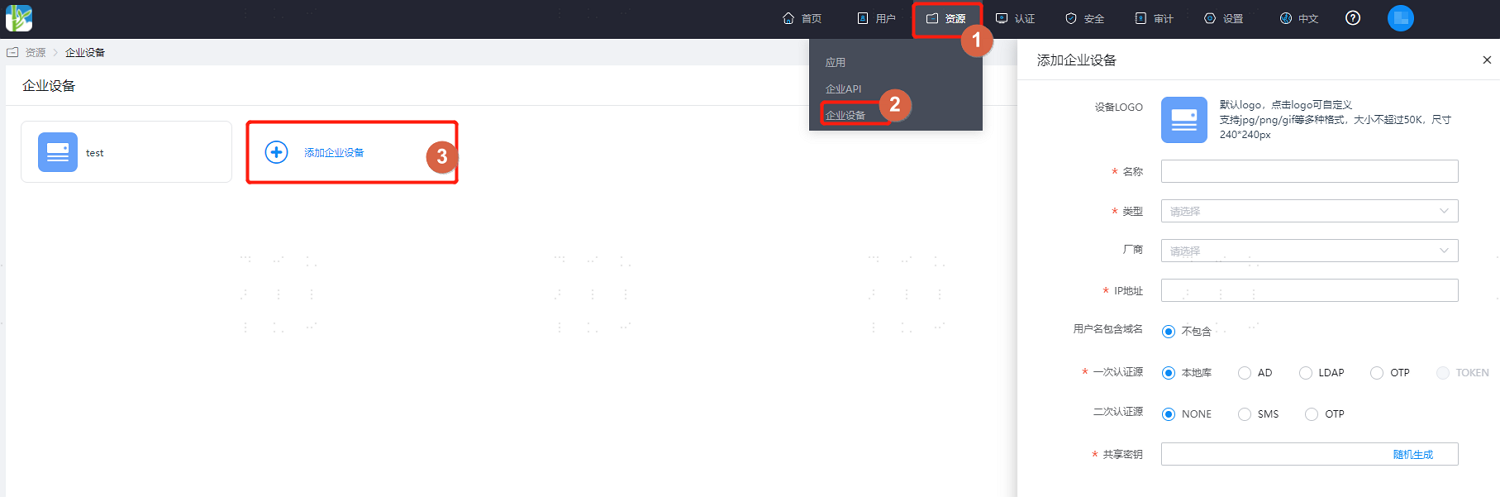
Key parameter descriptions are as follows:
Parameter Description Device LOGO Optional. Set the LOGO of the enterprise device. The uploaded image file size must not exceed 50K. Name Set the display name of the enterprise device on the platform. Type Select the device type: VPN, NAS, OTHERS. Select according to the type of enterprise device to be added. Vendor Optional. Select the device vendor: Huawei, SANGFOR, H3C, Topsec, Fortinet, Cisco, Mikrotik, etc. Select according to the vendor of the enterprise device to be added. IP Address Set the egress IP that provides VPN services. Primary Authentication Source Set the primary authentication method: Local Database, AD, LDAP, OTP.
Local Database: IDaaS built-in authentication, such as username and password authentication.
AD: Active Directory. After selection, users need to perform primary authentication with the enterprise AD user password system.
LDAP: Lightweight Directory Protocol. After selection, users authenticate with the enterprise LDAP account password system.
OTP: One-Time Password dynamic password. After selection, users authenticate with a dynamic password.Secondary Authentication Source Optional. Set the secondary authentication method. After enabling, users need to perform secondary authentication when logging in to the device: NONE, SMS, OTP.
NONE: Do not enable secondary authentication.
SMS: Short Message Service. After selection, users need to pass SMS secondary authentication.
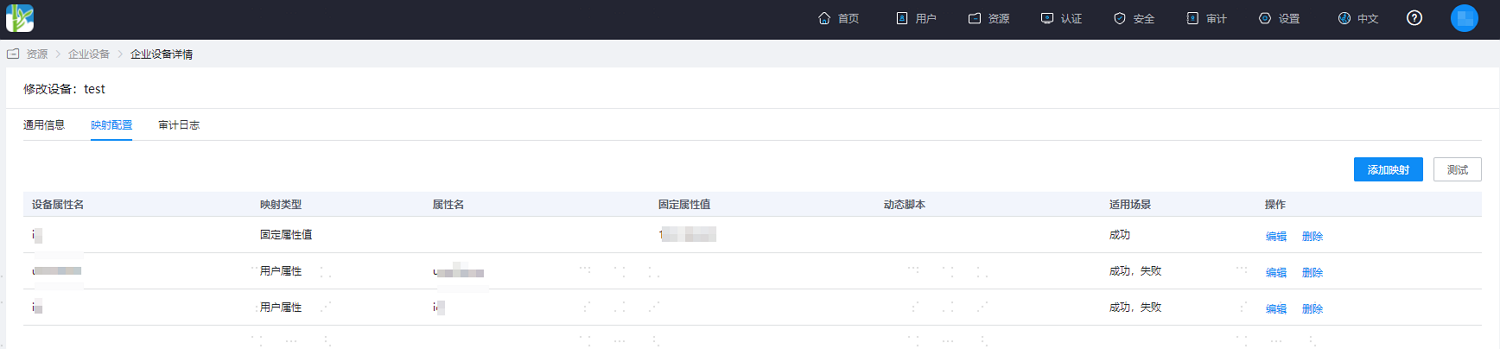
OTP: One-Time Password dynamic password. After selection, users use dynamic password for secondary authentication.Shared Secret The key for mutual authentication between the VPN service and the IDaaS service. It must contain at least 2 of the following: numbers, uppercase letters, lowercase letters, and special characters, with a length of 16-32 bits. After configuration is complete, enter the device general information page, switch to the Mapping Configuration tab, and create vendor device attribute mapping.
In the top navigation bar, choose Users > Organization and Users, and add a test user, such as zhangsan, for subsequent device login testing.