
SAP SuccessFactors as Identity Source
This guide explains how to configure SAP SuccessFactors as an identity source in IDaaS, synchronizing SAP SuccessFactors-managed organizational and user data into the IDaaS platform to ensure data consistency across enterprise application systems.
Prerequisites
- Administrator permissions for the SAP SuccessFactors management platform.
- Administrator permissions for the IDaaS Enterprise Center.
Configuration Flow

Procedure
Create an Application in SAP SuccessFactors Management Platform
- In the SAP SuccessFactors management platform, register an OAuth2 client application. For detailed steps, refer to the platform documentation Register an OAuth2 Client Application.
- Obtain the
clientidand other related parameters of the self-built application. - Grant users access to the newly created application.
Configure the SAP SuccessFactors Identity Source in IDaaS
Log in to the IDaaS Enterprise Center, choose Users > Identity Source Management from the top navigation bar, click Add Identity Source, and select SAP SuccessFactors.
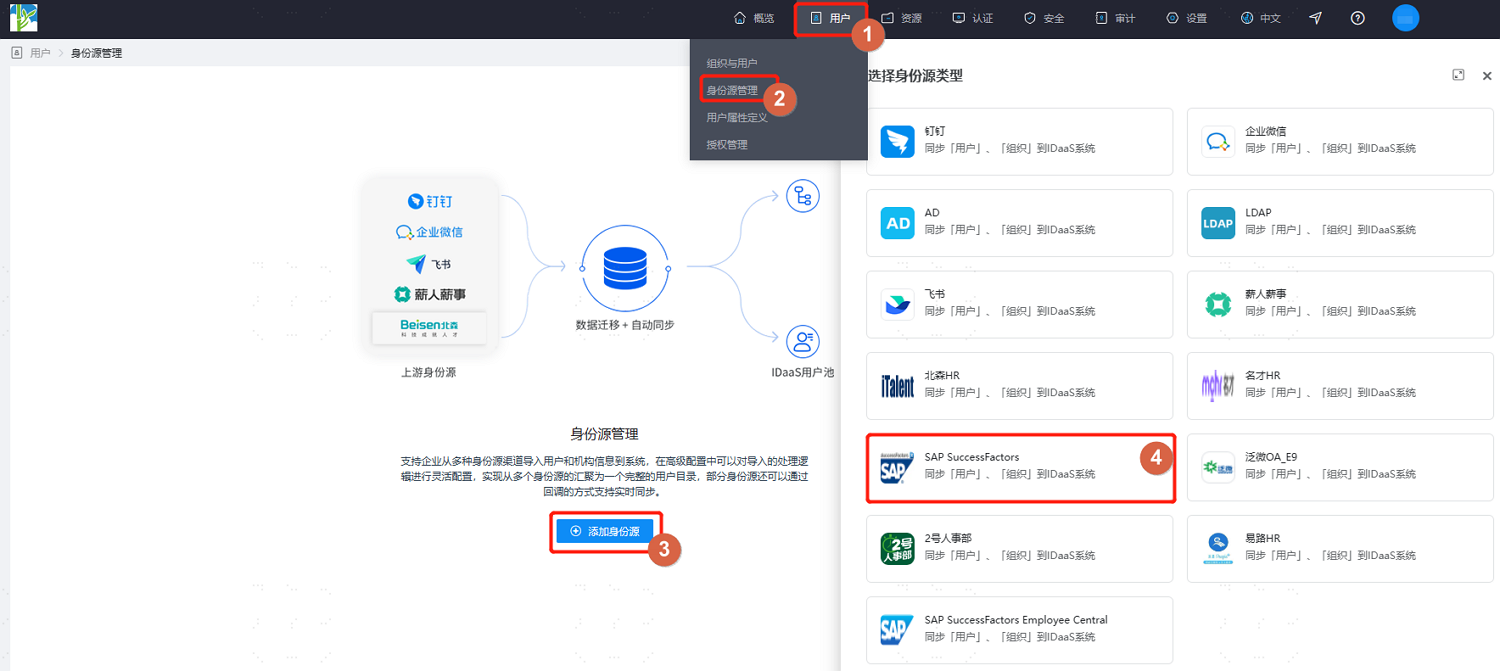
Customize the identity source name, fill in the SAP service address, enterprise ID, ClientID, and other parameters as prompted, then click OK to save.
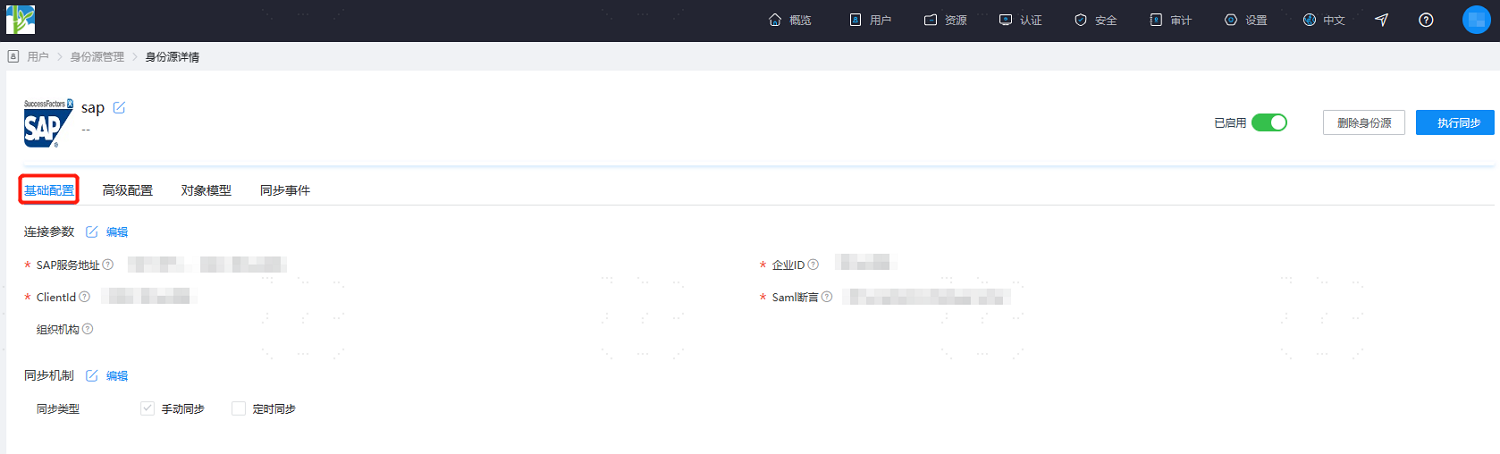
Enter the detail page of the newly created identity source to view or update the Basic Configuration, including connection parameters and synchronization mechanism.
Switch to the Advanced Configuration tab. It is recommended to keep the default values or adjust them according to actual requirements.
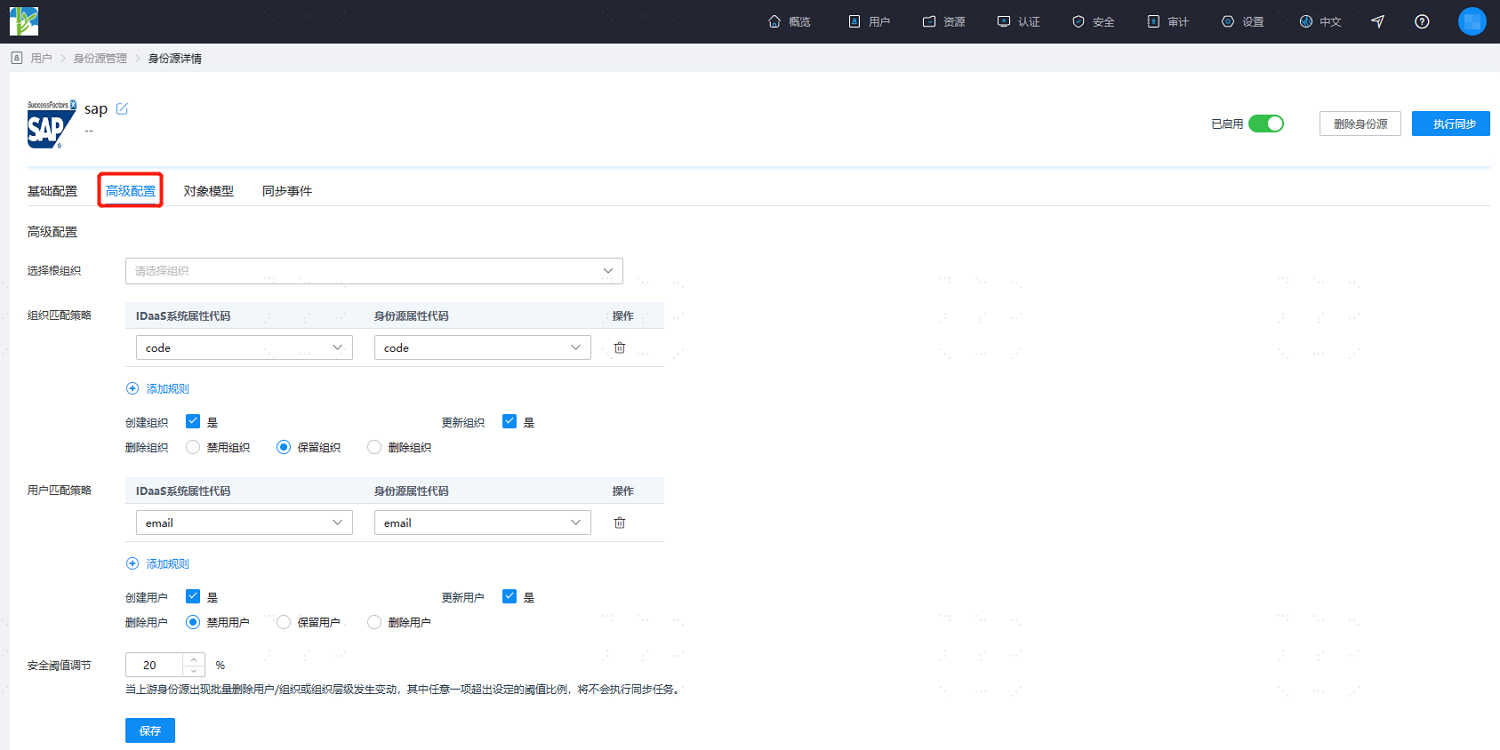
Parameter Description Select Root Organization Select an organization node in IDaaS as the root node for the synchronized SAP SuccessFactors organizations. Organization Matching Policy By default, IDaaS organization codes are associated with SAP SuccessFactors institution codes. Create Organization Default is Yes. Update Organization Default is Yes. Delete Organization By default, organizations are retained (i.e., when an organization is deleted in SAP SuccessFactors, it is retained in IDaaS). You can also disable or delete organizations. User Matching Policy By default, IDaaS user mobile numbers and usernames are associated with SAP SuccessFactors user mobile numbers and usernames. Create User Default is Yes. Update User Default is Yes. Delete User By default, users are disabled (i.e., when a user is deleted in SAP SuccessFactors, the user is disabled in IDaaS). You can also retain or delete users. Safety Threshold Adjustment Sets the maximum threshold ratio for changes such as deleting users, deleting organizations, or changing organization hierarchy in the upstream identity source.
Threshold = (Difference between platform-recovered data and this recovery / Recovered data) × 100%. If the upstream identity source disables or deletes data exceeding the threshold, the platform will not perform the disable or delete operation.After configuration, switch to the Object Model tab, select Mapping Definition, and configure mapping relationships between SAP SuccessFactors organization/user attributes and IDaaS organization/user attributes according to project requirements.
The object model supports mapping attributes of users and organizations from the SAP SuccessFactors identity source to IDaaS user and organization attributes. After configuration, user and organization attributes are recovered from SAP SuccessFactors into IDaaS.
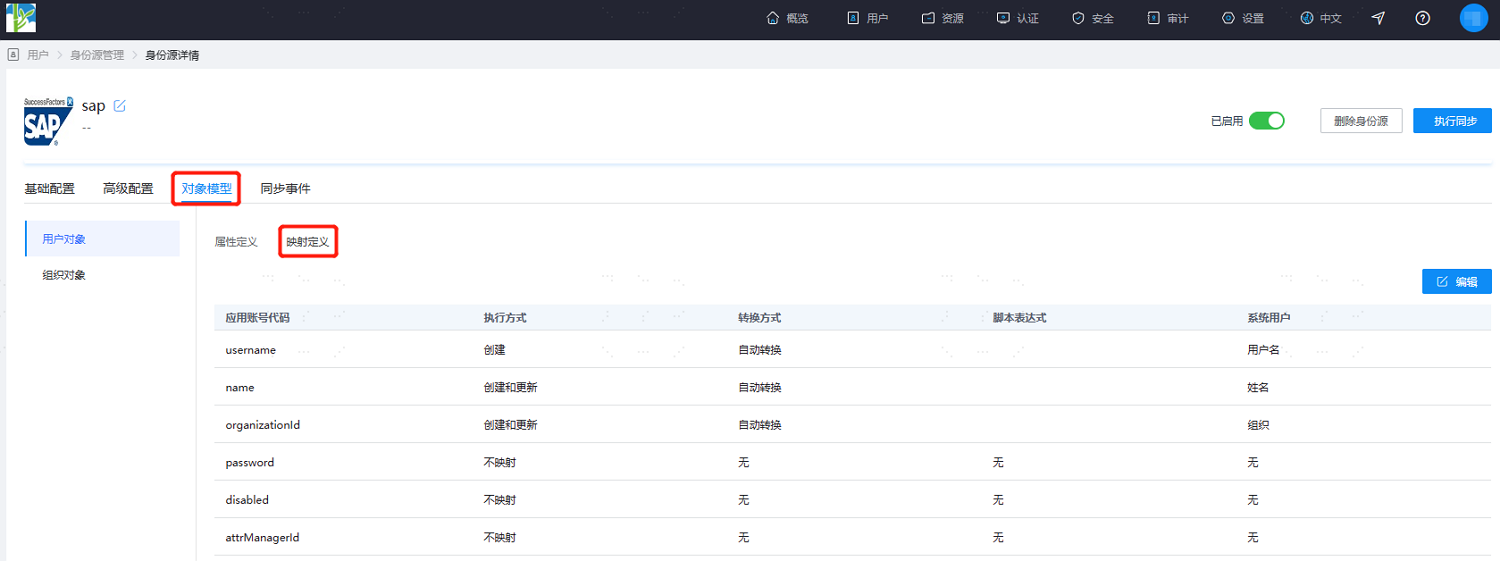
- Execution Mode: Sets when the attribute needs to be mapped.
- Do Not Map: The attribute will not be synchronized to IDaaS.
- Create: The attribute is synchronized only during creation.
- Update: The attribute is synchronized only during update.
- Create and Update: The attribute is synchronized during both creation and update.
- Transformation Mode: Sets how the attribute is mapped.
- Auto Transform: Synchronize the value as-is from the identity source.
- Script Transform: Use this when the value from the identity source does not meet the required format. Refer to Script Mapping Methods.
- Execution Mode: Sets when the attribute needs to be mapped.
After the object model is configured, click Execute Synchronization to run the synchronization immediately.
TIP
If the synchronization mechanism in the basic configuration is set to scheduled synchronization, there is no need to manually execute the synchronization task here.
After execution, switch to the Synchronization Events page to view all synchronization tasks for this identity source. Click Details under the Operation column to view the import results, or go to the Users > Users and Organizations page to view the imported data.