
Configure WeChat Official Account Scan to Follow Login
Follow Official Account Login refers to the process where a WeChat Official Account QR code is generated on a PC website. Users use the WeChat APP to scan the code, and after following the official account, they are automatically logged in.
Using Follow Official Account Login can quickly drive traffic to the official account and enhance brand stickiness. This guide explains the configuration process for WeChat Official Account scan to follow login. After configuring the WeChat authentication source integration in the IDaaS platform, refer to this module to configure WeChat Official Account scan to follow login for various application systems.
Prerequisites
- Administrator permissions for the IDaaS Enterprise Center.
- An official account has been registered on the WeChat Public Platform.
- The application has been integrated into the IDaaS platform.
- A WeChat authentication source with the login scenario Official Account Authorization Login has been configured in the IDaaS platform.
TIP
Due to WeChat platform requirements, only service accounts have the Generate Parametric QR Code API capability. Please ensure that your official account is a service account type.
Procedure
- Configure WeChat Official Account Follow Login for Application
Log in to the IDaaS Enterprise Center, choose Resources > Apps from the top navigation bar. This guide uses the User Center app as an example. Select User Center, switch to the Login Configuration tab, select WeChat from the dropdown, and enable the previously added WeChat authentication source with the login scenario Official Account Authorization Login.
- WeChat Public Platform Configuration
Log in to the WeChat Public Platform, and enter the official account.
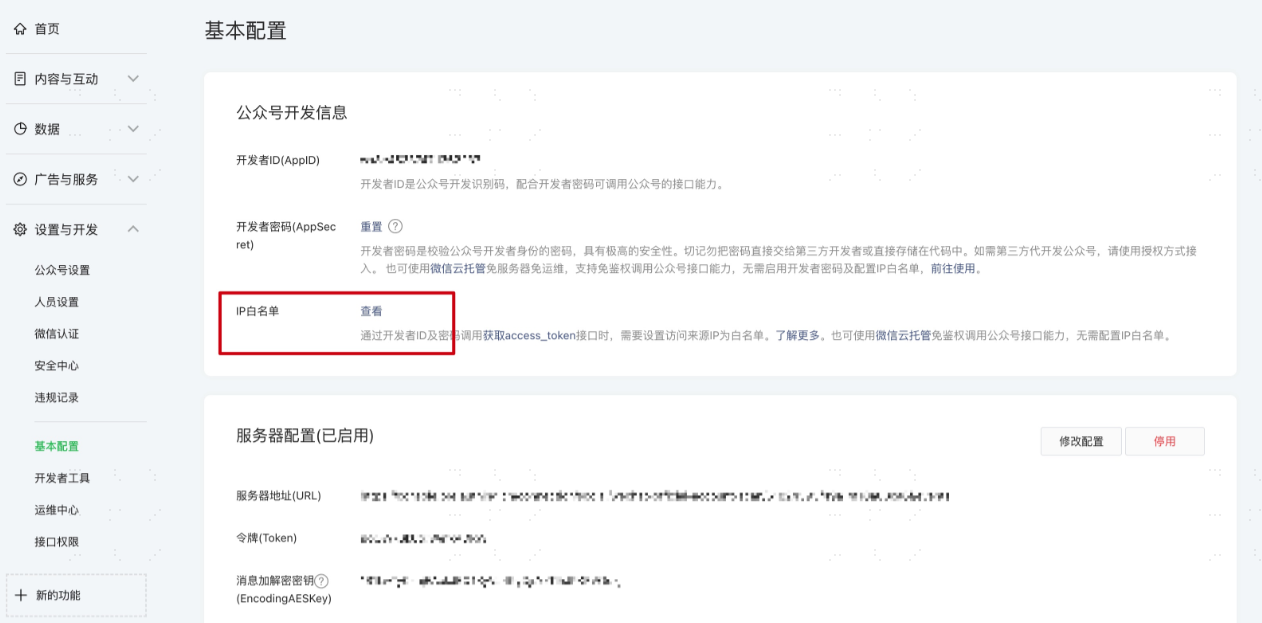
Set IP Whitelist
Go to Basic Configuration -> IP Whitelist, and add the IDaaS server IP (47.92.171.137) to the WeChat Official Account IP whitelist.
Add API Permission
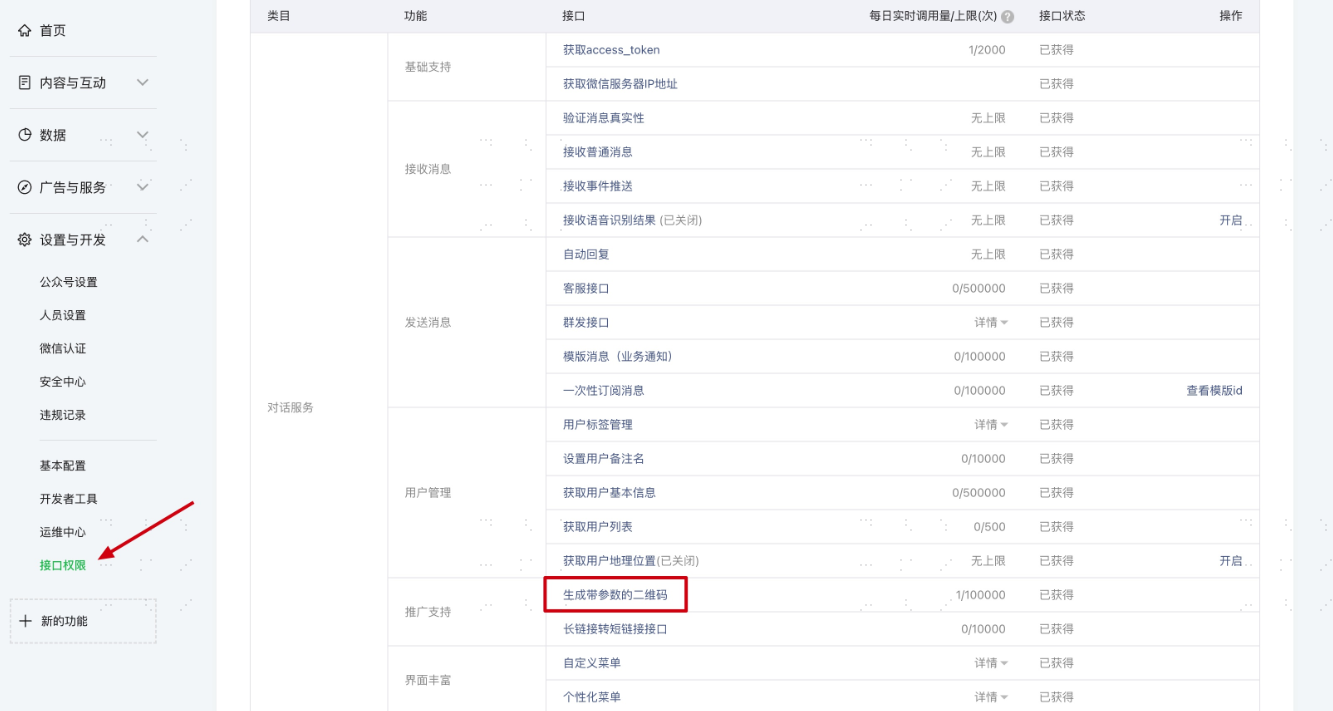
On the Settings & Development -> Interface Permissions page, add the Generate Parametric QR Code API interface permission.
Select Server Configuration Mode
On the Settings & Development -> Basic Configuration page, enable server configuration. When users scan the official account QR code or follow the official account, IDaaS can receive user scan and follow events to complete login.
Since WeChat server configuration can only be set to one, you need to choose between two different modes according to your specific scenario:
- Mode 1: Set the server address to the IDaaS server callback address. This mode is the simplest. However, all official account events will be pushed to the IDaaS server, and you will lose other events except scanning and following.
- Mode 2: Set the server address to your own server, and then forward scan and follow events to the IDaaS server. This mode requires some development work, but no events are lost, and it is conducive to more extensions based on official account events in the future.
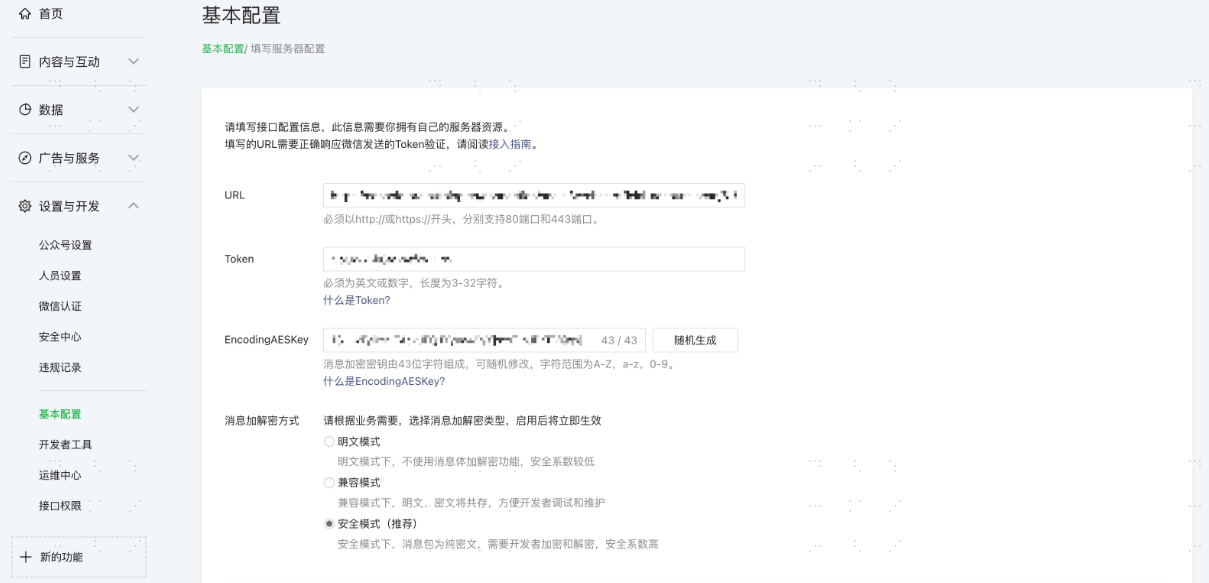
URL: Set to the callback address on the authentication source, format:
https://{your_domain}/api/v1/callback/wechatmpqr/{idpId}, whereidpIdis the authentication source ID. If there is noidpIdyet, you can come back to modify it after creating the authentication source. If using Mode 2, you can configure your own server and then forward to the callback address on the authentication source.Token: You can set the Token to any string in the WeChat Official Account, and ensure that the token on the IDaaS console authentication source is consistent with the token provided by the official account to be accessed.
EncodingAESKey: The message encryption key consists of 43 characters. Ensure that the message encryption key on the IDaaS console authentication source is consistent with the message encryption key provided by the official account to be accessed.
Message Encryption Mode: It is recommended to use secure mode.
TIP
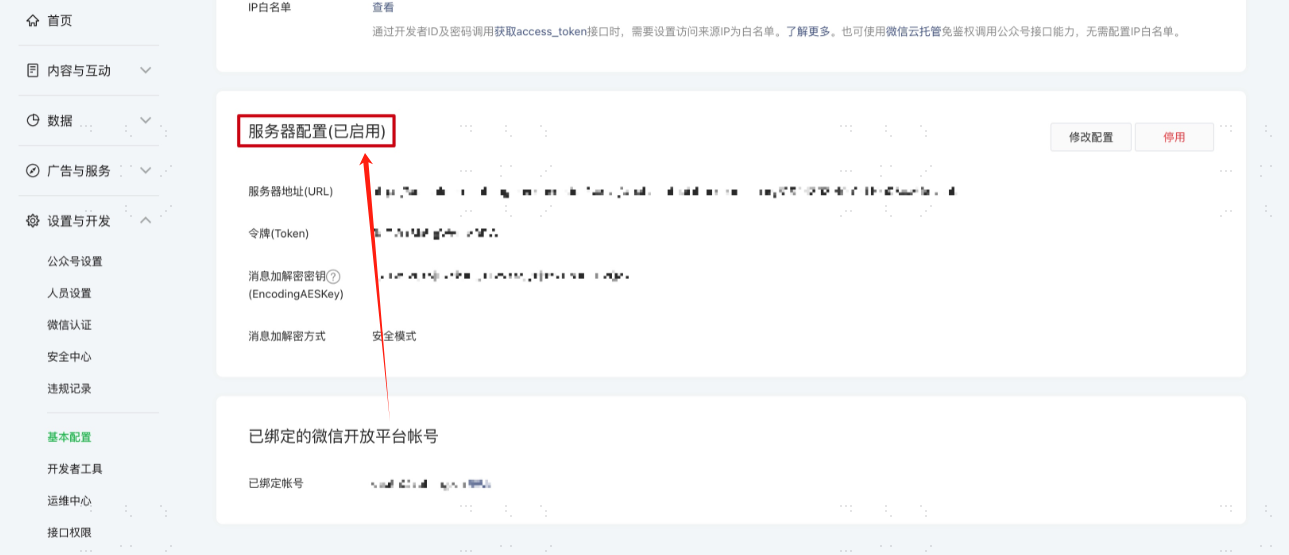
Click submit to save, and finally don't forget to enable this server configuration.
Verify WeChat Official Account Authorization Login
- The actual authentication login process is related to the When User Not Associated option in Configure WeChat Authentication Source. Please log in as prompted by the interface.
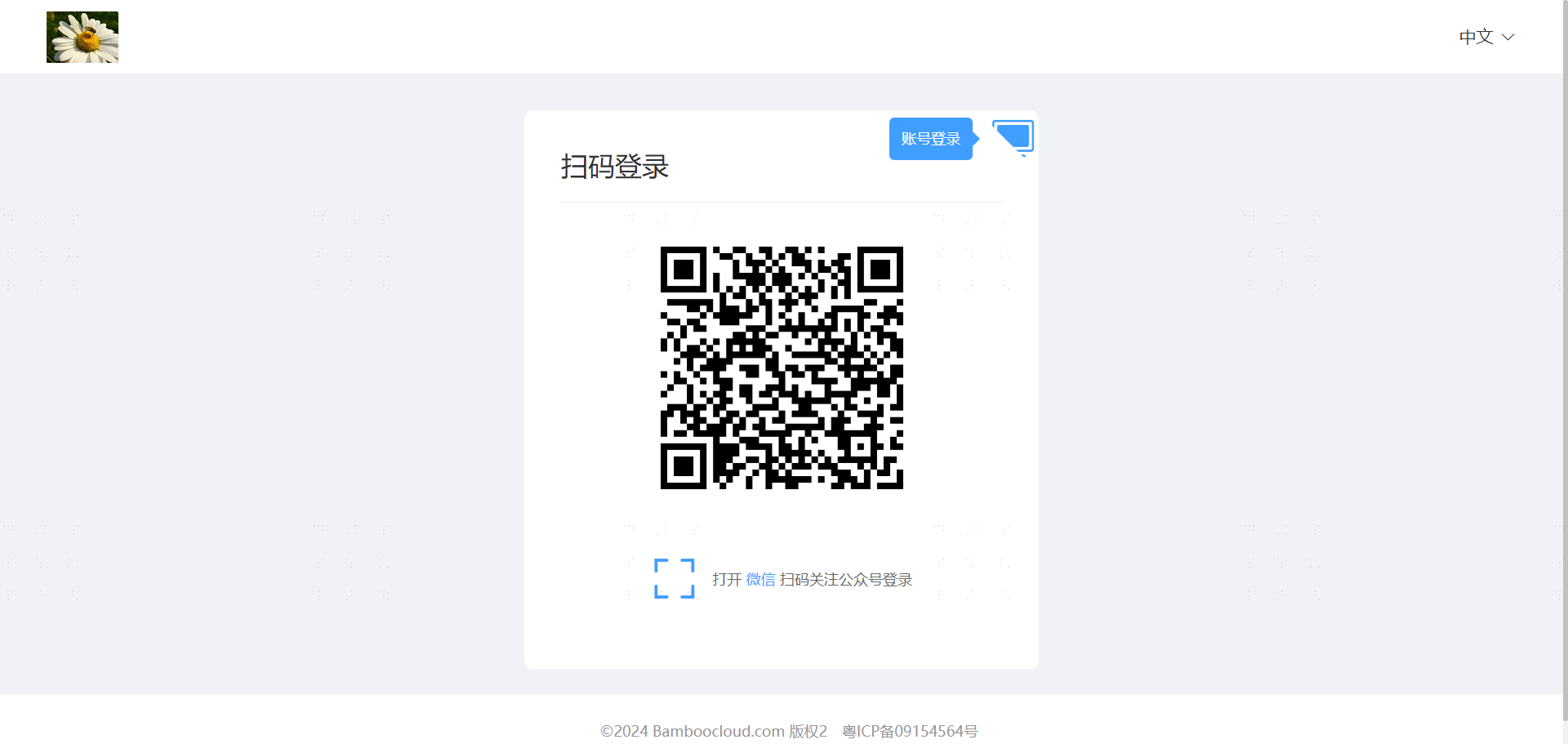
- Visit the PC login page, click the scan code authentication method. After users scan the code and follow the WeChat official account, the first login requires binding a mobile number, or registering a user through mobile number and logging in automatically after success.
Drive Traffic to WeChat Official Account
When the WeChat Official Account authentication source enables auto-create user for unassociated users, users who follow the official account or scan the official account QR code can automatically create users. Users can bind their existing mobile numbers through the User Center.