
User-Based Authorization
This chapter guides you through authorizing users. Authorization includes granting users accounts to access application systems and granting accounts operational or data permissions within the application system. You can grant application permissions as an application administrator in the application, or as a user administrator in the user module.
Prerequisites
- You have administrator permissions for the IDaaS enterprise center platform.
- You have created the application and enabled the authorization model.
Application Administrator Authorizes Users
Enter the User-Based Authorization Interface
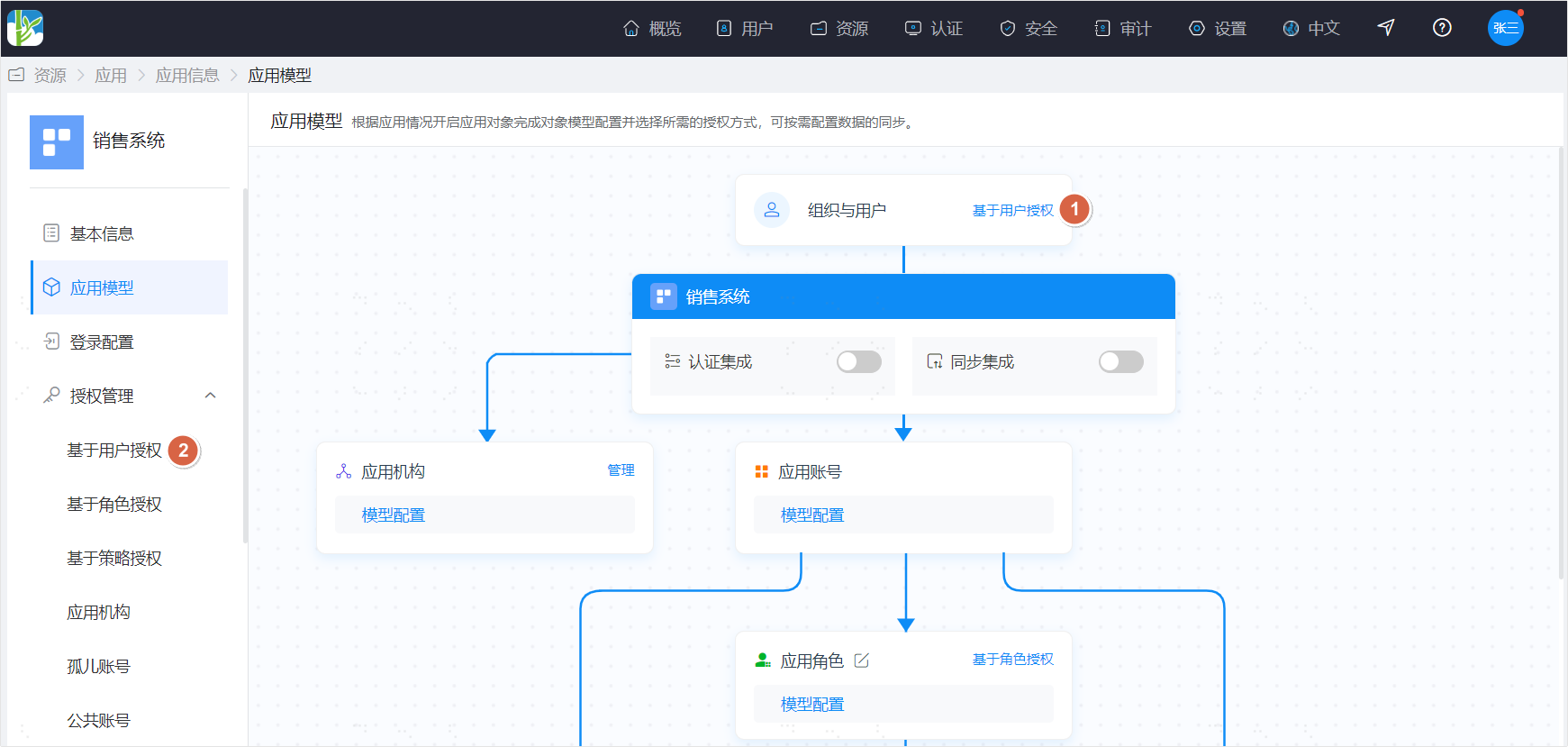
First, enter the application details page. There are two ways to open the user-based authorization page:
- Click the User-Based Authorization operation on Organization and User in the application model.
- Open Authorization Management in the left navigation menu and click User-Based Authorization.
Add Application Authorization
Click the Add User Authorization operation at the top of the user-based authorization page to open the add page. Adding authorization is divided into two steps.
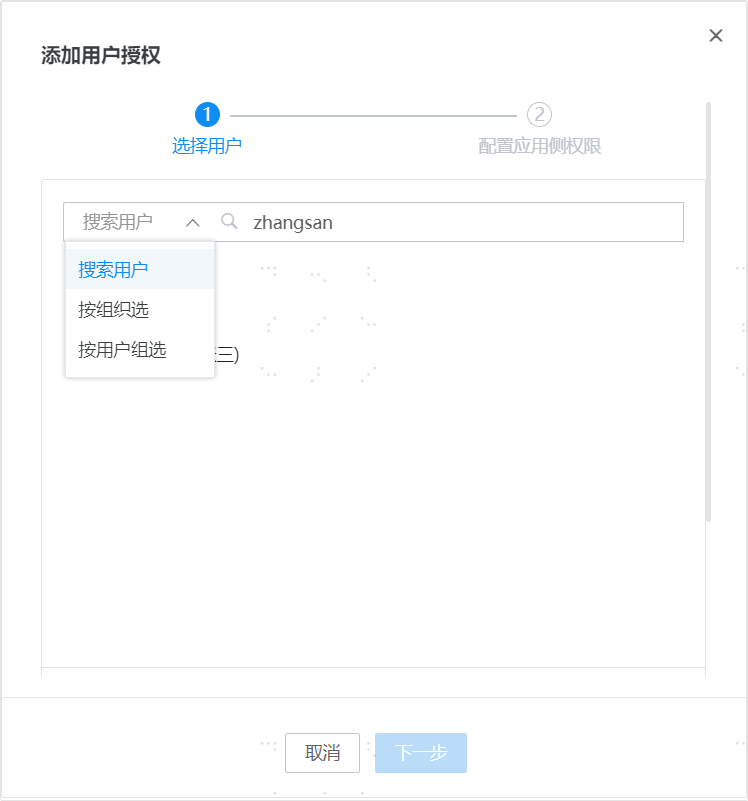
- Select authorized users.
- Search by user: search users by username/name/mobile number/email.
- Select by organization: batch select users by organization structure.
- Select by user group: batch select users by user group.
- The three selection methods can be used simultaneously.
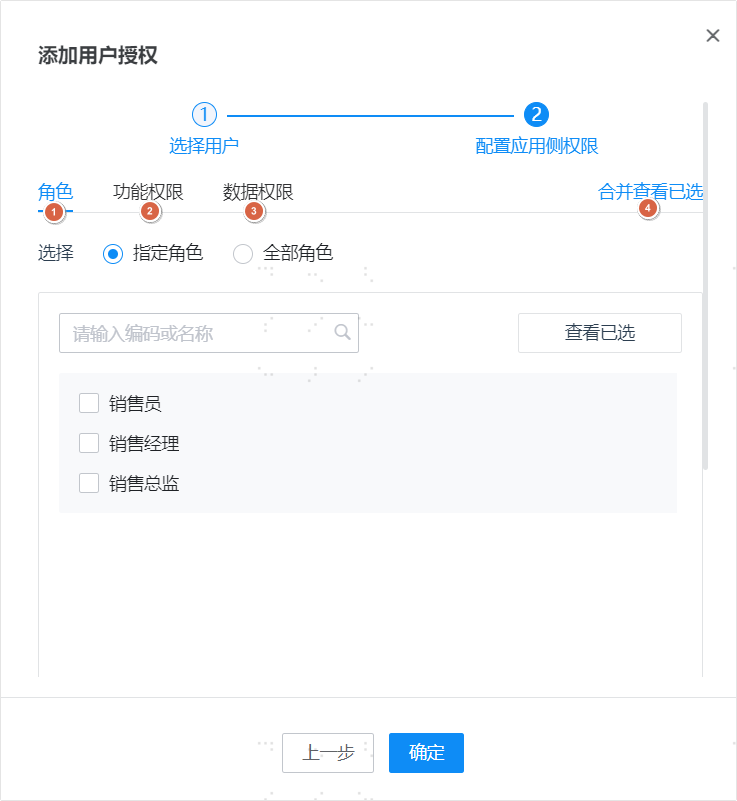
- Configure application-side permissions for users.
- Role: when the RBAC (role-based authorization) model is enabled, you can assign roles to users.
- Functional Permission: when the ACL (direct authorization) model and functional permissions are enabled, you can assign functional permissions to users.
- Data Permission: when the ACL (direct authorization) model and data permissions are enabled, you can assign data permissions to users.
- Merge View Selected: when multiple models are enabled simultaneously, you can use Merge View Selected to check all functional/data permissions the user ultimately has.
In addition, through the Permission Copy operation at the top of the page, you can quickly copy one user's permissions to another user.
Modify Application Authorization
After granting permissions to users, if you need to adjust them, you can click Application-Side Permissions in the operation column of the compliant account list to modify.
User Administrator Authorizes Users
Enter the User Authorization Page
Find Users - Organization and Users in the top menu, enter the page, and click Application Authorization in the operation column on the right side of the user list.
Add Application Authorization
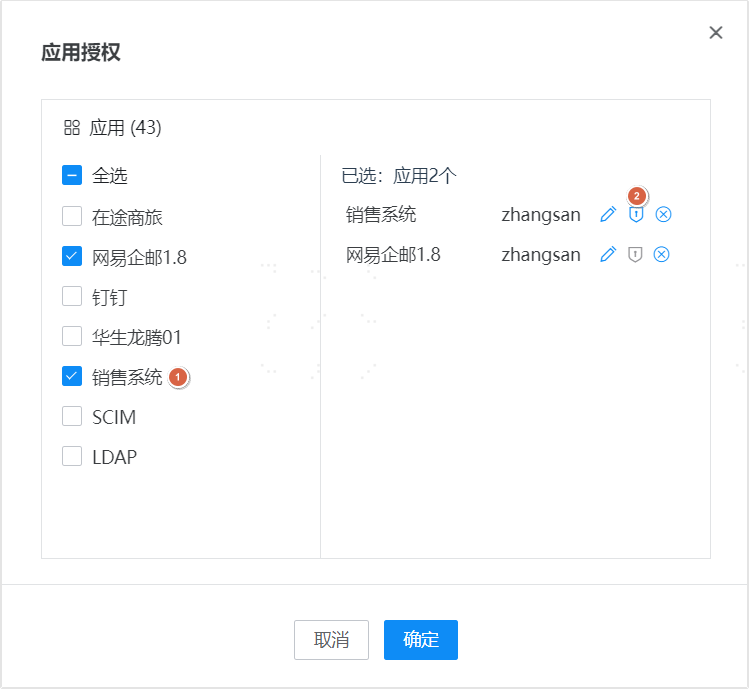
- On the page, click Add Application Authorization to open the add authorization page. The left side of the page displays applications not yet authorized to the user.
- Authorizing a user is divided into two steps:
- Select the applications to be authorized. You can select multiple at once. The user will generate an application account in each authorized application, and you can edit/authorize each application's account on the right side of the page.
- Click the Authorize operation to enter the configure application-side permissions page, where you can assign the user's permissions in the current application.
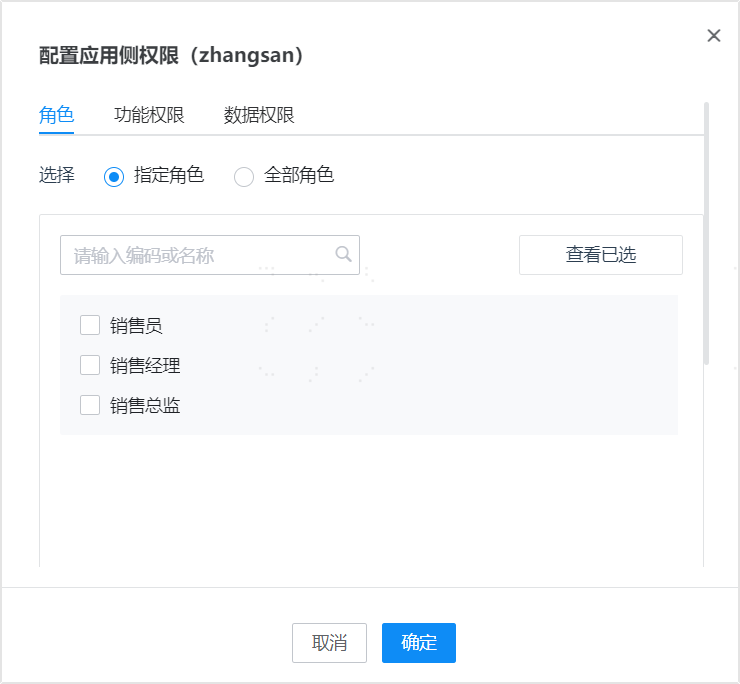
Modify User Permissions
After granting permissions to users, if you need to adjust them, you can click Application-Side Permissions in the operation column of the authorized application list to modify.