
Configure DingTalk External Browser Password-Free Login
This guide explains the configuration process for users to log in to IDaaS-integrated applications through an external browser without a password from the DingTalk PC client. After configuring the DingTalk authentication source integration in the IDaaS platform, refer to this module to configure DingTalk external browser password-free login for various application systems.
Prerequisites
- Access management permissions for the IDaaS Enterprise Center.
- DingTalk Developer Console account administrator permissions, and an application has been created.
- The application has been integrated into the IDaaS platform.
- The DingTalk authentication source has been configured in the IDaaS platform.
Configuration Flow

Procedure
TIP
The example application in this guide is an OAuth authentication protocol application created in IDaaS: OAUTH_1. Applicable scope: All self-built applications and pre-integrated applications that integrate with IDaaS through protocols.
Configure DingTalk Authentication for Application
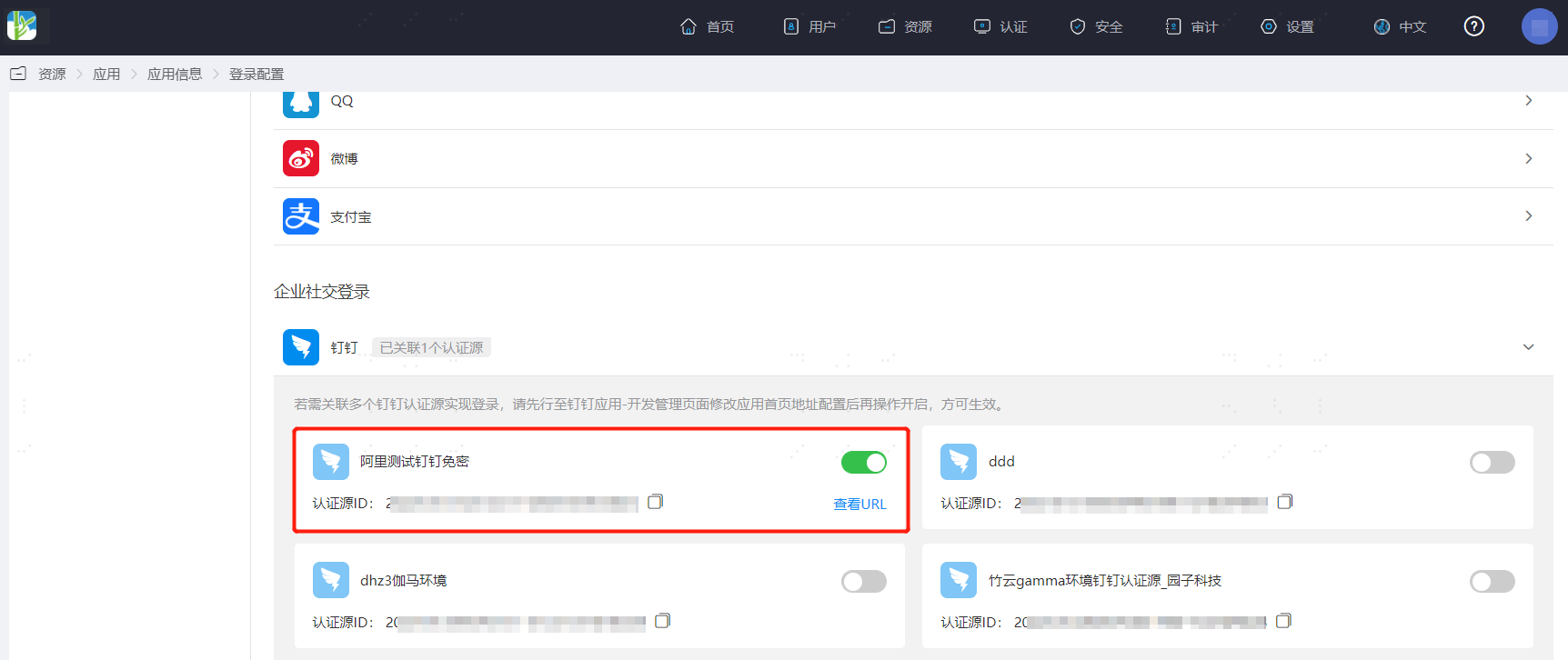
Log in to the IDaaS Enterprise Center, choose Resources > Apps from the top navigation bar. This guide uses the OAuth authentication protocol application as an example. Select OAUTH_1, switch to the Login Configuration tab, select DingTalk from the dropdown, and enable the previously added DingTalk authentication source.
Switch to the General Info tab, and obtain the application
ClientId.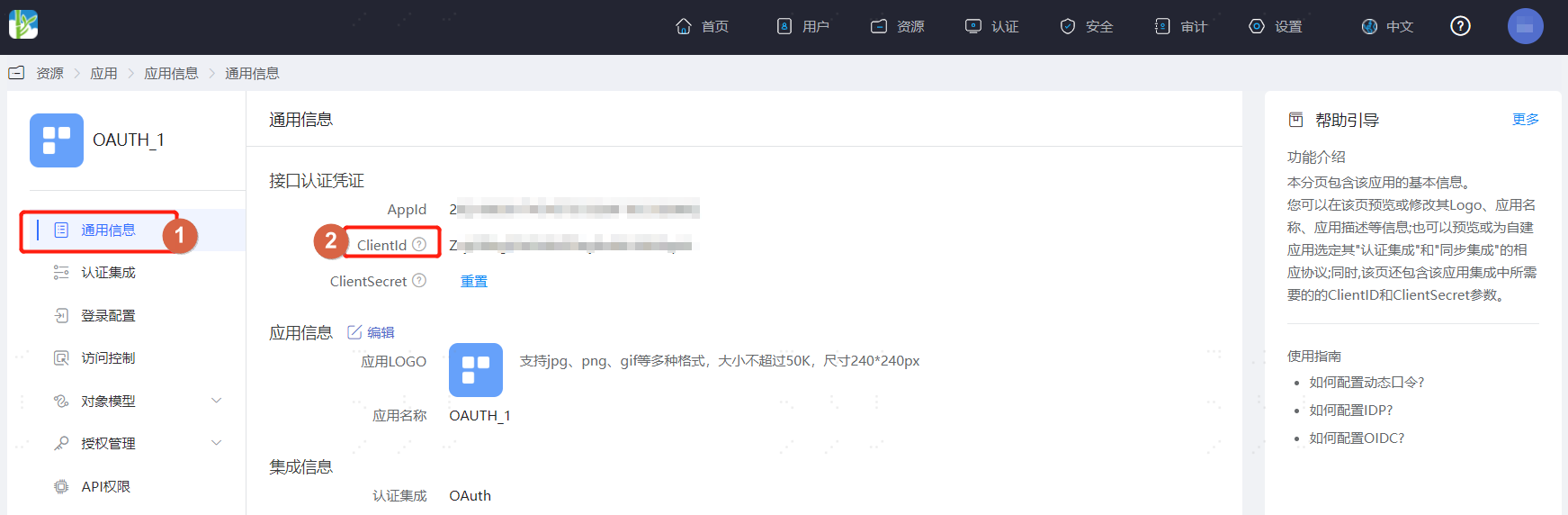
DingTalk Management Console Configuration
Log in to the DingTalk Developer Console, find the previously created application, choose Basic Information > Development Management, and modify the PC Homepage URL.
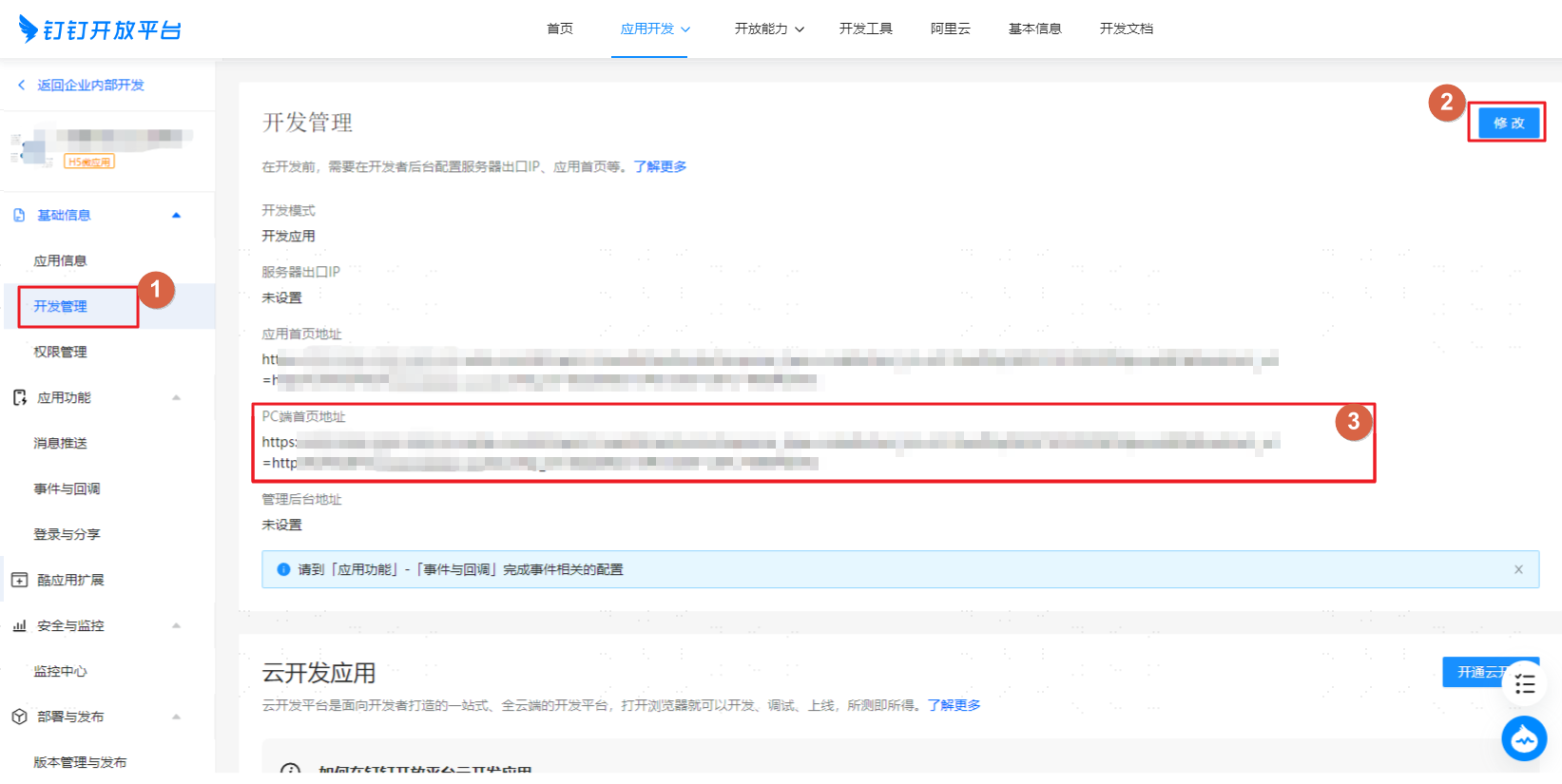
The address composition structure and parameter descriptions are as follows:
TIP
The PC homepage URL is related to the Auto Bind option in Configure DingTalk Authentication Source.
- Auto Bind - Enabled
https://login.dingtalk.com/oauth2/auth?response_type=code&scope=openid&prompt=consent&client_id={appKey}&redirect_uri={redirect_uri}
- Auto Bind - Disabled
https://oapi.dingtalk.com/connect/oauth2/sns_authorize?response_type=code&scope=snsapi_auth&appid={appKey}&redirect_uri={redirect_uri}
Where parameter
redirect_uri:https://{your-domain}/authentication/dingding.html?client_id={client_id}&idpId={idpId}. Note that URL encoding is required.Parameter Description your-domain IDaaS tenant domain, obtained in the IDaaS Enterprise Center under Settings > Enterprise Info. client_id IDaaS application ClientId, obtained on the IDaaS Enterprise Center platform application's General Info page. appkey AppKey parameter of the IDaaS DingTalk authentication source. idpId DingTalk authentication source ID enabled for the IDaaS application. - Auto Bind - Enabled
Verify DingTalk PC Client External Browser Password-Free Login
- The user logs in to the DingTalk client, finds the application created in DingTalk, and clicks the application to open the computer's default browser and log in to OAUTH_1 without a password.