
ADFS Integration
Overview
This document mainly explains how BambooCloud IDaaS integrates with ADFS, so that when accessing ADFS-integrated applications, users can log in uniformly through BambooCloud IDaaS.
Prerequisites
- The customer side has completed the integration of the application and ADFS, and the application redirects to the ADFS login page when accessed.
Integration Overview
- BambooCloud IDaaS adds a SAML authentication protocol application for ADFS authentication.
- ADFS adds a claims provider trust for BambooCloud IDaaS authentication.
- Configure mapping matching rules in BambooCloud IDaaS and ADFS respectively.
- Integration testing.
Detailed Steps
BambooCloud IDaaS Operations
- Log in to the BambooCloud IDaaS enterprise console, create a new application, enable SAML authentication integration, and import the SP metadata file provided by ADFS.
ADFS SP metadata file download address, note that contoso.com is your ADFS domain name
https://contoso.com/federationmetadata/2007-06/federationmetadata.xml- Modify the mapping configuration. By default, userName is mapped to the username. You can set specified attribute values according to actual scenarios.
- Authorization management: add application accounts based on user policy or authorization policy.
- Go to Settings > Service Configuration > IDP Configuration, click to download the IDP metadata and save it. It will be needed in the subsequent ADFS operations.
ADFS Operations
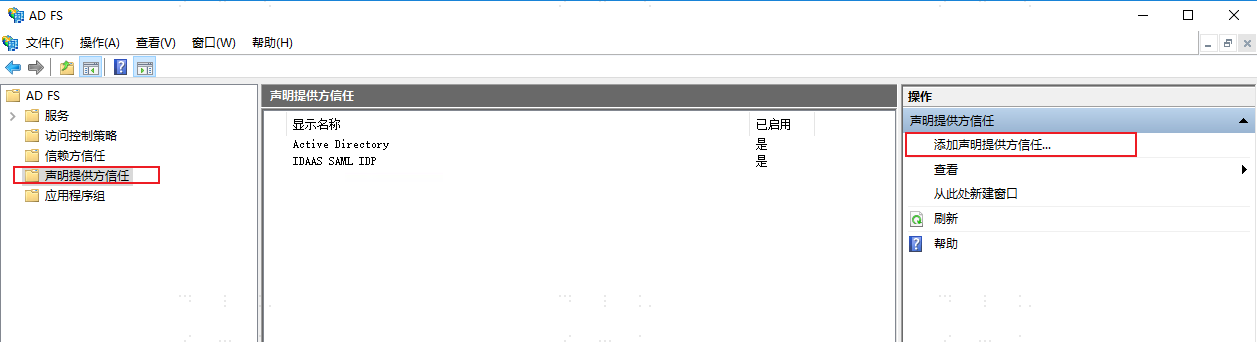
Open the ADFS console, select Claims Provider Trusts, and in Actions click Add Claims Provider Trust.
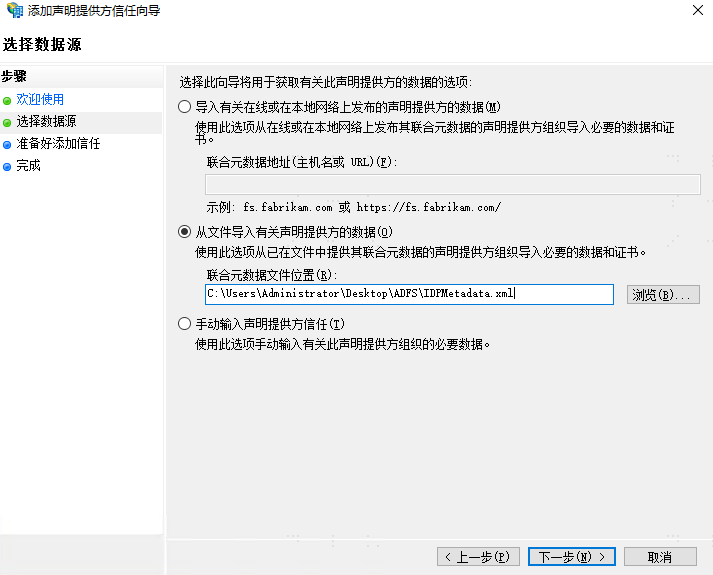
In the welcome wizard, click Start. In Select Data Source, choose Import data about the claims provider from a file, select the IDP metadata file downloaded from BambooCloud IDaaS, and click Next.
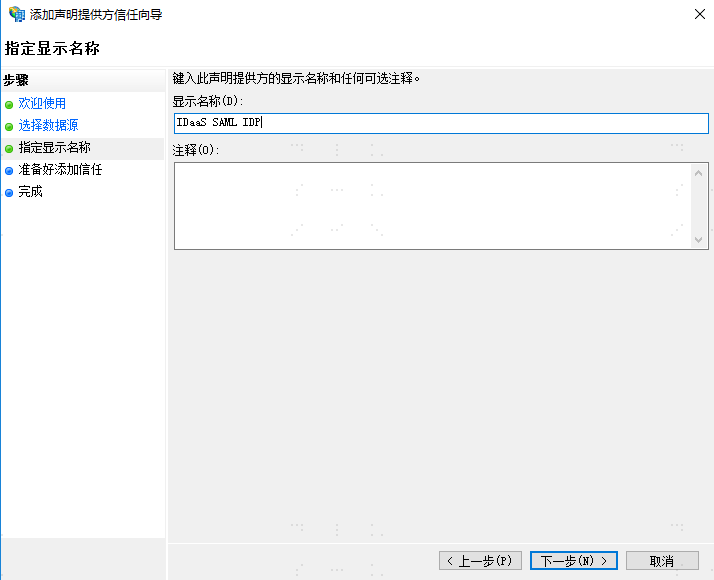
Enter the display name, for example: BambooCloud IDaaS SAML IDP. Click Next. On the Ready to Add Trust page, you can view the metadata information. Click Next directly to complete the configuration.
TIP
Adding "Claims Provider Trust" can also be executed via command, with the same effect as above.
Add-AdfsClaimsProviderTrust -Name "IDaaS SAML IDP" -ProtocolProfile "SAML" -MetadataFile "C:\IDPMetadata.xml"After completion, you can see the newly added provider configuration in the Claims Provider Trusts list. Select the newly added provider and click Edit Claim Rules.
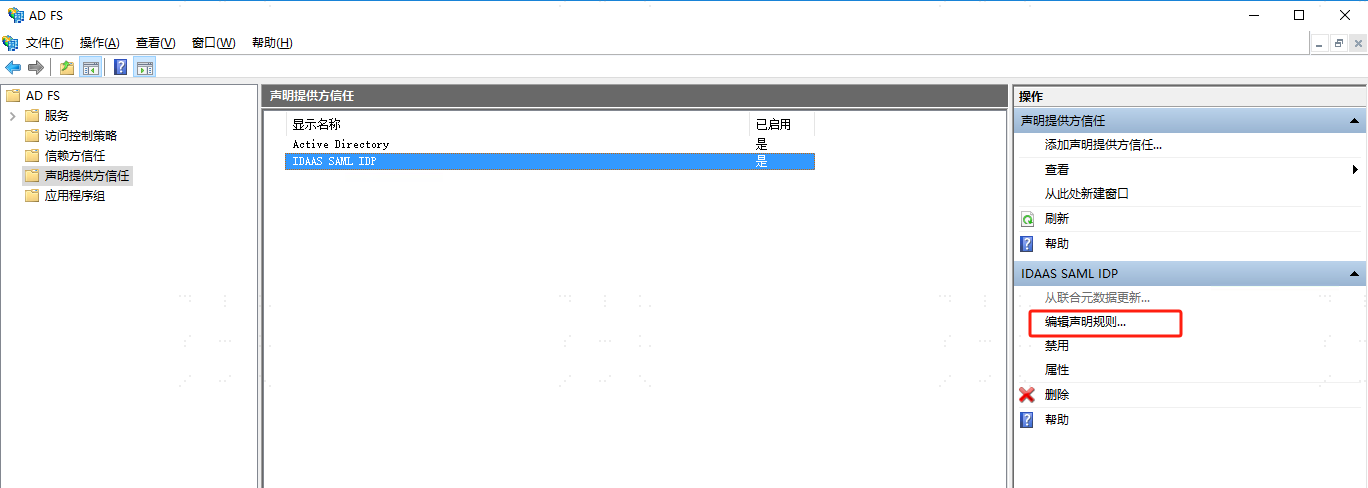
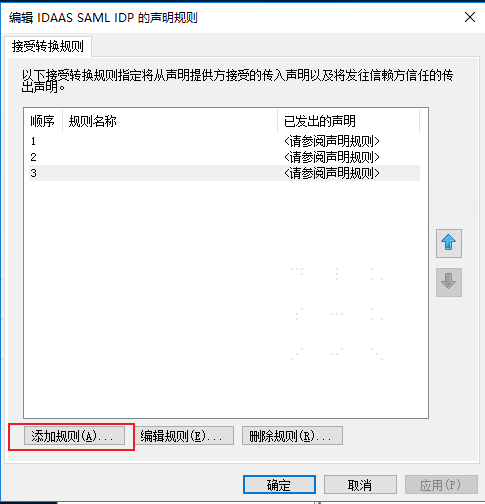
Add the following three rules in sequence. Select Custom Rule and enter the following code respectively.
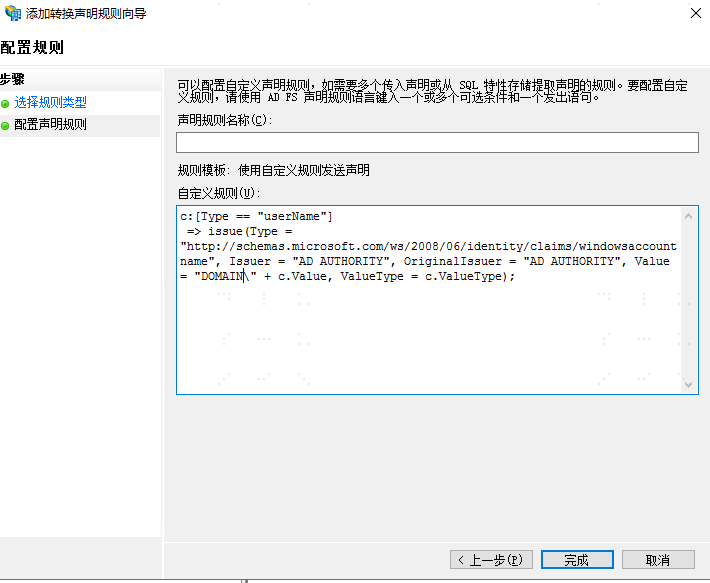
Rule 1: Note that "DOMAIN" in Value needs to be replaced with the customer's AD domain. This code means concatenating DOMAIN with the userName value returned in the SAML assertion.
c:[Type == "userName"]
 => issue(Type = "http://schemas.microsoft.com/ws/2008/06/identity/claims/windowsaccountname", Issuer = "AD AUTHORITY", OriginalIssuer = "AD AUTHORITY", Value = "DOMAIN\" + c.Value, ValueType = c.ValueType);

Rule 2: Use the concatenated value from Rule 1 to query the user's UPN in AD through the query condition.
c:[Type == "http://schemas.microsoft.com/ws/2008/06/identity/claims/windowsaccountname"]
 => issue(store = "Active Directory", types = ("http://schemas.xmlsoap.org/ws/2005/05/identity/claims/upn"), query = ";userPrincipalName;{0}", param = c.Value);

Rule 3: Query the AD user's SID through the query condition.
c:[Type == "http://schemas.microsoft.com/ws/2008/06/identity/claims/windowsaccountname", Issuer == "AD AUTHORITY"]
=> issue(store = "Active Directory", types = ("http://schemas.microsoft.com/ws/2008/06/identity/claims/primarysid"), query = ";objectSID;{0}", param = c.Value);- At this point, the SAML mutual trust configuration between BambooCloud IDaaS and ADFS is complete.
Verification
Access the ADFS-integrated application. The application redirects to ADFS for authentication. The ADFS login page displays two login methods: AD account password login and the configured BambooCloud IDaaS SAML IDP login method.
Select the BambooCloud IDaaS SAML IDP login method, jump to the BambooCloud IDaaS login page, and after successful login, redirect back to the application. Login is successful.

TIP
If after successful BambooCloud IDaaS login, the application is not redirected successfully, you may need to execute the following script:
set-adfsclaimsprovidertrust -TargetName "IDaaS SAML IDP" -AnchorClaimType "http://schemas.microsoft.com/ws/2008/06/identity/claims/windowsaccountname"

get-adfsclaimsprovidertrust- In the set-adfsclaimsprovidertrust command, the TargetName parameter is the display name of the "Claims Provider Trust".
- get-adfsclaimsprovidertrust can be used to check whether it was added successfully.
Default BambooCloud IDaaS Login (Extension)
If you need to hide the ADFS login selection page and use BambooCloud IDaaS login by default, you can achieve this through the following operations.
- On the ADFS server, modify the login page theme process:
New-AdfsWebTheme -Name "newTheme" -SourceName default
Create a new directory, for example c:\adfs-theme, and then execute the following to export the new web theme files to this directory. Export-AdfsWebTheme –Name newTheme –DirectoryPath c:\adfs-theme
In the exported script directory, there is onload.js. Back it up before modifying, and add the following code at the bottom. (Note: "https://domain.bccastle.com/api/ams/saml/idp" in the following code should be consistent with the identifier in the assertion.)
var myCheckHRD = document.getElementById('hrdArea') ;
if (myCheckHRD) {
HRD.selection('https://domain.bccastle.com/api/ams/saml/idp')
}
After modification, continue updating: Set-AdfsWebTheme -TargetName newTheme -OnLoadScriptPath "C:\adfs-theme\script\onload.js"
Finally activate: Set-AdfsWebConfig -ActiveThemeName newTheme
After successful activation, when logging in to the application again, the page will automatically select the BambooCloud IDaaS SAML IDP method for login.