
Worktile Single Sign-On
Overview
This article describes the single sign-on configuration process between Worktile and BambooCloud IDaaS based on the SAML protocol.
TIP
Currently, only paid Worktile users support authentication management.
Authentication Configuration
Worktile Configuration
The Worktile administrator logs in to the Worktile system.
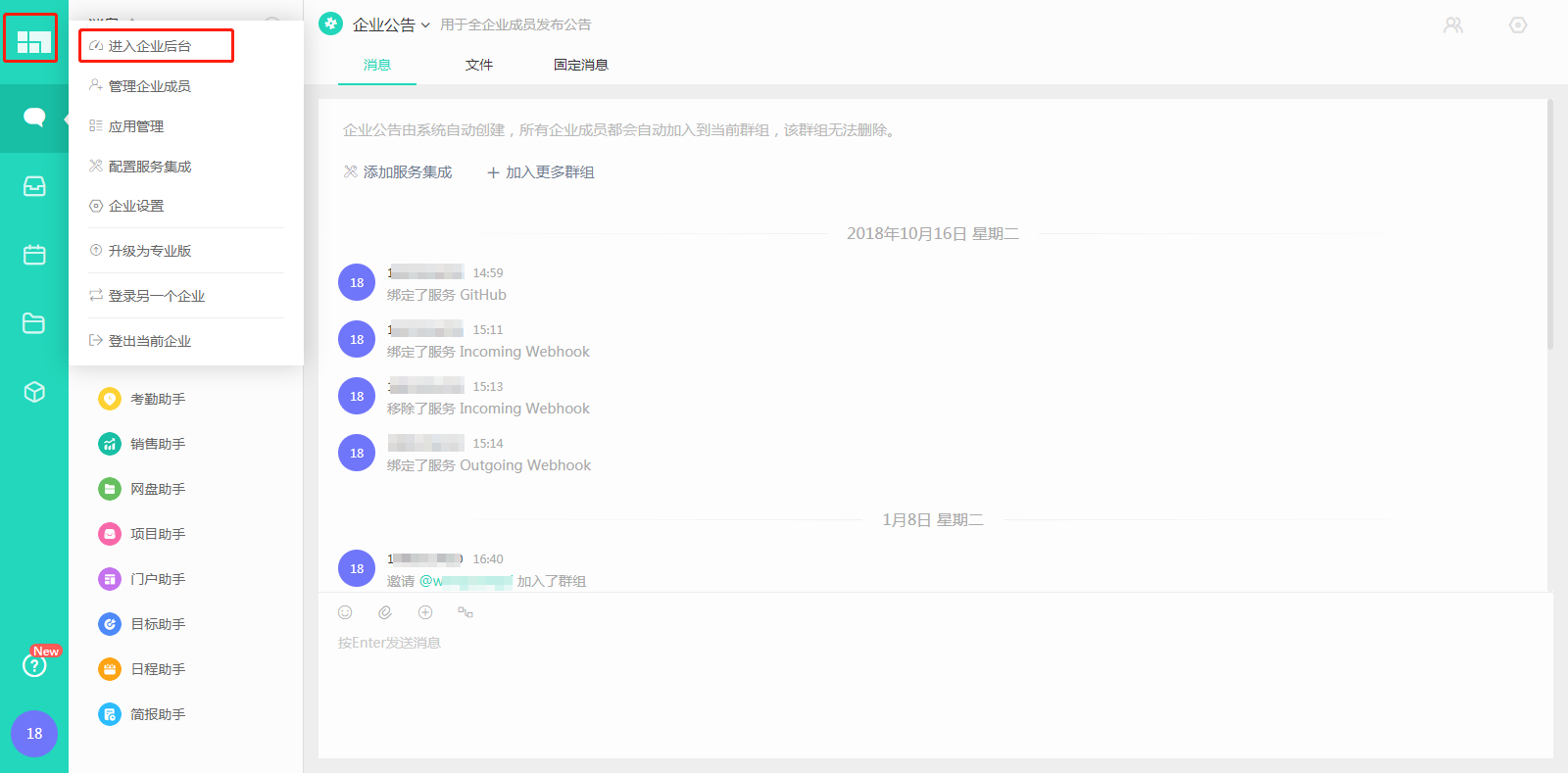
After entering the Worktile system, click the logo in the upper left corner and select to enter the Enterprise Backend, as shown below.
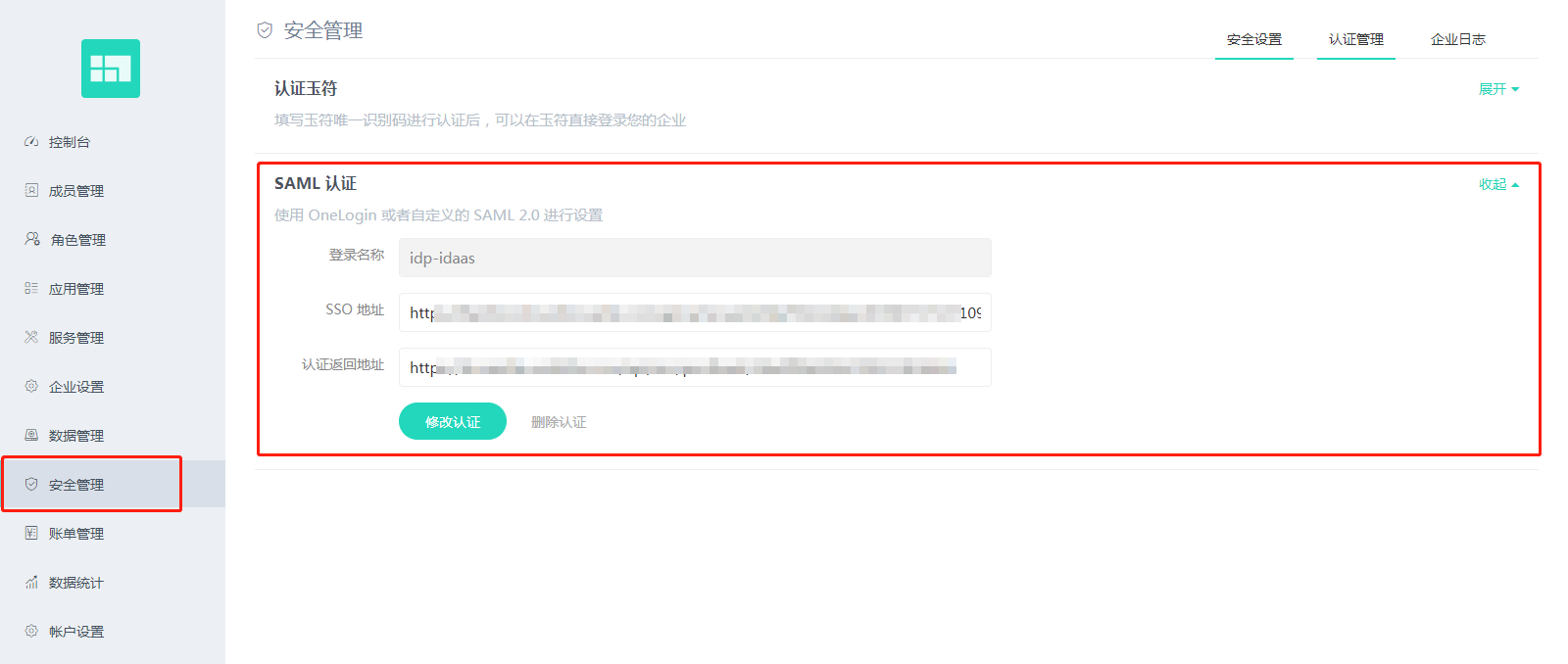
After entering the Worktile console, click the left menu Security Management, and then expand SAML authentication.
On the SAML Authentication page, click the button Modify Authentication. A Configure SAML IDP window will pop up. The following table explains the information to be filled in.
Parameter Name Parameter Value Parameter Description Login Name Custom Identify the SAML login, such as BambooCloud IDaaS. After Worktile configures SAML, a login button named after this will appear on the Worktile login page. SSO Address BambooCloud IDaaS IDP SSO address BambooCloud IDaaS IDP SSO URL IdP Address BambooCloud IDaaS IDP EntityID BambooCloud IDaaS IDP EntityId IdP Public Key BambooCloud IDaaS IDP public key BambooCloud IDaaS IDP certificate SP Address Defaults to the personalized domain address assigned by the Worktile system to the enterprise tenant Defaults to https://pro.worktile.com/To download BambooCloud IDaaS IDP metadata, visit
https://{your_domain}/api/v1/saml2/idp/metadata.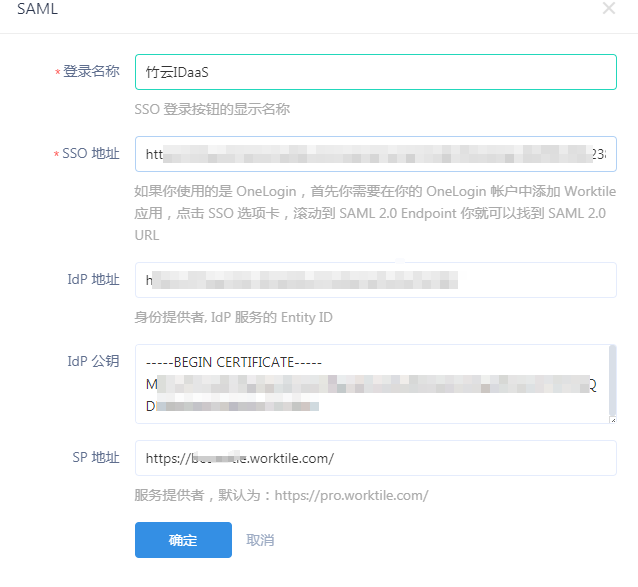
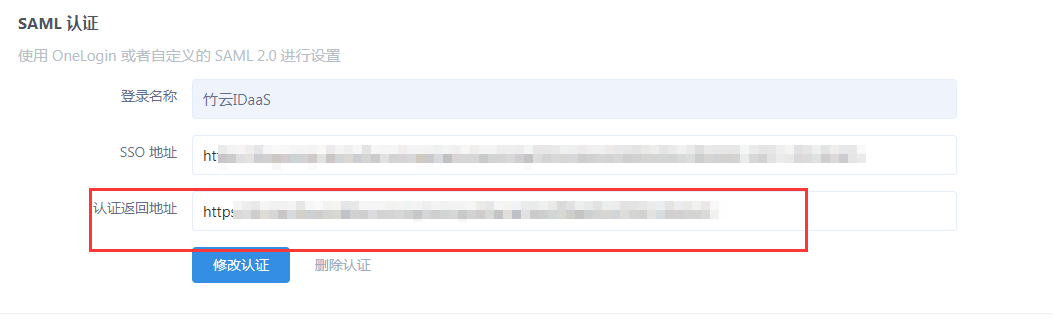
After configuration is complete, an authentication return address will be generated, which will be used when configuring Worktile authentication parameters in BambooCloud IDaaS later.
BambooCloud IDaaS Configuration
Add the pre-integrated application Worktile.
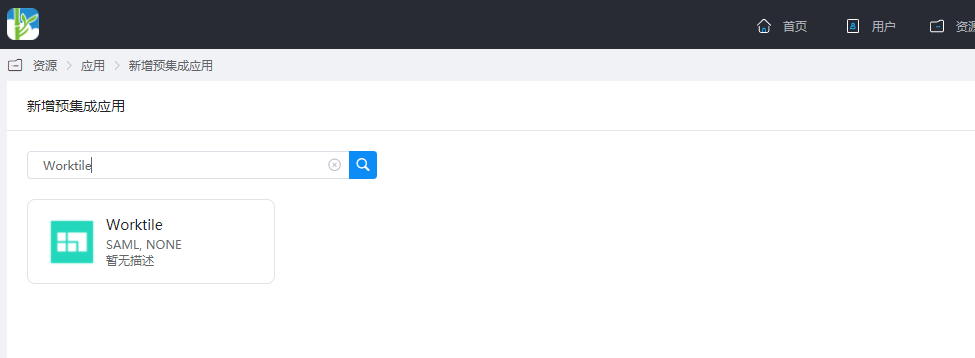
Configure authentication parameters. Parameter descriptions are as follows:
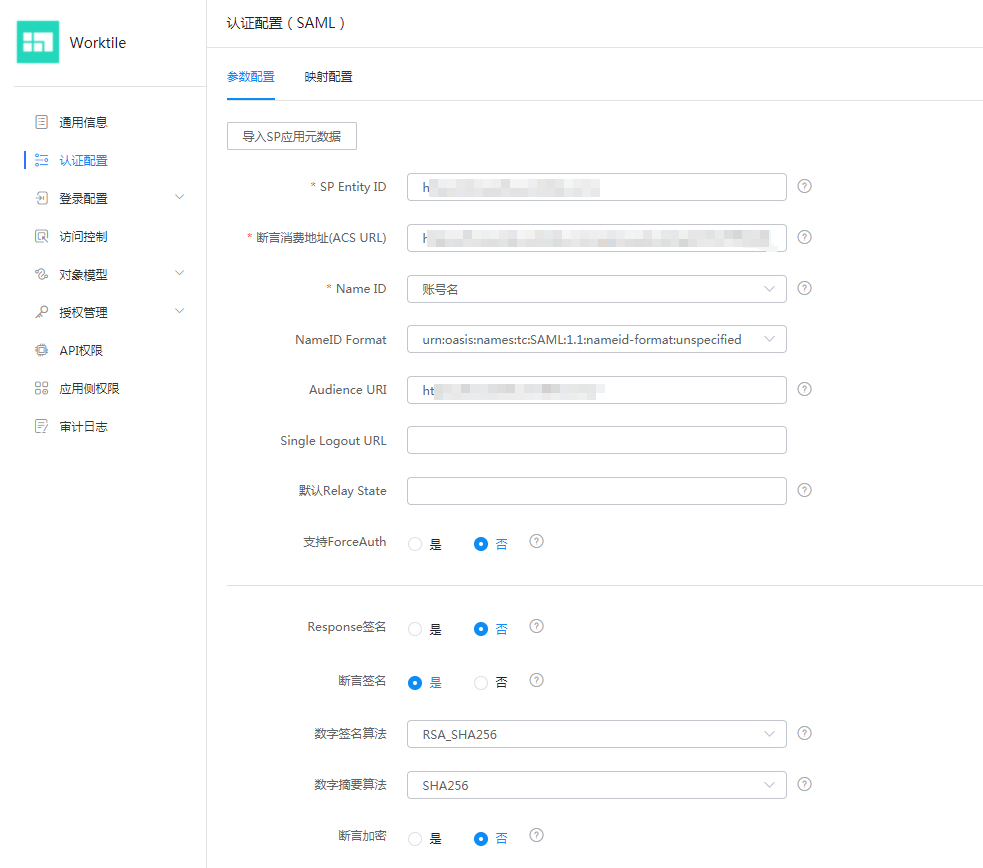
Parameter Description SP Entity ID SP address in the Worktile SAML authentication configuration Assertion Consumer Service URL (ACS URL) Worktile authentication return address Name ID Account name Audience URI SP address in the Worktile SAML authentication configuration Other non-required configurations can use the default values.
Enter the application details, Authorization Management > Application Account, click the Add Account button, and select the authorized user.
Change the account name to the email or mobile phone number of the user in Worktile.
Login Verification
Two login methods are as follows:
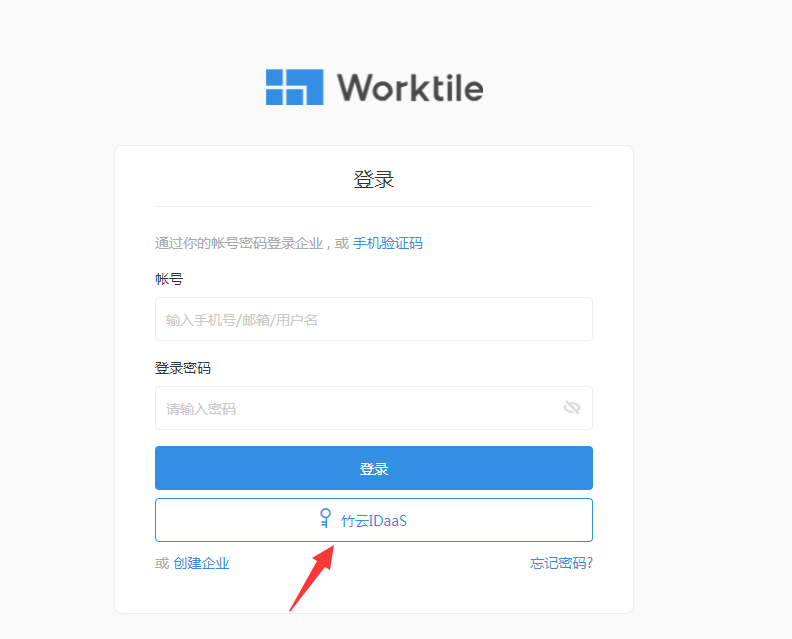
Click the SAML login button on the Worktile login page to initiate login authentication.
Log in to the BambooCloud IDaaS User Center and click the Worktile logo to redirect.