WeLink Single Sign-On
Overview
WeLink supports integration with standard OAuth 2.0 authentication protocols. Through BambooCloud IDaaS, the following business goals can be achieved:
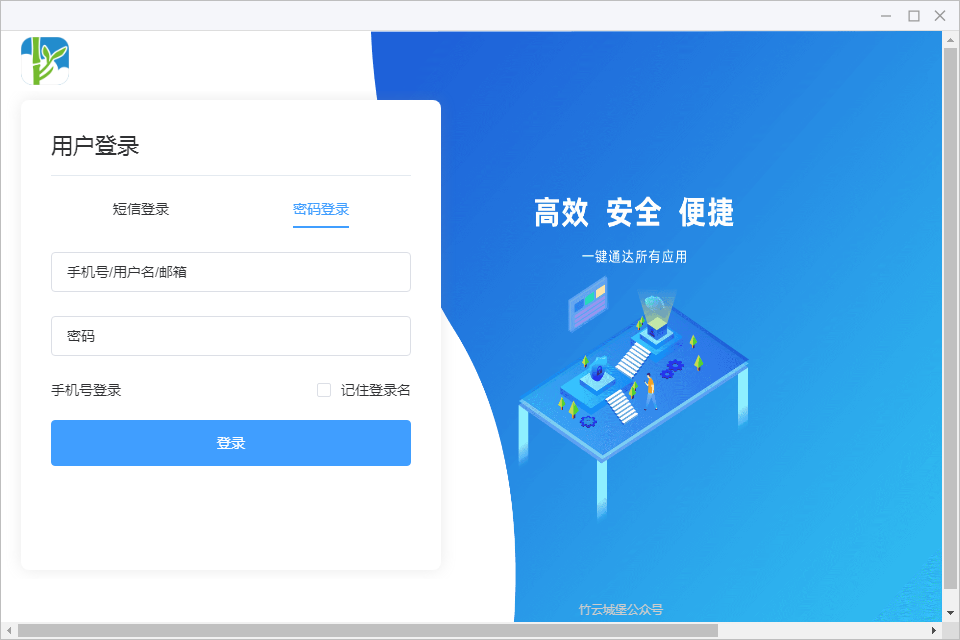
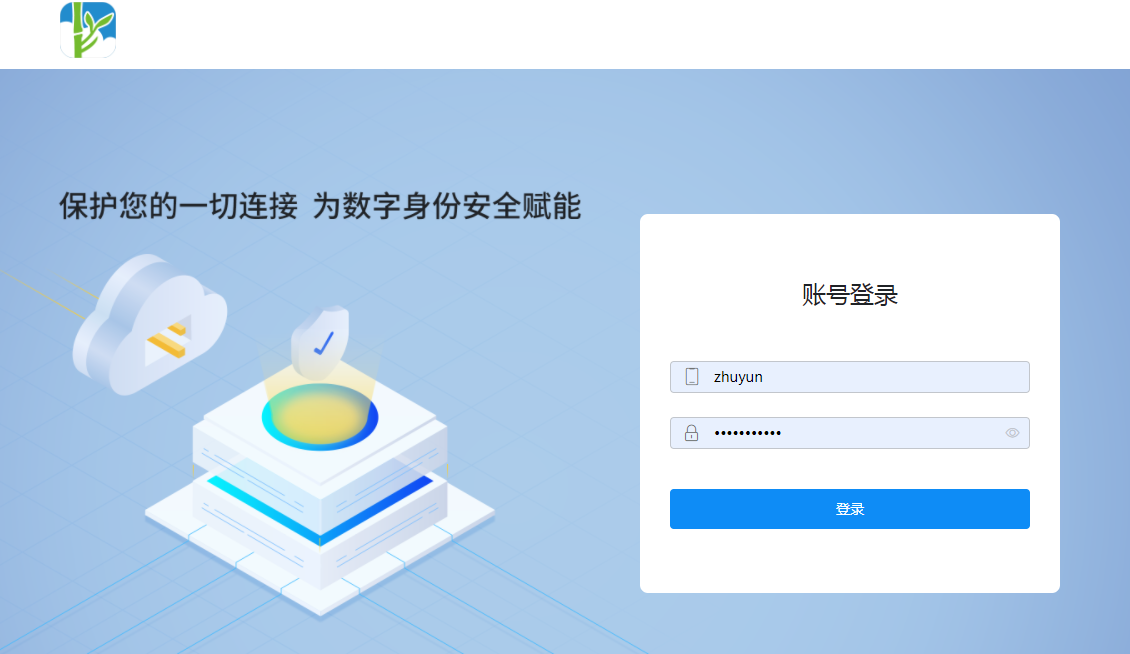
- When users open WeLink, they are redirected to the BambooCloud IDaaS login page through the OAuth 2.0 protocol, and use BambooCloud IDaaS user credentials to complete login authentication.
- When users open WeLink, BambooCloud IDaaS converts OAuth 2.0 to SAML, CAS, and other protocols, and integrates with the enterprise's self-built authentication system. Users use the credentials of the self-built authentication system to complete login authentication.
WeLink Organization SSO Authentication Reference Document
Authentication Configuration
BambooCloud IDaaS Configuration
Log in to the BambooCloud IDaaS Enterprise Center.
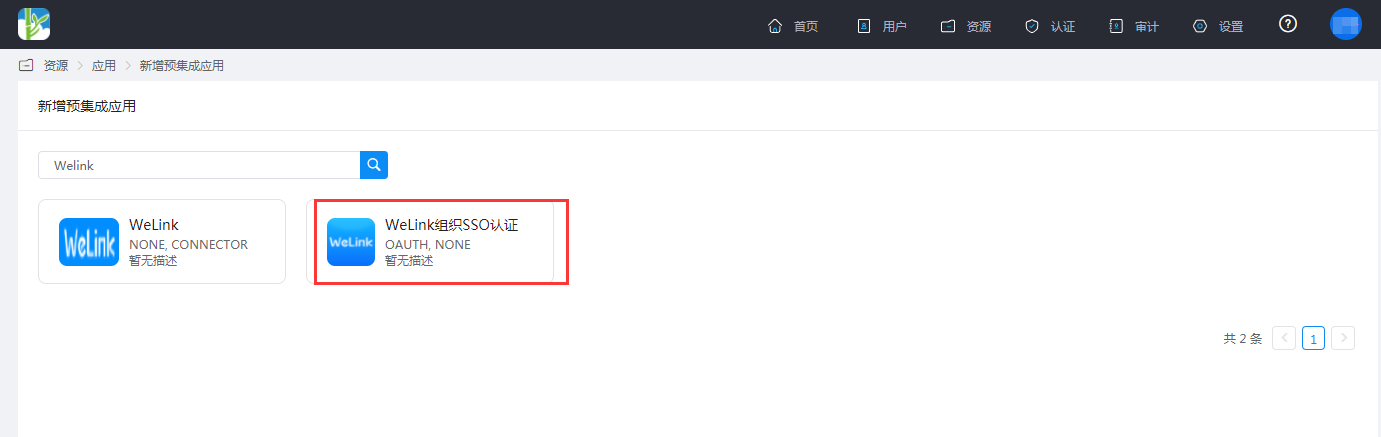
Add the pre-integrated application WeLink Organization SSO Authentication.
Configure application parameters.
Fill in the trusted domain as
https://api.welink.huaweicloud.com/sso/oauth2/magcallback.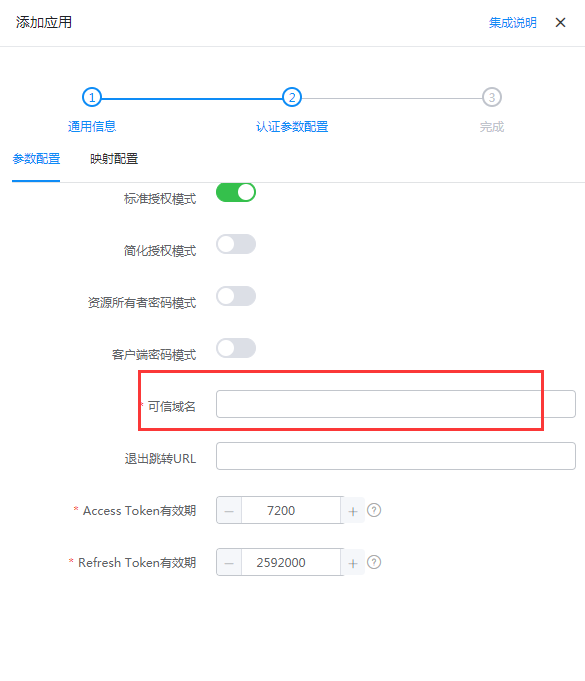
Under Mapping Configuration, add a mapping. Application attribute name
accname, mapping type: Account Attribute, account attribute name:accName.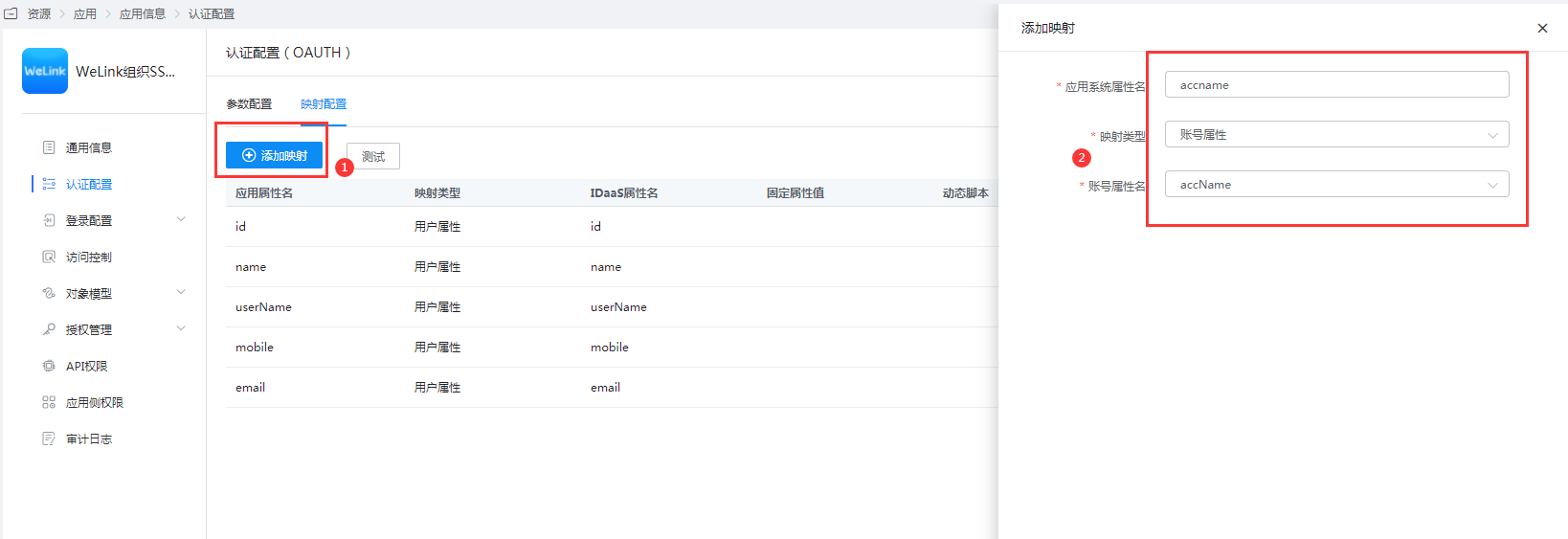
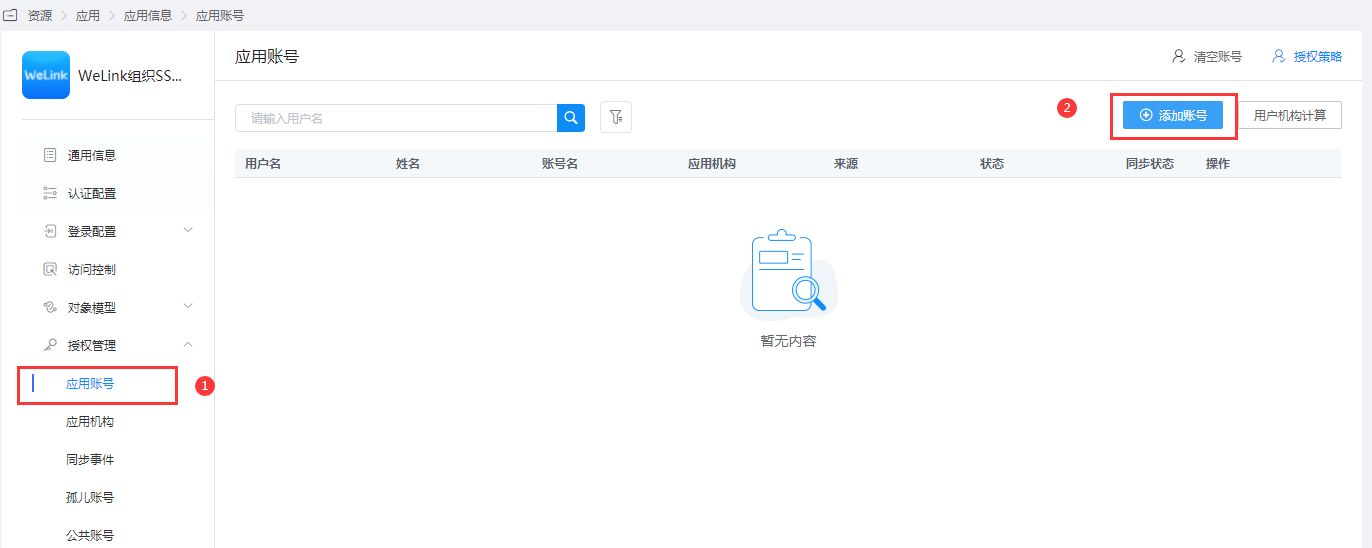
Authorize application accounts.
DANGER
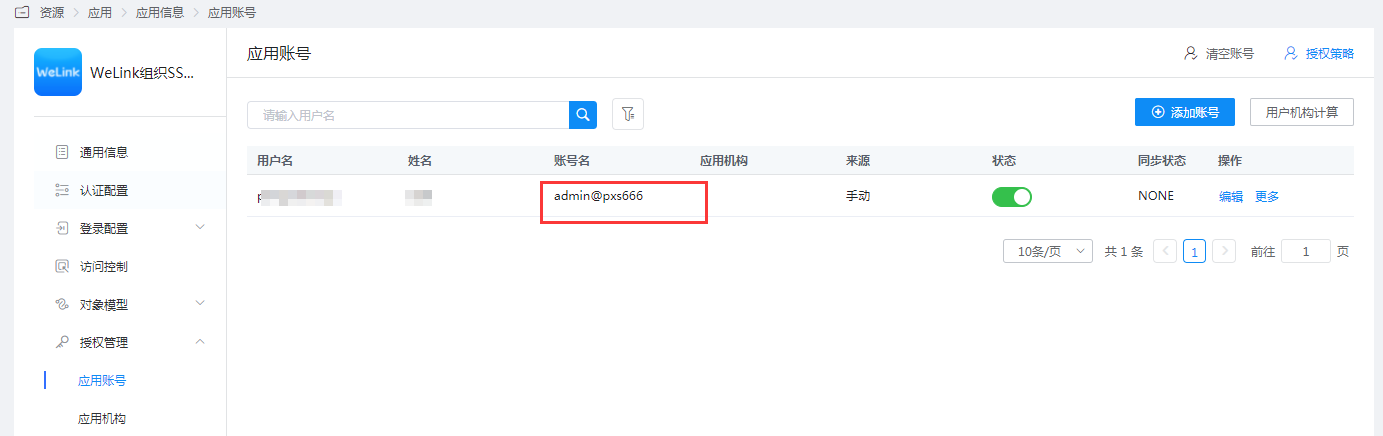
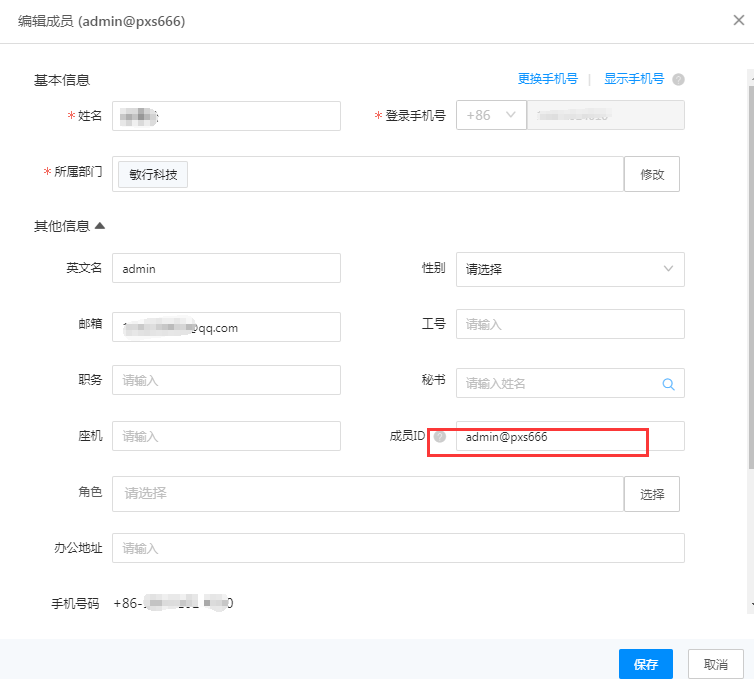
The account name must be consistent with the member ID in WeLink.
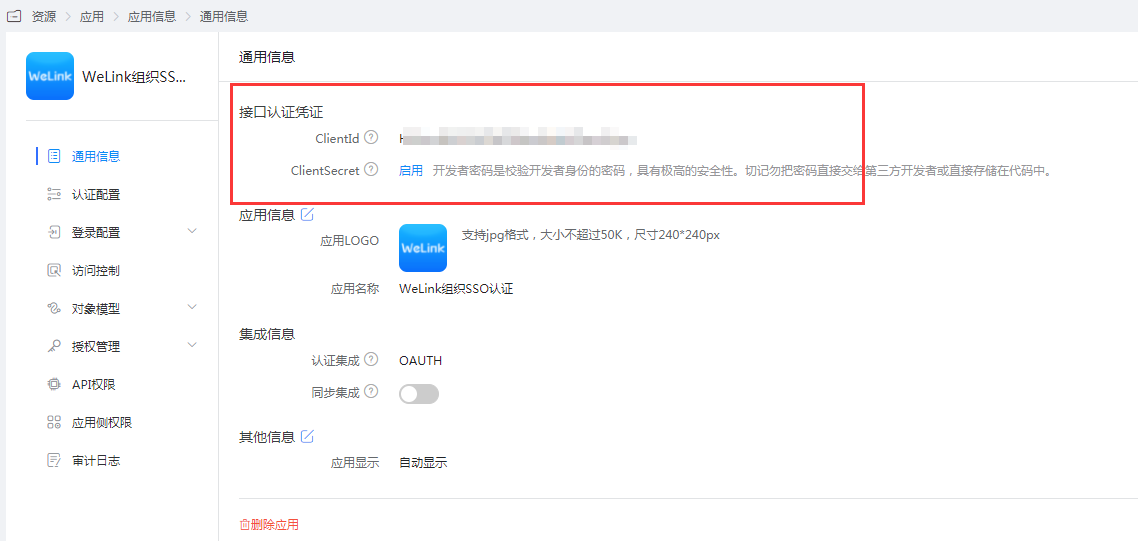
View ClientId and ClientSecret.
WeLink Configuration
Log in to the WeLink Management Backend as an administrator.
Select Settings > Login Authentication > Edit Login Method: Organization SSO Authentication.
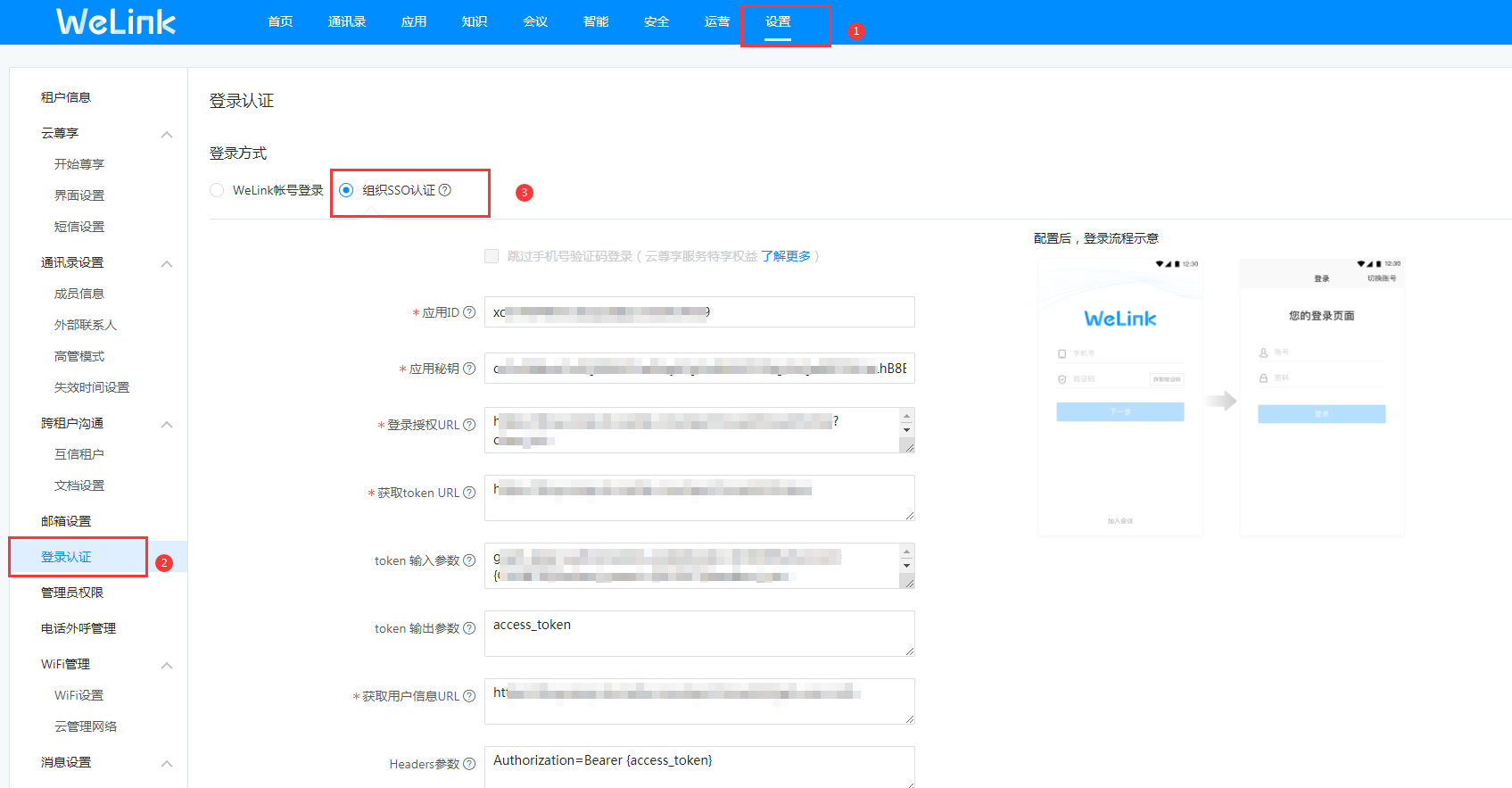
Edit SSO authentication parameters.
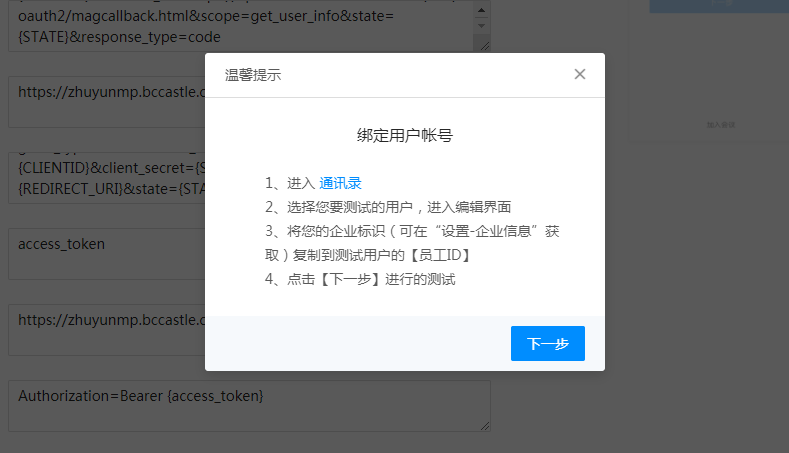
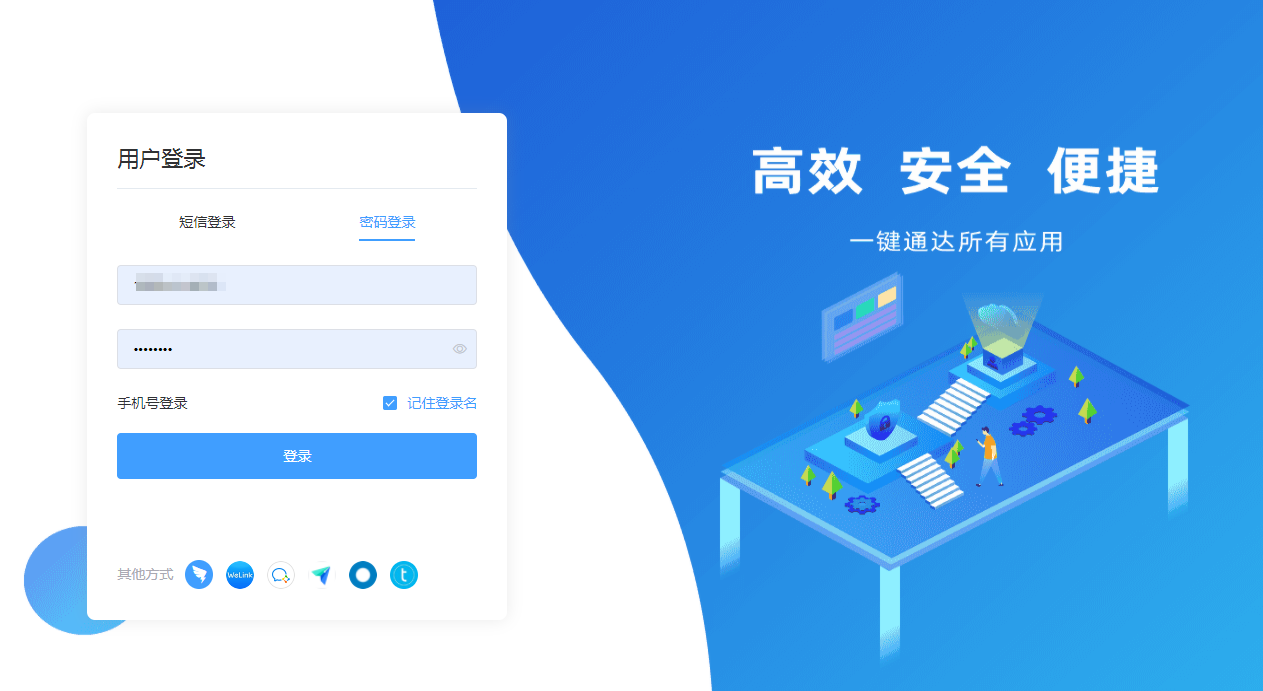
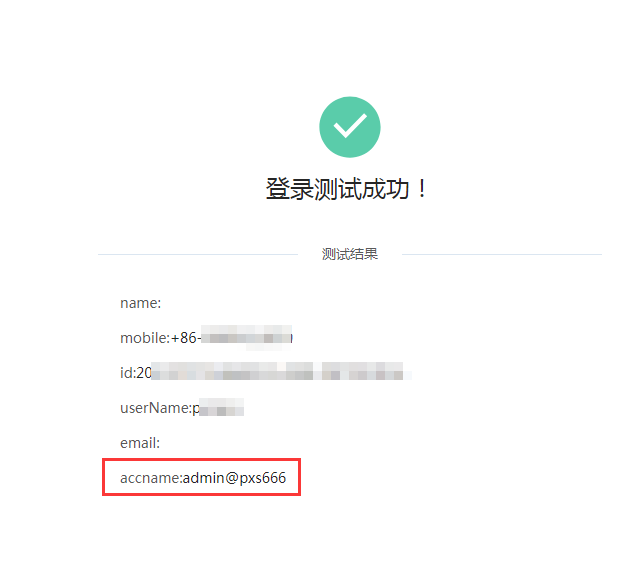
Parameter Description Application ID ClientId of the application in BambooCloud IDaaS Application Secret ClientSecret of the application in BambooCloud IDaaS Login Authorization URL https://{BambooCloudIDaaS-tenant-domain}.bccastle.com/api/v1/oauth2/authorize?client_id={CLIENTID}&redirect_uri=https://api.welink.huaweicloud.com/sso/oauth2/magcallback&scope=get_user_info&state={STATE}&response_type=codeGet Token URL https://{BambooCloudIDaaS-tenant-domain}.bccastle.com/api/v1/oauth2/tokenToken Input Parameters grant_type=authorization_code&code={CODE}&client_id={CLIENTID}&client_secret={SECRET}&redirect_uri={REDIRECT_URI}&state={STATE}Token Output Parameters access_tokenGet User Info URL https://{BambooCloudIDaaS-tenant-domain}.bccastle.com/api/v1/oauth2/get_user_infoHeaders Parameters Authorization=Bearer {access_token}User Output Parameters accnameClick the Test Now button. A bind user account dialog box will pop up. Click Next, and you will be redirected to the BambooCloud IDaaS authentication interface. Enter the authorized user's username and password, and the test result will be returned.
Save to take effect.
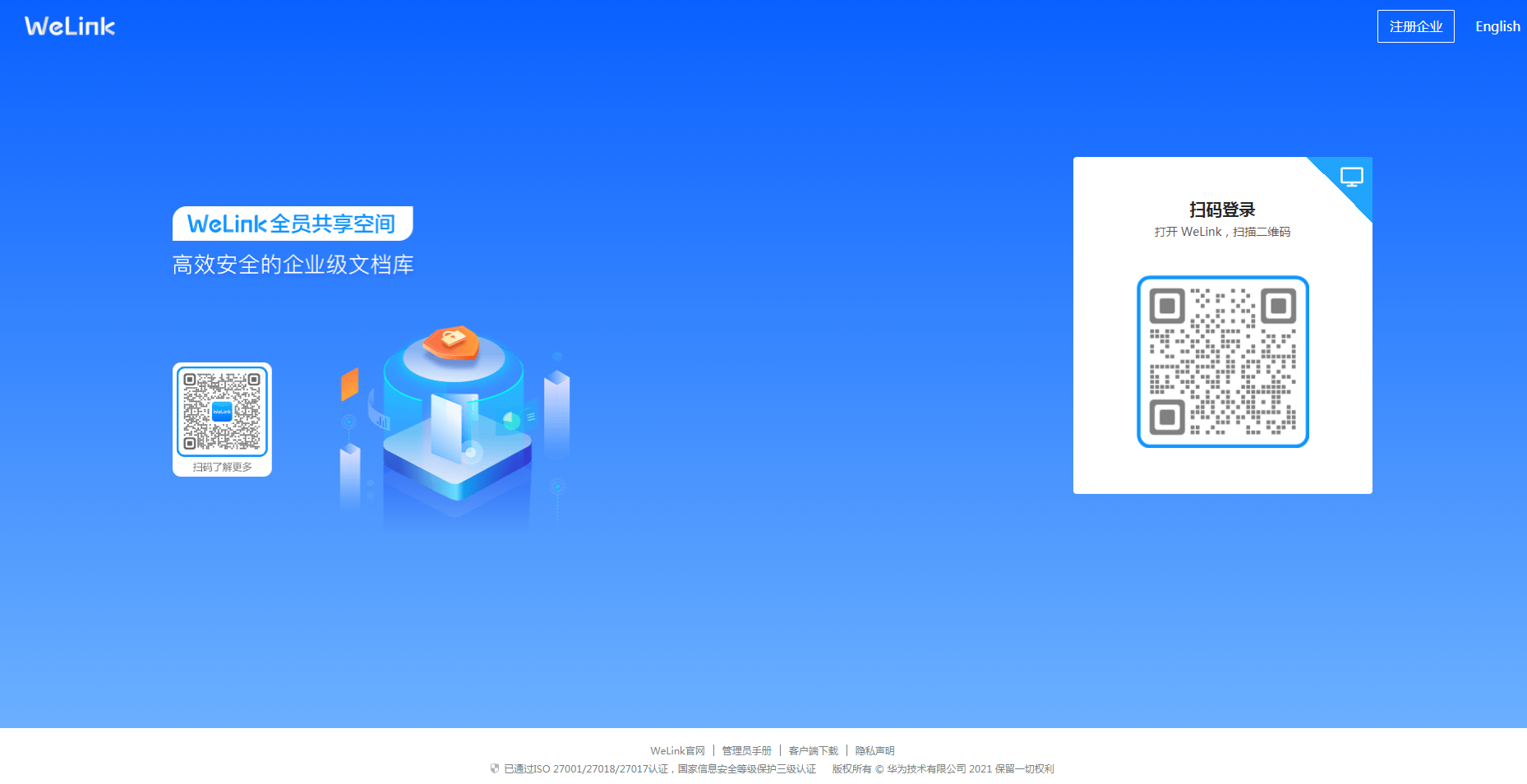
Login Verification
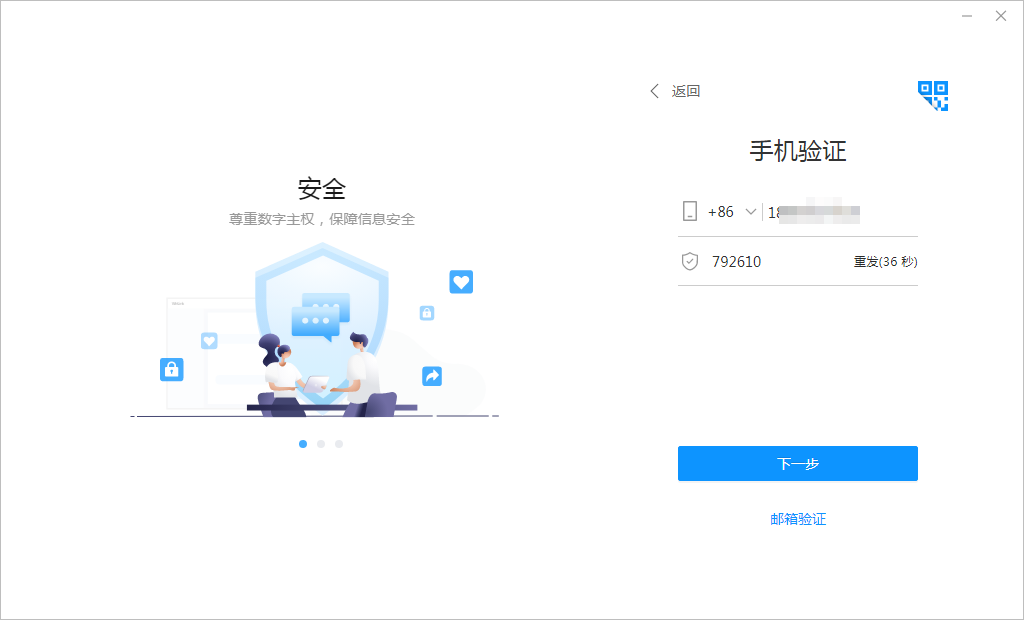
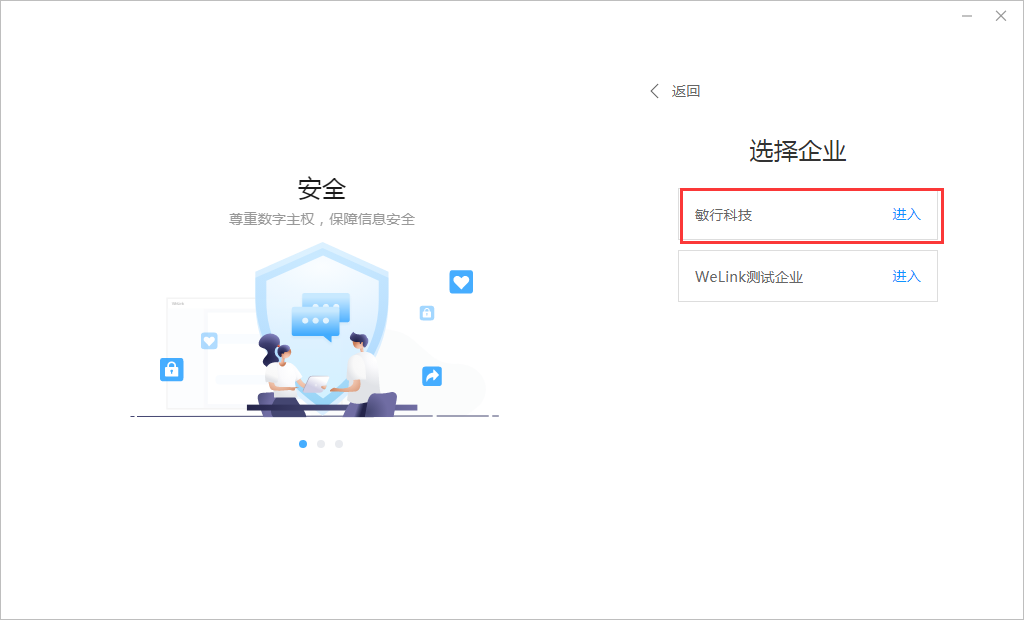
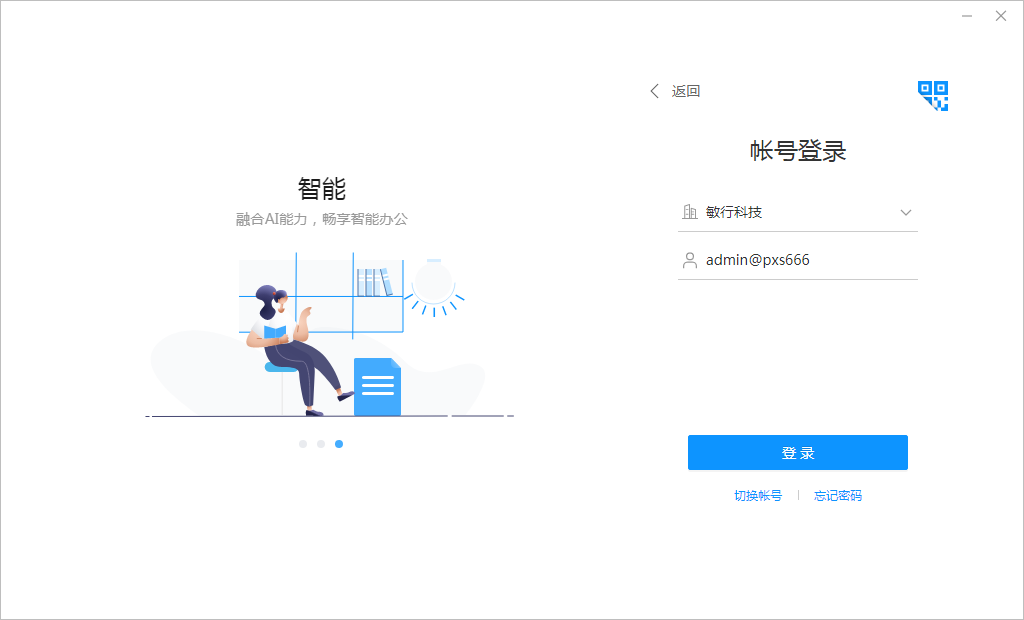
Taking the PC side as an example (the mobile side process is basically the same):