Redmine Single Sign-On
Overview
This article describes the single sign-on configuration process between Redmine 3.0 and above and BambooCloud IDaaS, achieving unified login for Redmine and single sign-on effects between application systems, providing users with a simpler and more convenient login method and a better user experience.
Authentication Configuration
Redmine Configuration
Install the plugin. This process takes the Linux environment as an example: Plugin address.
Download the plugin to the plugins directory.
shellgit clone https://github.com/chrodriguez/redmine_omniauth_saml.git shell
shellcd redmine_omniauth_saml/ bundle install # Run from the root directory of Redmine RAILS_ENV=production bundle exec rake redmine:pluginsEdit authentication parameters and add the saml.rb file to the
<redmine_folder>/config/initializersdirectory.There is a sample file
sample-saml-initializers.rbin the plugin folder.A sample file content is shown below:
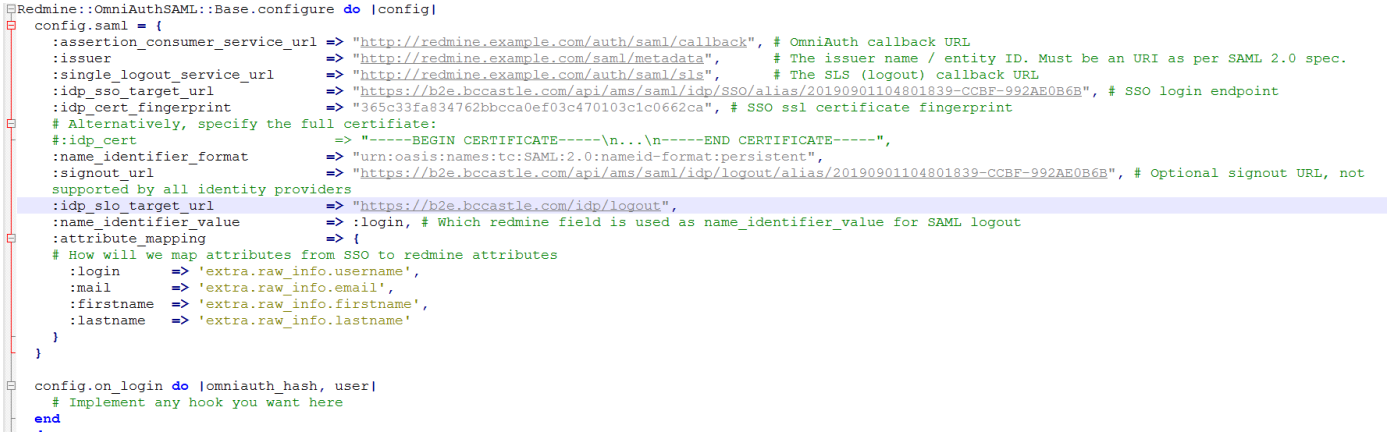
Parameter Parameter Description assertion_consumer_service_url Redmine actual address issuer Redmine actual address single_logout_service_url Redmine logout address idp_sso_target_url BambooCloud IDaaS login address idp_cert_fingerprint Certificate fingerprint name_identifier_format Fixed format: urn:oasis:names:tc:SAML:2.0:nameid-format:persistentidp_slo_target_url BambooCloud IDaaS logout address name_identifier_value Fixed value: login attribute_mapping BambooCloud IDaaS and Redmine attribute mapping relationship:
:login => 'extra.raw_info.username'
:mail => 'extra.raw_info.email'
:firstname => 'extra.raw_info.firstname'
:lastname => 'extra.raw_info.lastname' |
To download BambooCloud IDaaS IDP metadata, visit https://{your_domain}/api/v1/saml2/idp/metadata.
TIP
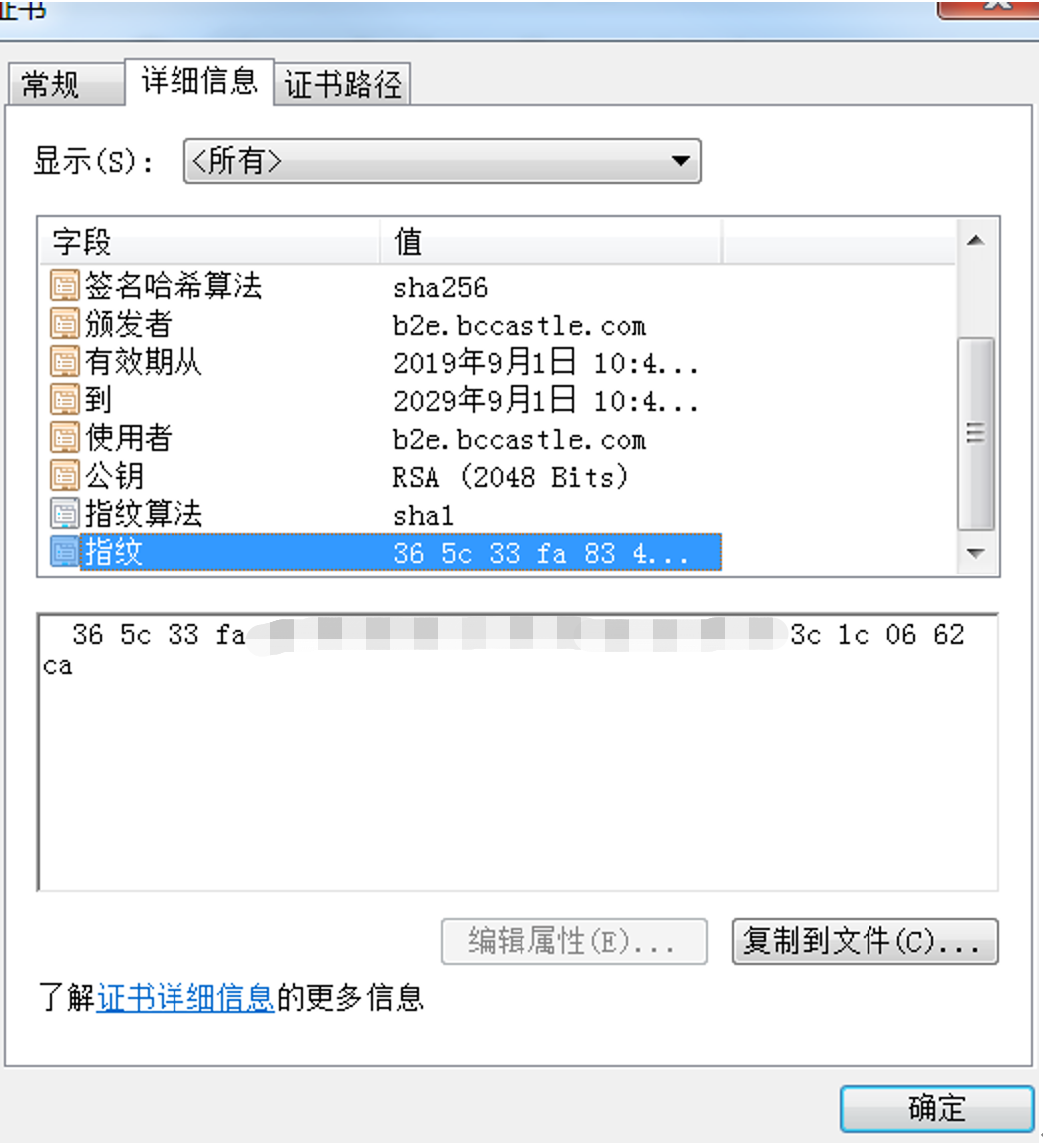
How to obtain the IDP certificate fingerprint (choose one):
Copy the IDP certificate content from BambooCloud IDaaS Enterprise Center - Settings > Service Configuration > IDP Configuration, save it as an
idp.cerfile, and view the certificate file.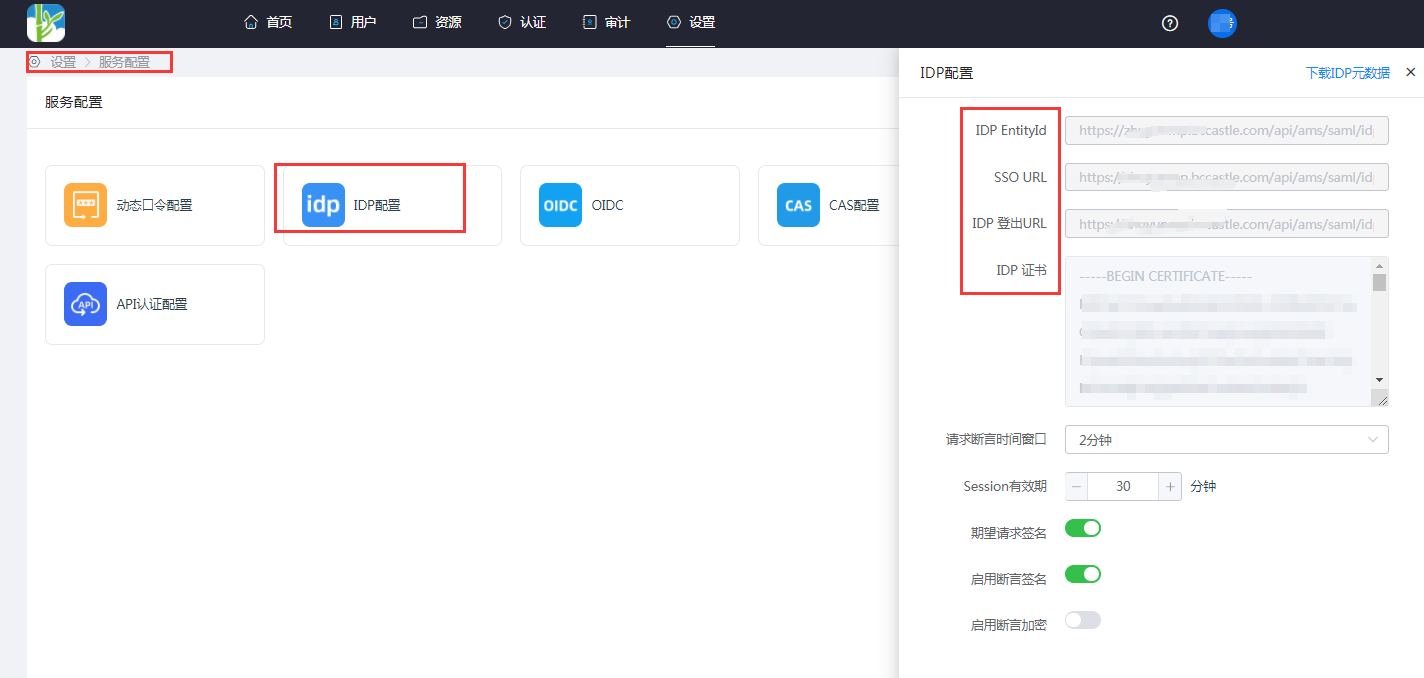
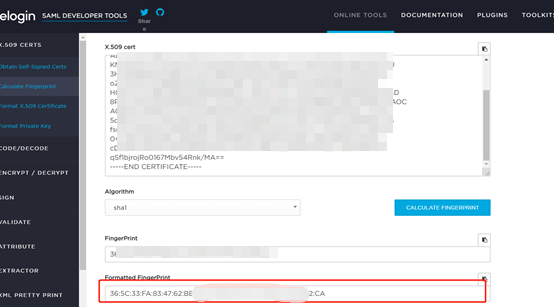
Copy the certificate content and calculate the certificate fingerprint through the online tool.
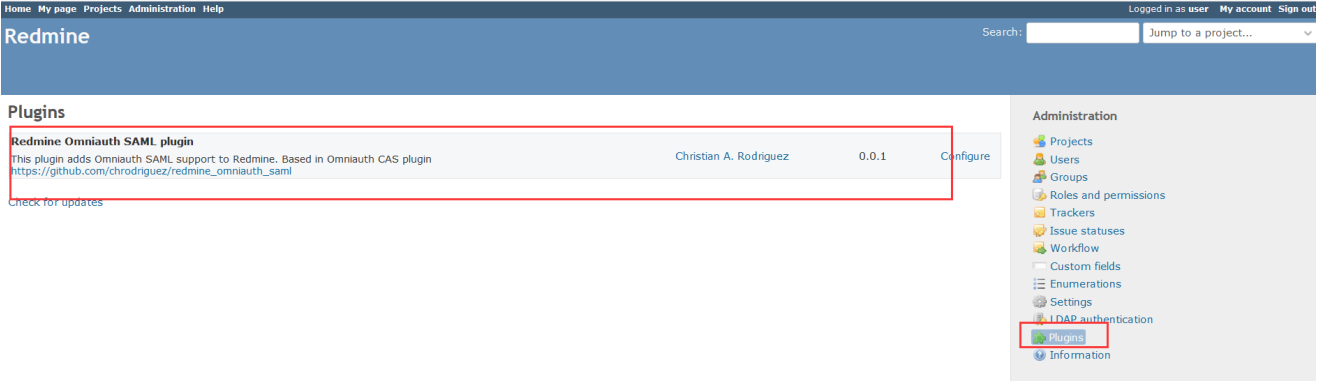
Restart Redmine.
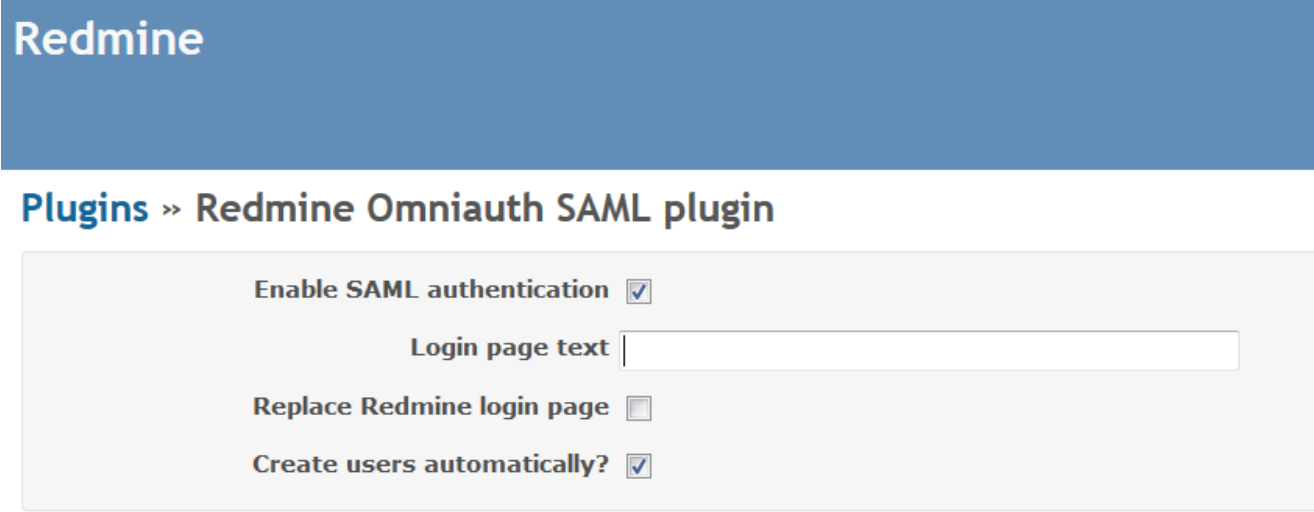
Log in to the Redmine management console to configure the login page display content.
Click Configre to configure the login page display content.
BambooCloud IDaaS Configuration
Add the pre-integrated application Redmine.
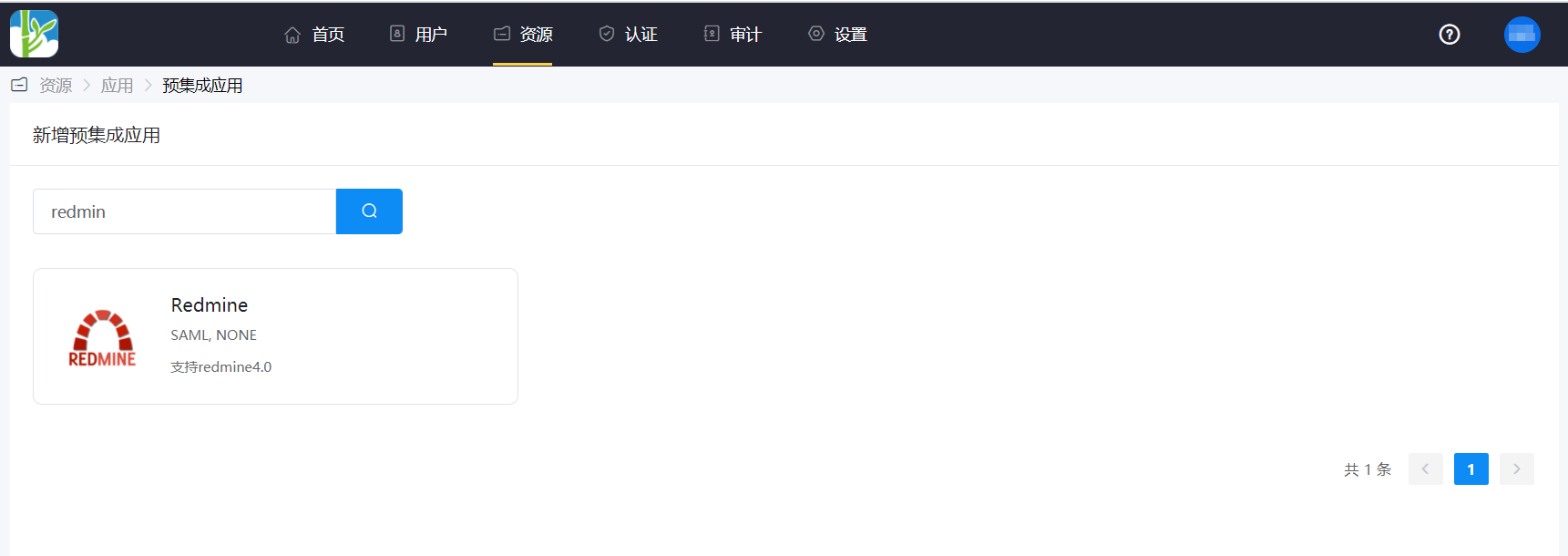
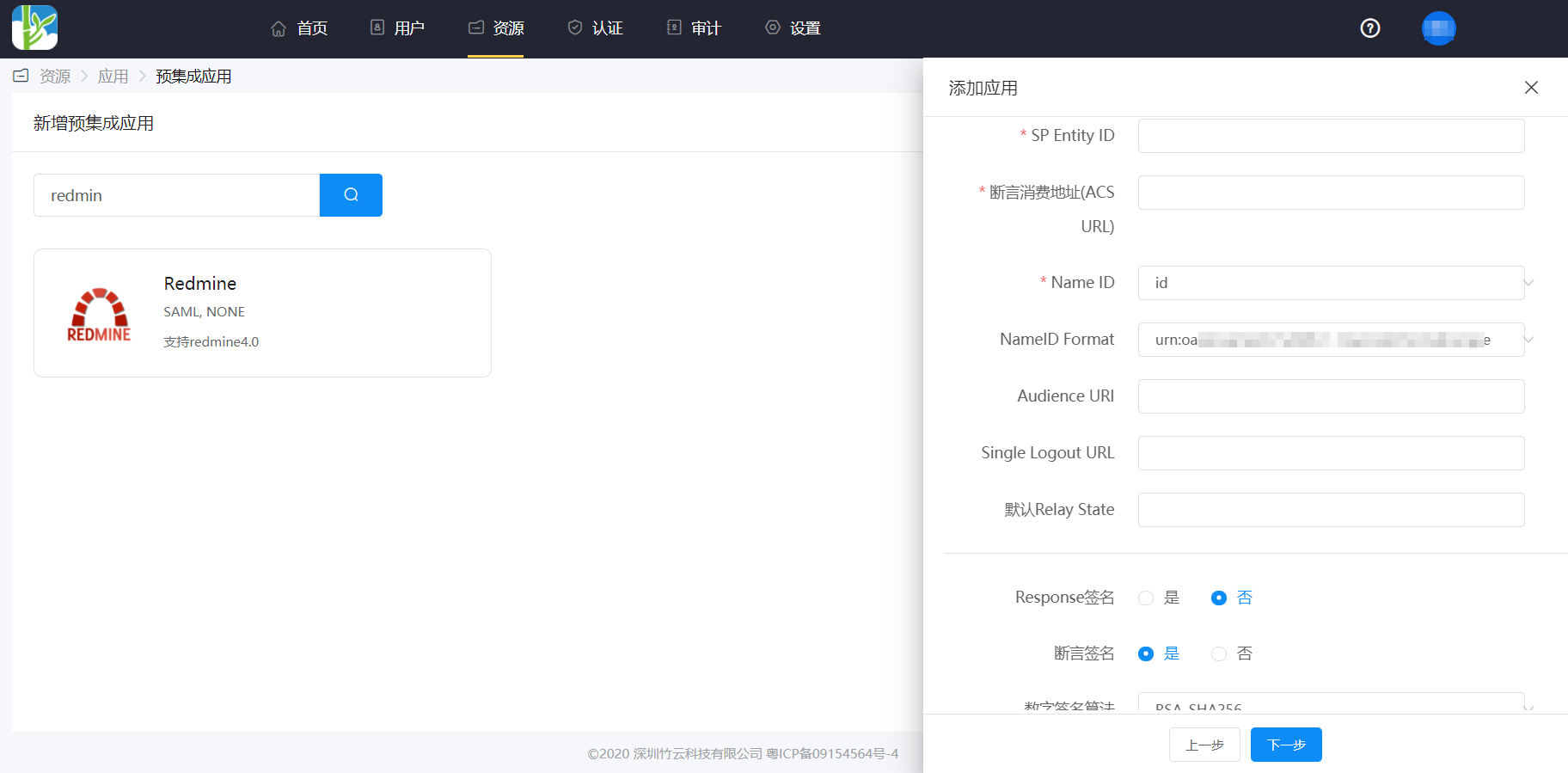
Authentication parameter configuration.
Parameter Description SP Entity ID The issuerparameter in thesaml.rbfileAssertion Consumer Service URL (ACS URL) The assertion_consumer_service_urlparameter in thesaml.rbfileName ID Application Account NameID Format The name_identifier_formatin thesaml.rbfileAudience URI The issuerparameter in thesaml.rbfileIn the application details, Authentication Configuration > Mapping Configuration, add
firstname,lastname,email, andusernameattributes.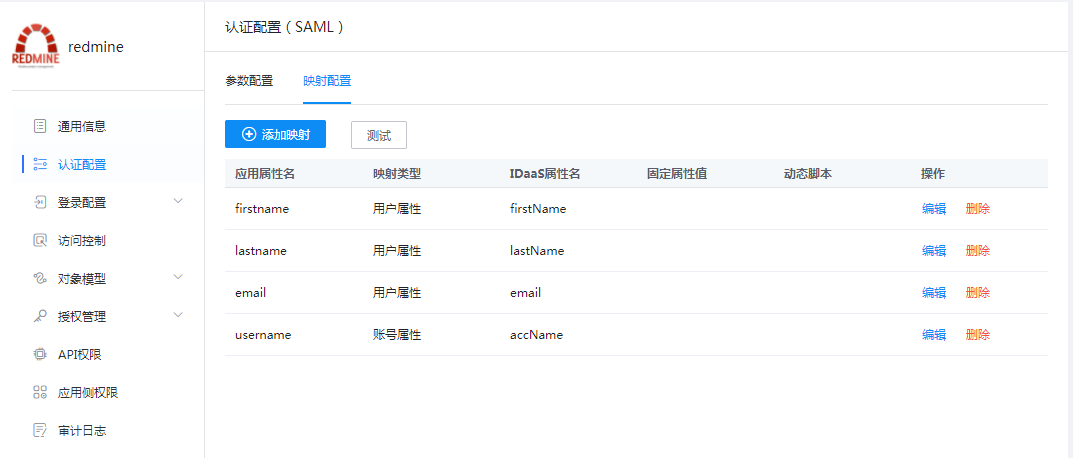
Enter the application details, Authorization Management > Application Account, click the Add Account button, and select the authorized user.
Login Verification
Two login methods are as follows:
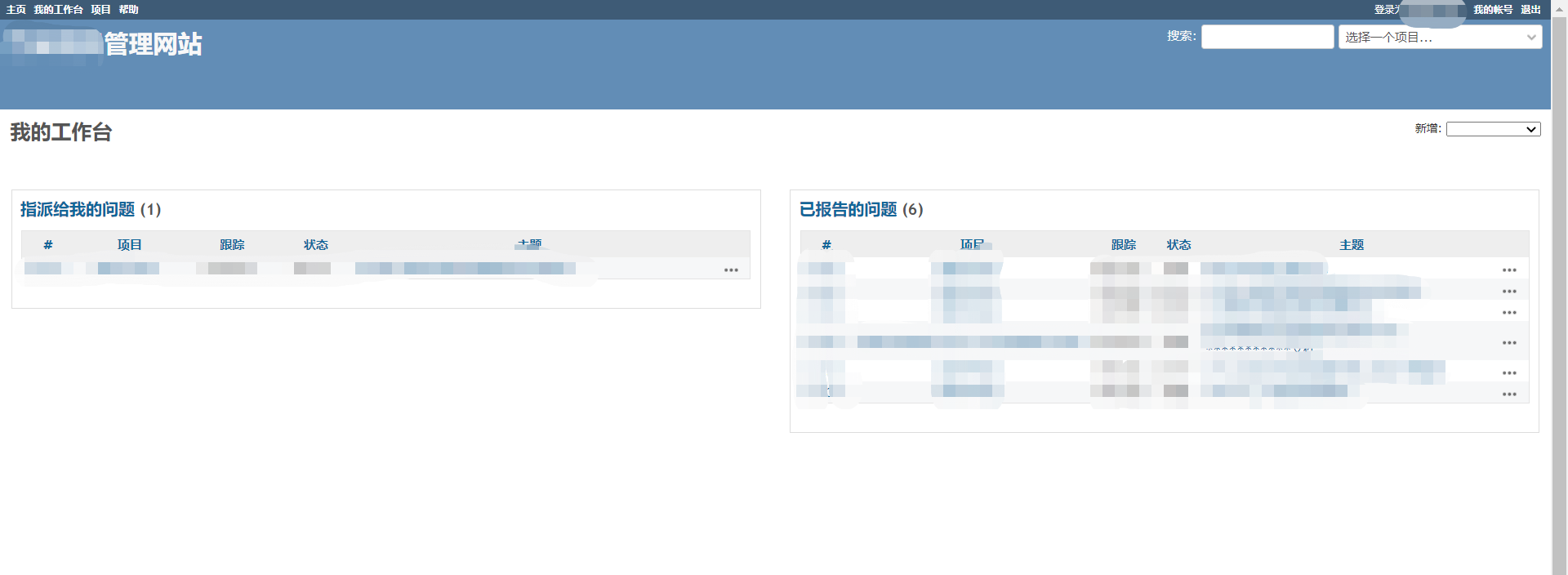
Initiate authentication from the Redmine login page.
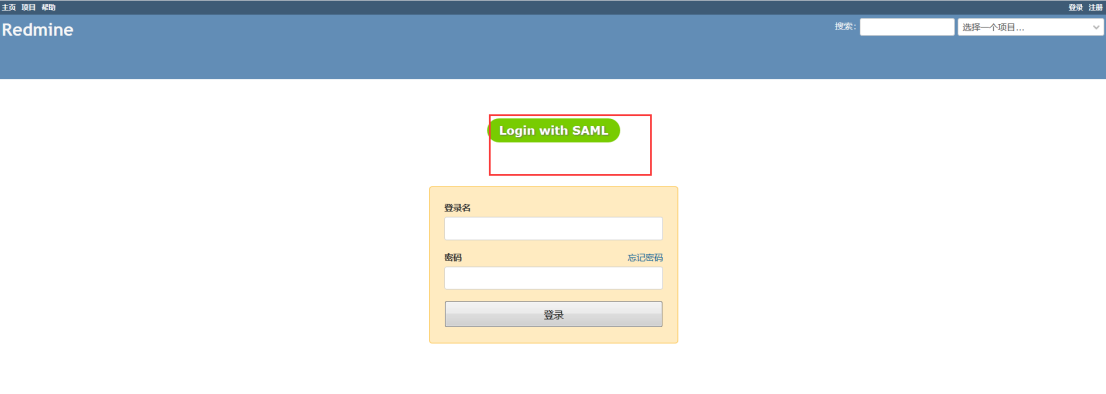
Click the application logo in the BambooCloud IDaaS User Center to single sign-on into Redmine.