AAD International Version Auth Source
Overview
This article describes how BambooCloud IDaaS uses the SAML protocol to configure Azure Active Directory International Version as a standard authentication source.
Authentication Source Configuration
Add SP Application in Azure Active Directory
Log in to Azure Active Directory as an administrator.
Create an application.
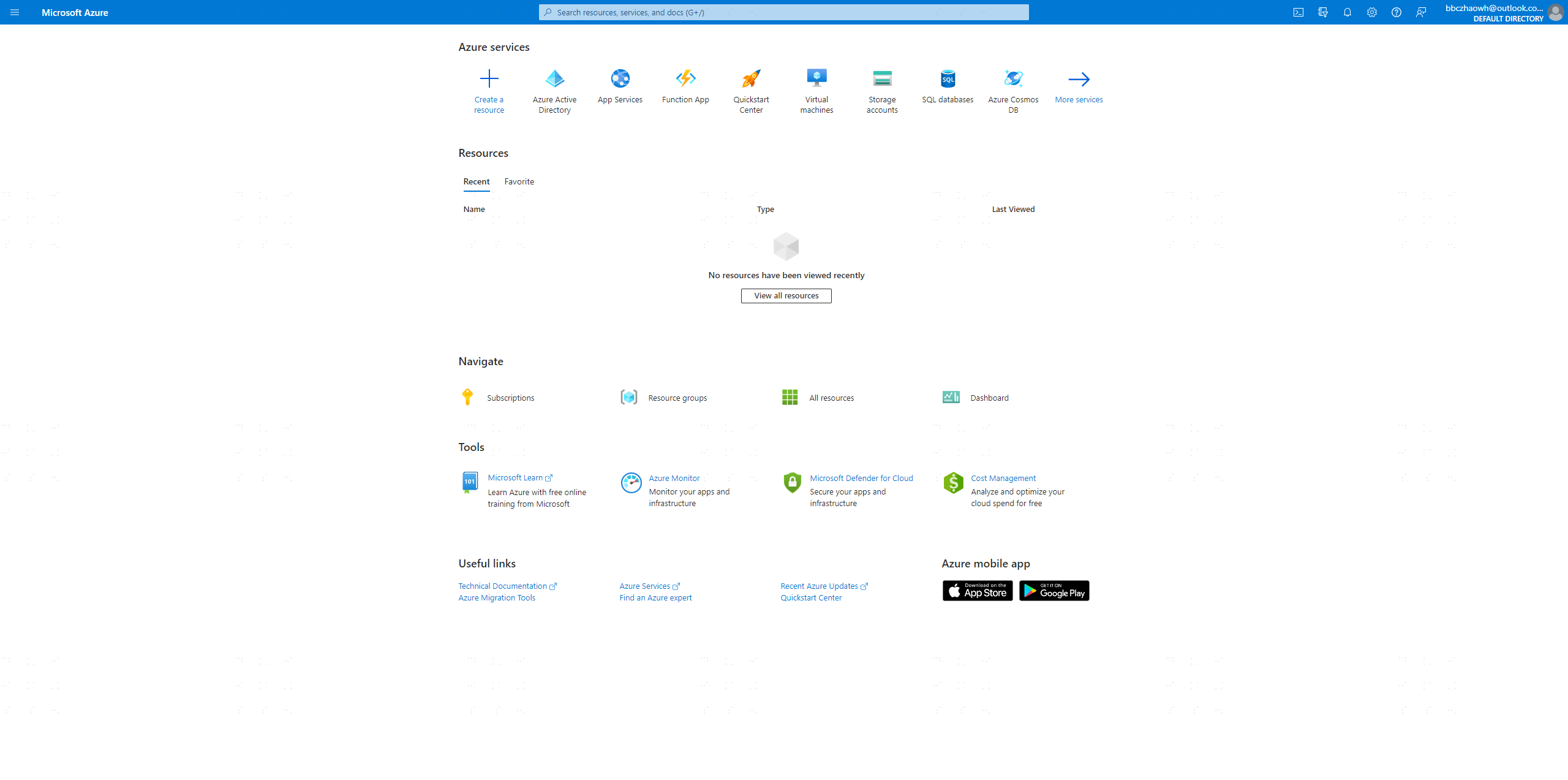
- Click the Azure Active Directory icon to enter the AAD configuration page.
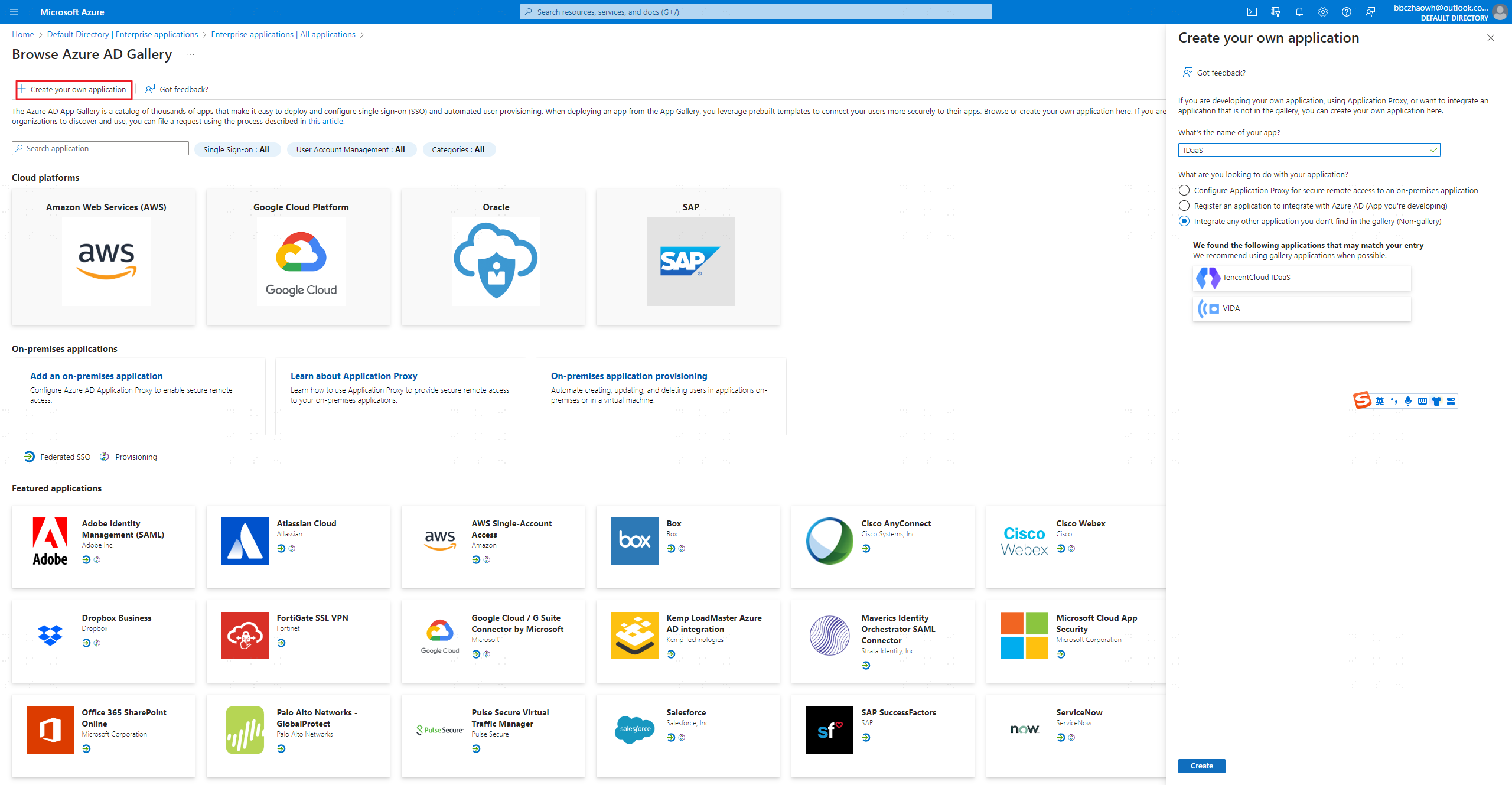
- Click the Enterprise applications menu -> New application -> Create your own application.
- Fill in the application name and create the application.
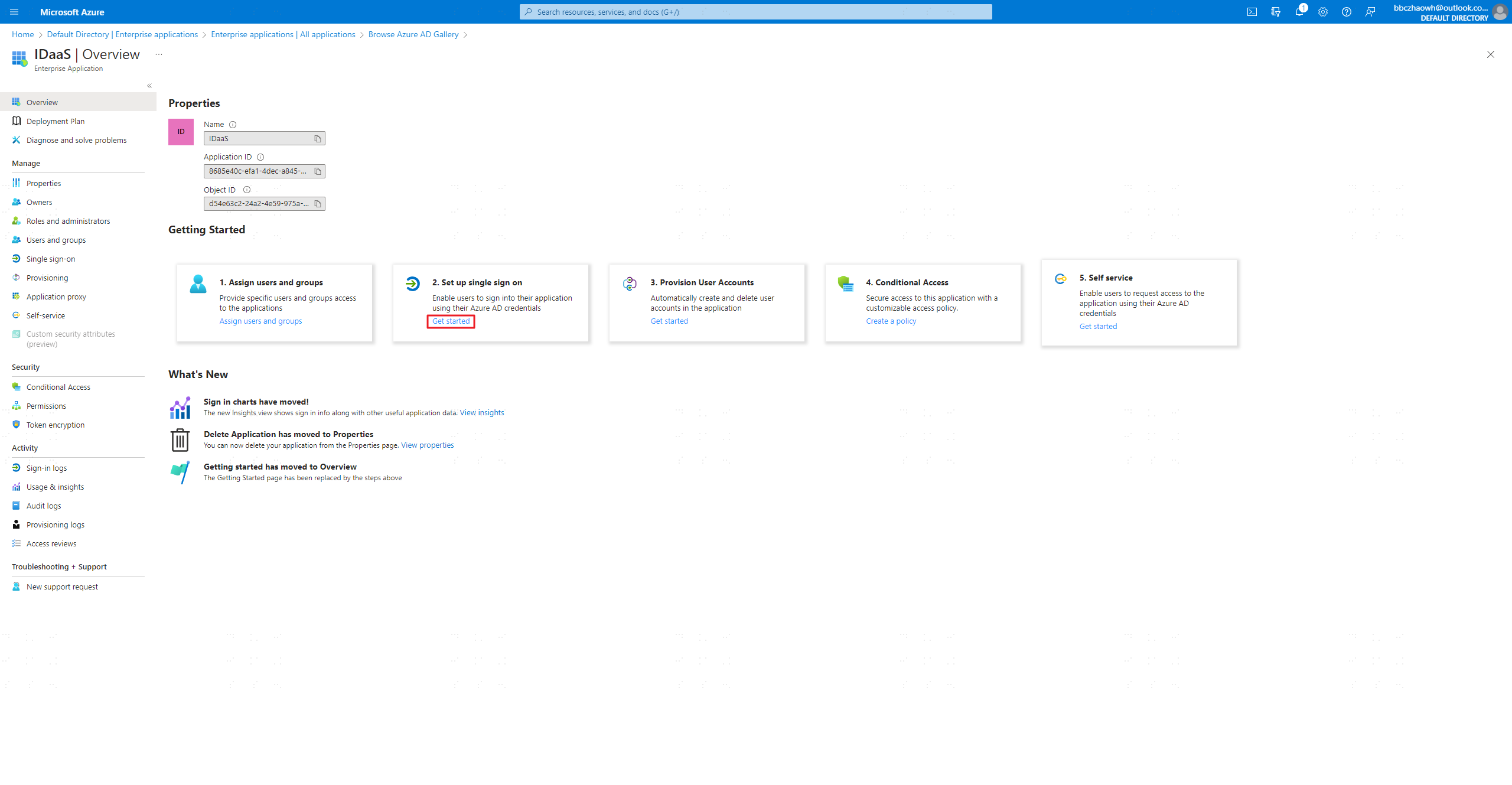
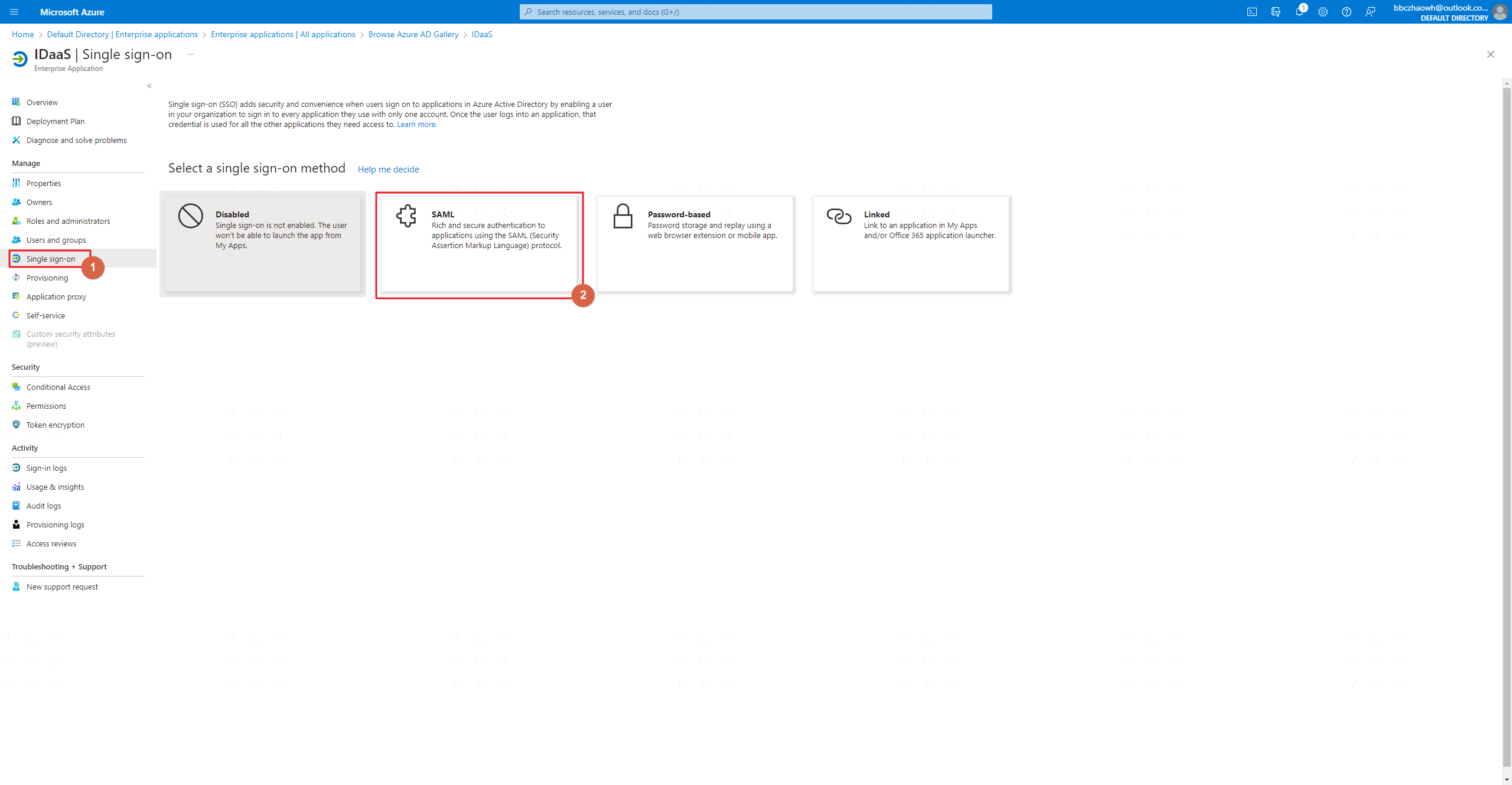
- Click Set up single sign on.
- Select SAML as the authentication protocol.
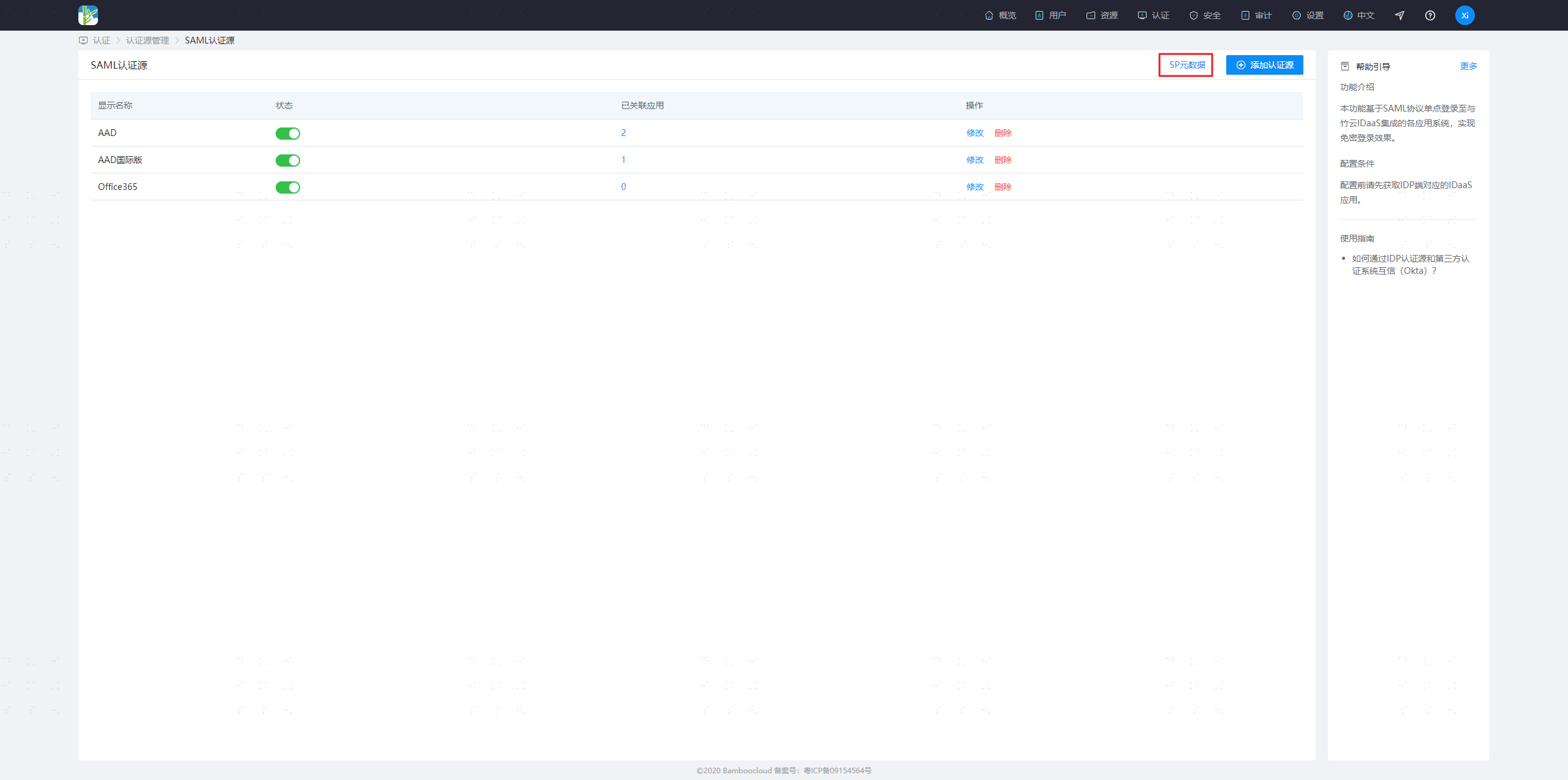
- Log in to the BambooCloud IDaaS management platform, choose Authentication > Authentication Source Management > SAML Auth Source > SP Metadata, and download the SP metadata.
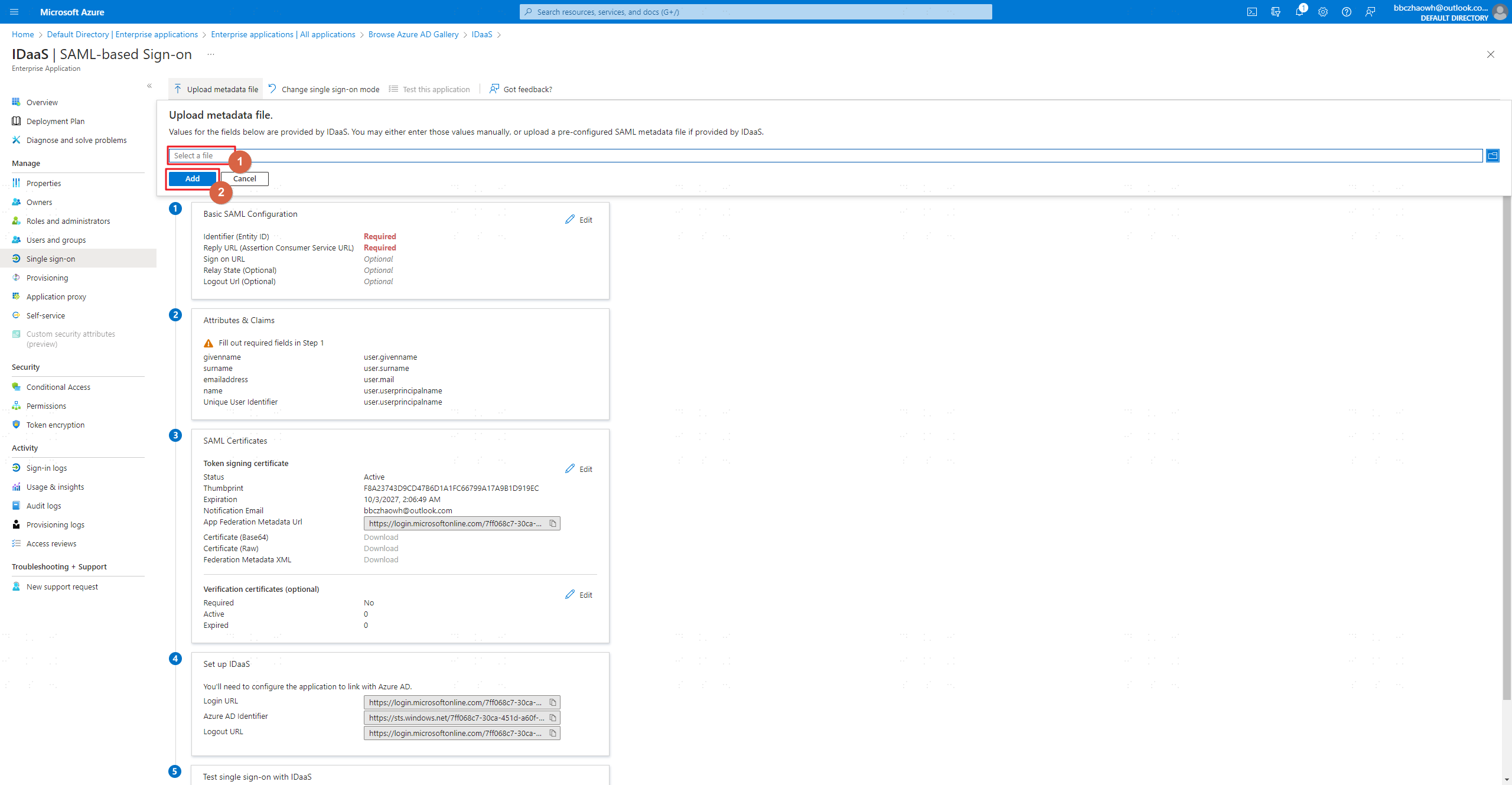
- Click Upload metadata file to upload the SP metadata file obtained from BambooCloud IDaaS.
- Edit Attributes & Claims -> Required claim.
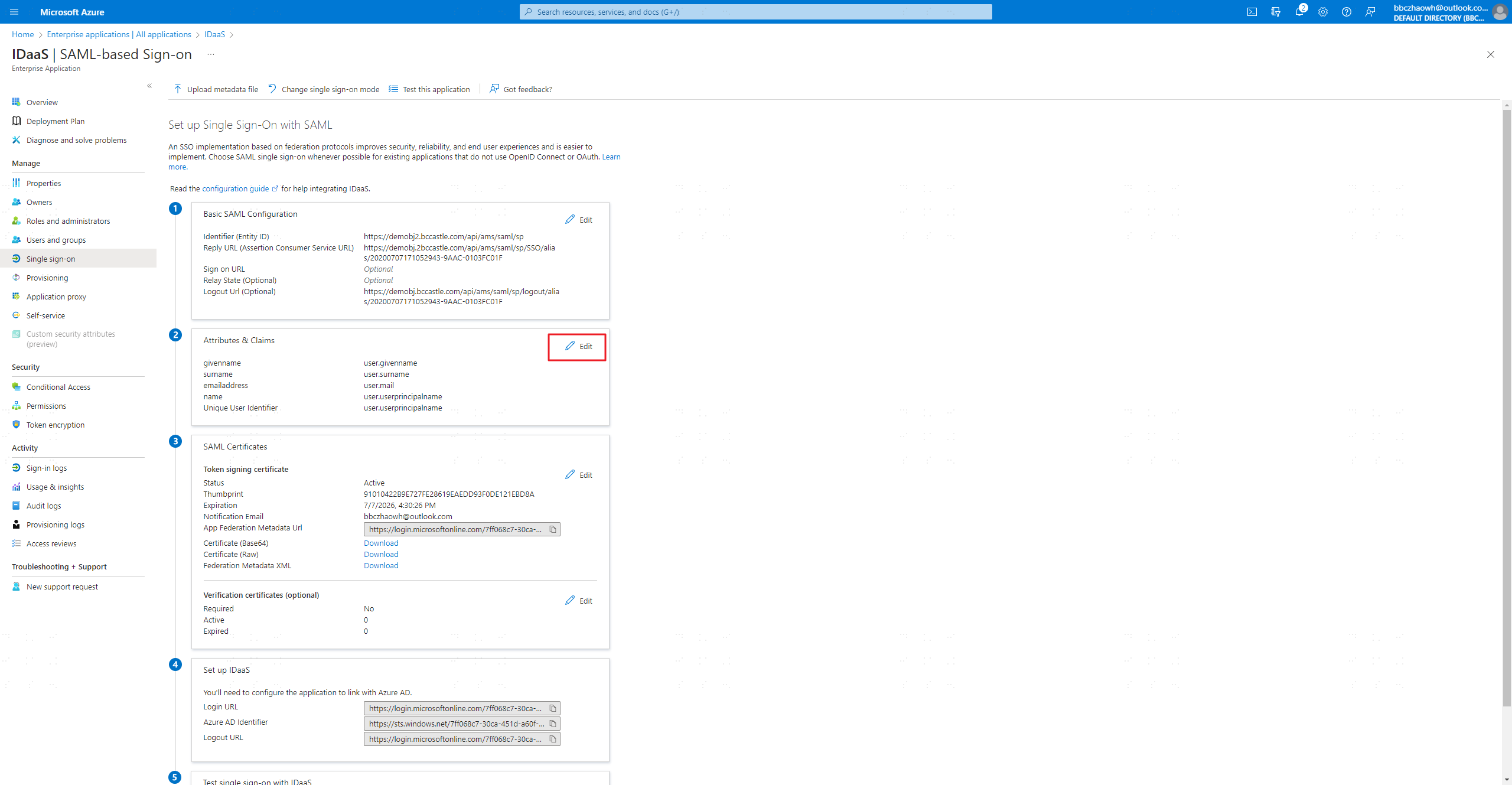
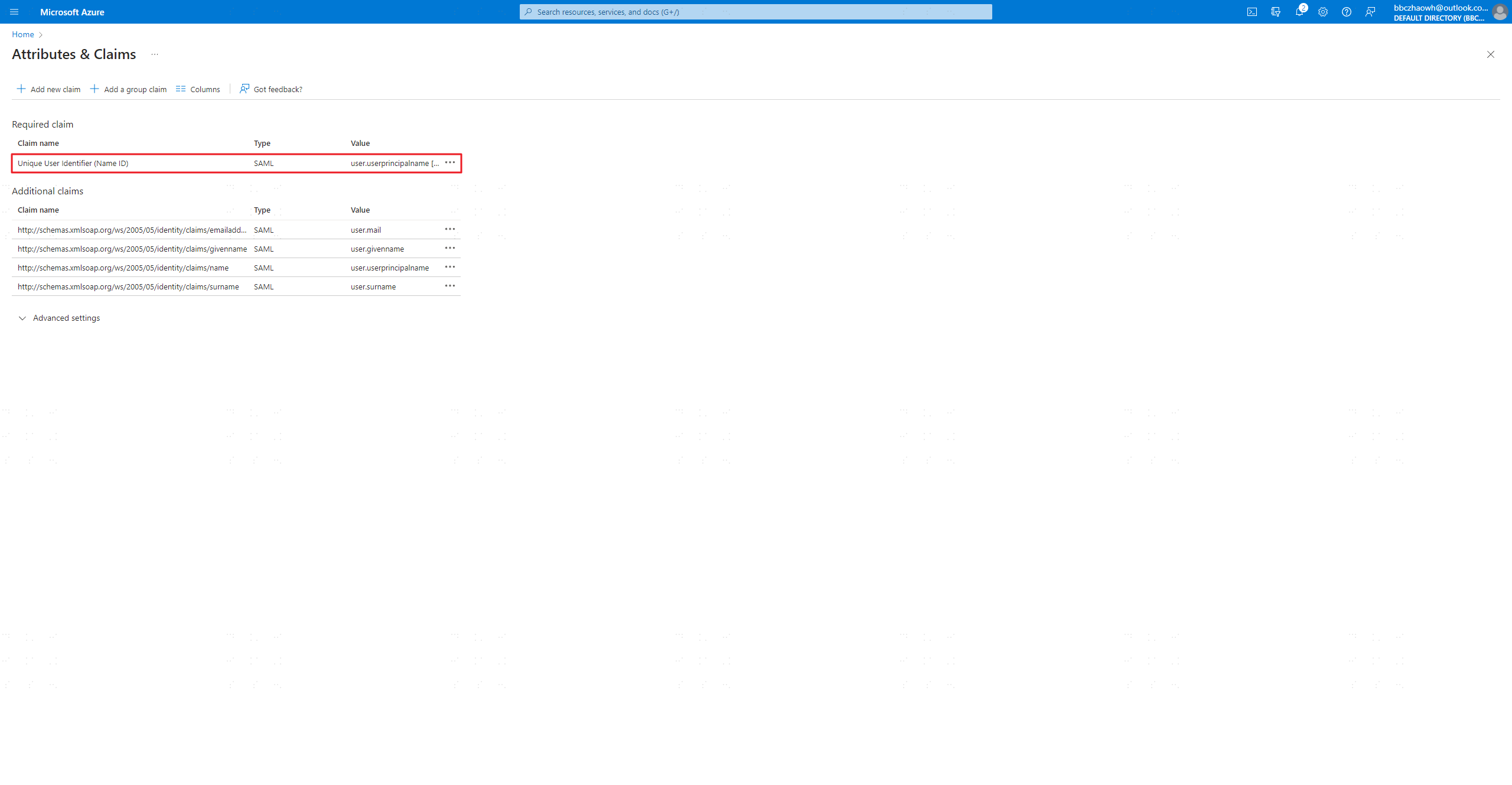
- Modify Unique User Identifier (Name ID) to: user.mail.
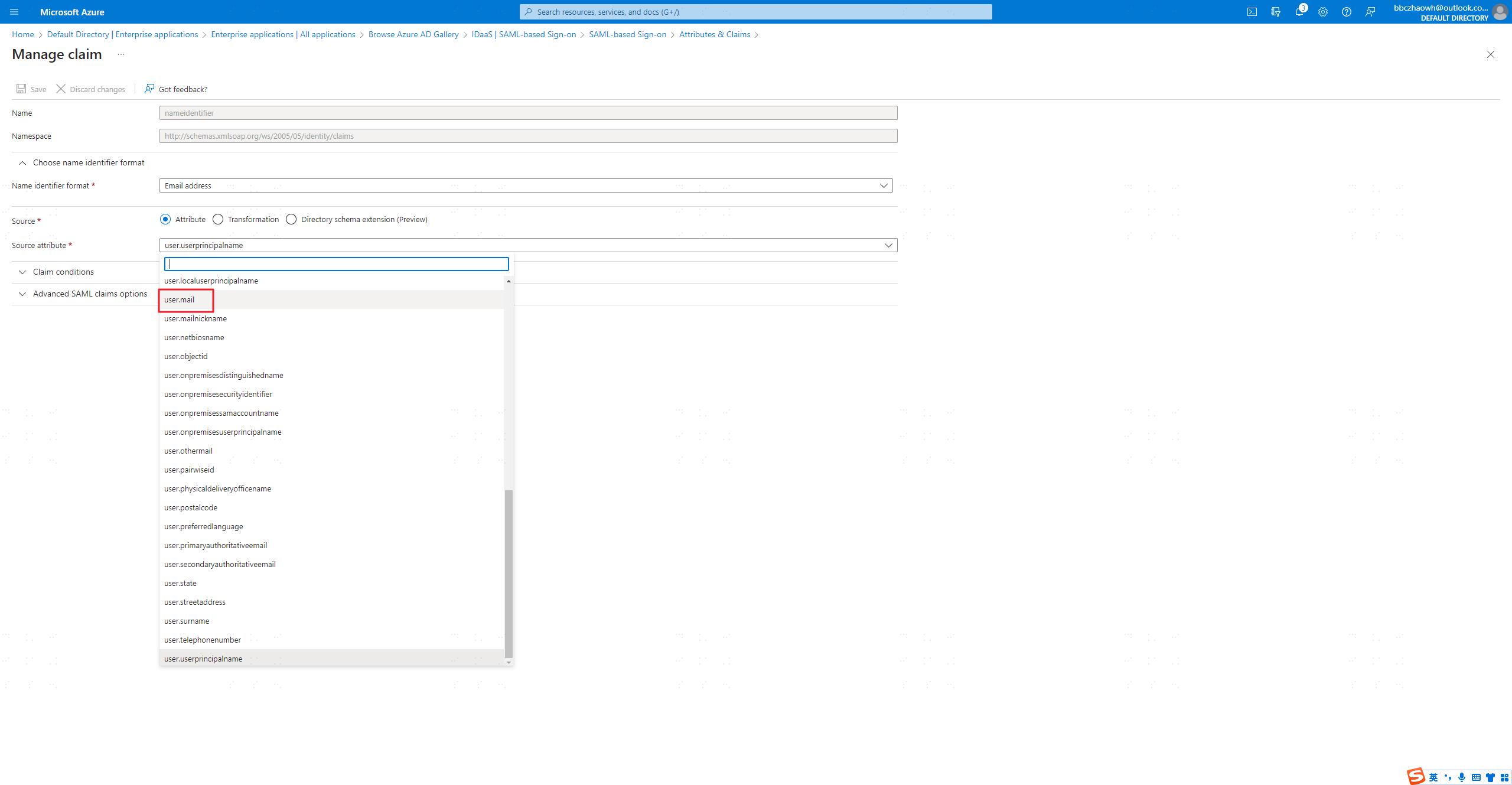
- Click the Azure Active Directory icon to enter the AAD configuration page.
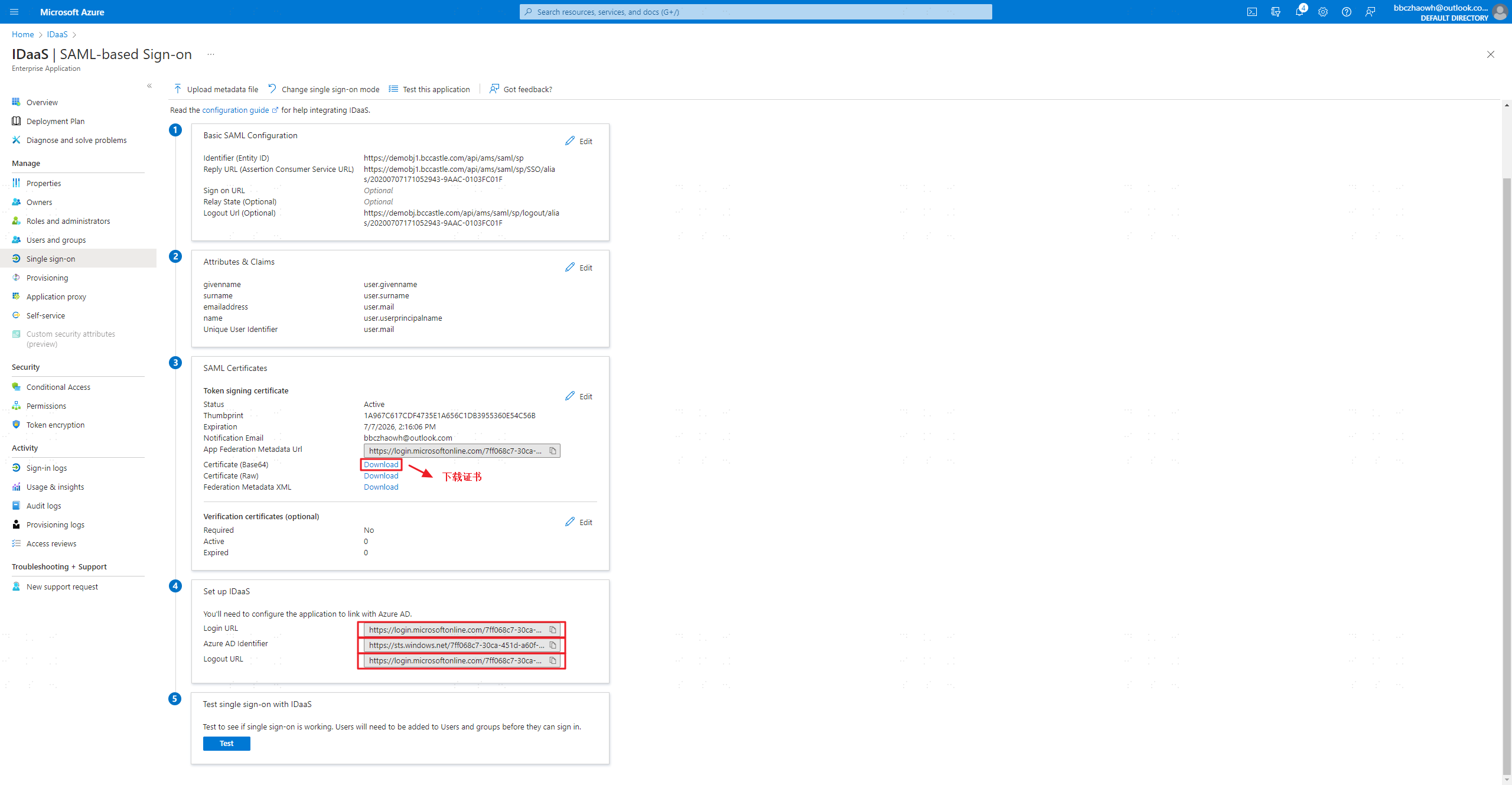
Download the certificate file and copy the authentication source parameters to a local file.
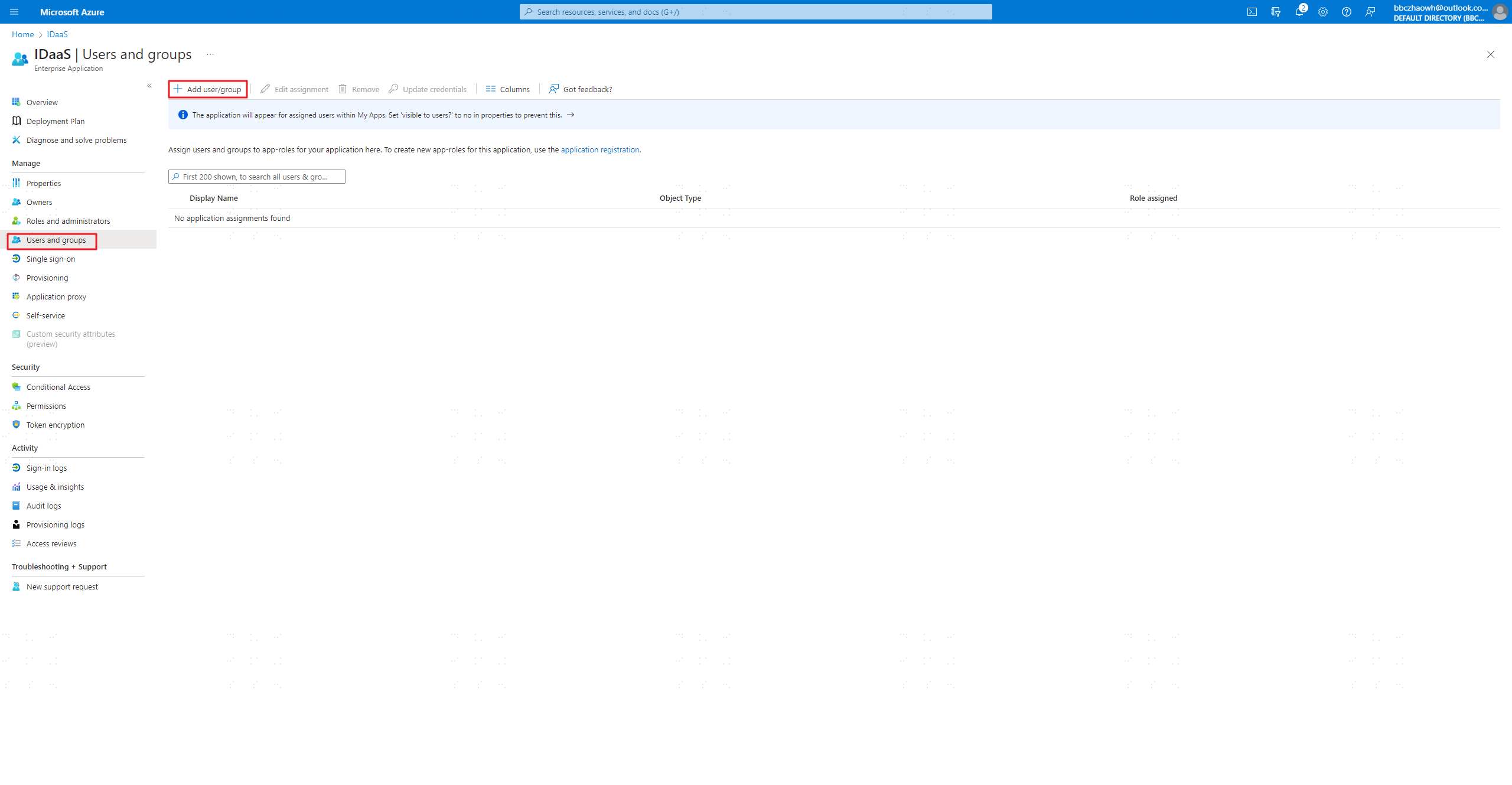
Authorize users or user groups who can log in to BambooCloud IDaaS through AAD.
Configure SAML Authentication Source in BambooCloud IDaaS
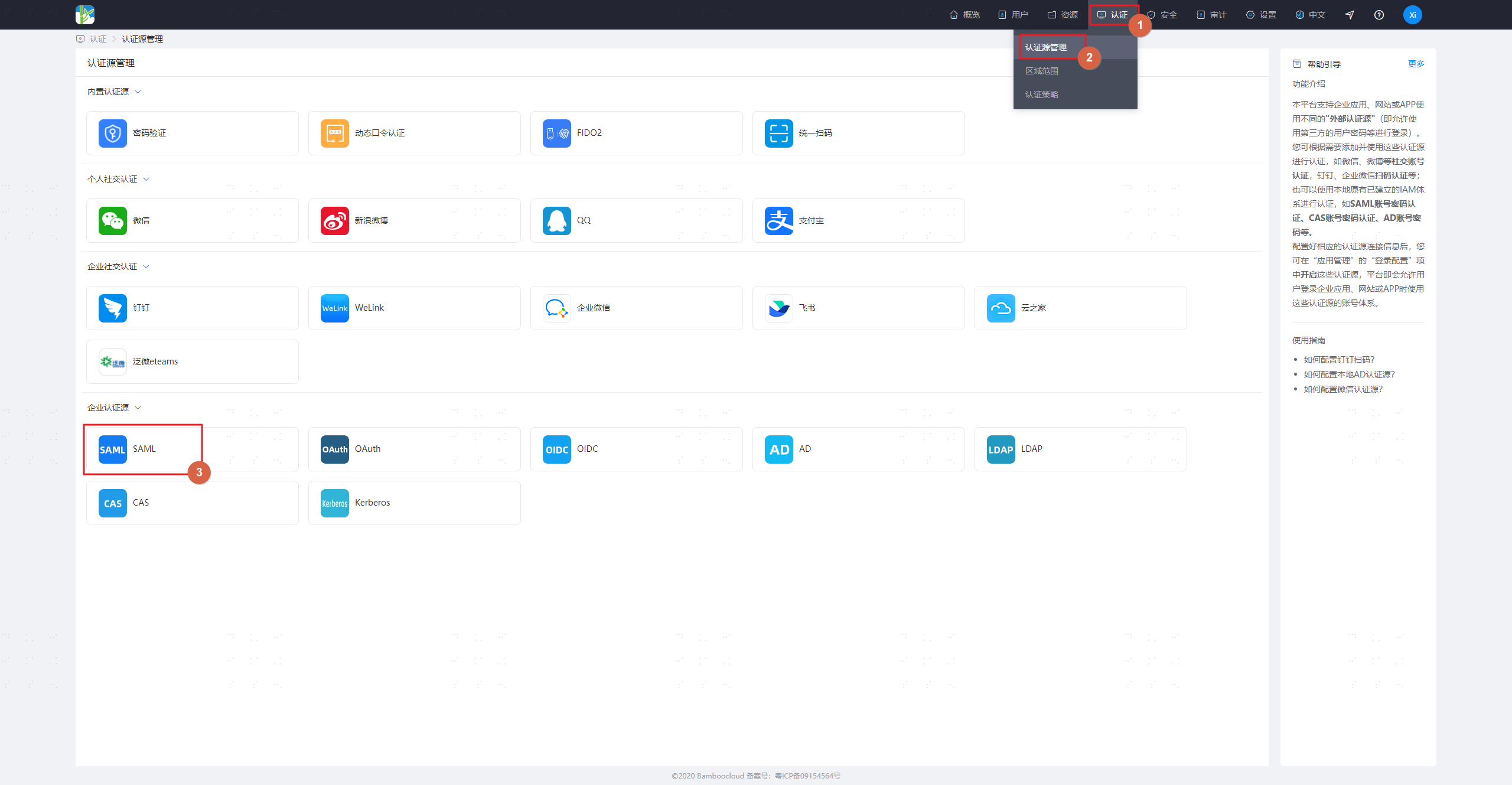
Log in to the BambooCloud IDaaS management platform, choose Authentication > Authentication Source Management > SAML Auth Source > Add Authentication Source.
Configure authentication source parameters.
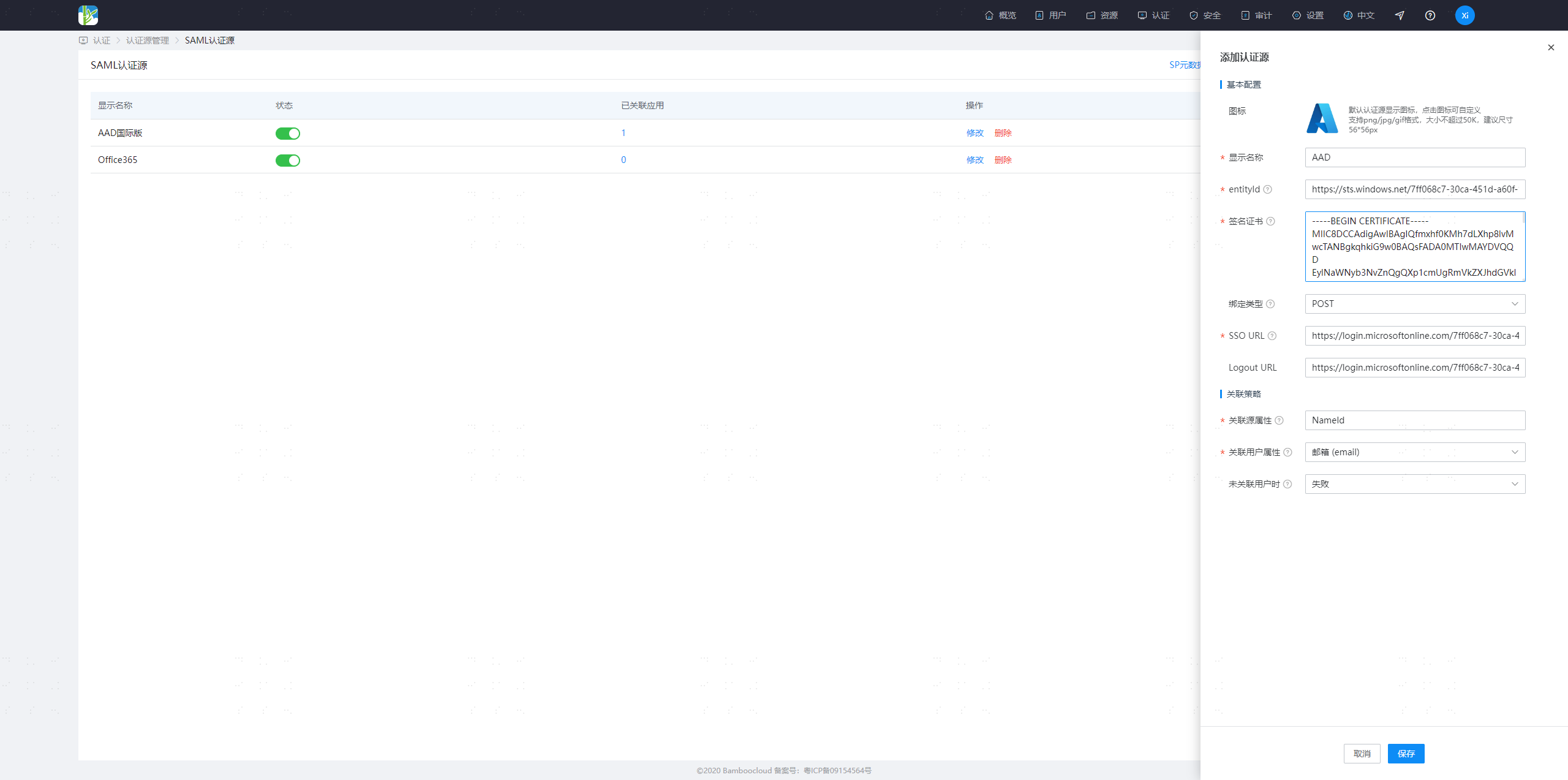
Parameter Description entityId Azure AD Identifier address in AAD Signing Certificate The certificate downloaded above (Certificate (Base64)), open it with Notepad and copy the content SSO URL Login URL address in AAD Logout URL In AAD Association Source Attribute Use default value: NameId Association User Attribute Select Email When User Is Not Associated Whether to automatically create a BambooCloud IDaaS user if not associated. Default is No. Enable the authentication source for the application.
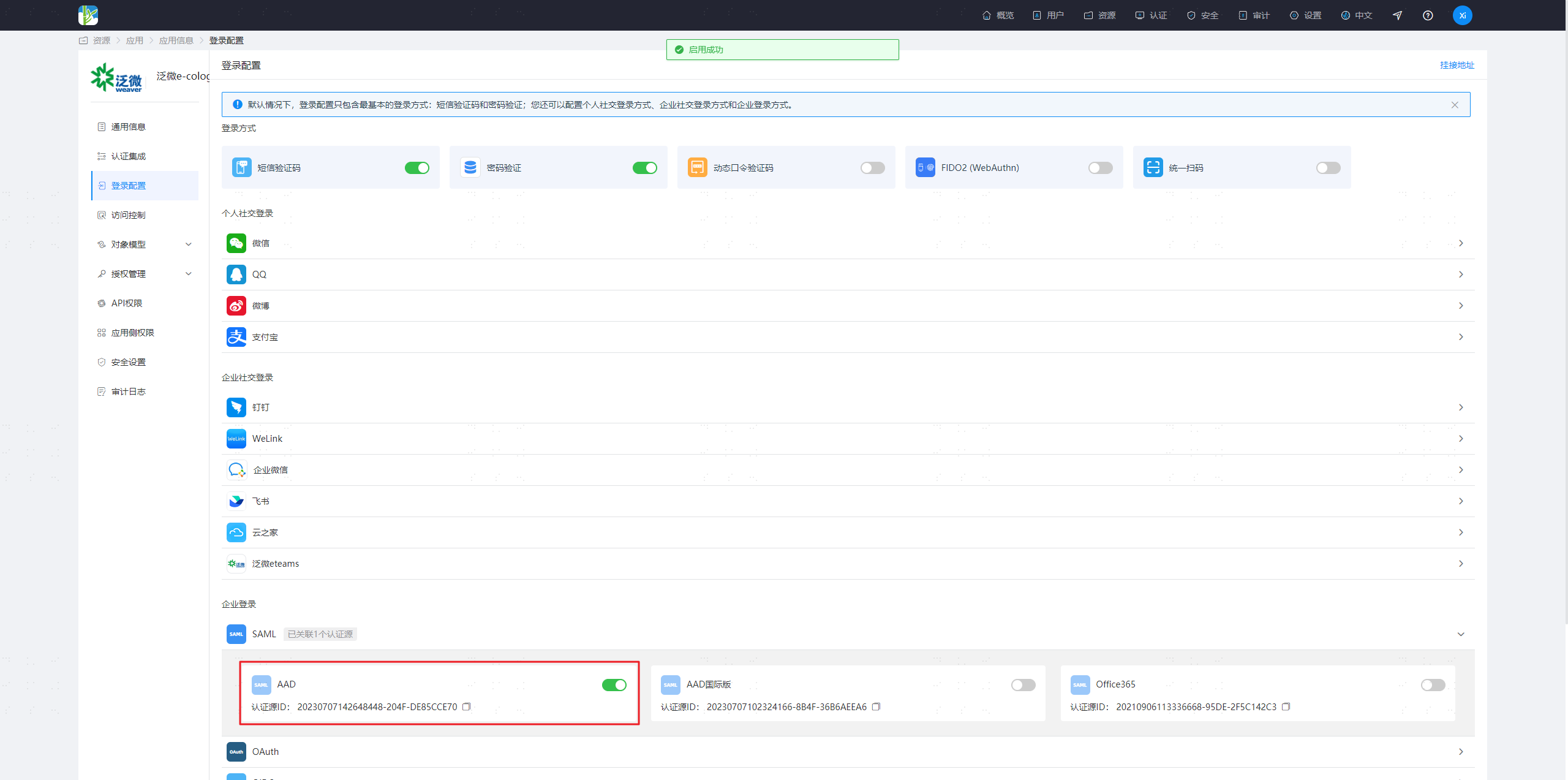
- Select Resources > Applications, choose the application that needs to enable the AAD authentication source -> Authentication Integration -> Configure -> Login Configuration -> SAML.
- Enable the AAD authentication source.
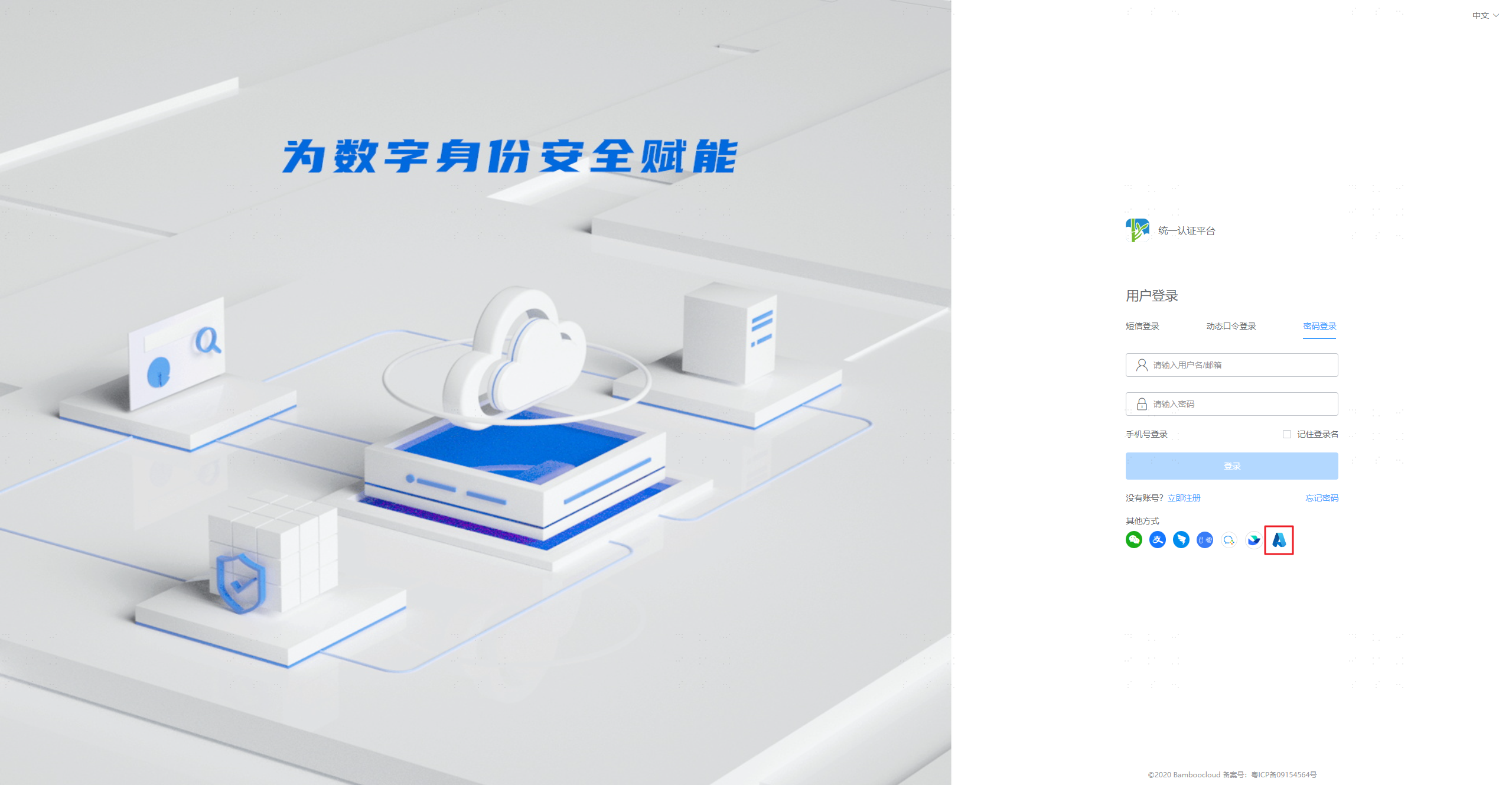
Login Verification
- Access the application system address and select AAD among other login methods.
- Enter the AAD account and password to log in.