
JIRA & Confluence Single Sign-On
Overview
This article describes how JIRA or Confluence 7.0 and above versions use the built-in SSO 2.0 configuration to achieve single sign-on with BambooCloud IDaaS.
Authentication Configuration
Obtain BambooCloud IDaaS IDP Service Configuration
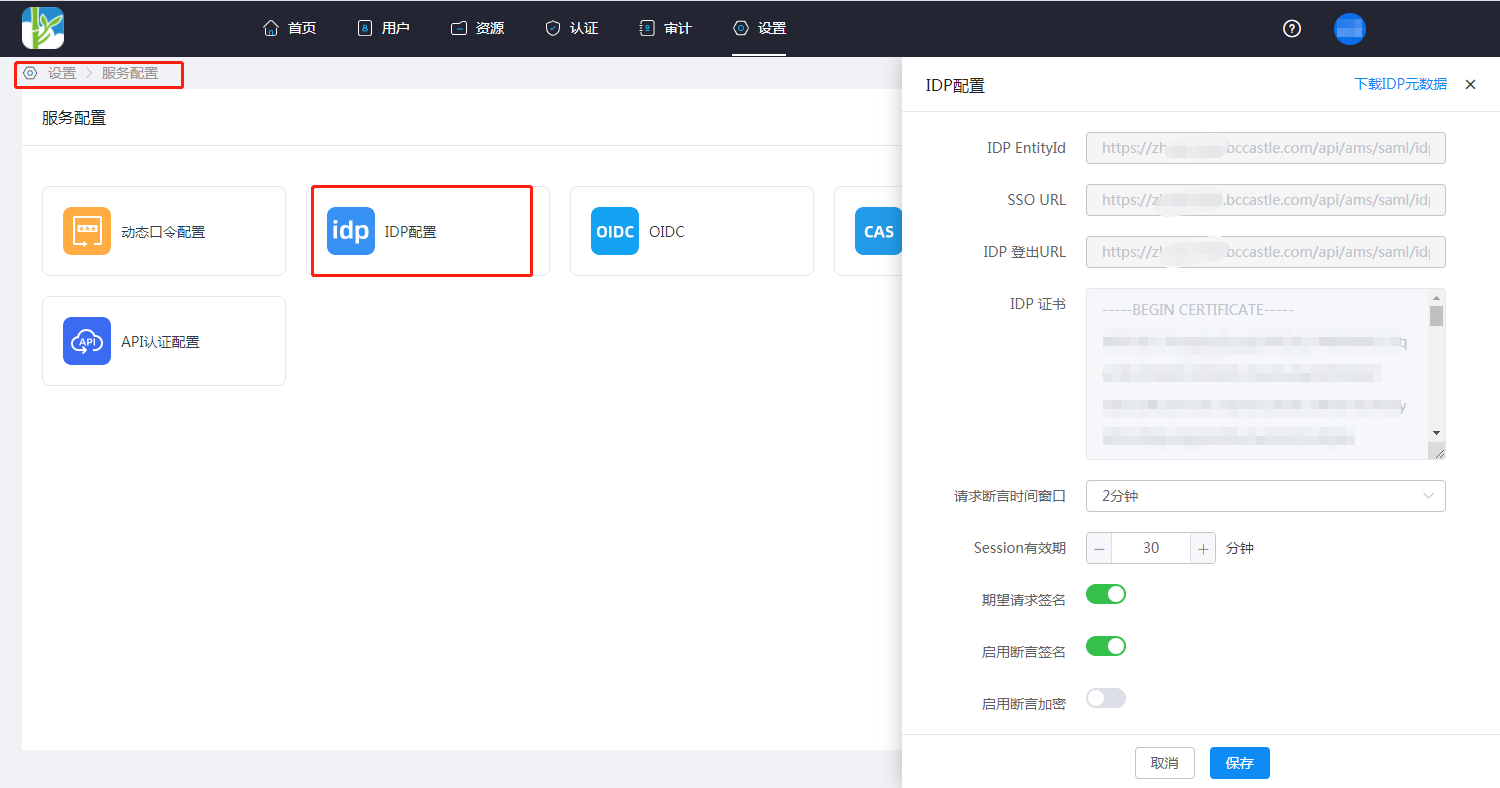
- Log in to the BambooCloud IDaaS Enterprise Center as an administrator, and go to Settings > Service Configuration > IDP Configuration.
IDP EntityId: Single Sign-On Issuer
SSO URL: Identity Provider Single Sign-On URL
IDP Certificate: X.509 Certificate
Confluence SSO Configuration
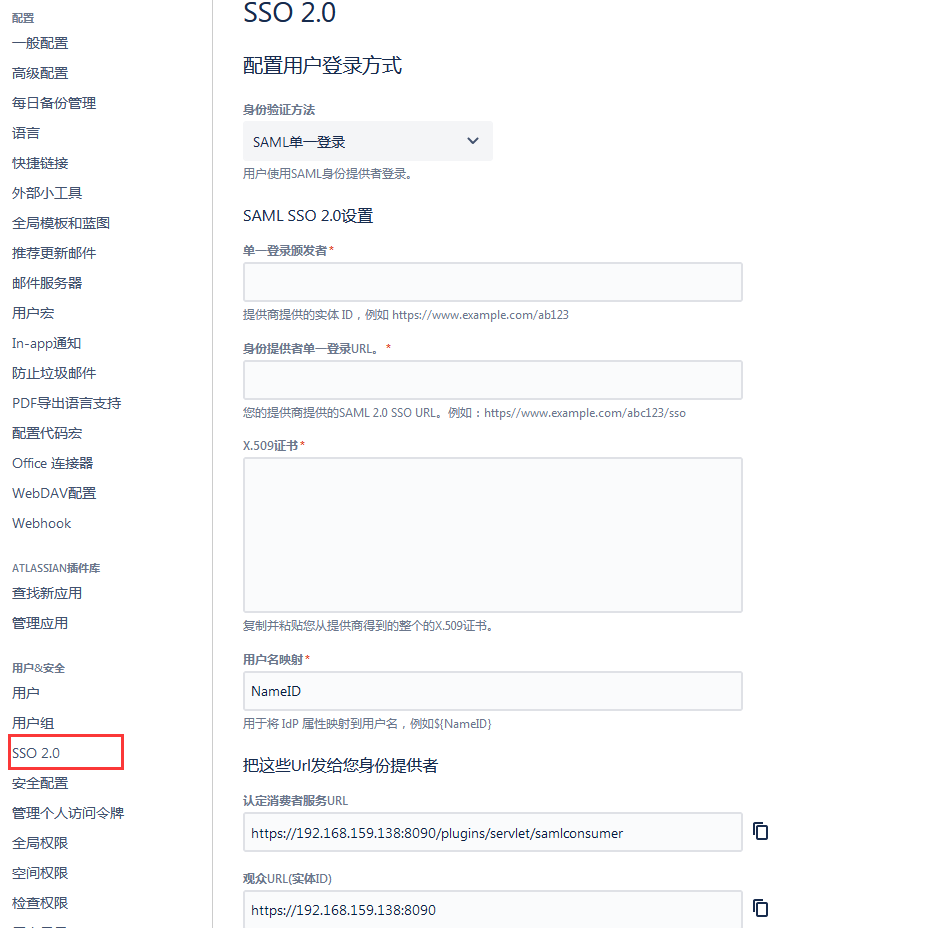
Log in to the site management interface as an administrator and select SSO 2.0.
Configure the user login method, and select SAML Single Sign-On as the authentication method.
Jira SSO Configuration
Log in to the site as an administrator, click Settings --> System --> Authentication Method.
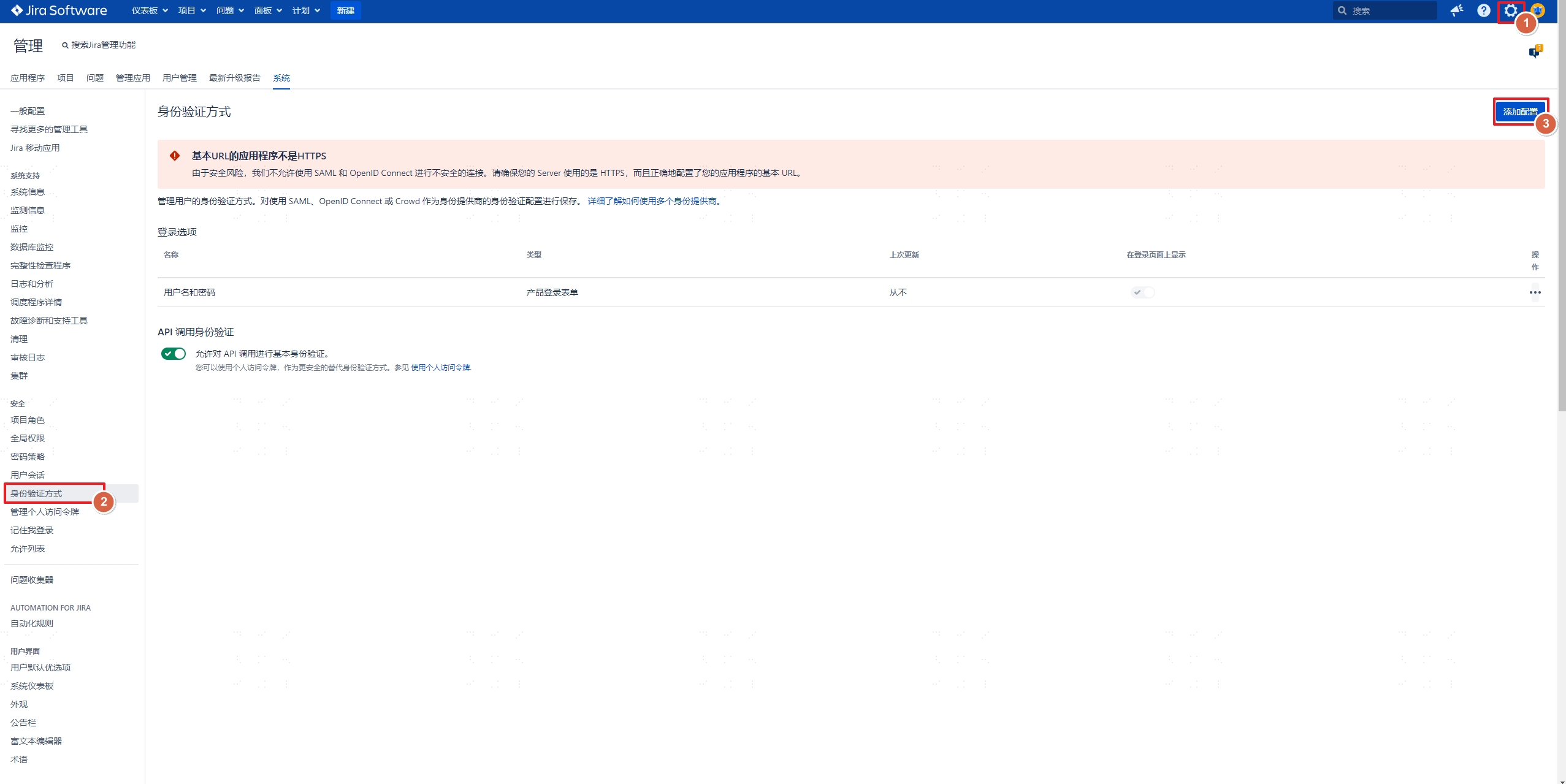
Click Add Configuration, and select SAML Single Sign-On as the authentication method.
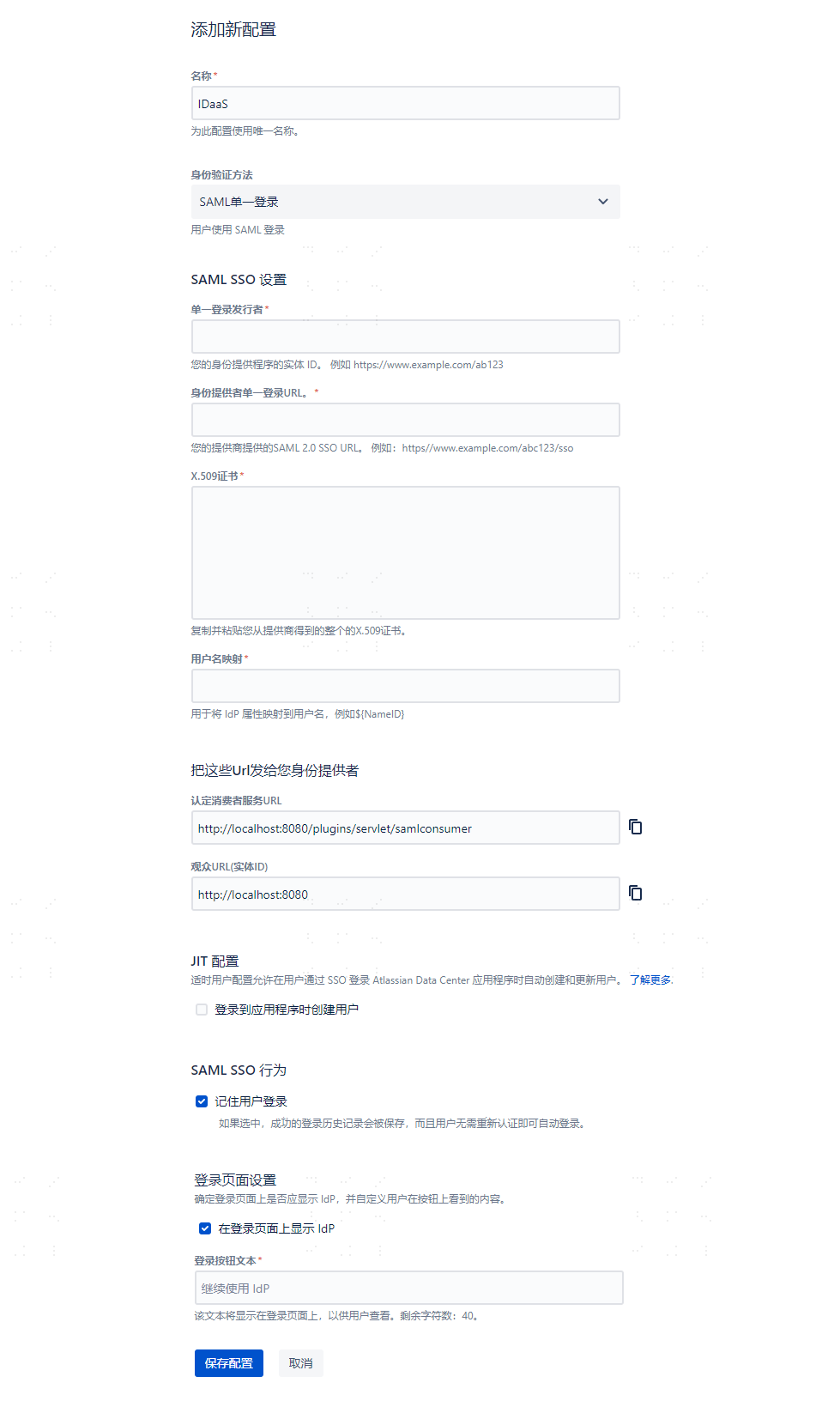
Parameter Description Single Sign-On Issuer IDP EntityId Identity Provider Single Sign-On URL SSO URL X.509 Certificate IDP Certificate Username Mapping NameID, you can reference the username returned by BambooCloud IDaaS through ${NameID}Authentication Consumer Service URL Automatically generated, Assertion Consumer Service URL (ACS URL) Audience URL (Entity ID) Automatically generated, SP Entity ID / Audience URI JIT Configuration Create users when logging in to the application. Not checked by default. After checking, users will be automatically created and updated when logging in to JIRA or Confluence via SSO. For details, see JIT User Configuration. Remember User Login Save successful login history and automatically log in users without verification. Login Mode Select SAML as auxiliary authentication to retain the original login entry.
Add JIRA or Confluence Application on BambooCloud IDaaS
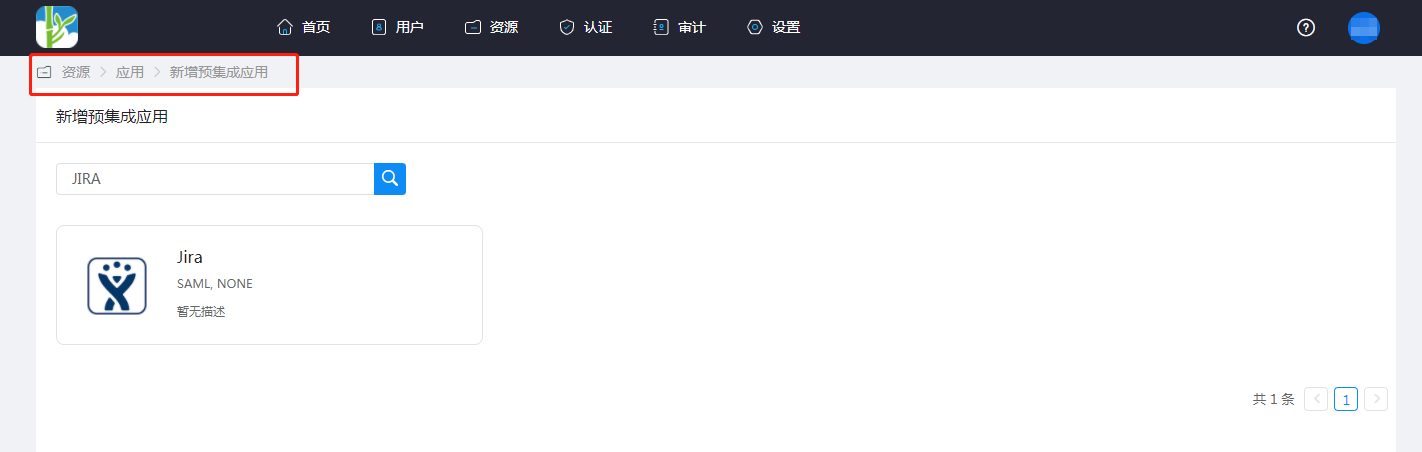
Log in to the BambooCloud IDaaS Enterprise Center as an administrator, go to Resources > Applications > Add Pre-integrated Application, search for and add JIRA or Confluence.
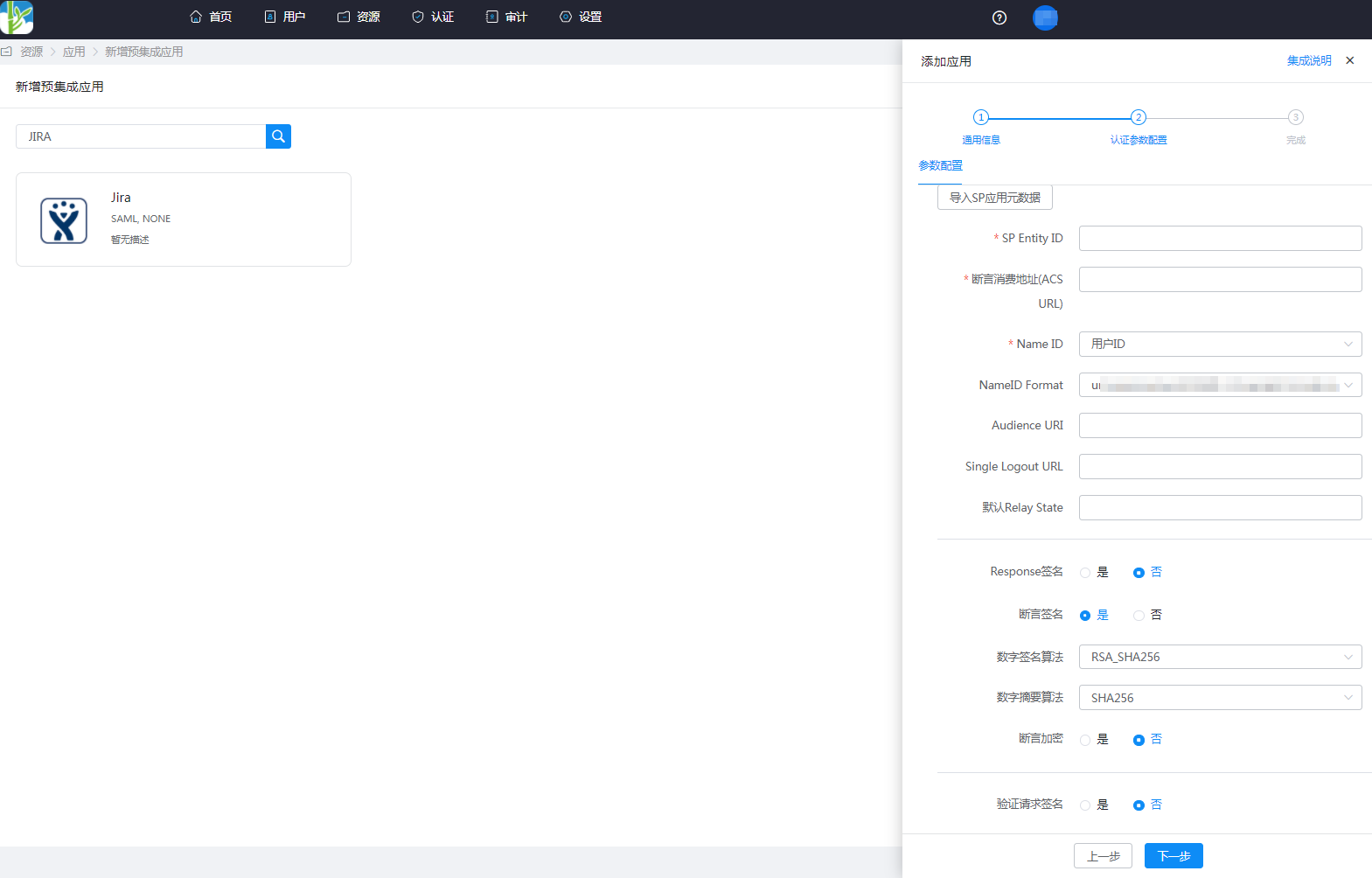
Configure application authentication parameters.
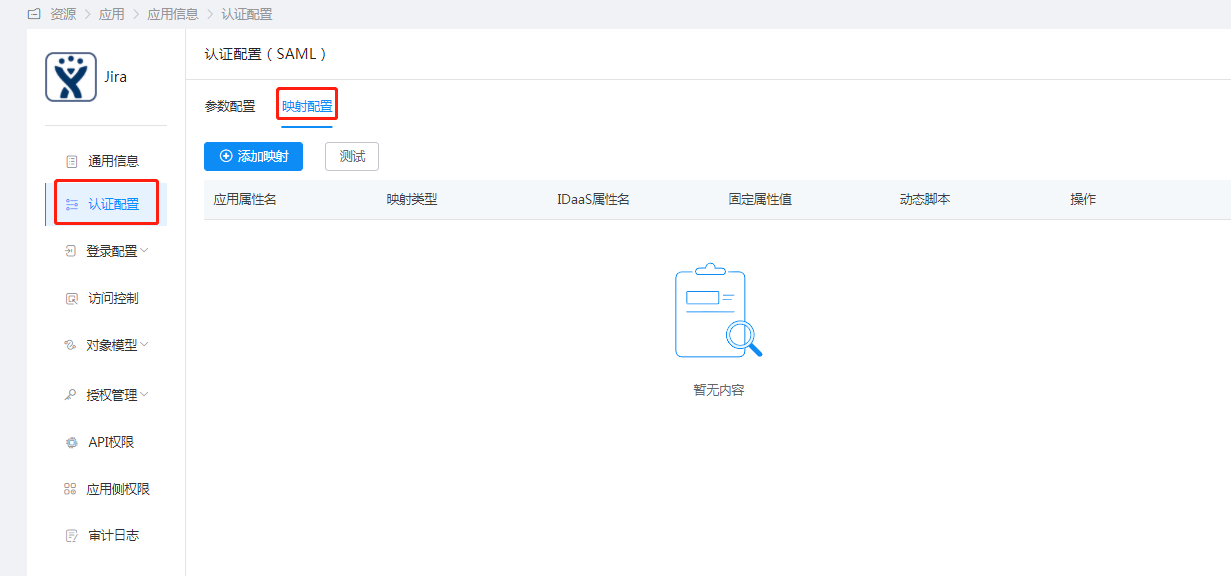
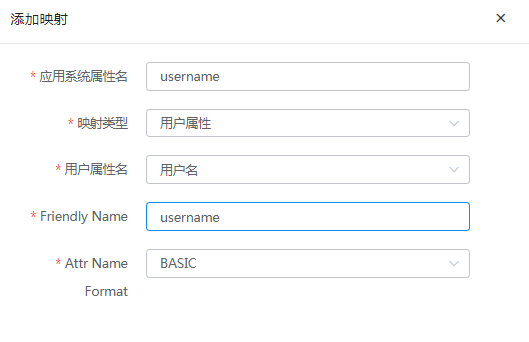
Parameter Description SP Entity ID Audience URL (Entity ID) Assertion Consumer Service URL (ACS URL) Authentication Consumer Service URL Name ID Select Application Account NameID Format Select Default Audience URI Audience URL (Entity ID) Single Logout URL Leave blank Default Relay State Leave blank Response Signature No Assertion Signature Yes Digital Signature Algorithm Default RSA_SHA256 Digital Digest Algorithm Default SHA256 Assertion Encryption No Verify Request Signature No Configure mappings. Enter the application details, Authentication Configuration > Mapping Configuration, and add mappings.
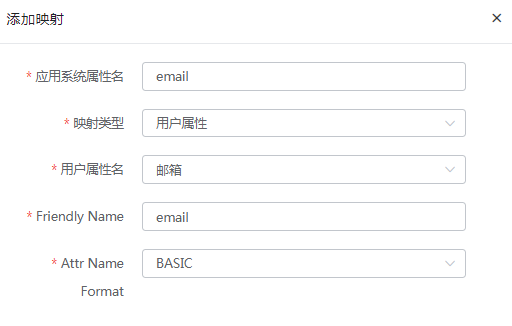
email: user email
NameID: username
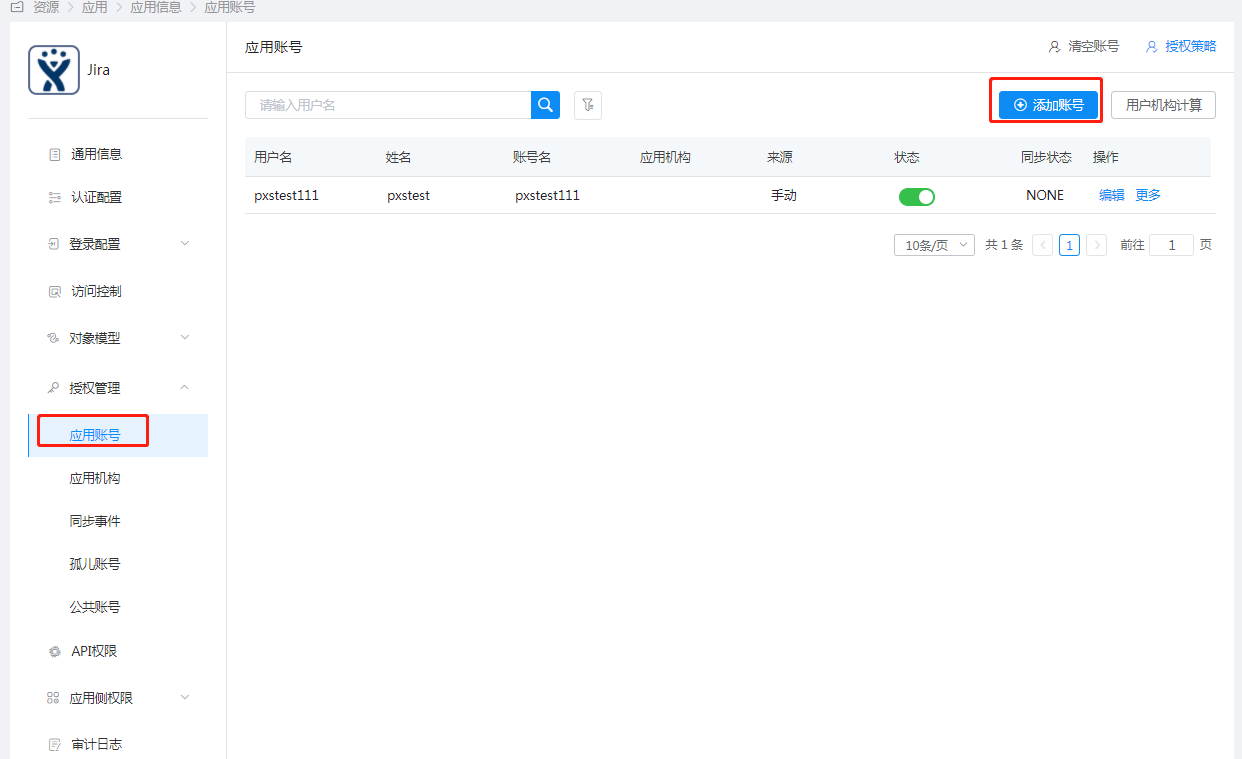
Authorize users: Authorization Management > Application Account > Add Account. The account name should be consistent with the account name in JIRA or Confluence.
Login Verification
Log in to the BambooCloud IDaaS User Center, click the application logo, and single sign-on into the application system.