JumpServer Single Sign-On
Overview
This article describes how to log in to JumpServer through BambooCloud IDaaS.
There are currently two methods: OIDC and CAS. You only need to choose one.
CAS Authentication
JumpServer official CAS documentation
BambooCloud IDaaS Configuration
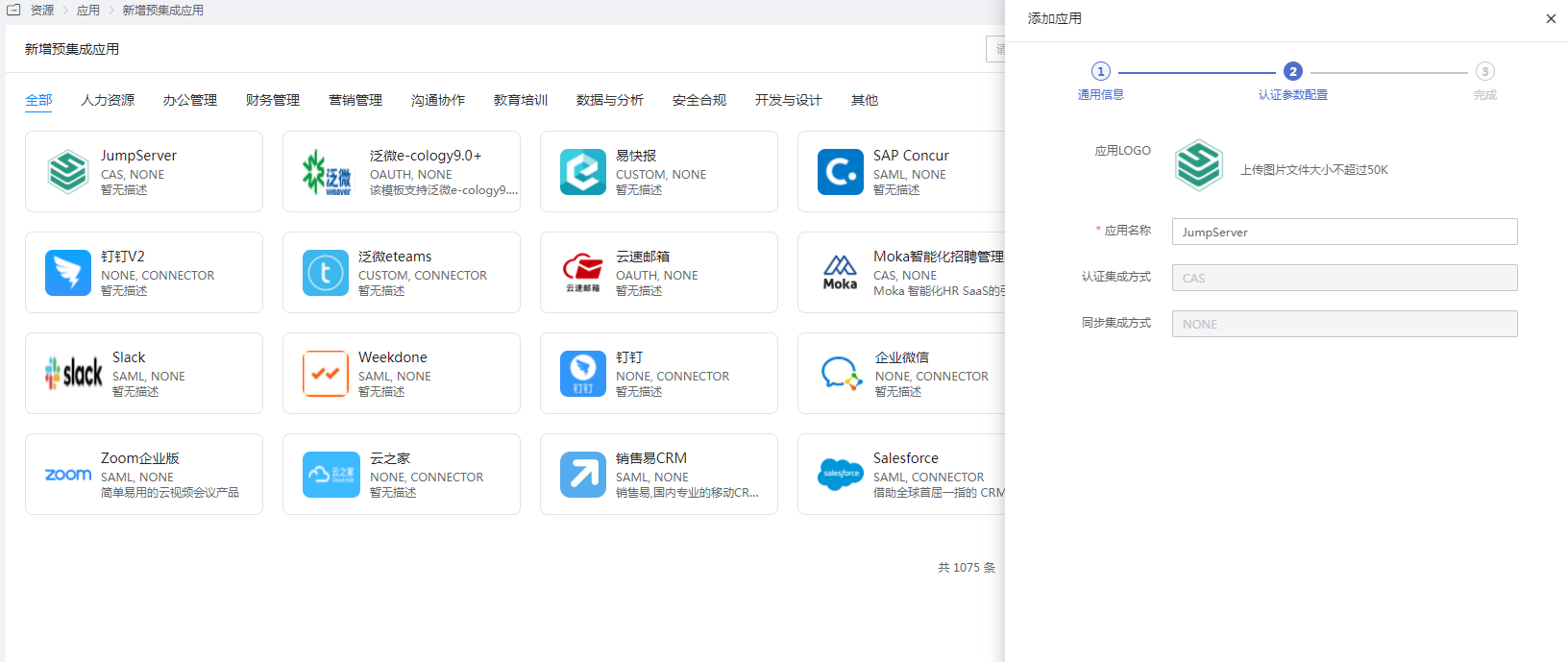
Add the pre-integrated application JumpServer CAS.
Configure the callback address:
http://{jumpserver-access-address}/core/auth/cas/login/?next=%2FApplication logout address: JumpServer CAS logout address, fill in
http://{jumpserver-service-address}//core/auth/cas/logout/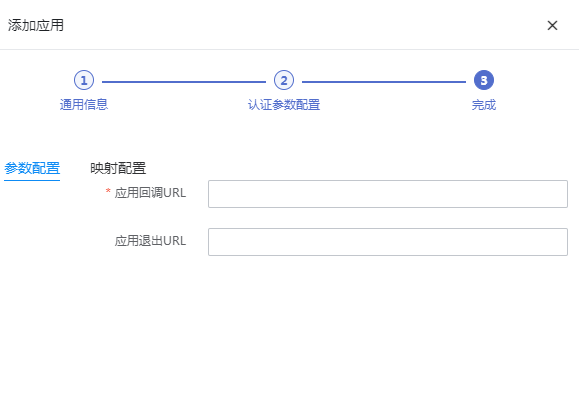
User authorization: Authorization Management > Application Account > Add Account.
JumpServer Configuration
Log in to the console as an administrator, go to System Settings, and select Authentication Settings > CAS Authentication.
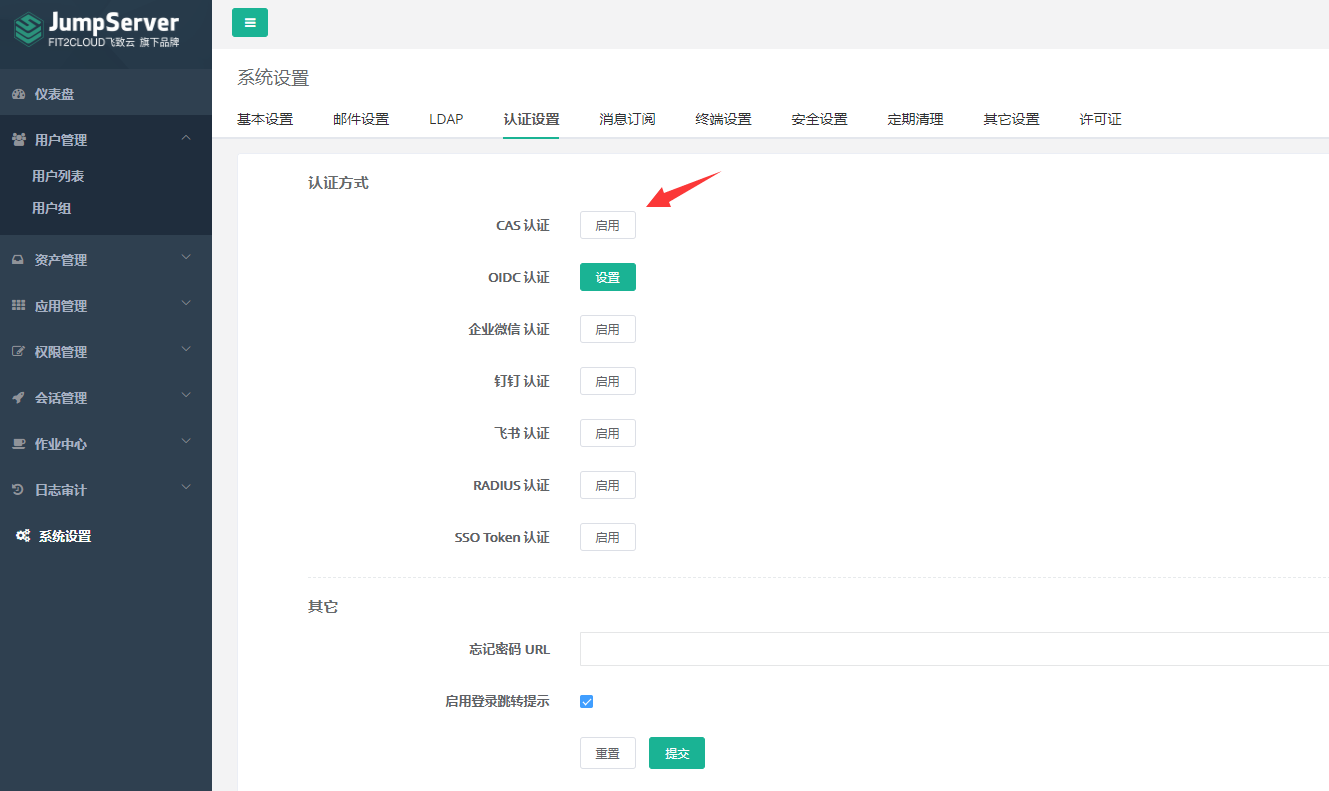
Configure parameters and submit.
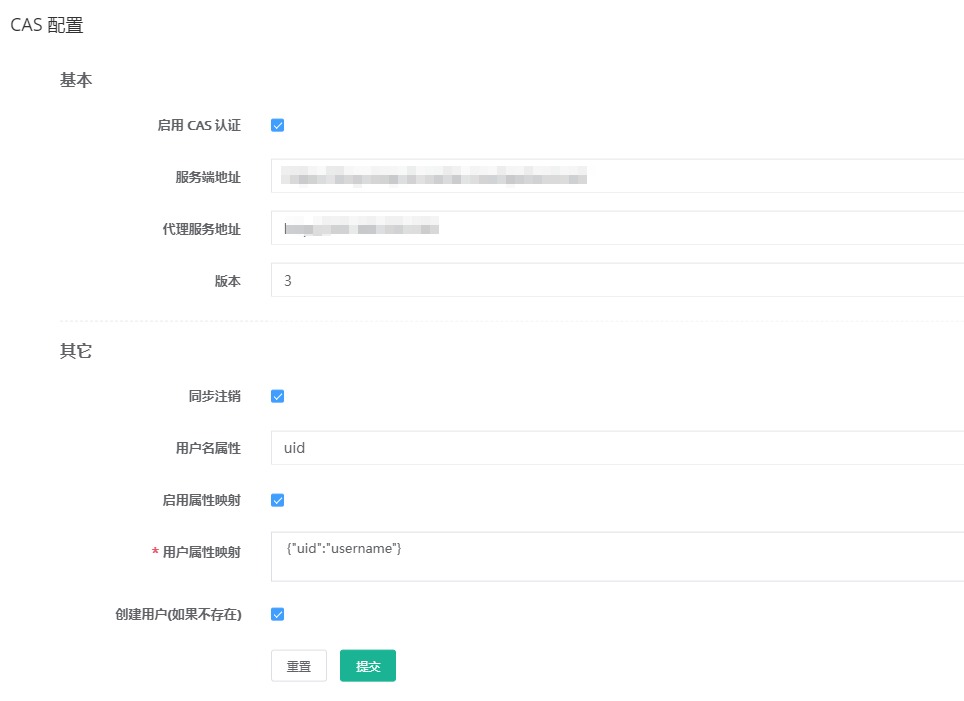
Parameter Description Enable CAS Authentication Check to enable CAS authentication Server Address https://{BambooCloud IDaaS tenant domain}.bccastle.com/api/ams/cas/Proxy Service Address JumpServer access address Version 3 Synchronous Logout Check to log out BambooCloud IDaaS session synchronously when logging out of JumpServer Username Attribute Default uidEnable Attribute Mapping Check User Attribute Mapping Default {"uid":"username"}Create User (If Not Exists) Check
Login Verification
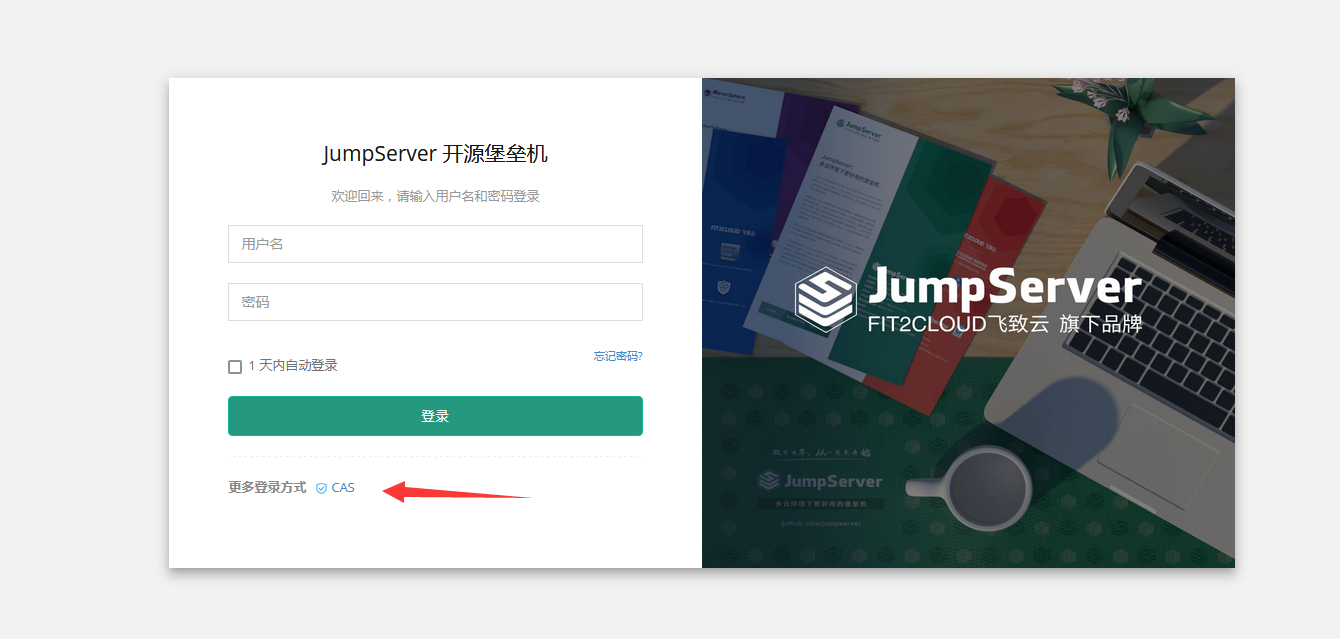
Access the JumpServer address and select CAS authentication.
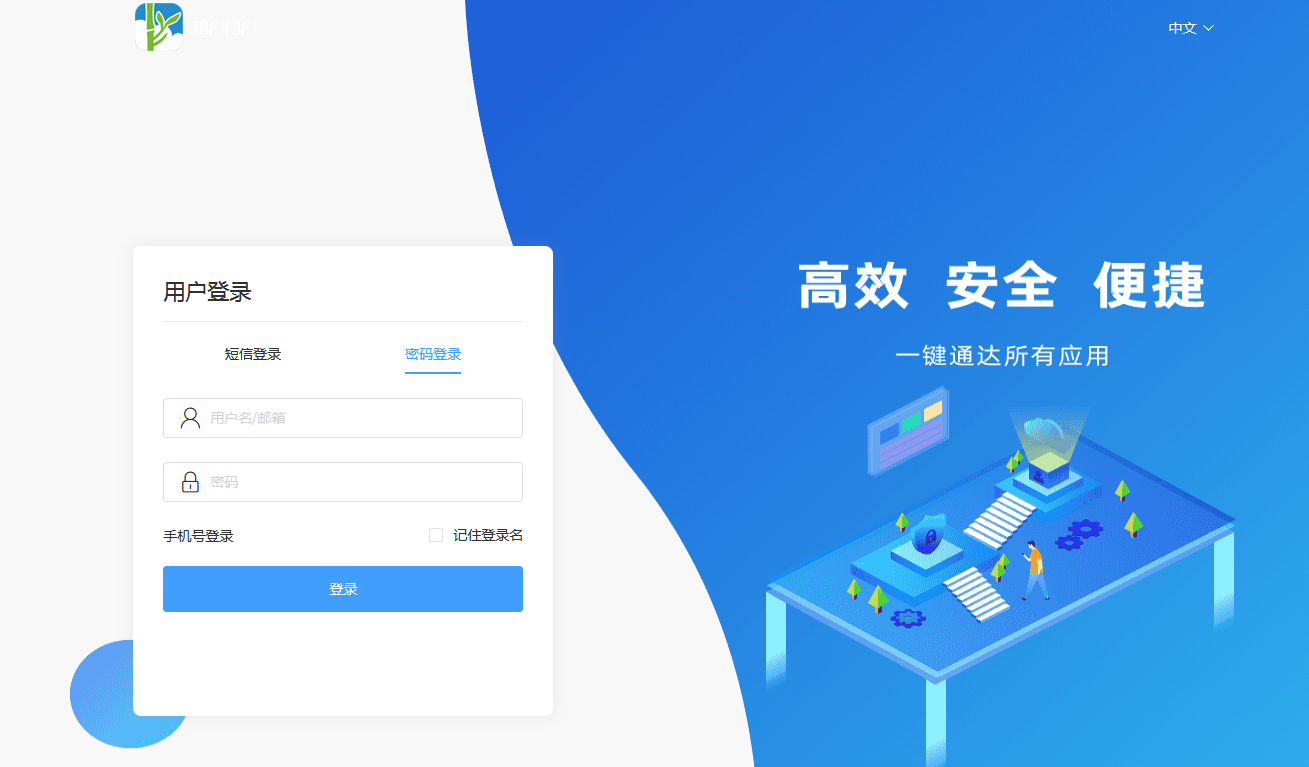
You will be redirected to the BambooCloud IDaaS authentication interface. Authorized users authenticate and log in.
After successful authentication, enter JumpServer.
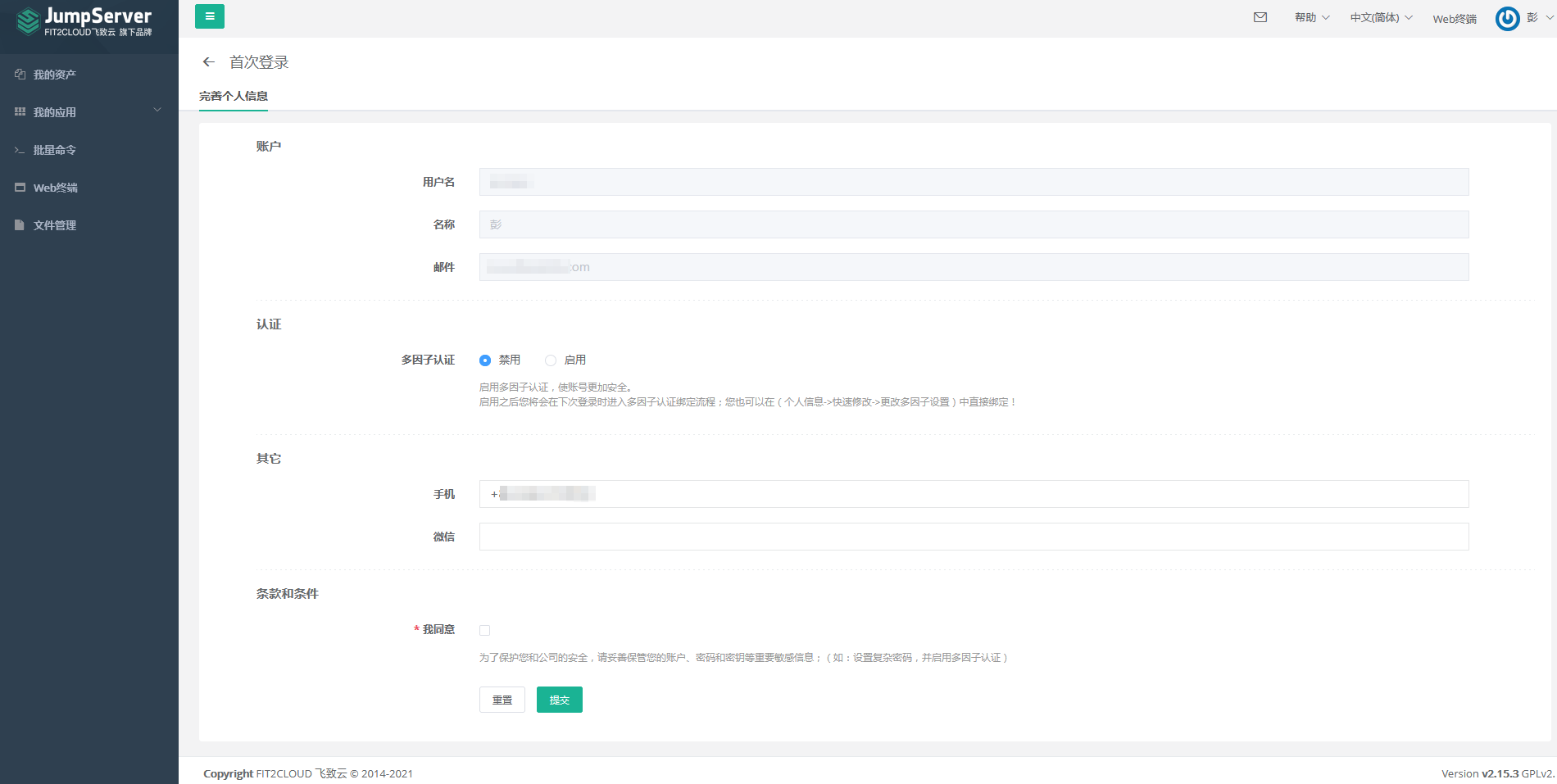
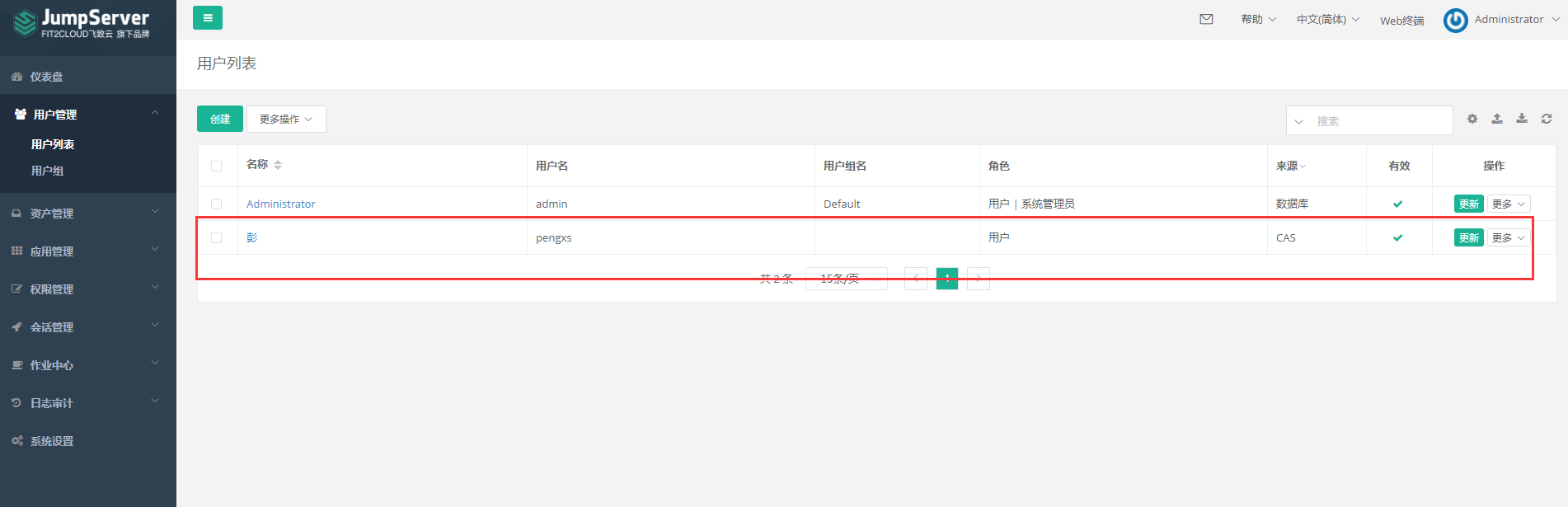
The administrator views the user.
OIDC Authentication
JumpServer official OpenID documentation
BambooCloud IDaaS Configuration
Add the pre-integrated application JumpServer OIDC.
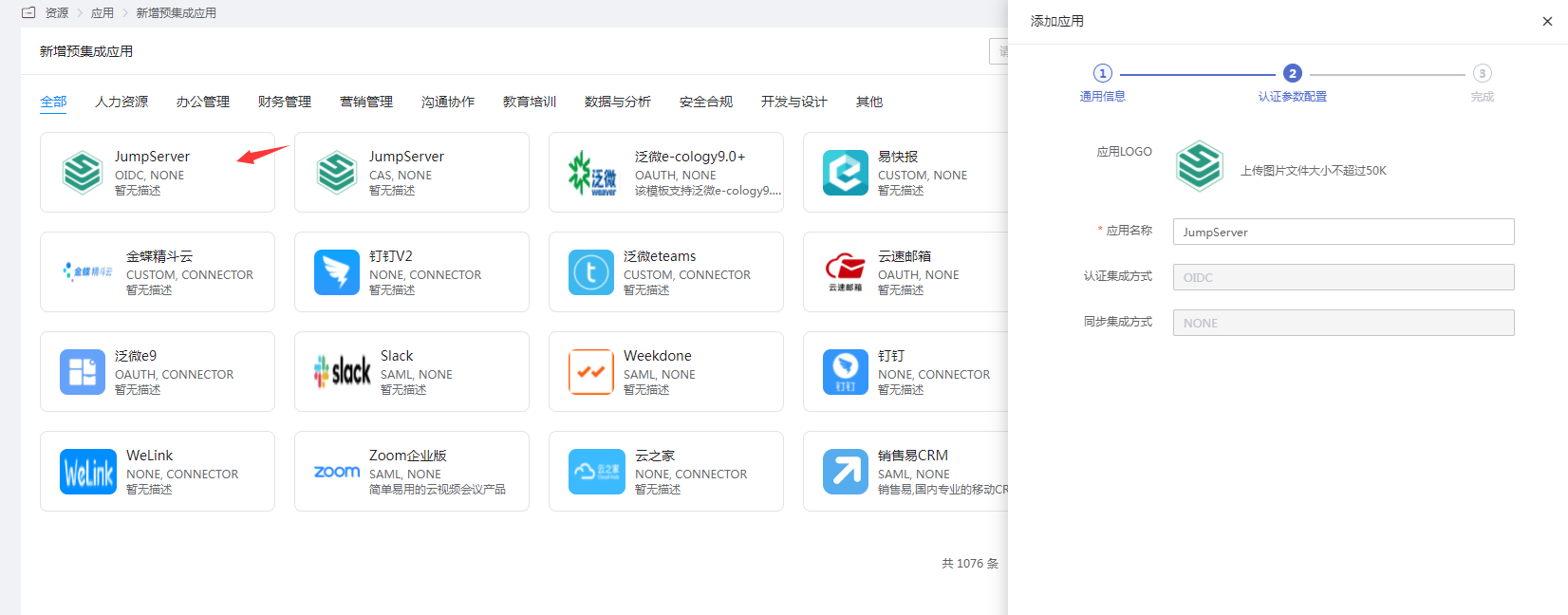
Configure the callback address.
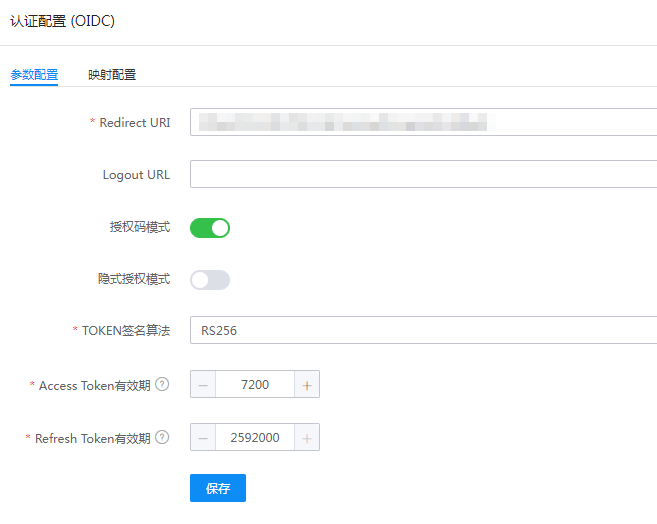
Parameter Description Redirect URI Callback address, fill in http://{jumpserver-service-address}/core/auth/openid/callbackLogoutURL Fill in http://{jumpserver-service-address}/core/auth/openid/logout/Authorization Code Mode Enable Implicit Authorization Mode Disable *TOKEN Signature Algorithm RS256 *Access Token Validity Period Default two hours *Refresh Token Validity Period Default 0 User authorization: Authorization Management > Application Account > Add Account.
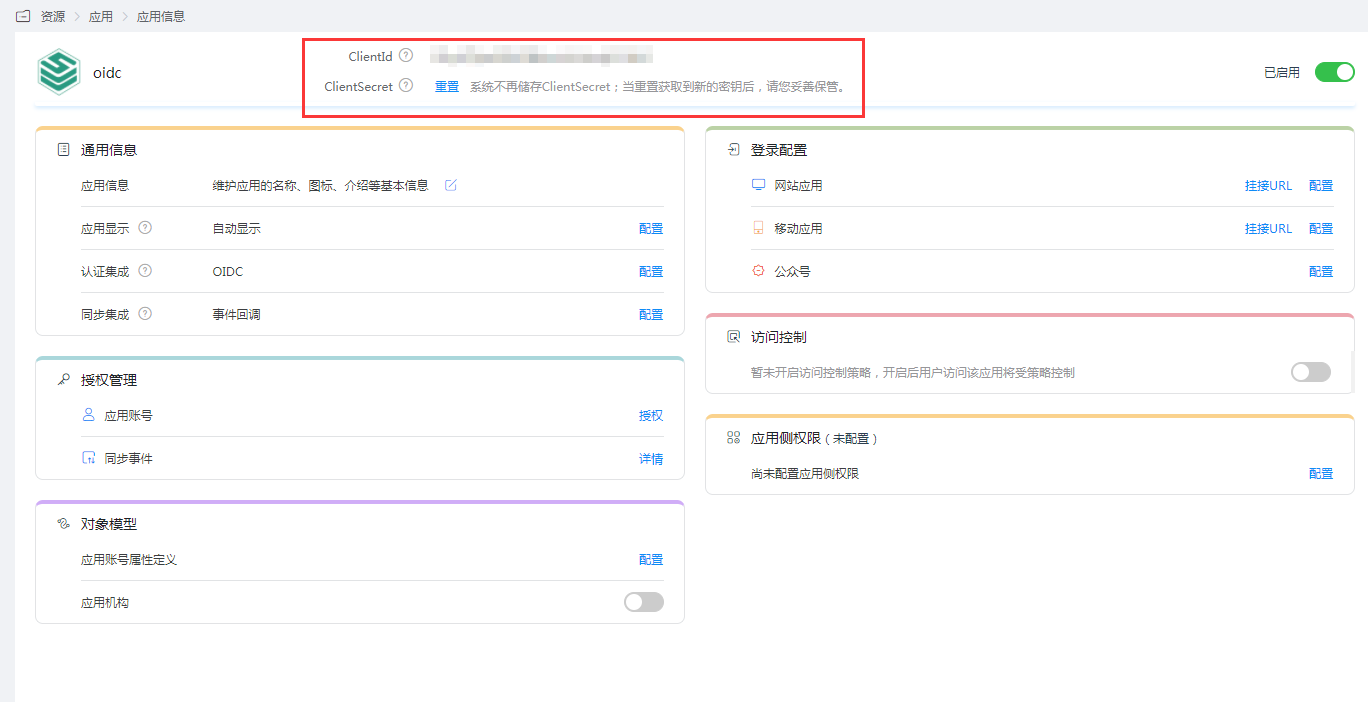
Enter the application details to obtain clientId and ClientSecret.
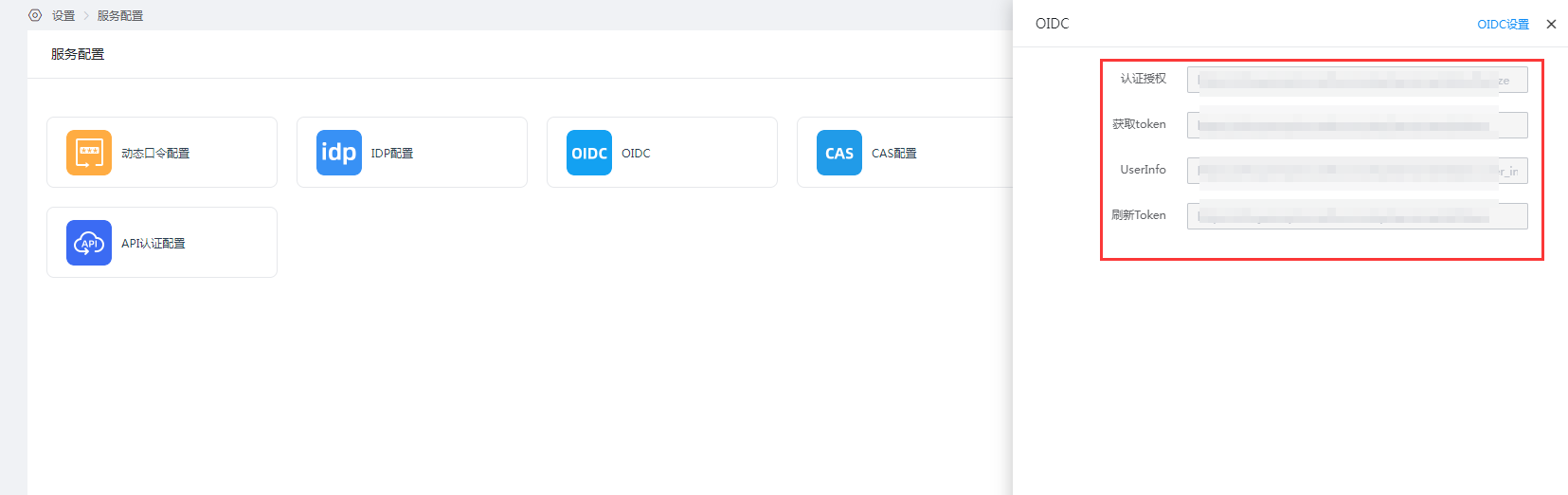
Go to Settings > Service Configuration > OIDC to view OIDC settings.
JumpServer Configuration
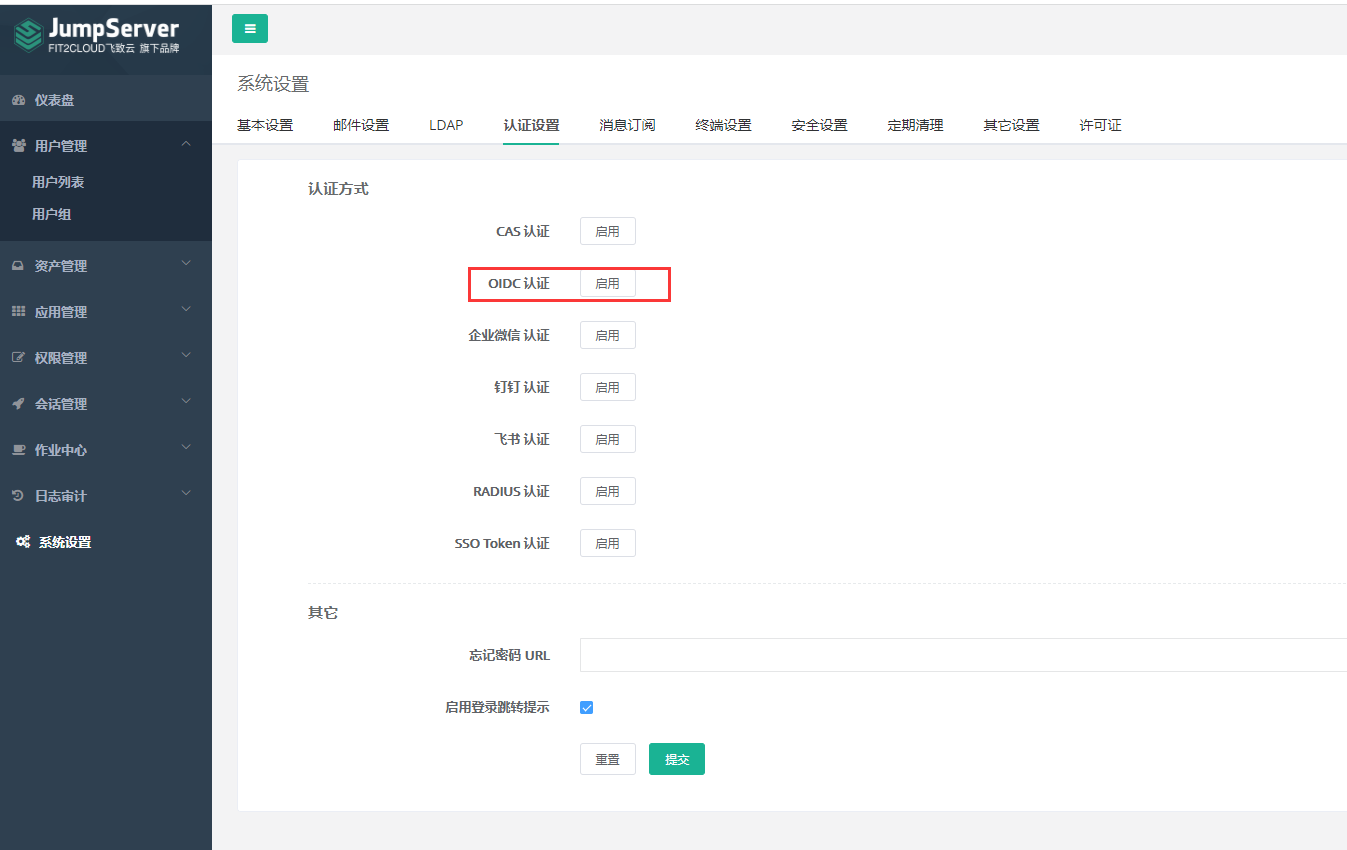
Log in to the console as an administrator, go to System Settings, and select Authentication Settings > OIDC Authentication.
Configure parameters and submit.
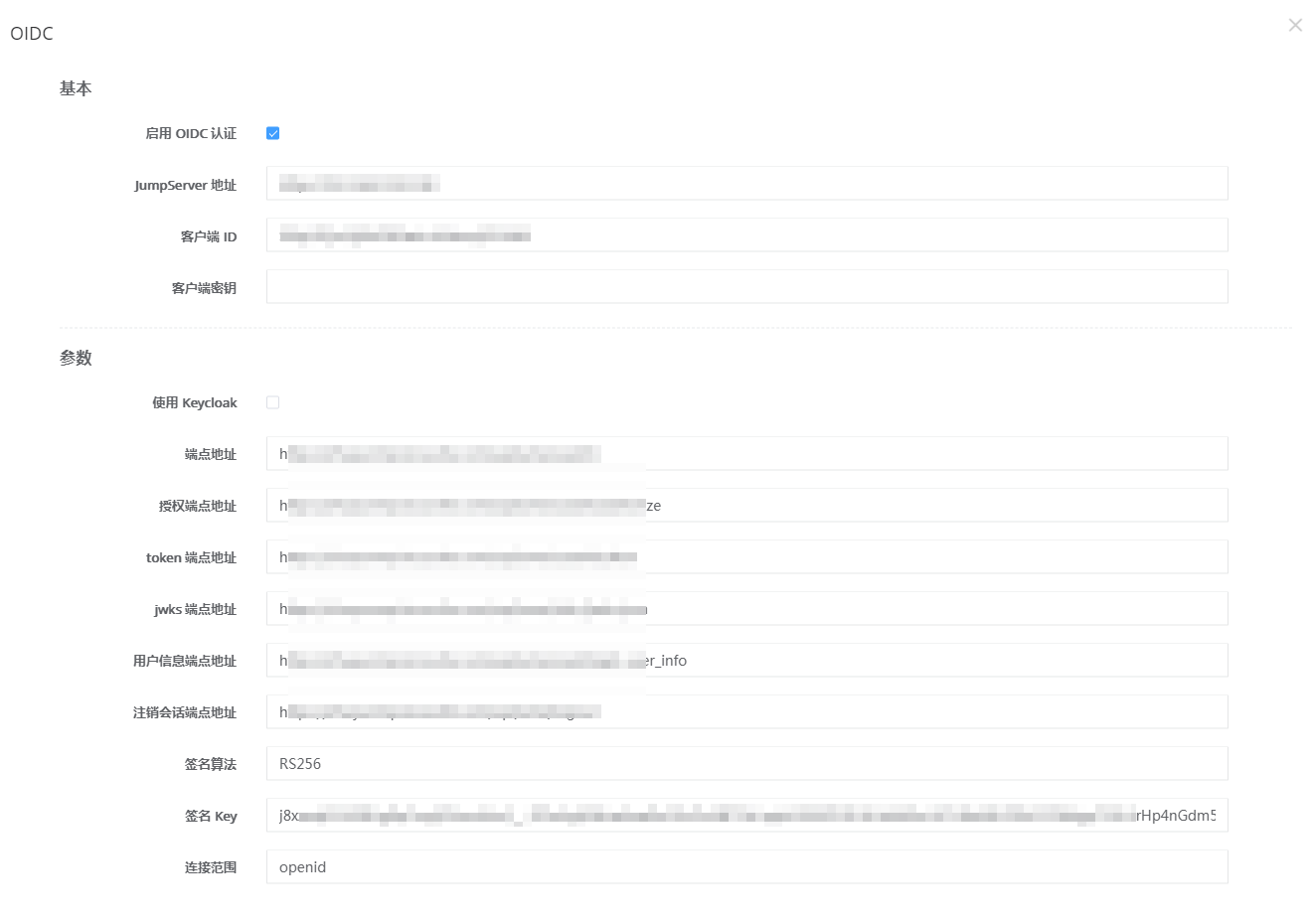
Parameter Description Enable OIDC Authentication Check JumpServer Address JumpServer access address Client ID BambooCloud IDaaS application clientId Client Secret BambooCloud IDaaS application clientSecret Use Keycloak Do not check Endpoint Address https://{BambooCloud IDaaS tenant domain}.bccastle.com/api/v1/oauth2/Authorization Endpoint Address https://{BambooCloud IDaaS tenant domain}.bccastle.com/api/v1/oauth2/authorizeToken Endpoint Address https://{BambooCloud IDaaS tenant domain}.bccastle.com/api/v1/oauth2/tokenJWKS Endpoint Address https://{BambooCloud IDaaS tenant domain}.bccastle.com/api/v1/oauth2/keysUser Info Endpoint Address https://{BambooCloud IDaaS tenant domain}.bccastle.com/api/v1/oauth2/userinfoLogout Session Endpoint Address https://{BambooCloud IDaaS tenant domain}.bccastle.com/api/v1/logoutSignature Algorithm RS256 Signature Key The key corresponding to the RS256 algorithm in https://{BambooCloud IDaaS tenant domain}.bccastle.com/api/v1/oauth2/keysConnection Scope openid Token Validity Time Default 60 Claims Checked by default Usage Status Checked by default Temporary Use Checked by default Always Update User Info Checked by default Ignore SSL Certificate Verification Checked by default Share Session Checked by default
Login Verification
Access the JumpServer address and select OIDC authentication.
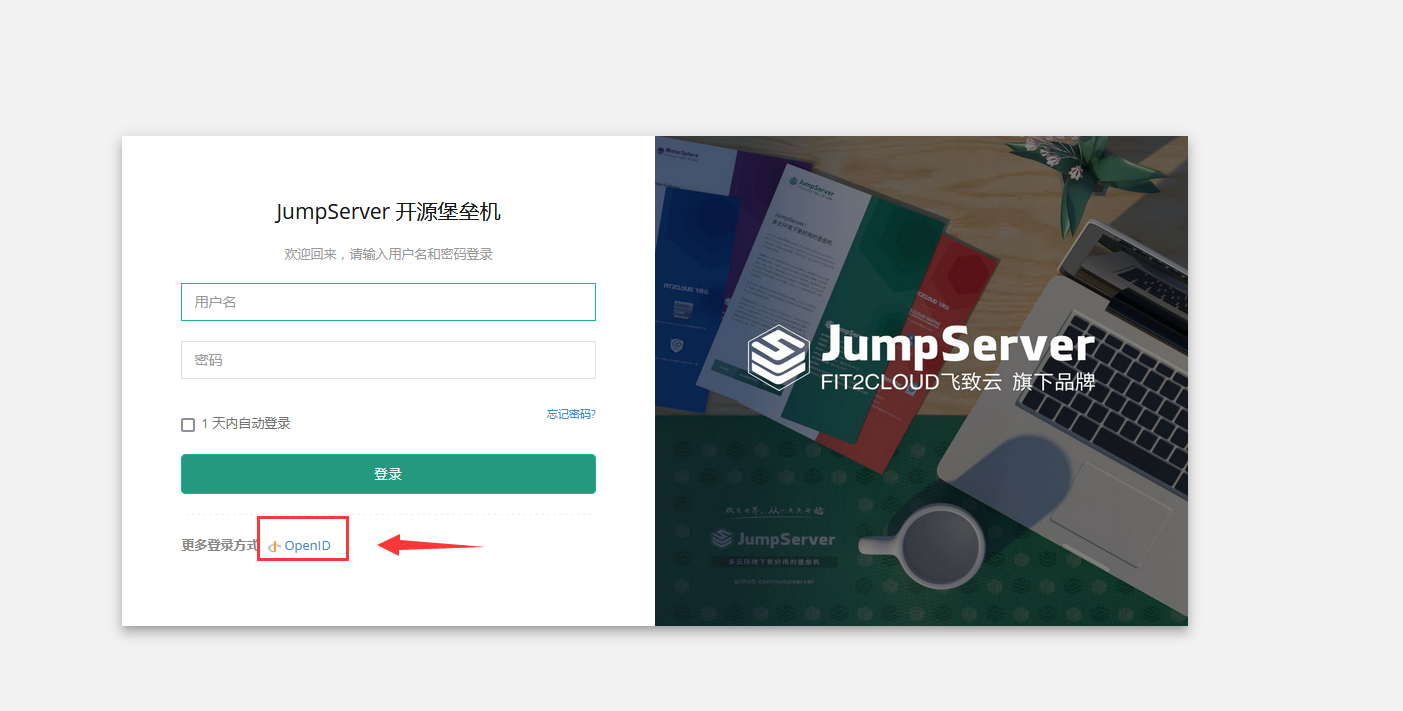
You will be redirected to the BambooCloud IDaaS authentication interface. Authorized users authenticate and log in.
After successful authentication, enter JumpServer.
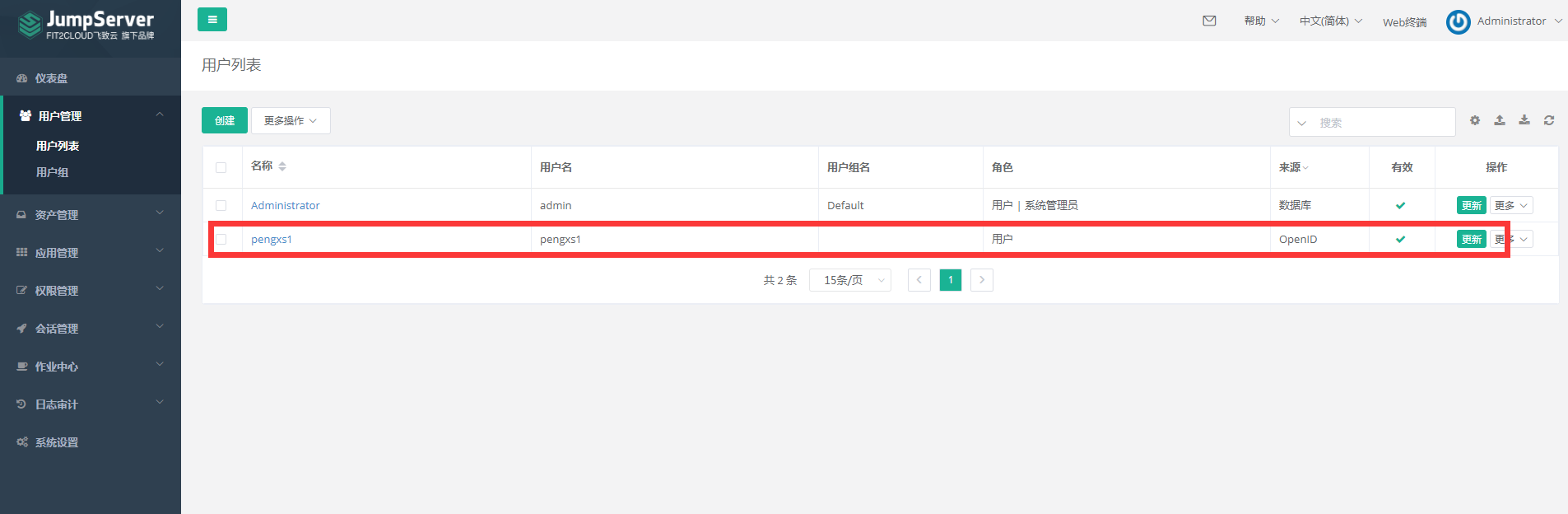
The administrator views the user.
Appendix
If you enter JumpServer by clicking the JumpServer Logo in the BambooCloud IDaaS User Center, the following configuration is required.
CAS
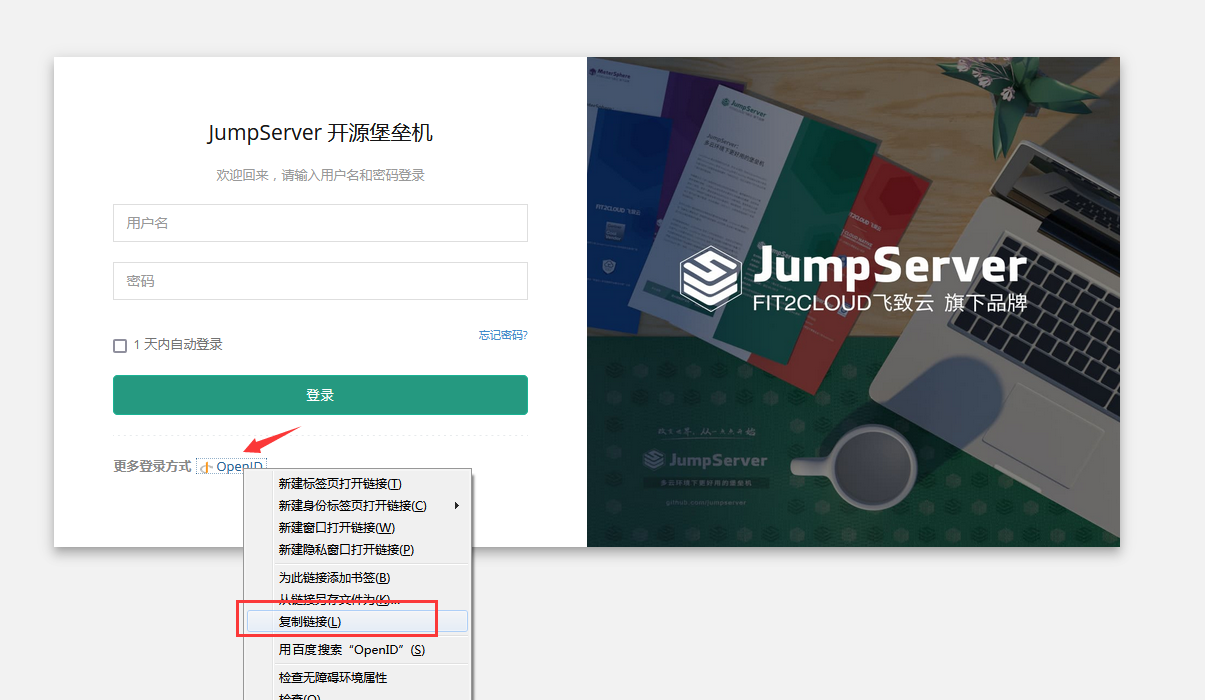
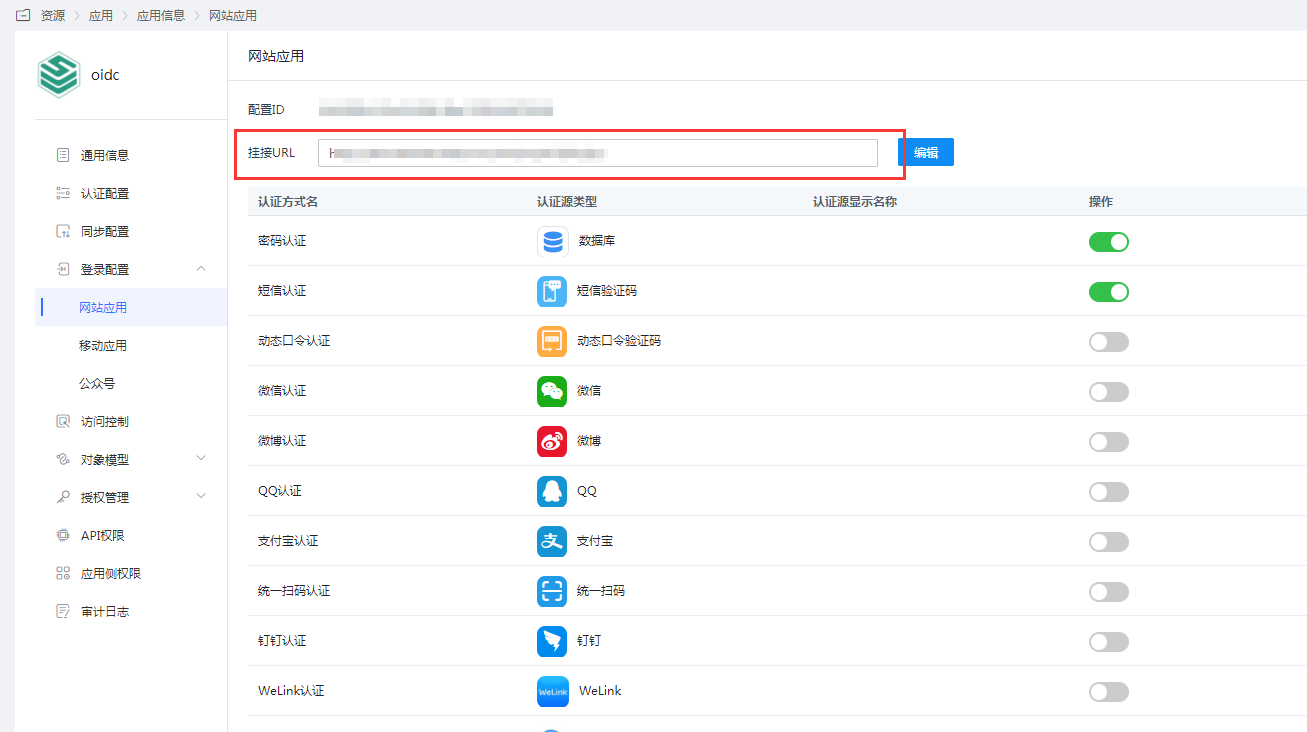
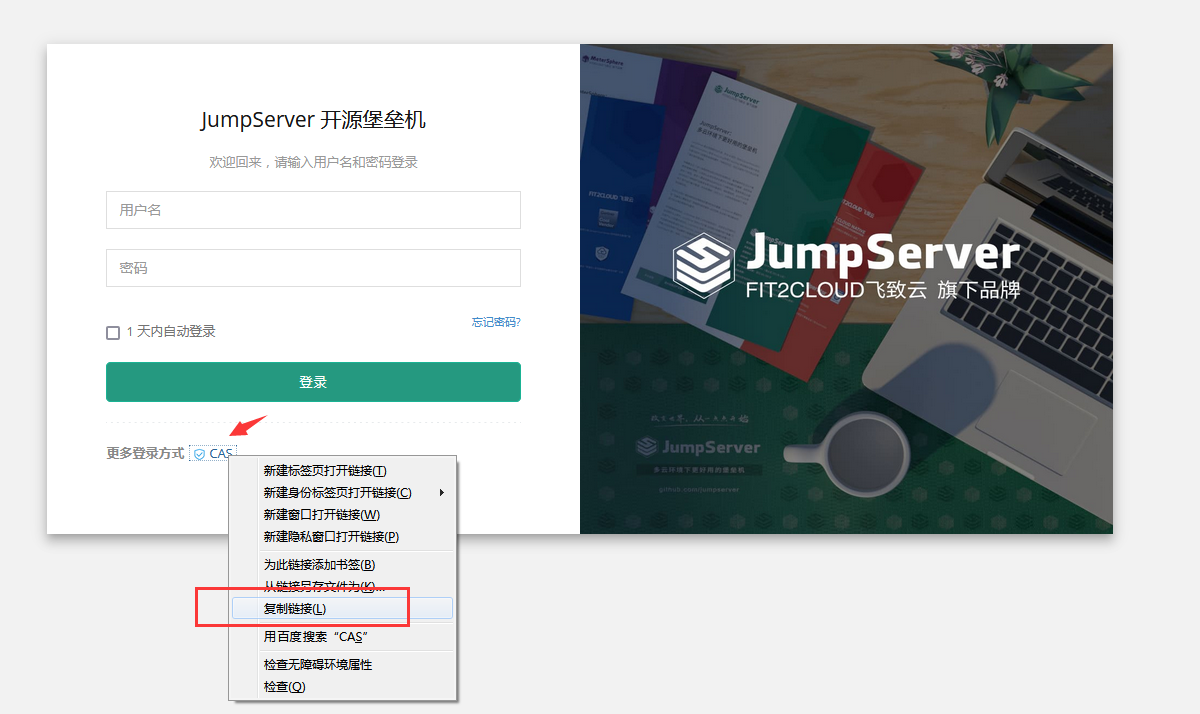
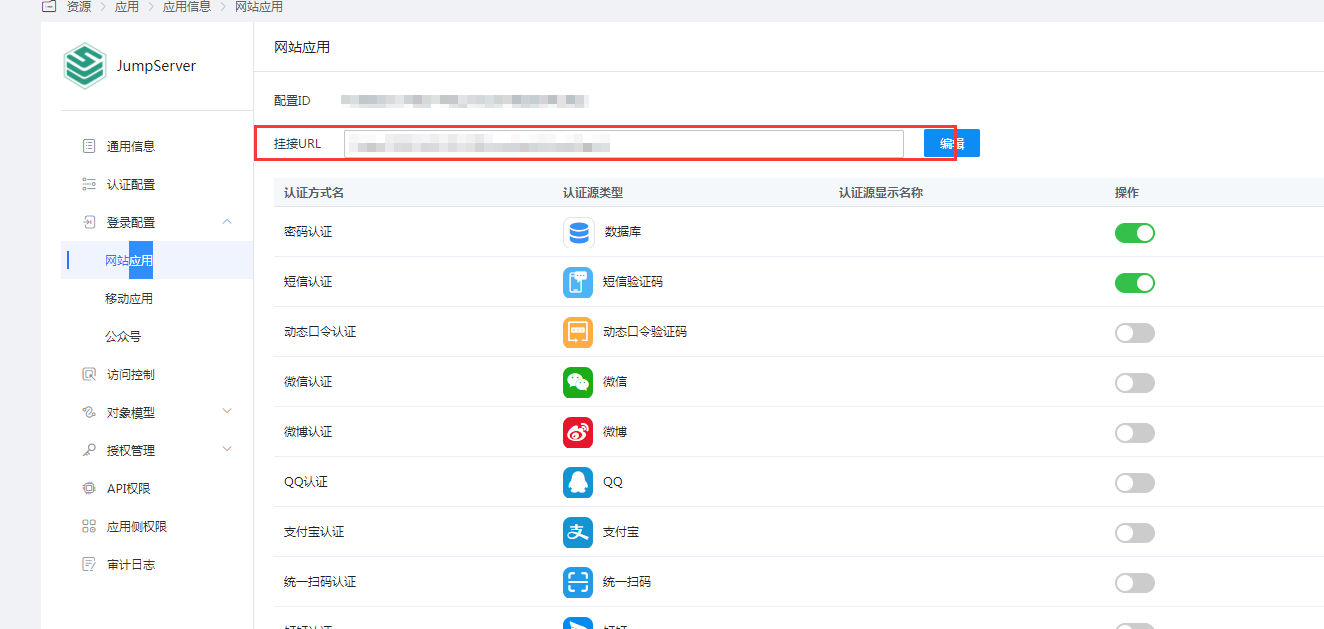
In the BambooCloud IDaaS Enterprise Center, enter the application details Login Configuration > Website Application, modify the Mount URL, copy the CAS address of the JumpServer login page, and paste it here.
OIDC
In the BambooCloud IDaaS Enterprise Center, enter the application details Login Configuration > Website Application, modify the Mount URL, copy the OpenID address of the JumpServer login page, and paste it here.