DingTalk Data Synchronization
Overview
This article describes how to synchronize organization and user data from BambooCloud IDaaS to DingTalk, realizing data flow from BambooCloud IDaaS to DingTalk.
Synchronization Configuration
DingTalk Configuration
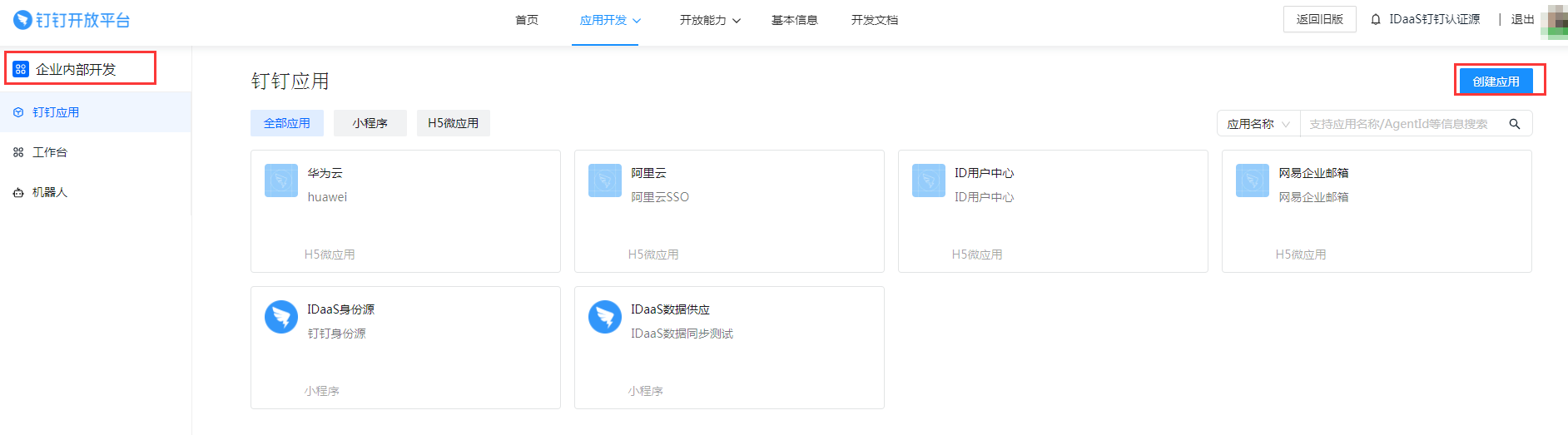
Log in to the DingTalk Developer Platform and create an internal enterprise application, mini program, or H5 micro application.
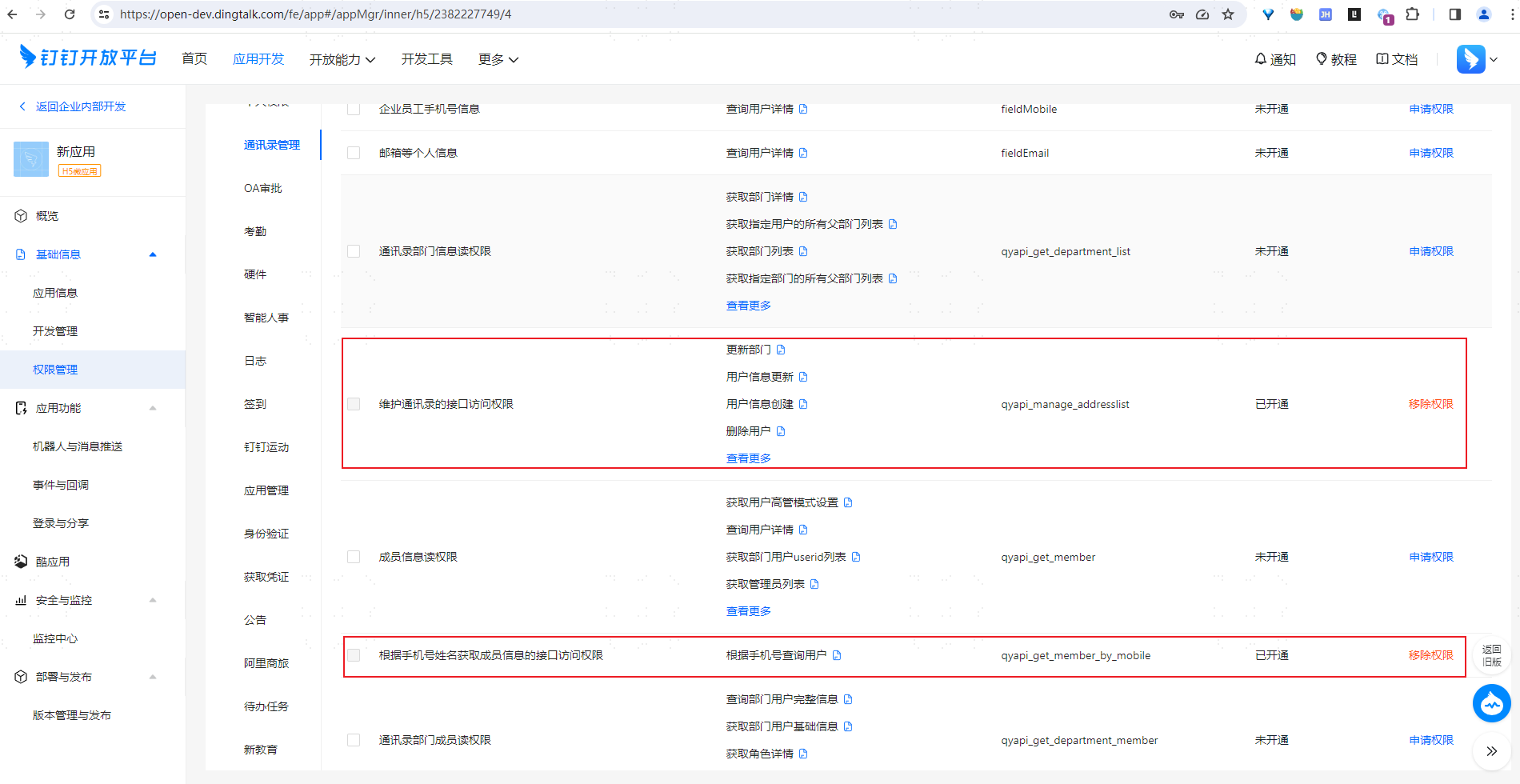
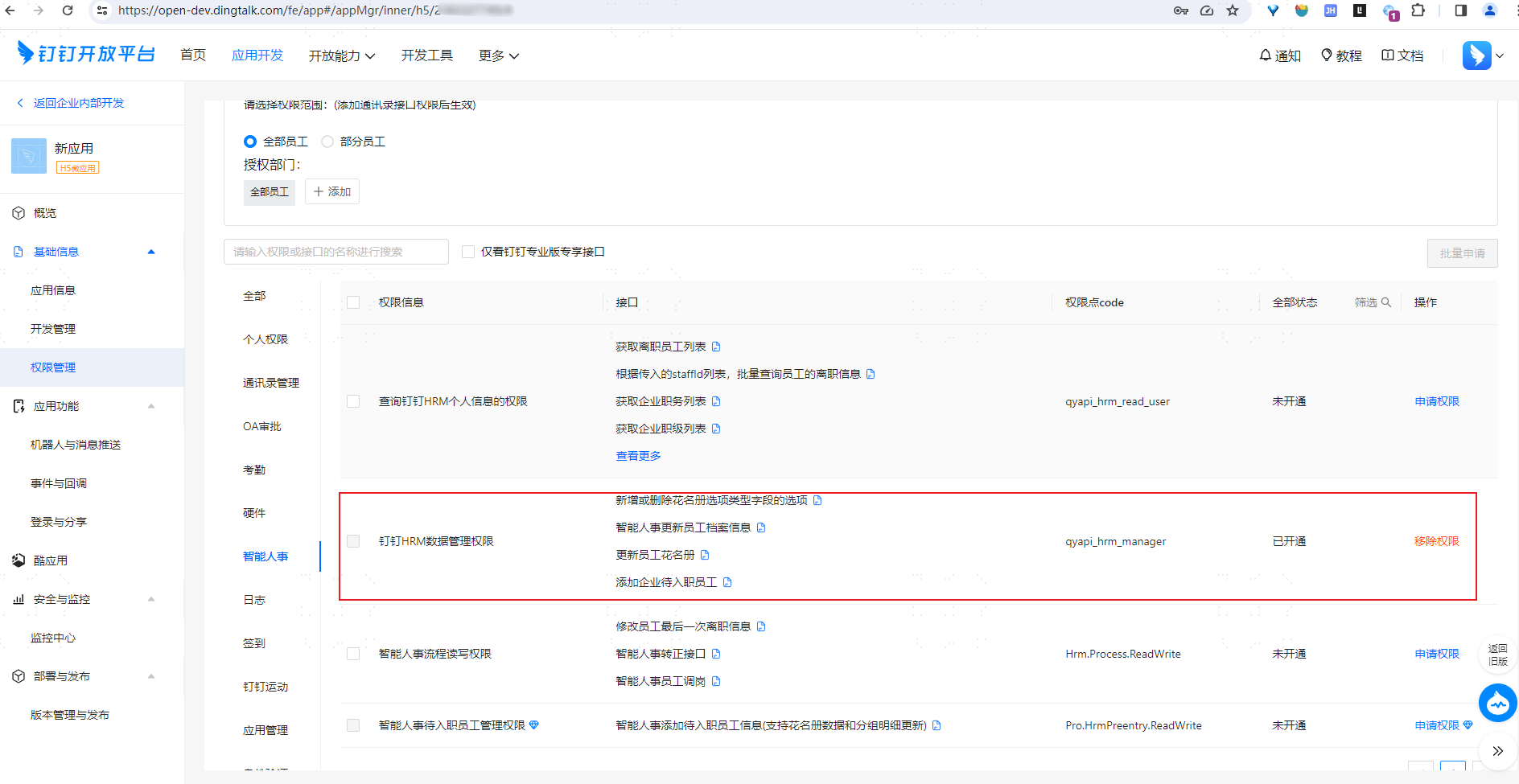
In Application Details > Basic Information > Permission Management, apply to enable the "Address Book Management" interface access permission for maintaining the address book and the "Get Member Information by Mobile Number and Name" interface access permission, as well as the "DingTalk HRM Data Management Permission" of Smart HR, and set the authorized employee scope.
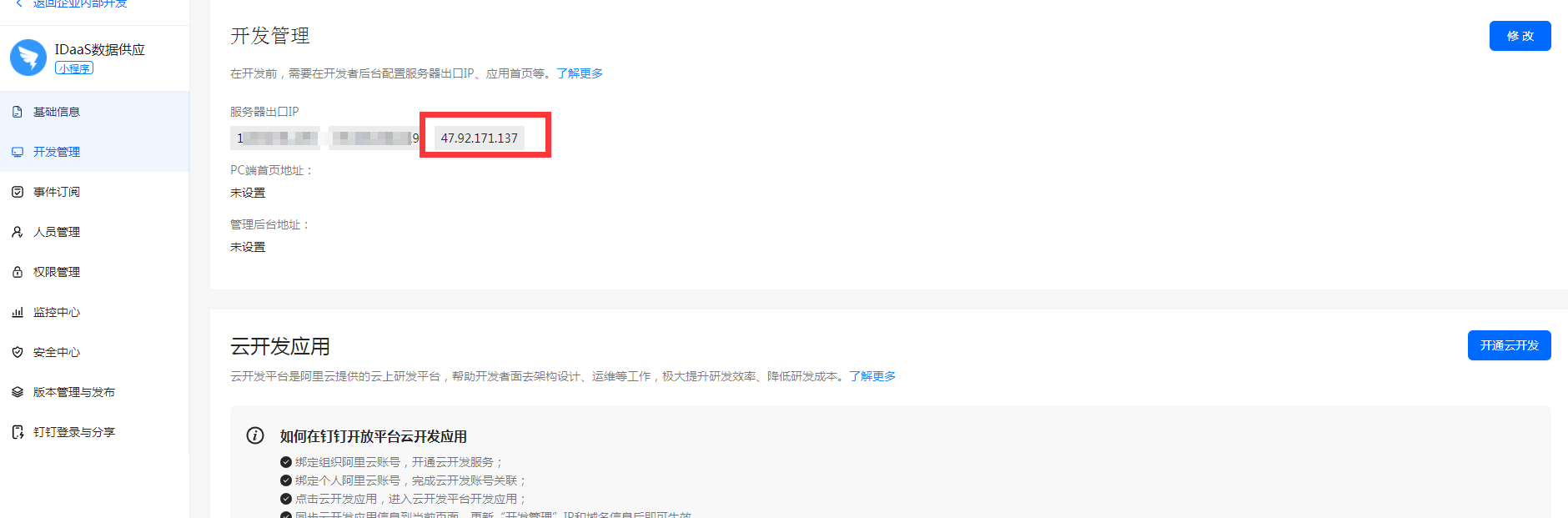
In Development Management > Server Egress IP, add 47.92.171.137.
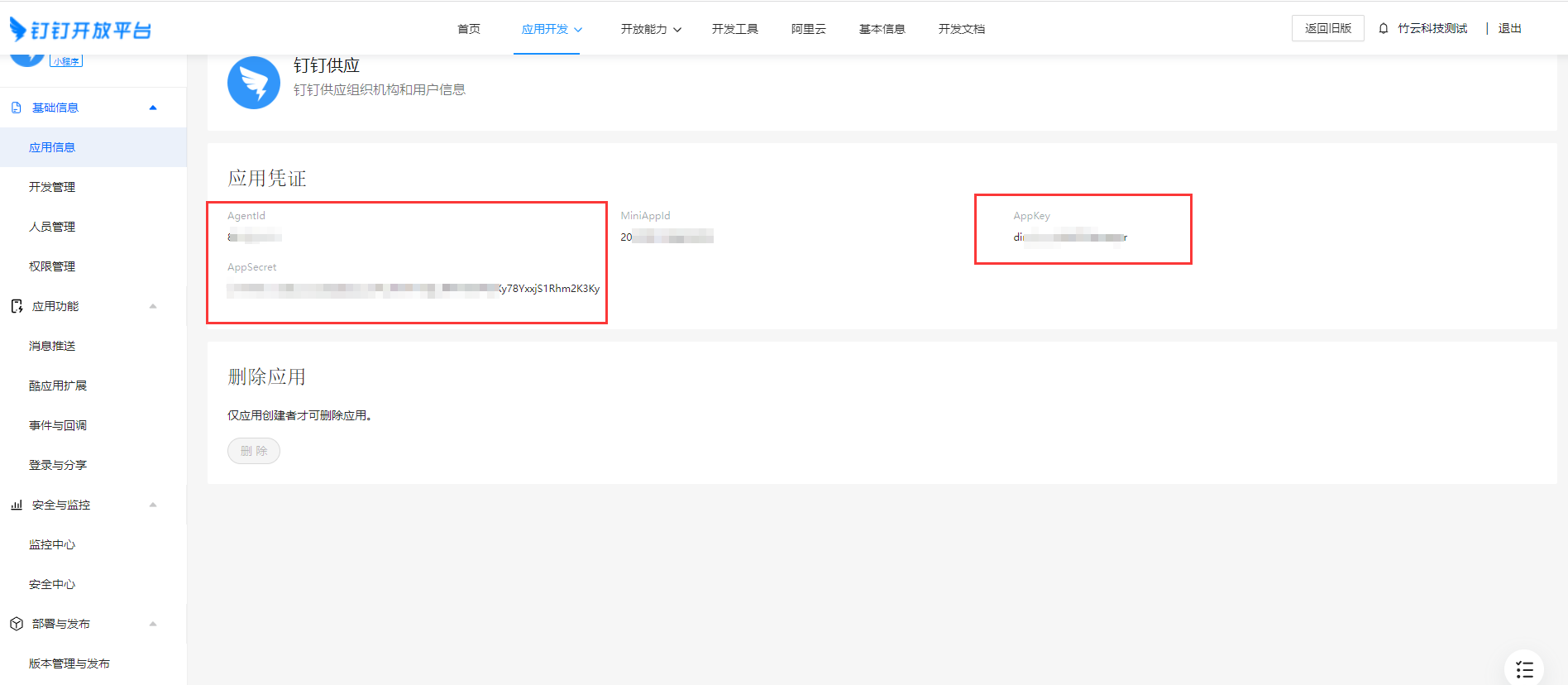
Enter the application details and obtain AgentId, AppKey, and AppSecret.
BambooCloud IDaaS Configuration
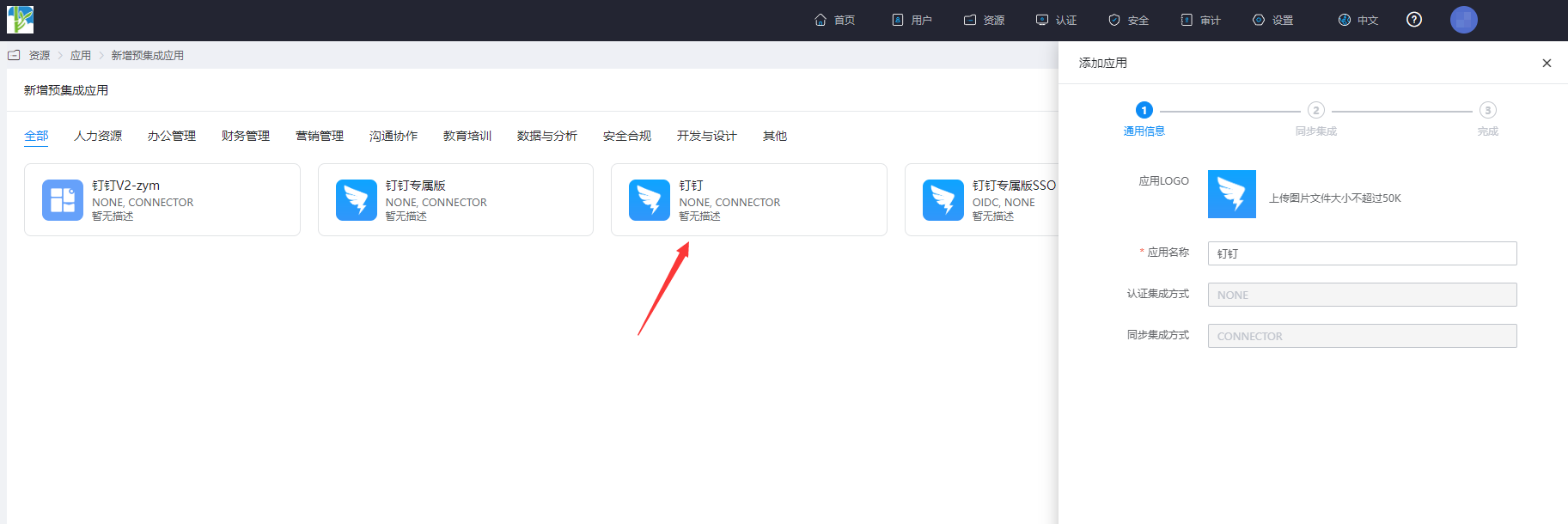
Add the pre-integrated application DingTalk.
Configure synchronization parameters.
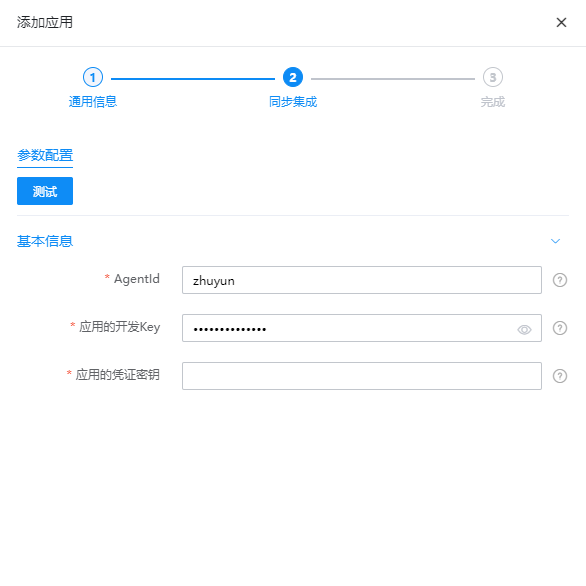
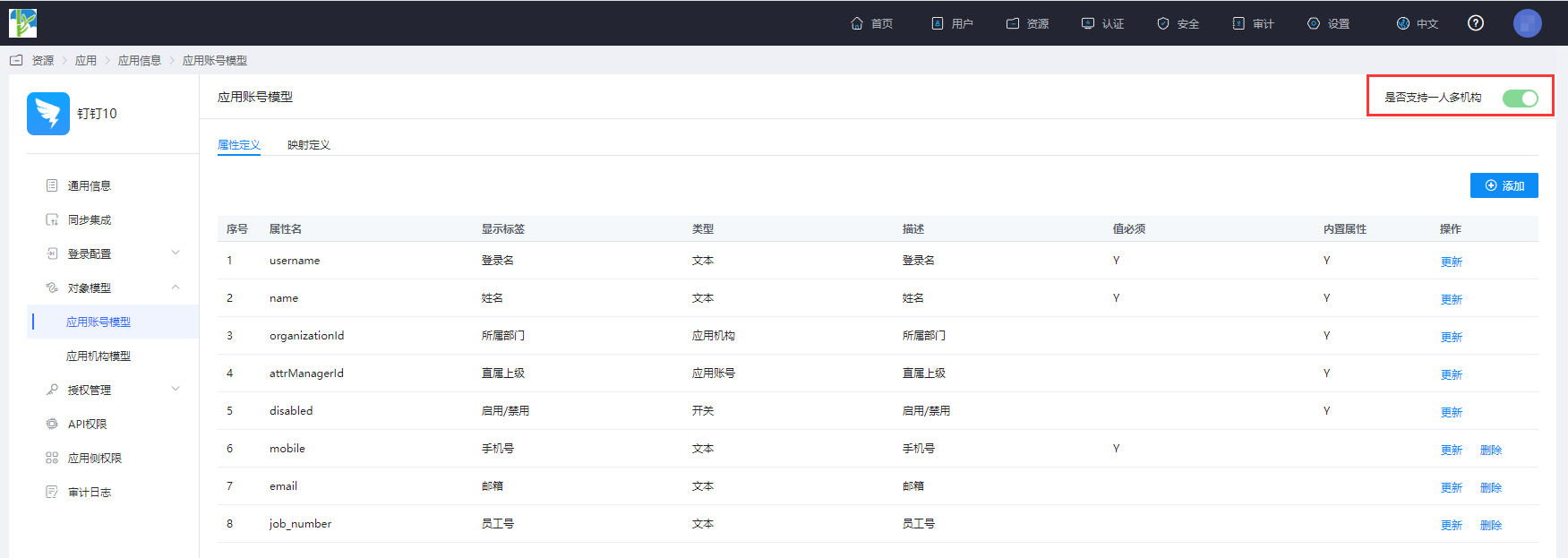
Parameter Description AgentId DingTalk AgentId Application Development Key Application AppKey Application Credential Secret Application AppSecret Enter the application details, Application Info > Object Model > Application Account Model. If you need to synchronize one person in multiple organizations, please enable Support One Person in Multiple Organizations.
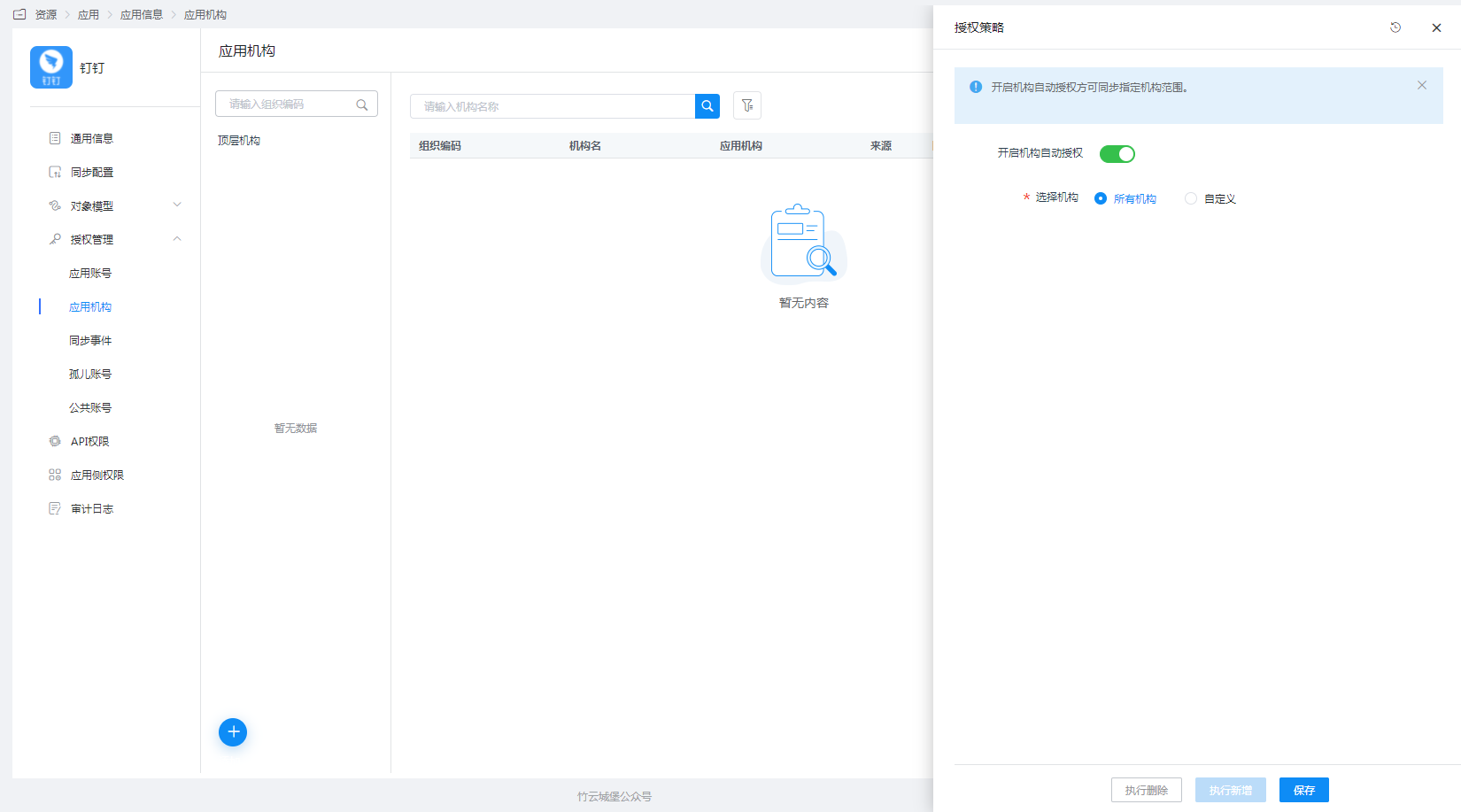
Enter Application Details > Application Organization > Authorization Policy, enable automatic organization authorization, select the organization scope, click the Save button, and then click Execute Add.
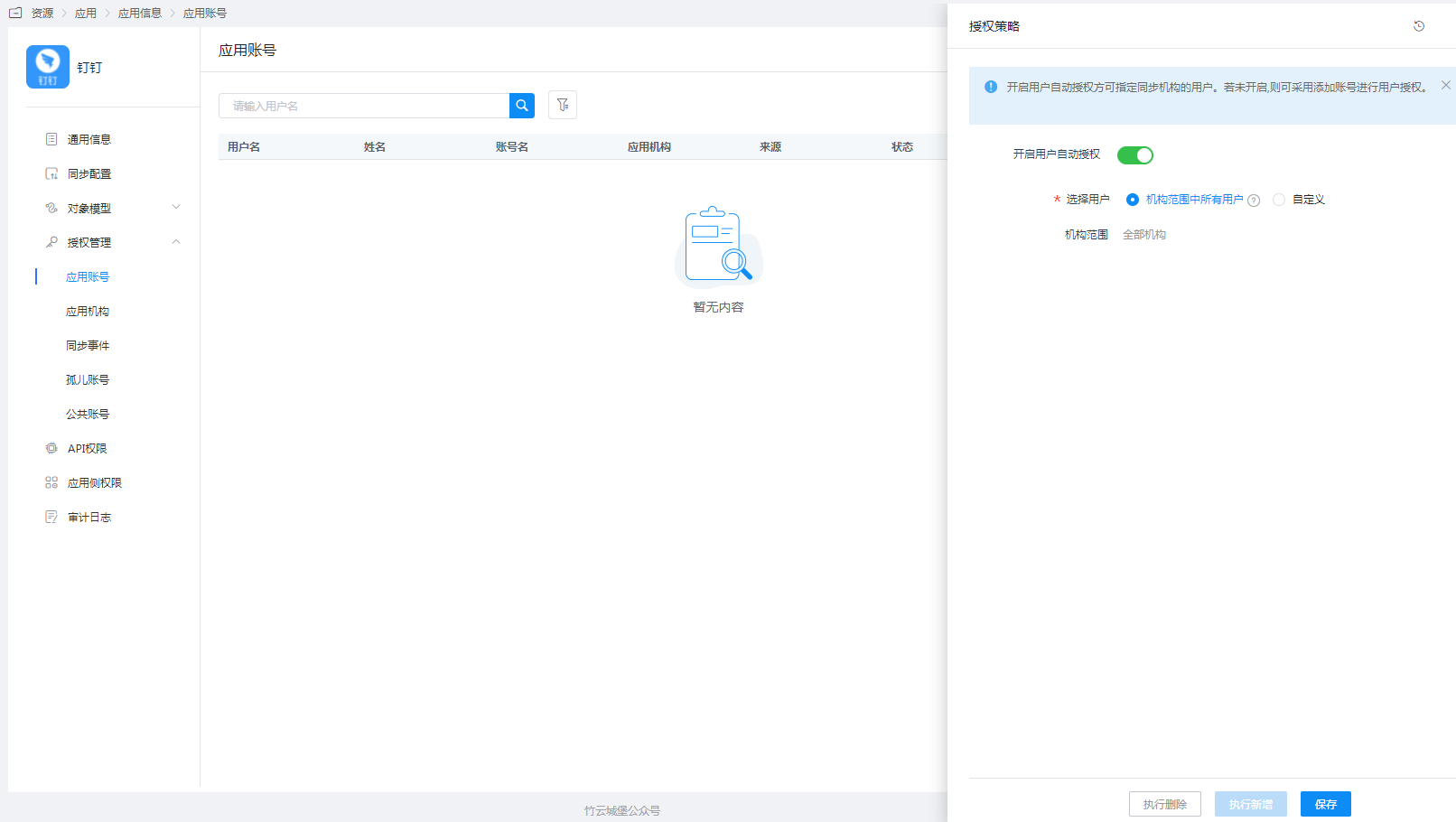
Enter Application Details > Application Account > Authorization Policy, enable automatic organization authorization, select the user scope, click the Save button, and then click Execute Add.
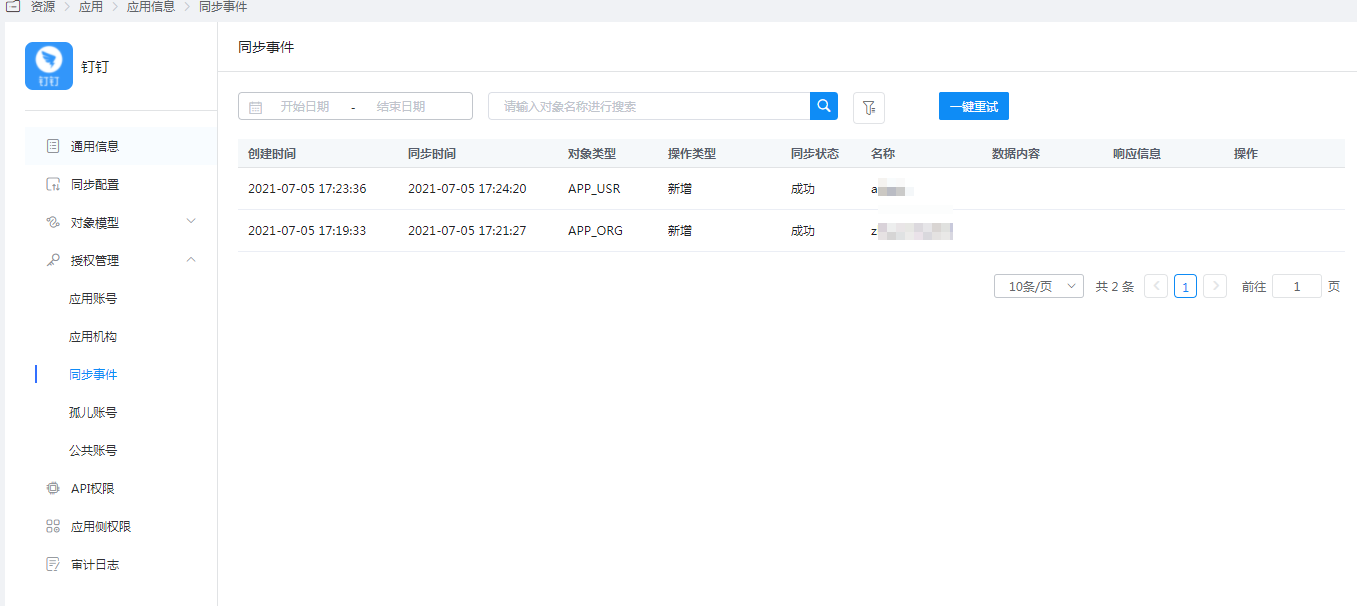
Enter Application Details > Synchronization Events to view the synchronization status.
View Synchronization Results
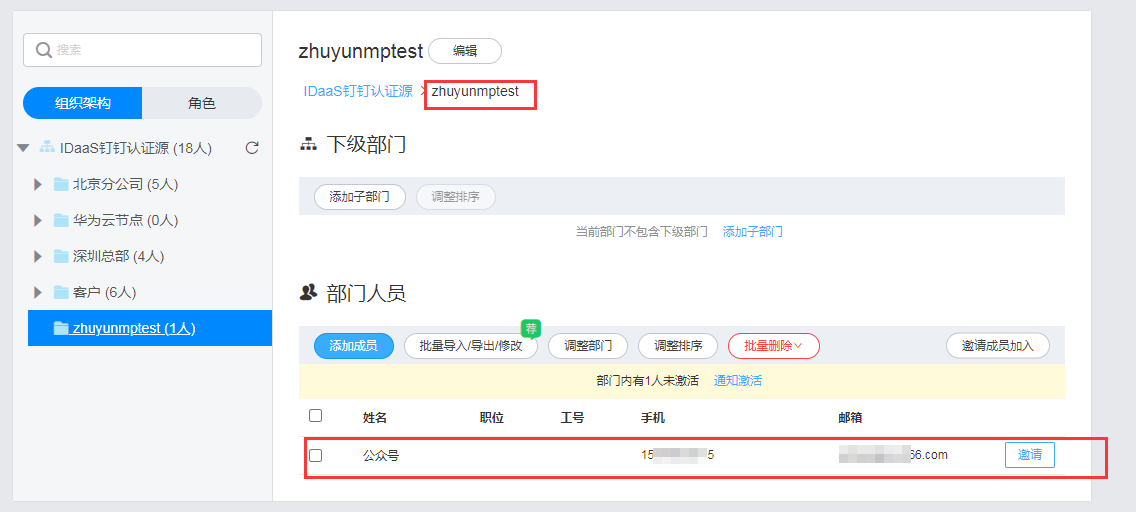
Log in to the DingTalk management backend, enter the address book, and view the synchronized organizations and users.