
Fxiaoke CRM Single Sign-On
Overview
This article describes the single sign-on configuration process between Fxiaoke CRM and BambooCloud IDaaS, enabling BambooCloud IDaaS to log in to Fxiaoke CRM, providing users with a simpler and more convenient login method and a better user experience.
Prerequisites
- You have Fxiaoke CRM system backend management permissions.
- You have access permissions to the BambooCloud IDaaS Enterprise Center.
Authentication Configuration
Fxiaoke Configuration
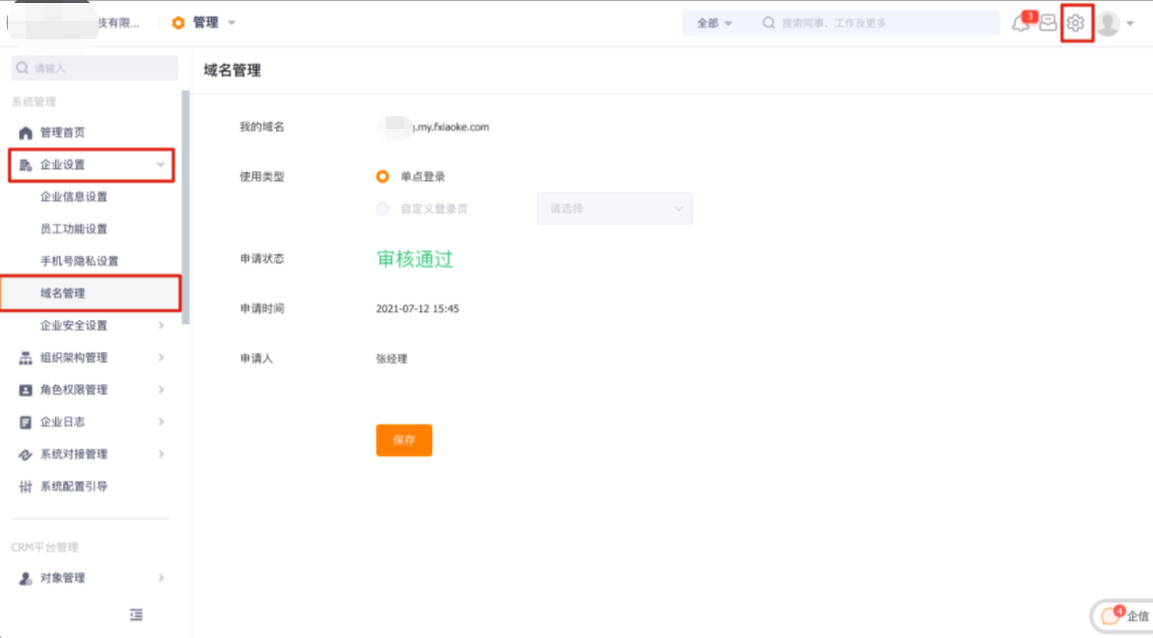
Use the administrator account to log in to Fxiaoke, click the Settings button in the upper right corner to enter the enterprise management backend. Find Enterprise Settings -> Domain Management, enter a domain name and apply, and wait for approval.
After approval, click Enterprise Settings -> Enterprise Security Settings -> Single Sign-On, configure the parameter information and save.
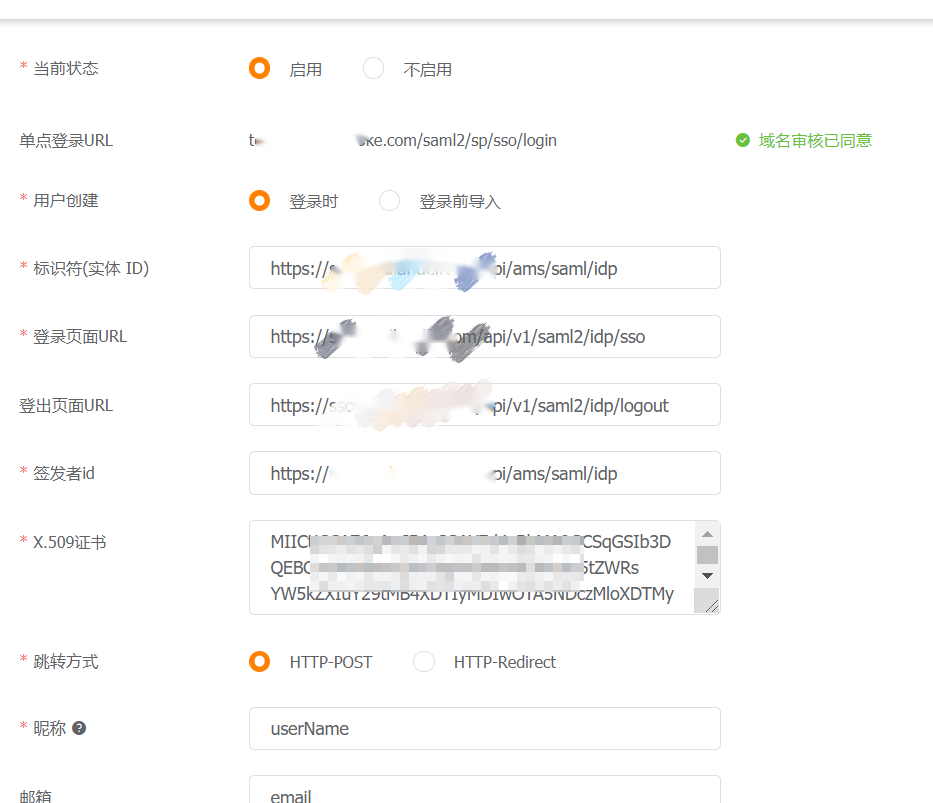
Parameter Description User Creation If you need to establish personnel mapping relationships before login, select Import Before Login. Generally, selecting At Login is sufficient. Identifier Entity ID Obtained from the XML provided by Fxiaoke, value: EntityDescriptor-entityID Login Page URL BambooCloud IDaaS Enterprise Center - IDP Configuration - SSO URL Logout Page URL BambooCloud IDaaS Enterprise Center - IDP Configuration - IDP Logout URL Issuer ID BambooCloud IDaaS Enterprise Center - IDP Configuration - IDP EntityId X.509 Certificate BambooCloud IDaaS Enterprise Center - IDP Configuration - IDP Certificate Nickname userName Email email Mobile Phone phone
BambooCloud IDaaS Configuration
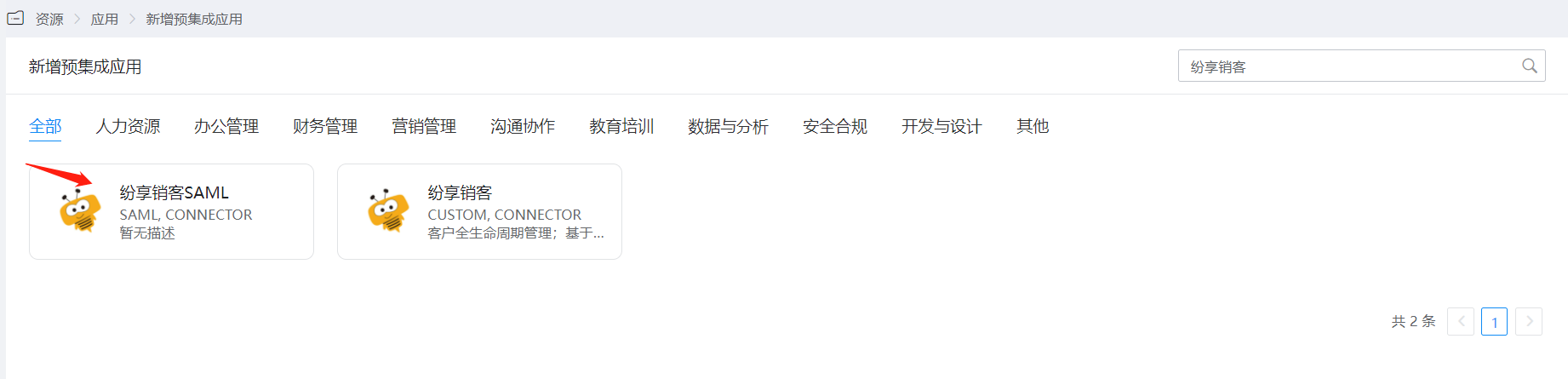
In the navigation bar, choose Resources > Pre-integrated Applications, and click Add Fxiaoke.
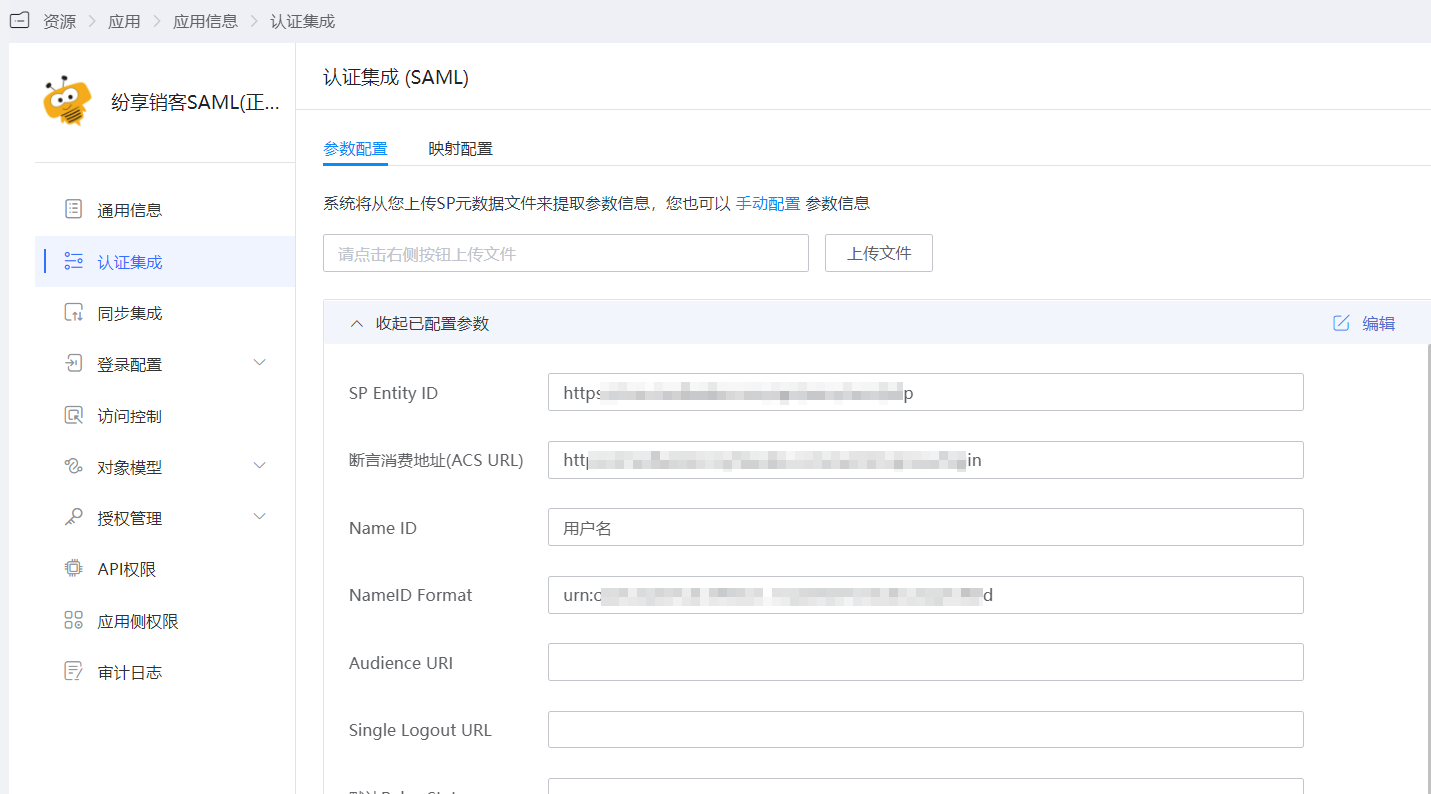
Upload the Fxiaoke metadata and configure authentication parameters.
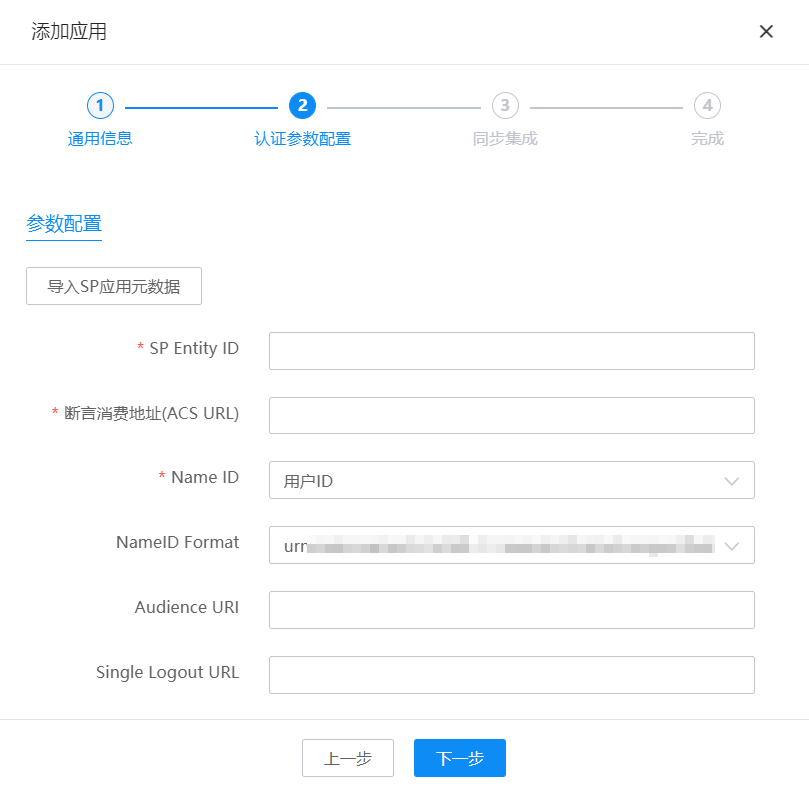
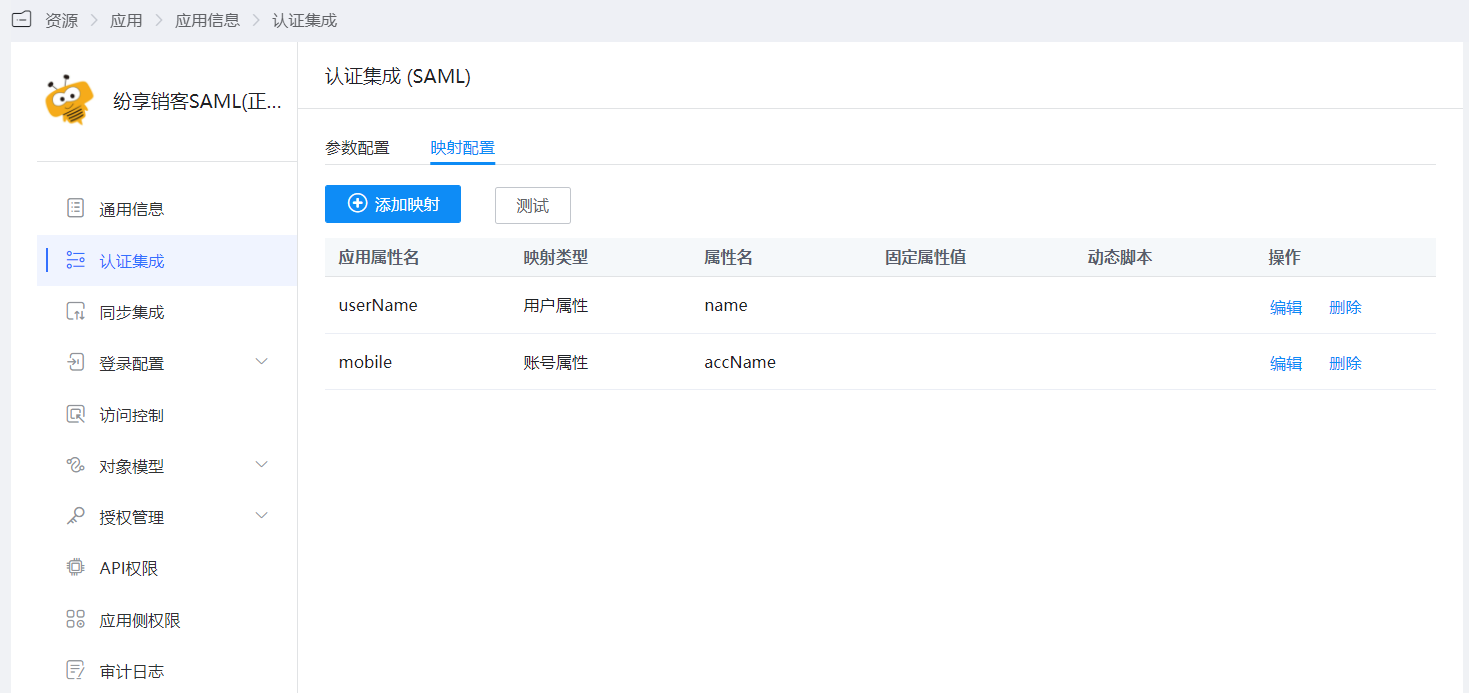
After the application is saved, enter the application details to configure the mapping in the authentication configuration.
Login Verification
Authorized users log in to the BambooCloud IDaaS User Center, click the Fxiaoke application LOGO to enter the Fxiaoke system.