
EsenBI Data Synchronization
Overview
This article describes how to synchronize organization and user data from BambooCloud IDaaS to EsenBI, realizing data flow from BambooCloud IDaaS to EsenBI.
Prerequisites
- You have an EsenBI administrator account and password.
- You have administrator permissions for the BambooCloud IDaaS Enterprise Center platform.
Synchronization Configuration
BambooCloud IDaaS Configuration
Log in to the BambooCloud IDaaS Enterprise Center platform, choose Resources > Applications, and add the pre-integrated application EsenBI.
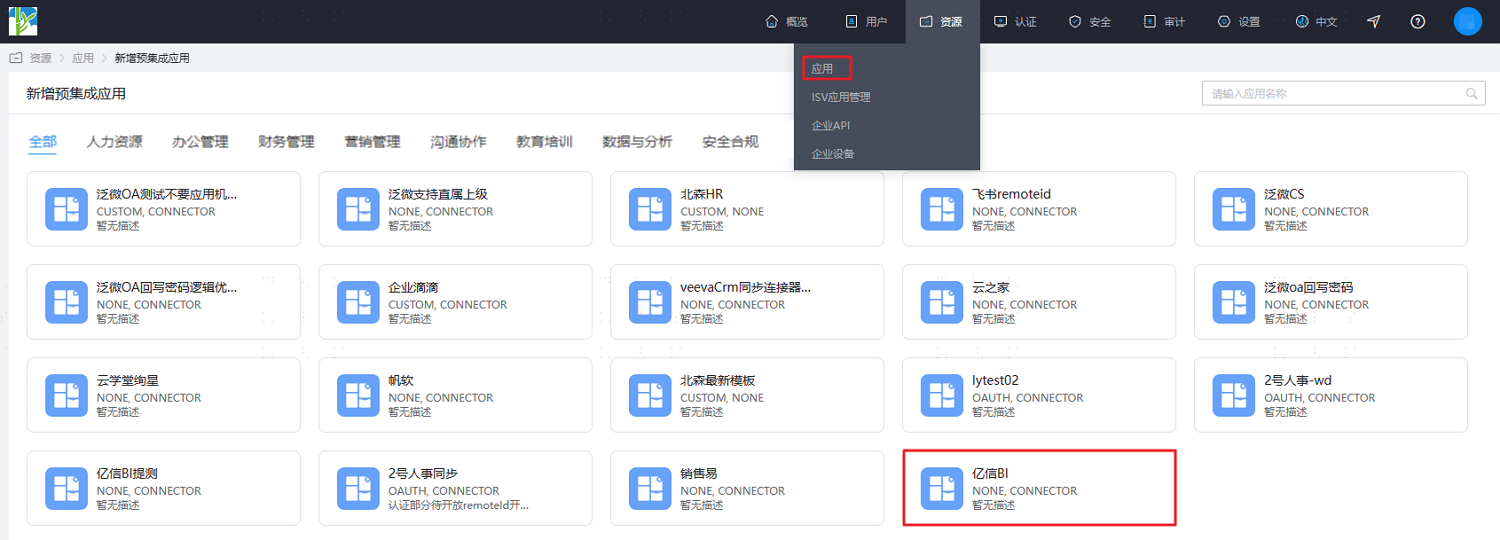
Configure application parameters. Key parameters are as follows.
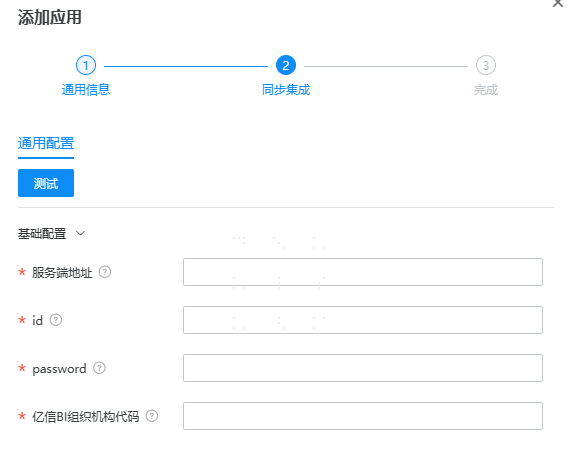
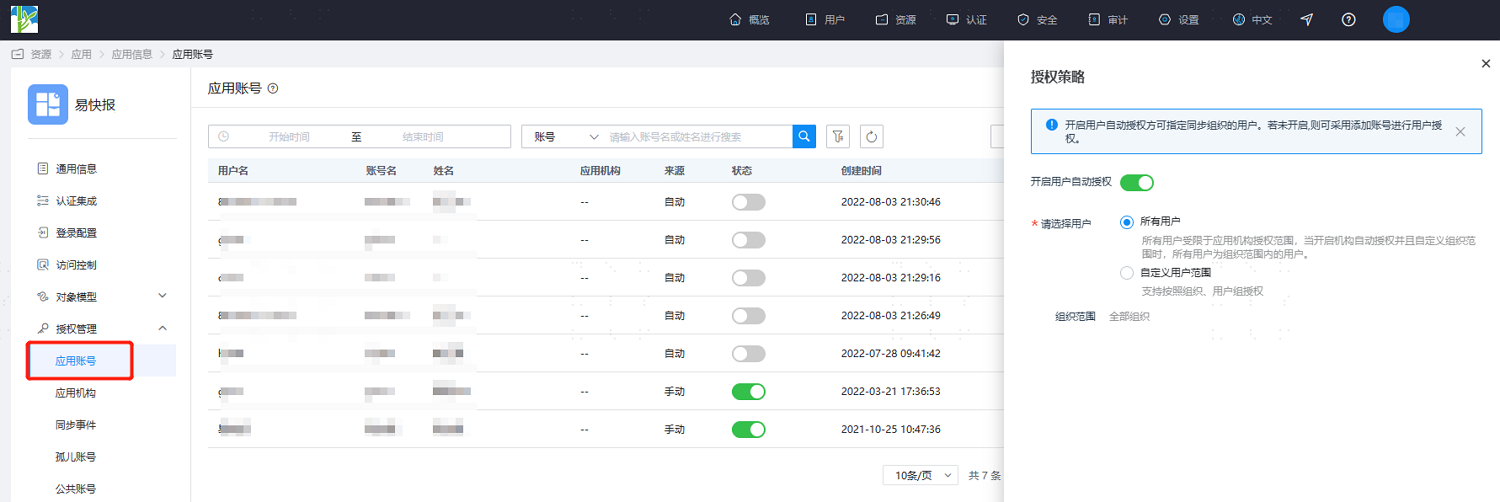
Parameter Description Server Address Interface call address id Account used to log in to EsenBI password Password used to log in to EsenBI EsenBI Organization Code The code of the organization on the EsenBI side. Data synchronization will be mounted under this organization. To create a root department, fill in --.After configuration is complete, enter the application details, switch to the Authorization Management > Application Account page, click Authorization Policy to enable automatic user authorization, select the user scope, click the Save button, and then click Execute Add.
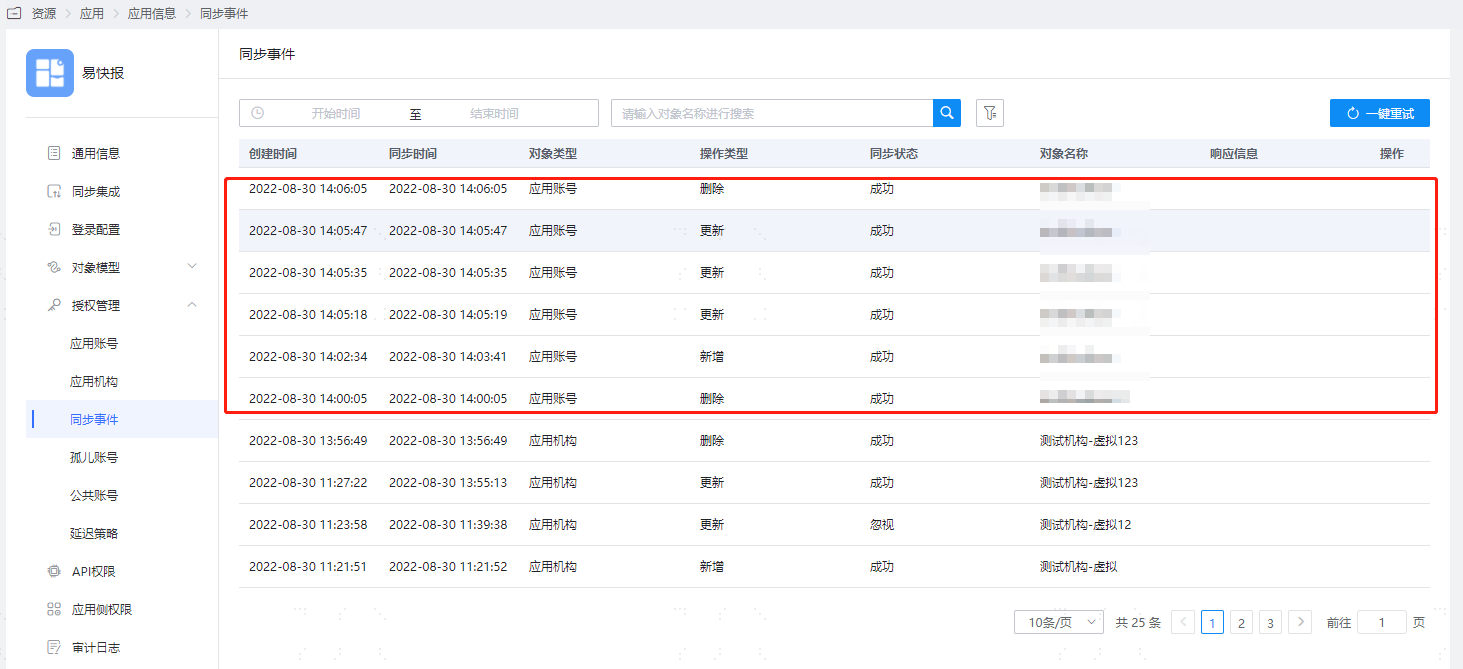
After execution is successful, switch to the Authorization Management > Synchronization Events page to view the corresponding synchronization event results.
TIP
Similarly, you can enable automatic organization authorization and view the organization synchronization results.
View Synchronization Results
Log in to the EsenBI management backend and view the synchronized user information.