Zentao Single Sign-On
Overview
This article describes two ways for BambooCloud IDaaS to configure single sign-on to Zentao:
Password-free login to Zentao. Starting from Zentao version 11.5.1, the function of third-party applications logging in to Zentao without a password has been added. Reference document
Zentao CAS plugin Plugin address. The plugin supports Zentao open-source versions 12.4 and 12.53, and enterprise version 4.1.3.
TIP
For enterprise version plugin installation, select the source code method. Download the plugin zip package and extract it, then copy the files under the plugin's config and module directories to the corresponding directories under the Zentao installation directory. After adding the plugin in this way, the plugin cannot be seen in the plugin management backend, but it does not affect usage.
Password-Free Login Configuration
Zentao Configuration
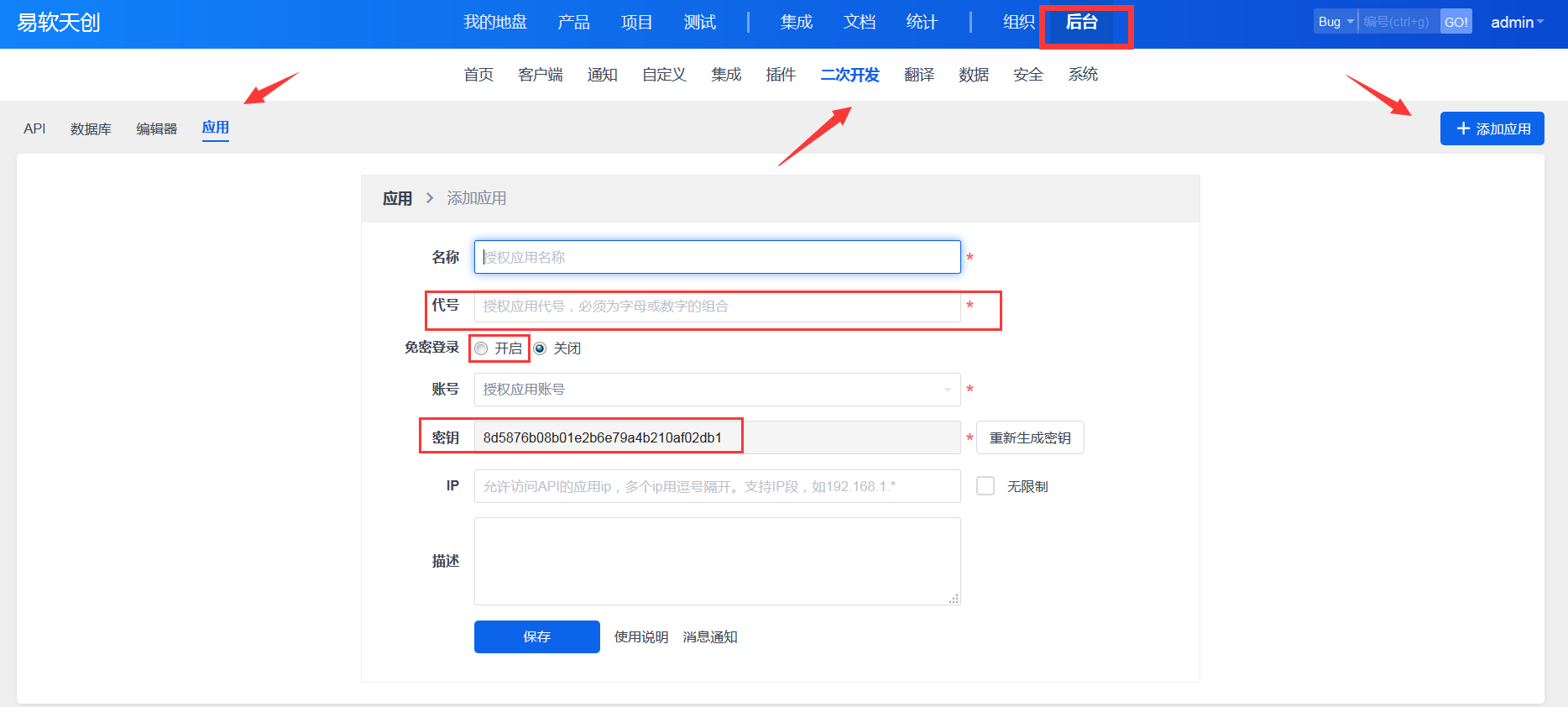
Log in to the Zentao backend as an administrator, Secondary Development > Application, and add an application.
BambooCloud IDaaS Configuration
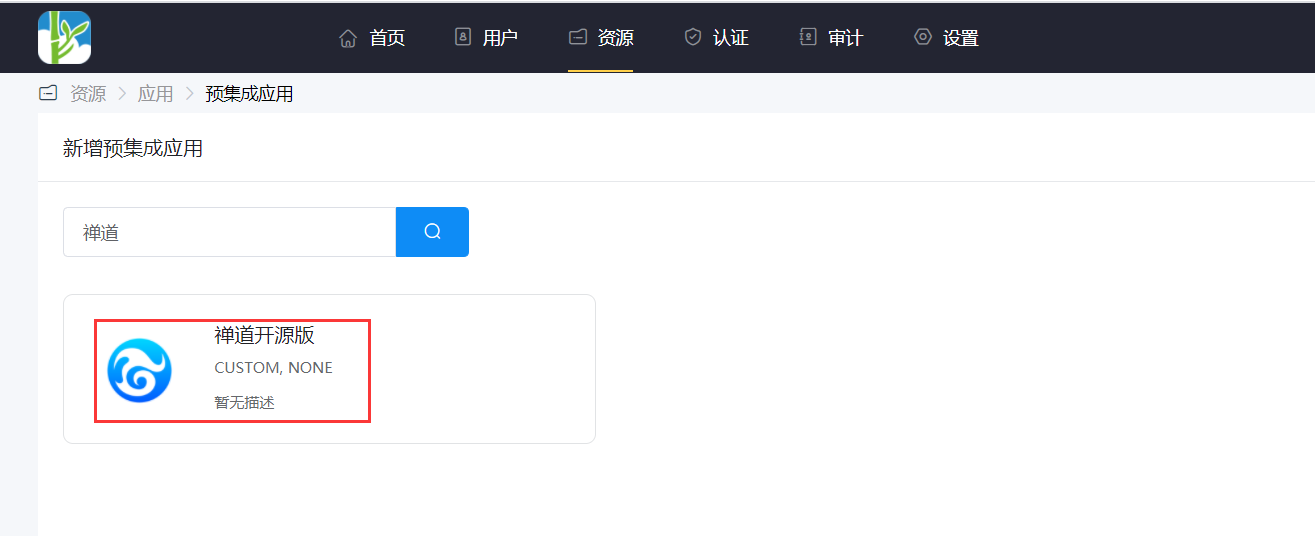
Add the Zentao Open Source Edition pre-integrated application.
Authentication parameter configuration. Parameter descriptions are as follows:
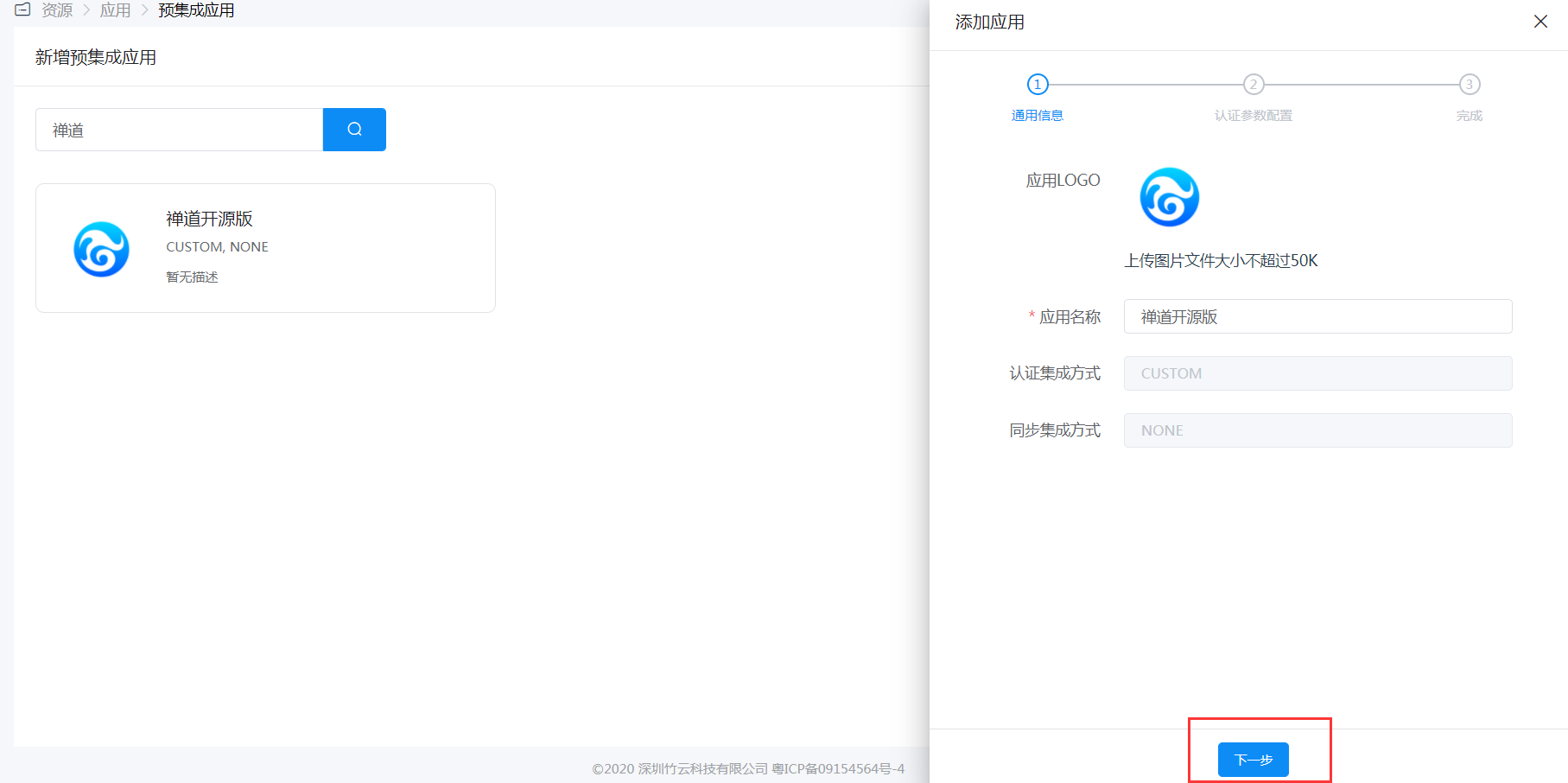
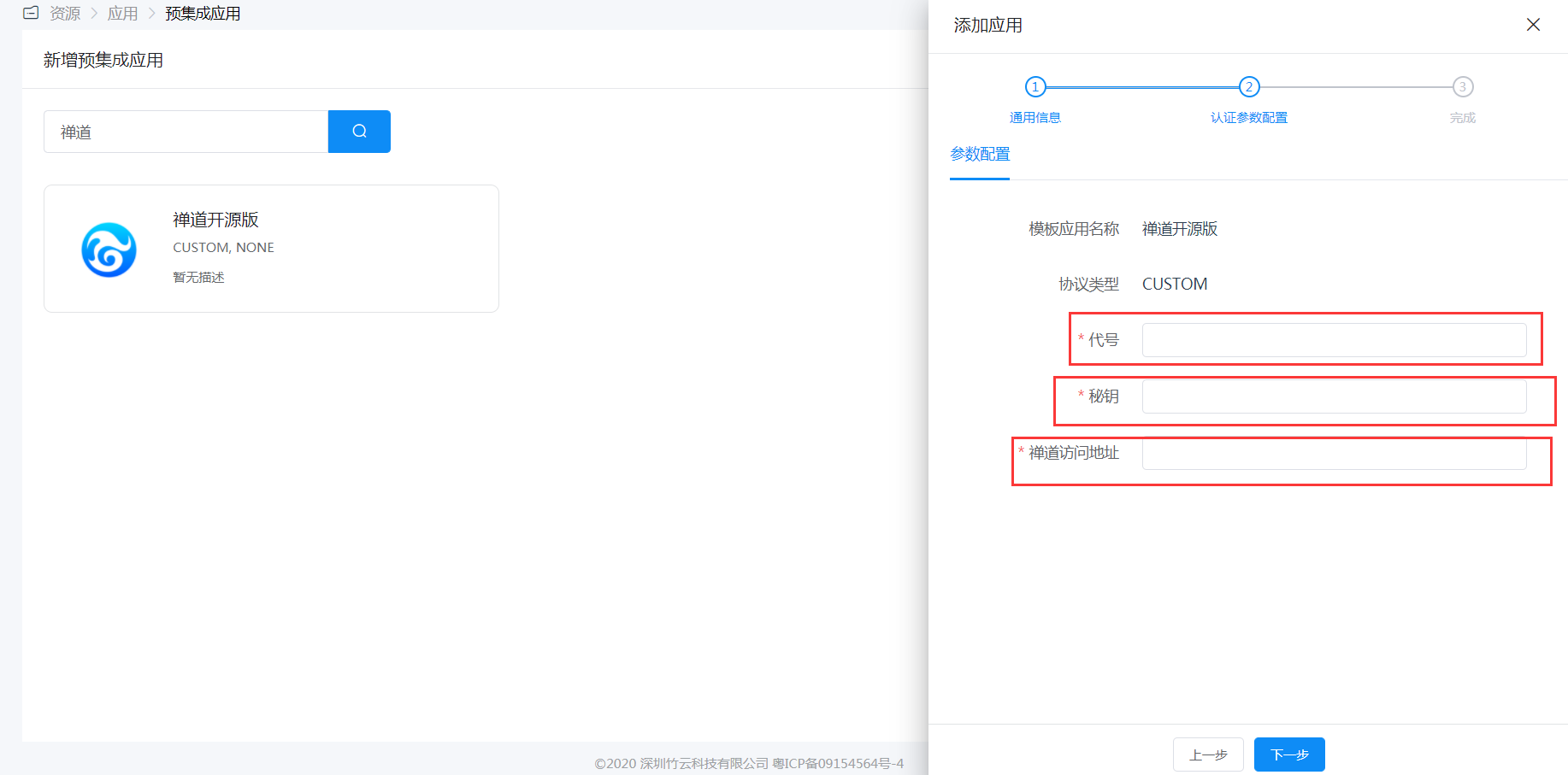
Name Description Code The code filled in when adding the application in the Zentao backend Secret The secret generated when adding the application in the Zentao backend Zentao Access Address Zentao access address link, request format: http://www.zentao.netAuthorize user accounts, corresponding to the Zentao login username. After authorization, users can click the Zentao application logo in the User Center to single sign-on into the application.
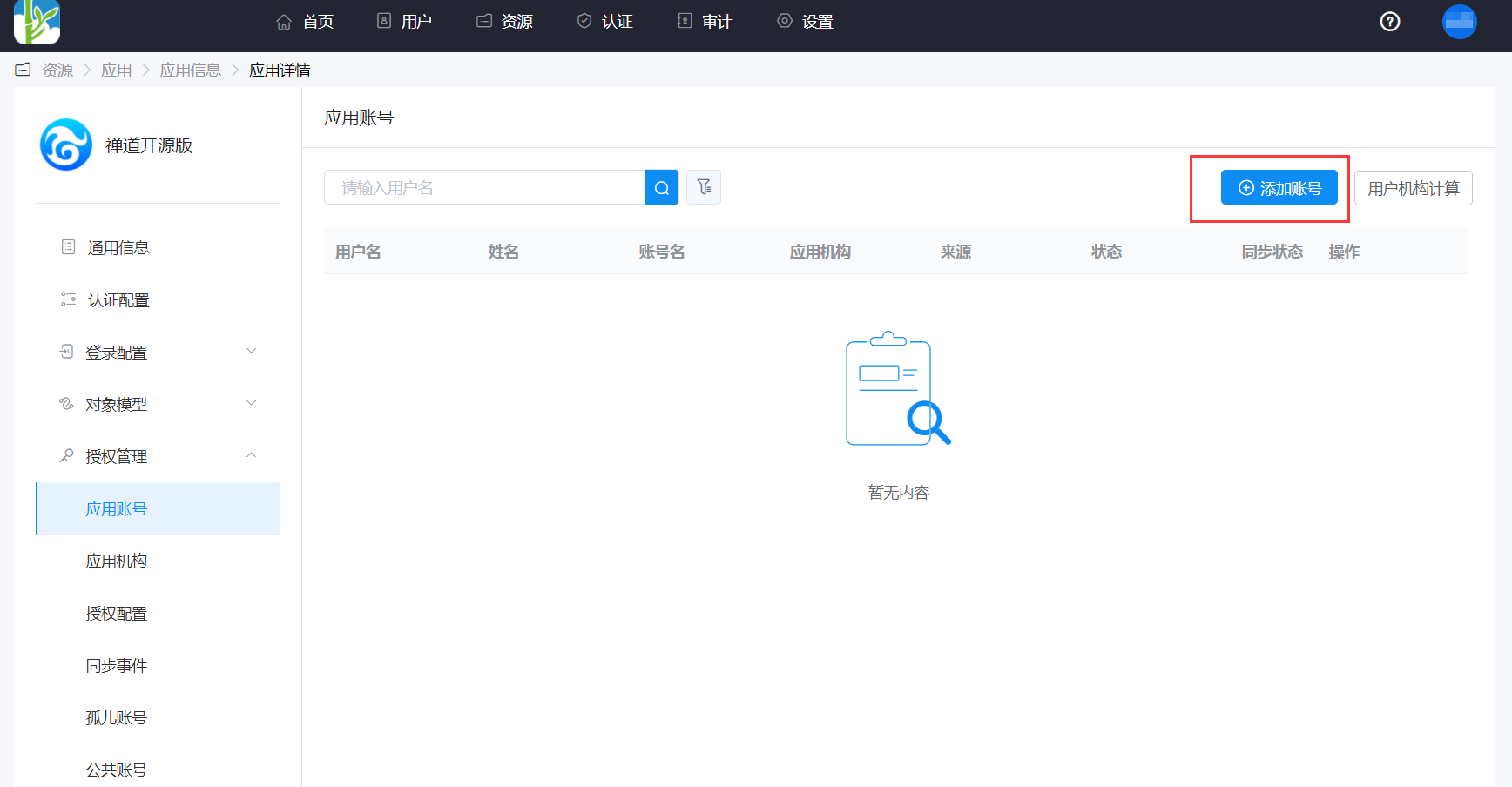
Login Verification
Authorized users can click the Zentao application logo in the User Center to single sign-on into the application.
Zentao CAS Plugin
Zentao Configuration
Log in to the Zentao backend as an administrator, Plugins, and obtain the plugin.
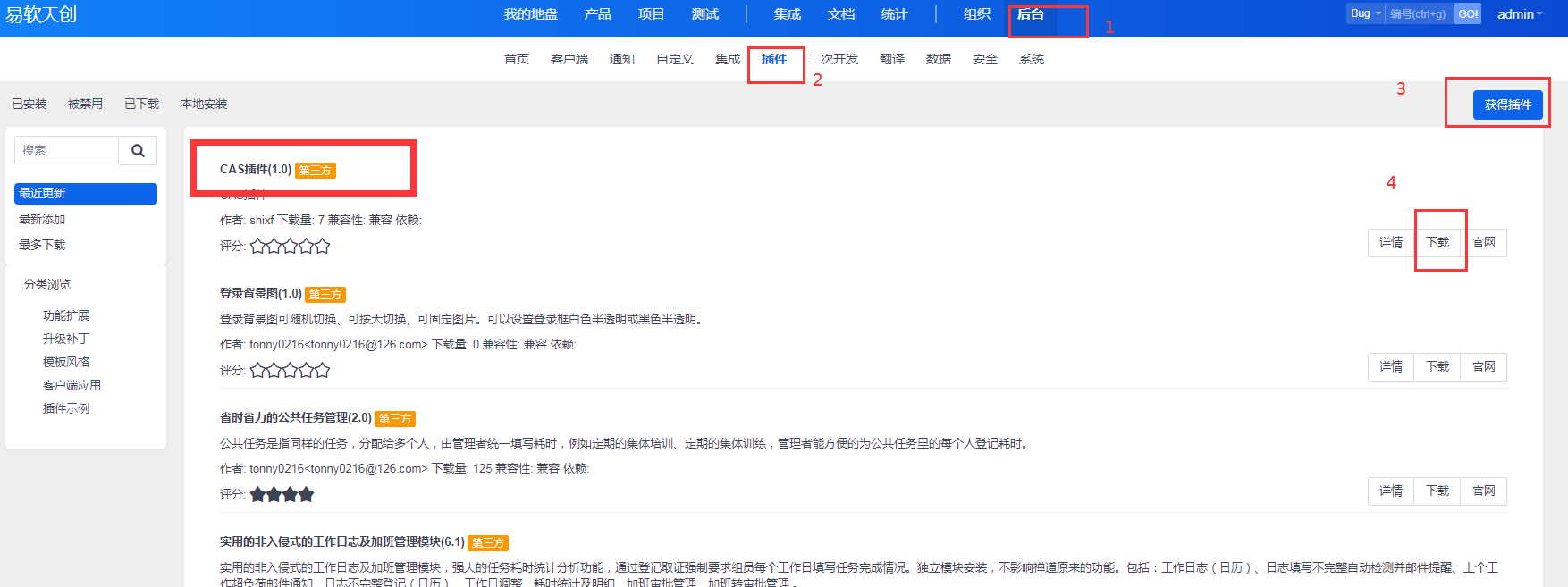
After the plugin installation is complete, modify the configuration file
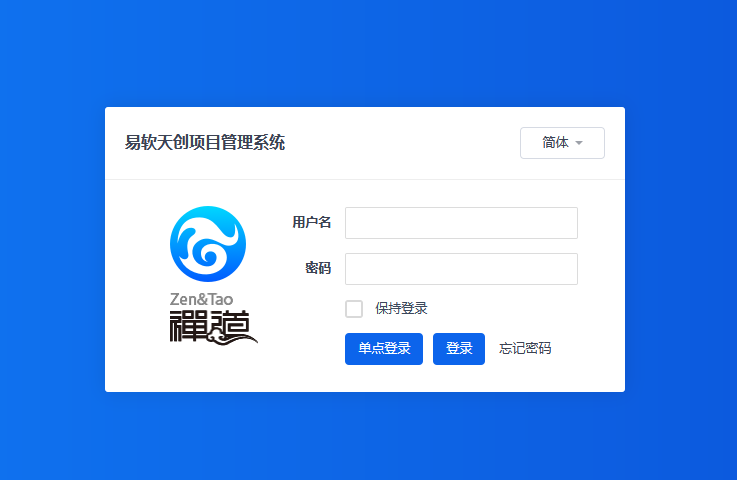
config/ext/cas.php.php$filter->cas->tokenlogin->get['ticket'] = 'reg::any'; // CAS login interface $config->cas->loginUrl = 'https://{IDaaS-tenant-domain}.bccastle.com/api/v1/cas/login'; // CAS ticket authentication address $config->cas->authUrl = 'https://{IDaaS-tenant-domain}.bccastle.com/api/v1/cas/serviceValidate'; // CAS login callback address, modify www.xxx.com to the specific Zentao address. $config->cas->serviceUrl = 'http://www.xxx.com/cas-tokenlogin';After configuration is complete, it will be displayed on the Zentao login interface as a single sign-on button.
BambooCloud IDaaS Configuration
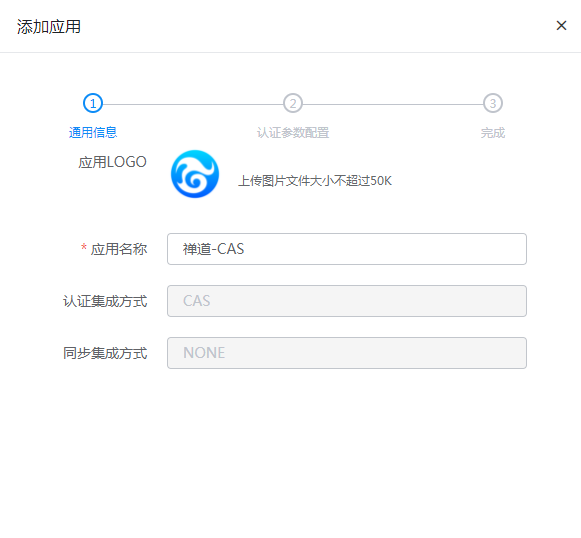
Log in to the BambooCloud IDaaS Enterprise Center as an administrator, go to Resources > Applications > Add Pre-integrated Application, and select Zentao-CAS.
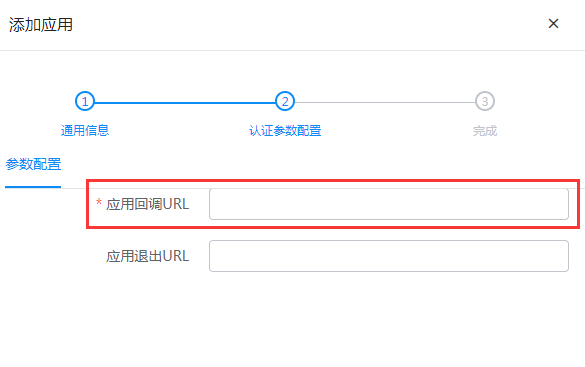
Fill in the application callback address with the CAS login callback address in the
cas.phpfile in the steps above.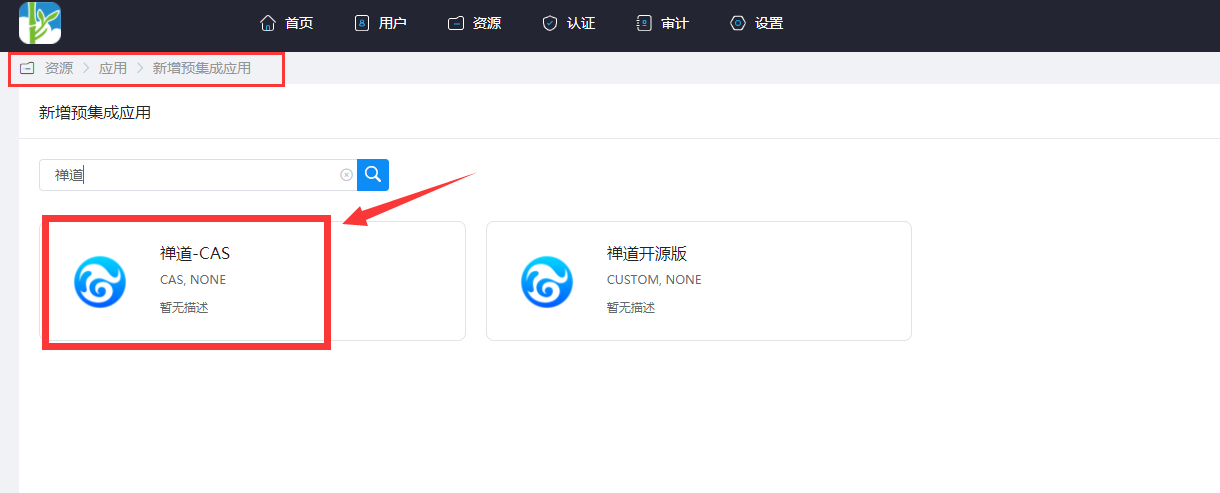
Mapping configuration. Enter the newly added application, Application Info > Authentication Configuration > Mapping Configuration, and add mapping attributes.
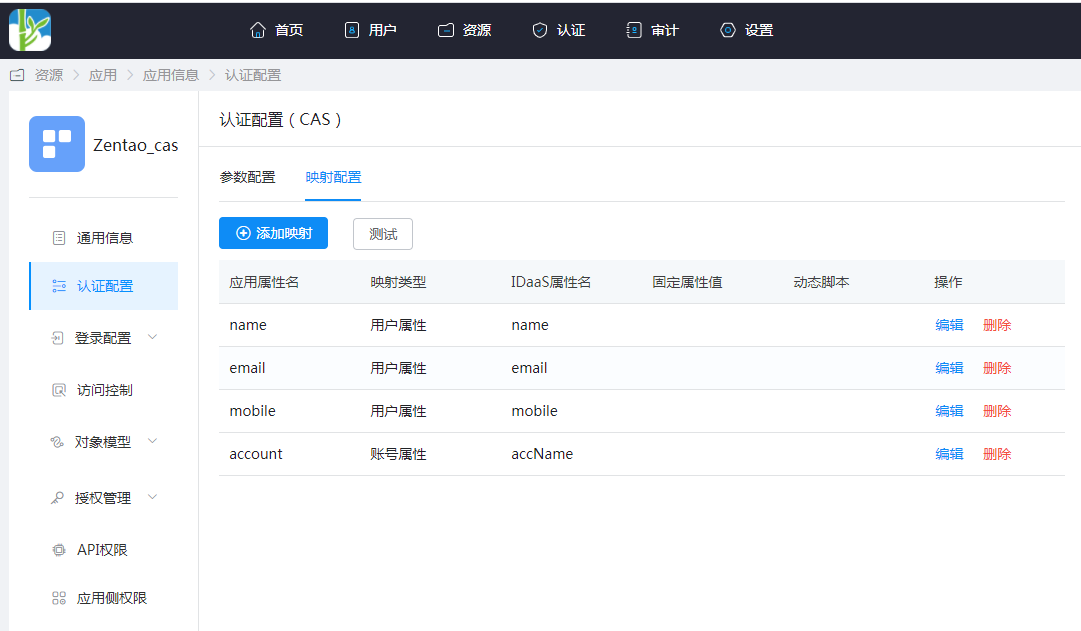
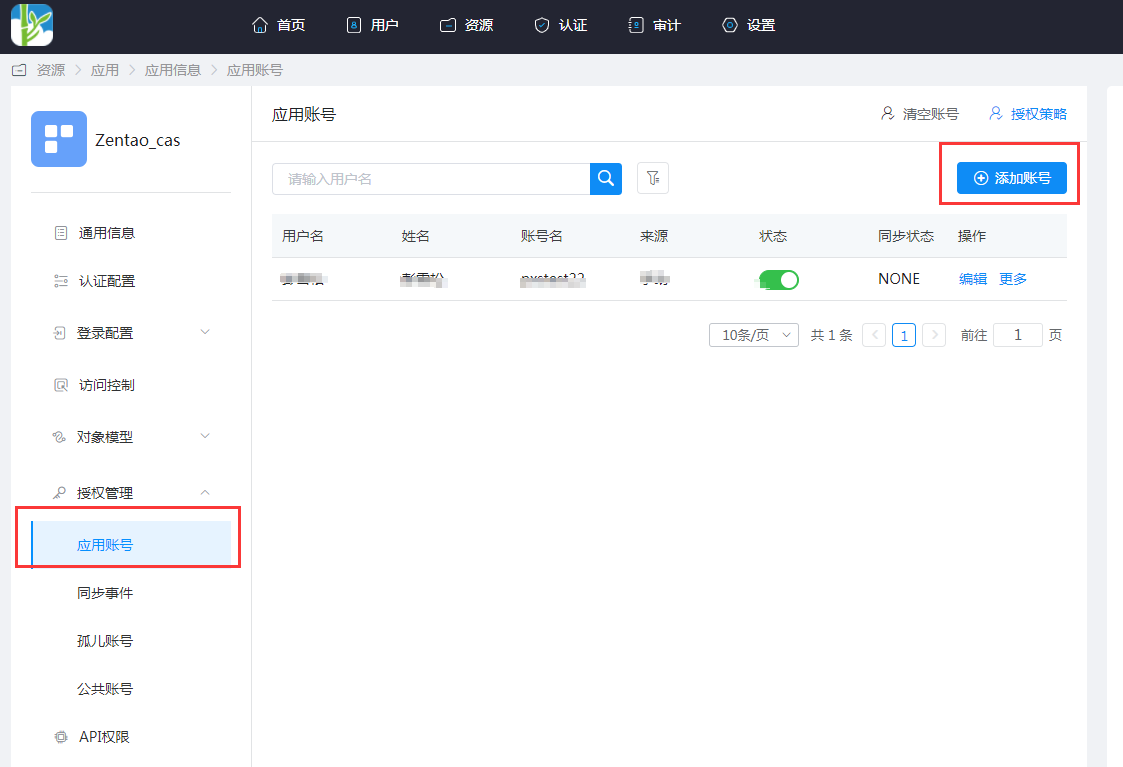
Application Attribute Name Mapping Type BambooCloud IDaaS Attribute Name name User Attribute name email User Attribute email mobile User Attribute mobile account Account Attribute accName Application Info > Authorization Management > Application Account > Add Account. The account name corresponds to the username in Zentao. If the user does not exist in Zentao, it will be automatically created.
Login Verification
Two login methods are as follows:
Users access the BambooCloud IDaaS User Center and click the Zentao application logo to directly single sign-on into Zentao.
Click the single sign-on button on the Zentao login page, and you will be redirected to the BambooCloud IDaaS authentication page. After successful authentication, enter Zentao.
Common Issues
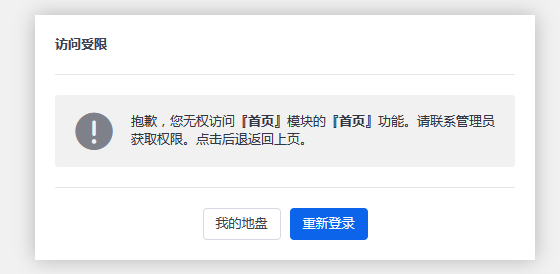
After a new user logs in, the following error message may appear. Since the default permission is "Other", the Zentao administrator needs to reset the permission of this account in Organization > Permissions.