
Jenkins Single Sign-On
Overview
This article describes how to implement Jenkins single sign-on based on the Jenkins plugin.
Operation Process

Authentication Configuration
Jenkins Configuration
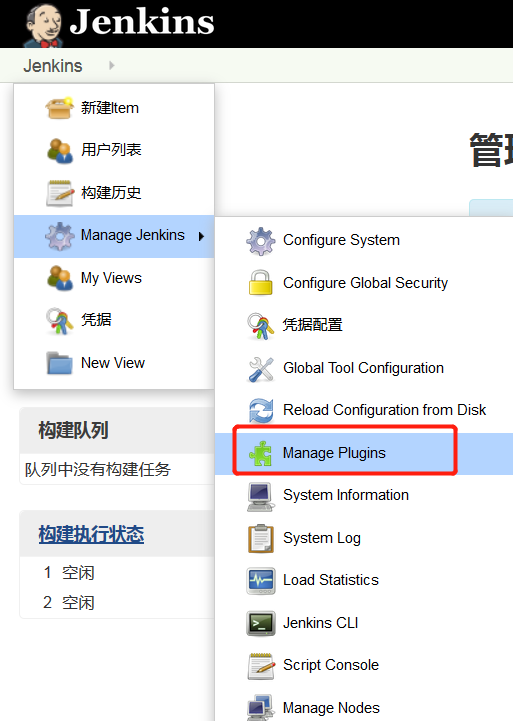
Log in to the Jenkins console, open Plugin Management to add plugins, and search for the SAML plugin.
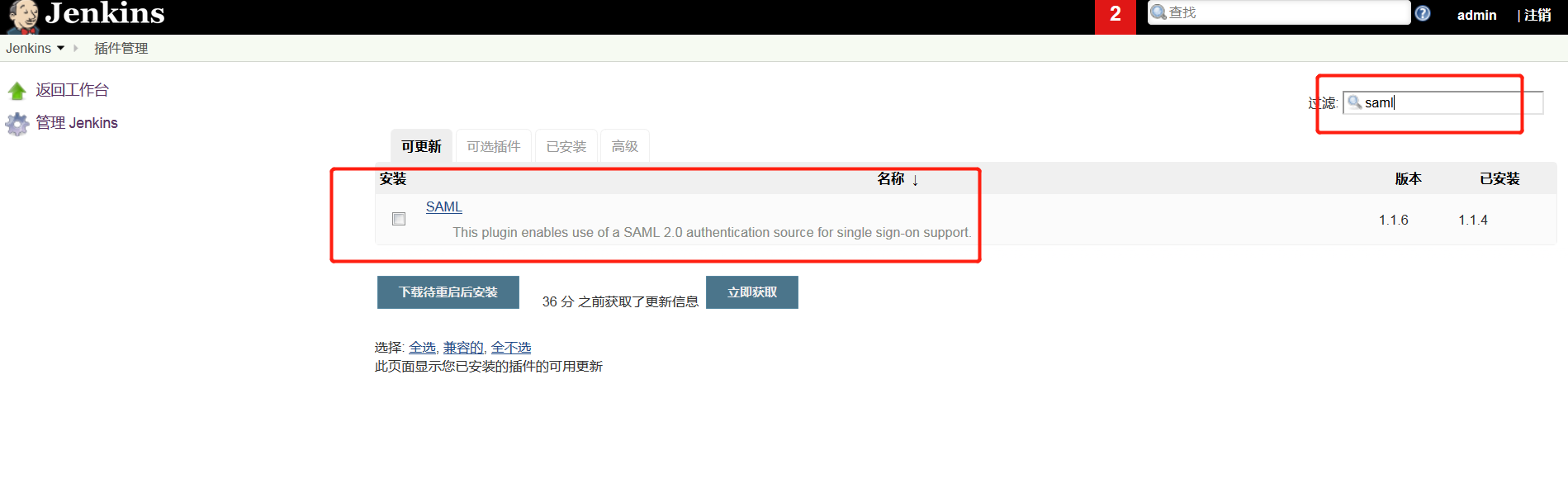
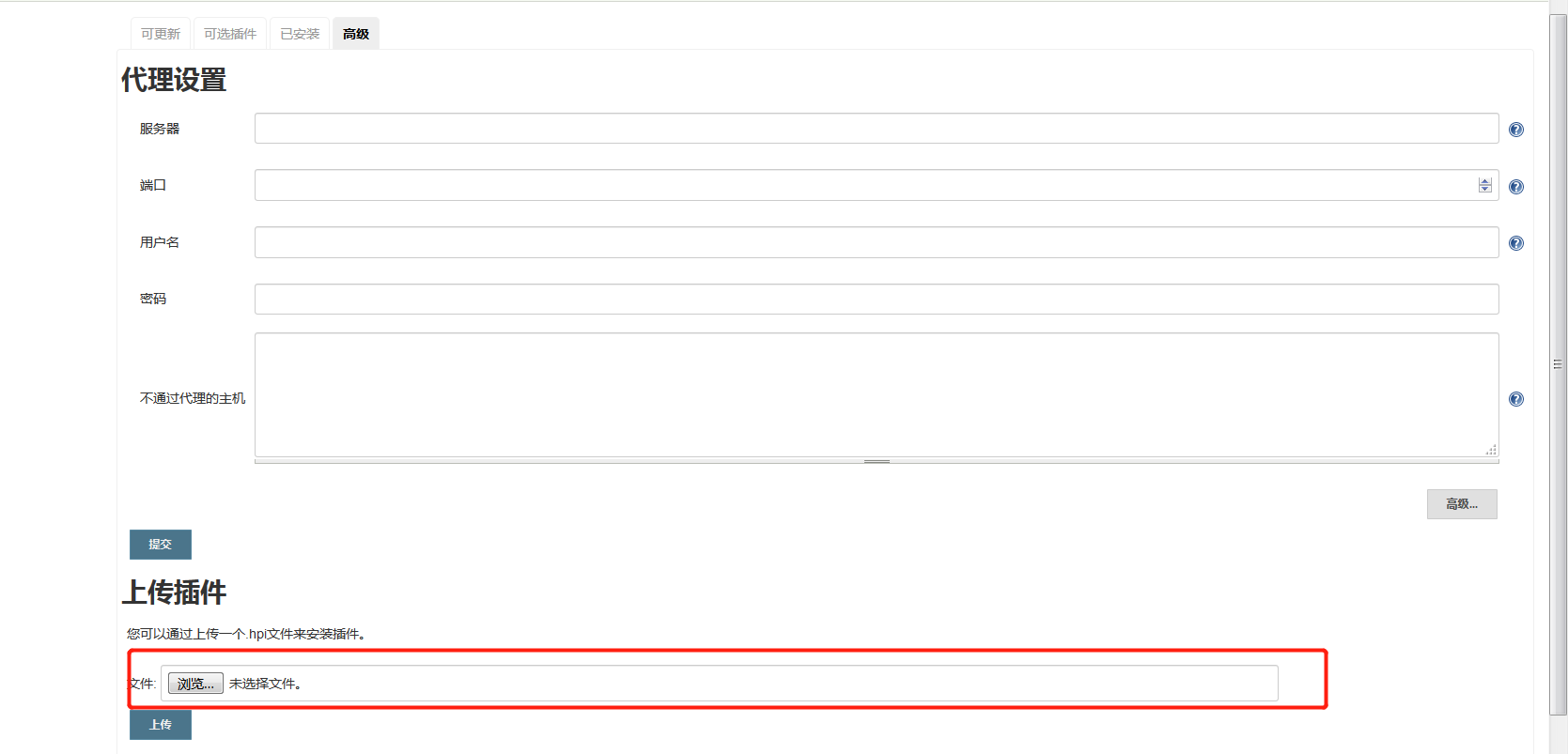
If you cannot find it, you can download it from https://plugins.jenkins.io/saml/, then select Advanced - Upload Plugin (the downloaded saml.hpi file).
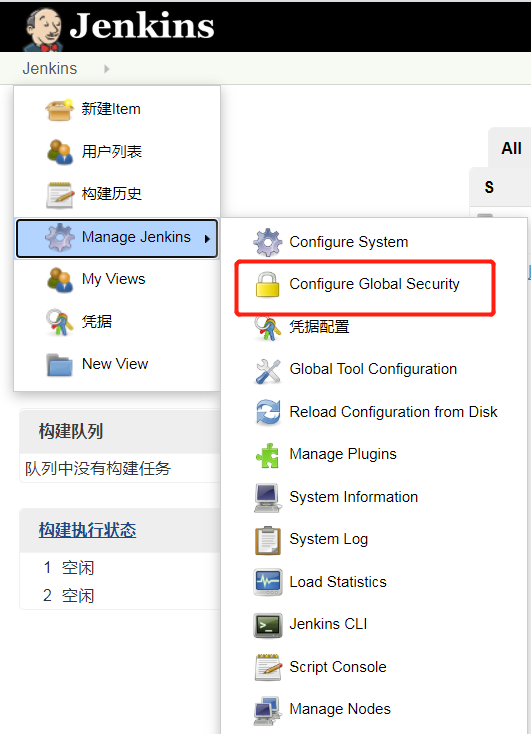
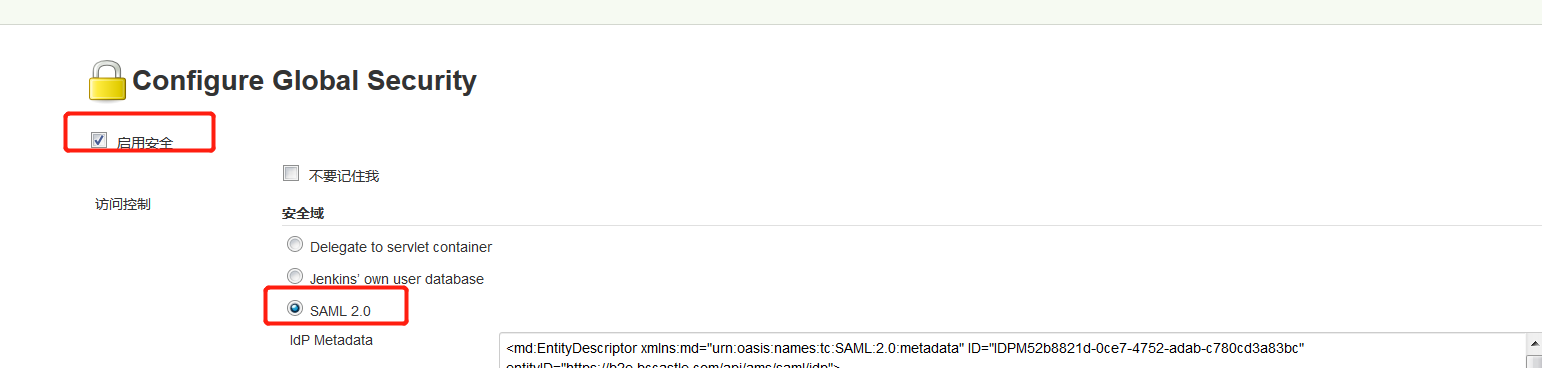
Enter Global Security Configuration.
Select Enable, and choose SAML 2.0 for the Security Realm.
DANGER
After enabling SAML, you cannot log in with Jenkins's own database users.
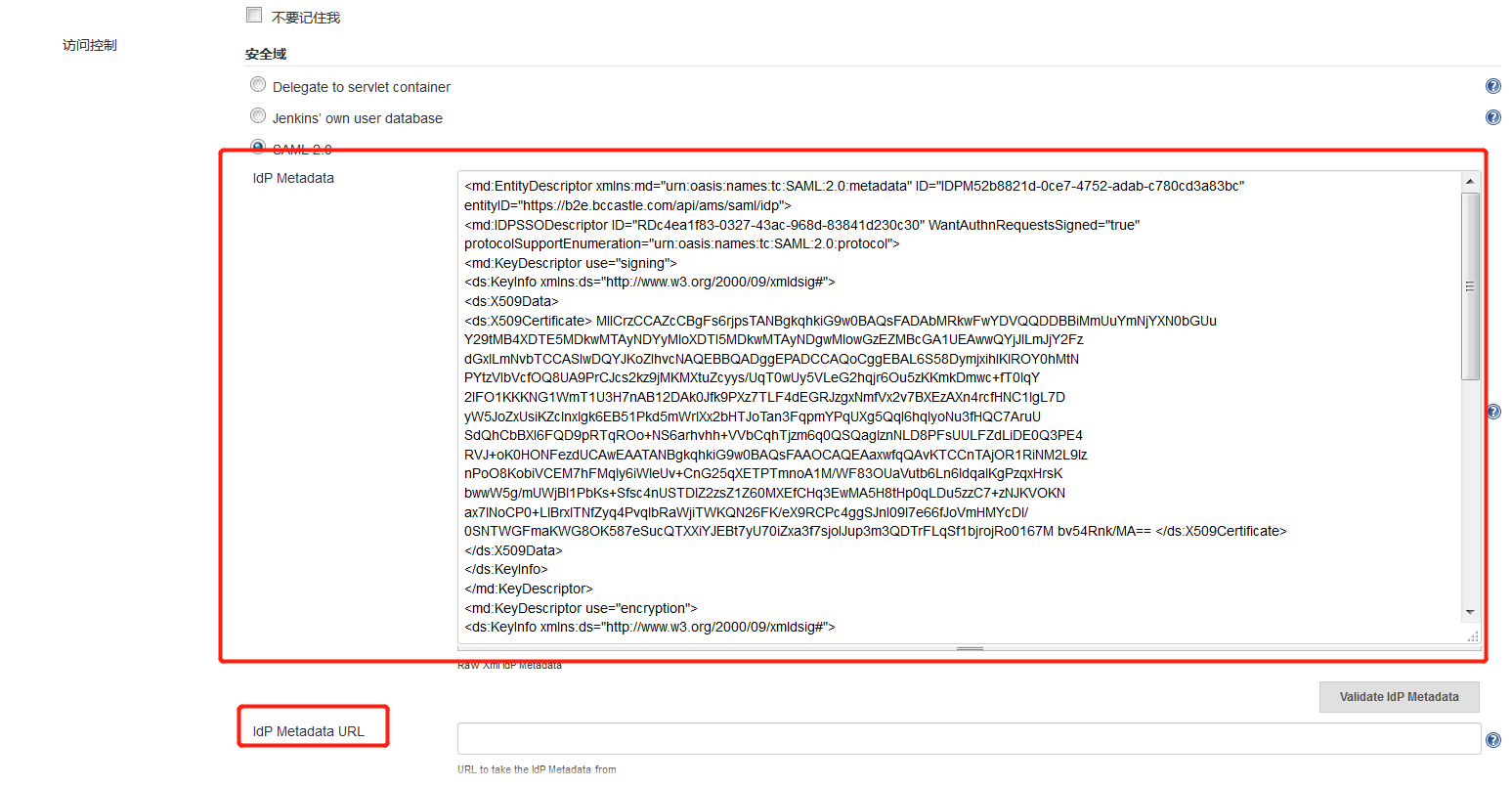
Configure IDP metadata. To download BambooCloud IDaaS IDP metadata, visit
https://{your_domain}/api/v1/saml2/idp/metadata.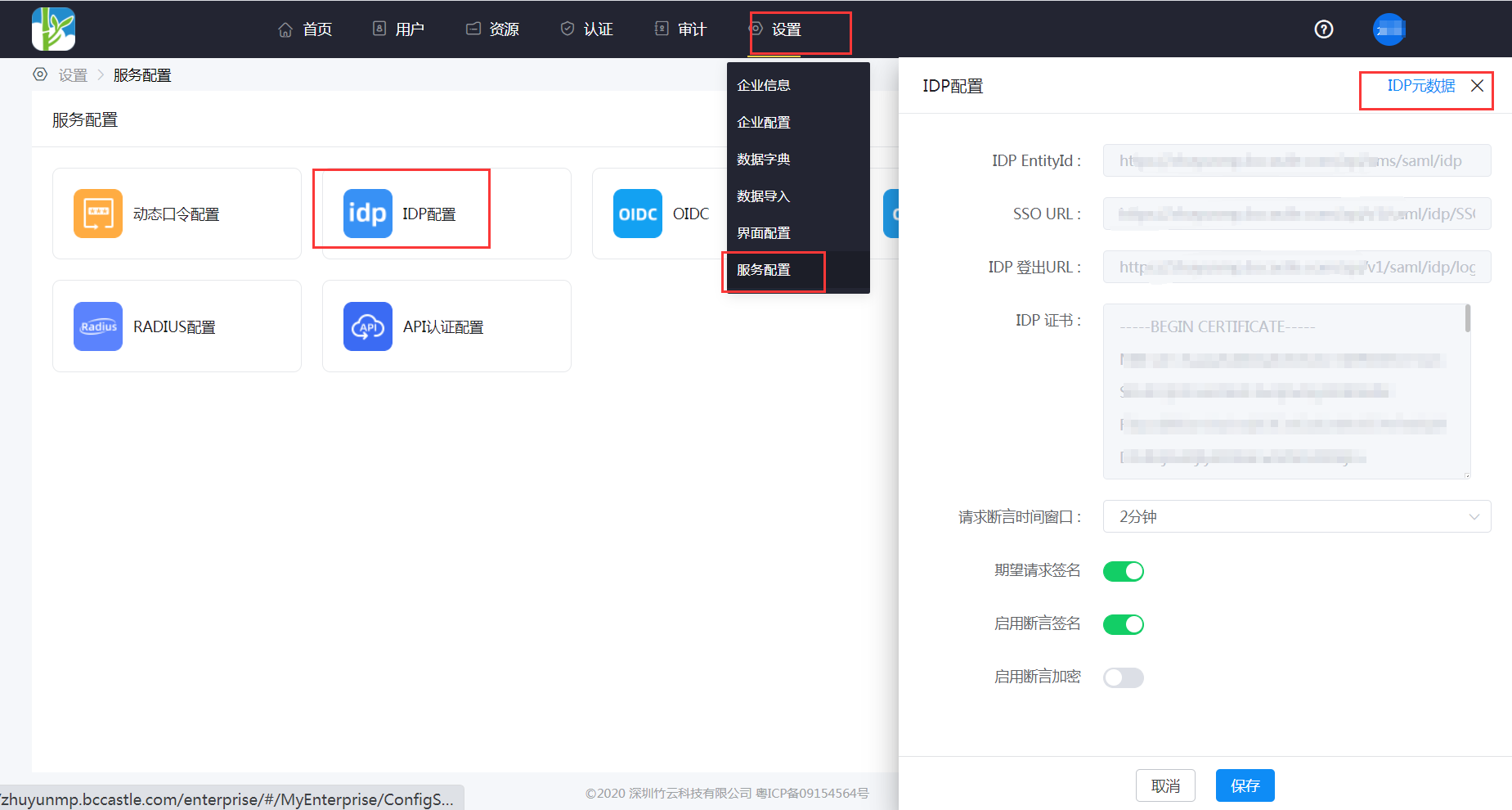
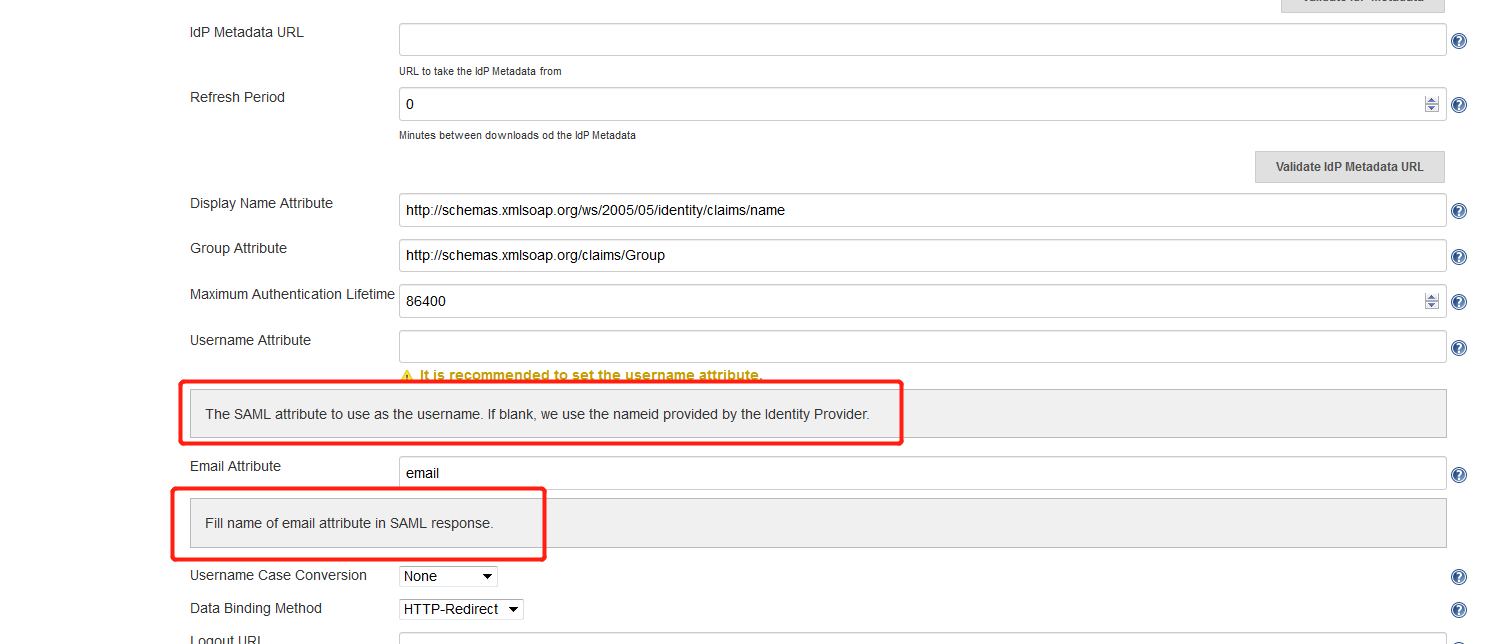
Username Attribute: If left blank, the NameID value is used by default.
Email Attribute: Full email address, fill in
email.Data Binding Method: HTTP-Redirect
Click the Service Provider Metadata link to obtain Jenkins metadata, save it as an XML file, which will be used for the BambooCloud IDaaS application configuration below.
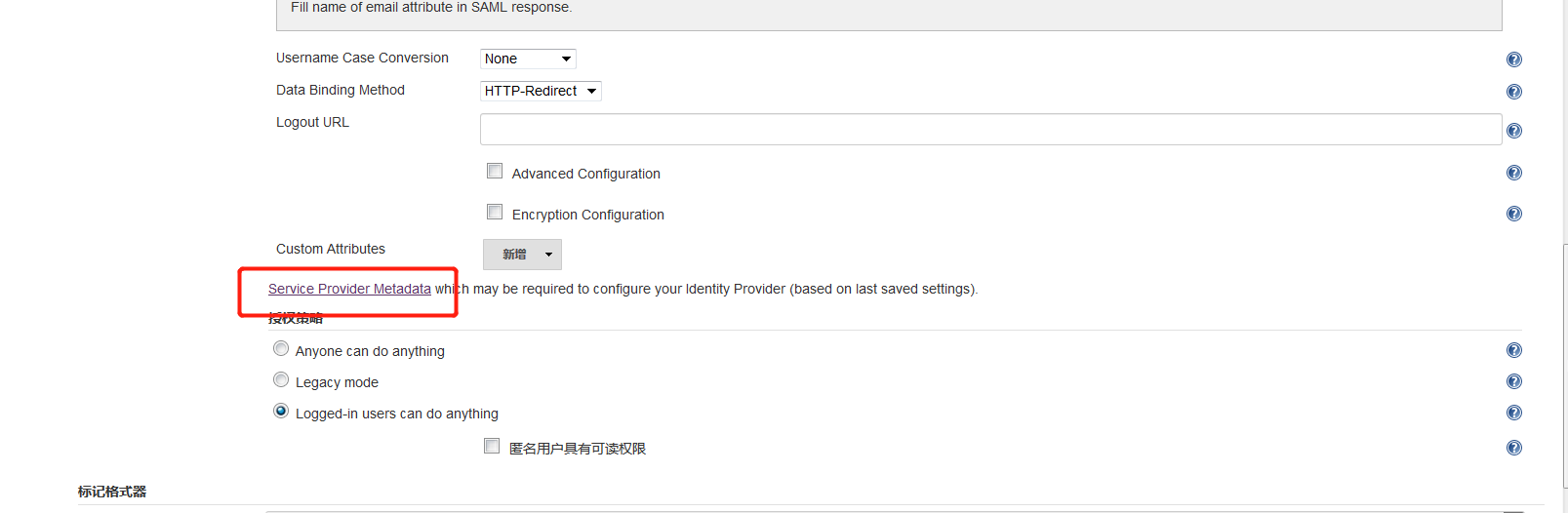
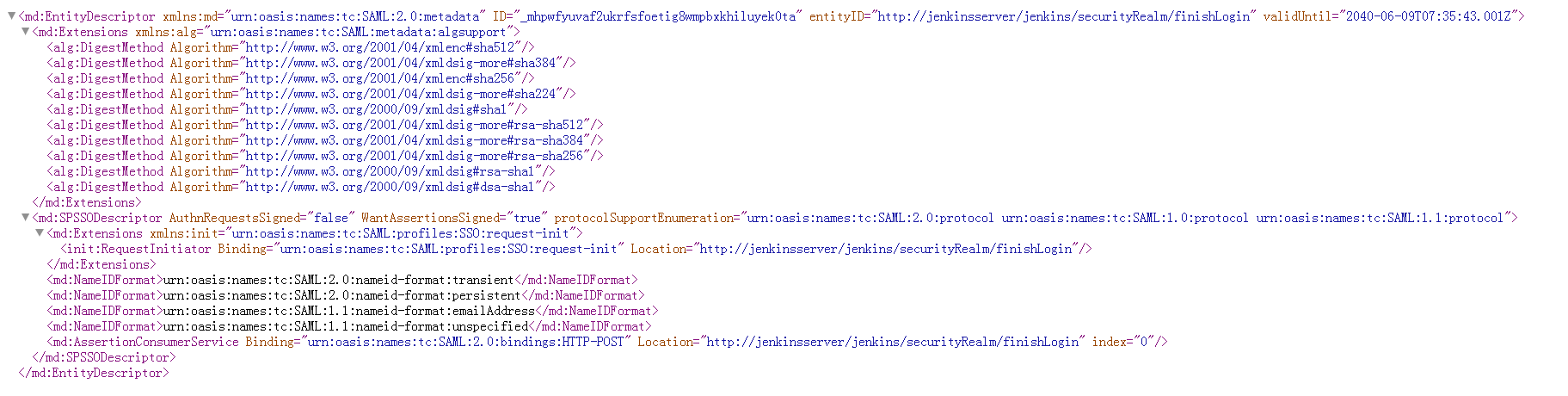
Fill in other parameters as needed, and click Save to complete the configuration.
BambooCloud IDaaS Configuration
Log in to the Enterprise Center - Resources - Applications - Add Pre-integrated Application, and search for Jenkins.
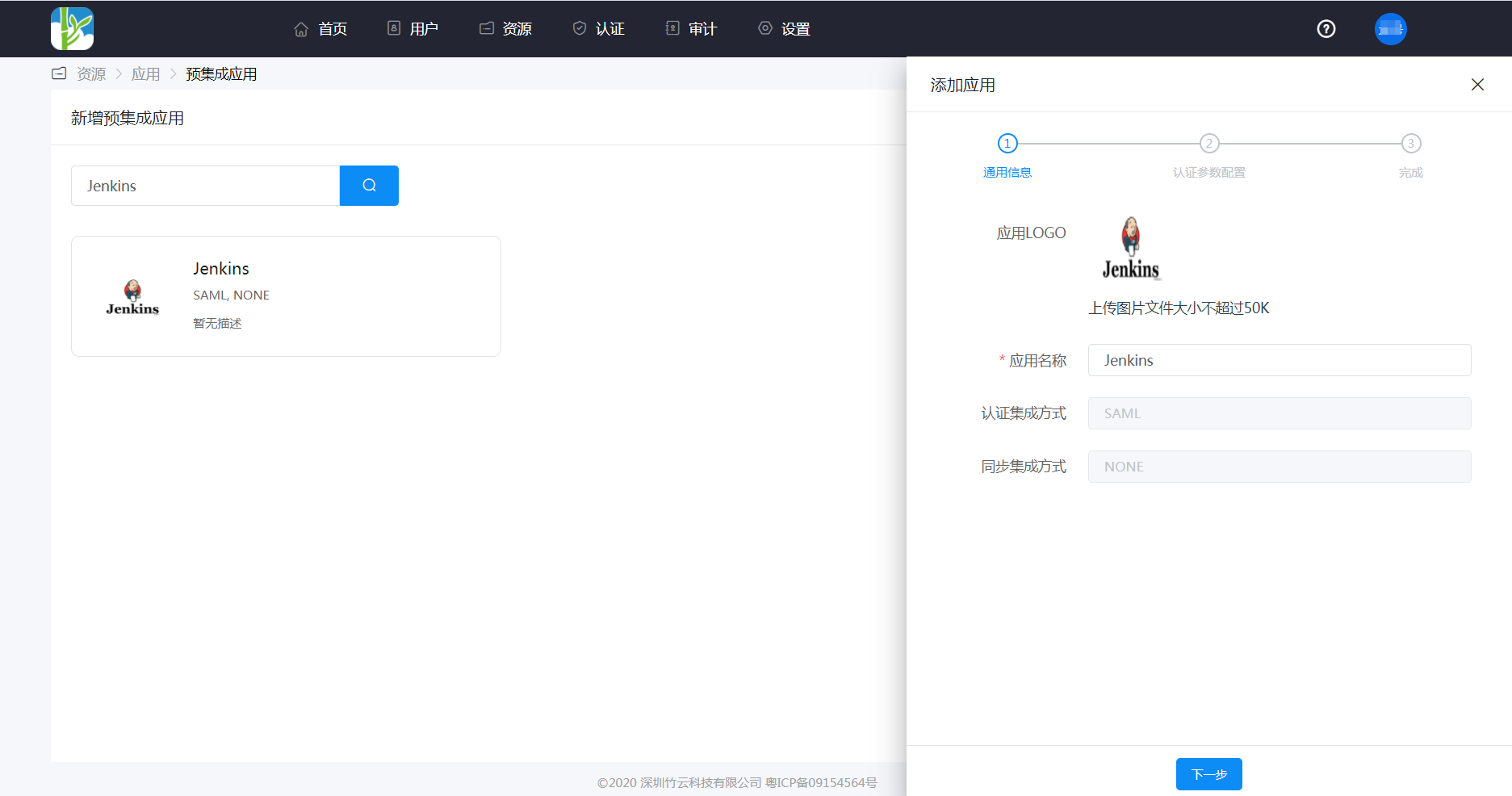
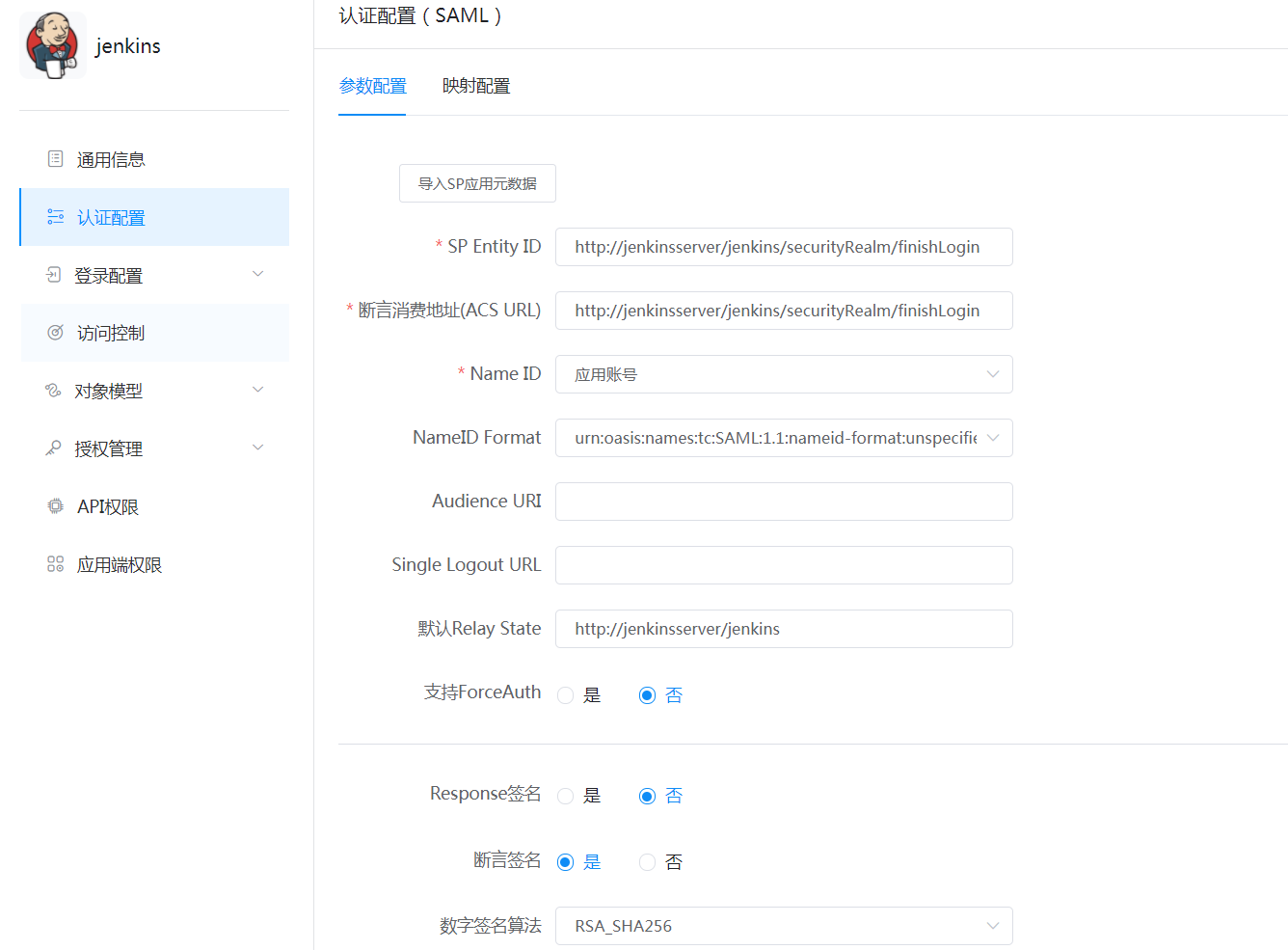
Configure authentication parameters. You can fill them in based on the Jenkins metadata or import the metadata file.
SP Entity ID: Jenkins metadata entityID
Assertion Consumer Service URL (ACS URL): Jenkins metadata AssertionConsumerService
NameID: Select account name, corresponding to UsernameAttribute in the Jenkins configuration
NameID Format: Default is fine
Audience URI: Jenkins metadata entityID
Other parameters can use default values
Mapping configuration: add the
emailattribute corresponding to the Email Attribute in the Jenkins configuration.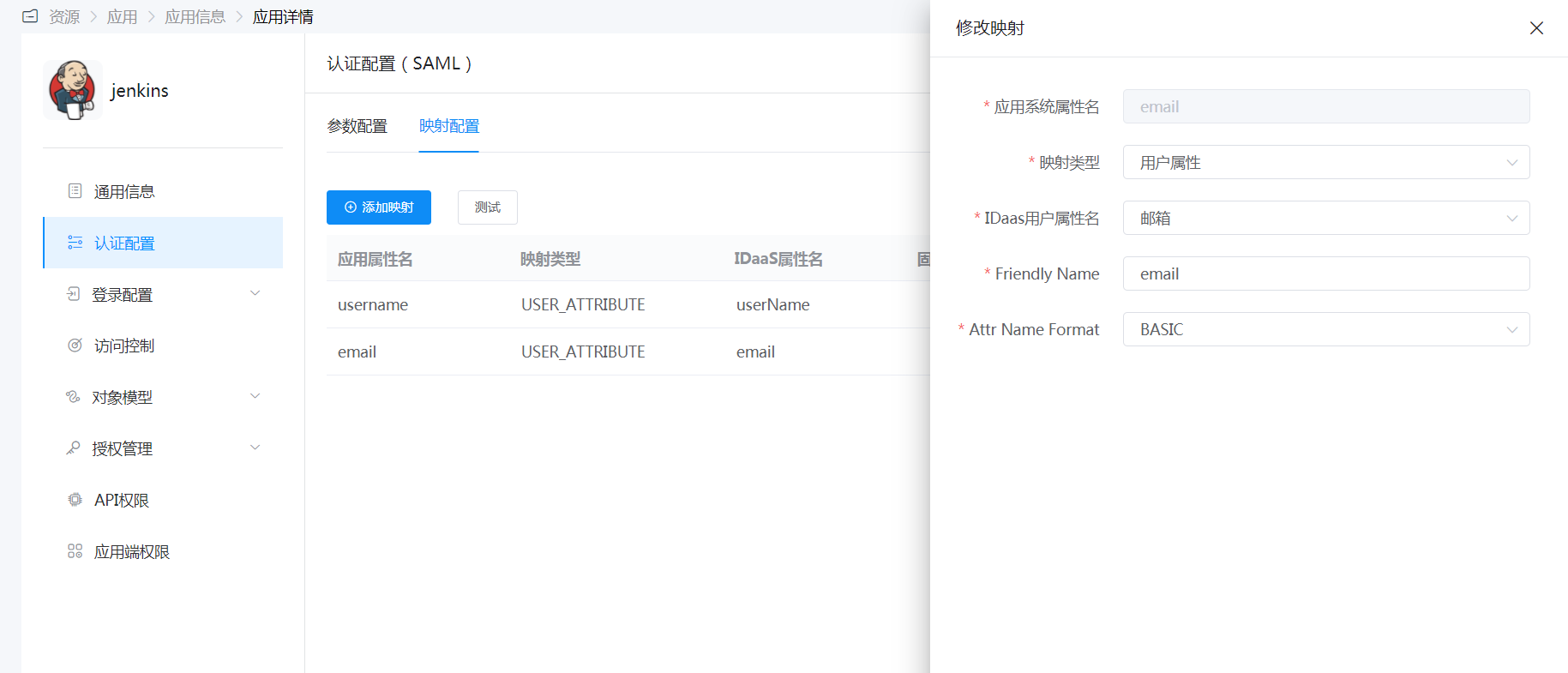
Switch to Authorization Management - Add Account tab. The application account can be filled with the email address.
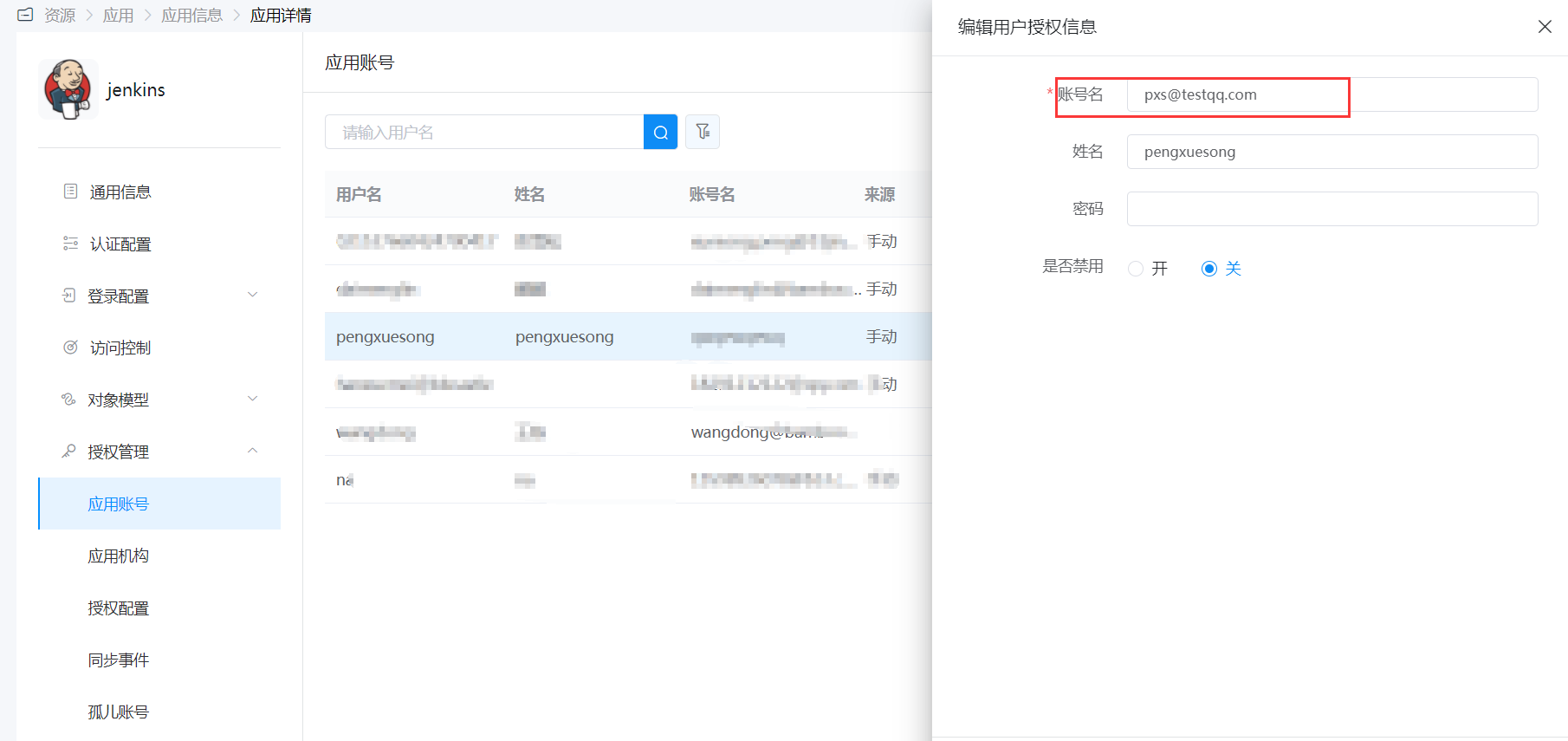
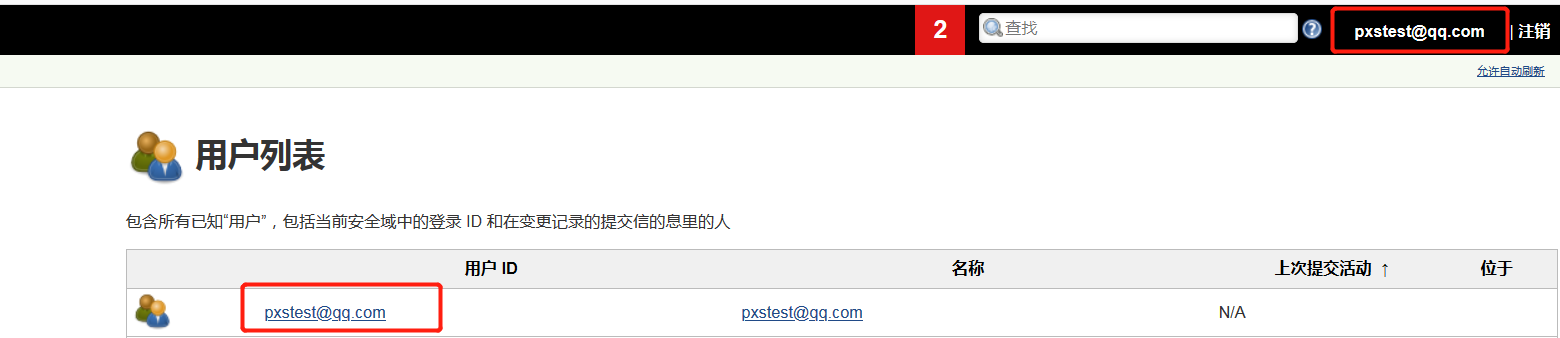
After users log in via SAML, this account will be automatically created in Jenkins.
Login Verification
You can verify login using either of the following two methods:
Authorized users accessing the original Jenkins login entry will be automatically redirected to the BambooCloud IDaaS authentication page. After successful authentication, they will enter Jenkins.
Log in to the BambooCloud IDaaS User Center and click the Jenkins logo to enter Jenkins.