
Enterprise Didi Data Synchronization
Overview
This application template includes login authentication and account/organization synchronization functions, which can be configured simultaneously or separately. If you only choose one, the required data for the other can be temporarily filled with virtual data. This article describes the synchronization configuration between NetEase Enterprise Mail and BambooCloud IDaaS to synchronize BambooCloud IDaaS organization and user data to NetEase Enterprise Mail.
Prerequisites
- The administrator has access permissions to the BambooCloud IDaaS Enterprise Center.
- You have an Enterprise Didi administrator account.
Synchronization Configuration
Enterprise Didi Configuration
Use the management account to log in to Enterprise Didi.

Enter the Management Center.
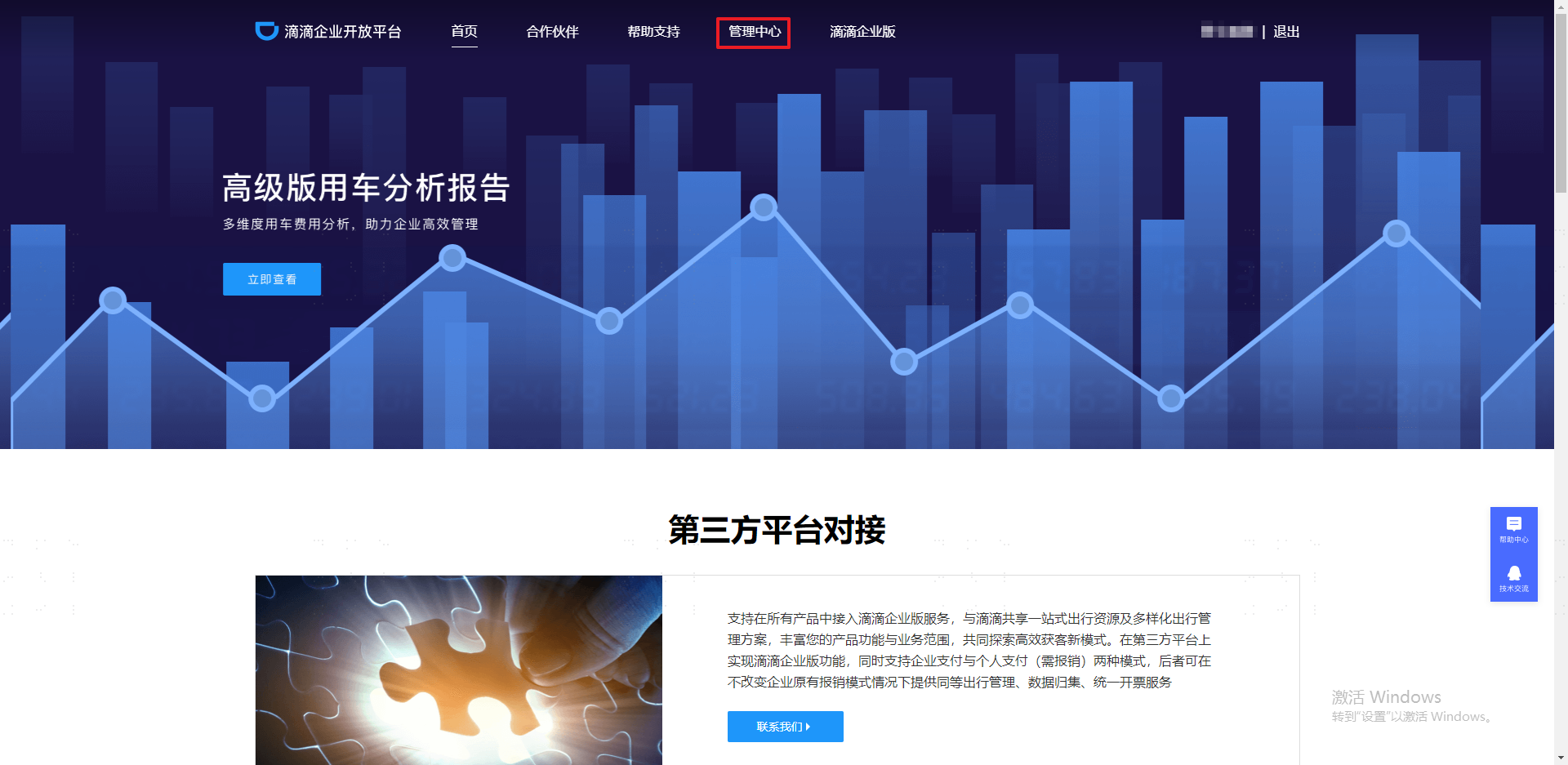
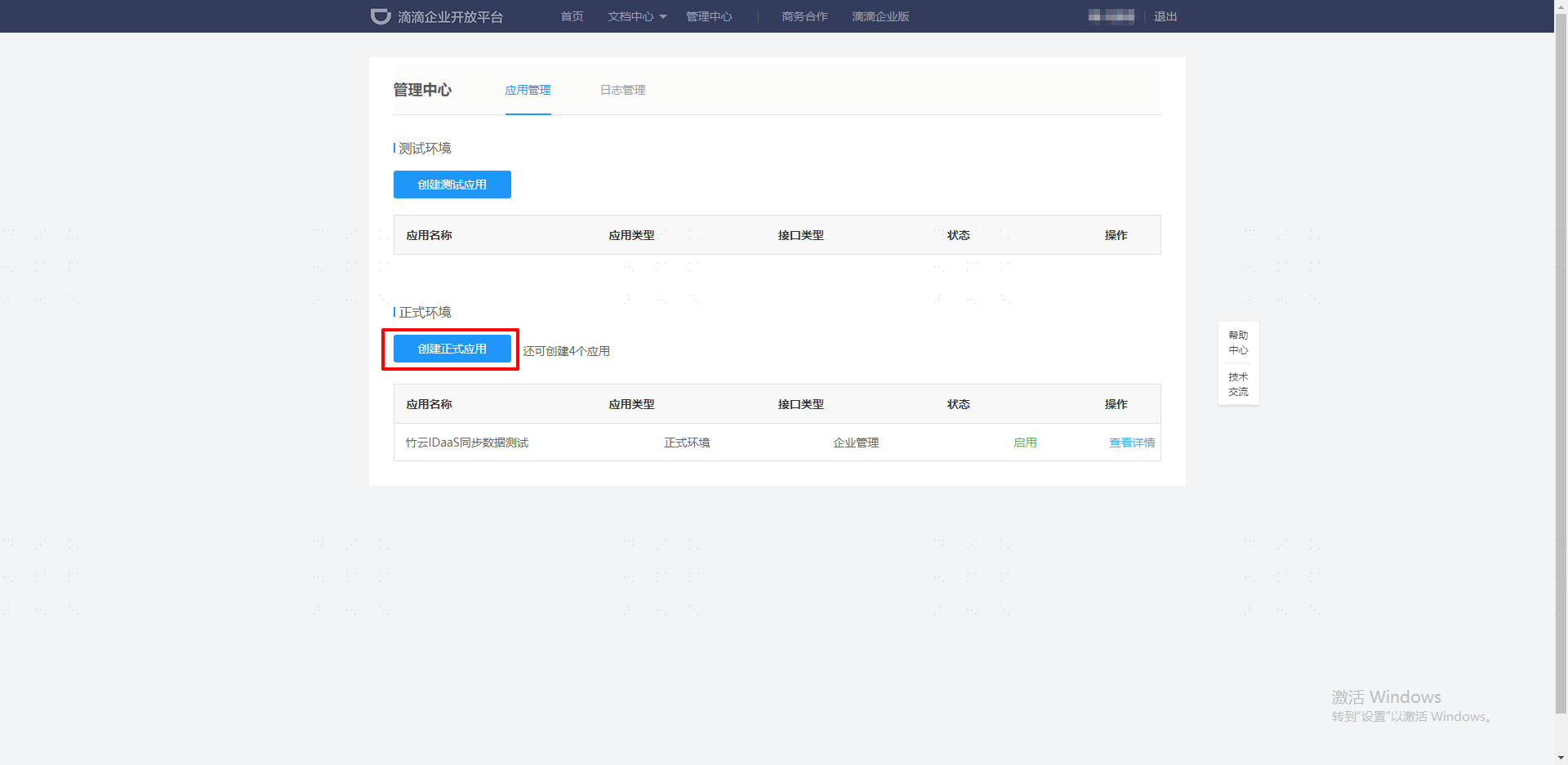
Go to Management System --> Application Management --> Create Formal Environment Application to create a formal Enterprise Didi application.
Select Enterprise Management API for the interface type, Enterprise Internal Application for the application type, and set the formal server IP to:
47.92.171.137.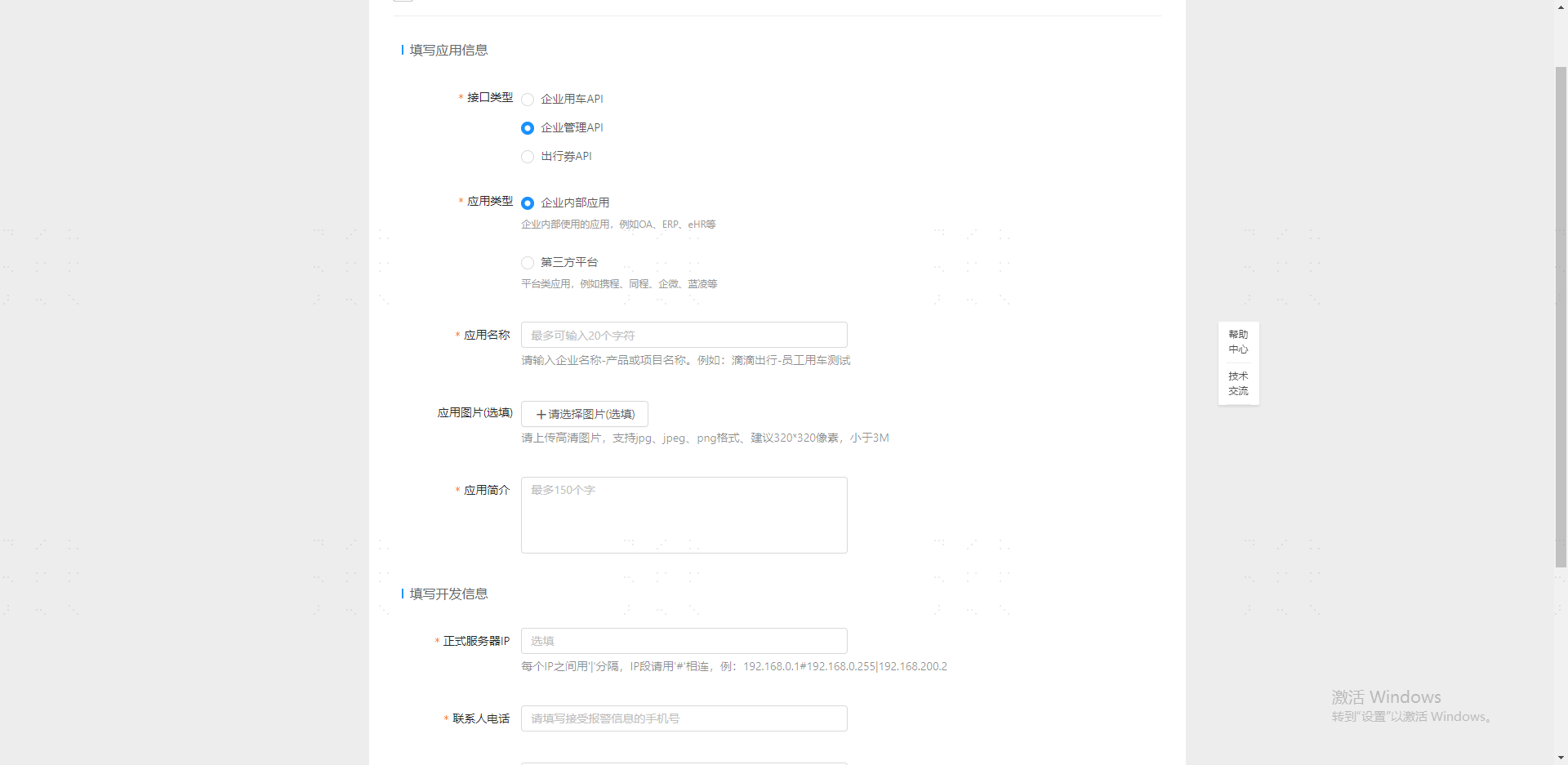
Go to Management System --> Application Management --> View Details to view the Enterprise Didi application configuration.
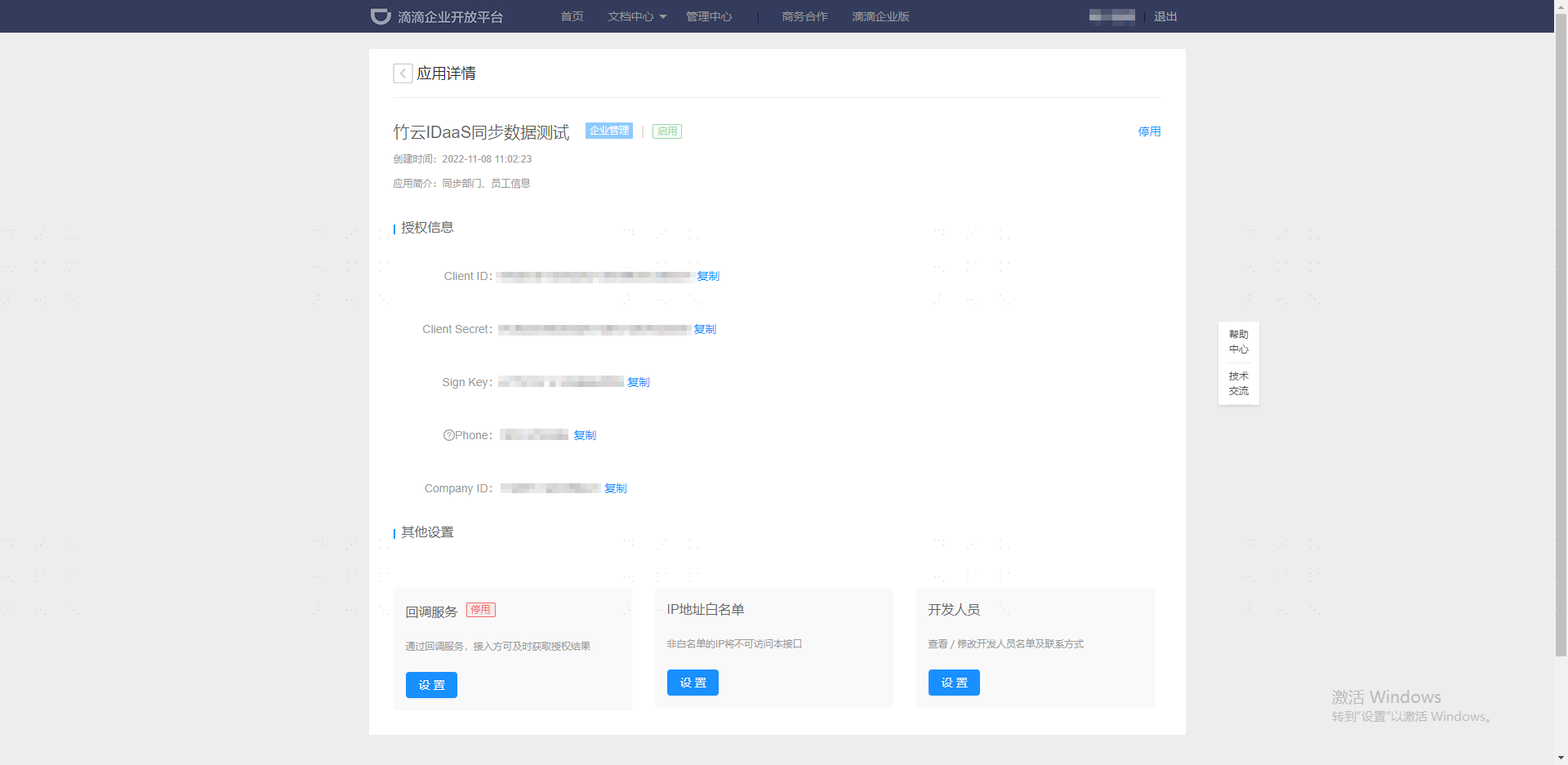
BambooCloud IDaaS Configuration
Add the Enterprise Didi pre-integrated application.
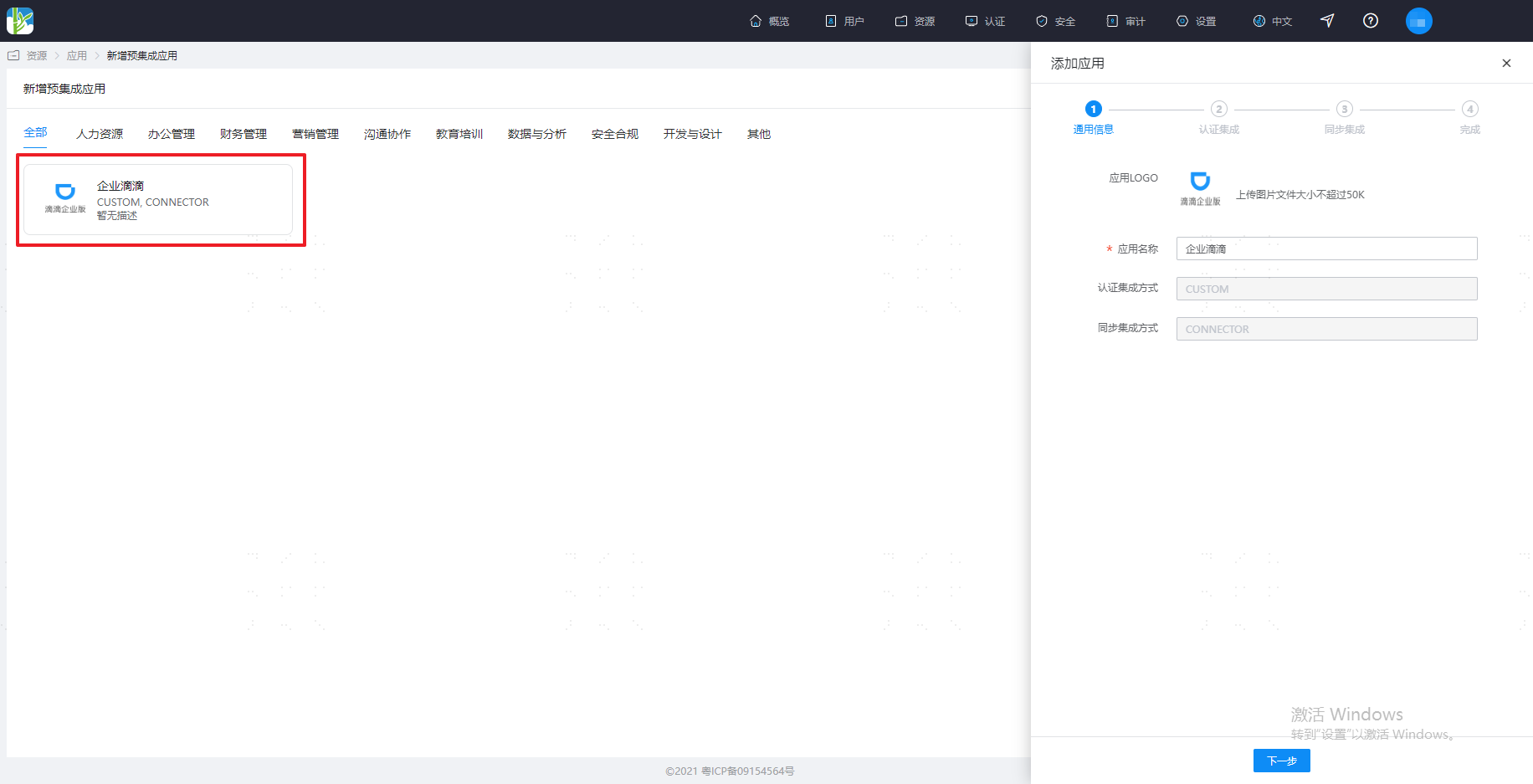
Authentication parameters can be temporarily filled with virtual data, and then configure synchronization parameters.
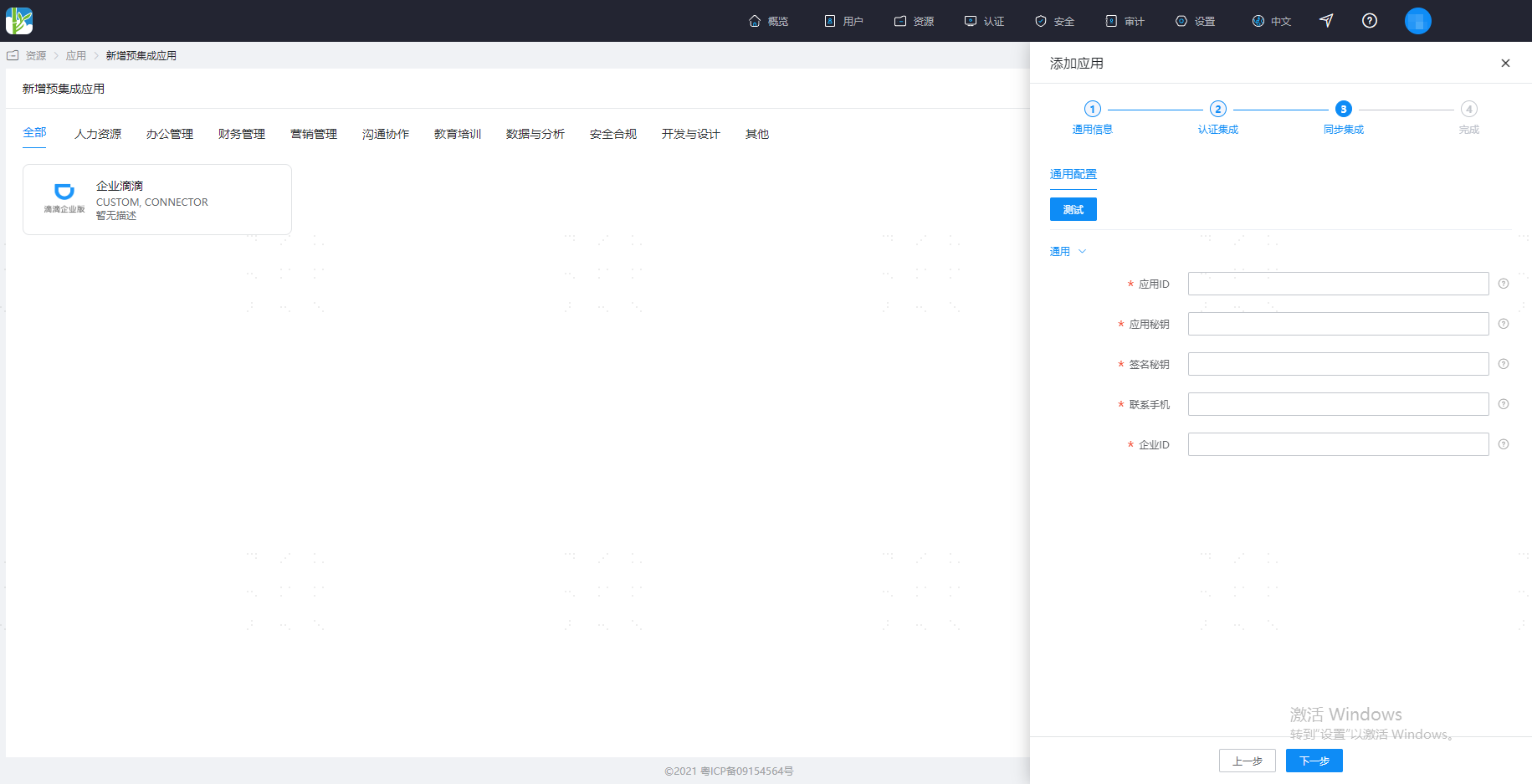
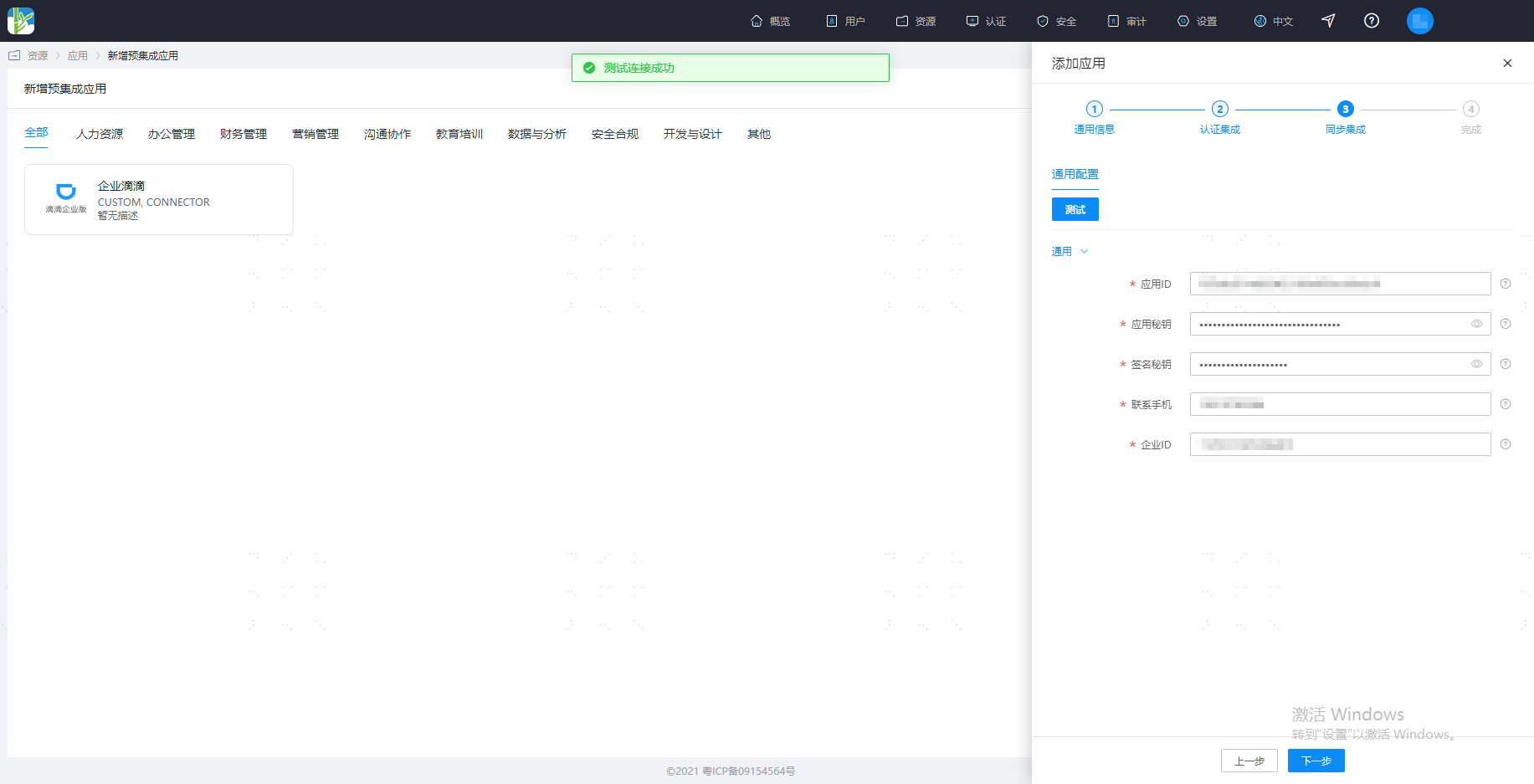
Parameter Description Application ID Log in to the Enterprise Didi Open Center, create a formal environment application, and click View Details to check the Client ID Application Secret Log in to the Enterprise Didi Open Center, create a formal environment application, and click View Details to check the Client Secret Signature Key Log in to the Enterprise Didi Open Center, create a formal environment application, and click View Details to check the Sign Key Contact Mobile Log in to the Enterprise Didi Open Center, create a formal environment application, and click View Details to check the Phone Enterprise ID Log in to the Enterprise Didi Open Center, create a formal environment application, and click View Details to check the Company ID After configuration is complete, save, click Test. After the test is successful, save the application.
Common Issues
TIP
- If the number of departments exceeds 2,000, you need to contact the Enterprise Didi docking personnel to lift the department addition limit.
- Mobile phone numbers that have not registered with Didi cannot perform single sign-on after being registered as Enterprise Didi.
Reference Links
Reference document: Enterprise Didi Open Platform.