
SAP Success Factors Single Sign-On
Overview
This article describes the single sign-on configuration process between SAP Success Factors and BambooCloud IDaaS based on the SAML protocol.
Authentication Configuration
DANGER
SAP Success Factors single sign-on configuration currently has two methods: one is based on its own SAML 2.0 login configuration, and the other is based on SAP IAS service configuration. Choose the configuration method below according to the actual version of Success Factors in use.
SAP Success Factors Built-in Configuration
Log in to the Admin Center as an administrator and select SAML 2.0 Single Sign On configuration.
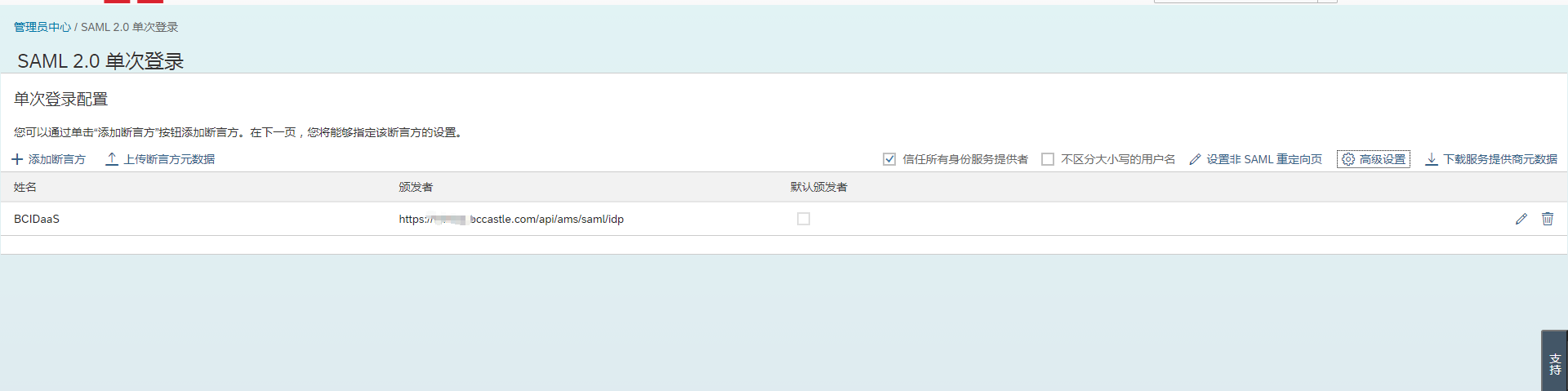
Click Download Service Provider Metadata to download the SAP Success Factors SP metadata.
Add an asserting party. Click Upload Asserting Party Metadata to upload the BambooCloud IDaaS IDP metadata. To download BambooCloud IDaaS IDP metadata, visit
https://{your_domain}/api/v1/saml2/idp/metadata.
SAP IAS Service Configuration
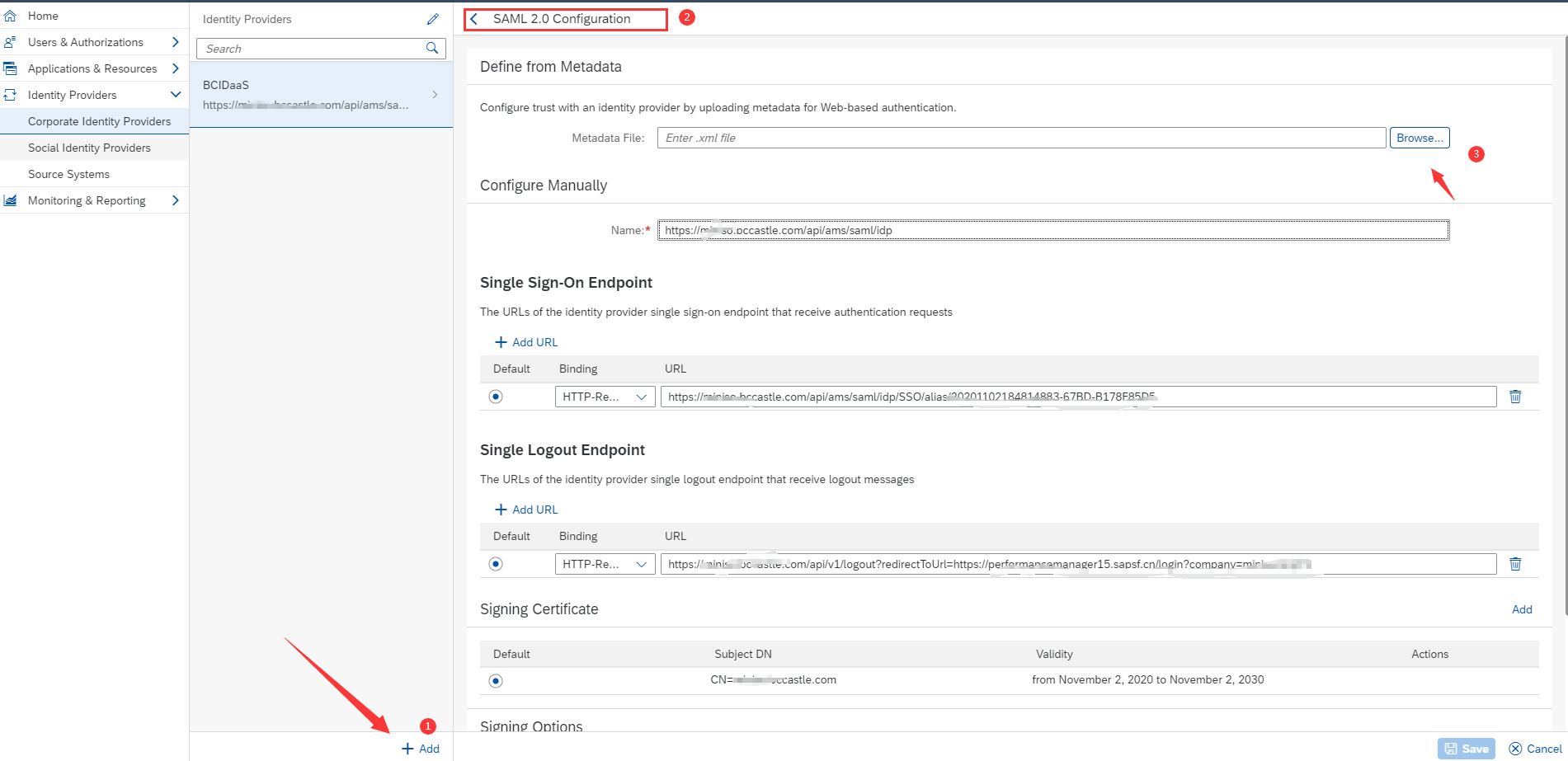
Log in to the IAS management backend as an administrator, select Identity Providers, and add a third-party identity provider.
Enter the SAML 2.0 configuration and upload the BambooCloud IDaaS IDP metadata.
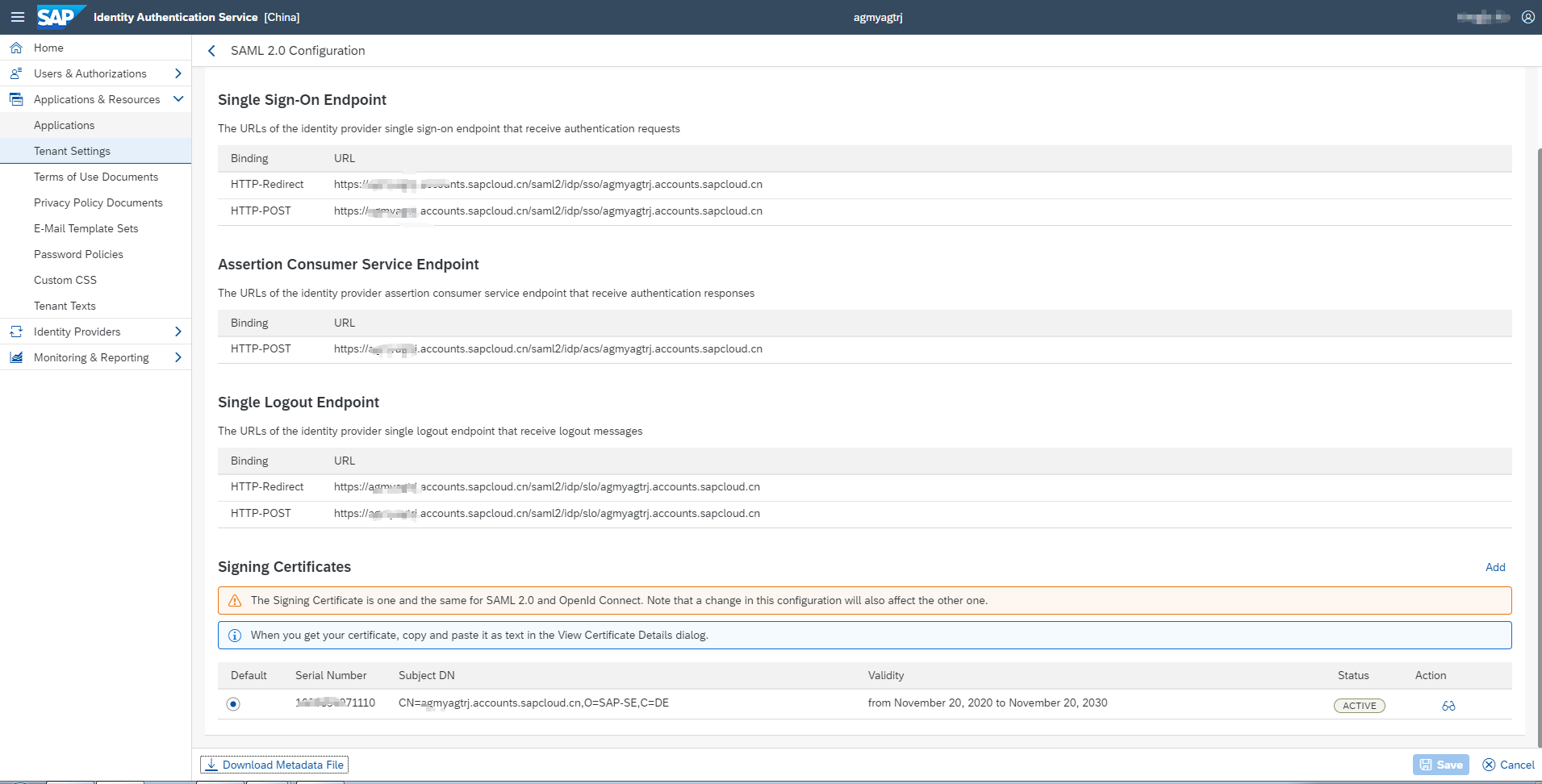
Select the Applications & Resources menu, enter Tenant Settings, select SAML 2.0 Configuration, click the Download Metadata button to download the IAS metadata.
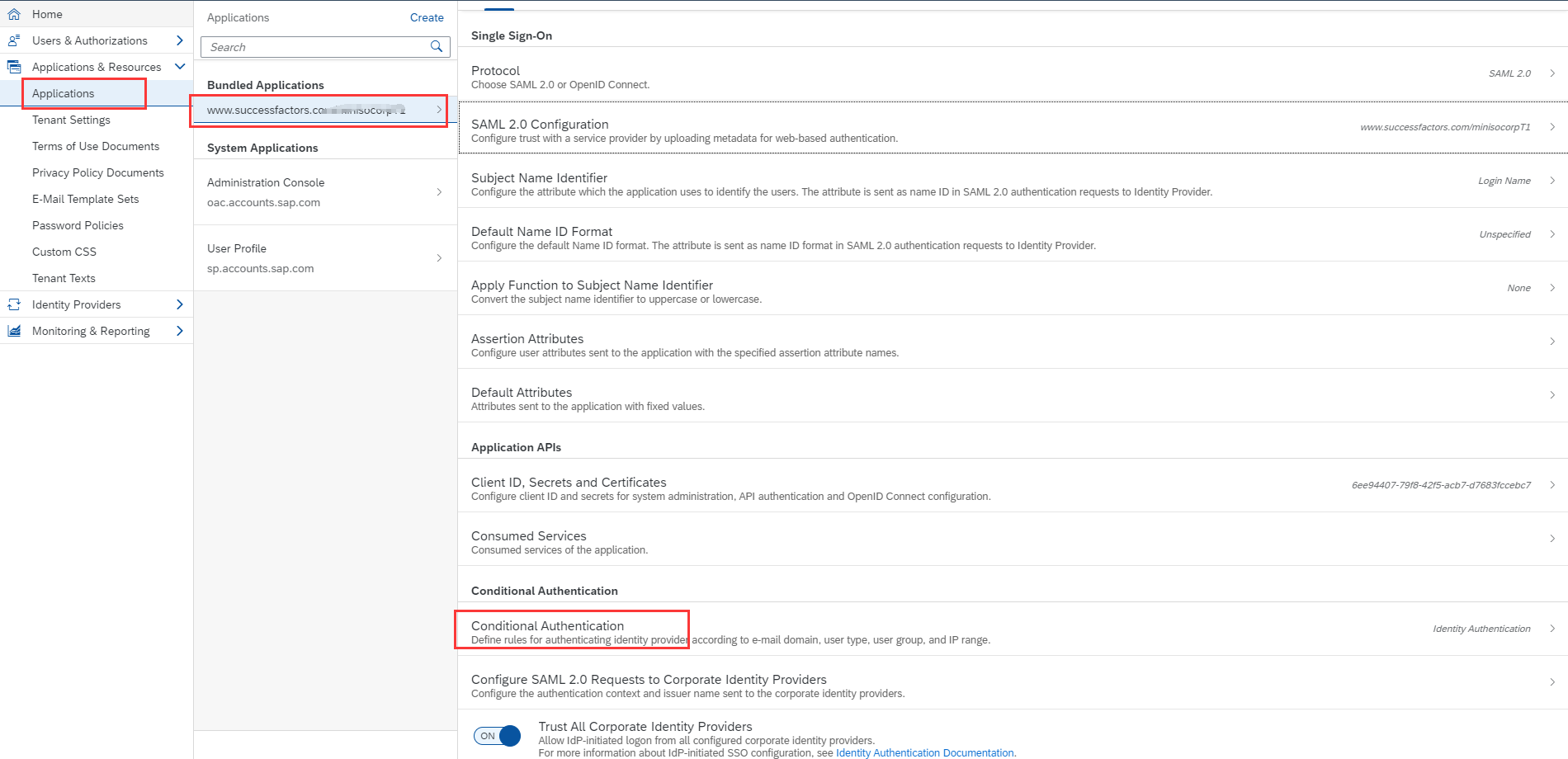
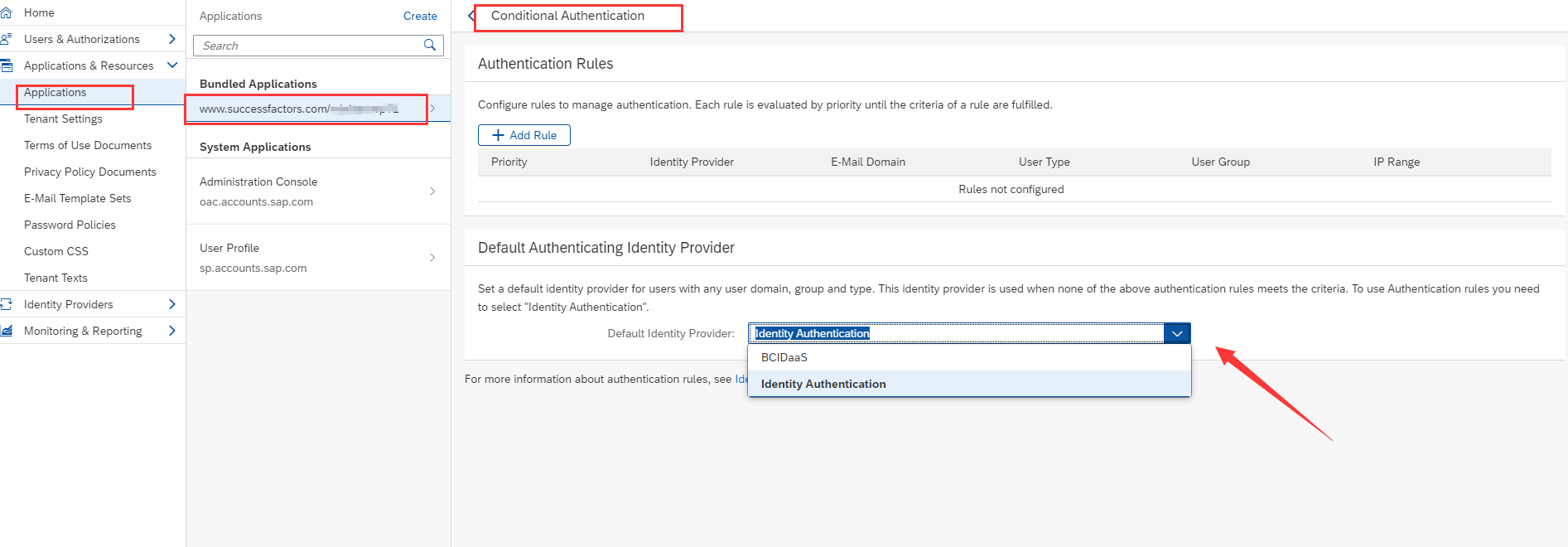
Select the Applications & Resources menu, enter Application Configuration, select Success Factors, enter Conditional Authentication, and select the BambooCloud IDaaS identity provider added in the steps above.
BambooCloud IDaaS Configuration
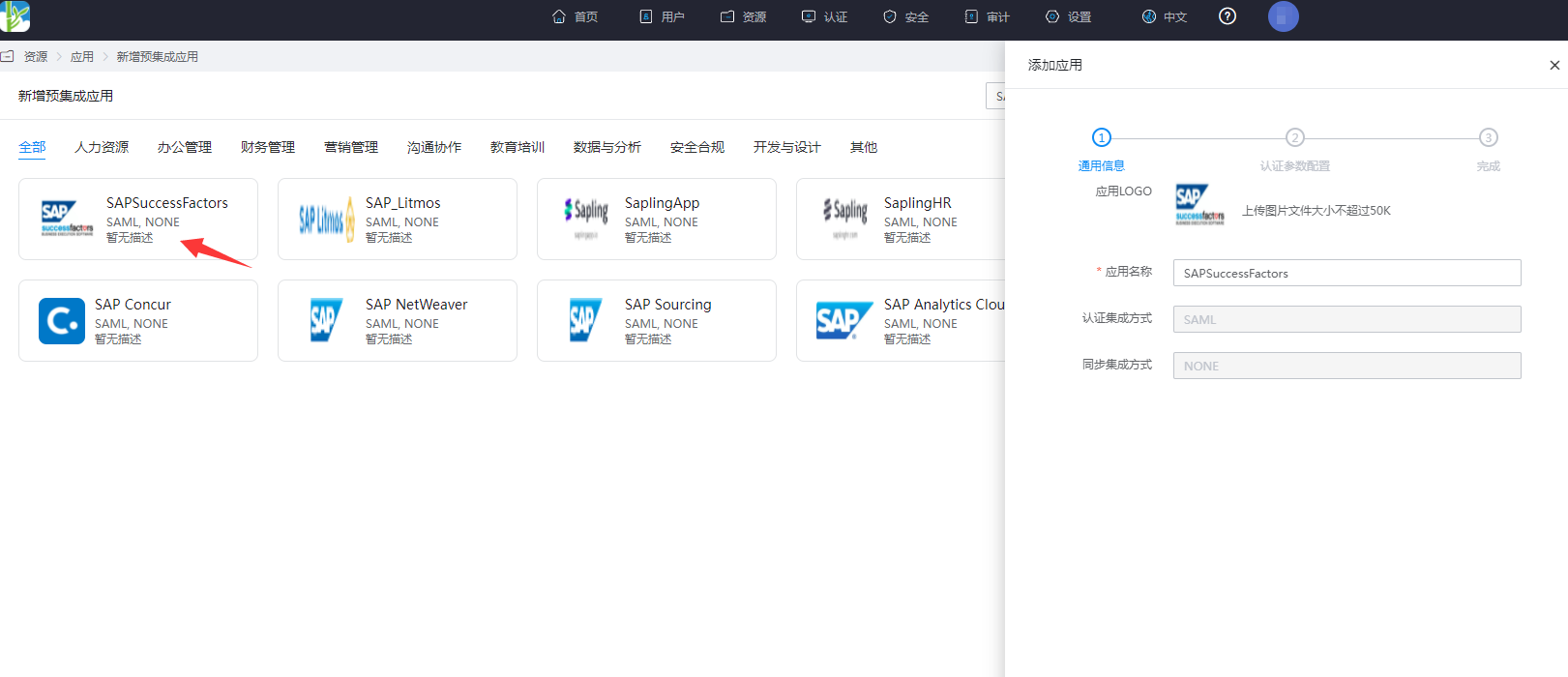
In the Enterprise Center, go to Resources > Applications > Pre-integrated Applications > Add Pre-integrated Application, search for SAP, and select SAP SuccessFactors.
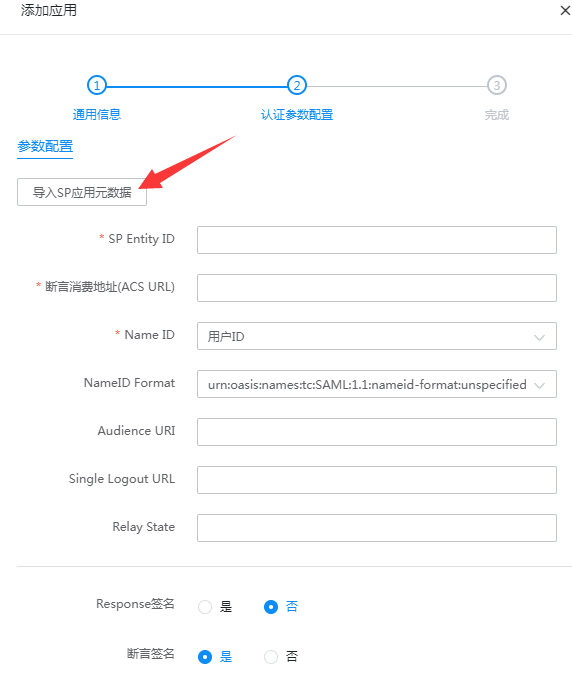
Import the SP metadata saved in the steps above.
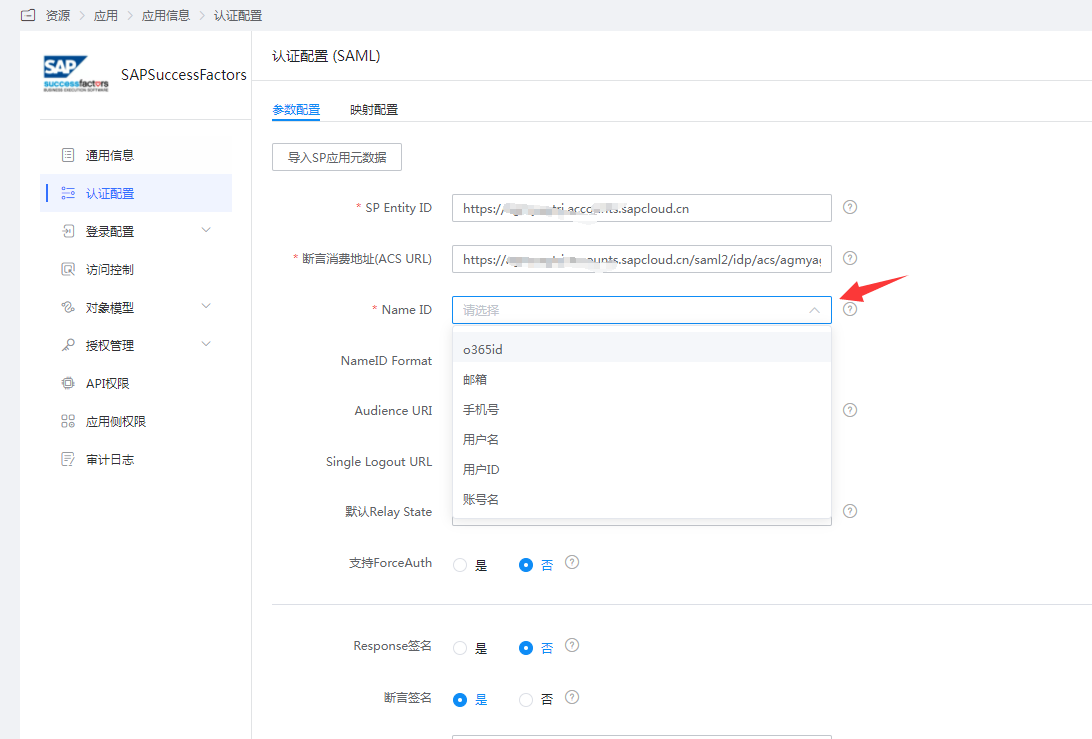
Enter the application details, Authentication Configuration, and select Name ID. It is recommended to set it to account name.
In Authentication Configuration > Mapping Configuration, add a mapping for
username.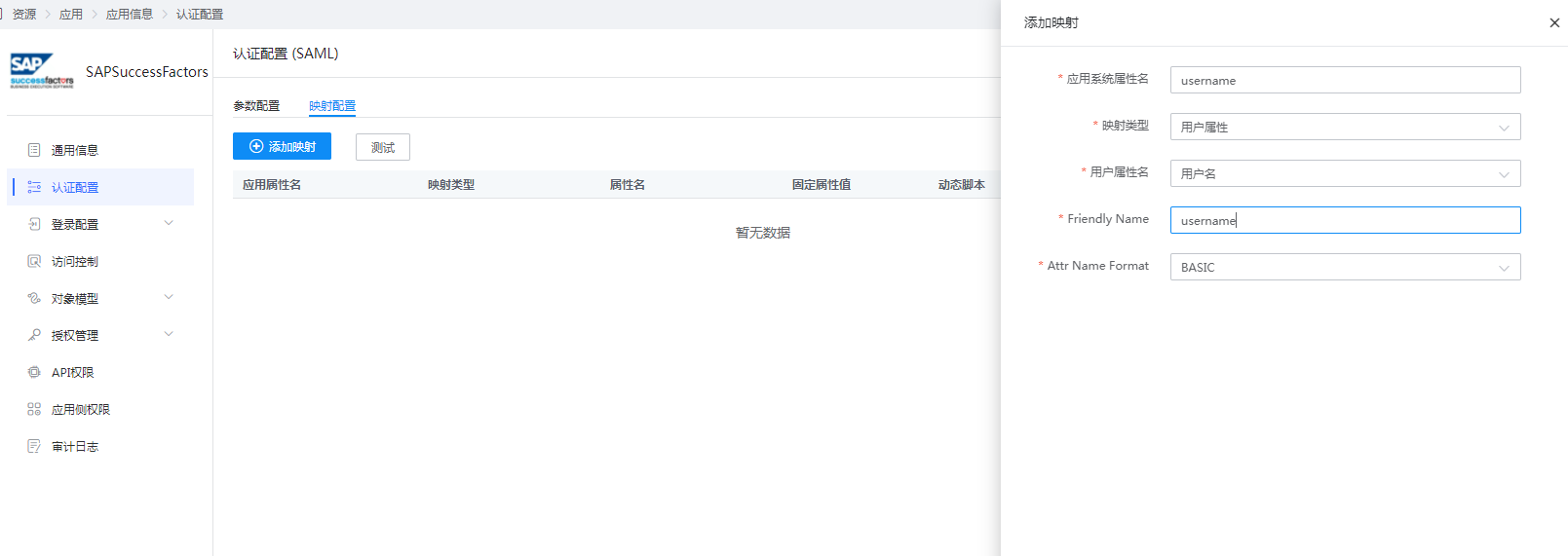
Enter the application details, Authorization Management > Application Account, click the Add Account button, select the authorized user, and set the account name to the Success Factors login name.
Login Verification
Two login methods are as follows:
Visit the Success Factors login address. You will be automatically redirected to the BambooCloud IDaaS authentication interface. Enter the BambooCloud IDaaS username and password to log in.
Log in through the BambooCloud IDaaS User Center and click the Success Factors logo to enter the application.