Zabbix Single Sign-On
Overview
This article describes the single sign-on configuration process between Zabbix 5.0+ and BambooCloud IDaaS based on the SAML protocol.
Authentication Configuration
Zabbix Configuration
For Zabbix configuration, please be sure to combine it with the SAML authentication section of the Zabbix official configuration instructions.
Copy the BambooCloud IDaaS IDP certificate and save it as an
idp.crtfile, and store it underui/conf/certs/(if no SP certificate is generated, the SP certificate private key and certificate configuration can be ignored).To download BambooCloud IDaaS IDP metadata, visit
https://{your_domain}/api/v1/saml2/idp/metadata.TIP
You need to remove the newlines in the IDP certificate, otherwise Zabbix may prompt an error that the idp certificate cannot be found during SAML authentication.
Configure SAML parameters in Zabbix.
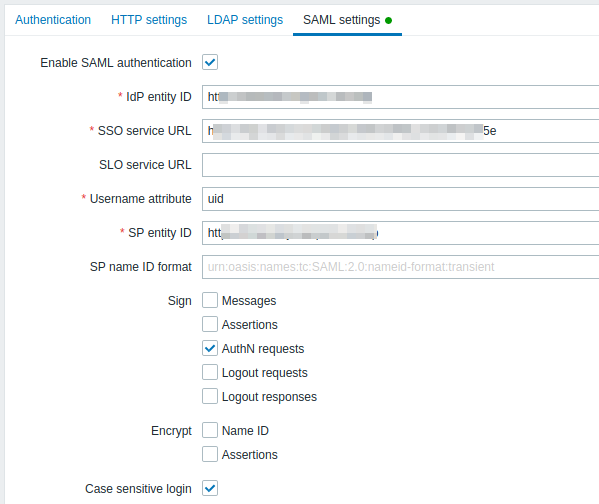
Parameter Description Enable SAML authentication Enable SAML authentication IDP entity ID BambooCloud IDaaS IDP EntityId SLO service URL Optional: BambooCloud IDaaS IDP logout URL Username attribute username SP entity ID Zabbix address SP name ID format Default Sign Assertion signature, do not check Encrypt Assertion encryption, do not check Case sensitive login Case sensitive DANGER
If you have upgraded from an old version to Zabbix 5.0, you also need to manually add the following lines to the Zabbix .conf.php file (located in the ui/conf/ directory), and then restart Zabbix.
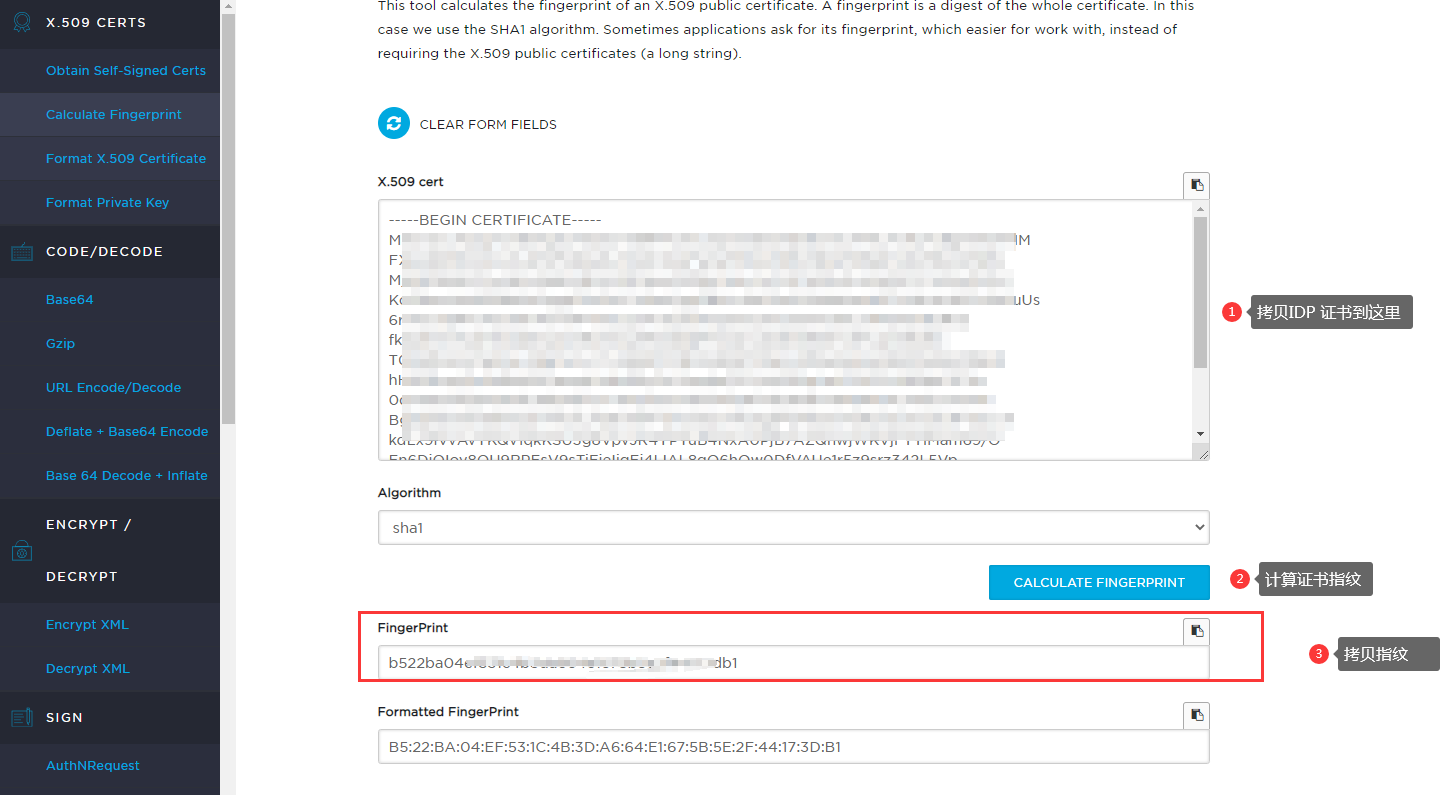
php// Used for SAML authentication. //$SSO['SP_KEY'] = 'conf/certs/sp.key'; // Path to your private key. //$SSO['SP_CERT'] = 'conf/certs/sp.crt'; // Path to your public key. $SSO['IDP_CERT'] = 'conf/certs/idp.crt'; // Path to IdP public key. $SSO['SETTINGS'] = [ 'idp' => [ 'certFingerprint' => '55551ecf41bee0a977b3bd1db1e9ae62f4f9df66',//IDP certificate fingerprint ], ];Online certificate fingerprint calculation address
BambooCloud IDaaS Configuration
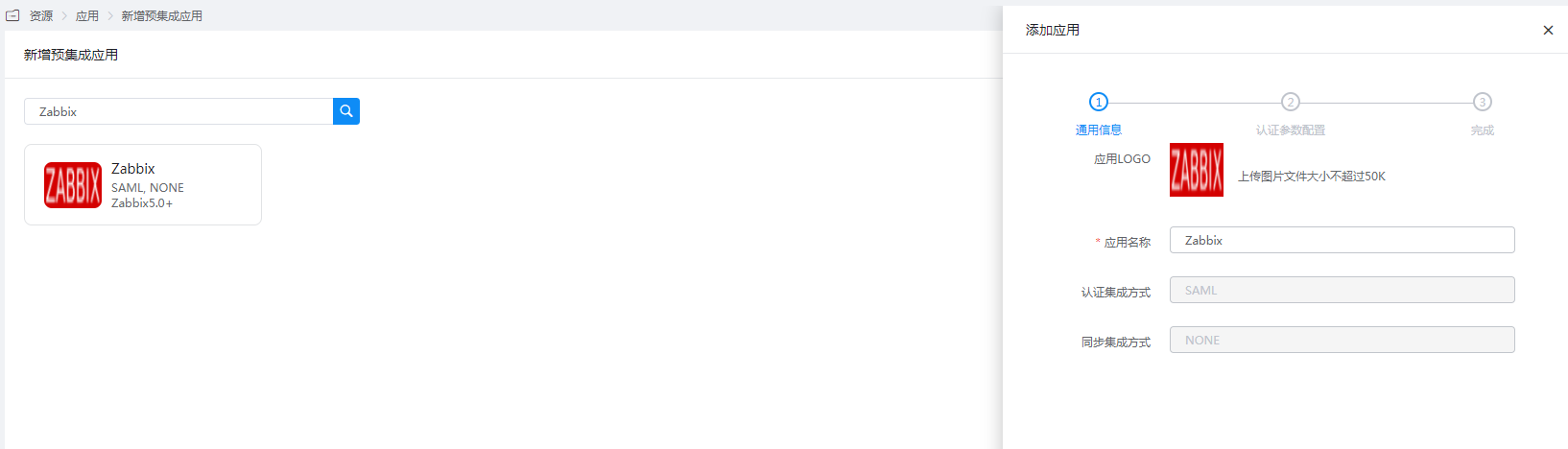
Add the pre-integrated application Zabbix.
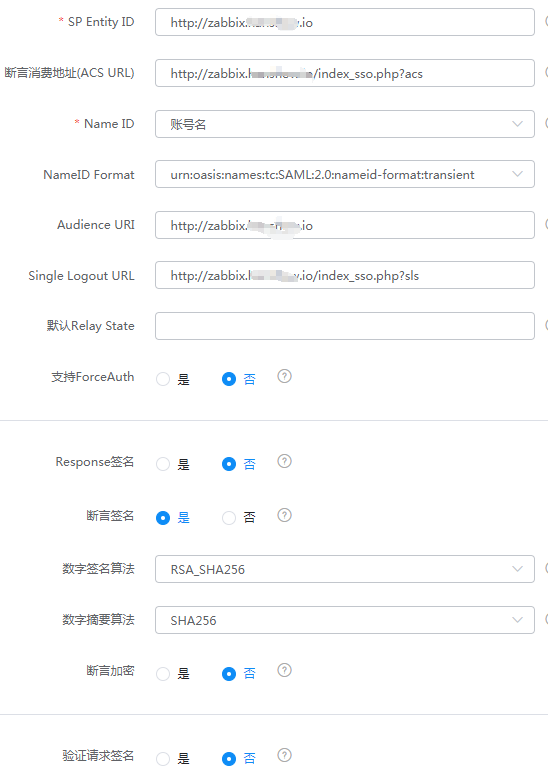
Configure authentication parameters.
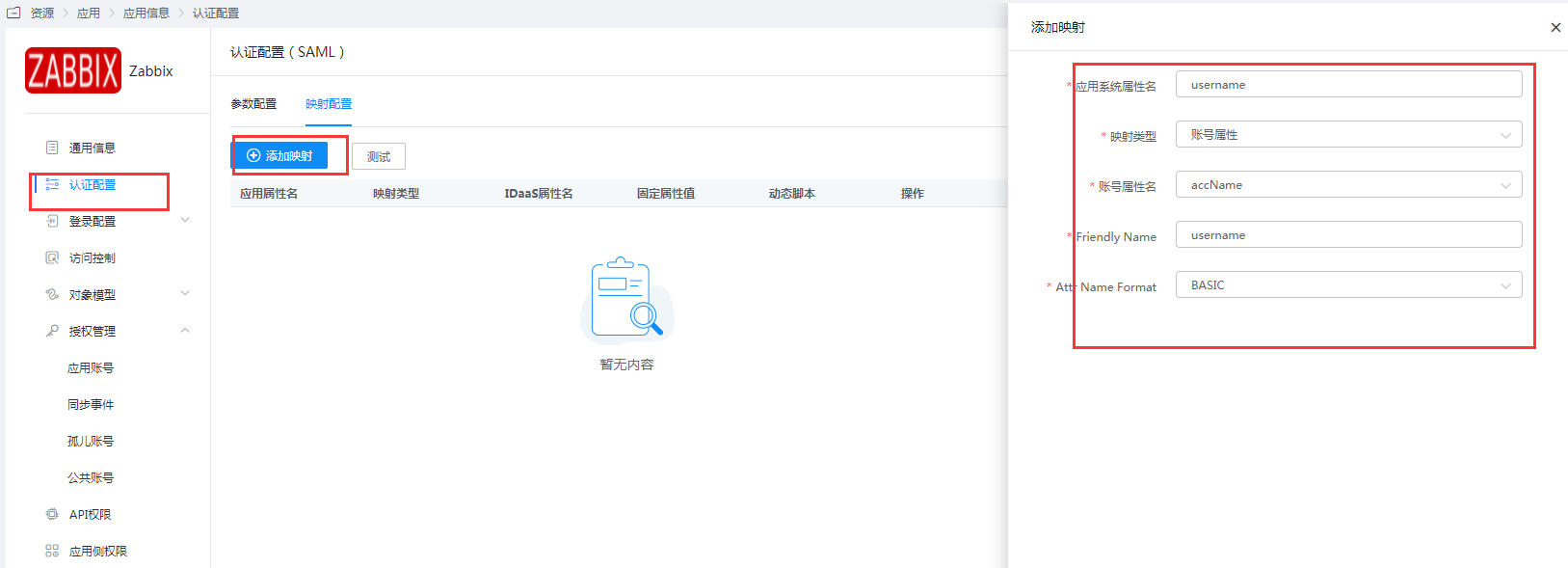
Mapping configuration - add mappings.
Enter the application details, Authorization Management > Application Account, click the Add Account button, and select the authorized user.
The account name must be consistent with the username (Alias) in Zabbix.
Login Verification
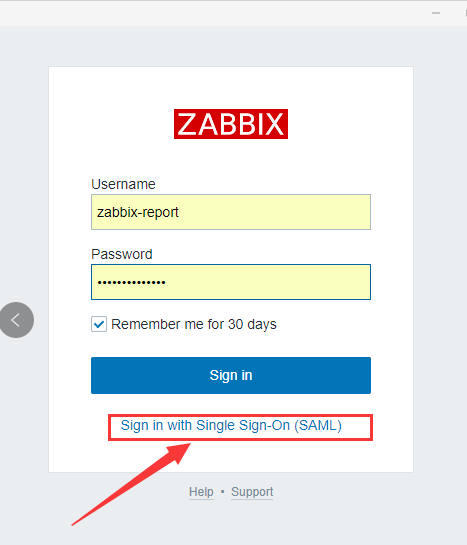
Access Zabbix, click Sign in with Single Sign-On (SAML), and you will be redirected to the BambooCloud IDaaS authentication page. Enter the username and password to log in to Zabbix.