
CloudCC CRM SSO
Overview
This article describes how to log in to CloudCC CRM through BambooCloud IDaaS.
Operation Process

Authentication Configuration
CloudCC Configuration
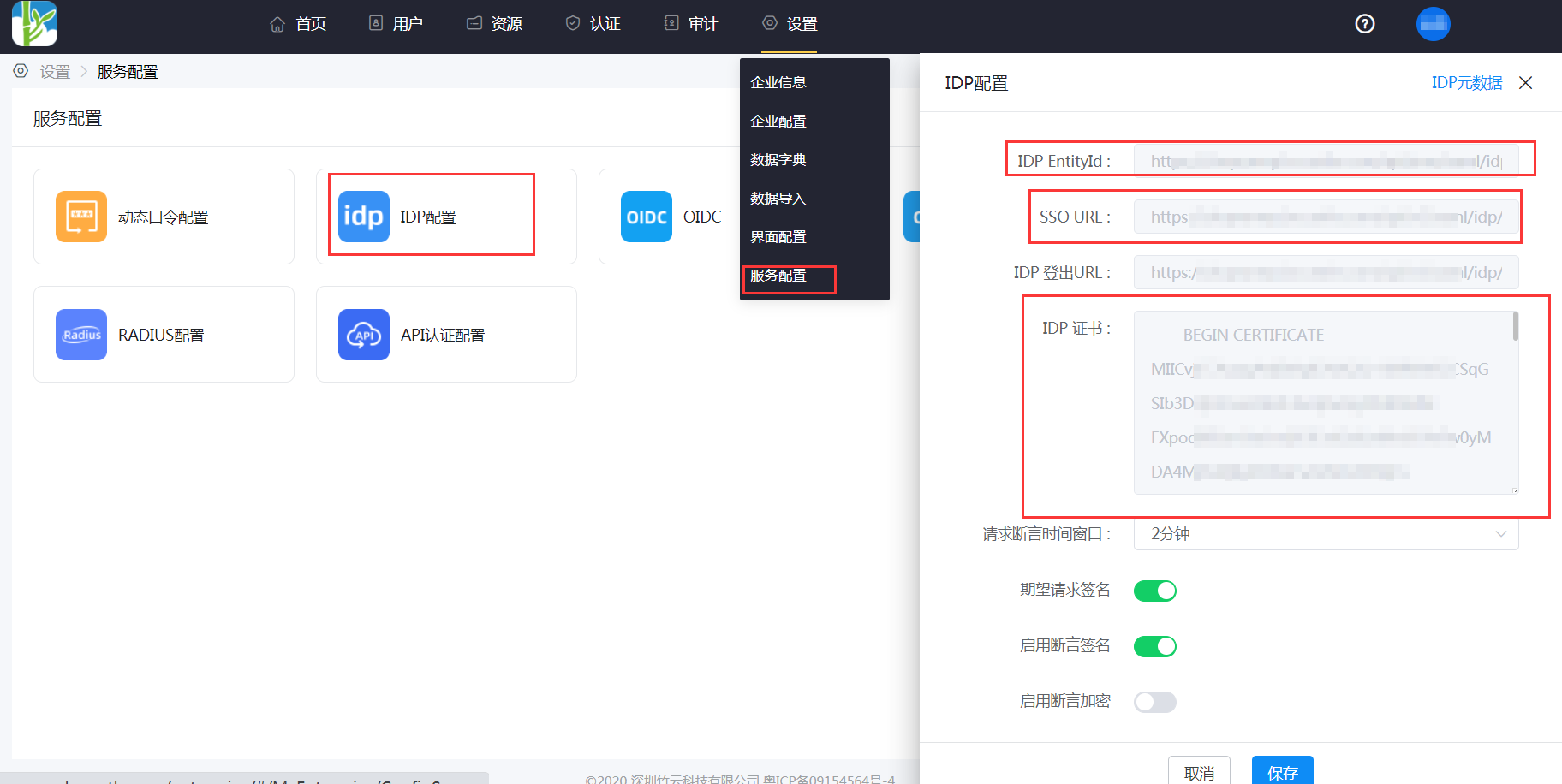
Log in to the BambooCloud IDaaS Enterprise Center, go to Settings > Service Configuration > IDP Configuration to view the IDP configuration information.
Copy the IDP certificate content and save it as an idp.cer file.
Log in to the CloudCC management backend, go to Login Configuration > SSO Settings, and add configuration information.
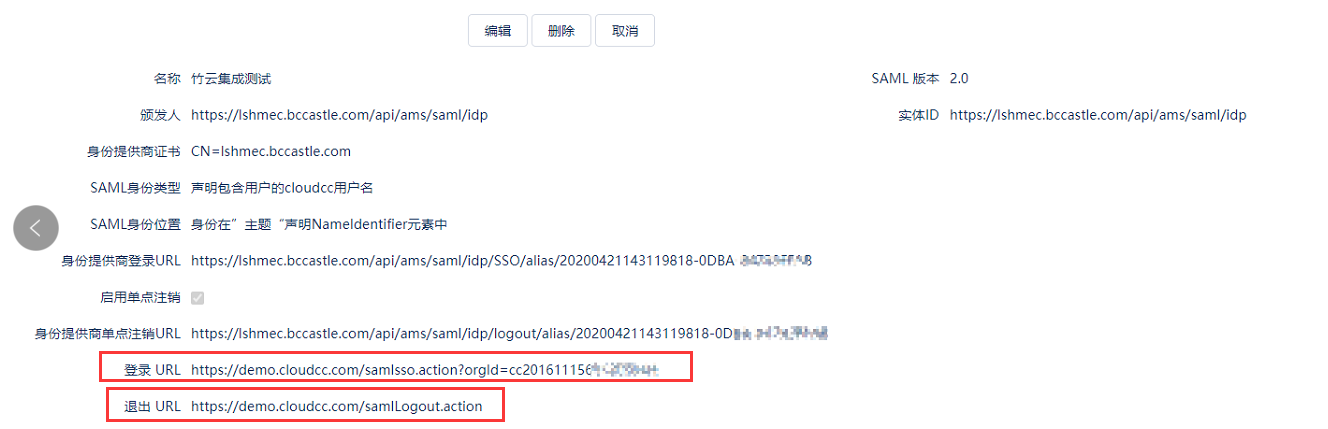
Parameter Description Name: Custom Issuer: Fill in the IDP EntityId in BambooCloud IDaaS Entity ID: Fill in the IDP EntityId in BambooCloud IDaaS Identity Provider Certificate: Import the idp.cer file SAML Identity Type: The assertion contains the user's CloudCC username SAML Identity Location: The identity is in the "Subject" assertion NameIdentifier element Identity Provider Login URL: Fill in the SSO URL in BambooCloud IDaaS Identity Provider Single Logout URL: Fill in the IDP logout URL in BambooCloud IDaaS
TIP
The login URL and logout URL automatically generated by CloudCC will be used in the subsequent BambooCloud IDaaS application parameter configuration.
BambooCloud IDaaS Configuration
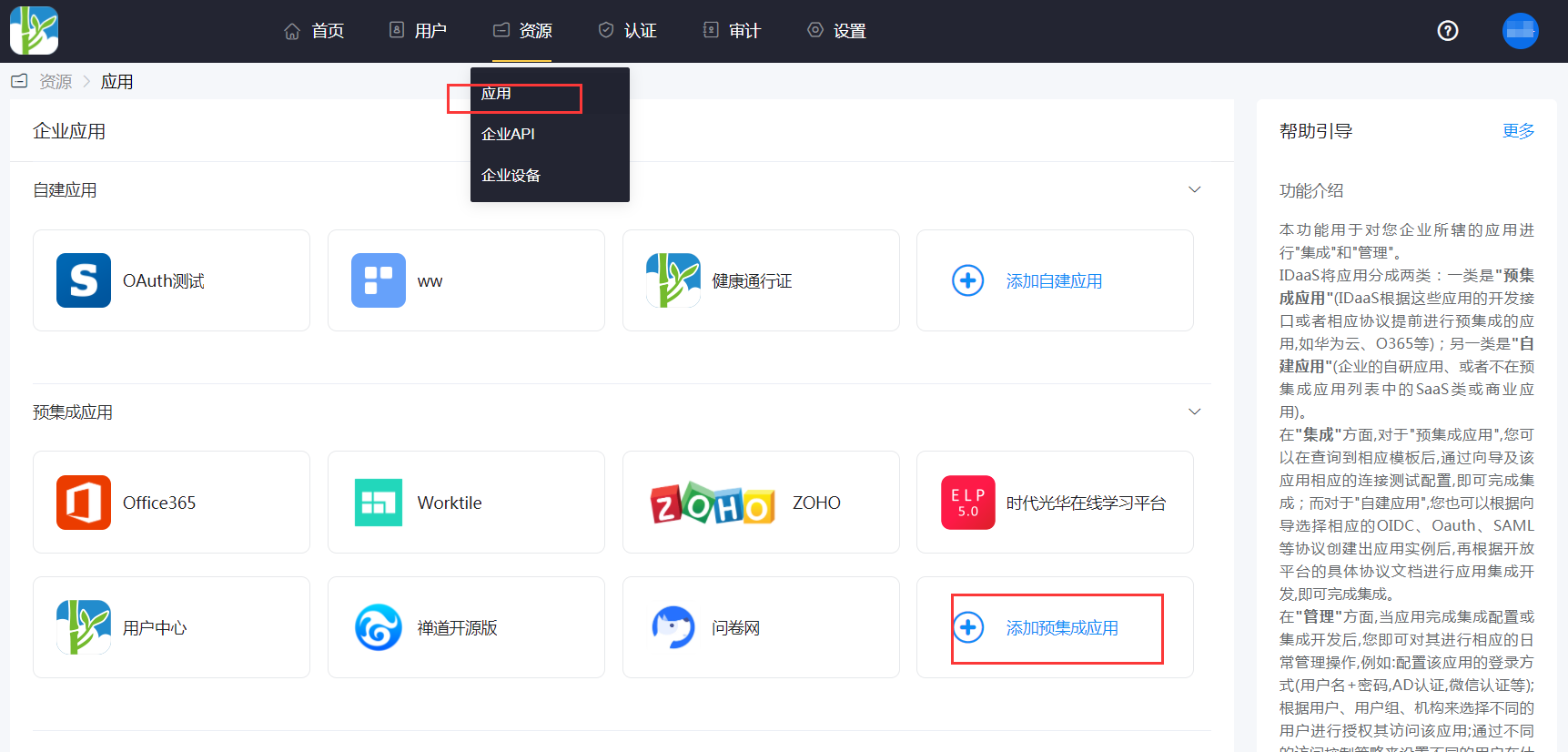
Log in to the BambooCloud IDaaS Enterprise Center, go to Resources > Applications, click Add Pre-integrated Application, and search for CloudCC.
Configure application parameters.
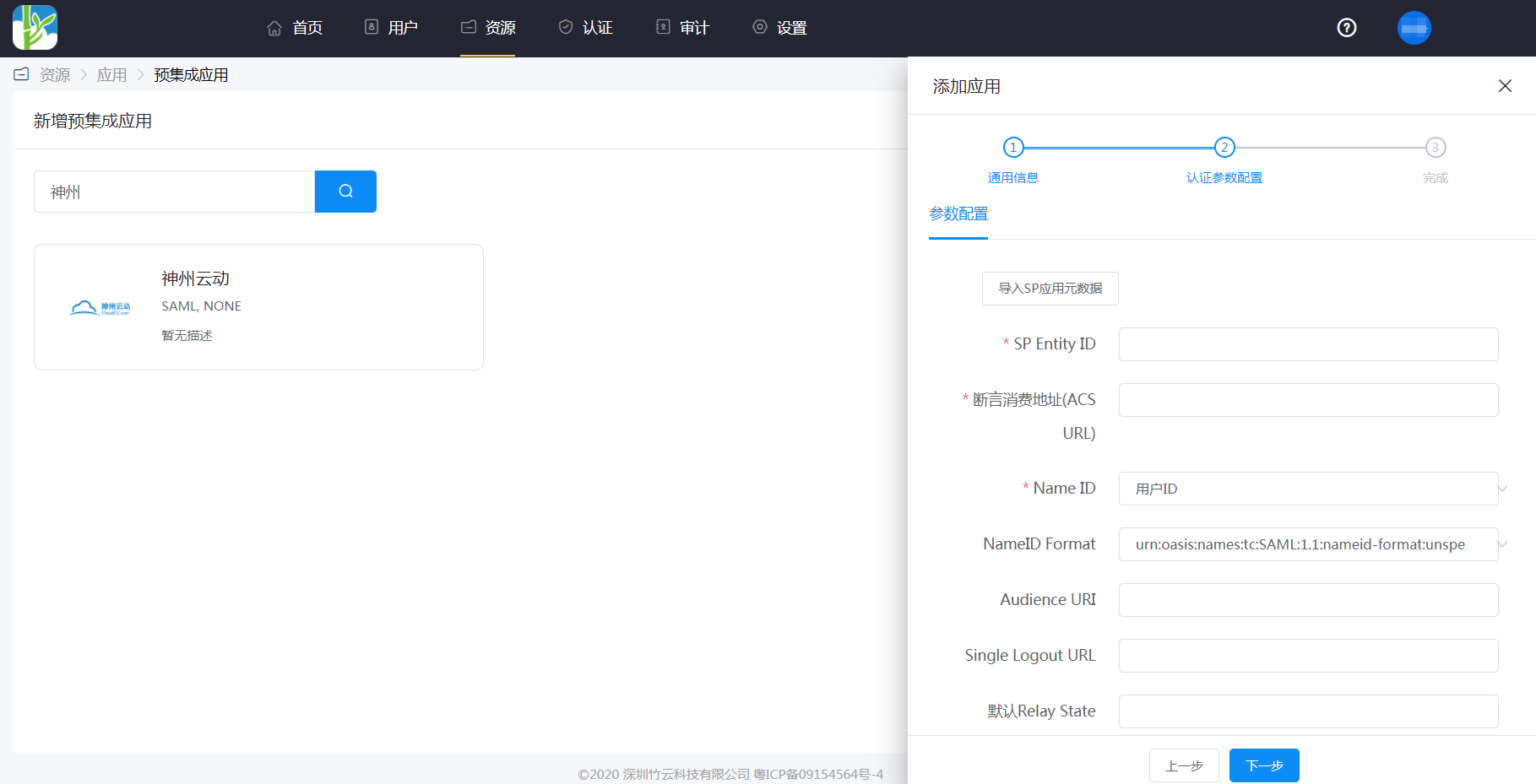
Parameter Description SP Entity ID: Fill in the login URL in CloudCC Assertion Consumer Service URL: Fill in the login URL in CloudCC NameID: Application account NameID Format: Default Audience URI: Fill in the login URL in CloudCC Single Logout URL: Fill in the logout URL in CloudCC Response Signature: No Assertion Signature: Yes Signature Algorithm: RSA_SHA256 Digest Algorithm: SHA256 Assertion Encryption: No Verify Request Signature: No Enter Application Details - Authorization Management - Application Account, click the Add Account button, select the authorized user, and fill in the application account with the username in CloudCC.
Login Verification
Authorized users log in to the BambooCloud IDaaS User Center, click the CloudCC application LOGO to enter the CloudCC application system.