AWS China ALB
Overview
This document describes how the AWS China ALB product integrates with BambooCloud IDaaS through the OIDC standard protocol, delegating user identity verification to BambooCloud. By leveraging the ALB product, you can hand over user identity verification to the ALB load balancer, while the application can focus on its business logic.
Terminology
ALB: Application Load Balancer
BambooCloud IDaaS: A cloud-native identity cloud service platform that provides unified identity authentication, single sign-on, and full user lifecycle management. Hereinafter referred to as BambooCloud IDaaS or the platform.
Authentication Flow
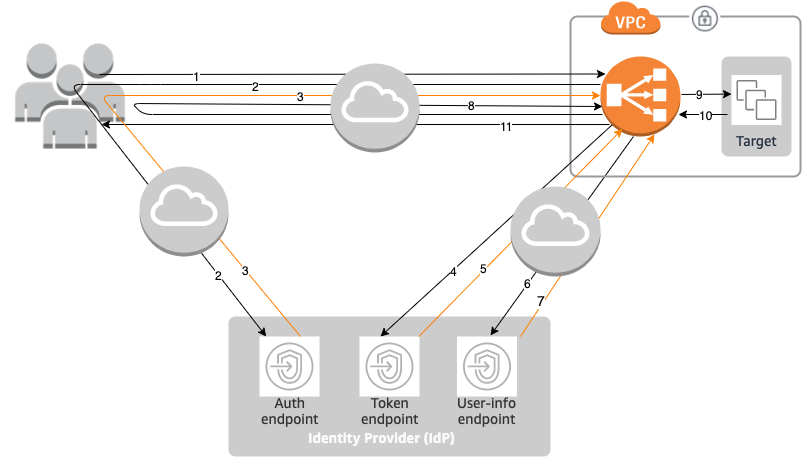
Flow Description
- The user sends an HTTPS request to a website hosted behind the Application Load Balancer. When the conditions for a rule with an authentication action are met, the load balancer checks the authentication session cookie in the request headers.
- If the cookie is not present, the load balancer redirects the user to the IdP authorization endpoint so that the IdP can authenticate the user.
- After verifying the user's identity, the IdP sends the user back to the load balancer with an authorization code.
- The load balancer sends this authorization code to the IdP token endpoint.
- After receiving a valid authorization code, the IdP provides the ID token and access token to the Application Load Balancer.
- The Application Load Balancer then sends the access token to the user information endpoint.
- The user information endpoint exchanges the access token for user claims.
- The Application Load Balancer redirects the user to the original URI with the
AWSELBauthentication session cookie. Since most browsers limit cookies to 4K in size, the load balancer shards cookies exceeding 4K into multiple cookies. If the total size of user claims and access tokens received from the IdP exceeds 11K bytes, the load balancer returns an HTTP 500 error to the client and increments theELBAuthUserClaimsSizeExceededmetric. - The Application Load Balancer validates the cookie and forwards user information to the target set in the
X-AMZN-OIDC-*HTTP headers. For more information, see User Claims Encoding and Signature Verification. - The target sends a response back to the Application Load Balancer.
- The Application Load Balancer sends the final response to the user.
Each new request goes through steps 1 to 11, while subsequent requests go through steps 9 to 11. That is, as long as the cookie has not expired, each subsequent request starts from step 9.
After the user authenticates with the IdP, the AWSALBAuthNonce cookie is added to the request headers. This does not change how the Application Load Balancer processes redirect requests from the IdP.
If the IdP provides a valid refresh token in the ID token, the load balancer saves the refresh token and uses it to refresh user claims when the access token expires, until the session times out or the IdP refresh fails. If the user logs out, the refresh fails and the load balancer redirects the user to the IdP authorization endpoint. This allows the load balancer to delete the session after the user logs out.
AWS ALB Configuration
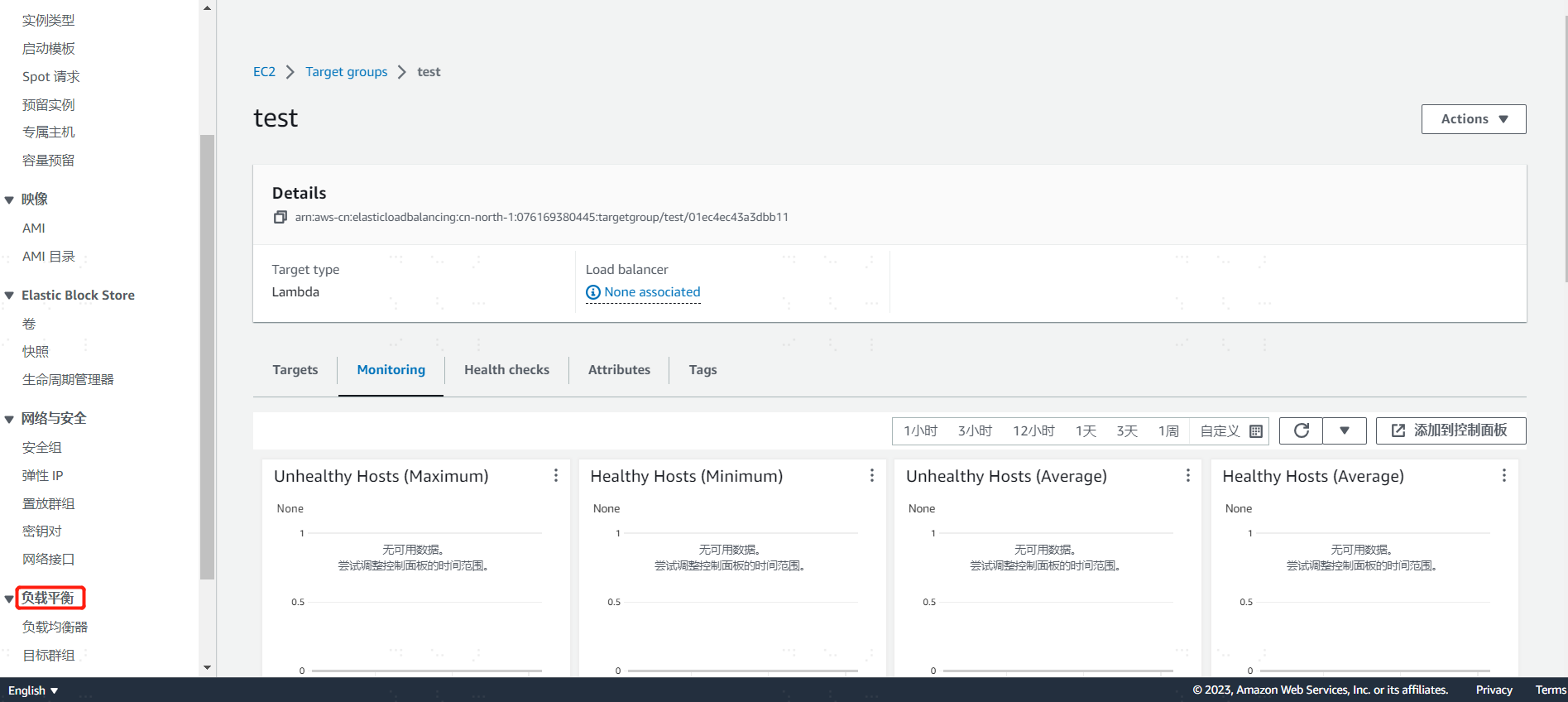
Log in to the AWS China console with the administrator account, search for EC2, and click to enter the EC2 console. In the left menu tree, find Load Balancing.
Create Target Group
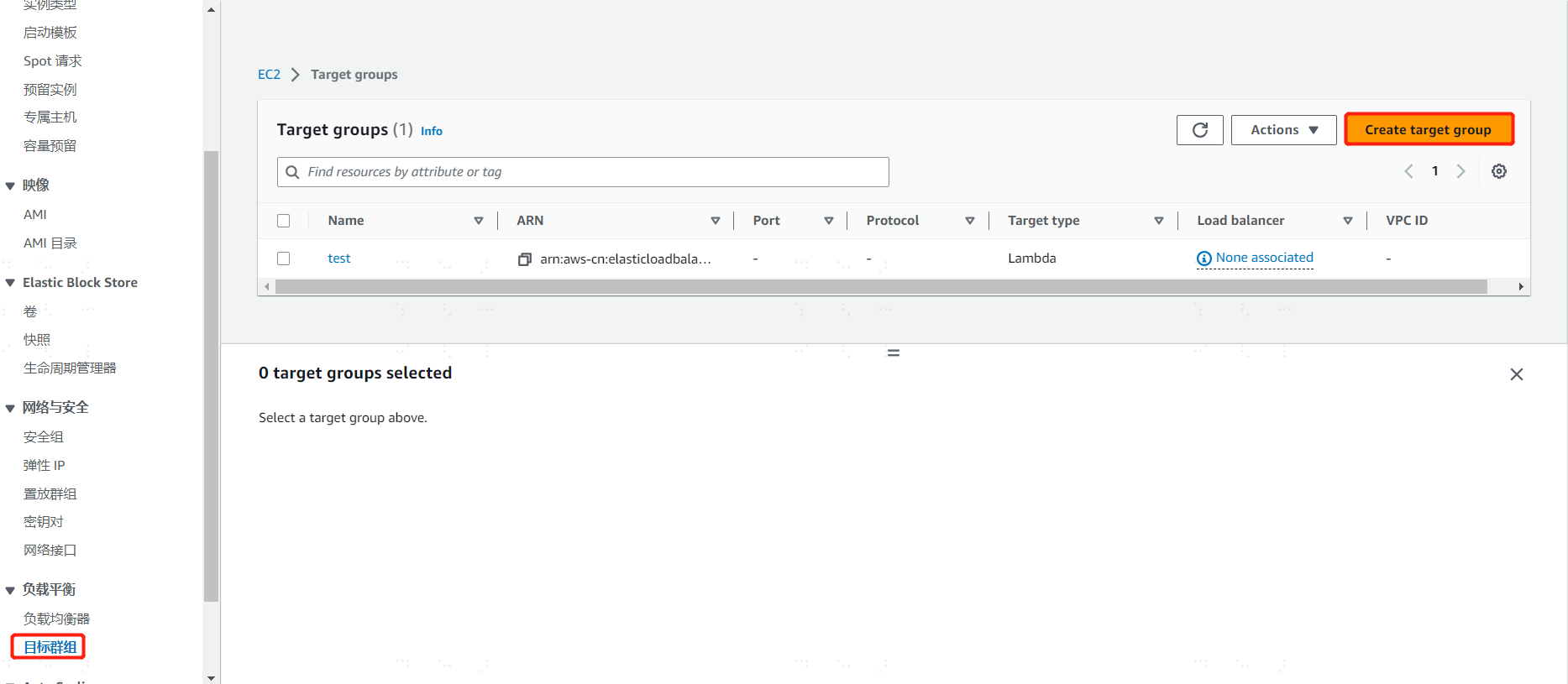
Since creating a listener for the load balancer requires selecting a target group, you need to create a target group in advance. Click the menu Load Balancing > Target Groups, select Create target Group in the workspace, choose according to your business needs, and click Save.
Create Load Balancer
Click the menu Load Balancing > Load Balancers, select Create Application Load Balancer from the workspace dropdown menu, and click to enter the ALB creation details page.
Basic configuration
Load balancer name: Enter the ALB name, such as test-alb.
Scheme: Select Internet-facing.
IP address type: Select IPv4.
Network mapping
VPN: Select the default value.
Mapping: Note that AWS requires at least 2 Availability Zones to be selected.
Security groups
Security groups: Select the default group.
Listeners and routing
Protocol: Select HTTPS.
Port: Select port 443.
Default action: Select the "target group" created above.
Secure listener settings
Security policy: Select the default value, which is the AWS recommended policy by default.
Default SSL/TLS certificate: Since the HTTPS protocol is selected, a certificate must be uploaded to the ALB. After preparing the certificate, use AWS's certificate import function, enter the certificate body, certificate private key, and certificate chain, and then import.
After checking that the above configuration information is correct, finally click Create load balancer to save.
Note: The above configuration should be based on actual business conditions.
Edit Listener
On the load balancer homepage, find the newly created load balancer record, click the load balancer to enter the details page, in the "Listeners and rules" area, select the default "HTTPS:443", and click the "Manage listener" dropdown menu to edit.
Authentication
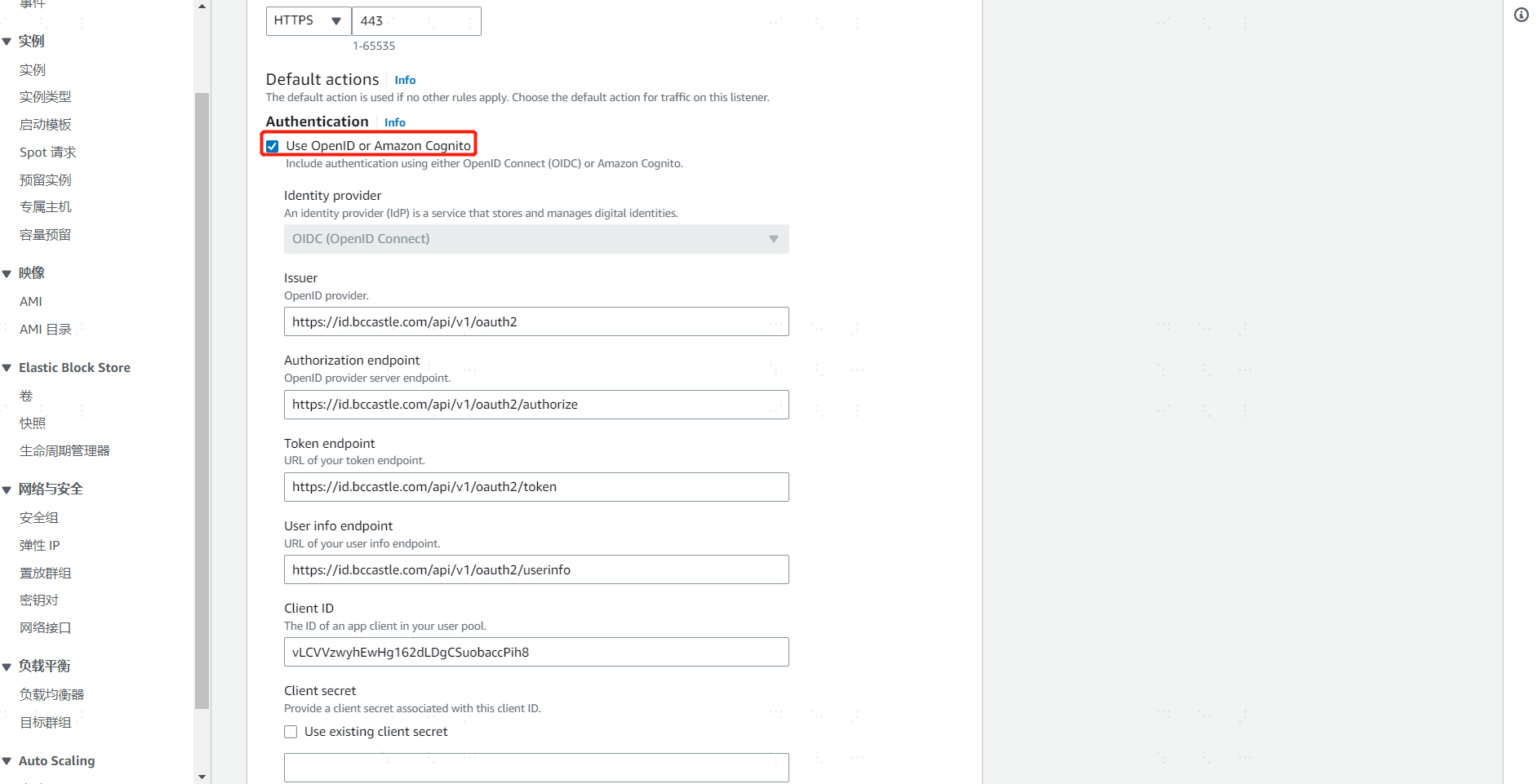
Click to enable Use OpenID or Amazon Cognito, and enter the BambooCloud IDaaS tenant OIDC service endpoint address and the registered application ID and Secret.
Issuer: https://{your_domain}/api/v1/oauth2
Authorization endpoint: https://{your_domain}/api/v1/oauth2/authorize
Token endpoint: https://{your_domain}/api/v1/oauth2/token
User info endpoint: https://{your_domain}/api/v1/oauth2/userinfo
Client ID: After registering the application in BambooCloud IDaaS, the system automatically generates the Client ID.
Client secret: After registering the application in BambooCloud IDaaS, the system automatically generates the Client Secret (after the Secret is generated, the business system needs to save it itself; if forgotten, it cannot be retrieved and can only be reset).
In the above parameter values, replace {your_domain} with the domain name of the BambooCloud IDaaS tenant.
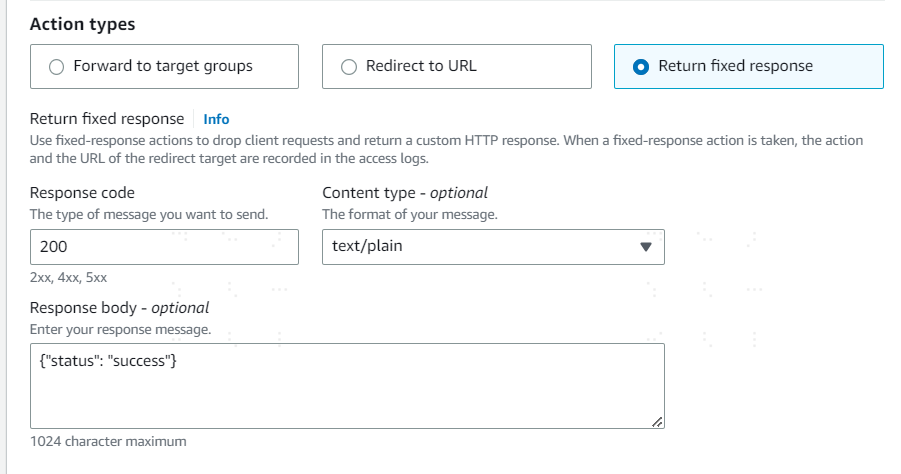
Action types
After ALB requests BambooCloud IDaaS to complete user identity authentication, what action ALB should take next. For example, if you select Return fixed response, set the response code to 200 and the response message: {"status": "success"}.
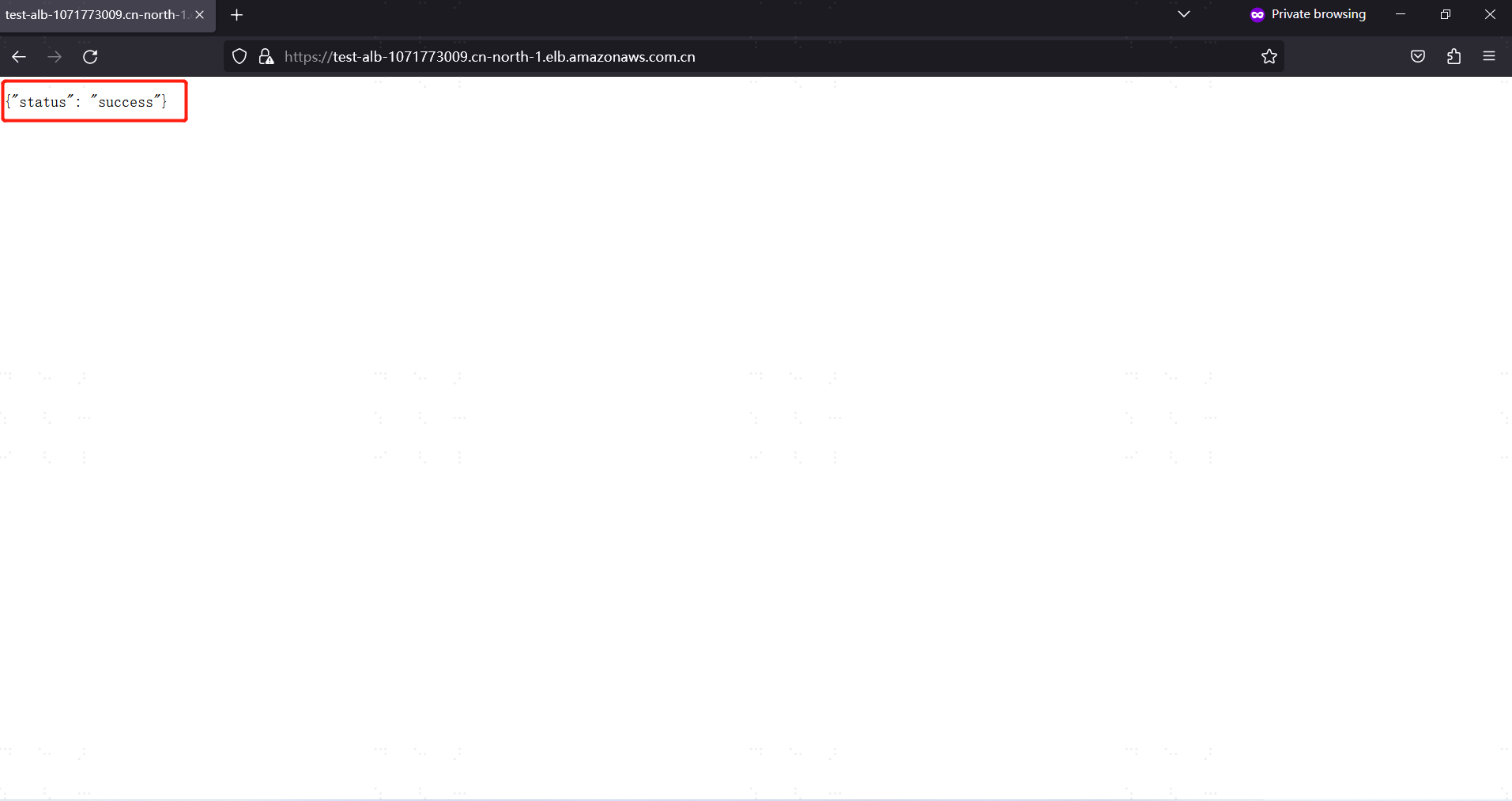
After the above configuration is complete, when the user accesses ALB and passes BambooCloud IDaaS authentication, ALB will display the content {"status": "success"} in the browser page.
Note: This needs to be configured according to actual business. This example is only for functional verification.
Finally, click Save changes to save the listener configuration.
Other Configuration Items
In addition to configuring the listener, the load balancer can also perform Network Mapping, Security, and other operations. Since ALB integrates with BambooCloud IDaaS through OIDC and needs to call BambooCloud IDaaS related interfaces, if outbound rules in Security are involved, you can consult BambooCloud IDaaS personnel to obtain the service IP, and then set IP network policies.
BambooCloud IDaaS Configuration
Register ALB Application
The administrator logs in to the BambooCloud IDaaS management backend, clicks Resources > Applications, in the self-built application area, clicks Add Self-built Application, enters the application system Logo and name, and clicks Save to complete the application registration.
Authentication Integration Configuration
Click the newly registered application system to enter the application system configuration page, select OIDC for authentication integration, and save. After clicking Authentication Integration configuration, enter the application system configuration page.
General Configuration
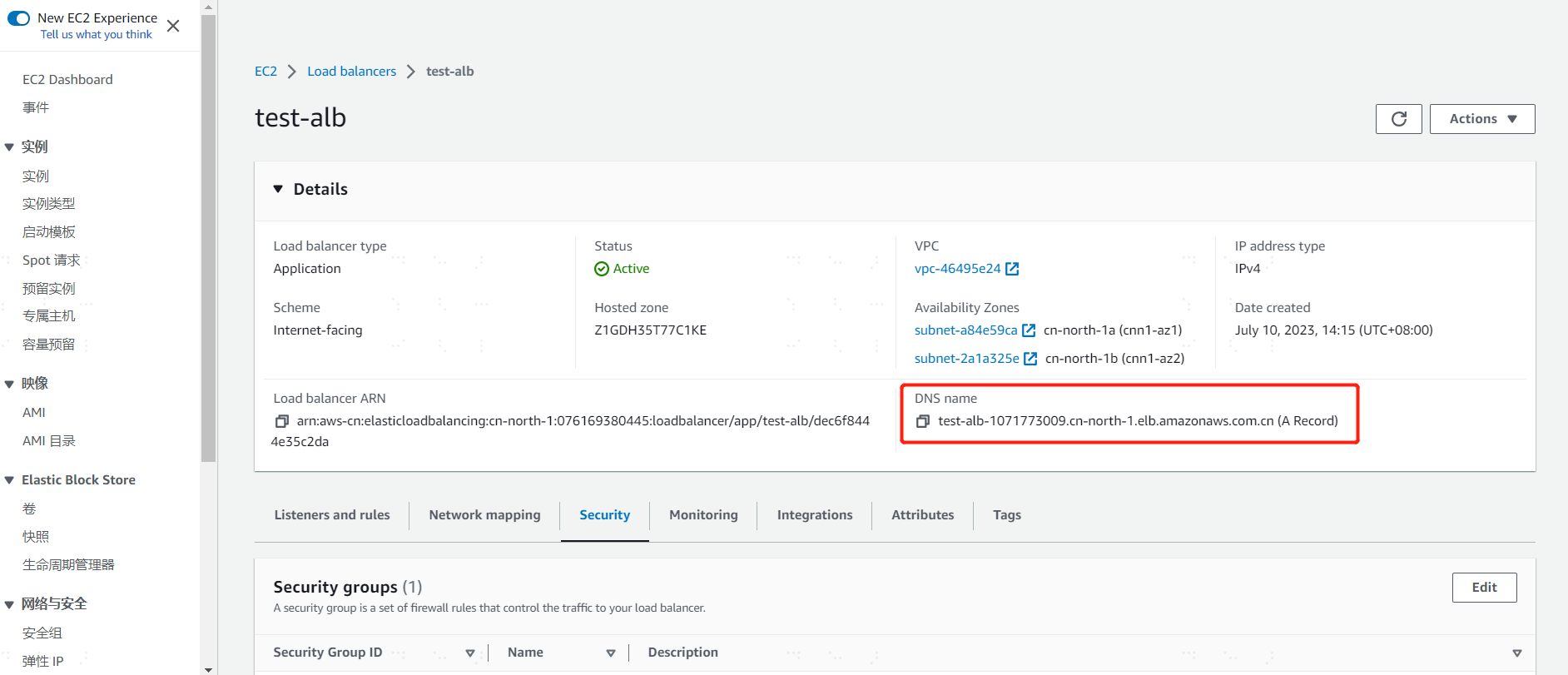
Callback address: After the user passes BambooCloud IDaaS authentication, the BambooCloud IDaaS platform calls this address to return the temporary authorization code information to the ALB application. The ALB callback address format is: https://`DNS`/oauth2/idpresponse.
In the AWS console, find the newly created ALB and click to enter the details page. The DNS Name can be displayed on the details page. Click Copy and replace the actual DNS in the callback address format.
Mapping Configuration
When the user accesses ALB, after BambooCloud IDaaS successfully verifies the user's identity, ALB obtains the current login user information through the OIDC interface and forwards the user information to the subsequent business system. ALB obtains the current login user from the BambooCloud IDaaS platform through the sub field and encapsulates it into the HTTP header x-amzn-oidc-identity for the business system to use.
In the BambooCloud IDaaS platform, add a sub application attribute. The business system can choose to use platform attribute names including: user ID, username, mobile, email, and other identifiers according to actual conditions.
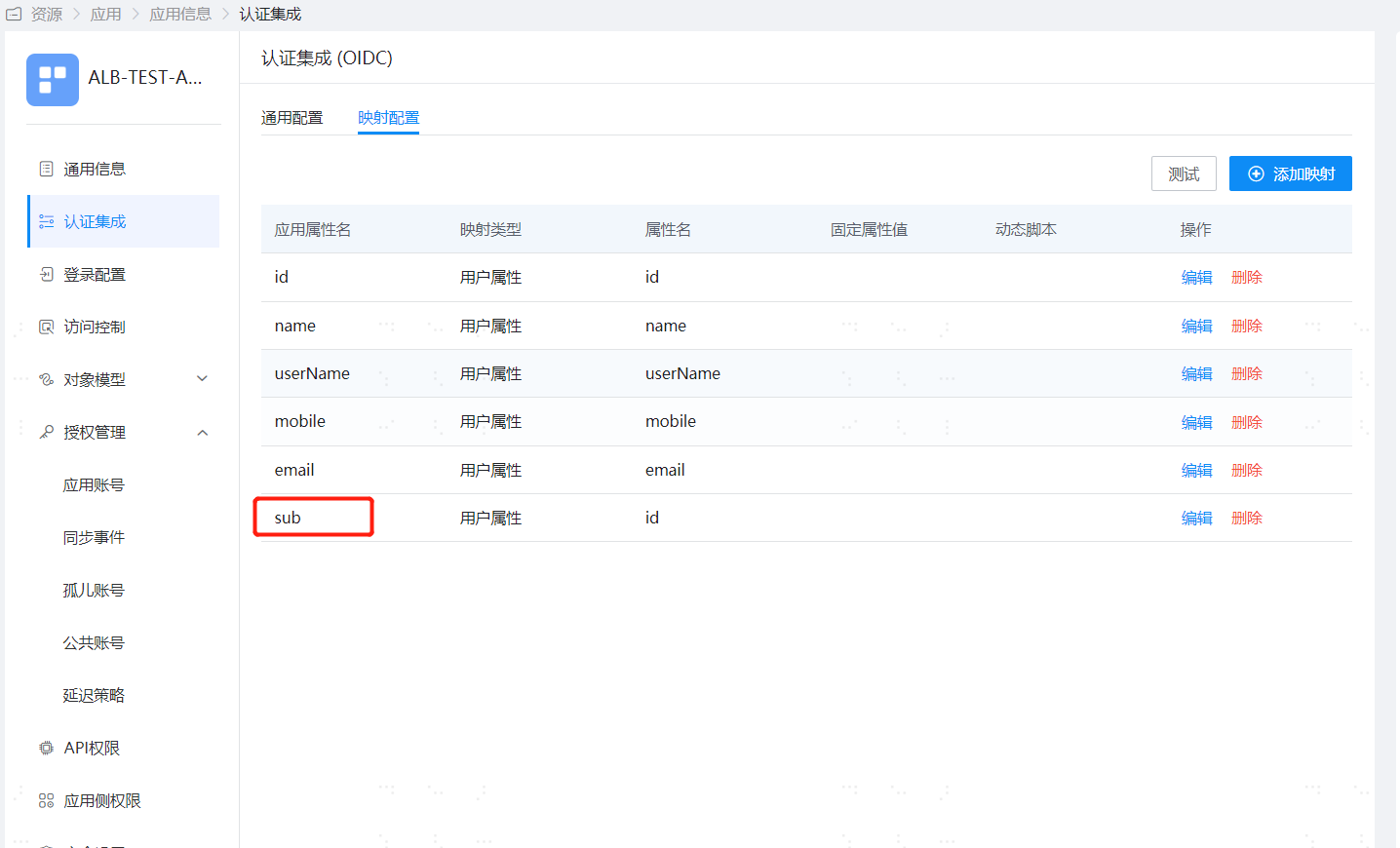
Note: The BambooCloud IDaaS platform must add a sub field attribute returned to the ALB application. Otherwise, when the user passes BambooCloud IDaaS identity verification and BambooCloud IDaaS returns the temporary authorization code to ALB, the ALB system will prompt 500 Internal Server Error.
User Authorization
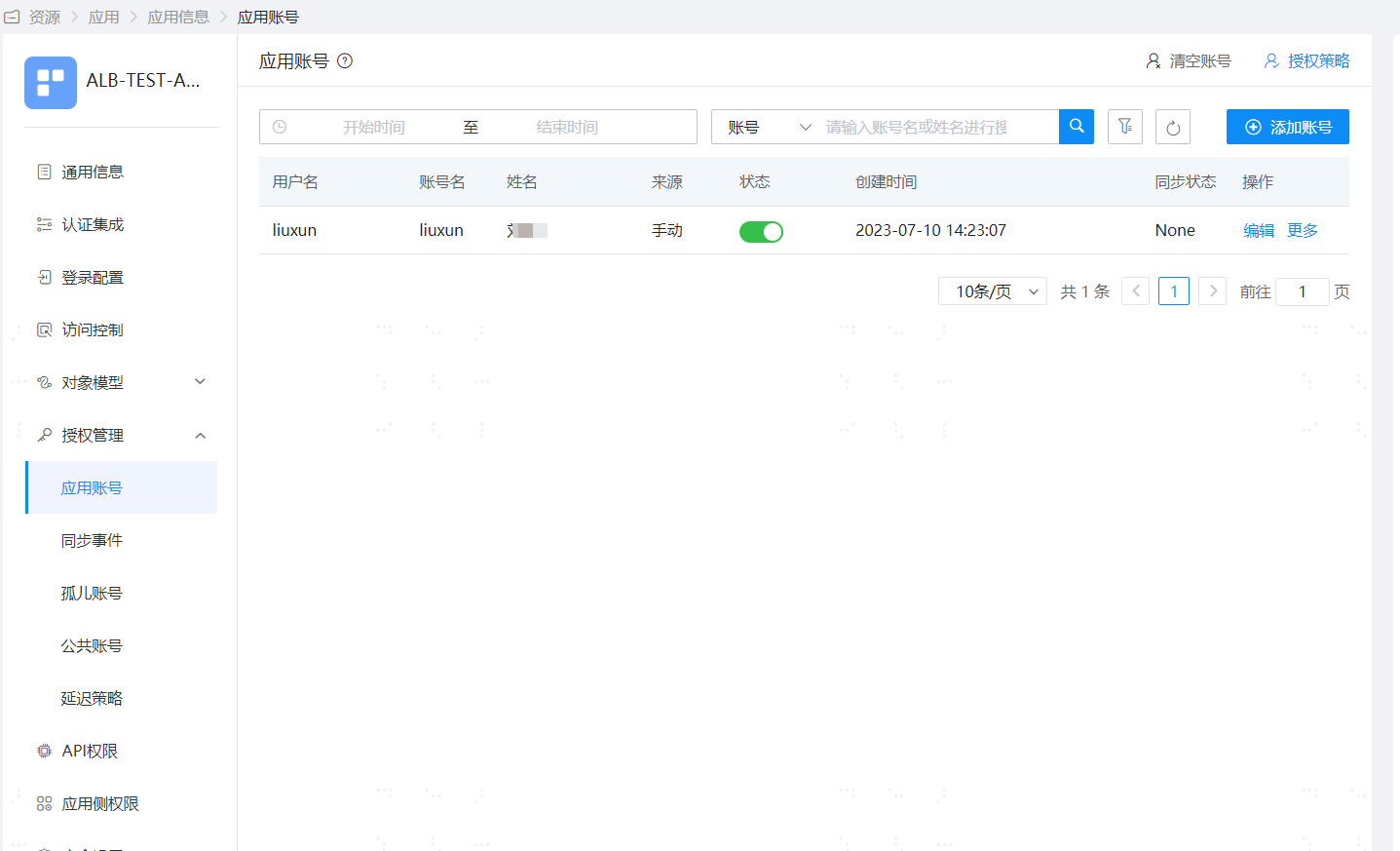
Select the newly registered application system, click Authorization Management > Application Account "Configure" link, enter the user authorization page of the application system, select to add a user and authorize access to the ALB application.
Login Verification
- Access ALB
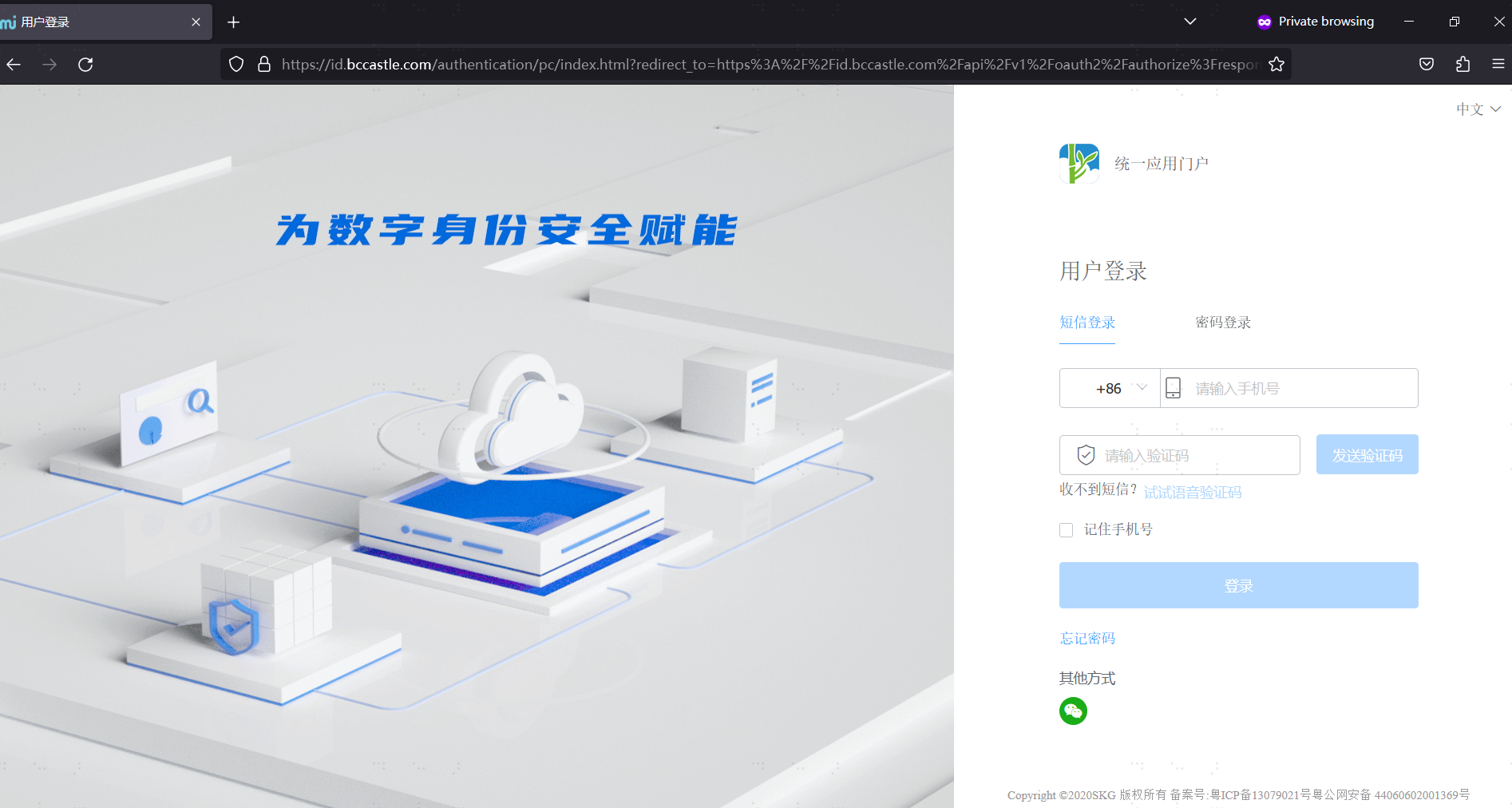
Open a browser and visit the ALB DNS domain address, such as https://test-alb-1071773009.cn-north-1.elb.amazonaws.com.cn/. The browser redirects to the BambooCloud IDaaS unified login page.
Authentication successful displays success information
On the unified login page, enter the username and password and other credential information. After BambooCloud IDaaS authentication passes, the OIDC authorization code information is passed to ALB through the callback address. Since this example selects Return fixed response in ALB's "Action type", ALB directly prints {"status": "success"}, indicating that the entire authentication integration configuration is successful.