
Volcano Engine Single Sign-On
Application Introduction
Document Description
This article describes how to configure BambooCloud IDaaS and Volcano Engine to implement SSO integration based on the SAML protocol.
Volcano Engine has two integration modes based on the SAML protocol:
User SSO: After completing the mutual trust configuration between IdP and SP, when an enterprise IdP user logs in, Volcano Engine establishes a correspondence between the IdP user and the Volcano Engine IAM user through the SAML assertion sent by the IdP. The enterprise IdP user can then access Volcano Engine resources through the corresponding IAM user. The access permission scope is within the permission scope of the IAM user.
Role SSO: After establishing a role with the trust identity as the corresponding IdP and completing the mutual trust configuration between IdP and SP, when an enterprise IdP user logs in, the user accesses Volcano Engine resources by assuming the available IAM role specified in the SAML assertion sent by the IdP. The access permission scope is within the permission scope of the IAM role.
| Identity Provider Type | Volcano Engine Login Identity | Applicable Scenario |
|---|---|---|
| User SSO | IAM User | General scenarios, one-to-one mapping between enterprise users and Volcano Engine users, etc. When customers use SaaS products, it is recommended to implement single sign-on through User SSO. |
| Role SSO | IAM Role | Customers divide work according to personnel roles, for example, the IT department uniformly logs in according to the IT_admin role. |
Prerequisites
- Have a Volcano Engine tenant environment
- Have a BambooCloud IDaaS tenant environment
- Have super administrator accounts for the above two environments
User SSO Integration Configuration Instructions
Step Overview
- Log in to Volcano Engine as an administrator and create a new identity provider (type select: User SSO)
- Upload the IDP metadata file
- Log in to BambooCloud IDaaS as an administrator and create a new pre-integrated application [Volcano Engine User SSO]
- Upload the SP metadata file and configure it
- Authorize and test
Detailed Integration Steps
Step 1: Log in to Volcano Engine and enter the Access Control interface. 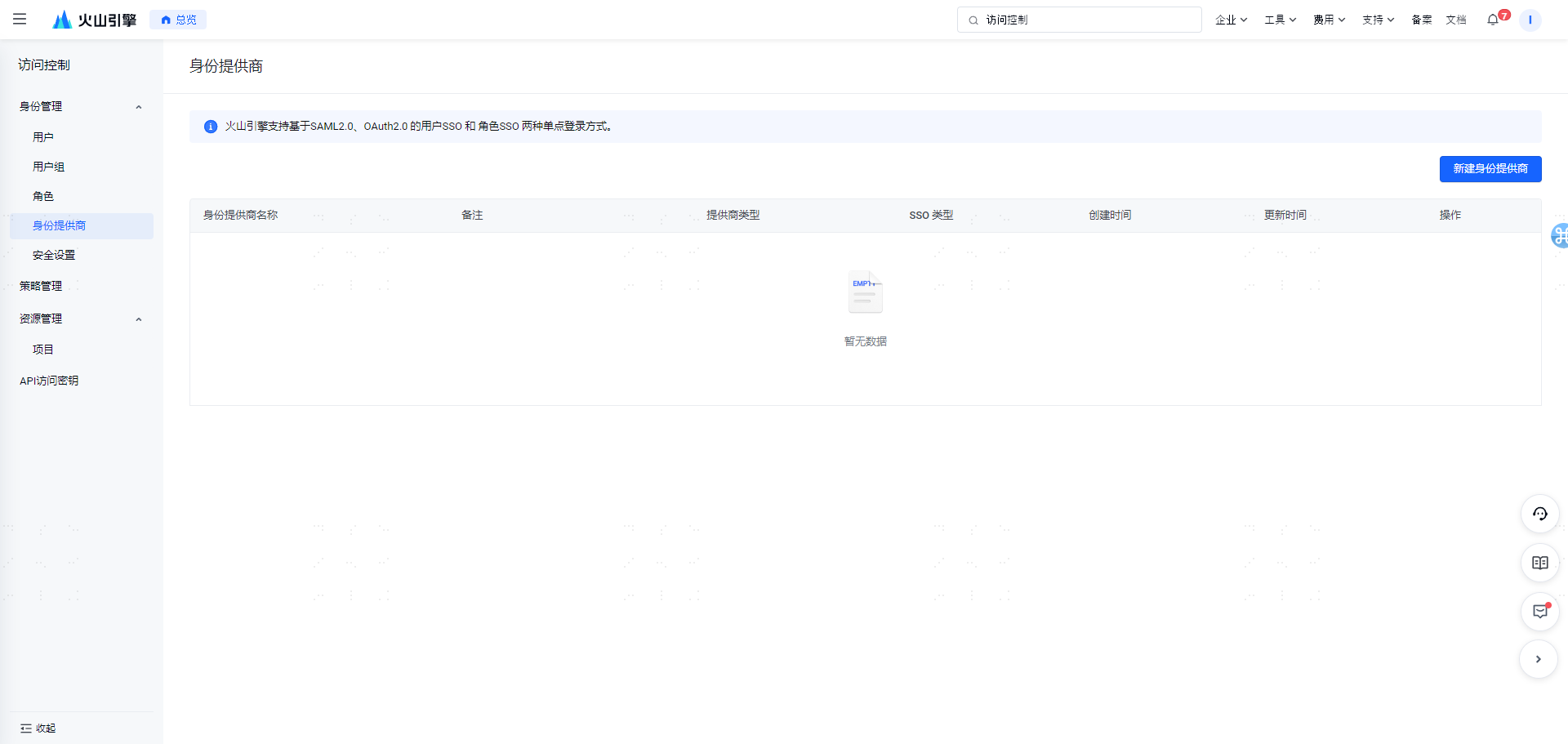
Step 2: Create a new identity provider. 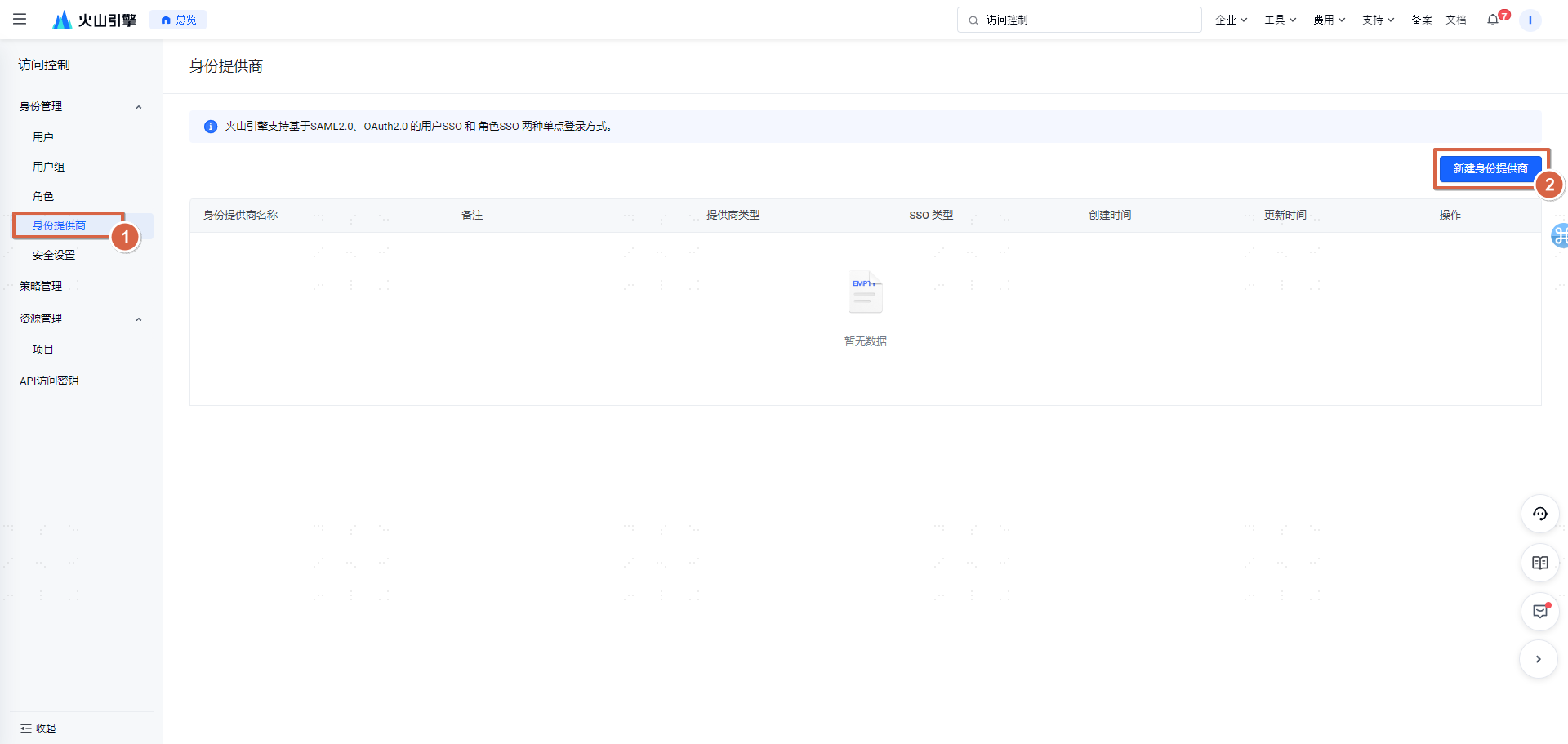
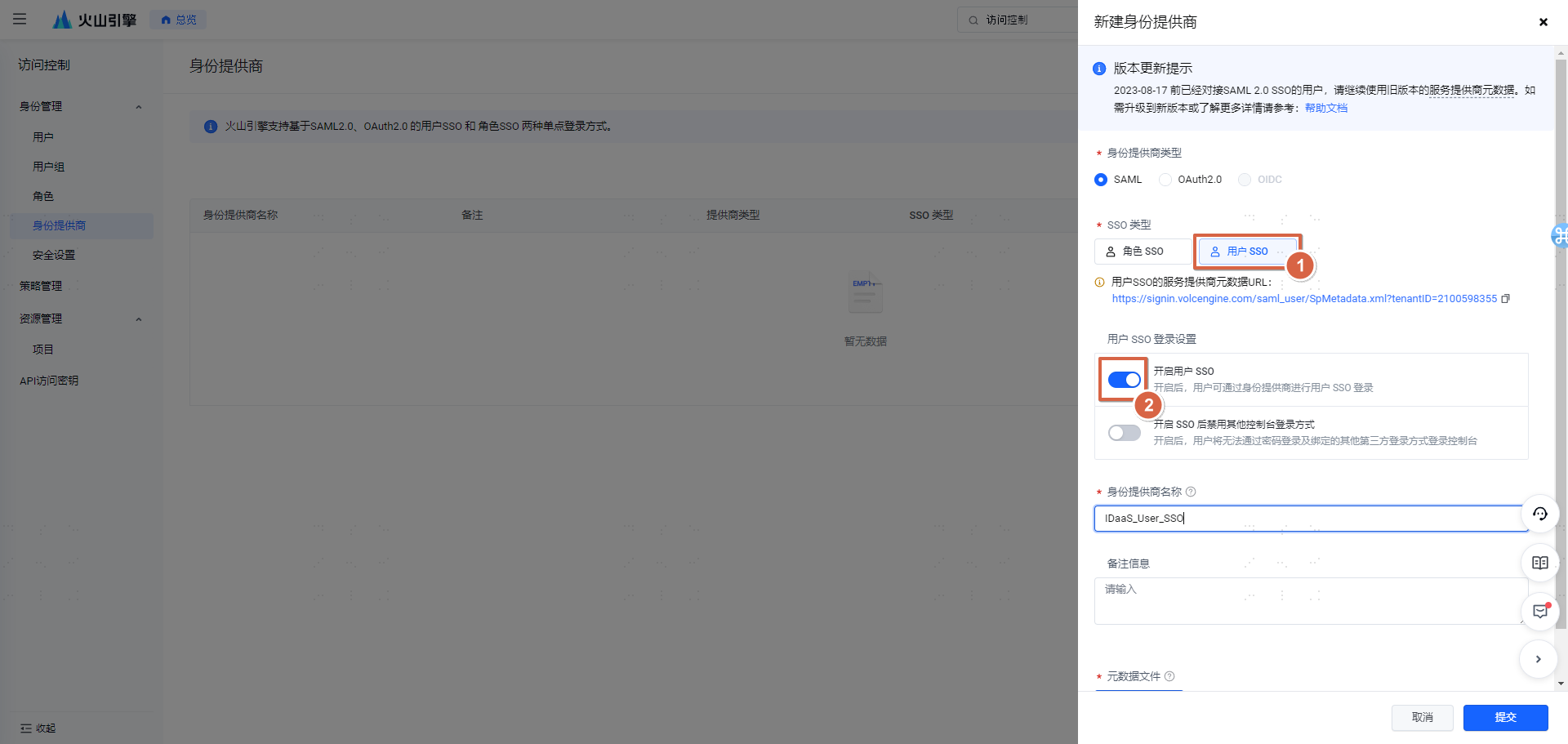
Identity Provider Name: [BambooCloud IDaaS_User_SSO]
Upload the IDP metadata file (In the BambooCloud IDaaS Enterprise Center, go to Settings -> Service Configuration -> IDP Configuration, click Download to obtain the IDP metadata file) 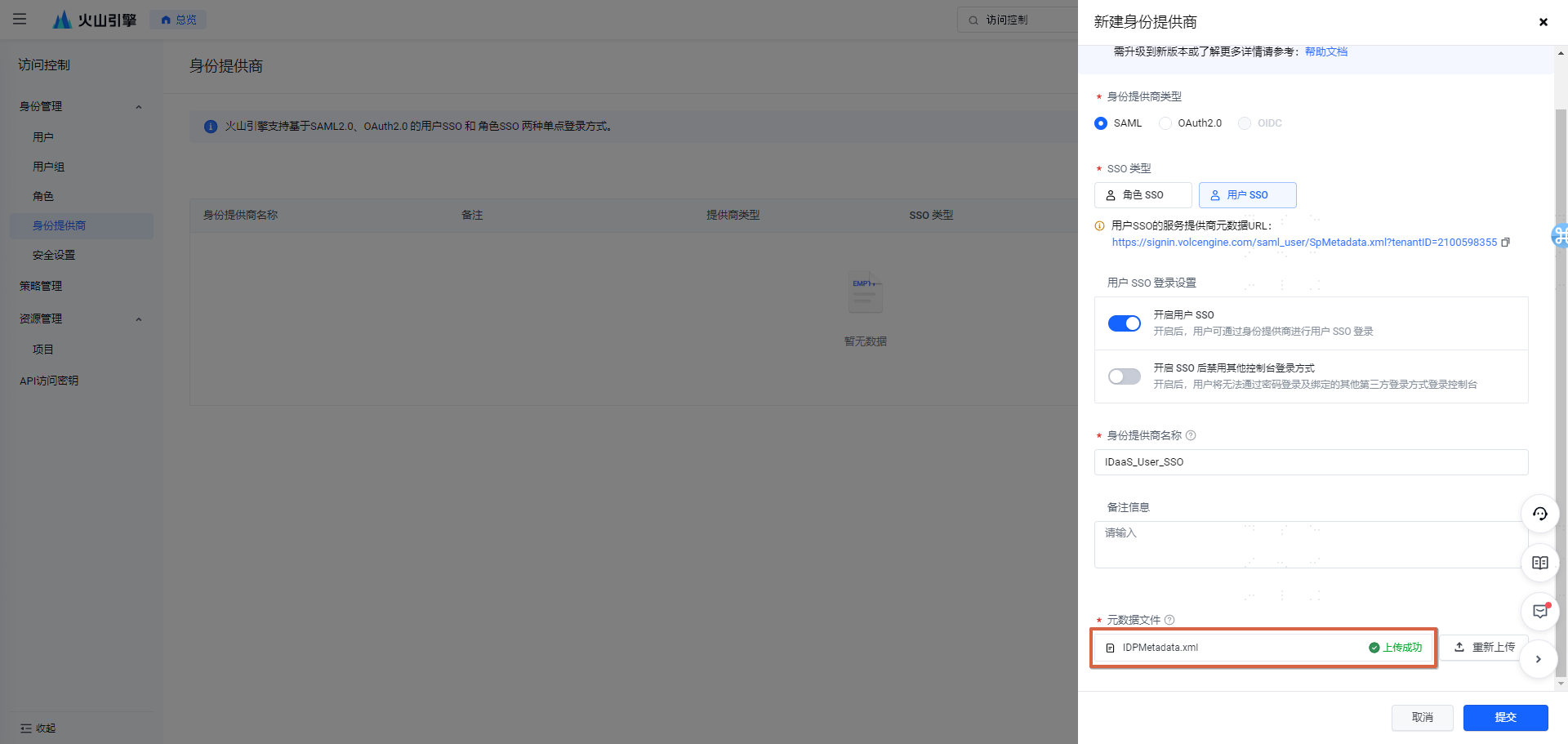
Step 3: Obtain the SP metadata file. 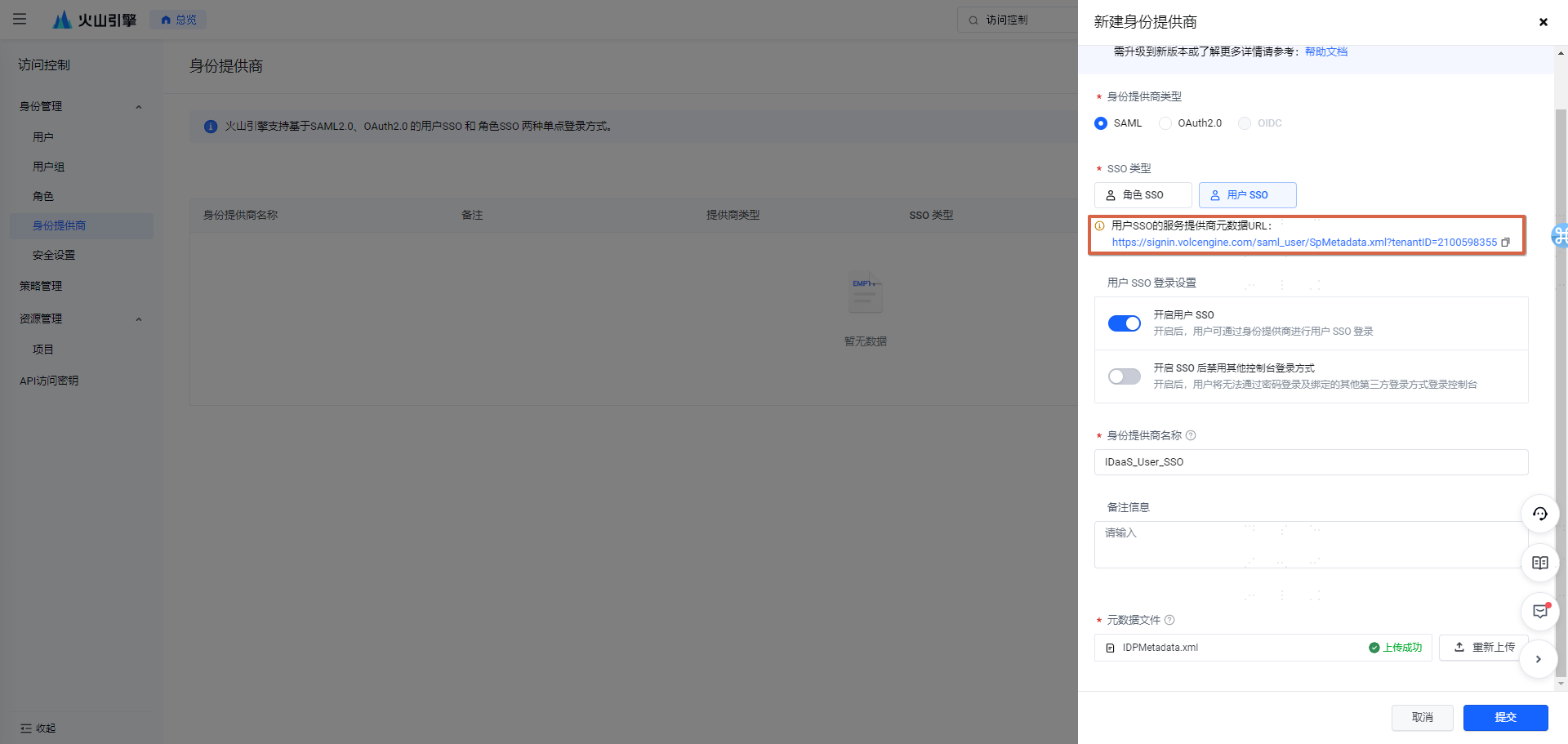 The above address can be opened directly in a browser. After opening, copy the content to a text file and save it as:
 sp_usersso.xml
Step 4: Create a new pre-integrated application [Volcano Engine User SSO]. 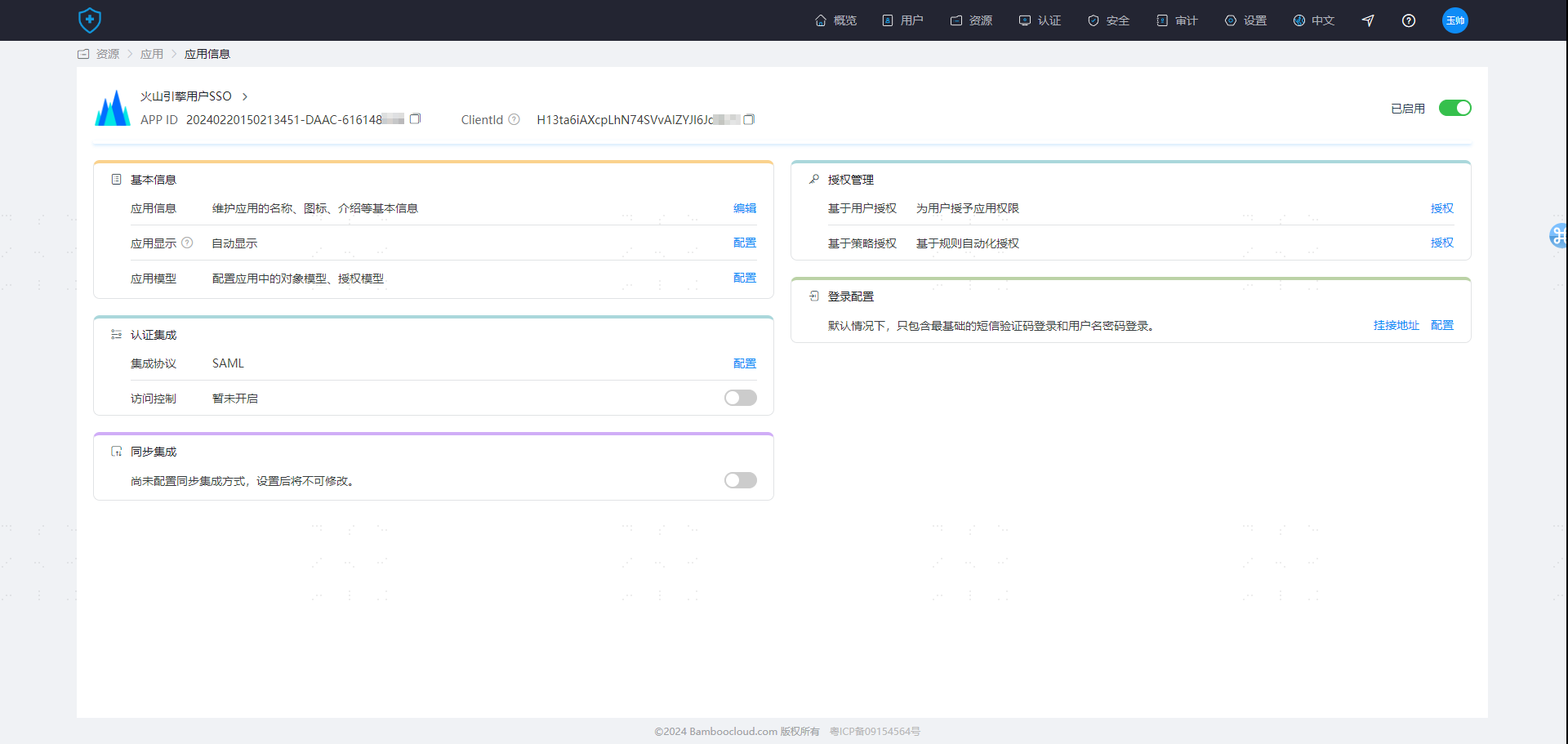
Step 5: Upload sp_usersso.xml (manually edit and select [Account Name] for the NAME ID attribute). 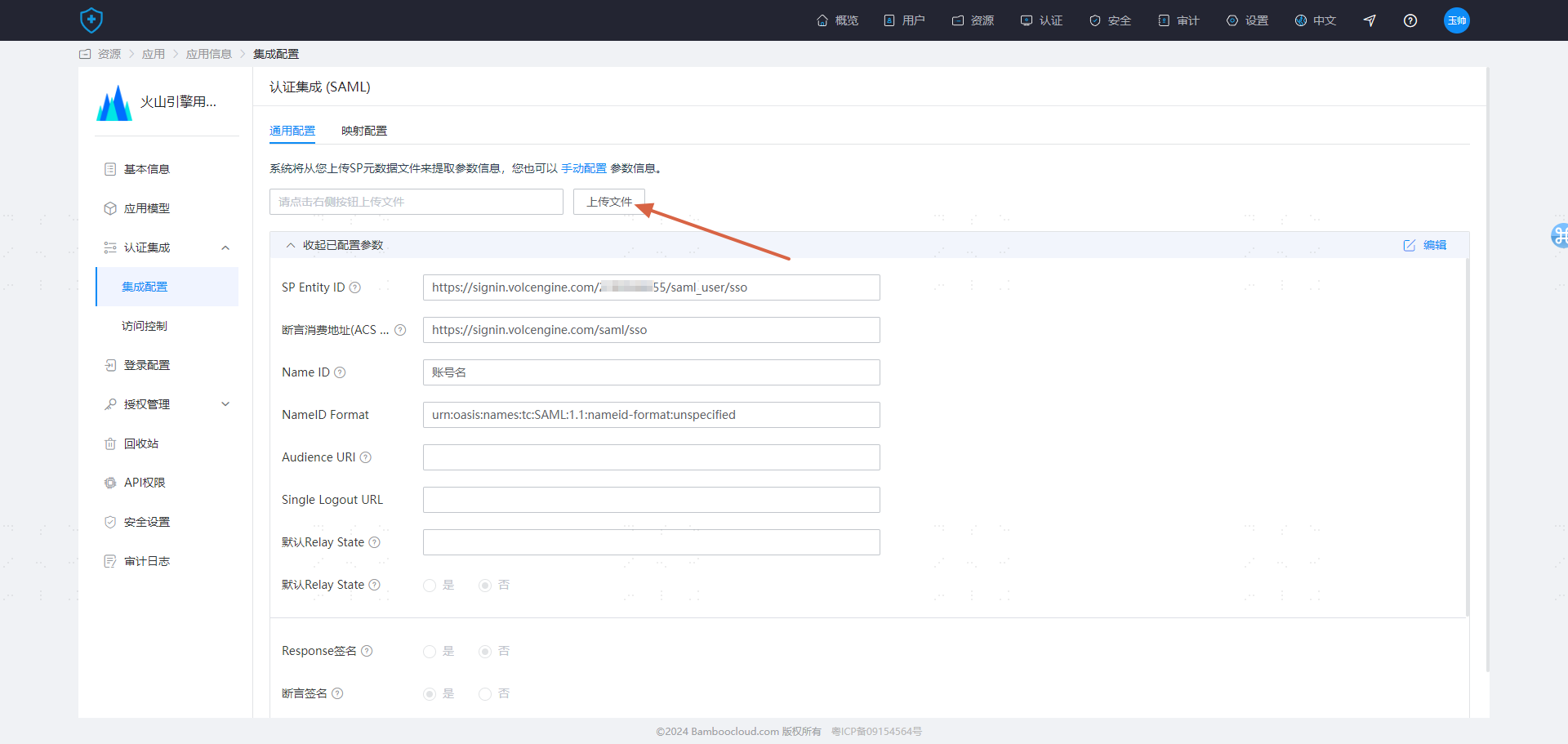
Integration configuration is complete.
Test Verification
When Volcano Engine and BambooCloud IDaaS personnel log in through single sign-on, the matching login depends on the [Username] attribute field of the Volcano Engine personnel and the BambooCloud IDaaS user.
Create a user in BambooCloud IDaaS and assign it to the Volcano Engine application (ensure that this user already exists in Volcano Engine). 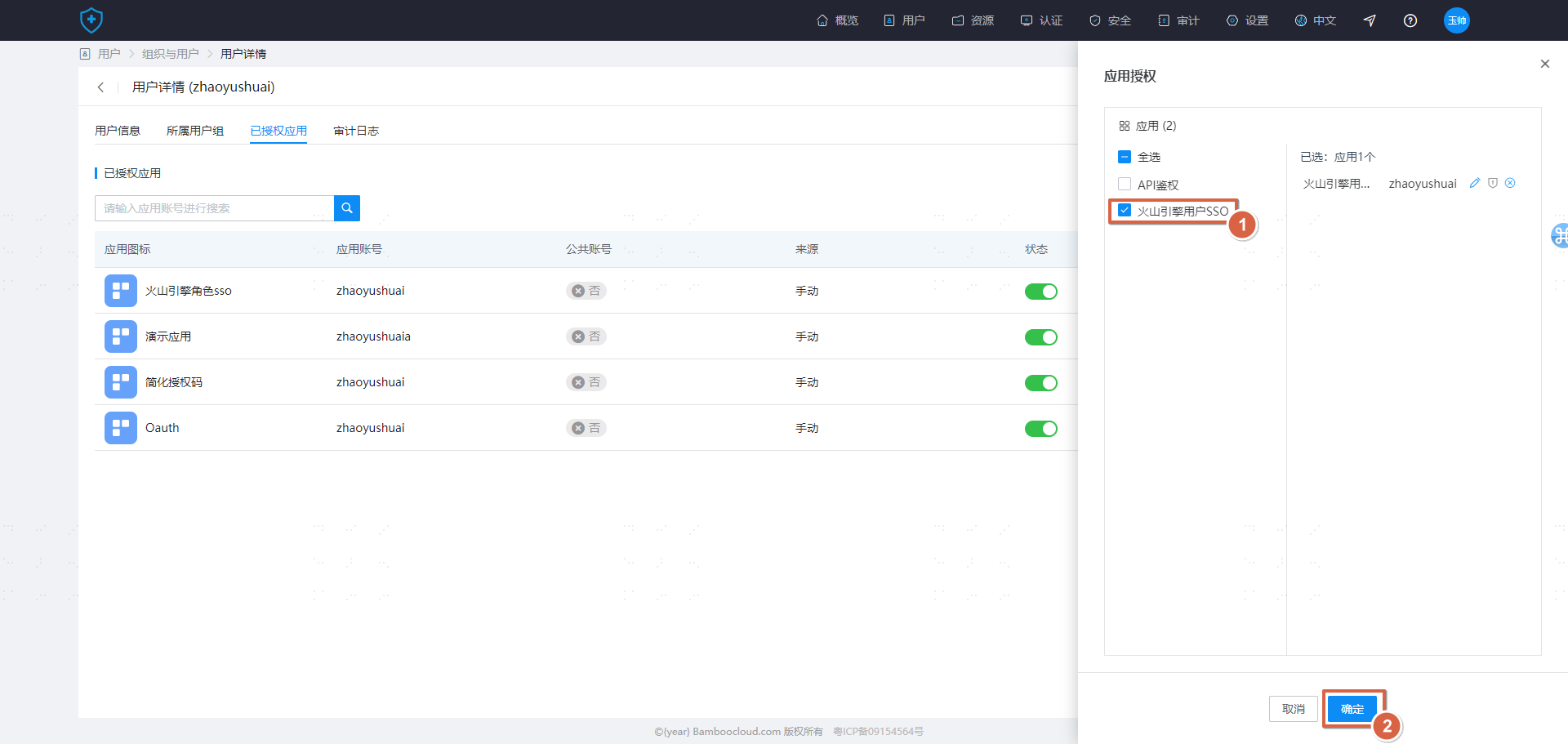
- Access from Volcano Engine login (SP-initiated)
On the Volcano Engine login page, select the Enterprise Federation Login login method, enter the account ID/main account username, and then select the corresponding identity provider BambooCloud IDaaS_User_SSO. After jumping to BambooCloud IDaaS, perform account password login verification. 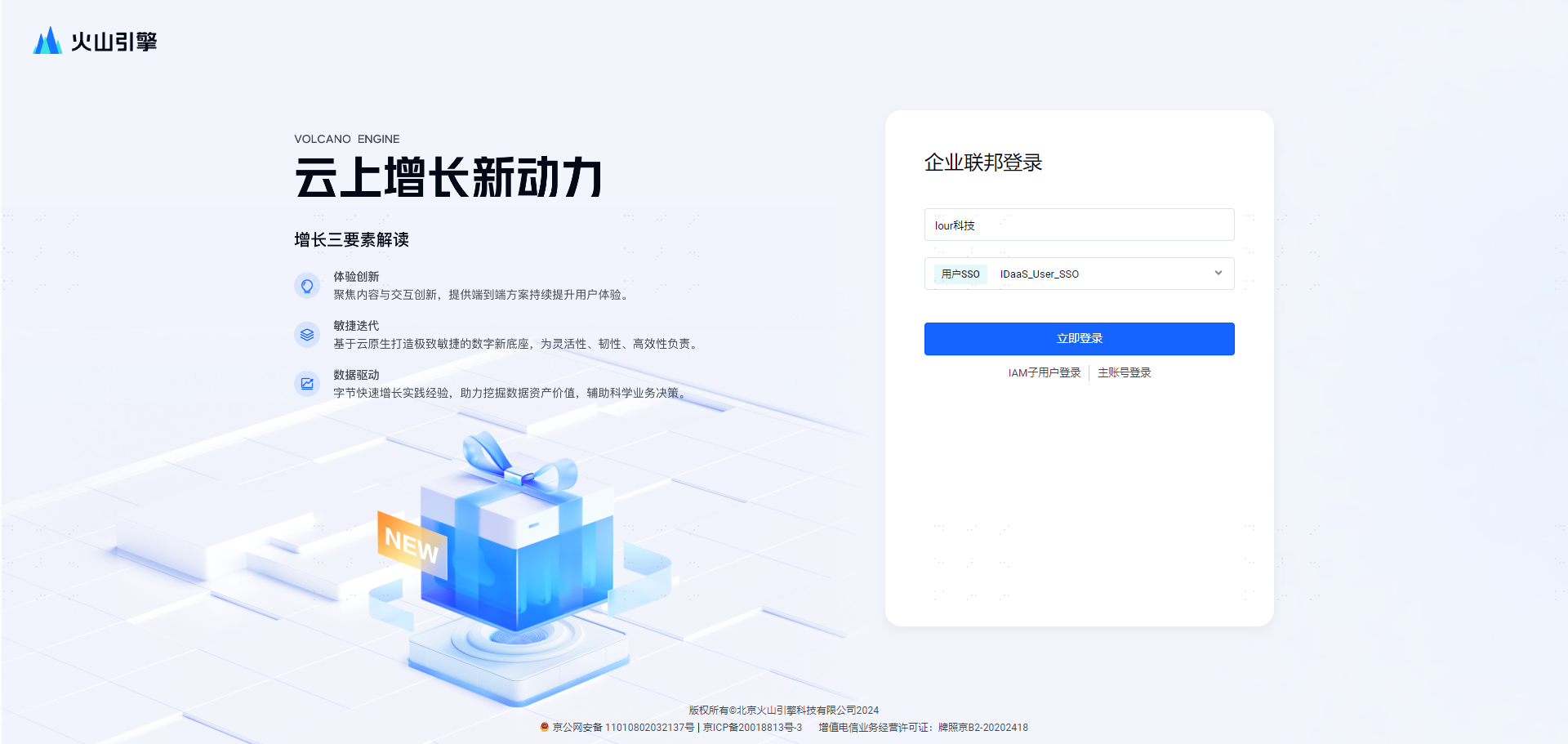
If after login, the Volcano Engine login identity is consistent with the BambooCloud IDaaS user, the configuration is successful.
- Access from BambooCloud IDaaS User Center (IDP-initiated)
After logging in to the BambooCloud IDaaS User Center, click the Volcano Engine card and check the Volcano Engine login identity. If it is consistent with BambooCloud IDaaS, the configuration is successful.
Role SSO Integration Configuration Instructions
Step Overview
- Log in to Volcano Engine as an administrator and create a new identity provider (type select: Role SSO)
- Upload the IDP metadata file
- Log in to BambooCloud IDaaS as an administrator and create a new pre-integrated application [Volcano Engine User SSO]
- Upload the SP metadata file and configure it
- Authorize and test
Detailed Integration Steps
Step 1: Log in to Volcano Engine, enter Access Control -> Identity Providers, and create a new identity provider of type Role SSO. 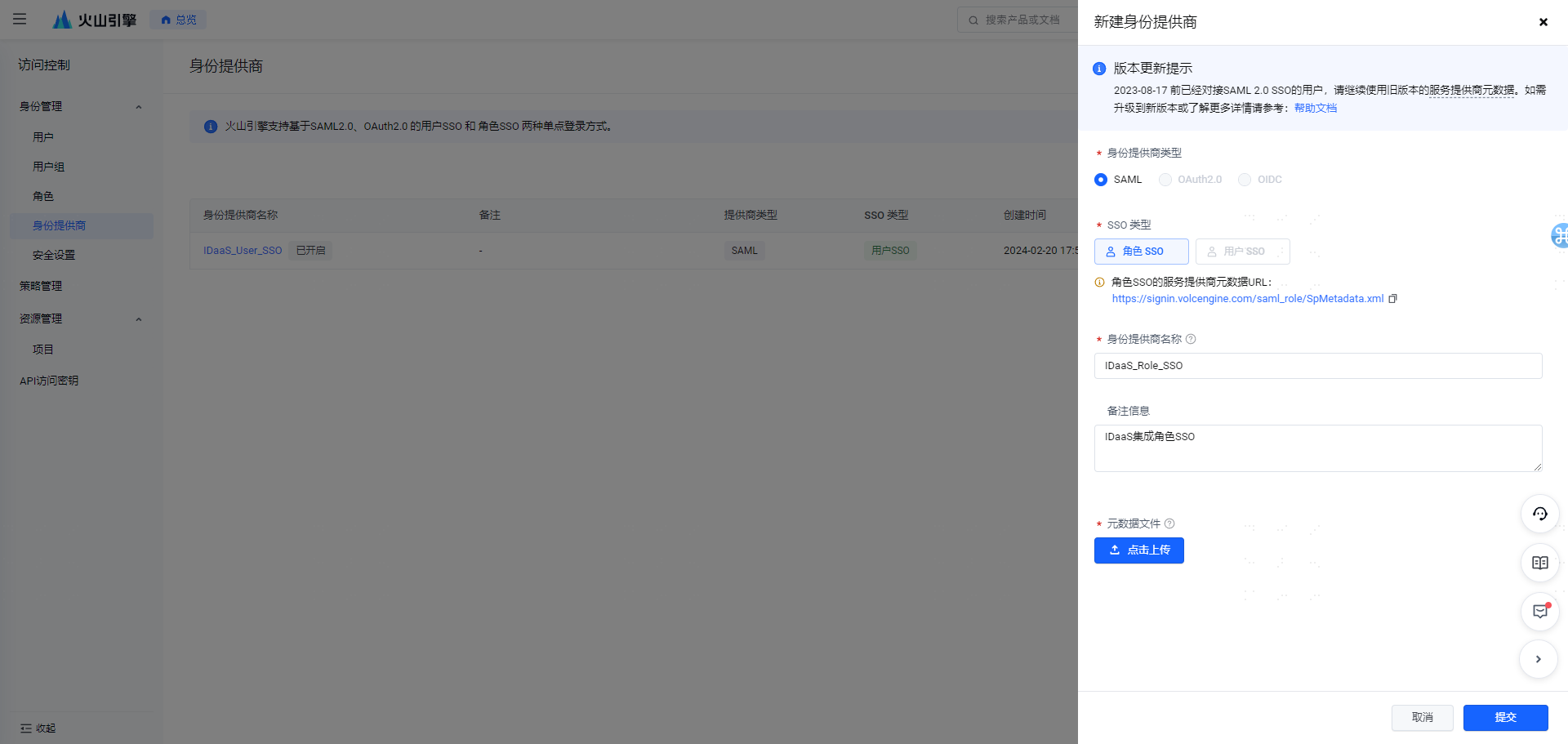
Step 2: Upload the IDP metadata file, and save the SP metadata file as sp_rolesso.xml at the same time (refer to steps 2 and 3 in User SSO).
Step 3: Create a new role in Volcano Engine. 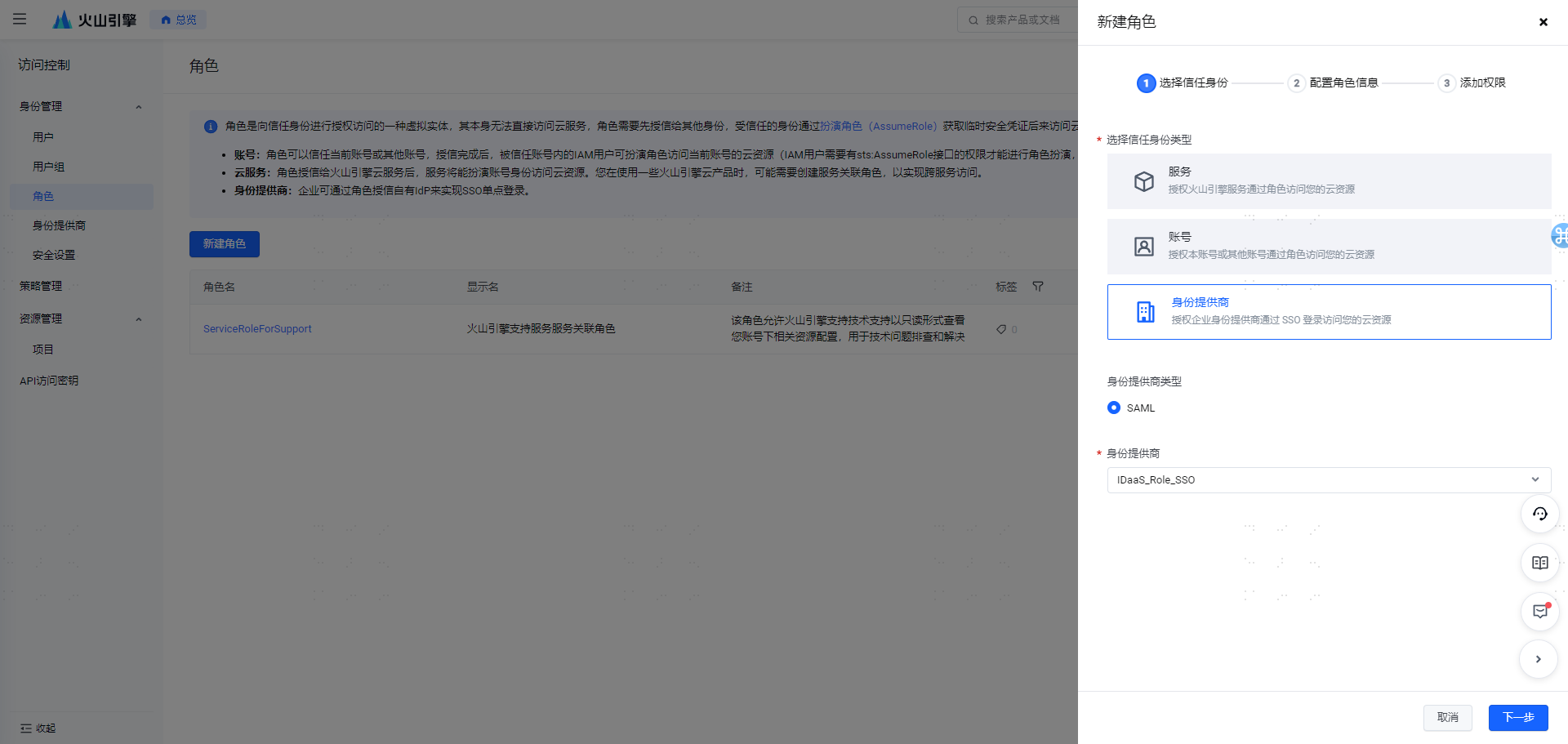
The permissions corresponding to the role can be customized. After creation, the display is as follows. 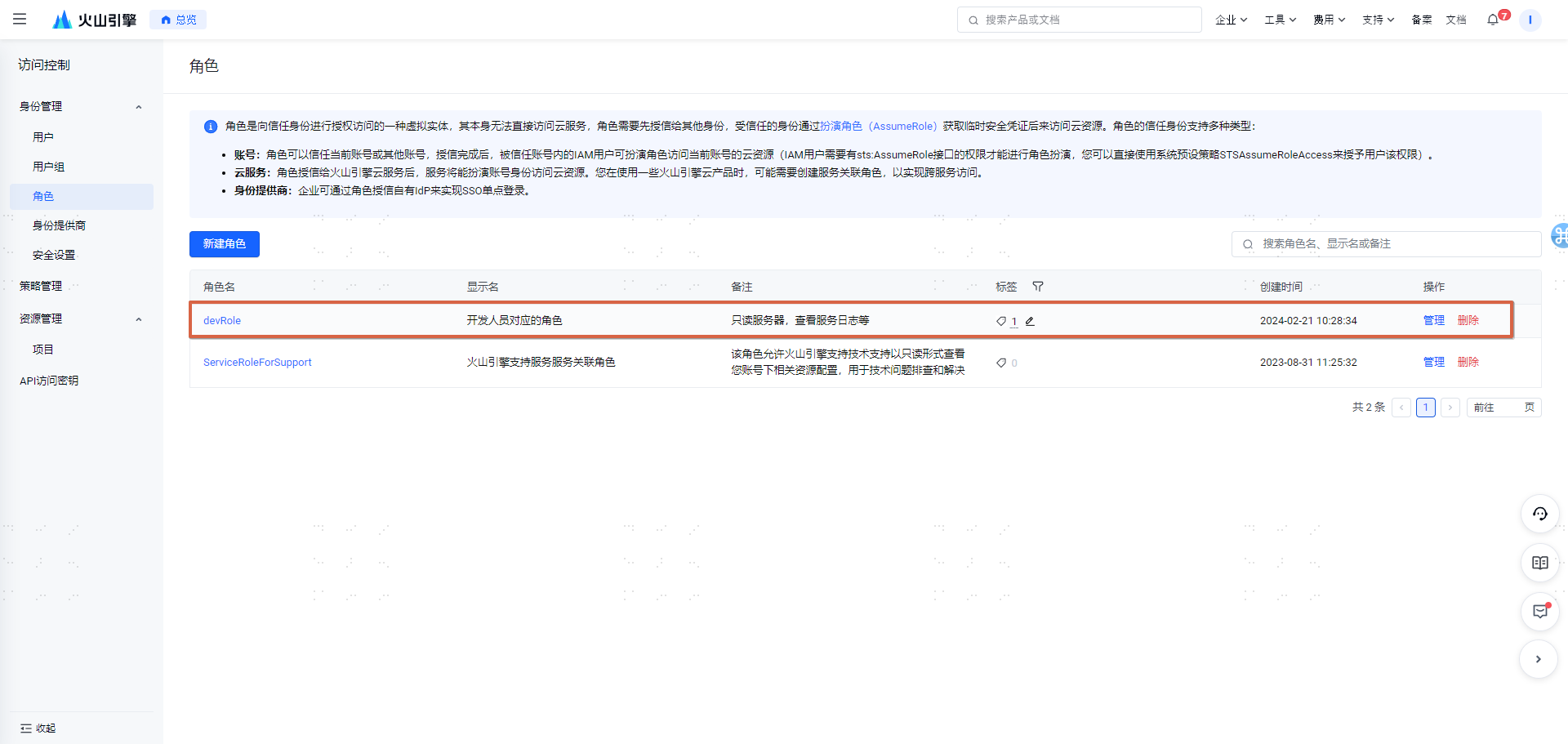
Step 4: Create a new pre-integrated application [Volcano Engine Role SSO], and upload and configure sp_rolesso.xml. 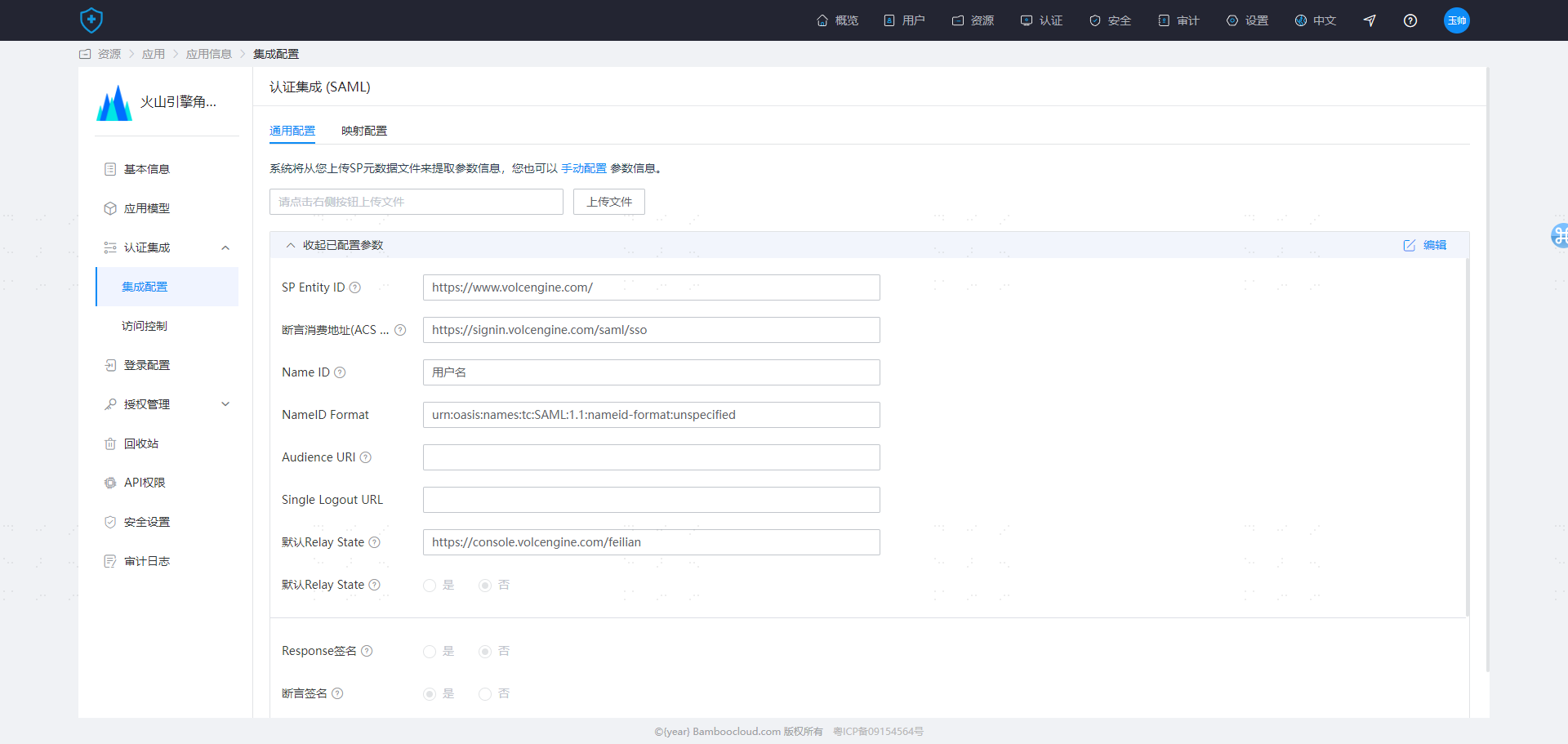
Step 4: Modify Mapping Configuration. 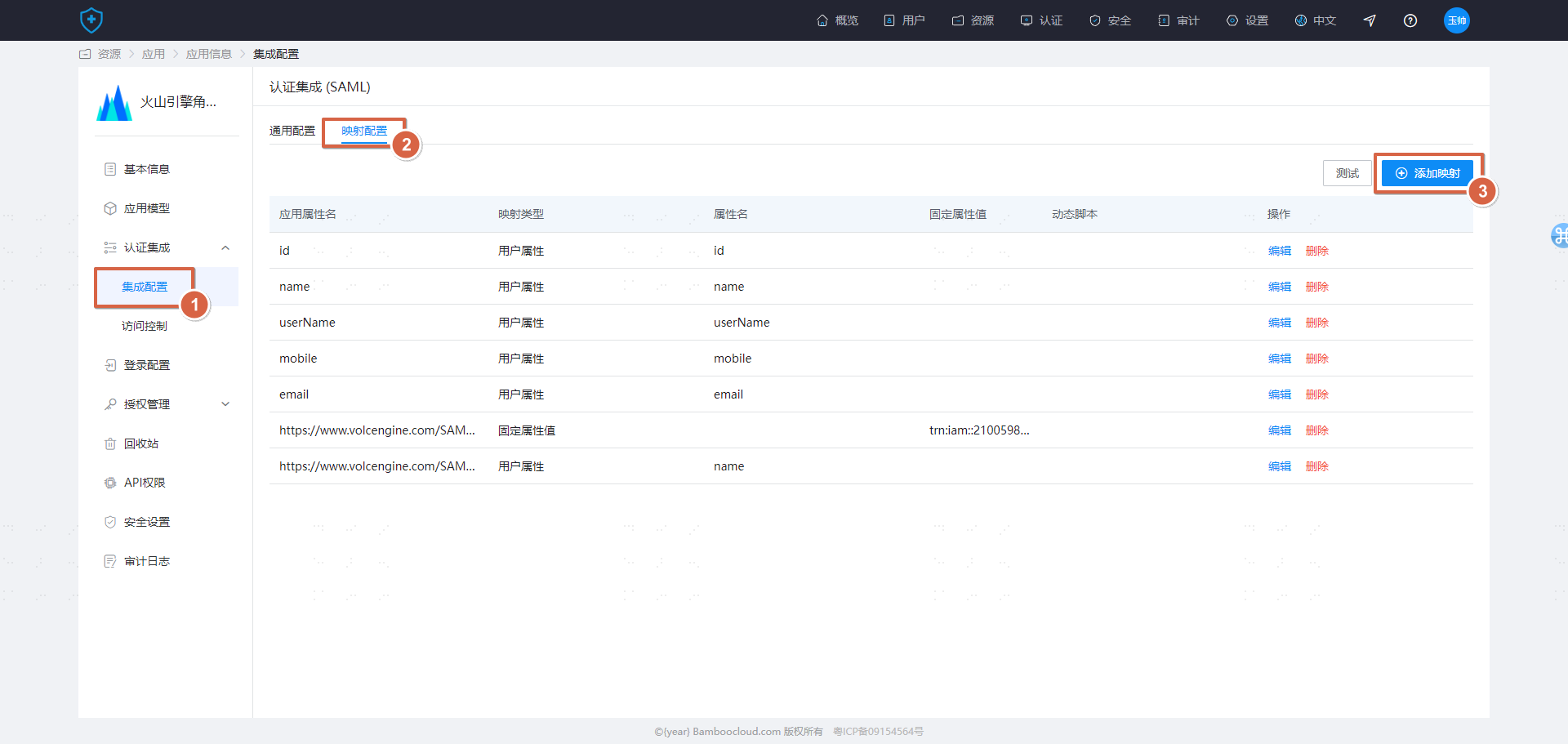
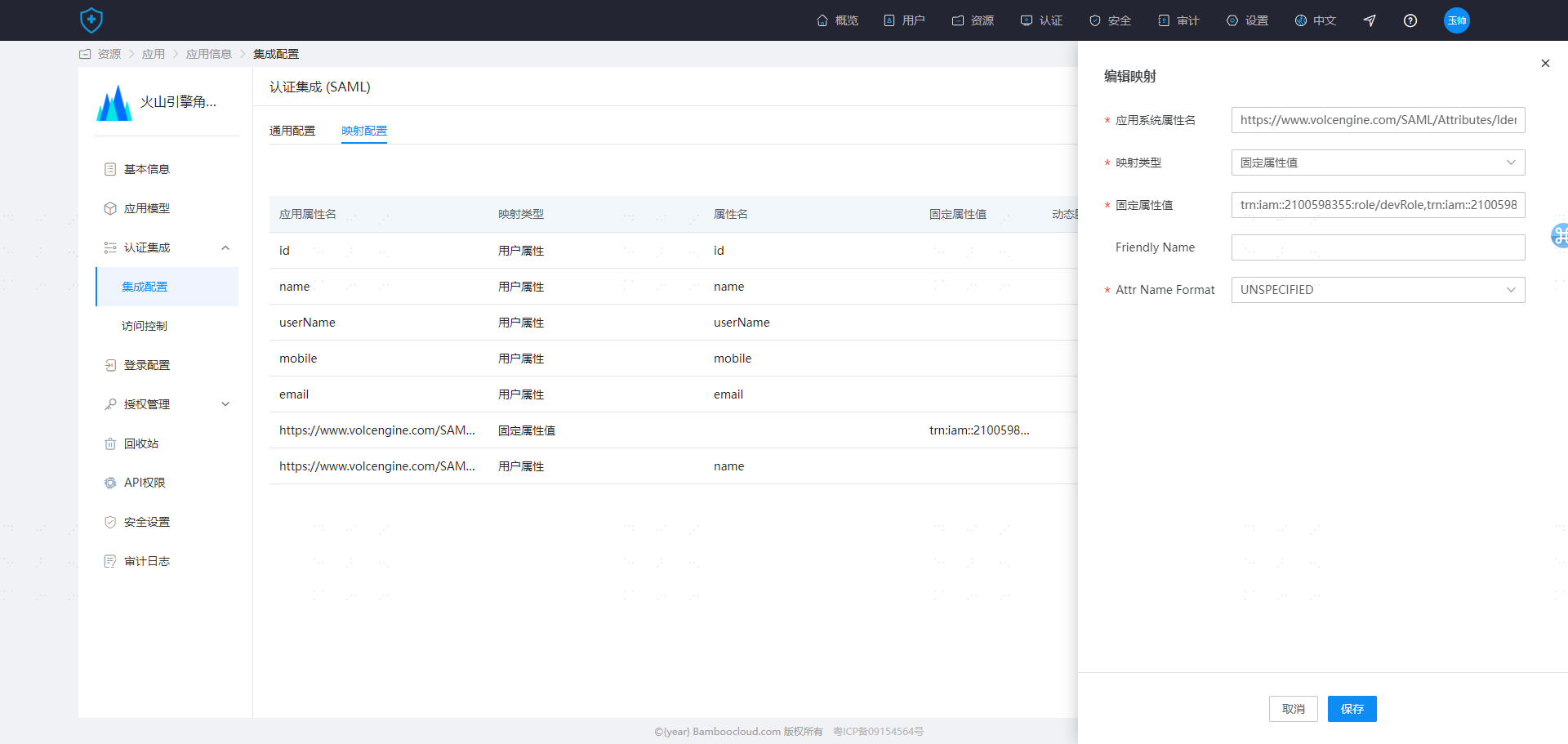
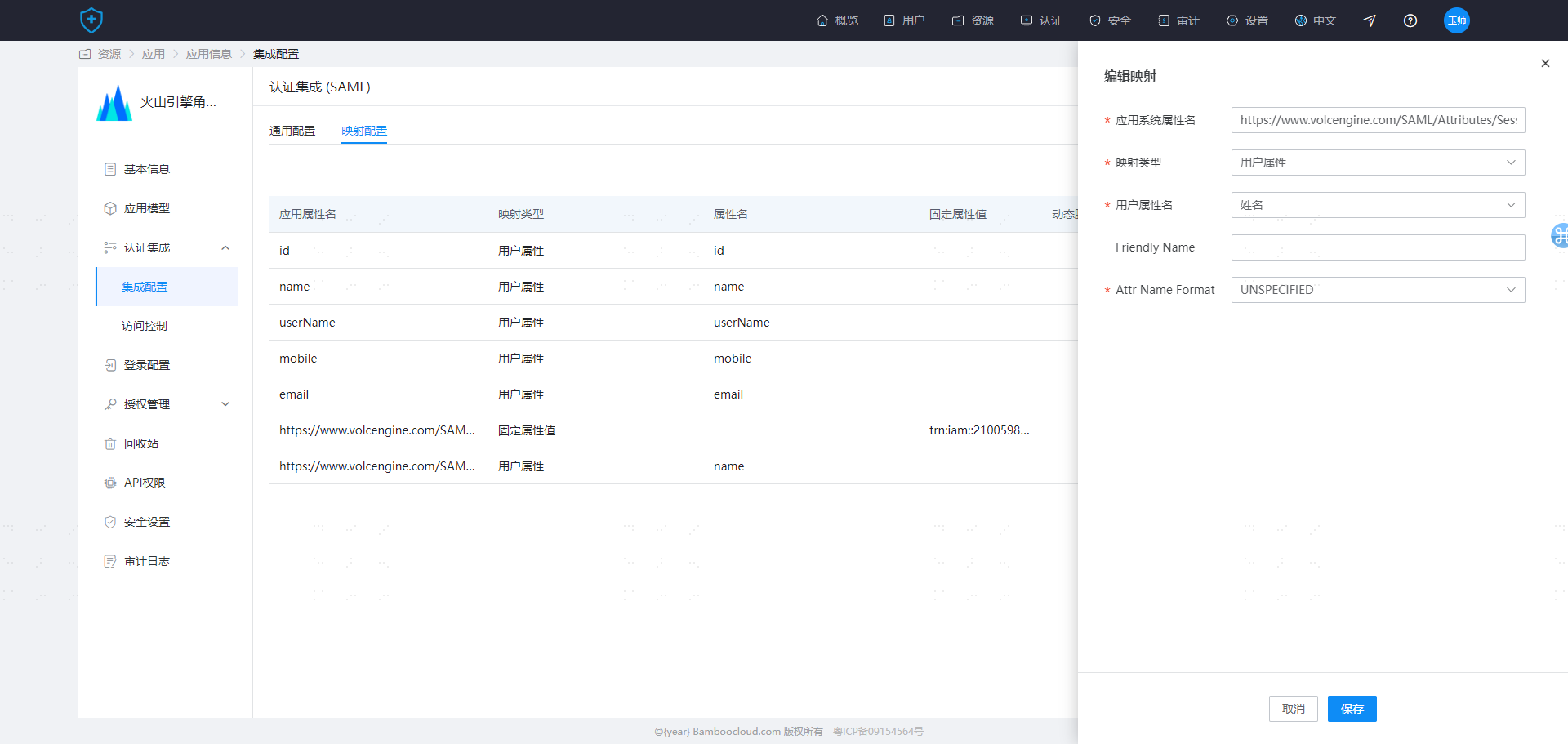
Add the following two configurations:
| Application System Attribute Name | Mapping Type | Fixed Attribute Value | Attr Name Format |
|---|---|---|---|
| https://www.volcengine.com/SAML/Attributes/Identity | Fixed Attribute Value | trn:iam::210059xxxxx:role/devRole,trn:iam::210059xxxxx:saml-provider/IDaaS_Role_sso (to be customized by the enterprise) | UNSPECIFIED |
| https://www.volcengine.com/SAML/Attributes/SessionName | User Attribute | Name | UNSPECIFIED |
Attribute description (for more details, refer to the Volcano Engine official description: https://www.volcengine.com/docs/6257/1130112)
https://www.volcengine.com/SAML/Attributes/Identity
The value of this attribute is used to declare the information of the IAM role used for SSO login. It contains at least one attribute value, and can contain multiple attribute values. That is, one enterprise user can map to multiple roles. If there are multiple roles, they will be listed on the login page for selection. The value is the role TRN (the role TRN can be obtained on the role details page).
The format is:trn:iam:: ${AccountID}:role/${RoleName},trn:iam:: ${AccountID}:saml-provider/ ${SAMLProviderName}.
Where AccountID is your Volcano Engine account ID, RoleName is the IAM role name, and SAMLProviderName is the identity provider name.
Example:trn:iam::210059xxxxx:role/devRole,trn:iam::210059xxxxx:saml-provider/BambooCloud IDaaS_Role_ssohttps://www.volcengine.com/SAML/Attributes/SessionName
The value of this attribute is used to specify the session name. It must contain one attribute value. The attribute value can be customized and is used for display after login and for auditing.
Test Verification
Create a user in BambooCloud IDaaS and assign it to the Volcano Engine application. 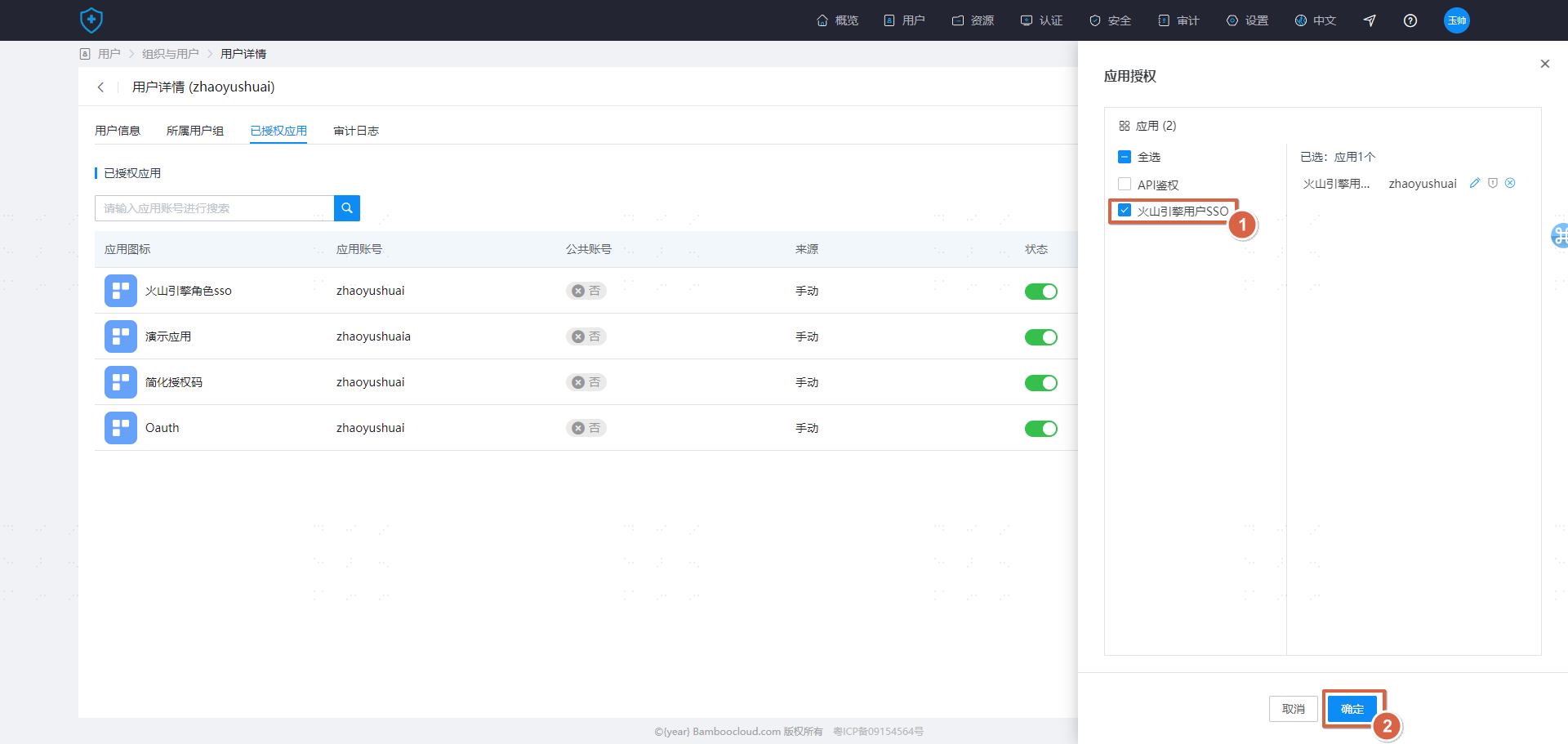
- Access from Volcano Engine login (SP-initiated)
On the Volcano Engine login page, select the Enterprise Federation Login login method, enter the account ID/main account username, and then select the corresponding identity provider BambooCloud IDaaS_Role_SSO. After jumping to BambooCloud IDaaS, perform account password login verification. 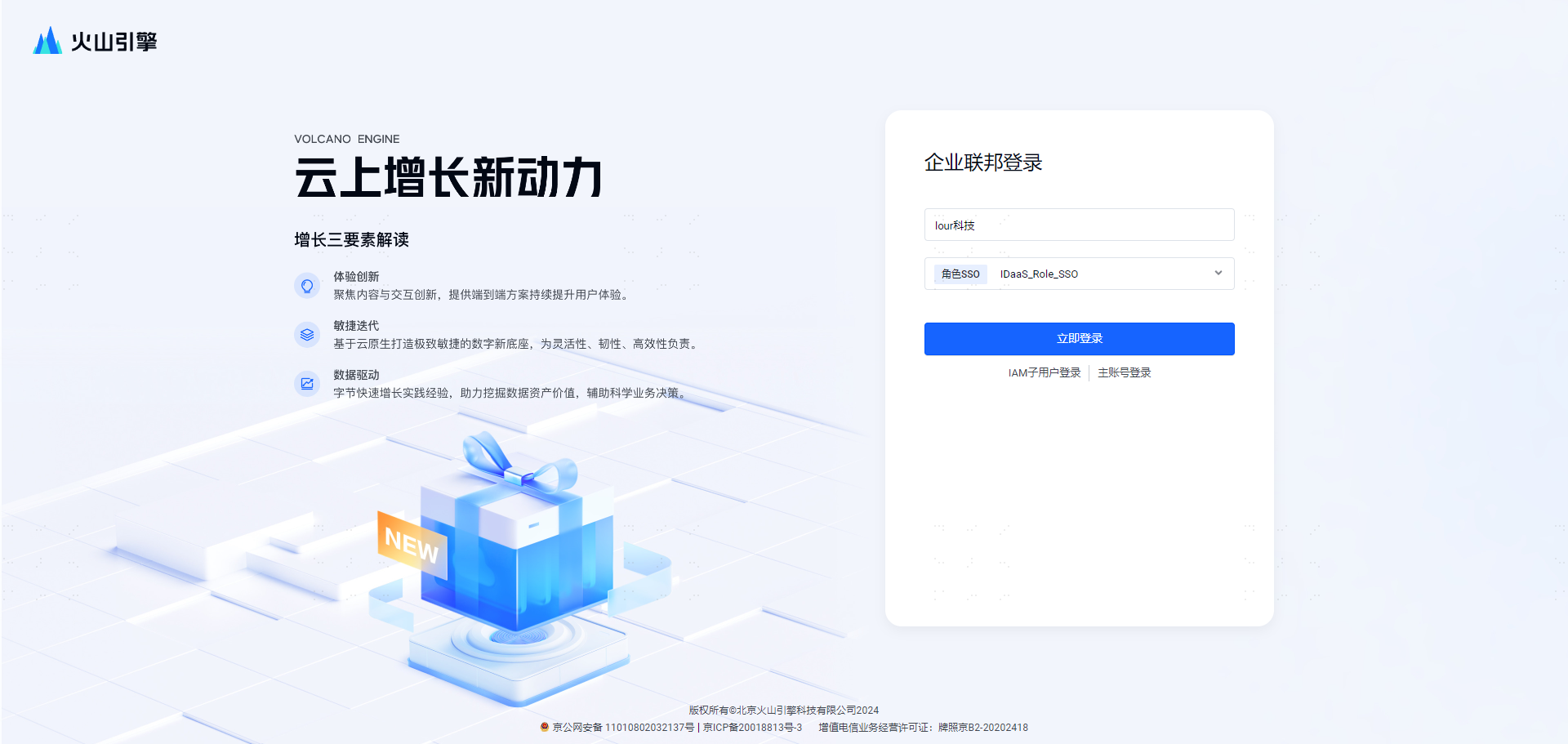 If after login, the role login is displayed, the configuration is successful.
- Access from BambooCloud IDaaS User Center (IDP-initiated)
After logging in to the BambooCloud IDaaS User Center, click the Volcano Engine card and check the Volcano Engine login identity. If the role login is displayed, the configuration is successful.