JIRA & Confluence SAML Plugin Authentication
Overview
This article is a plugin configuration guide. JIRA and Confluence versions 7.0 and above come with SSO 2.0 configuration. Please refer to JIRA & Confluence SSO Configuration.
Authentication Configuration
Confluence or Jira Configuration
Add Plugin
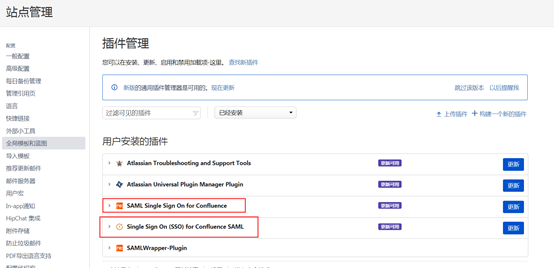
The user logs in to Confluence, finds Plugin Management in the management console, searches for and adds the SAML Single Sign On for Confluence plugin or Single Sign On(SSO) for Confluence SAML. Either one is sufficient.
DANGER
Plugin activation requires a License.
Plugin Configuration
To download the BambooCloud IDaaS IDP metadata, visit https://{your_domain}/api/v1/saml2/idp/metadata.
SAML Single Sign On for Confluence Plugin Configuration:
The IDP configuration parameters are as follows. Other parameters can be kept default:
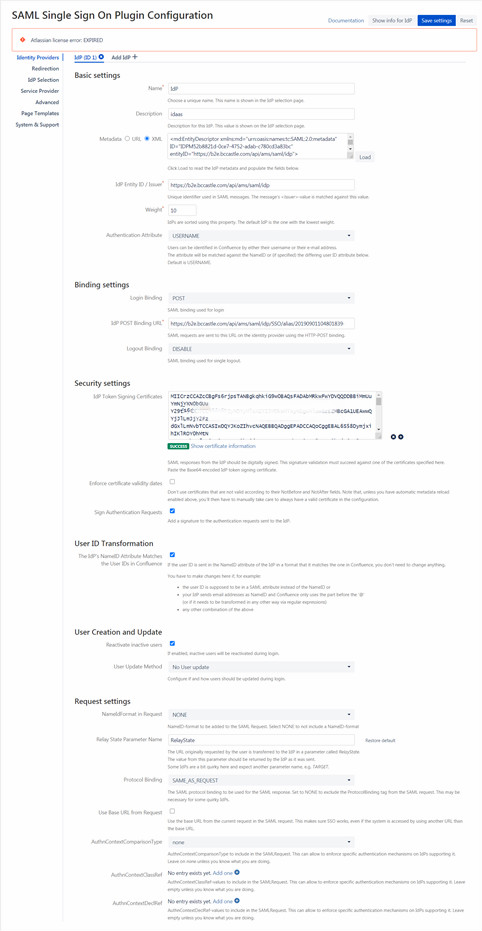
Parameter Parameter Description Name Custom Metadata IDP metadata, can be filled with URL address or XML file content IdP Entity ID / Issuer IDP EntityId Login Binding POST IdP POST Binding URL IDP SSO URL IdP Token Signing Certificates IDP certificate Click show info for IdP to automatically generate parameters, which will be used in the subsequent BambooCloud IDaaS application parameter configuration:
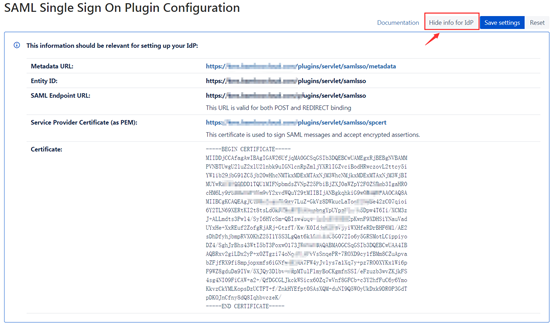
Parameter Parameter Description Entity ID SP Entity ID SAML Endpoint URL Assertion Consumer Service URL (ACS URL) Service Provider Certificate (as PEM) Download PEM format certificate Certificate Verification signature certificate
miniOrange SAML Single Sign-On Configuration Plugin:
Click the Service Provider Info tab to automatically generate parameters, which will be used in the subsequent BambooCloud IDaaS application parameter configuration:
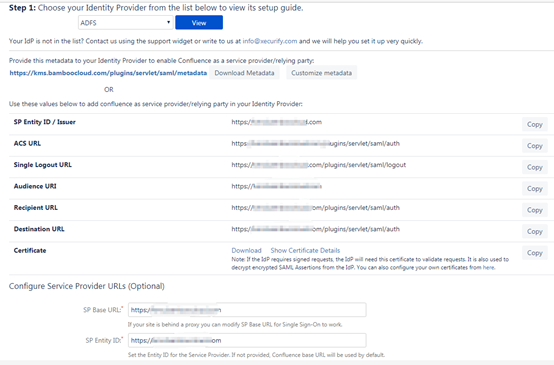
Parameter Parameter Description SP Entity ID /Issuer SP Entity ID ACS URL Assertion Consumer Service URL (ACS URL) Audience URI Audience URI Certificate Verification signature certificate Click the Configure IDP tab to edit IDP information.
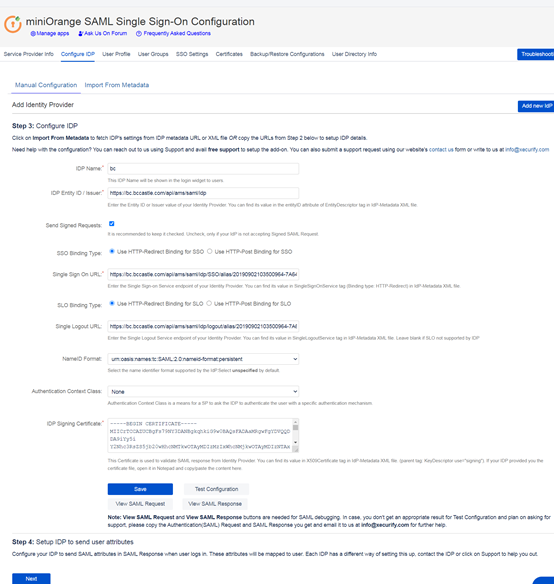
Parameter Parameter Description IDP Name Custom IDP Entity ID/Issuer IDP EntityId Send Signed Requests Request signature, check SSO Binding Type Select Use HTTP-Redirect Binding for SSO Single Sign On URL IDP SSO URL NameID Format Select SAML:2.0 nameid-format persistent; (must be consistent with BambooCloud IDaaS application configuration) IDP Signing Certificate IDP certificate
BambooCloud IDaaS Configuration
Log in to the BambooCloud IDaaS Enterprise Center, choose Resources > Applications > Pre-integrated Applications, and add the built-in application Confluence or Jira.
Configure authentication parameters.
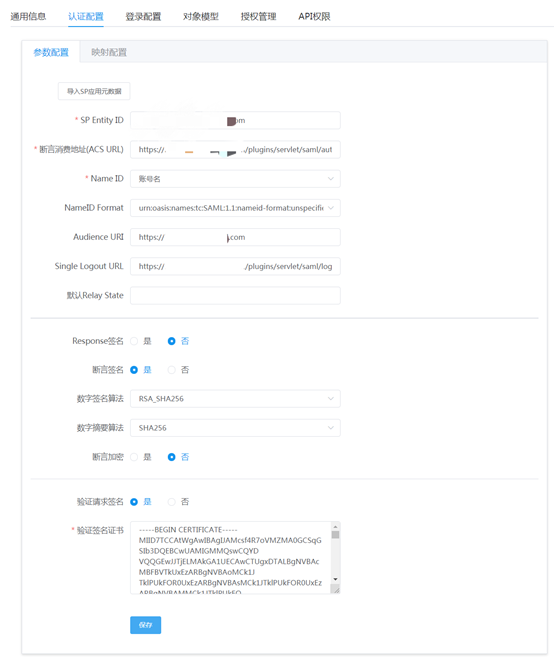
Parameter Parameter Description SP Entity ID SP Entity ID / Issuer in Confluence configuration Assertion Consumer Service URL (ACS URL) ACS URL NameID Select account name NameID Format Select Audience URI Audience URI Verify Request Signature Yes Verify Signature Certificate Certificate of Confluence or Jira Configure mapping parameters (add username attribute).
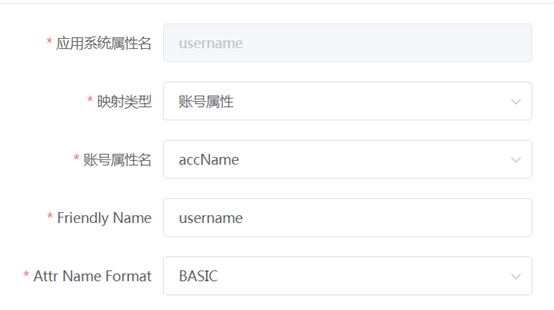
After configuration is complete, switch to the Authorization Management > Application Account tab to add an account. The application account name here should be consistent with the account name in Confluence or Jira.
Login Verification
Application-Initiated Login
Click the Use Corporate Login button to automatically jump to the BambooCloud IDaaS authentication center for login. 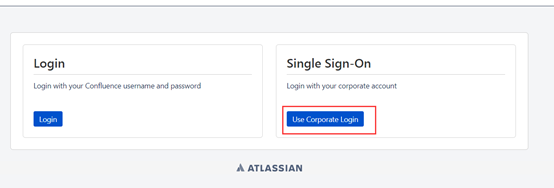
BambooCloud IDaaS-Initiated Login
Log in to the BambooCloud IDaaS User Center, click the application logo, and single sign-on into the application system.