SAP Cloud for Customer Single Sign-On
Overview
This article describes the single sign-on configuration process between SAP Cloud for Customer and BambooCloud IDaaS based on the SAML protocol.
Authentication Configuration
SAP Cloud for Customer Configuration
Log in to the console as an administrator, go to Administrator > Business Configuration > Configure Single Sign-On.
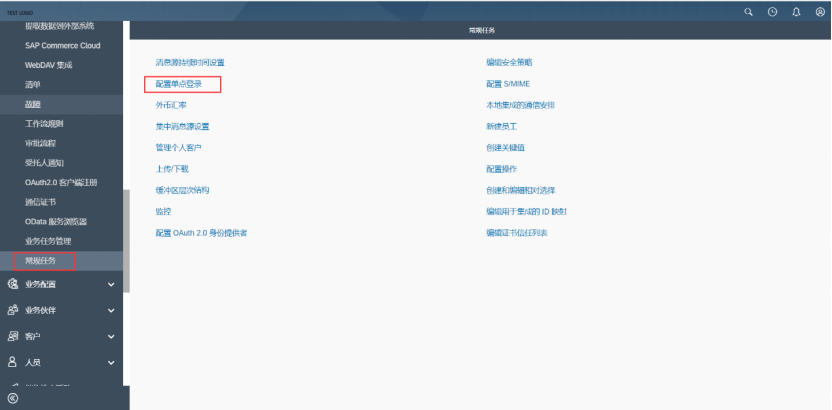
Click the SP Metadata button to download the SP metadata.
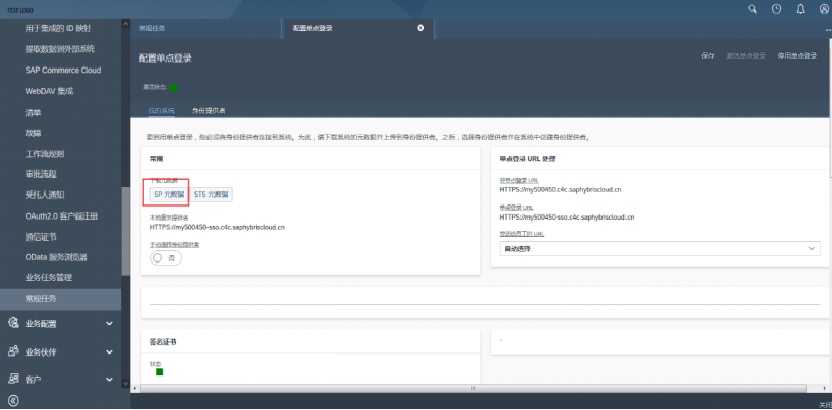
Click the Identity Provider tab, create a new identity provider. Here you need to import the IDP metadata. To download BambooCloud IDaaS IDP metadata, visit
https://{your_domain}/api/v1/saml2/idp/metadata.
BambooCloud IDaaS Configuration
In the Enterprise Center, go to Resources > Applications > Pre-integrated Applications > Add Pre-integrated Application, search for SAP, and select SAP Cloud for Customer.
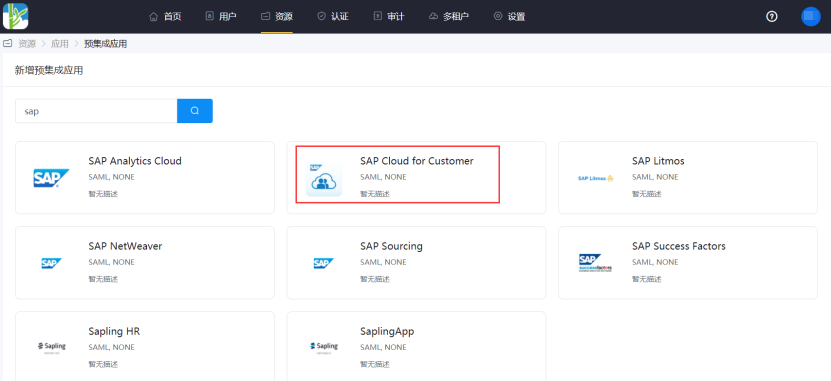
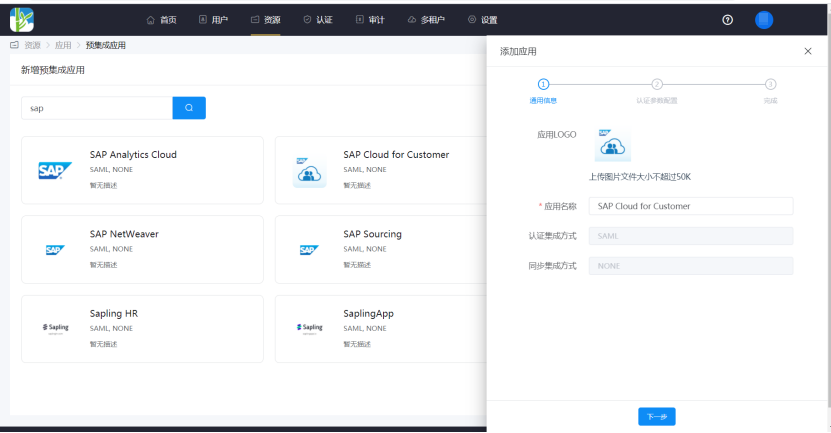
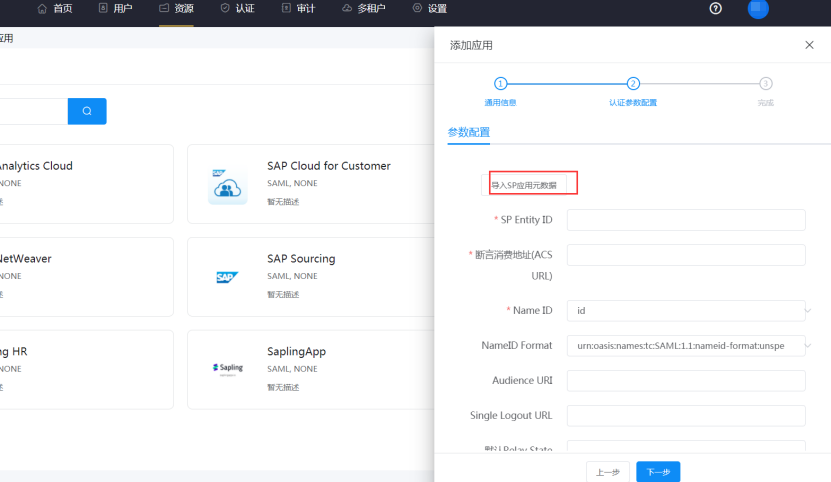
For authentication configuration, import the SP metadata saved in the steps above.
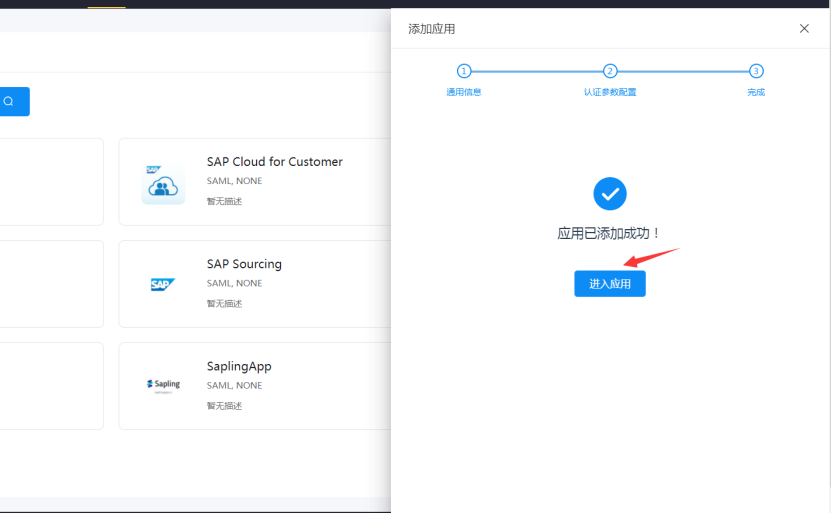
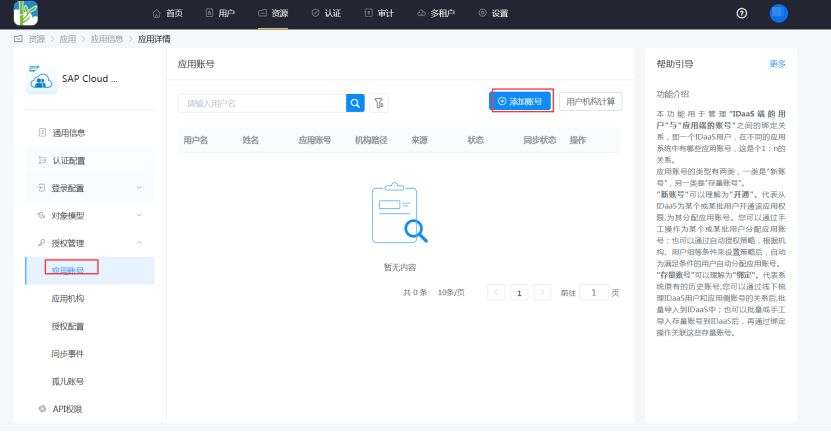
Enter the application details, Authorization Management > Application Account, click the Add Account button, and select the authorized user.
Login Verification
Two login methods are as follows:
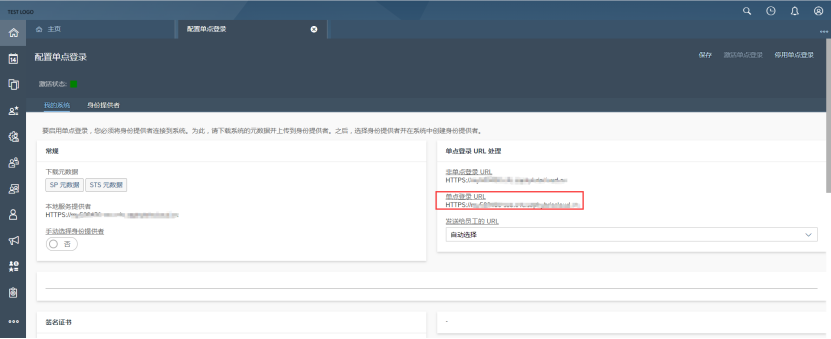
Initiate login from the SAP Cloud for Customer side. Visiting the single sign-on URL will automatically redirect to the BambooCloud IDaaS authentication interface. Enter the BambooCloud IDaaS username and password to log in.
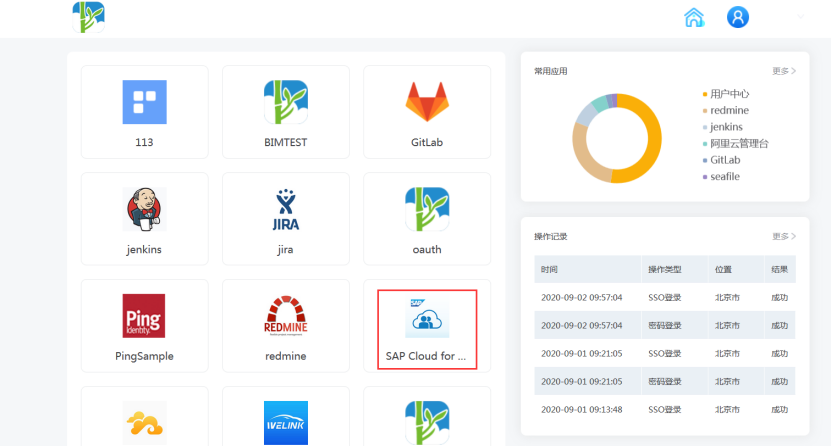
Log in through the BambooCloud IDaaS User Center and click the SAP Cloud for Customer logo to enter the application.